
How to Fix VAN 9001 in Valorant (TPM 2.0 and Secure Boot) – 2026
VAN 9001 means Riot Vanguard found TPM 2.0, Secure Boot or both switched off on a Windows 11 PC. Valorant and League of Legends will not start until both are on. The fix takes about ten minutes: check both in Windows, then turn on the firmware TPM (AMD fTPM or Intel PTT) and Secure Boot in your BIOS. Nothing is deleted and you do not need to reinstall Windows.
VAN 9001
What causes VAN 9001
On Windows 11, Vanguard only runs when the PC proves it started cleanly. That proof comes from two security features: the TPM 2.0 chip (on most PCs a part of the CPU called fTPM or PTT) and Secure Boot. Many motherboards ship with one or both switched off, and a BIOS reset or update can switch them off again.
A third reason is the old boot mode: if the PC starts in Legacy / CSM mode, Secure Boot cannot be turned on at all until the disk is converted to GPT.
How to fix VAN 9001 in Windows
Check your TPM
tpm.msc and press Enter. The TPM is ready for use with Specification Version 2.0 is what you want. Compatible TPM cannot be found means the firmware TPM is switched off in the BIOS. Almost every AMD Ryzen CPU (fTPM) and Intel CPU of the last years (PTT) has one built in.Check how your PC starts
msinfo32 and press Enter. In System Summary look at BIOS Mode and Secure Boot State. BIOS Mode UEFI is what you want. Legacy means your PC starts in the old mode, and Secure Boot cannot be turned on until the disk is converted (next step).Suspend BitLocker first (if it is on)
manage-bde -protectors -disable C: -RebootCount 2. It turns itself back on after two restarts. Check that you can see your recovery key at aka.ms/myrecoverykey before you go on.Only if BIOS Mode says Legacy: convert the disk to GPT
mbr2gpt /validate /allowFullOS. If it says validation completed successfully, run mbr2gpt /convert /allowFullOS. From now on the PC can only start in UEFI mode, so turn CSM off in the BIOS right away (BIOS steps below), or Windows will not start.How to fix it in the BIOS
This part happens in your PC's firmware setup (the BIOS), so open this page on your phone first. Menu names change a little between BIOS versions: if a path below does not match, look for the words in bold.
Restart into the BIOS
shutdown /r /fw /t 0 in Terminal (Admin). You can also press Del right after switching the PC on (desktops; F2 on many laptops and some ASRock and MSI boards).Change these settings
- Turn on the firmware TPM: AMD fTPM (often Firmware TPM) on AMD, Intel PTT (Platform Trust Technology) on Intel.
- Turn CSM (Compatibility Support Module, Legacy boot) off so the PC starts in UEFI mode. Only when
msinfo32shows BIOS Mode UEFI or after the GPT conversion above, or Windows will not start. - Turn on Secure Boot and install the default keys (Install default Secure Boot keys or Restore Factory Keys). Secure Boot mode Standard, OS type Windows UEFI mode.
Where to find them on your board:
ASUS
TPM 2.0 (AMD fTPM / Intel PTT): Advanced > AMD fTPM configuration > Firmware TPM (AMD), or Advanced > PCH-FW Configuration > PTT (Intel)
CSM off (UEFI only): Boot > CSM > Launch CSM: Disabled
Secure Boot: Boot > Secure Boot > OS Type: Windows UEFI mode, then Key Management > Install Default Secure Boot keys
MSI
TPM 2.0 (AMD fTPM / Intel PTT): Settings > Security > Trusted Computing > Security Device Support: Enable, then AMD CPU fTPM or Intel PTT
CSM off (UEFI only): Settings > Advanced > Windows OS Configuration > BIOS UEFI/CSM Mode: UEFI (on some boards: Windows 10/11 WHQL Support: Enabled)
Secure Boot: Settings > Advanced > Windows OS Configuration > Secure Boot: Enabled, Secure Boot Mode: Standard
Gigabyte (AORUS)
TPM 2.0 (AMD fTPM / Intel PTT): Settings > Miscellaneous > AMD CPU fTPM (AMD) or Intel Platform Trust Technology (PTT) (Intel)
CSM off (UEFI only): Boot > CSM Support: Disabled
Secure Boot: Boot > Secure Boot: Enabled, Secure Boot Mode: Standard (or Restore Factory Keys)
ASRock
TPM 2.0 (AMD fTPM / Intel PTT): Advanced > CPU Configuration > AMD fTPM switch (AMD), or Security > Intel Platform Trust Technology (Intel)
CSM off (UEFI only): Boot > CSM (Compatibility Support Module): Disabled
Secure Boot: Security > Secure Boot: Enabled, then Install Default Secure Boot Keys
Laptops and prebuilt PCs
HP: Esc then F10, Advanced > Secure Boot Configuration, Security > TPM Embedded Security, Advanced > System Options > Virtualization Technology.
Lenovo: F1 on ThinkPad, F2 or the Novo button on IdeaPad and Legion, Security > Secure Boot, Security > Security Chip, Security > Virtualization.
ASUS: F2, Security > Secure Boot Control, Advanced > Trusted Computing.
Acer: F2, set a Supervisor password first or Secure Boot stays greyed out, then Boot > Secure Boot and Security > TPM.
MSI: Del, Security > Secure Boot, Advanced > Trusted Computing.
Gigabyte / AORUS: F2, Security > Secure Boot, Advanced > Trusted Computing.
Save and restart
Fix it in one click with RIP Tweaks (free)
RIP Tweaks 6.9.3 has a free anti-cheat error fixer. Open Fixes, then Anti-cheat errors, and paste VAN 9001 or pick your game. The app first checks what your PC has right now (for example Secure Boot: Off, TPM: On) and shows only the steps still missing.
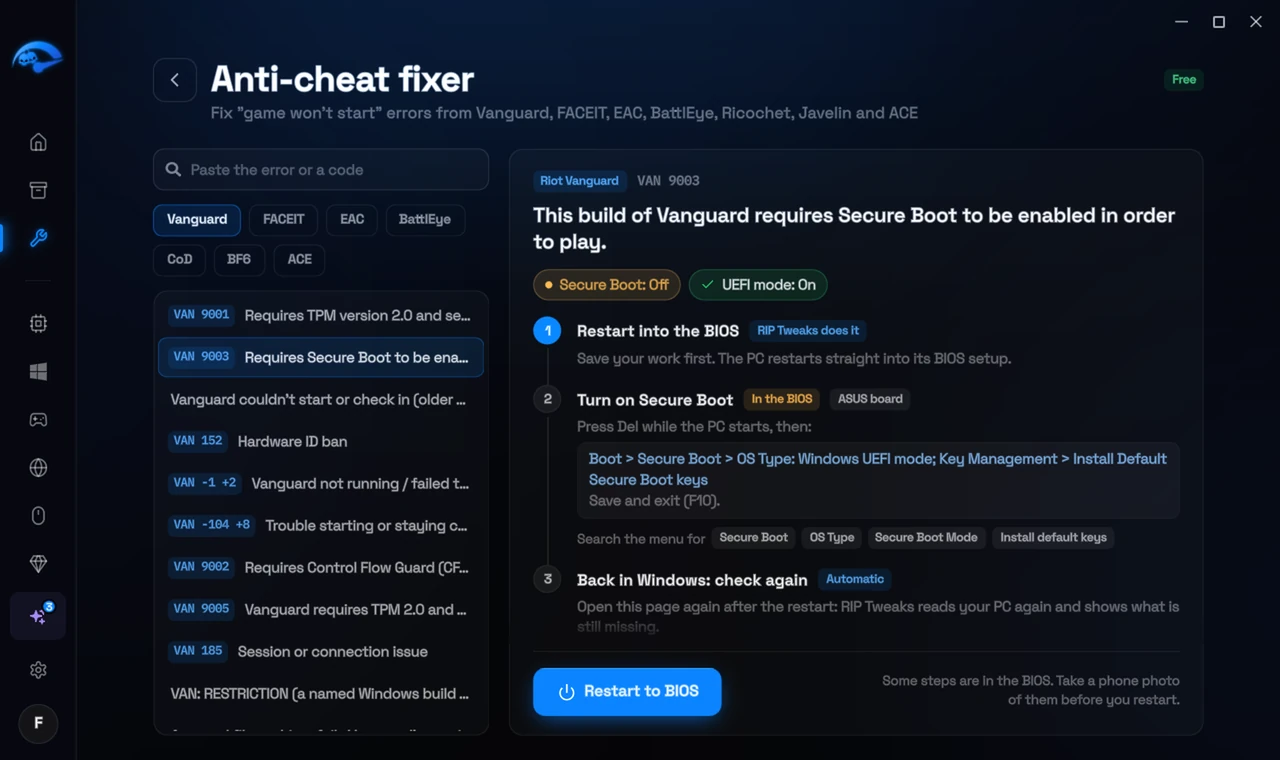
It fixes the Windows side itself
It takes you into the BIOS with the right card
It checks again after the restart
The fixer is free in every plan, also without an account. Download RIP Tweaks (free)
Check that it worked
Back in Windows, open msinfo32: Secure Boot State should say On and BIOS Mode UEFI. tpm.msc should show The TPM is ready for use, version 2.0. Then restart the Riot Client and start Valorant. If VAN 9001 is gone but you now see VAN 9003, only Secure Boot is still missing.
Frequently asked questions
Why do I get VAN 9001 on Windows 11 but not on Windows 10?
Riot only enforces TPM 2.0 and Secure Boot on Windows 11, because every Windows 11 PC is meant to have both. On Windows 10 Vanguard does not ask for them in the usual case.
I have TPM 2.0 but still get VAN 9001. Why?
Then Secure Boot is the missing part, or the PC starts in Legacy mode. Check Secure Boot State in msinfo32. If BIOS Mode says Legacy, convert the disk with MBR2GPT and turn CSM off before Secure Boot.
How do I know if my PC has TPM 2.0?
Press Win + R, type tpm.msc and press Enter. If it says the TPM is ready for use and Specification Version is 2.0, you have it. If it says no compatible TPM was found, the firmware TPM is usually just switched off in the BIOS.
Do I have to reinstall Windows to turn on Secure Boot?
No. If msinfo32 already says BIOS Mode UEFI, you only switch Secure Boot on in the BIOS. If it says Legacy, Microsoft's MBR2GPT tool converts the disk without deleting anything, and then you turn CSM off and Secure Boot on.
Secure Boot is greyed out in my BIOS. What now?
Turn CSM off first and save, then open the BIOS again: Secure Boot unlocks once the PC starts in UEFI mode. On some boards you also have to install the default keys, and on Acer laptops you must set a Supervisor password before Secure Boot can be changed.
BitLocker asks for a recovery key after the change. What do I do?
Enter the 48-digit key from aka.ms/myrecoverykey (signed in with the Microsoft account of that PC), or from where you saved it. That is why you suspend BitLocker before changing BIOS settings: then it does not ask.
Can changing these settings get me banned?
No. These are the anti-cheat's own requirements, and the publisher asks you to change them. Bans come from cheats and tools that tamper with the game, never from turning on Windows security features.
Sources
- Riot Support: Vanguard error codes (updated 22 May 2026)
- Microsoft Support: Enable TPM 2.0 on your PC (checked 15 November 2026)
- Microsoft Learn: MBR2GPT.EXE (checked 15 November 2026)
All anti-cheat errors: Anti-Cheat Error Fixes. Related: How to Fix VAN 9003 in Valorant (Secure Boot) – 2026 and How to Fix VAN 1067 in Valorant (2026 Guide).