
How to Fix VAN 25 and VAN 128 (Vanguard Trust Check Failed) – 2026
VAN 25 and VAN 128 mean Vanguard does not trust how Windows started, usually because Test Mode (test signing) or disabled driver integrity checks are on. Suspend BitLocker, turn test signing, nointegritychecks and kernel debugging off with three bcdedit lines, restart, and Vanguard starts.
VAN 25 / VAN 128
What causes VAN 25 / VAN 128
Test signing lets Windows load unsigned drivers, which cheats need. Some modding tools, driver tools and old guides switch it on, and you see Test Mode in the bottom right corner of the desktop. Vanguard refuses to run with test signing, nointegritychecks or kernel debugging on.
How to fix VAN 25 / VAN 128 in Windows
Suspend BitLocker first (if it is on)
manage-bde -protectors -disable C: -RebootCount 2. It turns itself back on after two restarts. Check that you can see your recovery key at aka.ms/myrecoverykey before you go on.Turn off test signing and kernel debugging
bcdedit /set testsigning off, bcdedit /set nointegritychecks off and bcdedit /debug off. The words Test Mode in the bottom right corner of the desktop disappear after the restart. If one line says the value is protected by Secure Boot, it is already off.Reinstall Riot Vanguard
sc delete vgc and sc delete vgk in Terminal (Admin), restart and start the Riot Client.Fix it in one click with RIP Tweaks (free)
RIP Tweaks 6.9.3 has a free anti-cheat error fixer. Open Fixes, then Anti-cheat errors, and paste VAN 25 / VAN 128 or pick your game. The app first checks what your PC has right now (for example Secure Boot: Off, TPM: On) and shows only the steps still missing.
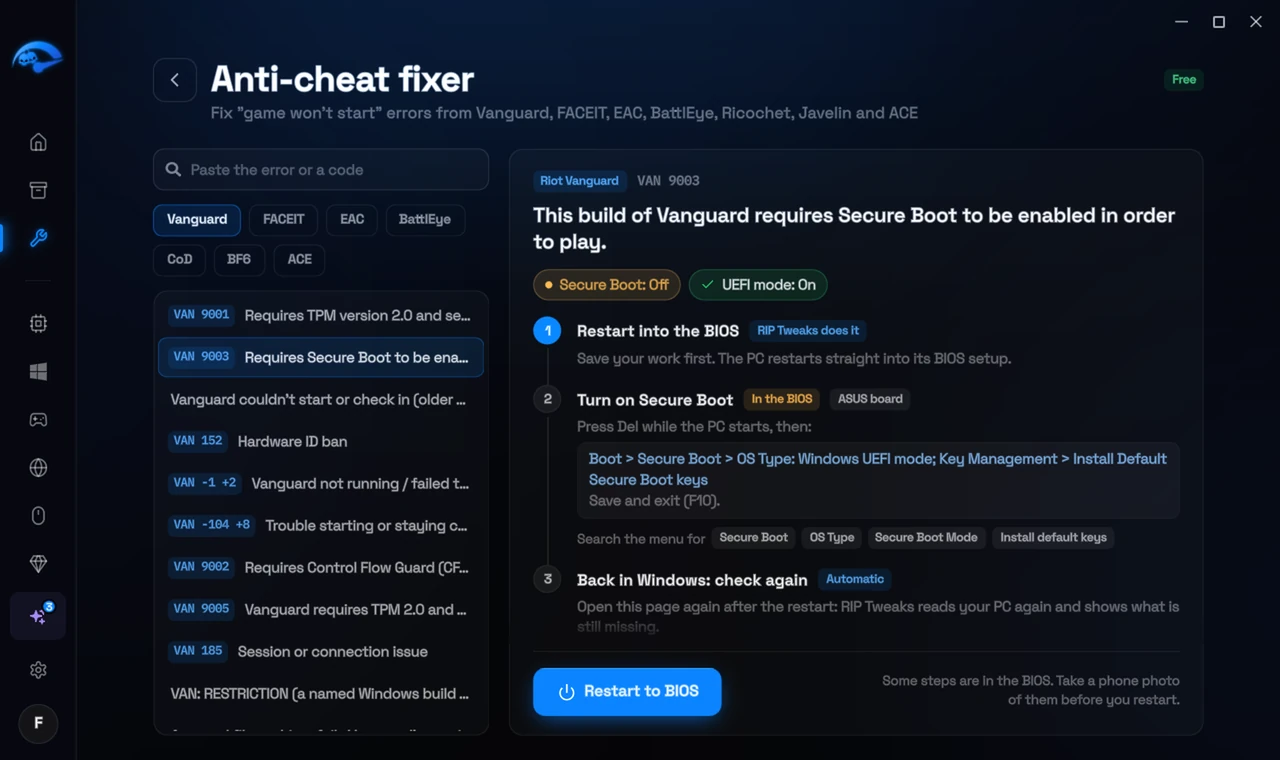
It fixes the Windows side itself
It takes you into the BIOS with the right card
It checks again after the restart
The fixer is free in every plan, also without an account. Download RIP Tweaks (free)
Check that it worked
After the restart, the Test Mode text is gone from the desktop. In Terminal (Admin), bcdedit /enum {current} no longer shows testsigning Yes. Start the Riot Client.
Frequently asked questions
Why did Test Mode turn on?
A tool that installs unsigned drivers turned it on: some modding, controller, RGB or driver tools do. If you need that tool, you cannot use it while you play Valorant.
Does Secure Boot fix this?
Yes, with Secure Boot on, Windows ignores test signing. Turning Secure Boot on is a good idea anyway.
Can changing these settings get me banned?
No. These are the anti-cheat's own requirements, and the publisher asks you to change them. Bans come from cheats and tools that tamper with the game, never from turning on Windows security features.
BitLocker asks for a recovery key after the change. What do I do?
Enter the 48-digit key from aka.ms/myrecoverykey (signed in with the Microsoft account of that PC), or from where you saved it. That is why you suspend BitLocker before changing BIOS settings: then it does not ask.
Sources
- Riot Support: Vanguard error codes (updated 22 May 2026)
All anti-cheat errors: Anti-Cheat Error Fixes. Related: How to Fix VAN 193 in Valorant (2026) and How to Fix "You Need to Disable Test Signing to Launch FACEIT AC" – 2026.