
2 min to read
Fortnite Performance Mode and NVIDIA Reflex in RIP Tweaks
The Fortnite launcher in RIP Tweaks has two switches that set Fortnite's own settings for you, the way the NVIDIA app does: Performance mode and NVIDIA Reflex. They read Fortnite's settings file, so they always show what the game is set to right now, and they change only those settings.
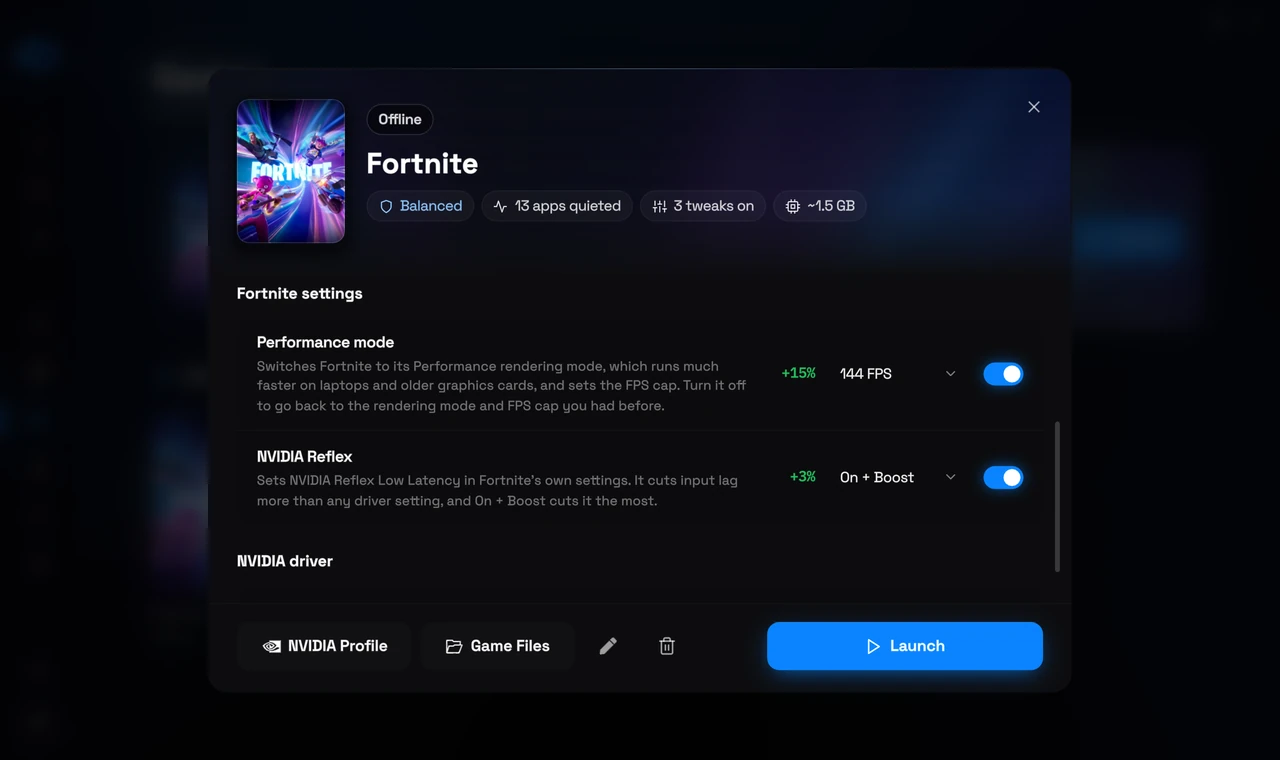
What the two switches do
Performance mode
Fortnite's Performance rendering mode: much more FPS on laptops and older graphics cards, with simpler graphics. Pick an FPS cap next to the switch. Turn it off to go back to the rendering mode and FPS cap you had before.
NVIDIA Reflex
NVIDIA Reflex Low Latency in Fortnite's own settings, for less input lag than any driver setting. Pick On or On + Boost: On + Boost cuts input lag the most. This switch shows on PCs with an NVIDIA graphics card.
How to turn them on
1
Open Fortnite
In the app, open Games in the sidebar and click Fortnite.
2
Turn on the switches
Scroll down to Fortnite settings. Turn on Performance mode and pick an FPS cap, then turn on NVIDIA Reflex and pick On + Boost or On.
3
Start Fortnite
The settings are already in Fortnite's file, so they work from your first match. Press Launch or start Fortnite the way you always do.
Good to know
Free in every plan
Both switches are part of the free app.
Fortnite is open?
Fortnite saves its settings when it closes, so RIP Tweaks never changes the file while the game runs. A change you make then waits and is set the next time you start Fortnite. The card says so next to its title.
Always what the game is set to
The switches read Fortnite's settings file each time you open the launcher, so a change you make in Fortnite's own menu shows here too.
Never played on this PC?
Fortnite creates its settings file the first time it runs. Start Fortnite once, then come back.
Want to try your settings in a real fight? Play our free 1v1 map, RIP Tweaks 1V1 (code 8541-1720-3175).
Related: A Game Says to Start It From the Epic Games Launcher, The Games Page and Per Game Presets.