
How to Fix "Failed to Start BattlEye Service" – 2026
"Failed to start BattlEye Service" or "Failed to install BattlEye Service" means the BEService is disabled or its files are missing. Set the BattlEye Service back to Manual, delete both BattlEye folders, verify the game files so the launcher reinstalls BattlEye, and restart.
Failed to Start BattlEye Service
What causes Failed to Start BattlEye Service
Optimizers set the BattlEye Service to Disabled, cleaners remove its files, and antivirus programs sometimes block the setup. Then Windows cannot start or install the service.
How to fix Failed to Start BattlEye Service in Windows
Set the BattlEye service to start
services.msc. Find BattlEye Service (BEService). If it says Disabled, set Startup type to Manual. The game starts it when needed.Reinstall BattlEye
Close tools that clash with the anti-cheat
Restart the PC (a real restart)
Fix it in one click with RIP Tweaks (free)
RIP Tweaks 6.9.3 has a free anti-cheat error fixer. Open Fixes, then Anti-cheat errors, and paste Failed to Start BattlEye Service or pick your game. The app first checks what your PC has right now (for example Secure Boot: Off, TPM: On) and shows only the steps still missing.
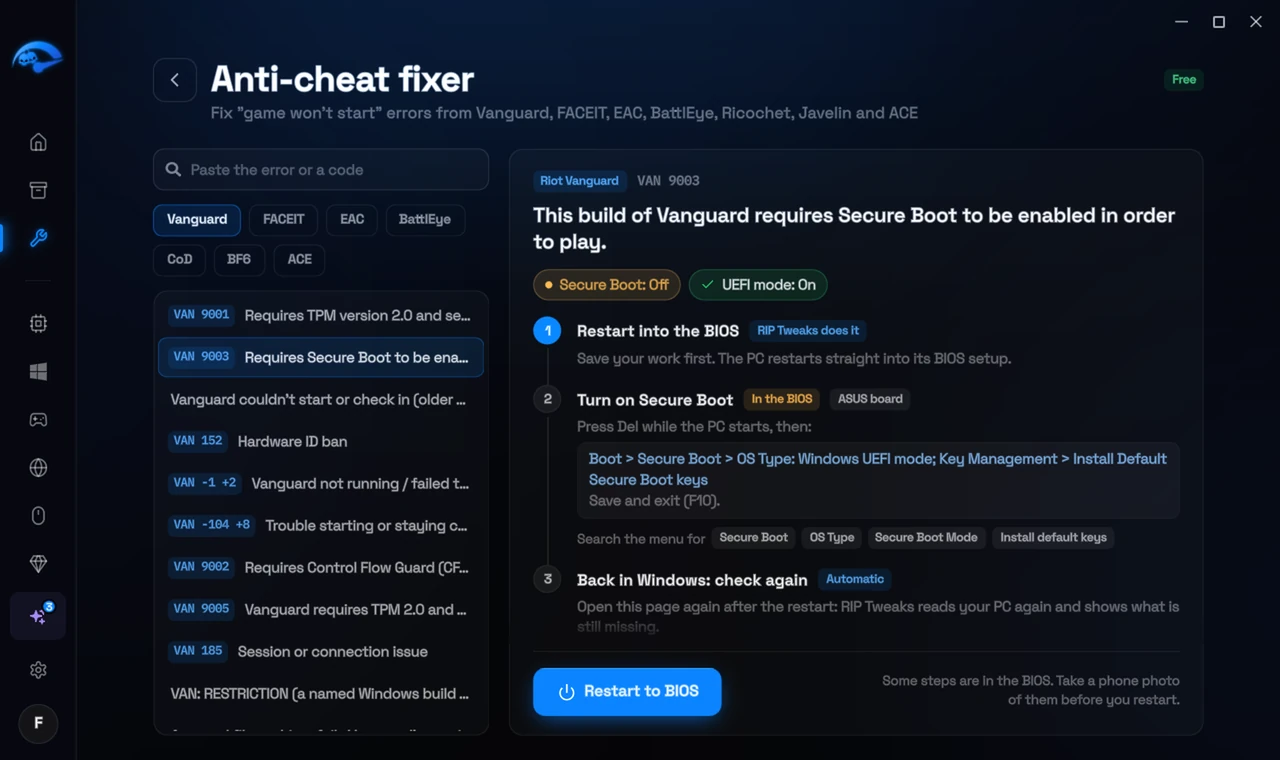
It fixes the Windows side itself
It takes you into the BIOS with the right card
It checks again after the restart
The fixer is free in every plan, also without an account. Download RIP Tweaks (free)
Check that it worked
Start the game: BattlEye installs and starts.
Frequently asked questions
Do I need to run the game as administrator?
Only for the first install of the BattlEye Service, which the launcher asks for. After that, no.
Should I reinstall the game?
Usually not. These errors come from Windows or BIOS settings, so a reinstall changes nothing. Repairing the anti-cheat itself is enough when its files are damaged.
Can changing these settings get me banned?
No. These are the anti-cheat's own requirements, and the publisher asks you to change them. Bans come from cheats and tools that tamper with the game, never from turning on Windows security features.
Sources
- BattlEye: FAQ (checked 15 November 2026)
All anti-cheat errors: Anti-Cheat Error Fixes. Related: How to Fix BattlEye "Driver Load Error (1450)" – 2026 and How to Fix BattlEye "Kernel Debugging Enabled" and Test-Signing Mode – 2026.