
How to Fix VAN 9101 (Attestation Failure) – 2026
VAN 9101 means Vanguard could not confirm, through your TPM, that the PC started cleanly. Usually it is a TPM firmware problem or a device or driver that changes the boot measurements. Update your BIOS, unplug devices you do not need, and try a clean boot. If it stays, Riot has to look at the logs.
VAN 9101
What causes VAN 9101
Attestation means the TPM signs a record of everything that started before Windows. Vanguard checks that record. It fails when the TPM firmware is old or buggy (a BIOS update fixes it), when the boot record is unreadable, or when something unusual starts early, like a USB device with its own firmware or a low-level driver.
How to fix VAN 9101 in Windows
Check your TPM
tpm.msc and press Enter. The TPM is ready for use with Specification Version 2.0 is what you want. Compatible TPM cannot be found means the firmware TPM is switched off in the BIOS. Almost every AMD Ryzen CPU (fTPM) and Intel CPU of the last years (PTT) has one built in.Unplug extra devices
Try a clean boot
msconfig. On Services, tick Hide all Microsoft services and click Disable all. In Task Manager, Startup apps, disable everything. Restart and start the game. If it works, turn things back on in small groups to find the one that clashes, then put everything back.Install every Windows update
How to fix it in the BIOS
This part happens in your PC's firmware setup (the BIOS), so open this page on your phone first. Menu names change a little between BIOS versions: if a path below does not match, look for the words in bold.
Restart into the BIOS
shutdown /r /fw /t 0 in Terminal (Admin). You can also press Del right after switching the PC on (desktops; F2 on many laptops and some ASRock and MSI boards).Update the BIOS
If it still does not work
Contact Riot Support
Fix it in one click with RIP Tweaks (free)
RIP Tweaks 6.9.3 has a free anti-cheat error fixer. Open Fixes, then Anti-cheat errors, and paste VAN 9101 or pick your game. The app first checks what your PC has right now (for example Secure Boot: Off, TPM: On) and shows only the steps still missing.
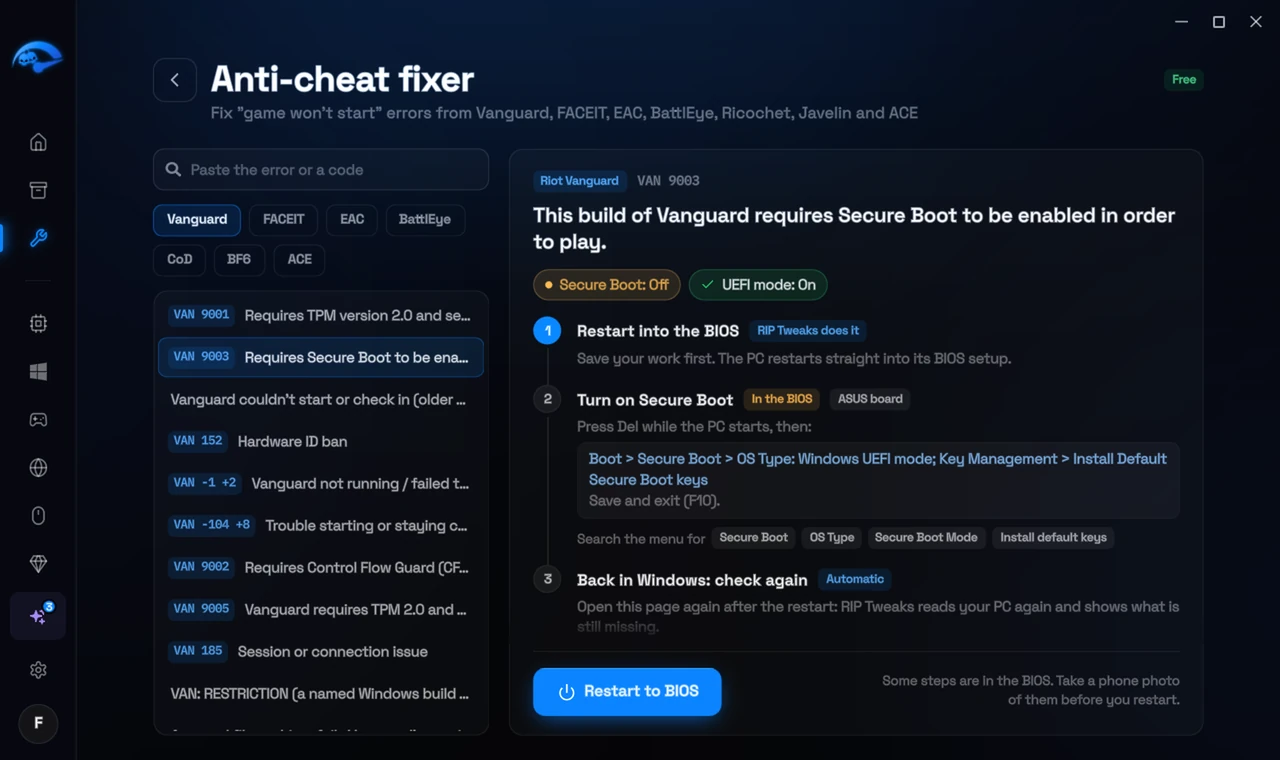
It fixes the Windows side itself
It takes you into the BIOS with the right card
It checks again after the restart
The fixer is free in every plan, also without an account. Download RIP Tweaks (free)
Check that it worked
After the BIOS update, check TPM and Secure Boot again (BIOS updates often reset them), then start the Riot Client.
Frequently asked questions
Is VAN 9101 a ban?
No. It means the attestation check failed on this start. Fix the cause and it goes away.
Does a BIOS update really help?
Often, yes. TPM firmware ships inside the BIOS, and makers fix attestation bugs in BIOS updates.
My settings were gone after a BIOS update. Is that normal?
Yes. BIOS updates often reset every setting to the default, and on some boards that turns fTPM, Secure Boot or virtualization off again. Check them again after every BIOS update.
How do I know if my PC has TPM 2.0?
Press Win + R, type tpm.msc and press Enter. If it says the TPM is ready for use and Specification Version is 2.0, you have it. If it says no compatible TPM was found, the firmware TPM is usually just switched off in the BIOS.
Sources
- Riot Support: Vanguard error codes (updated 22 May 2026)
All anti-cheat errors: Anti-Cheat Error Fixes. Related: How to Fix VAN 9090 (TPM 2.0 Failed to Initialize) – 2026 and How to Fix VAN 9001 in Valorant (TPM 2.0 and Secure Boot) – 2026.