How to Enable Legacy Performance Mode in Fortnite (2026)

Written version of our video, every step checked against it.
Quick answer
- Legacy Performance mode is Fortnite on DirectX 11. It is not in the settings menu, which only offers DirectX 12 and Performance.
- Close Fortnite, open the Epic Games Launcher, go to Library, click the three dots on Fortnite and choose Manage.
- Turn on Launch Options and paste
-USEALLAVAILABLECORES -d3d11.-d3d11forces DirectX 11, the other uses all your CPU cores. - In RIP Tweaks, create a backup, open Games, click Fortnite and pick Balanced (free) or Performance (Premium).
- NVIDIA users apply the FPS Boost Profile in the Profile Inspector, then click Launch.
This guide is for Fortnite players on PC who still get lag, stutters and choppy frames even on the Performance rendering mode. It follows our video step by step: the two launch options that turn on the hidden Legacy Performance mode in the Epic Games Launcher, then launching Fortnite through RIP Tweaks with a quiet PC and an NVIDIA FPS Boost profile behind it.
In this video
Open Fortnite's Video settings and look at Rendering Mode. The list has only two entries: DirectX 12 and Performance. There is no DirectX 11 entry, which is why most players never find the legacy mode.
SettingsVideoDisplayRendering Mode
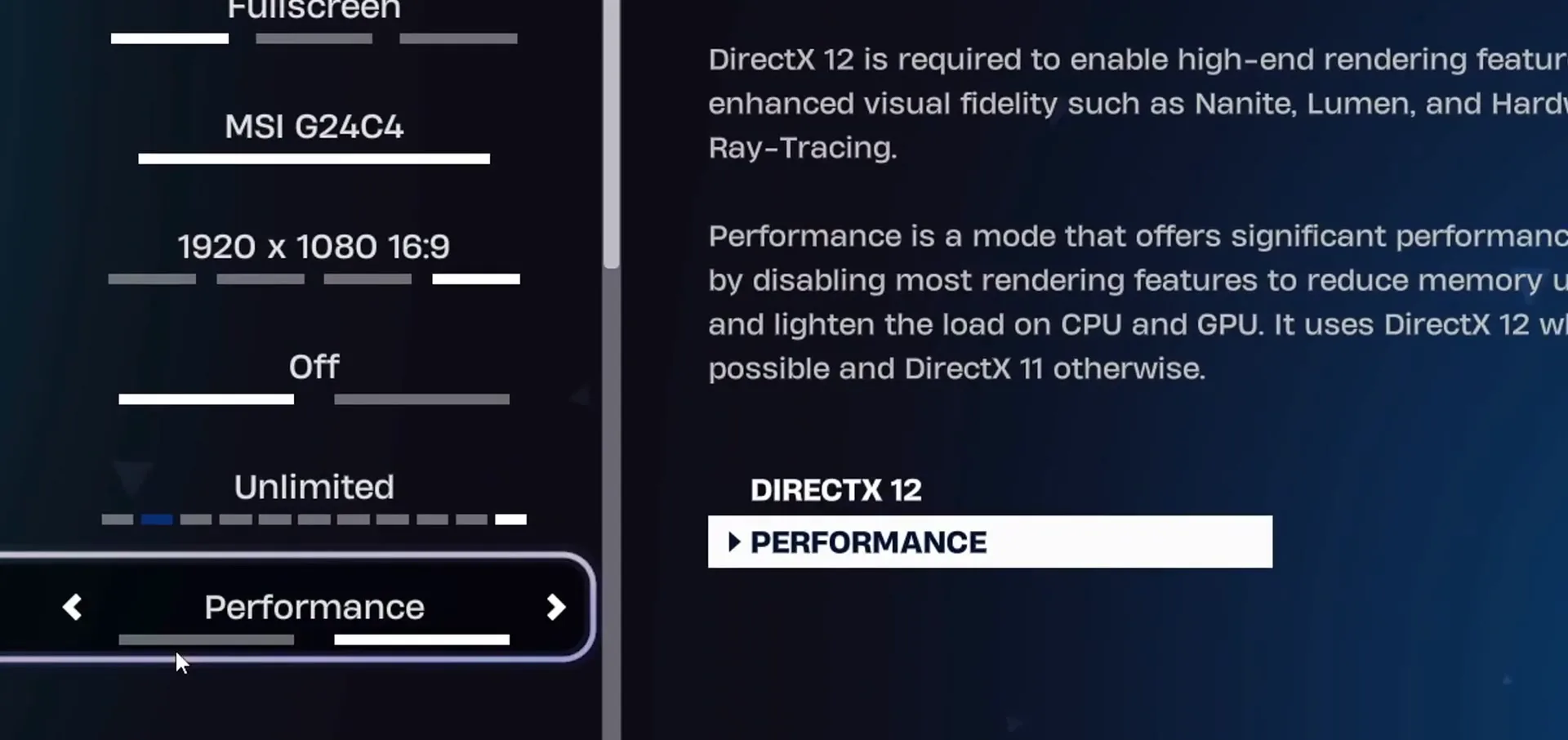
The description next to the setting explains it: Performance mode "uses DirectX 12 when possible and DirectX 11 otherwise". So the game decides for you. To always start on DirectX 11, you set it in the launcher, which is the next step. Close Fortnite before you go on.
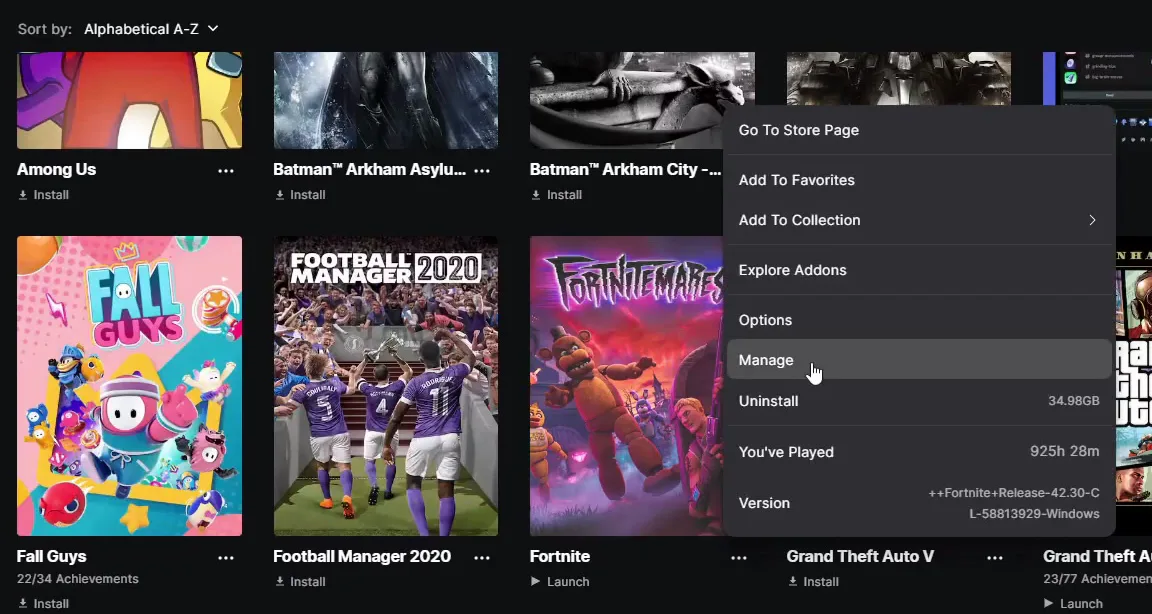
Open the Epic Games Launcher and click Library on the left. Find Fortnite, click the three dots under its tile and choose Manage. In the window that opens, switch on Launch Options and paste the two options into the text box:
-USEALLAVAILABLECORES -d3d11
Epic Games LauncherLibraryFortnite (three dots)ManageLaunch Options
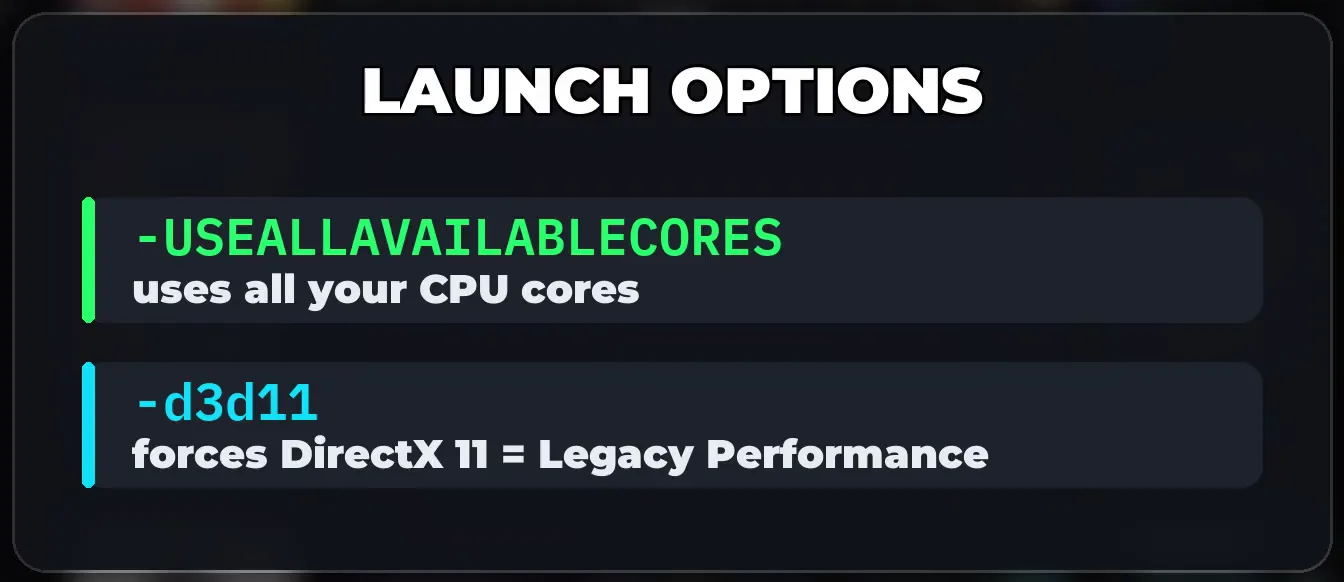
-d3d11 forces DirectX 11, which is the Legacy Performance mode. -USEALLAVAILABLECORES tells the game to use all the cores of your processor. Close the Manage window and close the Epic Games Launcher: the options are saved and apply every time Fortnite starts.
How to undo it
To go back to the normal modes, open the same Manage window and delete the text, or switch Launch Options off. Fortnite then uses the Rendering Mode from its own menu again.
Next come the custom tweaks. In your browser, type discord.gg/riptweaks and press Enter, then join the server. Open the free-tweaks channel, click the Download RIP Tweaks button, then Visit site and download. You can also download it straight from riptweaks.com.

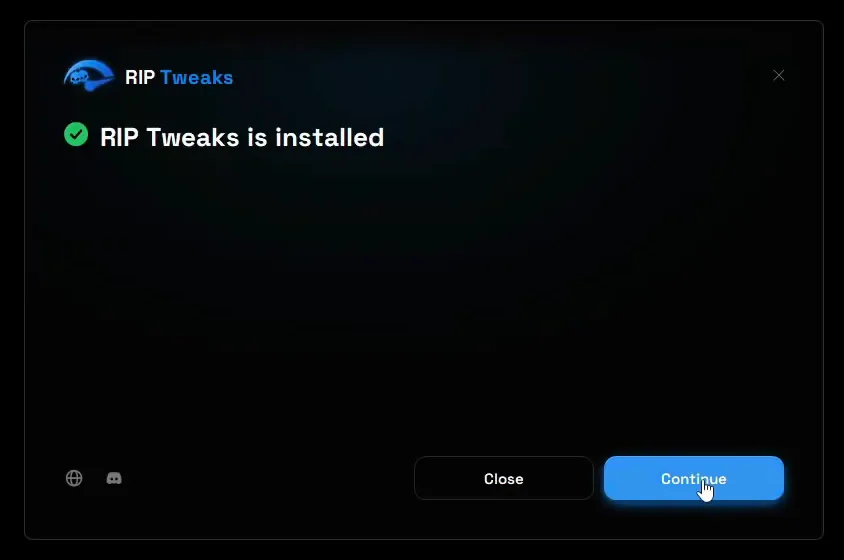
Run the installer, wait for it to finish and click Continue. Create an account with a username, email and password, click Create account and fill out the short questionnaire. The app then opens on its home page.
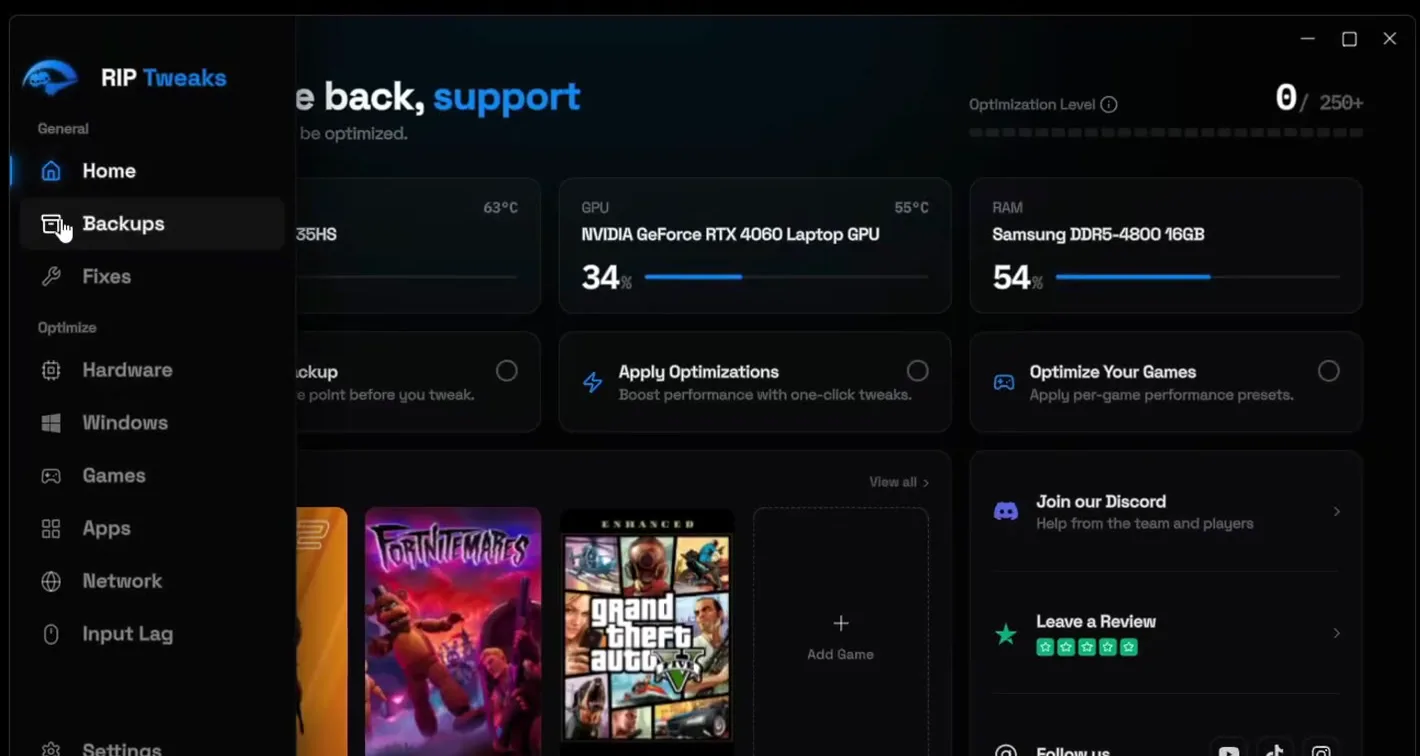
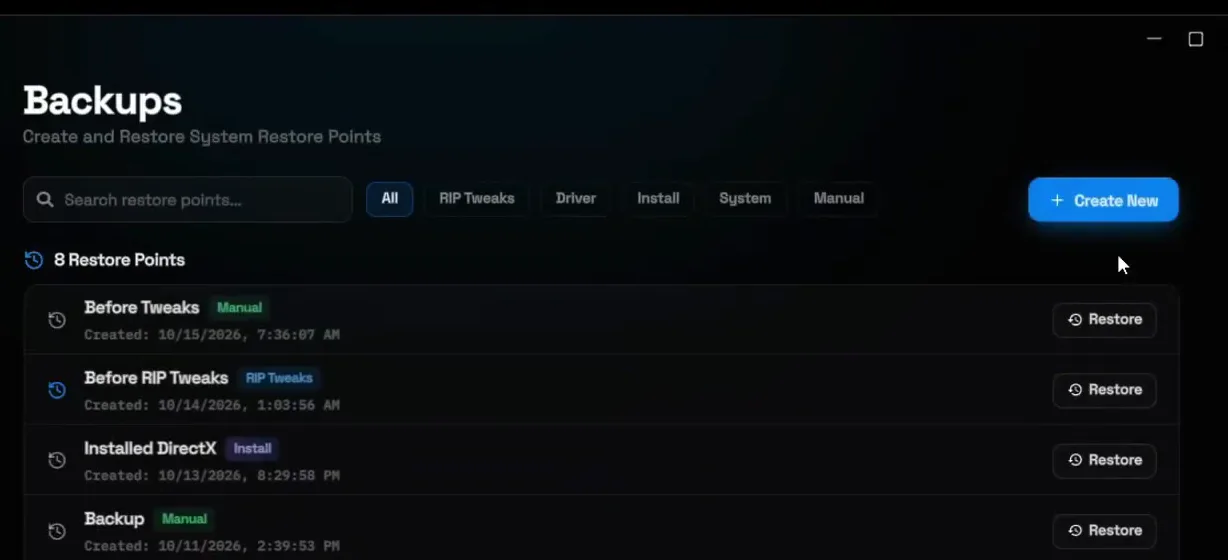
Before RIP Tweaks changes anything, make a restore point. Click Backups in the sidebar, then Create New, type a name such as "Before Tweaks" and click Create. Wait until it finishes, then close the window.
BackupsCreate NewBefore TweaksCreate
Tip
Give the backup a clear name like "Before Tweaks". If anything ever feels off, open Backups and click Restore next to it.
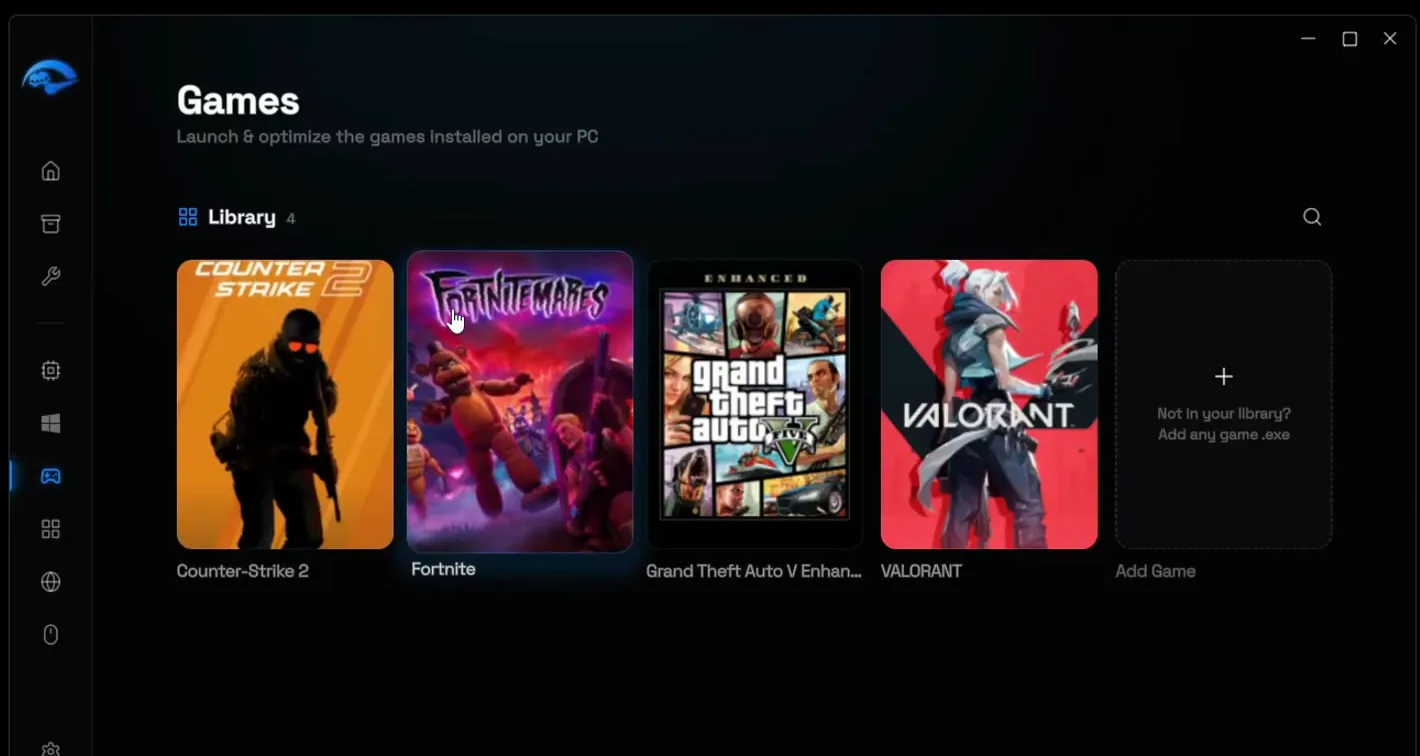
Go to Games in the sidebar. The library lists the games installed on your PC; click Fortnite. Its panel lets you pick the game mode: Balanced, or Performance, which is Premium only.
GamesFortniteBalanced or Performance
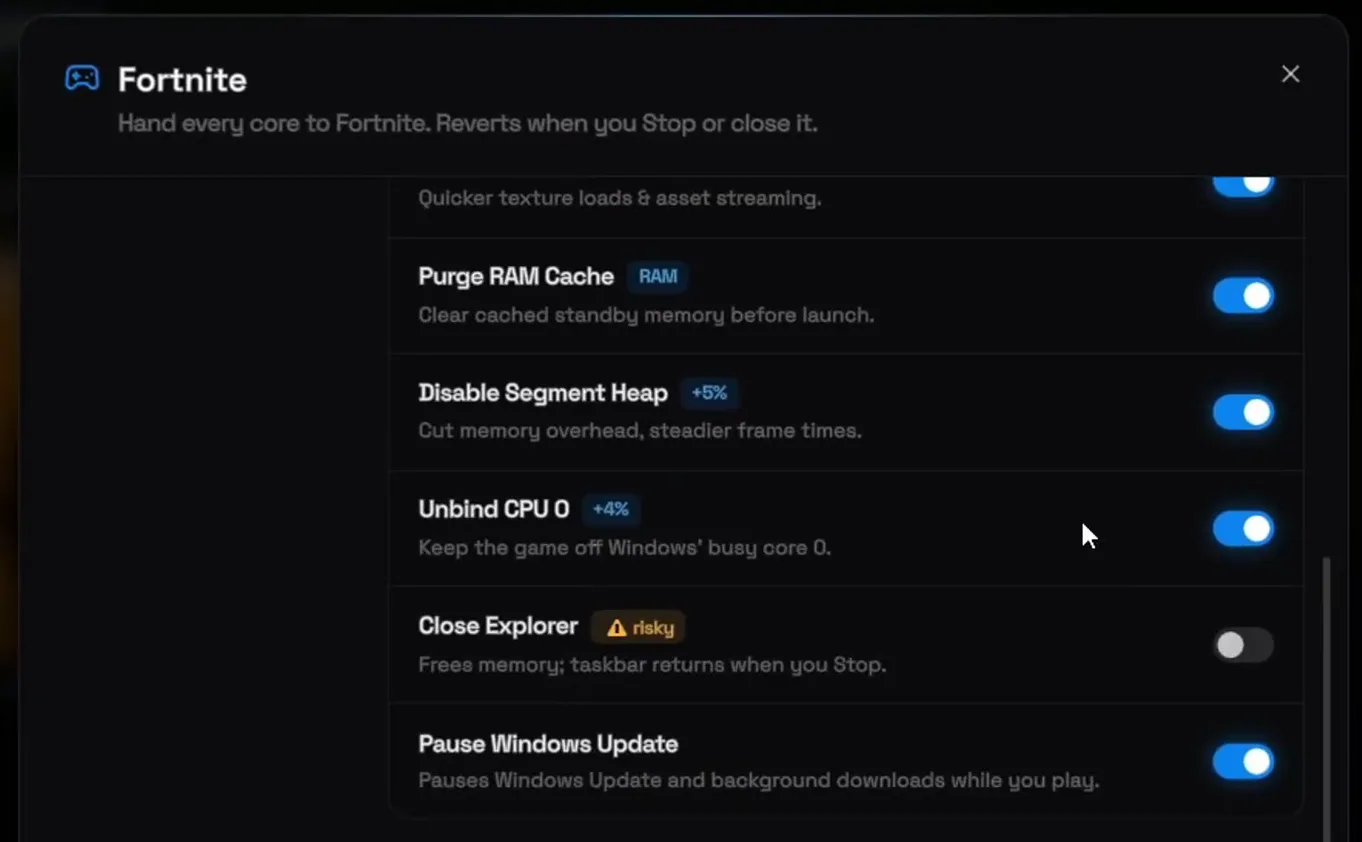
The game mode quiets the background apps before Fortnite starts and applies a set of tweaks for the session. The panel shows what they are, such as Purge RAM Cache (clears cached standby memory before launch), Disable Segment Heap, Unbind CPU 0 (keeps the game off Windows' busy core 0) and Pause Windows Update. Its header says it plainly: everything reverts when you stop or close the game.
With an NVIDIA graphics card, click the NVIDIA button at the bottom left of the Fortnite panel. The Profile Inspector opens. On step 1 of 3, click Next. On step 2, Select Optimization, click FPS Boost Profile. Then click Finish.
NVIDIA buttonNextFPS Boost ProfileFinish
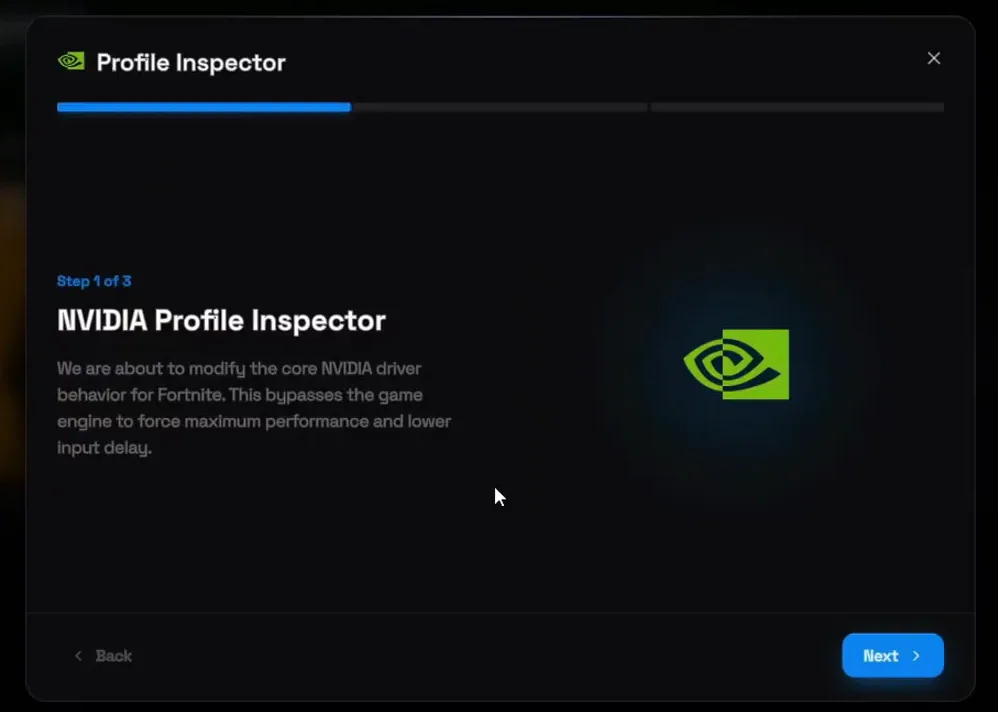
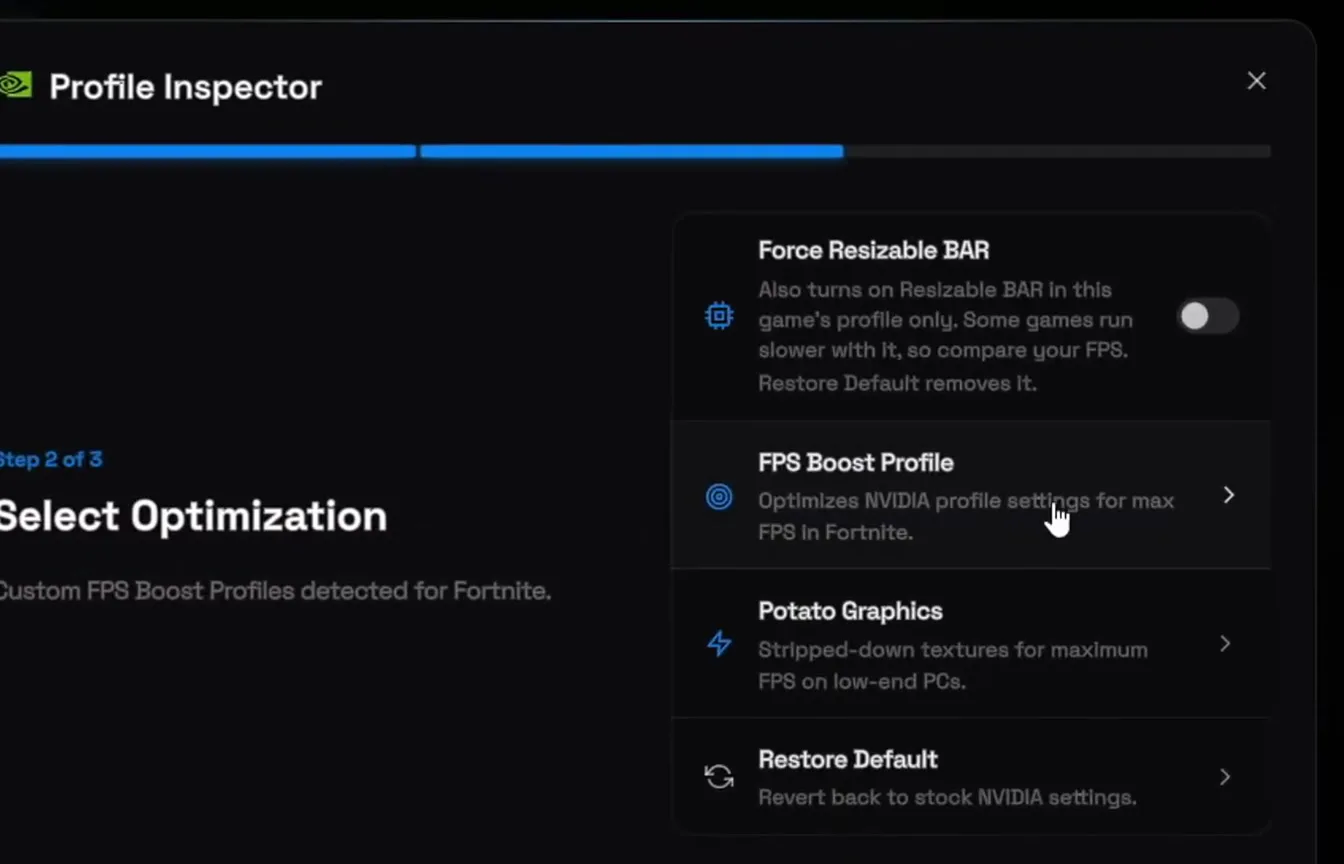
The FPS Boost Profile sets the NVIDIA driver profile for Fortnite for max FPS and lower input delay. The video leaves Force Resizable BAR off; the app itself notes that some games run slower with it. For the lowest-detail look, the same list has Potato Graphics, covered in our Fortnite potato graphics guide.
Good to know
This step is only for NVIDIA cards. On AMD or Intel graphics, skip it and go straight to Launch. For the rest of the NVIDIA setup, see our NVIDIA settings for gaming guide.
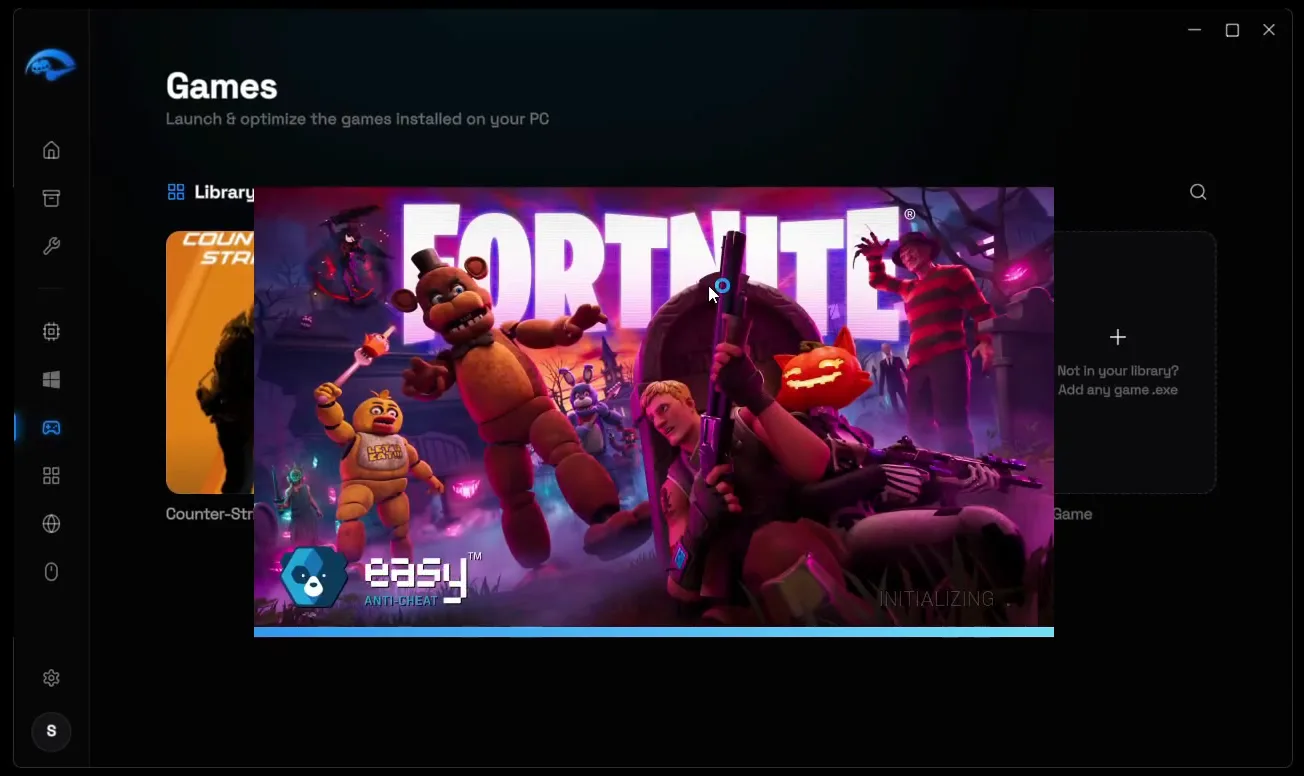
Last step: pick the game mode you want, Balanced or Performance (the video picks Performance), and click the Launch button in the Fortnite panel. Fortnite starts with the game mode applied and with your launch options from the Epic Games Launcher, so it runs on DirectX 11.
Careful
Start Fortnite from RIP Tweaks when you want the game mode. Starting it from the Epic Games Launcher still uses the launch options, but the session tweaks only run through Launch in RIP Tweaks.
How to check it worked
- Turn on Fortnite's FPS counter and play the same kind of match you played before the change, so the comparison is fair. Watch the FPS in fights, not only in quiet moments.
- Watch for the stutters and choppy moments you had on DirectX 12 or Performance mode. If they are still there or worse, DirectX 11 does not suit your PC: remove the launch options and go back.
- Open the Epic Games Launcher, Library, Fortnite, Manage and check that Launch Options is on and the text reads
-USEALLAVAILABLECORES -d3d11with no typos.
Key settings at a glance
FAQ
What is Legacy Performance mode in Fortnite?
It is Fortnite running on DirectX 11. The in-game Rendering Mode only offers DirectX 12 and Performance, and Performance uses DirectX 12 when possible. The -d3d11 launch option makes the game start on DirectX 11 every time.
What are the launch options for Legacy Performance mode?
-USEALLAVAILABLECORES -d3d11. Paste both, separated by a space, into Launch Options under Library, Fortnite, Manage in the Epic Games Launcher.
Why can't I find DirectX 11 in Fortnite's settings?
Because it is not there. The video's settings menu lists only DirectX 12 and Performance, so DirectX 11 has to be forced with the launch option.
Is Legacy Performance mode better than Performance mode?
It depends on the PC. The video uses it against lag and stutters that remain on Performance mode. Test both in the same kind of match; if DirectX 11 is not smoother for you, remove the launch options.
What does -USEALLAVAILABLECORES do?
It tells Fortnite to use all the cores of your processor. In the video it goes in together with -d3d11.
Do I need RIP Tweaks for Legacy Performance mode?
No. The launch options alone turn on DirectX 11. RIP Tweaks adds the rest of the video: a backup, a game mode that quiets background apps for the session, and the NVIDIA FPS Boost profile.
Is the Performance game mode in RIP Tweaks free?
Balanced is free. Performance is Premium only, as the video says. Both are picked in Games, Fortnite, and both revert when you stop or close the game.
How do I turn Legacy Performance mode off?
Open Library, Fortnite, Manage in the Epic Games Launcher and delete the launch options or switch Launch Options off. To undo the NVIDIA profile, choose Restore Default in the Profile Inspector.
 RIP Tweaks
Do it in a few minutes with RIP Tweaks
- Free plan for Windows 10 and 11
- A backup first, and every tweak can be switched off again
- Made for higher FPS, lower input lag and steadier ping
Free · Windows 10 and 11
