How to Get Potato Graphics in Fortnite (2026)

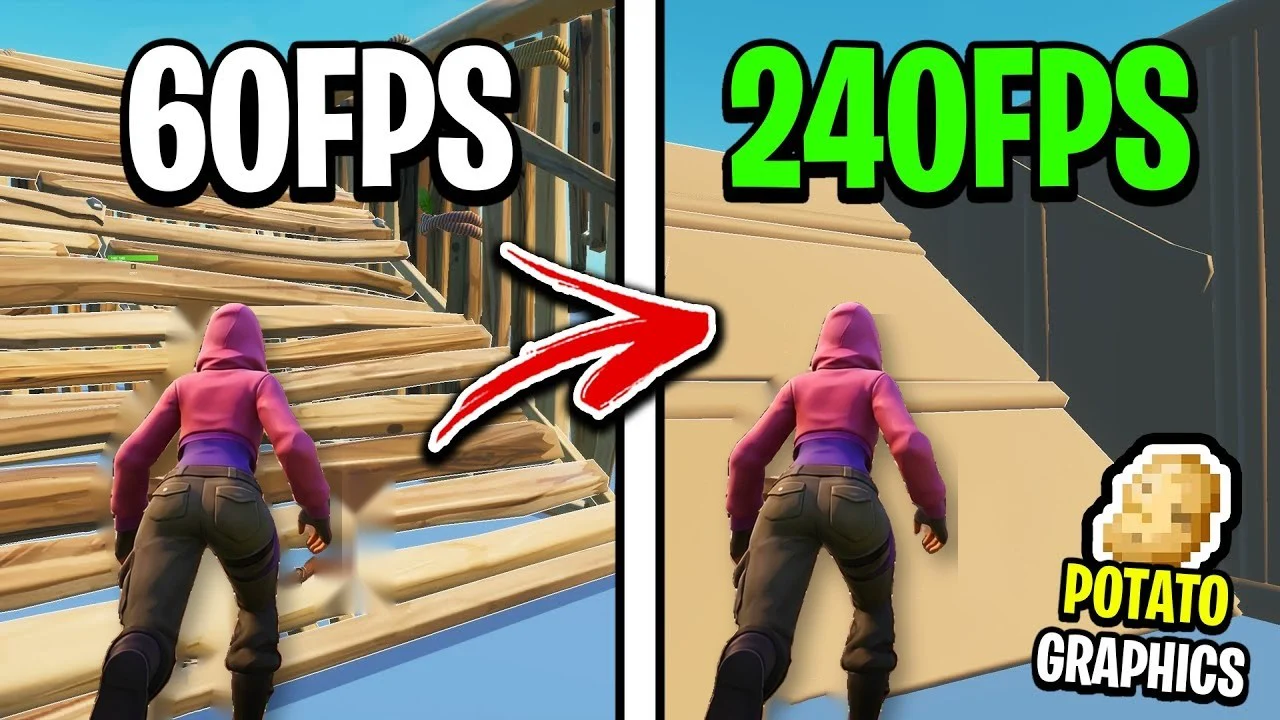
Written version of our video, every step checked against it.
Quick answer
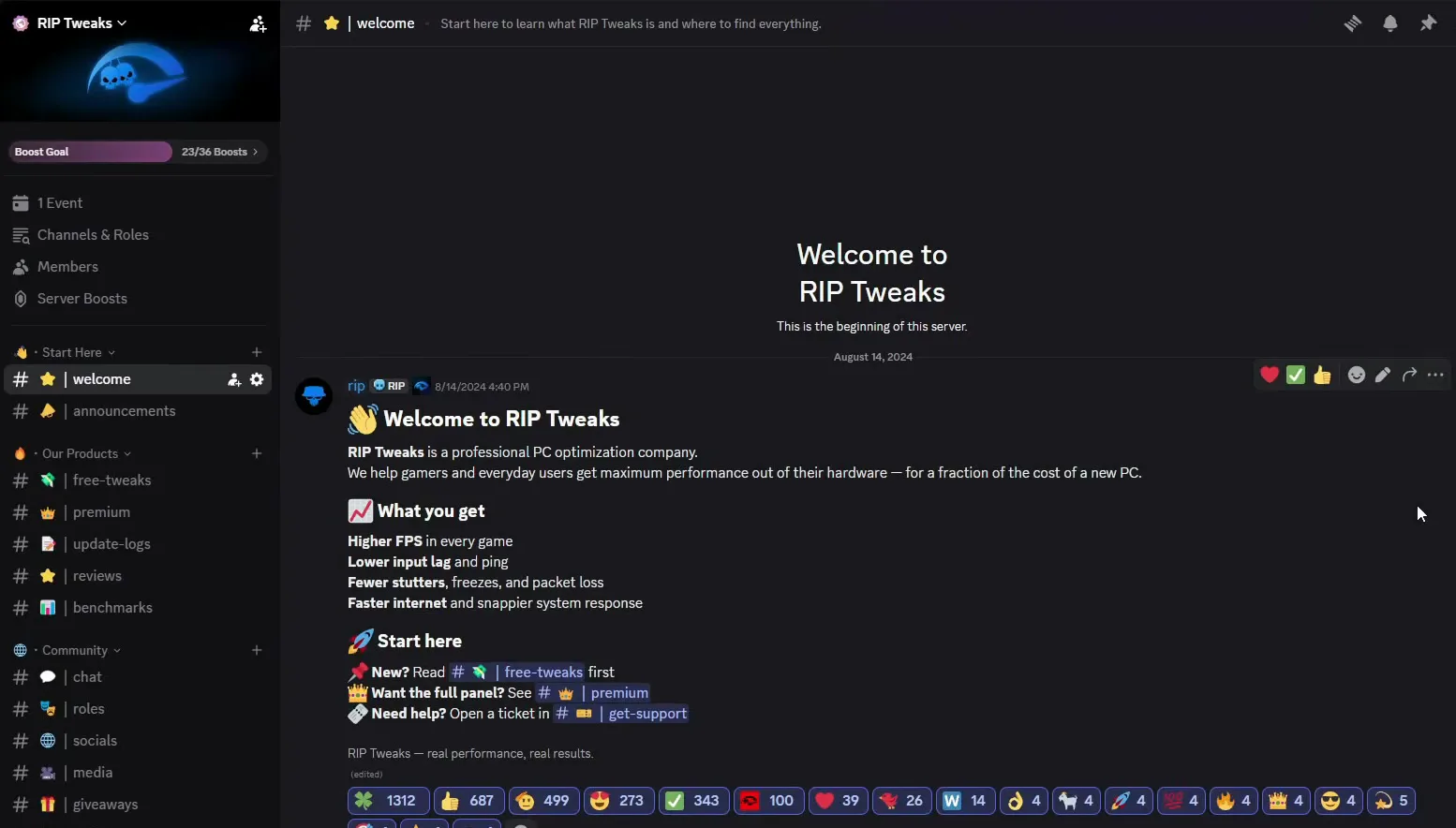
- Join discord.gg/riptweaks, open free-tweaks and download and install RIP Tweaks.
- Create your account, then make a backup called Before Tweaks in Backups.
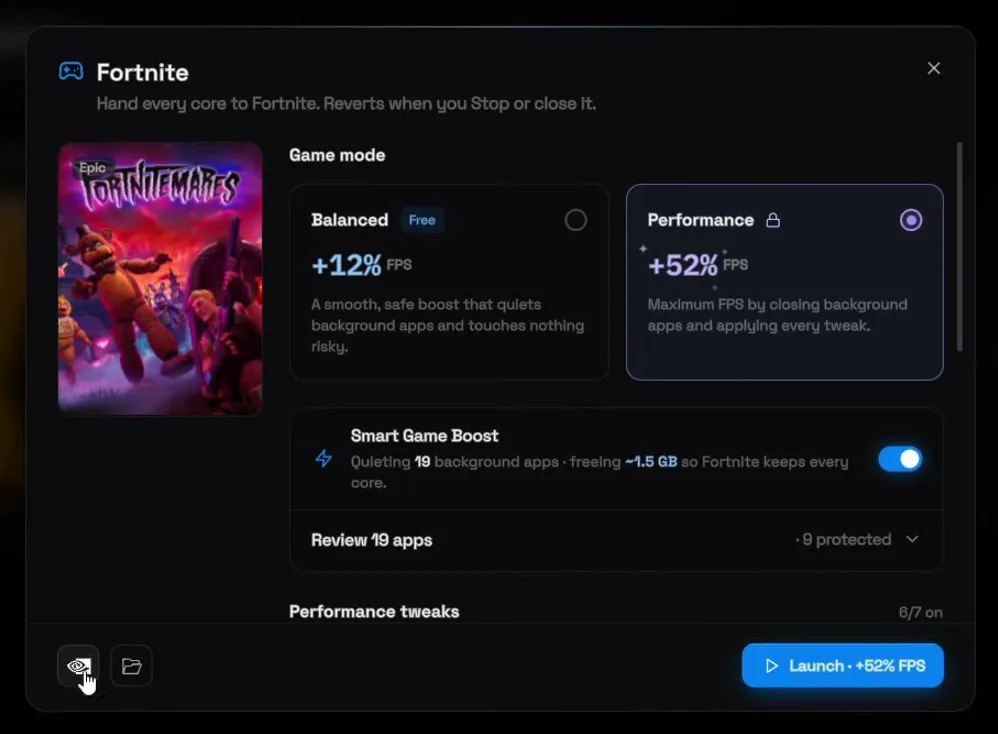
- Open Games, click Fortnite and pick a game mode: Balanced (free) or Performance (Premium).
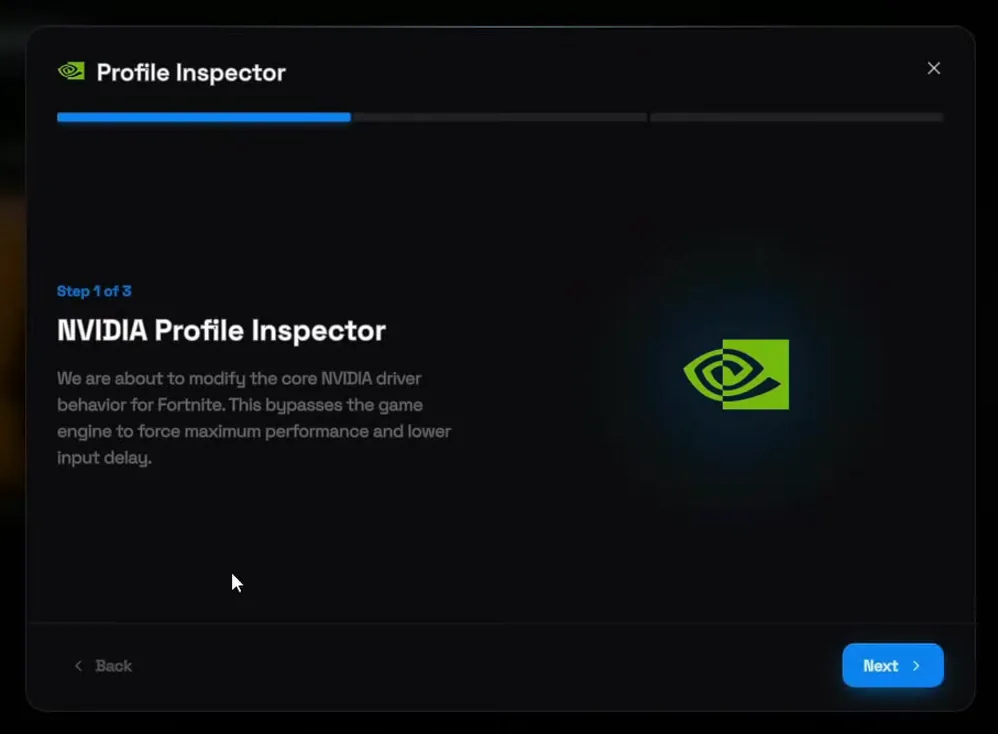
- Click the NVIDIA button at the bottom left of the Fortnite panel, then Next.
- Click Potato Graphics, click Finish and launch Fortnite.
Potato graphics take Fortnite even lower than the lowest in-game settings: stripped-down textures for the most FPS possible, made for low-end PCs and laptops that stutter. This guide follows our video click by click, from installing RIP Tweaks to the one option that turns potato graphics on, plus what the Fortnite game mode quiets and switches on before the game starts.
In this video
Open your browser, type discord.gg/riptweaks into the address bar and press Enter. Join the server, open the free-tweaks channel and click the Download RIP Tweaks button. Click the download button, run the installer and wait until it finishes. The download is also on riptweaks.com.
discord.gg/riptweaksfree-tweaksDownload RIP Tweaks

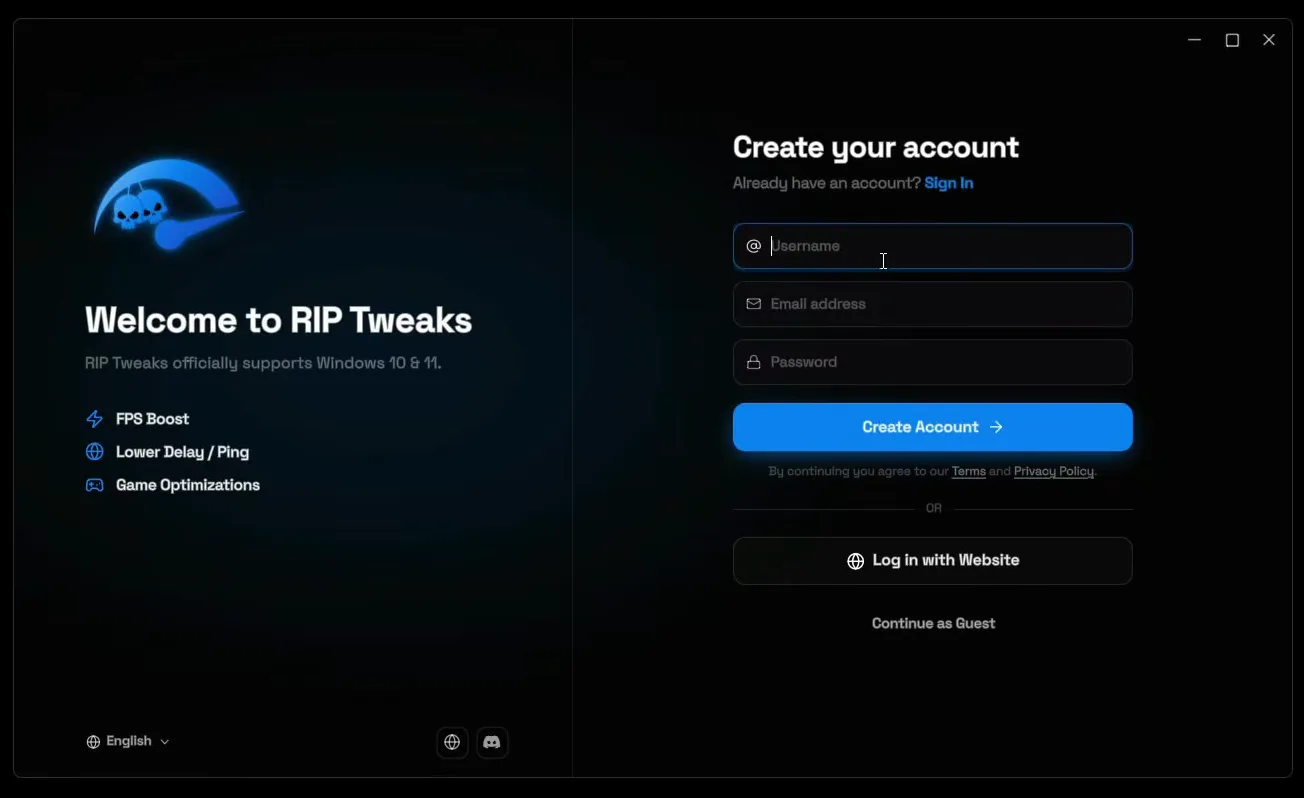
When the app opens, it asks you to create an account. Type your username, your email address and a password, click Create Account, then fill out the short questionnaire. If you already have an account, use Sign In at the top instead.
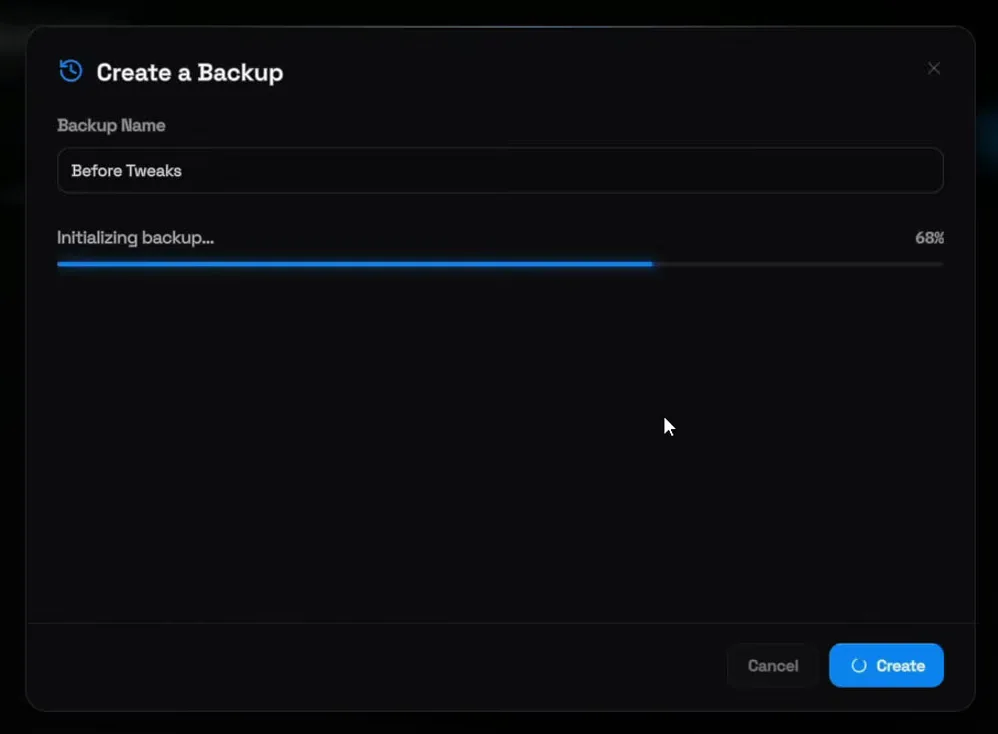
Before you change anything, go to Backups in the left sidebar. Type Before Tweaks as the backup name, click Create and wait for the progress bar to finish, then click Close.
BackupsBackup Name: Before TweaksCreateClose
Tip
Name the backup after the moment, not the date. "Before Tweaks" tells you at a glance which point to return to if you ever want your PC exactly as it was.
Click Games in the sidebar. The page lists the games installed on your PC under Library. Find Fortnite and click its card to open the Fortnite panel.
GamesLibraryFortnite
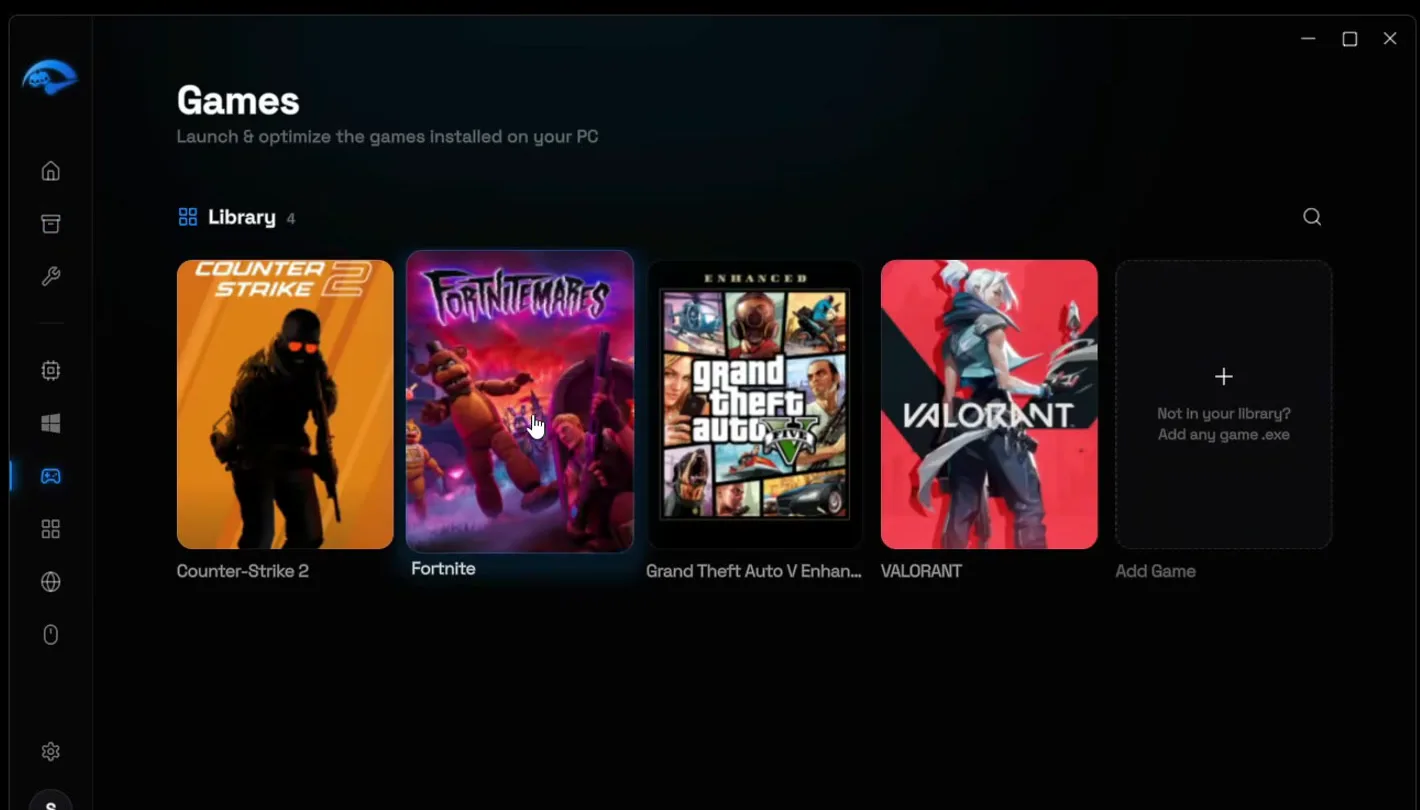
If Fortnite is missing from the list, the last card, Add Game, lets you add any game by its .exe file.
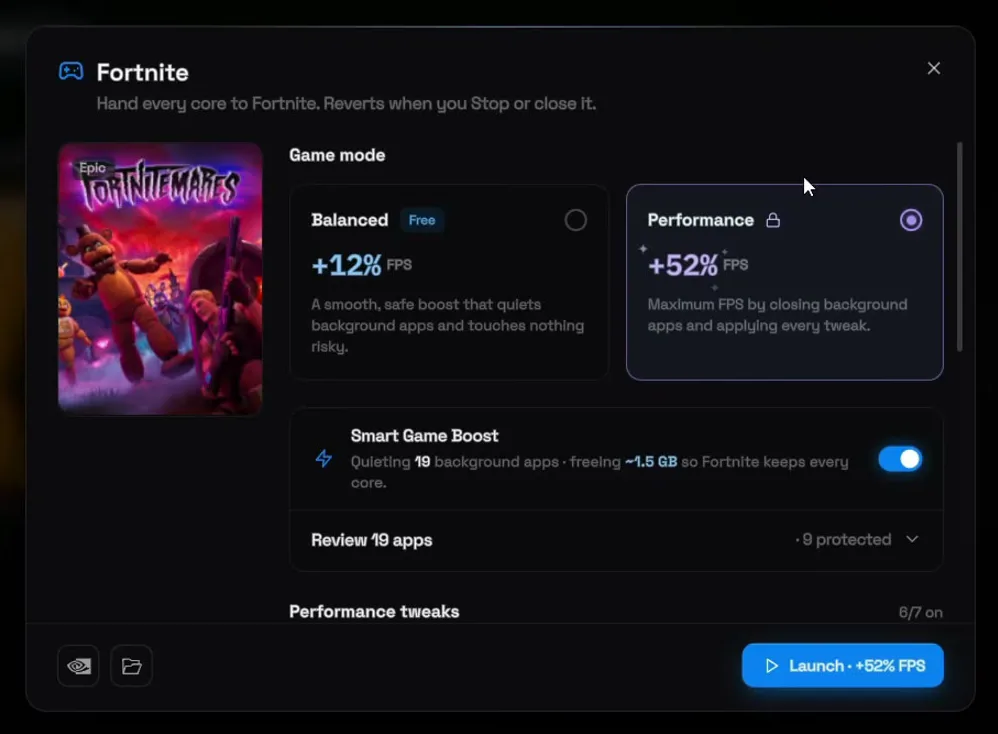
At the top of the Fortnite panel you choose a Game mode. There are two:
- Balanced is free: the app describes it as a smooth, safe boost that quiets background apps and touches nothing risky.
- Performance is part of Premium: maximum FPS by closing background apps and applying every tweak. The video picks this one.
Good to know
The panel's own subtitle says it: "Hand every core to Fortnite. Reverts when you Stop or close it." The game mode only applies while Fortnite runs from the app, not to your whole PC.
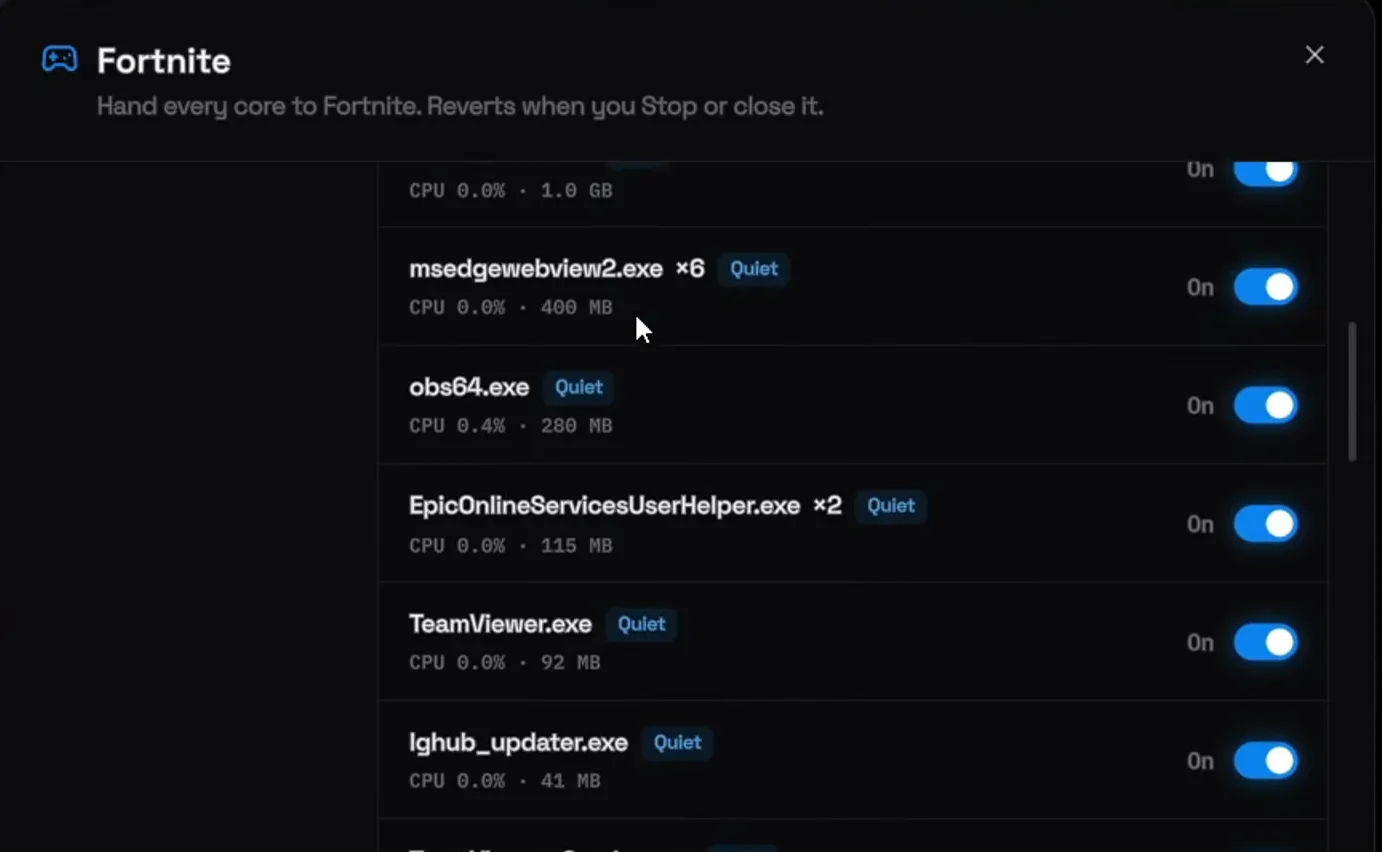
Launching through the panel makes Fortnite start with the best settings in the background. Smart Game Boost quiets background apps you don't use while gaming: on the PC in the video it found 19 of them and showed it would free about 1.5 GB, including Discord, Epic services and TeamViewer. Open Review 19 apps to see each one with its CPU and memory use and its own switch.
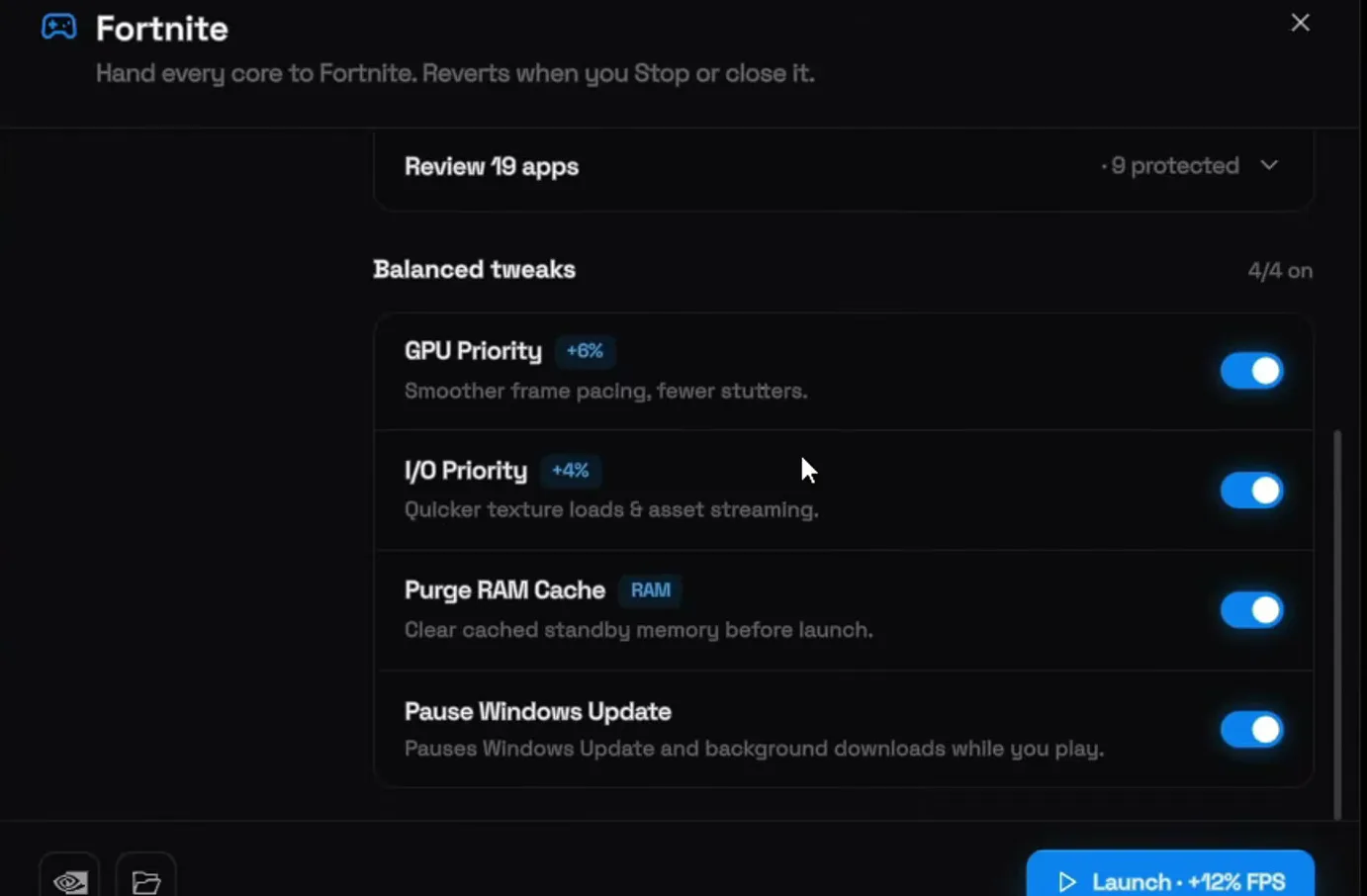
Below the app list are the tweaks for the session: GPU Priority (smoother frame pacing, fewer stutters), I/O Priority (quicker texture loads and asset streaming), Purge RAM Cache (clears cached standby memory before launch) and Pause Windows Update (pauses updates and background downloads while you play). Performance mode switches on more tweaks than these.
Tip
The list also shows "9 protected": apps the panel leaves alone. If you need one of the quieted apps during a match, such as Discord for voice chat, switch it off in Review apps before you launch.
With your game mode picked, click the NVIDIA button: the small NVIDIA logo at the bottom left of the Fortnite panel, next to the folder icon. It opens the Profile Inspector, a short three-step window that changes the NVIDIA driver settings for Fortnite only. Click Next.
Fortnite panelNVIDIA buttonNext
The next screen, Select Optimization, lists the options for Fortnite. Click Potato Graphics: "Stripped-down textures for maximum FPS on low-end PCs." That is the whole step. Click Finish, then launch Fortnite to play.
Select OptimizationPotato GraphicsFinish
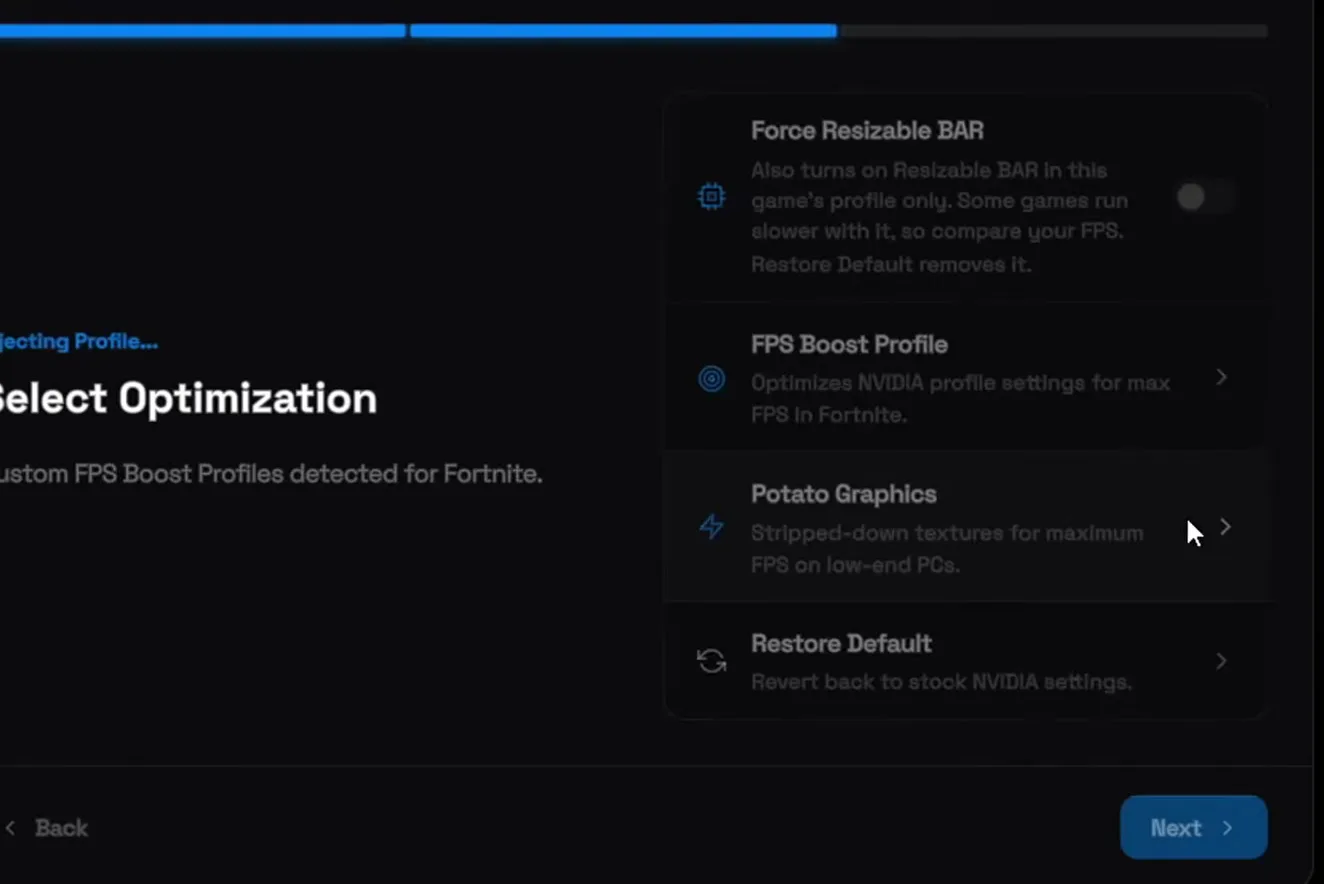
The same list also has Force Resizable BAR (off in the video; some games run slower with it), FPS Boost Profile and Restore Default. The video only clicks Potato Graphics. For the same idea done by hand in NVIDIA Profile Inspector, see our Fortnite potato textures guide.
How to undo it
To get normal textures back, open the NVIDIA button again and pick Restore Default: it reverts Fortnite to stock NVIDIA settings. Your Before Tweaks backup is there for everything else.
How to check it worked
Launch Fortnite from the RIP Tweaks panel and look before you judge the numbers:
- Textures look flat and blurry on walls, ground and skins. That stripped-down look is potato graphics doing its job.
- Turn on Fortnite's FPS counter (Settings, Display, Show FPS) and compare in the same busy spot as before: a hot drop or a build fight, not the lobby.
- Watch the lows, not only the average. Fewer dips in fights is what you feel as less stutter. Every PC responds differently, so test on yours.
Want to try your settings in a real fight? Play our free 1v1 map, RIP Tweaks 1V1 (code 8541-1720-3175).
Key settings at a glance
FAQ
What are potato graphics in Fortnite?
Potato graphics are Fortnite set even lower than the lowest in-game settings. In RIP Tweaks it is an NVIDIA profile option for Fortnite that strips down the textures for maximum FPS on low-end PCs.
Can I get potato graphics from Fortnite's own settings?
The in-game menu stops at its lowest preset. The video goes further through the NVIDIA profile for Fortnite, which the Profile Inspector step in RIP Tweaks changes for you. To lower the in-game side as well, see our Fortnite FPS boost and input delay guide.
Are potato graphics free in RIP Tweaks?
The app and the Balanced game mode are free. The Performance game mode, which the video picks, is part of Premium. The NVIDIA button with Potato Graphics sits in the same Fortnite panel.
Do I need an NVIDIA graphics card?
Yes for this option: Potato Graphics is in the NVIDIA Profile Inspector step, which changes NVIDIA driver settings. With another card you still get the game mode with its quieted apps and session tweaks.
How do I turn potato graphics off again?
Click the NVIDIA button in the Fortnite panel, then Restore Default to revert to stock NVIDIA settings. The Before Tweaks backup restores the rest of the PC.
Will potato graphics help on a low-end PC or laptop?
That is who the option is made for: the app describes it as maximum FPS on low-end PCs. On a gaming laptop, our laptop FPS boost guide covers the laptop side as well.
Does the game mode close Discord while I play?
It quiets Discord along with the other background apps in the video. If you need Discord voice during a match, switch Discord off in Review apps before you launch. More on this in our guide to reducing background processes.
 RIP Tweaks
Do it in a few minutes with RIP Tweaks
- Free plan for Windows 10 and 11
- A backup first, and every tweak can be switched off again
- Made for higher FPS, lower input lag and steadier ping
Free · Windows 10 and 11
