Fortnite GameUserSettings.ini for Max FPS: Download and Replace It (2026)

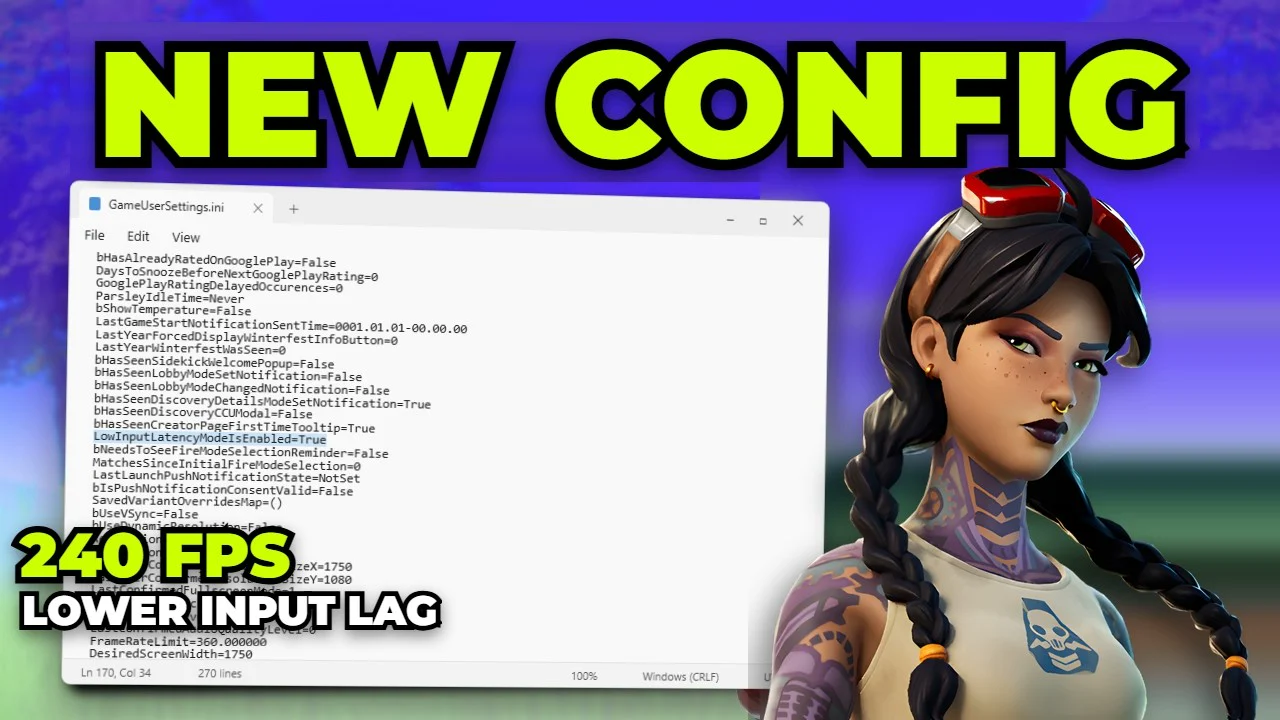
Written version of our video, every step checked against it.
Quick answer
- Download the Fortnite GameUserSettings file from the youtube-downloads channel of the RIP Tweaks Discord and drag
GameUserSettings.inito your desktop. - Press Win + R, type
%localappdata%and open FortniteGame, Saved, Config, WindowsClient. - Take the old
GameUserSettings.iniout of that folder and drop the new one in. - For more FPS, open RIP Tweaks, go to Games, click Fortnite, pick the free Balanced game mode and click Launch.
- Result on the PC in the video: around 240 FPS stable at all times.
This guide is for Fortnite players on Windows 10 or 11 who want more FPS without spending an hour in the settings menu. Fortnite keeps every video option in one file, GameUserSettings.ini, so swapping it for an optimized one sets everything at once. It follows our video step by step: where to get the file, the exact folder it goes in, and the free RIP Tweaks game mode that launches Fortnite with the most FPS.
In this video
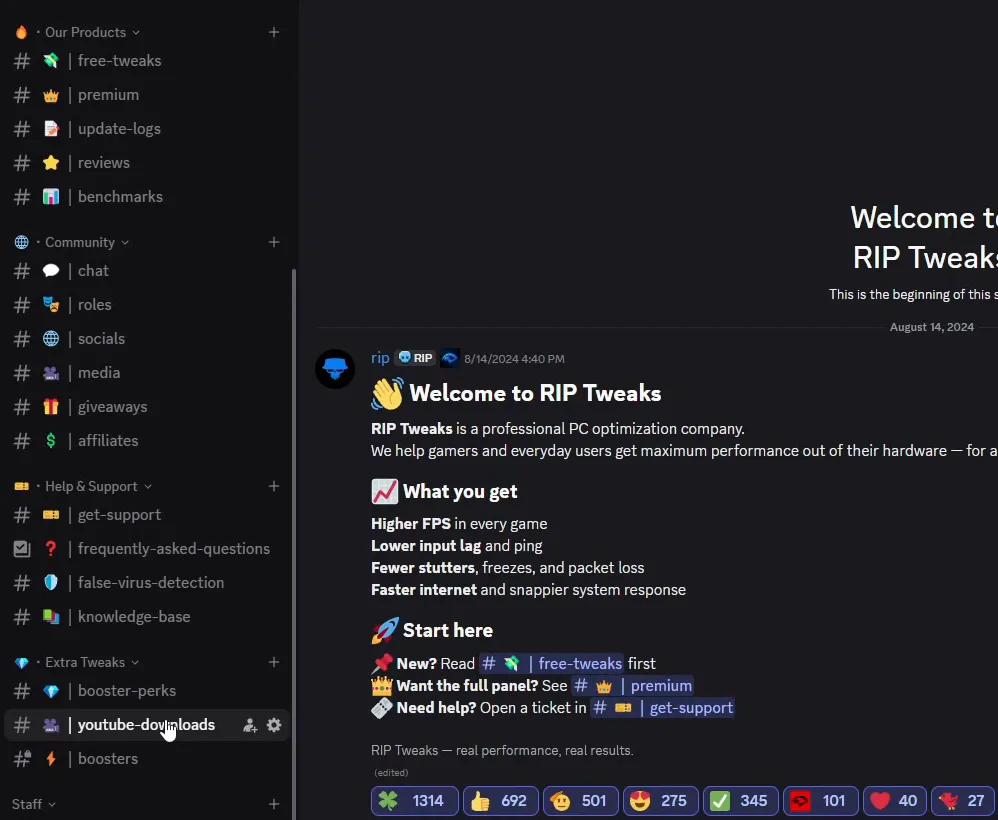
Open your browser, type discord.gg/riptweaks into the address bar, press Enter and join the server. Inside, scroll down the channel list until you find youtube-downloads and open it.
RIP Tweaks Discordyoutube-downloadsFortnite GameUserSettingsDOWNLOAD
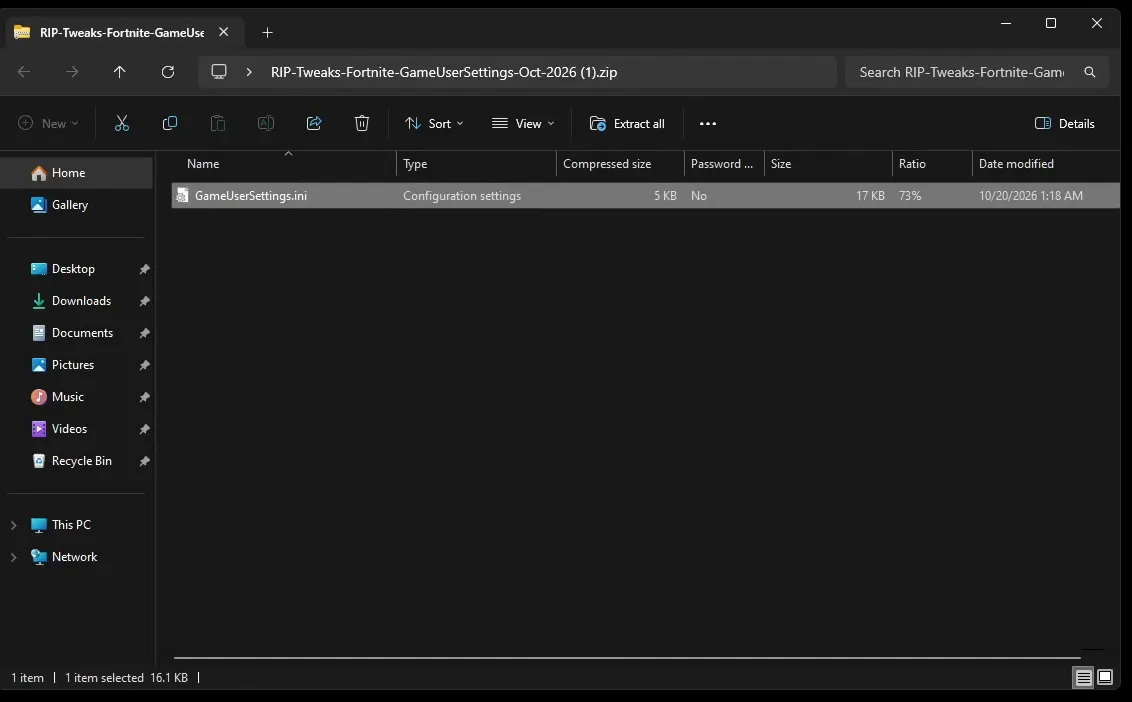
Find the Fortnite GameUserSettings entry and click its DOWNLOAD link. Discord asks if you want to leave the app: click Visit Site, then Save on the download page. You get a small zip file. Open it and drag the GameUserSettings.ini inside it onto your desktop.
Good to know
Pick the entry named Fortnite GameUserSettings. The same channel lists other downloads from our videos, such as GPU stutter fixes and Windows optimizations, which are not this file.
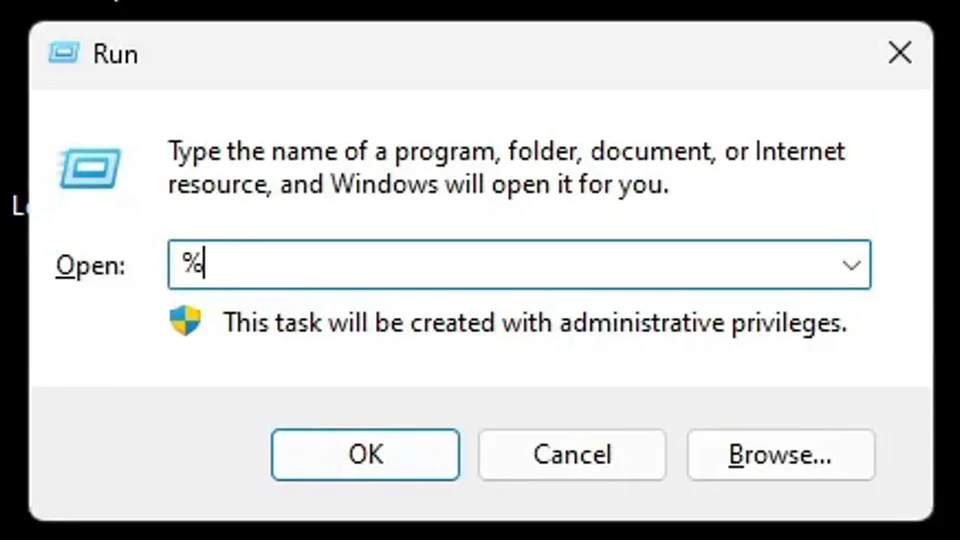
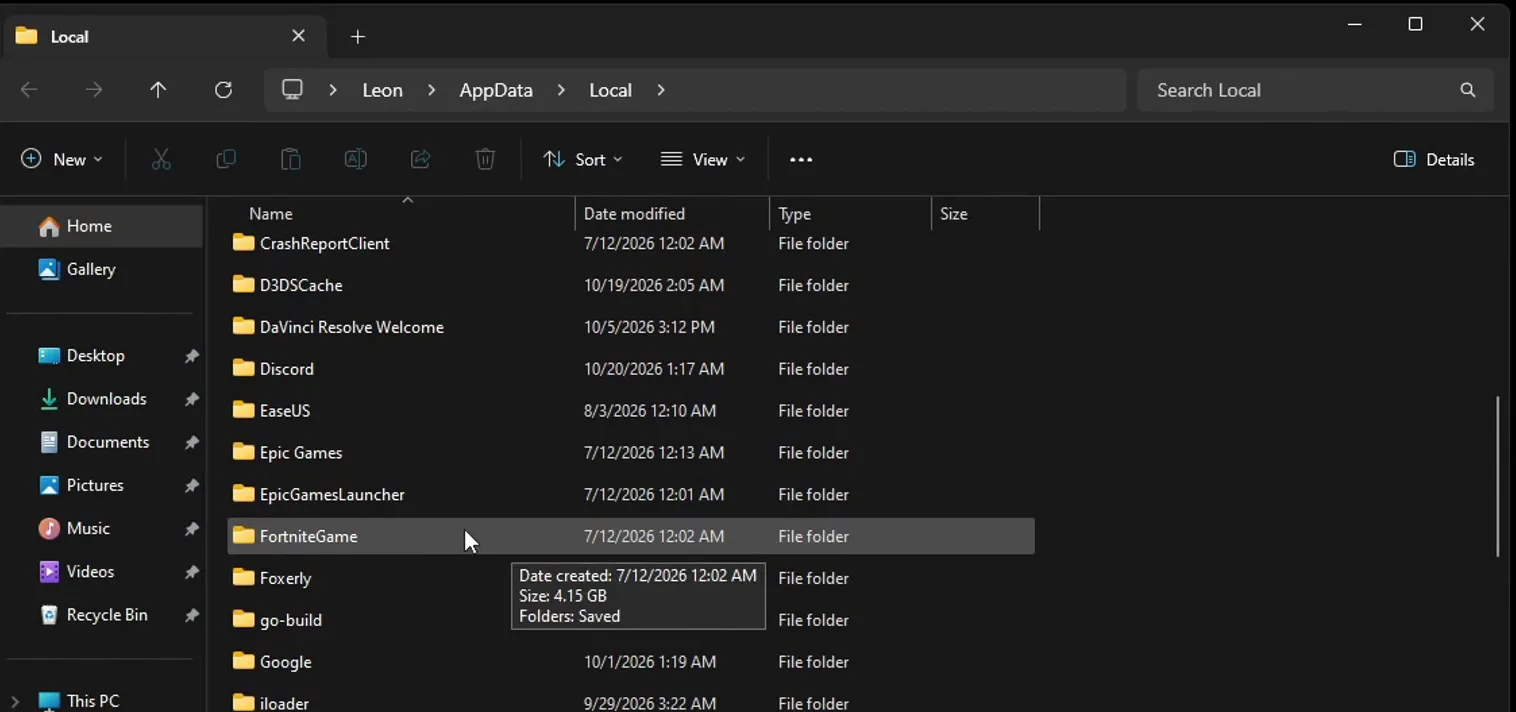
Press Win + R to open Run, type %localappdata% and click OK. A File Explorer window opens on your Local AppData folder.
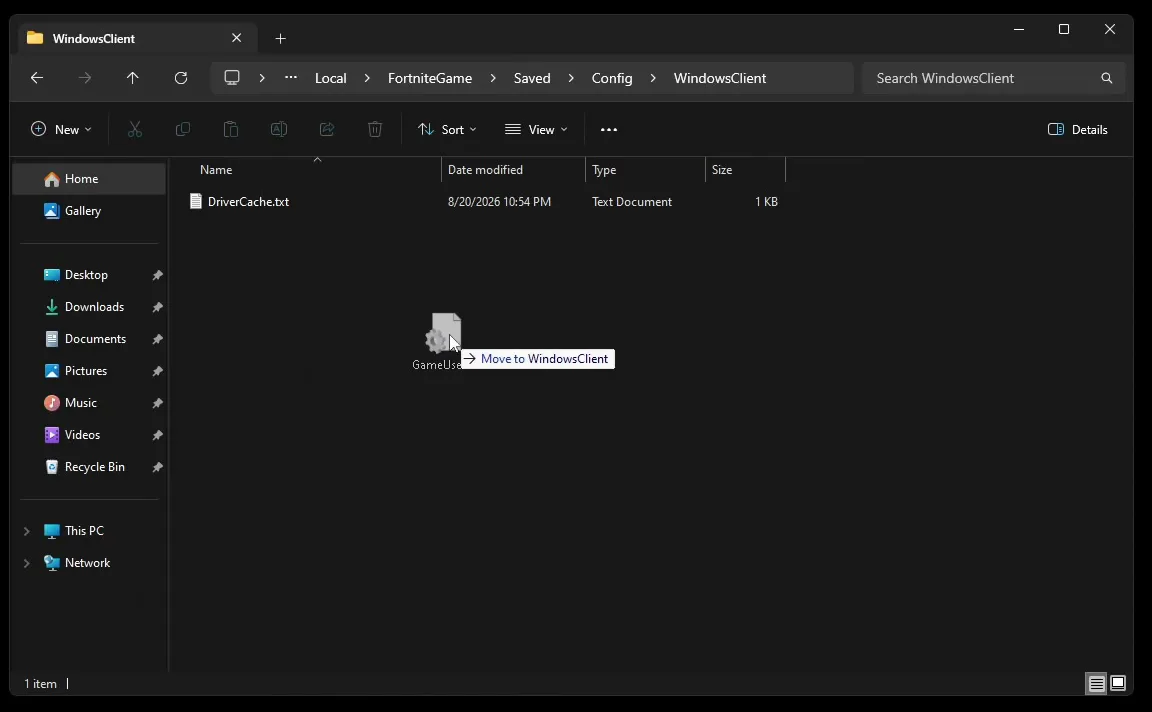
Scroll down to FortniteGame and double-click it, then open Saved, Config and WindowsClient. The full path is %localappdata%\FortniteGame\Saved\Config\WindowsClient.
Win + R%localappdata%FortniteGameSavedConfigWindowsClient
Take the old GameUserSettings.ini out of this folder, or simply delete it. Then drag the new file from your desktop into WindowsClient and close the window. Leave every other file in the folder alone.
How to undo it
Want a way back? Move the old GameUserSettings.ini to a folder on your desktop instead of deleting it. To return to your old settings, put it back in WindowsClient and replace the new one.
The file does the main work. To get the most FPS out of it, the video launches Fortnite through RIP Tweaks. Go back to the Discord, scroll up to the free-tweaks channel and click its download button. You can also download it straight from riptweaks.com.
Click Download, save the installer, run it and wait until it finishes. When the app opens, create an account with a username, your email and a password, click Create account and fill out the short questionnaire.
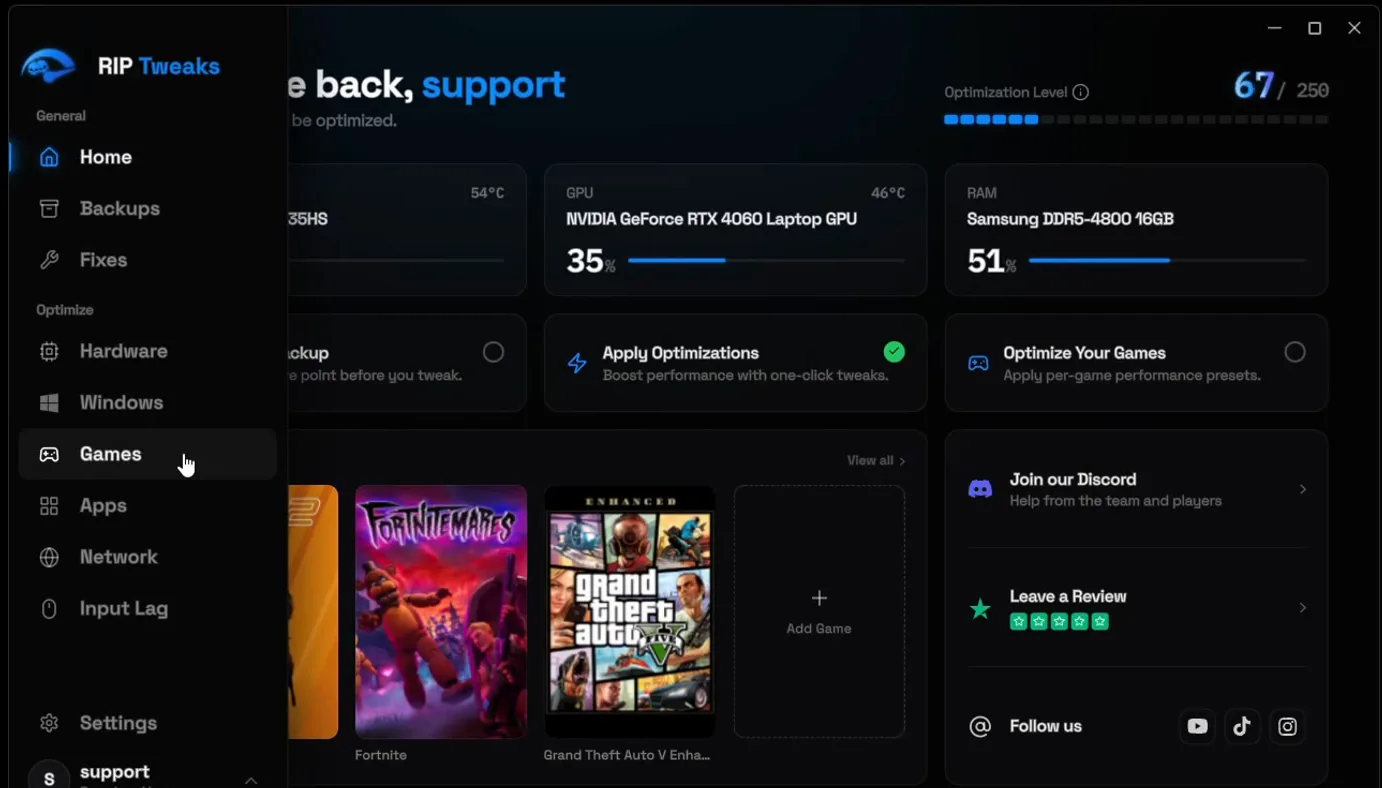
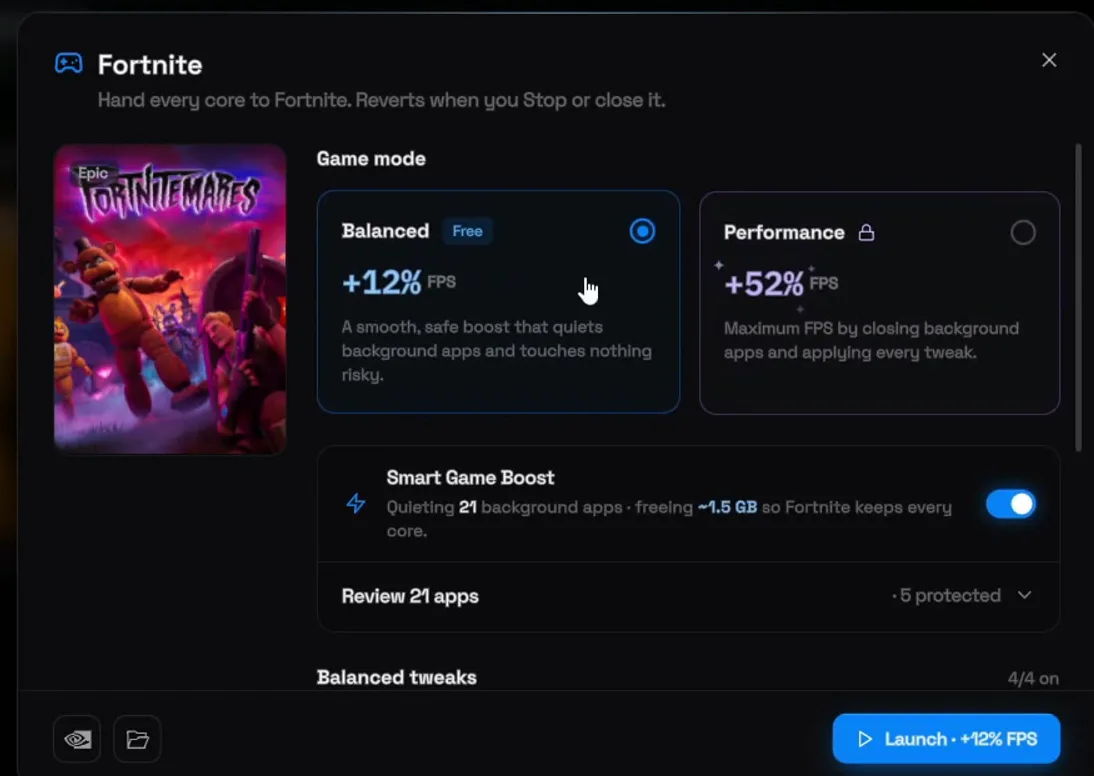
In RIP Tweaks, open the menu on the left and click Games. Find Fortnite and click it: a Fortnite window opens with the game modes.
RIP TweaksGamesFortniteBalancedLaunch
There are two game modes. Balanced has a Free tag and the app describes it as a smooth, safe boost that quiets background apps and touches nothing risky. Performance carries a lock: it is part of RIP Tweaks Premium and goes for maximum FPS by closing background apps and applying every tweak. The video uses Balanced.
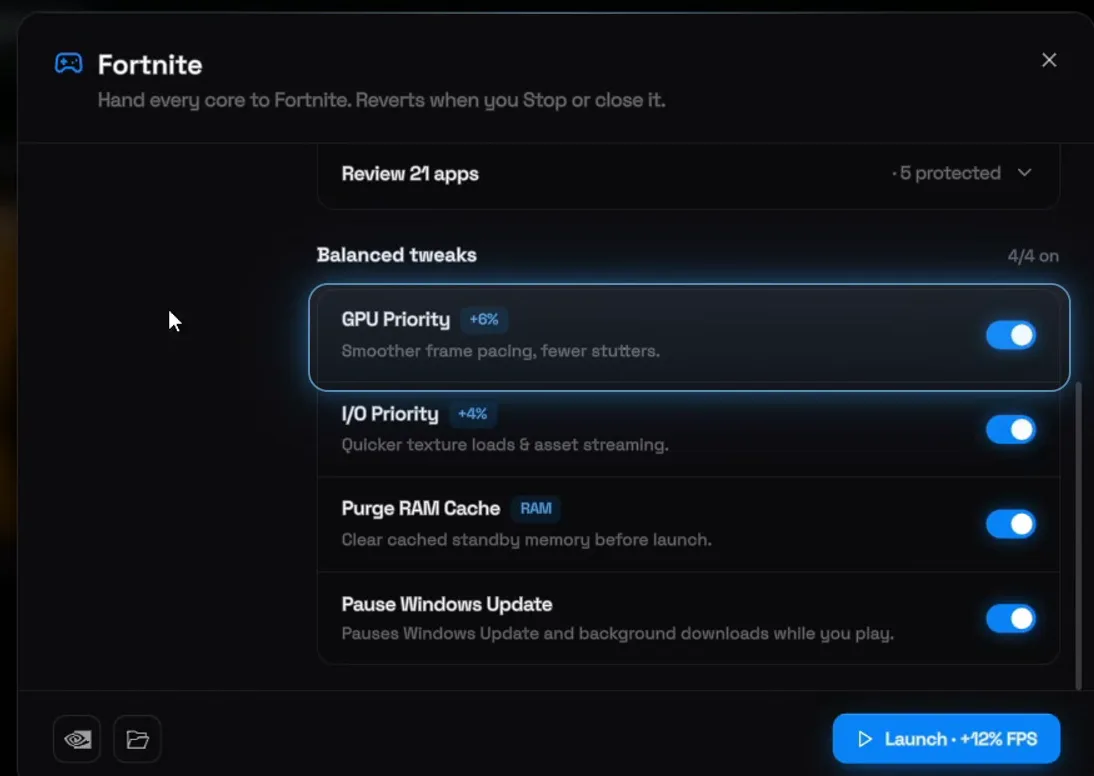
With Balanced selected, Smart Game Boost quiets background apps and frees RAM (21 apps and about 1.5 GB on the PC in the video), and the list of Balanced tweaks shows four switches, all on: GPU Priority, I/O Priority, Purge RAM Cache and Pause Windows Update. Click Launch and Fortnite starts with all of them applied.
Good to know
The Fortnite window says it plainly: the boost reverts when you click Stop or close it. Your PC goes back to normal after you play, nothing stays changed.
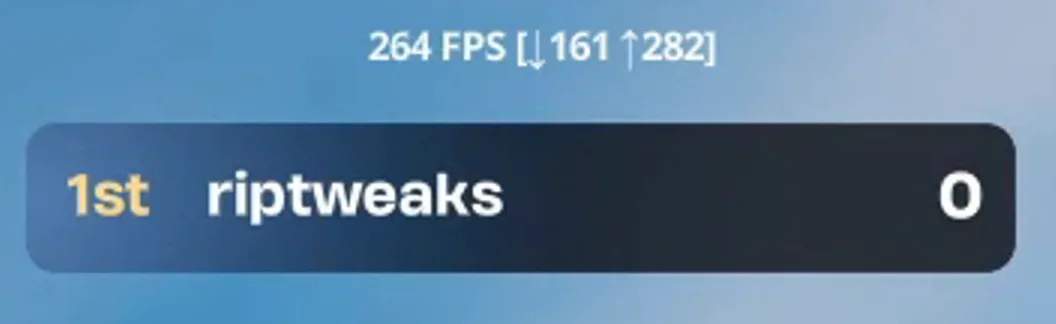
After the tweaks, the PC in the video runs Fortnite at around 240 FPS, stable at all times, and the video credits the GameUserSettings file for it. The FPS counter in the corner of the shot reads 264, with a low of 161 and a high of 282.
That PC is a gaming laptop with an AMD Ryzen 7 7435HS, an RTX 4060 Laptop GPU and 16 GB of RAM, as the RIP Tweaks home screen shows. Your numbers depend on your hardware, but the file and the Balanced mode work the same way on any Windows 10 or 11 PC.
How to check it worked
- Open
%localappdata%\FortniteGame\Saved\Config\WindowsClientagain: there should be exactly oneGameUserSettings.ini, and its date should match the downloaded file, not your old one. - Start Fortnite and open Settings, then Video. The options there now come from the new file.
- Turn on the FPS counter in Fortnite's display settings and play a match or a creative map. Compare the number with what you had before the swap.
Want to try your settings in a real fight? Play our free 1v1 map, RIP Tweaks 1V1 (code 8541-1720-3175).
Tip
Fortnite writes every change you make in its settings menu back into GameUserSettings.ini. If you change graphics options later, you overwrite parts of the optimized file. Copy the file in again to start fresh.
Key settings at a glance
FAQ
Where is the Fortnite GameUserSettings.ini file?
In %localappdata%\FortniteGame\Saved\Config\WindowsClient. Press Win + R, type %localappdata%, click OK, then open FortniteGame, Saved, Config and WindowsClient.
I can't find the FortniteGame folder. What now?
Fortnite creates that folder the first time it runs on your Windows account. Start Fortnite once, close it, and look in Local AppData again. Also make sure you typed %localappdata% with both percent signs.
Where do I download the optimized GameUserSettings file?
In the RIP Tweaks Discord (discord.gg/riptweaks), in the youtube-downloads channel, under the Fortnite GameUserSettings entry. It is free and comes as a zip with one GameUserSettings.ini inside.
Should Fortnite be closed when I replace the file?
Yes. Fortnite reads the file when it starts and writes to it when you change settings, so swap the file while the game is closed, then launch it.
Do I need RIP Tweaks for the file to work?
No. The file works on its own, and the video credits it for the 240 FPS. Launching through RIP Tweaks with the Balanced game mode is the extra step the video adds to get the most FPS, by quieting background apps and giving Fortnite priority.
Is the Balanced game mode free?
Yes, it has a Free tag in the app. The Performance mode next to it is locked and part of RIP Tweaks Premium. For more free Fortnite tweaks, see our Fortnite FPS, input delay and ping guide.
Why did my settings change back?
Every change you make in Fortnite's settings menu is saved into GameUserSettings.ini. If you changed graphics options after the swap, part of the optimized file is gone. Copy the downloaded file into WindowsClient again.
Does it work on a laptop?
Yes. The PC in the video is a gaming laptop with an RTX 4060 Laptop GPU. For laptop specific tweaks, see our gaming laptop FPS boost guide, and for the lowest graphics look, Fortnite potato graphics.
 RIP Tweaks
Do it in a few minutes with RIP Tweaks
- Free plan for Windows 10 and 11
- A backup first, and every tweak can be switched off again
- Made for higher FPS, lower input lag and steadier ping
Free · Windows 10 and 11
