3 Hidden PC Settings for More FPS and Lower Input Delay (2026)

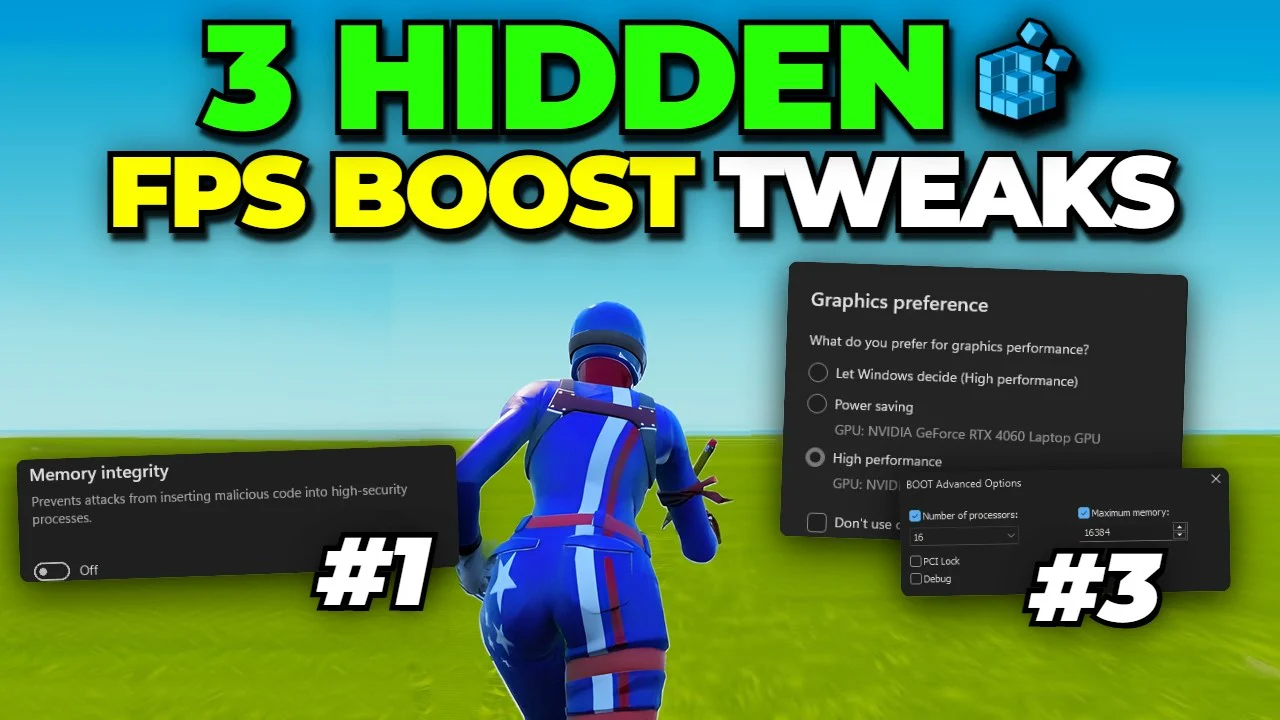
Written version of our video, every step checked against it.
Quick answer
- In Settings, Apps, Startup, switch off every app that starts with your PC (G HUB, Tailscale and the like).
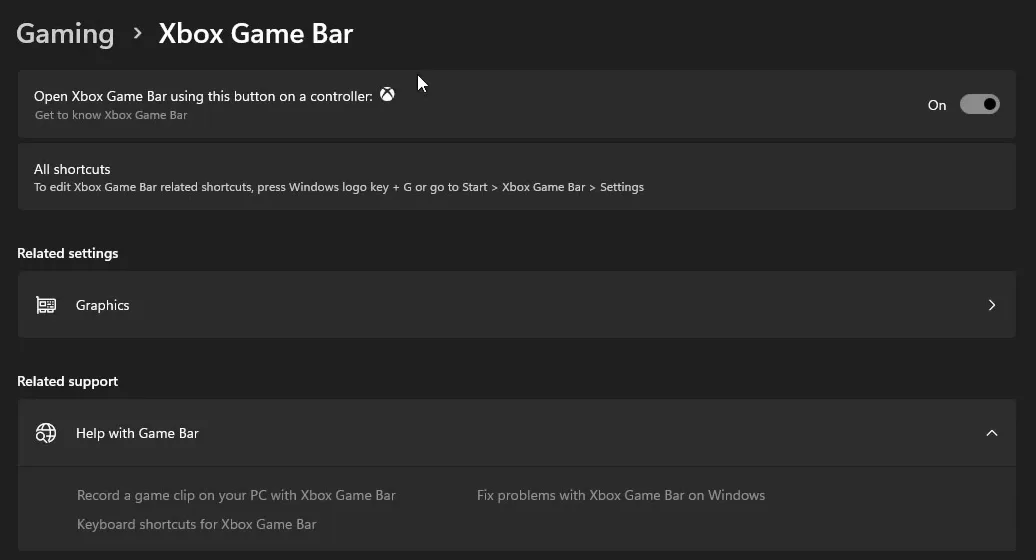
- Set Xbox Game Bar to Off, give your game High performance in Graphics and turn Game Mode on.
- Turn off Delivery Optimization so your PC stops sending updates to other PCs.
- In msconfig, tick Hide all Microsoft services and uncheck the updaters and extras you never use.
- Switch Memory integrity off in Windows Security, then set visual effects to Custom with only two boxes on.
This guide is for anyone on Windows 11 or 10 who wants more FPS and less input delay in Fortnite and other games without installing anything. It follows our video click by click: three settings Windows hides in different menus, the Game Bar, graphics and Game Mode settings next to the first one, and a bonus visual effects tweak. In the video, Leon says these settings doubled his FPS and lowered his input delay in all of his games on the PC in the video, a gaming laptop with an RTX 4060 Laptop GPU.
In this video
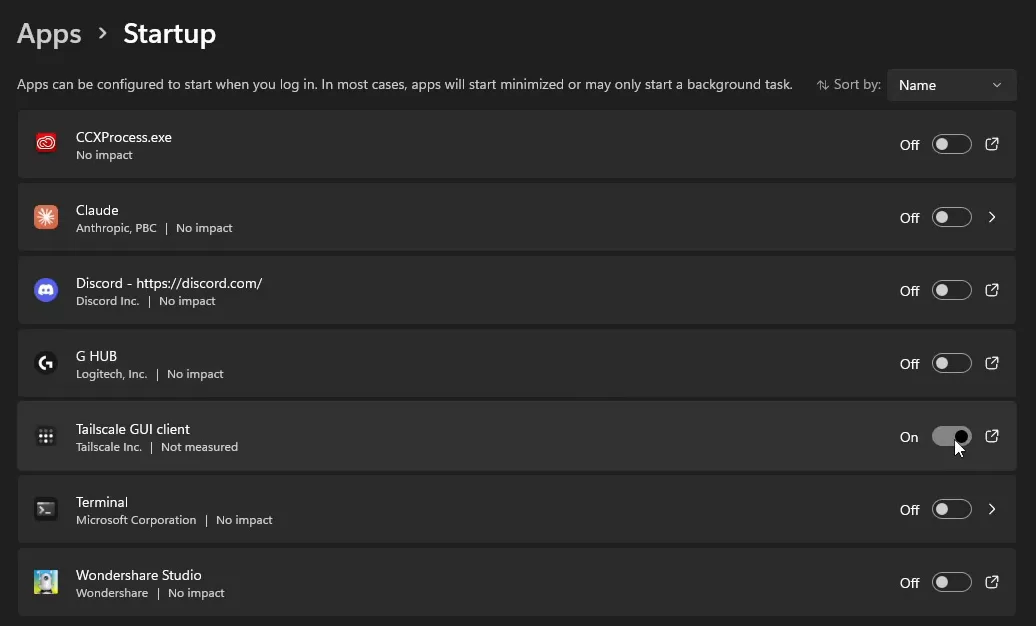
Open the Start menu, type startup and click Startup apps. Windows lists every app that runs when you boot your PC. Switch each one to Off: in the video that means Logitech G HUB, Tailscale, Discord and the rest, so nothing sits in the background before you even open a game.
SettingsAppsStartupOff
Tip
Turning an app off here only stops it from starting with Windows. It still works when you open it yourself, so you can switch off Discord or G HUB and start them when you need them.
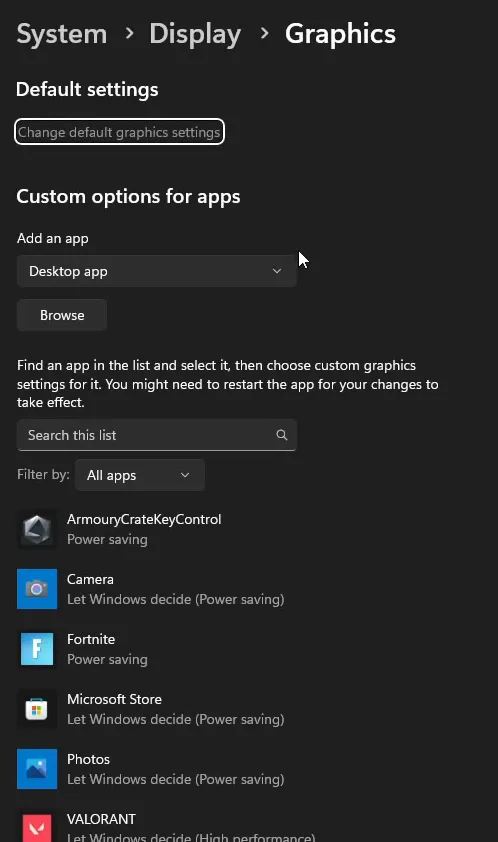
Open Graphics: it is under Related settings on the Game Bar page and opens System, Display, Graphics. Find the game you play in the list, for example Fortnite, click it and click Options. Pick High performance with your graphics card, not Power saving, so the game gets the most performance out of your GPU. Click Save.
Xbox Game BarGraphicsFortniteOptionsHigh performanceSave
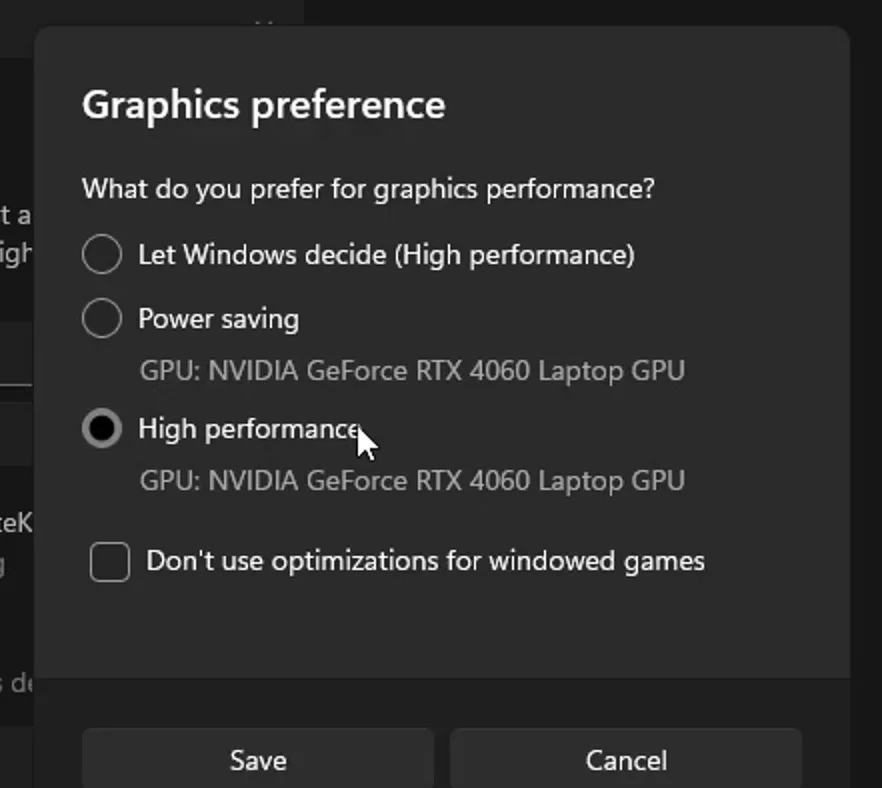
Then go back to Gaming, click Game Mode and make sure it is turned On. Game Mode tells Windows to put the game you are playing first.
SettingsGamingGame ModeOn
Tip
If your game is not in the list, choose Desktop app under Add an app, click Browse and pick the game's .exe file. Then set it to High performance the same way.
Click Windows Update on the left, open Advanced options and scroll to Delivery Optimization. Set Allow downloads from other PCs to Off. The video calls this crucial: with it on, your PC may send parts of Windows updates and apps to other devices on your network or on the internet.
SettingsWindows UpdateAdvanced optionsDelivery OptimizationOff
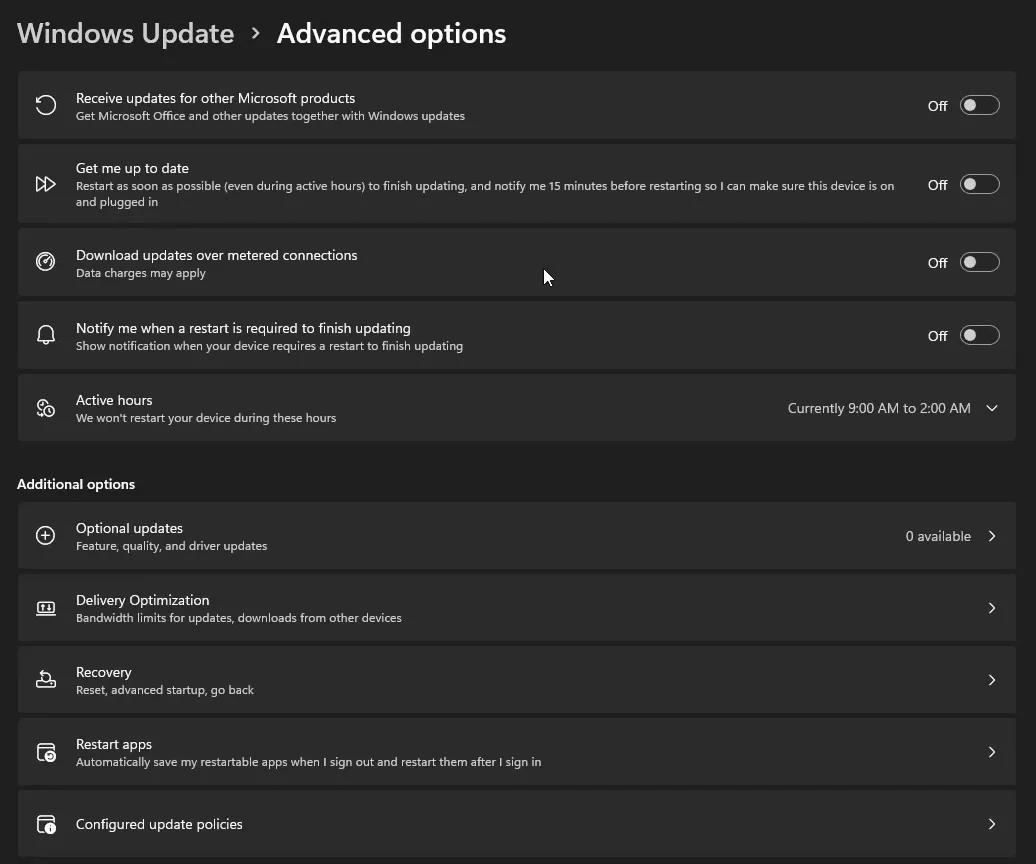
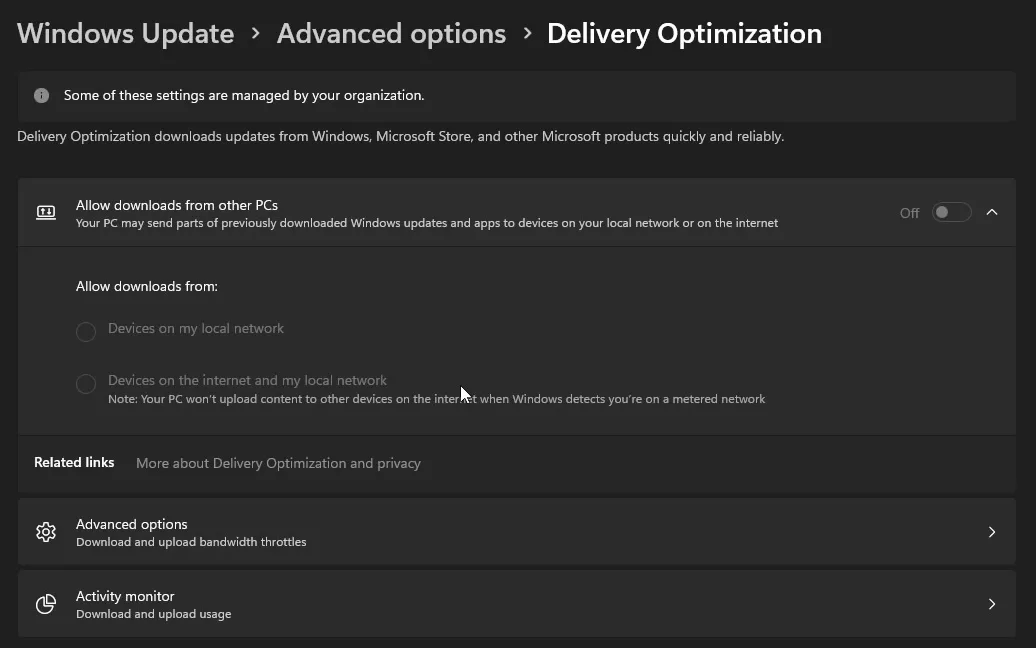
On the same page, open Advanced options (download and upload bandwidth throttles) and make sure the two boxes there are unchecked as well.
Good to know
Windows Update keeps working with Delivery Optimization off. Your PC still downloads its updates from Microsoft; it just stops sharing them with other PCs over your connection.
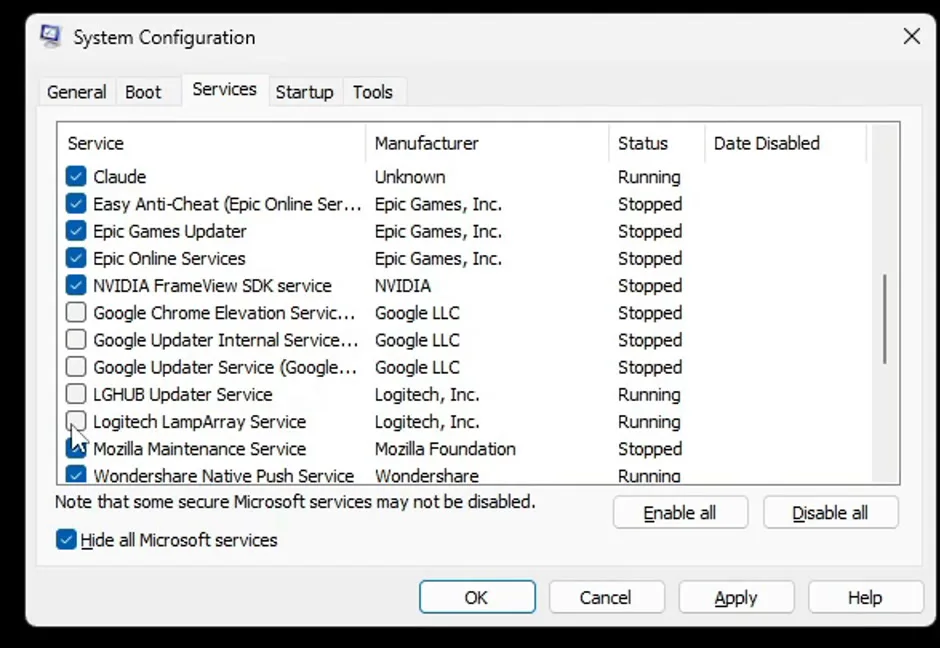
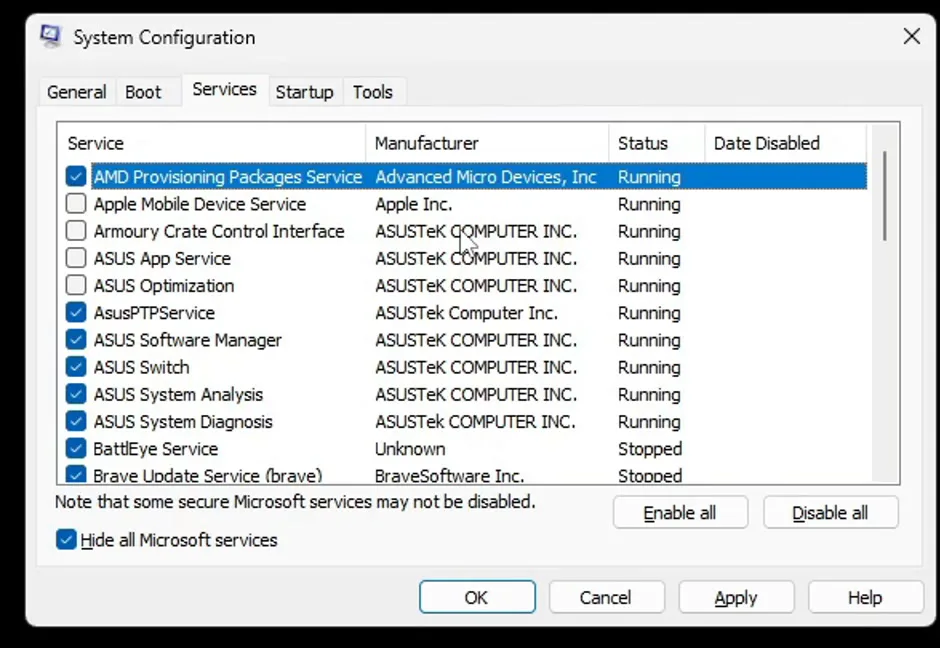
Press Windows + R, type msconfig and press Enter. In System Configuration, open the Services tab and tick Hide all Microsoft services first, so only services from other companies are left.
Windows + RmsconfigServicesHide all Microsoft services
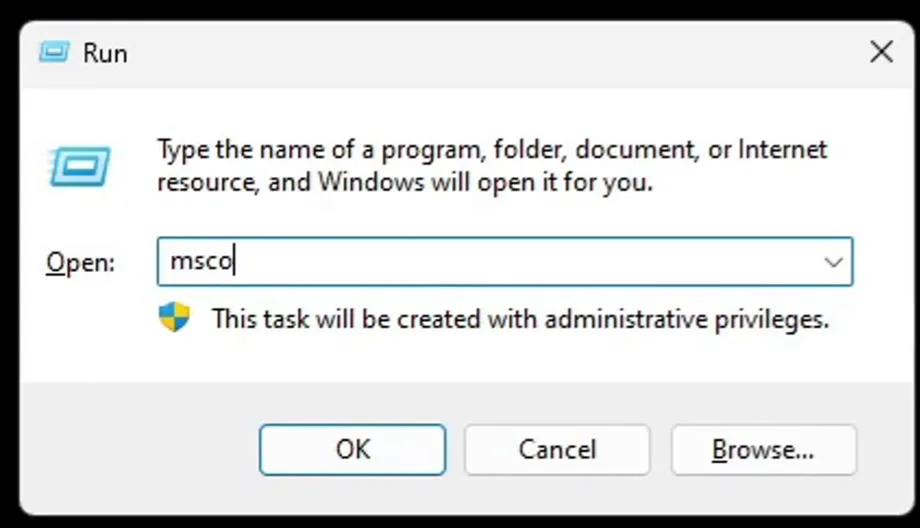
Now uncheck the services you do not use: in the video that is the Google updater services, the Logitech updater (LGHUB Updater Service and LampArray), Firefox's Mozilla service, Samsung Magician, Apple services, and Armoury Crate and other ASUS extras that come pre-installed on laptops. Click Apply, then OK.
Careful
Uncheck services one by one instead of clicking Disable all. Leave the services of games and tools you use ticked, like Easy Anti-Cheat, BattlEye and Epic in the video: games with anti-cheat need them to start.
More on cutting what runs in the background: our guide to reducing background processes.
Open the Start menu, type windows security and open Windows Security. Go to Device security, open the Core isolation details and set Memory integrity to Off.
Windows SecurityDevice securityCore isolationMemory integrityOff
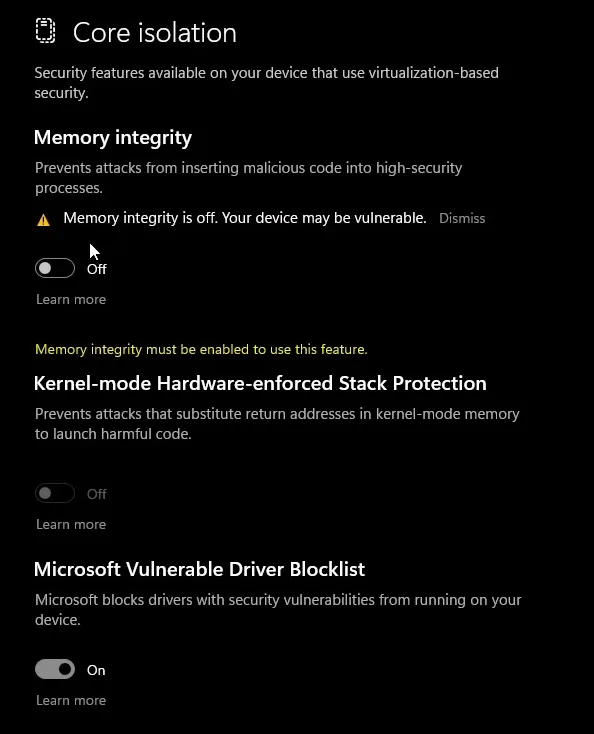
Memory integrity is a security feature that runs on virtualization, and Microsoft itself says it can cost performance in some setups. Windows asks for a restart before the change takes effect.
How to undo it
To turn it back on, open the same page, set Memory integrity to On and restart. Microsoft's own advice for gamers is to switch it off while gaming and back on when you're done, if you want the extra protection.
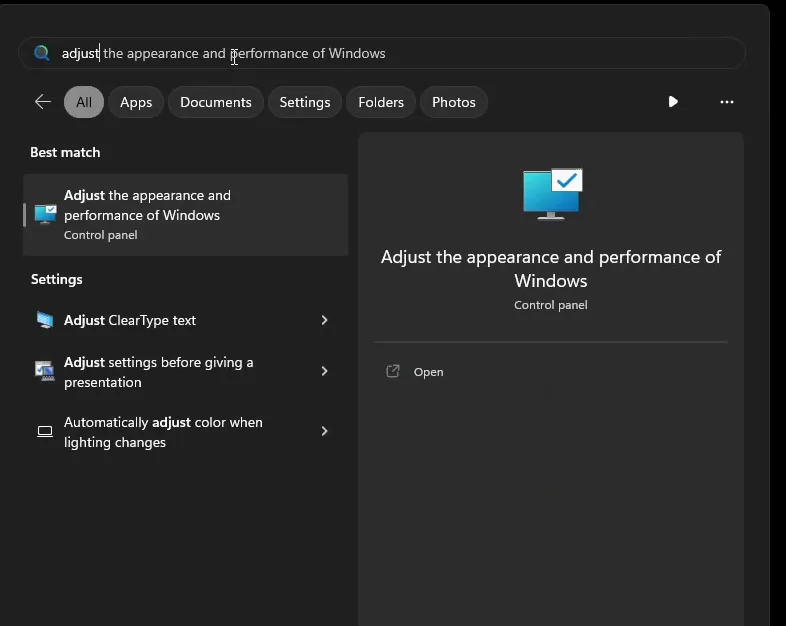
Click the Windows button, type adjust and click Adjust the appearance and performance of Windows. If one of the three presets at the top is selected (Let Windows choose, best appearance or best performance), click Custom. Then turn on only Smooth edges of screen fonts and Show window contents while dragging, click Apply and then OK.
StartadjustAdjust the appearance and performance of WindowsVisual EffectsCustom
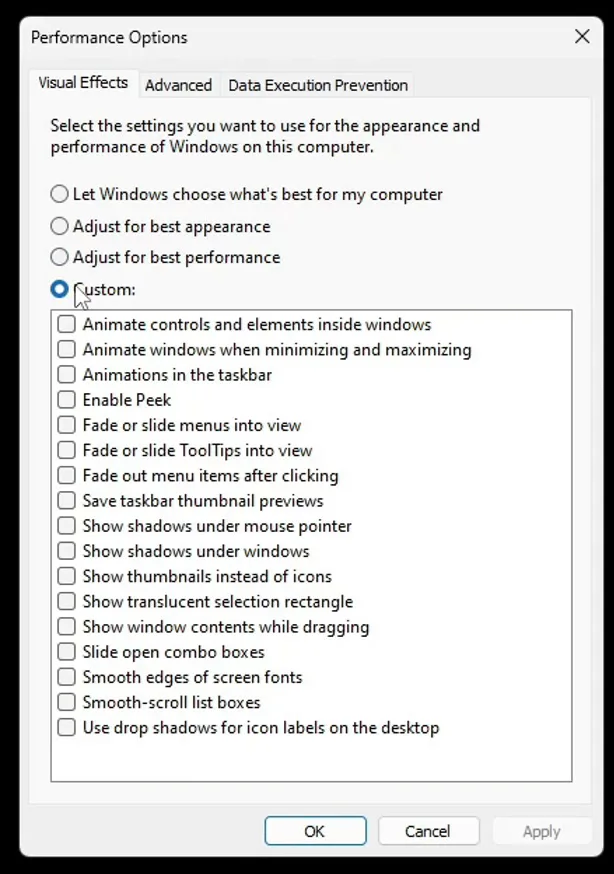
The animations, fades and shadows stay off, while the two boxes you keep make text readable and windows easy to move.
How to check it worked
Restart your PC once after the MSConfig and Memory integrity changes, then check each setting:
- Open Settings, Apps, Startup again: every app you switched off should still show Off.
- Run
msconfigagain, open Services and tick Hide all Microsoft services: the services you unchecked show a date under Date Disabled. - In Windows Security, Core isolation should say Memory integrity is off.
- In your game, turn on its FPS counter and play the same mode or map as before. Compare the FPS and how responsive aiming feels. How much you gain typically depends on how many apps and services your PC was running before.
For more tweaks of the same kind, see our hidden Windows tweaks for gaming.
Key settings at a glance
FAQ
Does turning off Memory Integrity increase FPS?
It can. Memory integrity uses virtualization-based security, and Microsoft says it may cost performance in some configurations. How much you notice typically depends on the game and your hardware. In the video it is setting 3, after startup apps and MSConfig services.
Is it safe to turn off Memory Integrity?
It lowers your protection: Windows warns that your device may be vulnerable while it is off. If you'd rather keep it, turn it off only while you play and back on afterwards, followed by a restart each time.
Is it safe to disable services in MSConfig?
Yes, if you tick Hide all Microsoft services first, as the video does, and only uncheck things you don't use, like updaters and pre-installed laptop extras. Keep game and anti-cheat services ticked. To undo, tick the service again and click Apply.
Does turning off Delivery Optimization stop Windows updates?
No. Updates still come from Microsoft as usual. Turning off Allow downloads from other PCs only stops your PC from sharing update files with other devices on your network or the internet.
Should Game Mode be on or off for gaming?
On. The video turns it on in Settings, Gaming, Game Mode, right after setting the game to High performance. Microsoft describes Game Mode as giving the game priority and keeping Windows Update from installing drivers or showing restart notifications while you play.
Do these settings work on Windows 10?
The video is recorded on Windows 11, and the description covers Windows 10 and 11. Startup apps, Game Mode, Delivery Optimization, msconfig, Memory integrity and the visual effects window all exist on Windows 10 too; some sit in slightly different menus, so use the search box in Settings or the Start menu to find them.
Will these settings lower my ping?
The video sells them for FPS and input delay. Turning off Delivery Optimization does stop update uploads over your connection while you play. For ping itself, see our guide to fixing bufferbloat and high ping.
Which game do I pick in the Graphics settings?
The one you play most. The video uses Fortnite as the example, but you can set every game you play to High performance, one after the other.
 RIP Tweaks
Do it in a few minutes with RIP Tweaks
- Free plan for Windows 10 and 11
- A backup first, and every tweak can be switched off again
- Made for higher FPS, lower input lag and steadier ping
Free · Windows 10 and 11
