3 Hidden Windows Tweaks for Gaming: More FPS and Lower Input Lag (2026)

Written version of our video, every step checked against it.
Quick answer
- In Windows Security, open Device security, then Core isolation details, and switch Memory integrity off.
- In Settings, open Gaming, then Game Mode, and switch it off.
- Under Graphics, open Options for your game, pick High performance and click Save.
- In
msconfig, keep Normal startup, set Number of processors to the maximum and untick third-party services you never use. - Restart the PC. On the PC in the video, Fortnite ran at around 260 FPS after these three tweaks.
This guide is for anyone with low FPS or input delay on a PC that should run better. It follows our two-minute video click by click: three Windows settings most players never open (Memory Integrity, Game Mode with the per-game graphics setting, and MSConfig), what each one changes and how to switch it back. You need nothing but Windows 10 or 11.
In this video
Open the Start menu, type Windows Security and open it. Click Device security, then Core isolation details under Core isolation, and switch Memory integrity to off. Windows asks for a restart before the change takes effect; you can restart once at the end of this guide.
Windows SecurityDevice securityCore isolation detailsMemory integrity: Off
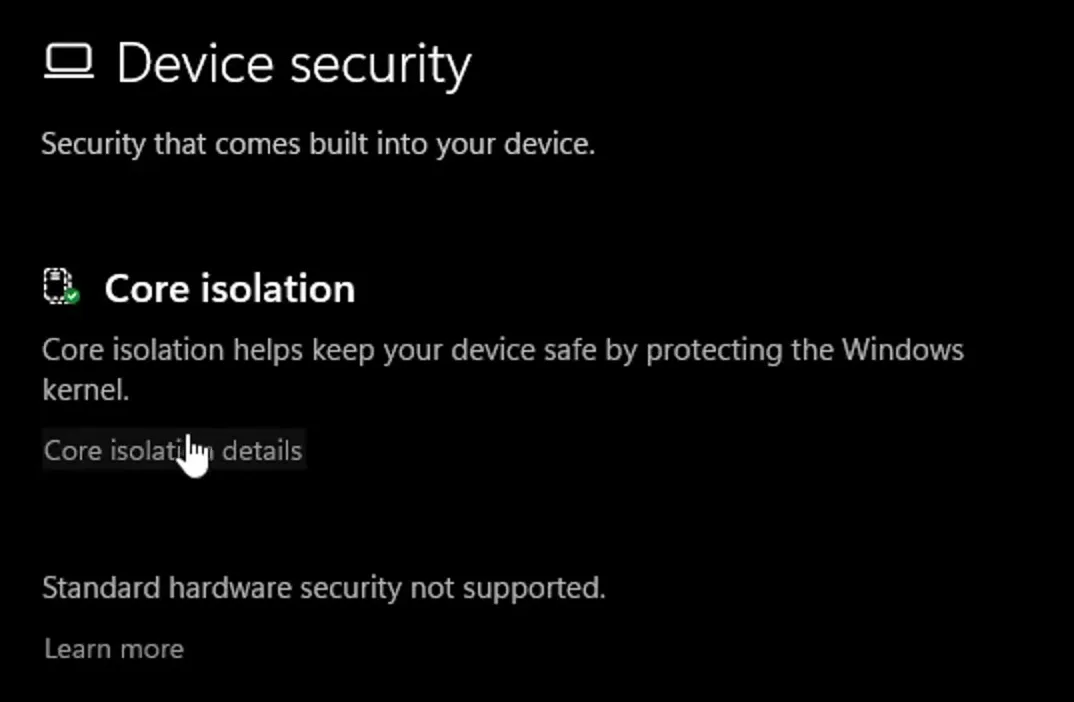
Memory Integrity uses virtualization to protect the core of Windows (the kernel) from harmful code. That extra checking can cost frames in games on some PCs, which is why the video turns it off first.
Careful
Memory Integrity is a security feature. Turning it off removes one layer of protection, so keep your antivirus on and only install drivers from sources you trust. You can switch it back on at any time in the same place.
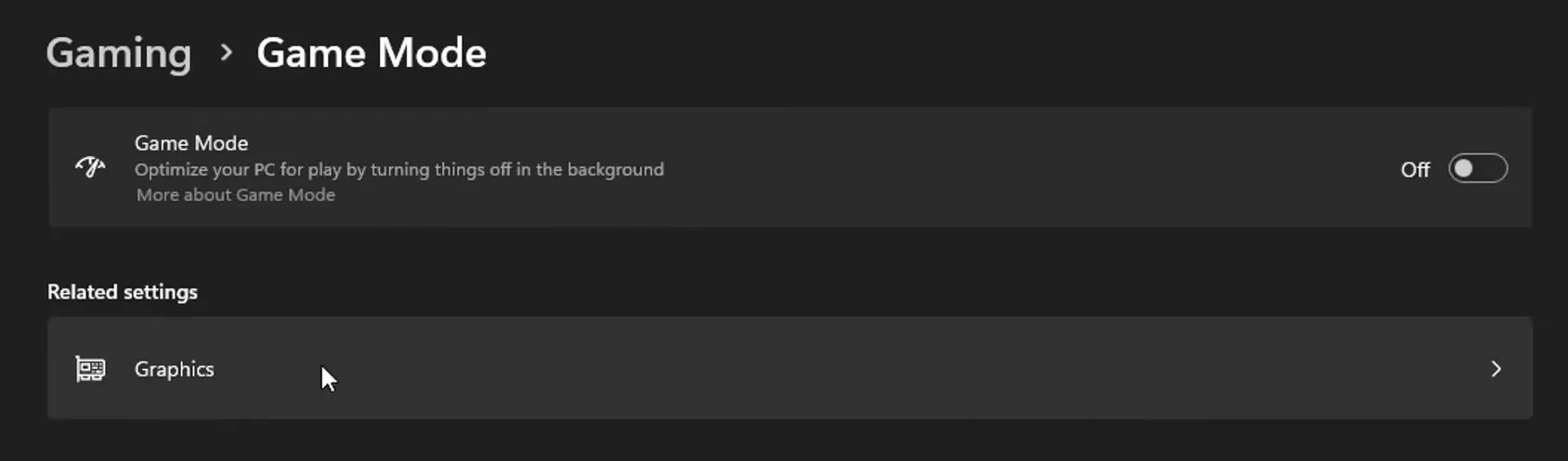
Open Settings and click Gaming in the left menu, then Game Mode. The video switches the Game Mode toggle to Off.
SettingsGamingGame ModeOff
Tip
Game Mode behaves differently from PC to PC. Play a few matches with it off, as in the video, then a few with it on, and keep the one that feels smoother and holds steadier FPS.
On the same Game Mode page, click Graphics under Related settings. Find the game you play in the list (the video uses Fortnite), click it, click Options, choose High performance and click Save. The game's line now reads High performance.
Game ModeGraphicsYour gameOptionsHigh performanceSave
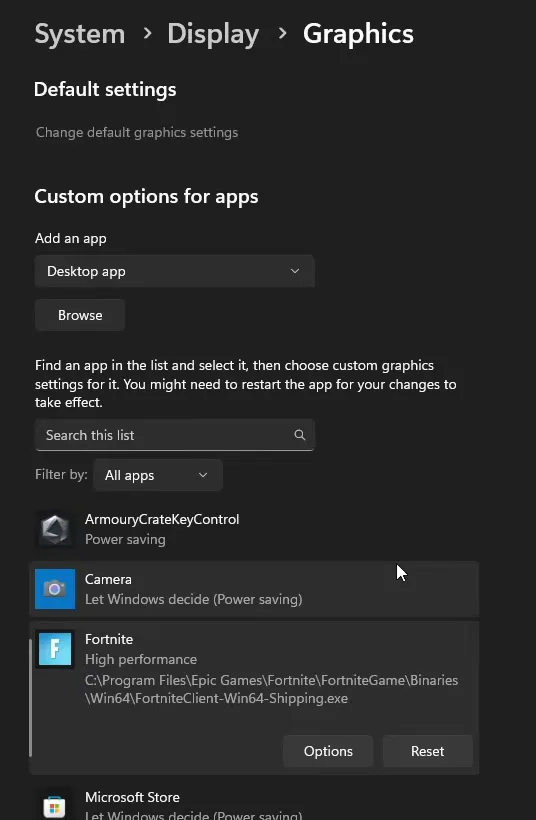
High performance tells Windows to run the game on your strongest graphics chip. This matters most on gaming laptops, which also have slower built-in graphics that Windows may pick to save power. If your game is not in the list, choose Desktop app, click Browse and select the game's .exe file first.
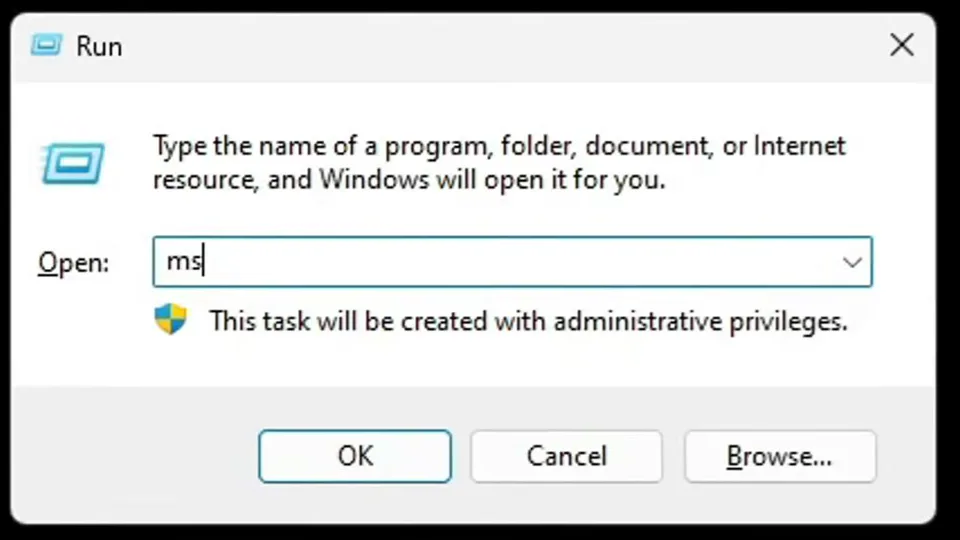
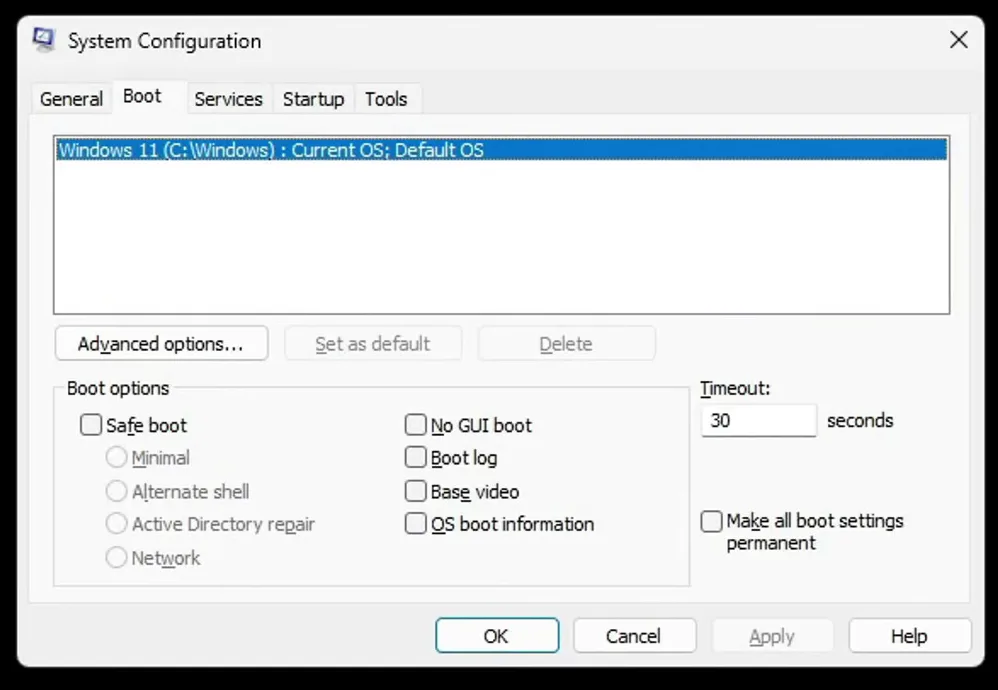
Click the Boot tab, then Advanced options. Tick Number of processors and pick the highest number in the list (16 on the PC in the video). Tick Maximum memory and let it fill in by itself. Click OK, then Apply.
BootAdvanced optionsNumber of processors: maxMaximum memoryOKApply
Good to know
These two boxes can only limit Windows, never add cores or memory. Set to the maximum, they make sure nothing is held back. Never pick a lower number than the highest one in the list.
Open the Services tab and tick Hide all Microsoft services at the bottom. The list then shows only services that other software installed: laptop tools, updaters, launchers and so on. The Windows services you need stay out of reach.
ServicesHide all Microsoft services
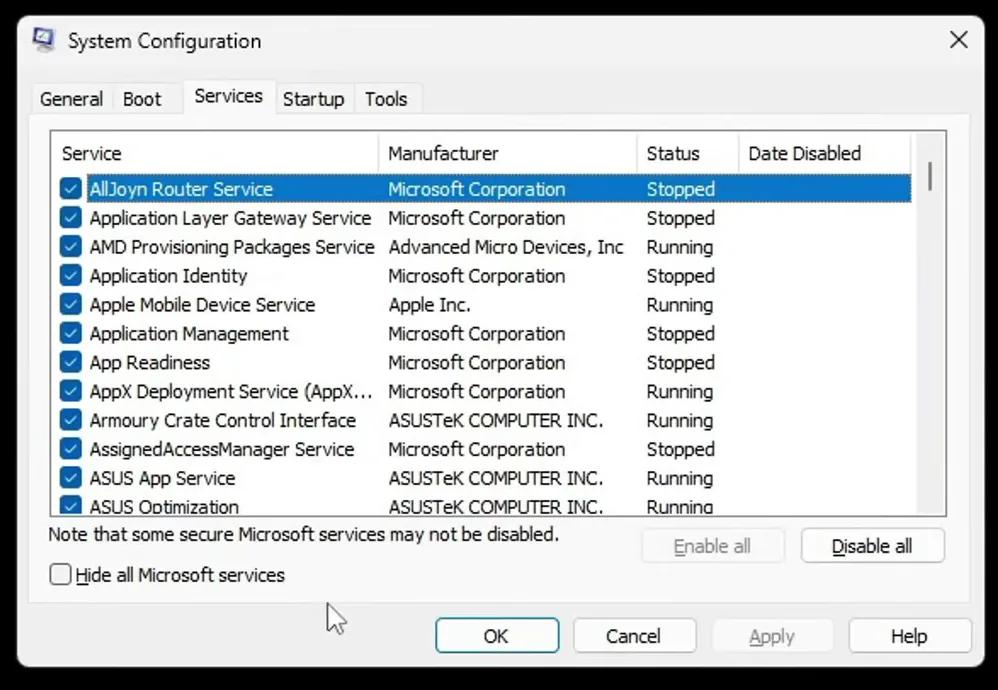
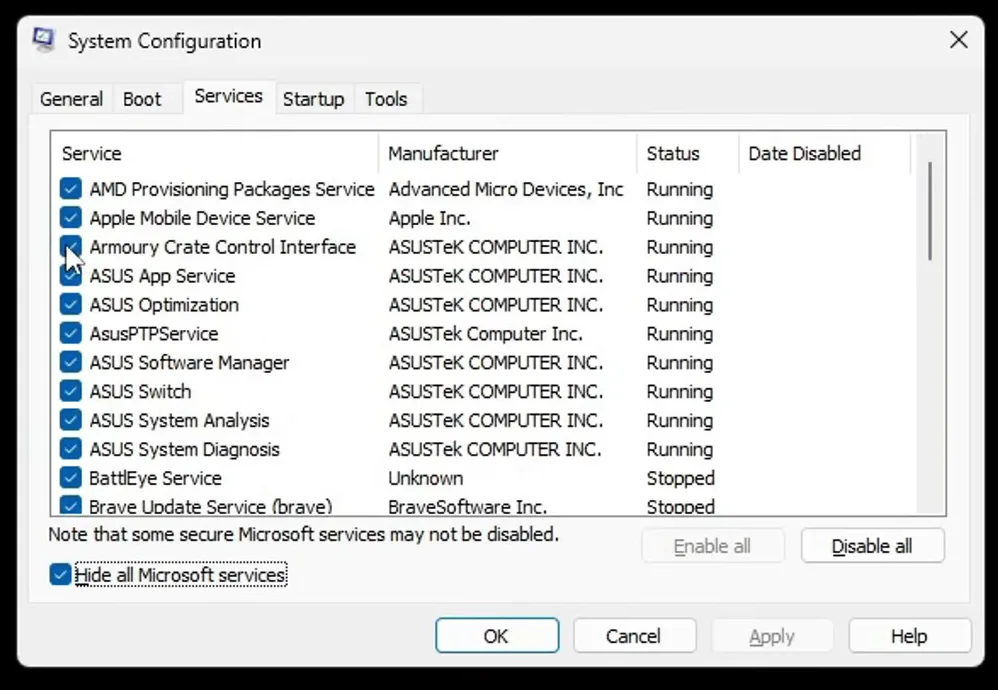
Go through the list carefully and untick what you never use on this PC. The video names Armoury Crate (on many laptops), browser and Chrome updating services and video editing tools. Click Apply when you are done.
ServicesUntick unused servicesApply
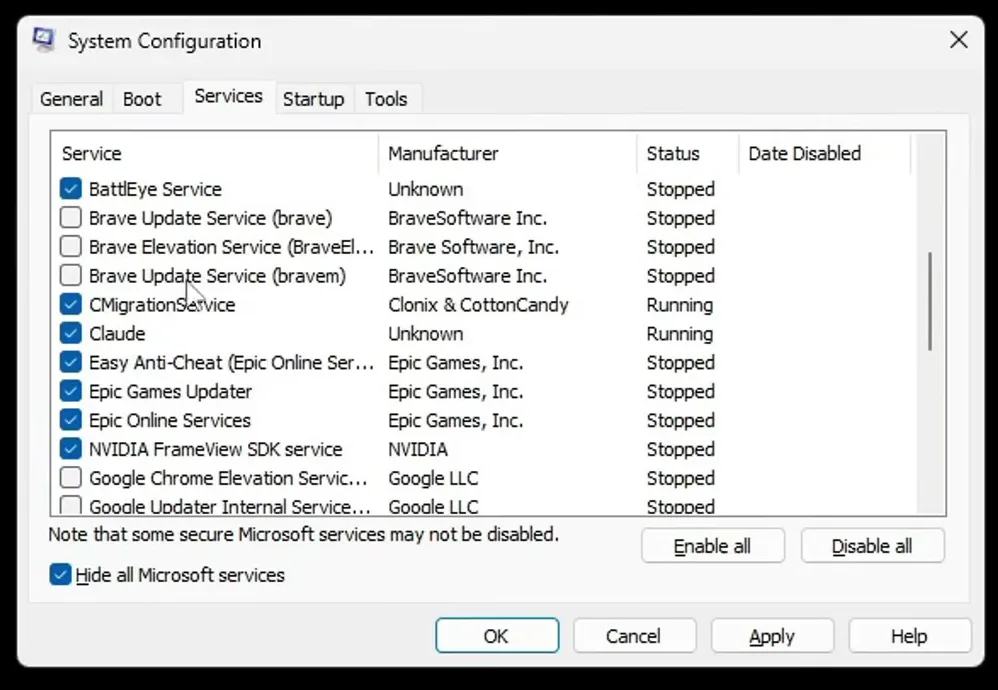
Whenever you want to use one of those apps again, come back to this tab, tick its service and click Apply.
Don't do this
Leave the services of your games, launchers and anti-cheat ticked (in the video: BattlEye, Easy Anti-Cheat, Epic Online Services). Games that need them will not start without them. If you are not sure what a service does, leave it on.
Close everything and restart the PC so Memory Integrity, Game Mode, the graphics setting and the MSConfig changes all take effect. Then start your game with an FPS counter on.

On the PC in the video, Fortnite ran at around 260 FPS after these three tweaks alone. Your result depends on your hardware and on what was slowing the PC down before.
How to check it worked
- Open Windows Security, then Device security and Core isolation details: Memory integrity should say Off after the restart.
- In Settings, Gaming, Game Mode, then Graphics, your game's line should read High performance.
- Run
msconfigagain: the services you unticked stay unticked on the Services tab. The General tab may now show Selective startup, which is normal after unticking services. - Play the same map or match as before the tweaks and compare the FPS counter, watching the lowest values as well as the average.
How to undo it
To undo everything: switch Memory integrity and Game Mode back on, set your game to Let Windows decide (or click Reset) in Graphics, untick both boxes in Boot advanced options, click Enable all on the Services tab and restart.
These are the tweaks you can do by hand in a few minutes. For the rest of Windows, see our guides to reducing background processes, Windows 11 gaming optimization and, on a laptop, the gaming laptop FPS boost.
Key settings at a glance
FAQ
Does turning off Memory Integrity increase FPS?
It can. Memory Integrity adds checks to the core of Windows, and on some PCs that costs frames in games. How much you get back depends on your processor and the game, so compare your FPS before and after on the same map.
Is it safe to turn off Memory Integrity?
It removes one layer of protection against harmful drivers and code. Many players accept that trade on a gaming PC, but it is your choice. Keep your antivirus on, and switch it back on any time in Windows Security, Device security, Core isolation details.
Should Game Mode be on or off for gaming?
The video turns it off. Game Mode works differently on different PCs, so test both: a few matches each way, then keep the setting that gives you steadier FPS and less stutter.
Does setting the number of processors in MSConfig boost FPS?
It does not add cores. Windows already uses all of them by default; the box can only limit that. Setting it to the highest number (16 on the PC in the video) makes sure nothing is limited. Never choose a lower number.
Which MSConfig services can I disable for gaming?
With Hide all Microsoft services ticked, untick only third-party tools you never use, like Armoury Crate, browser updaters or video editing services, as in the video. Keep game, launcher and anti-cheat services ticked, and anything you don't recognise.
How do I undo the MSConfig changes?
On the Services tab click Enable all, in Boot, Advanced options untick Number of processors and Maximum memory, select Normal startup on the General tab and restart.
Do these tweaks work on Windows 10?
Yes. Memory Integrity, Game Mode, the Graphics setting and MSConfig all exist on Windows 10 and 11. The menus in the video are Windows 11; on Windows 10 the Graphics settings sit under Settings, System, Display.
Do these tweaks lower ping?
These three target FPS and input delay on your PC. Ping depends on your network; for that, see our guides to fixing bufferbloat and fixing ping spikes and packet loss.
 RIP Tweaks
Do it in a few minutes with RIP Tweaks
- Free plan for Windows 10 and 11
- A backup first, and every tweak can be switched off again
- Made for higher FPS, lower input lag and steadier ping
Free · Windows 10 and 11
