Best Intel and AMD BIOS Settings for FPS and Low Input Delay (2026)

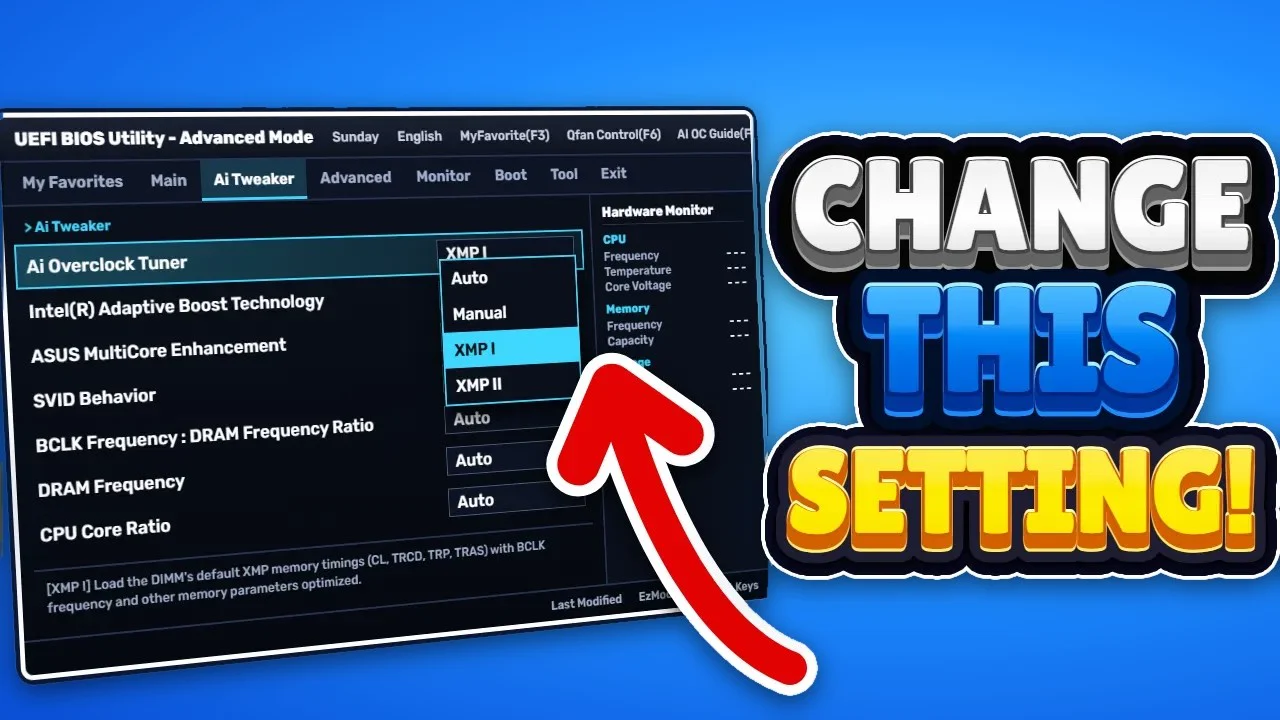
Written version of our video, every step checked against it.
Quick answer
- Turn on your RAM profile: XMP on Intel, EXPO or DOCP on AMD, so the memory runs at the speed you paid for.
- On both: CSM off, Above 4G Decoding and Resize BAR Support on, Global C-States and PCIe/CPU ASPM off.
- Intel only: Gear 1, Speed Shift and Turbo Max 3.0 on, Intel Virtualization off (keep it on for emulators or virtual machines).
- AMD only: Precision Boost Overdrive on, FCLK 1:1, CPPC Preferred Cores on, DF C-States off.
- Keep TPM on (Intel PTT or AMD fTPM) for VALORANT, press F10 to save, and know how to reset the BIOS with the CMOS battery first.
Most people optimize Windows and their games but never open the BIOS, even though it decides how your RAM, processor and graphics card run before Windows even starts. This guide follows our 2026 BIOS video step by step: where to find the full Intel and AMD lists in RIP Tweaks, the ten settings from each list that the video reads out, the one setting to never turn off, the extreme desktop-only profiles and how to undo everything with the CMOS battery. For a deeper look at what each setting does, see our BIOS settings for gaming guide.
In this video
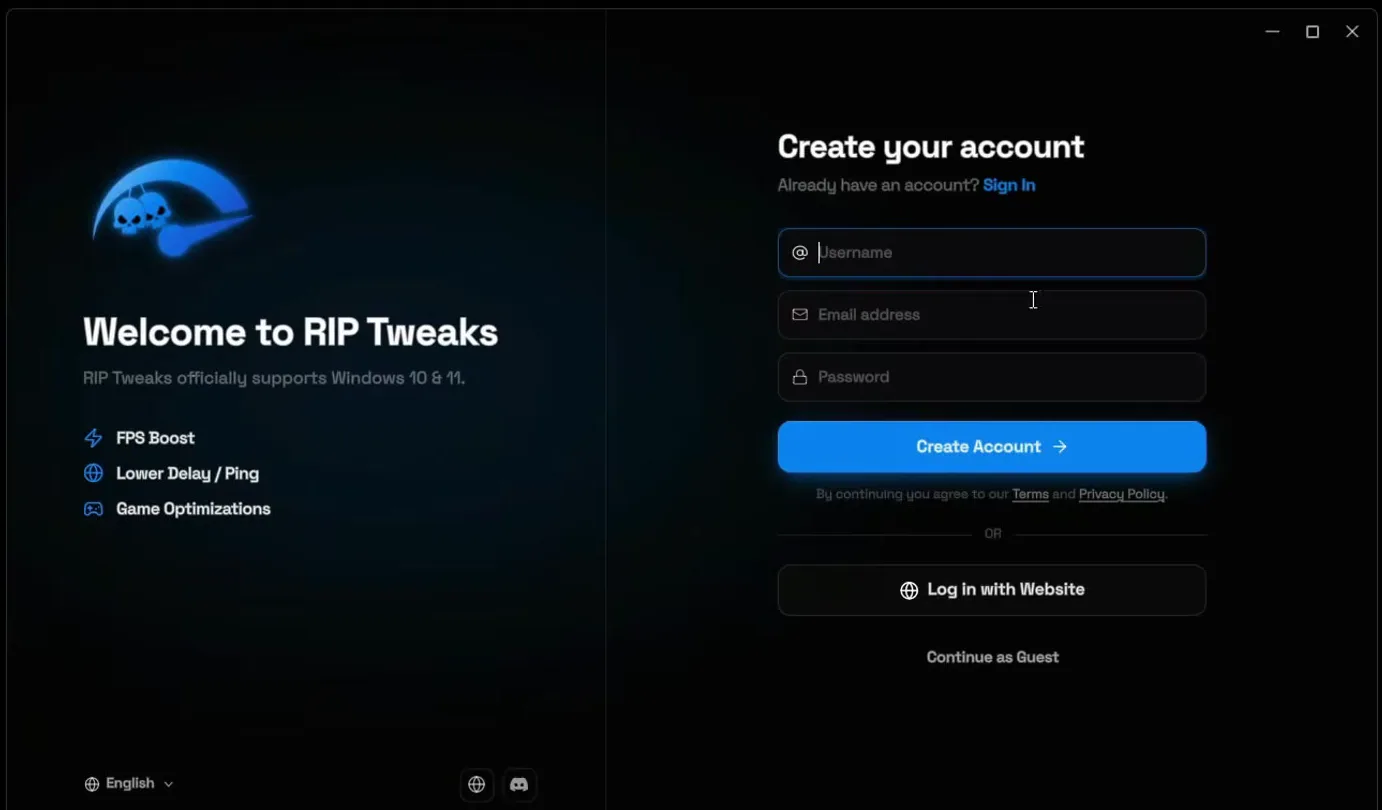
The video gets RIP Tweaks from the Discord: type discord.gg/riptweaks into your browser, click Join, open the free tweak channel and click Download twice. You can also download it straight from riptweaks.com. Run the installer, then create your account with a username, email address and password, click Create Account and fill out the short questionnaire.
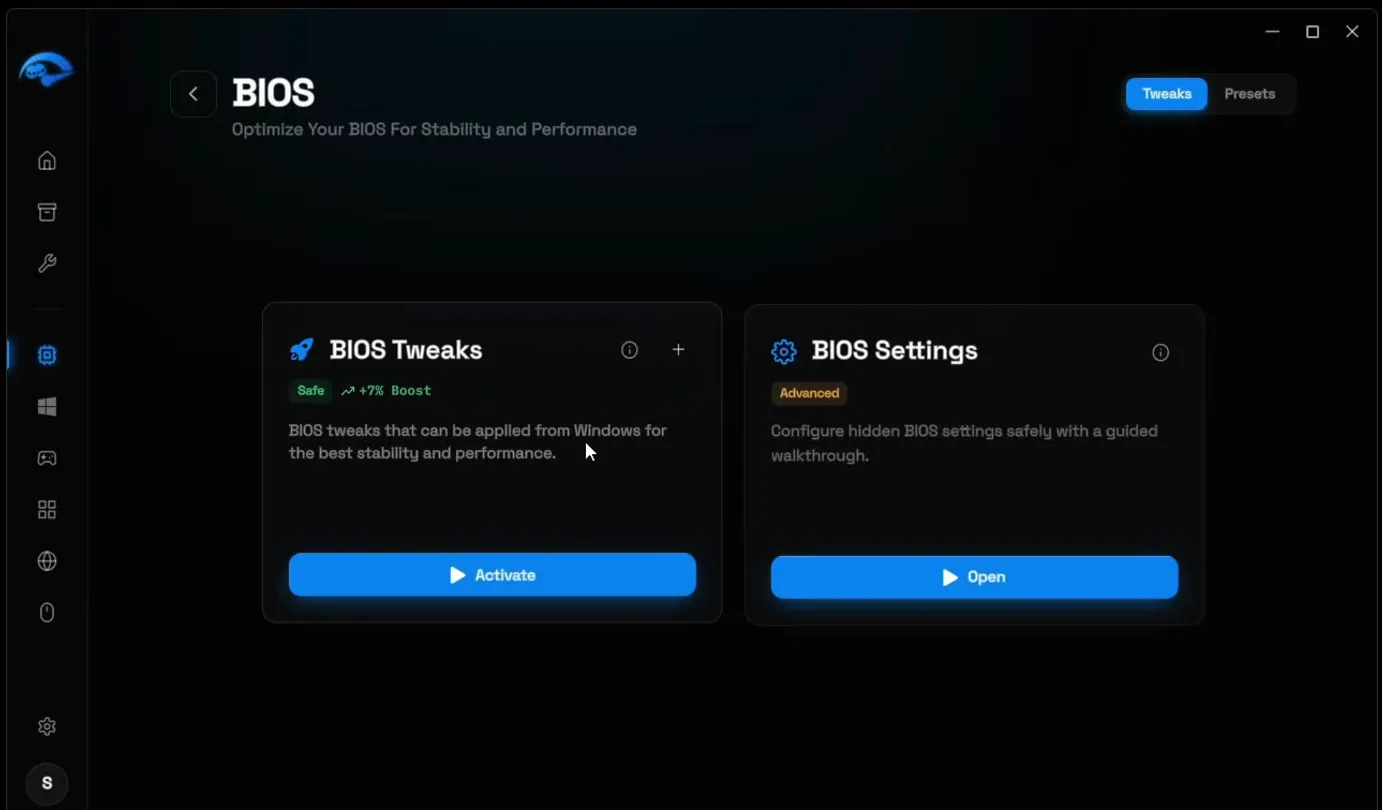
In the left sidebar, click Hardware, then BIOS. The page has two cards. On BIOS Tweaks (marked Safe), click Activate: these are BIOS tweaks the app applies from Windows. Then click Open on BIOS Settings, the list of the exact settings to change inside the BIOS itself.
HardwareBIOSBIOS Tweaks: ActivateBIOS Settings: Open
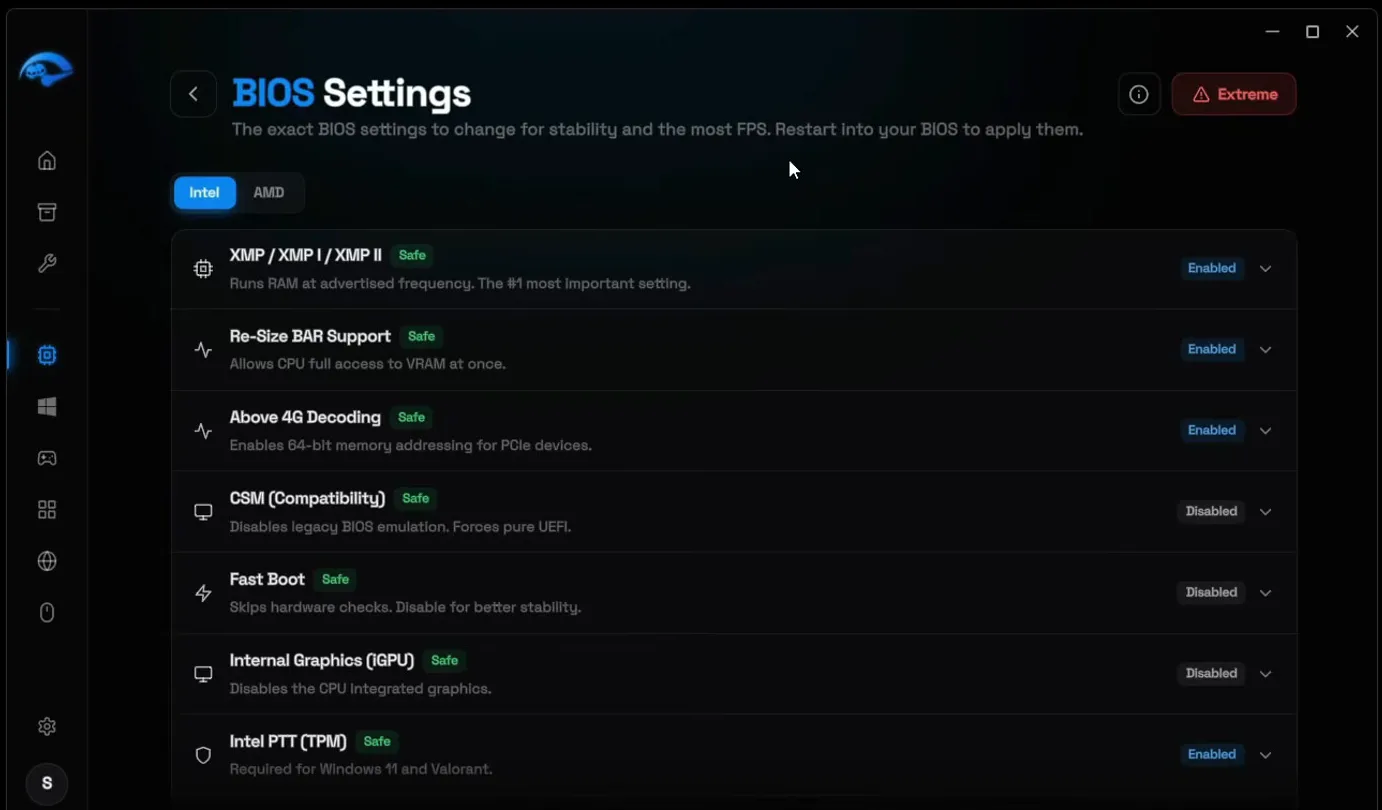
The list has an Intel and an AMD tab because many settings differ between the two. You can copy every setting you see there; the video reads out the ten most useful ones from each list, and they are in the next two steps. Keep the list open on your phone or a second screen, because you change the settings inside the BIOS, not in Windows.
Tip
To enter the BIOS, restart or power on the PC and keep tapping F2, F8, F10, F12 or Del, whichever your motherboard uses. The key usually shows on the boot screen for a moment. Our BIOS tweaks from Windows page covers the part you can do without restarting.
On an Intel PC, go through these in order. Names vary a little between board makers, so search for the closest match:
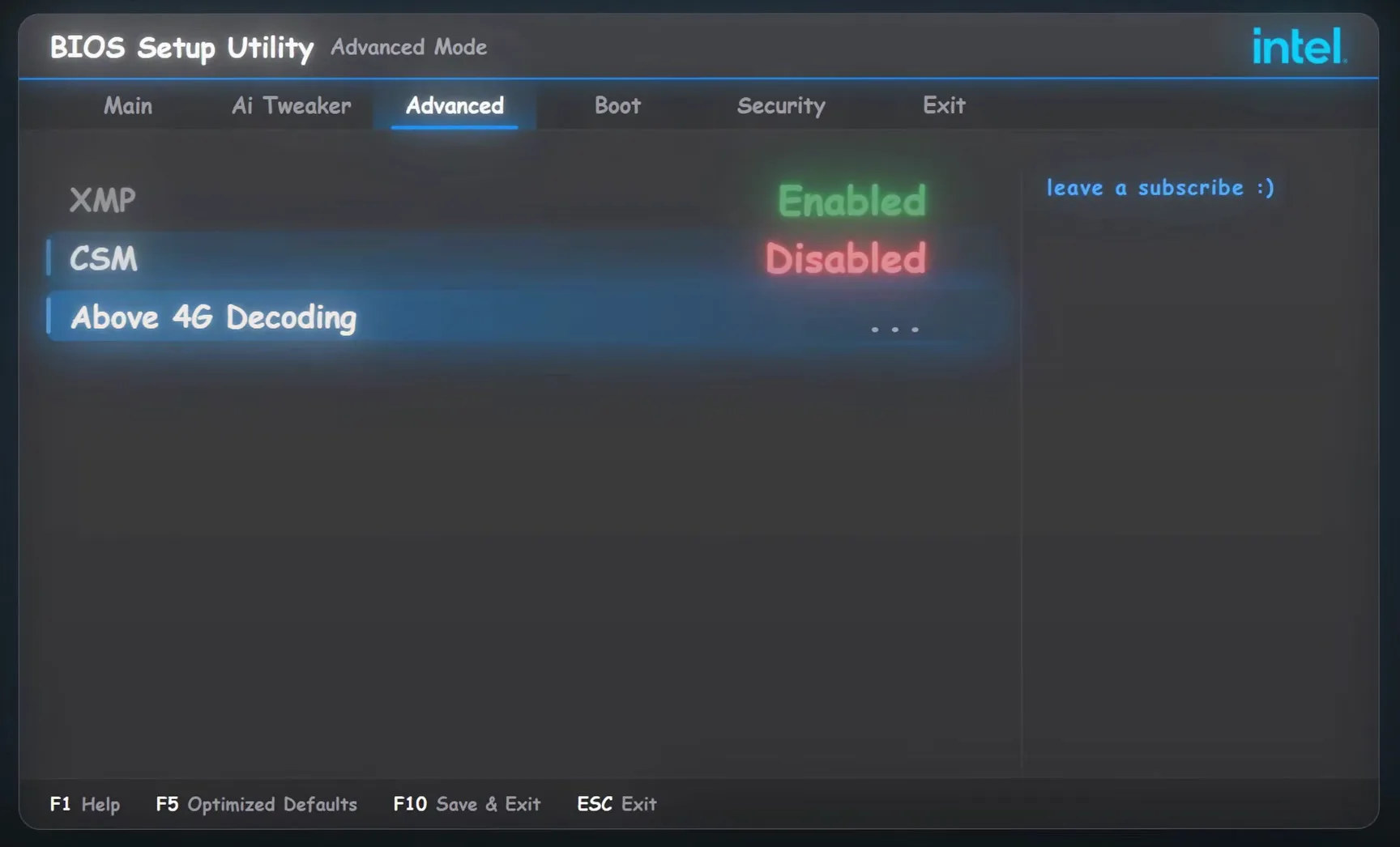
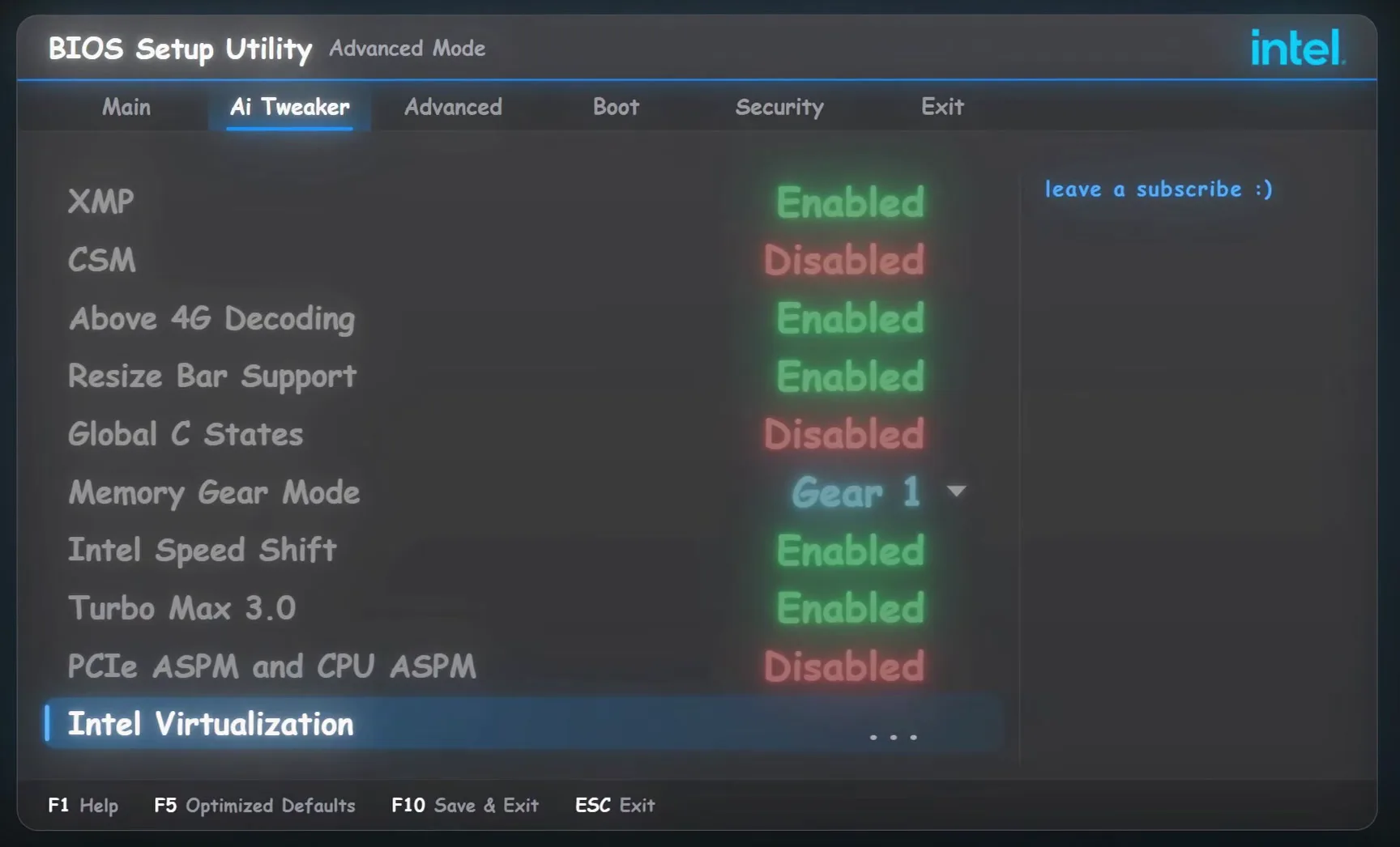
- XMP: Enabled, so the RAM runs at the speed that you paid for. The app calls it the most important setting.
- CSM: Disabled, for a pure UEFI boot.
- Above 4G Decoding: Enabled.
- Resize BAR Support: Enabled, so the CPU can reach all of the graphics card's memory at once.
- Global C-States: Disabled, so the cores don't drop into deep power-saving states while you play.
- Memory Gear Mode: Gear 1, found under the memory controller settings (the Ai Tweaker tab in the video).
- Intel Speed Shift and Turbo Max 3.0: Enabled.
- PCIe ASPM and CPU ASPM: Disabled.
- Intel Virtualization: Disabled.
Ai TweakerMemory ControllerMemory Gear ModeGear 1
Good to know
Skip the Intel Virtualization change if you use emulators like BlueStacks or virtual machines: they need it on. The video says the rest of the Intel settings are safe. If your board does not offer Gear 1 for your RAM (common with fast DDR5 kits), leave Memory Gear Mode as it is.
On an AMD Ryzen PC, the list is similar at the start and then has its own processor settings:
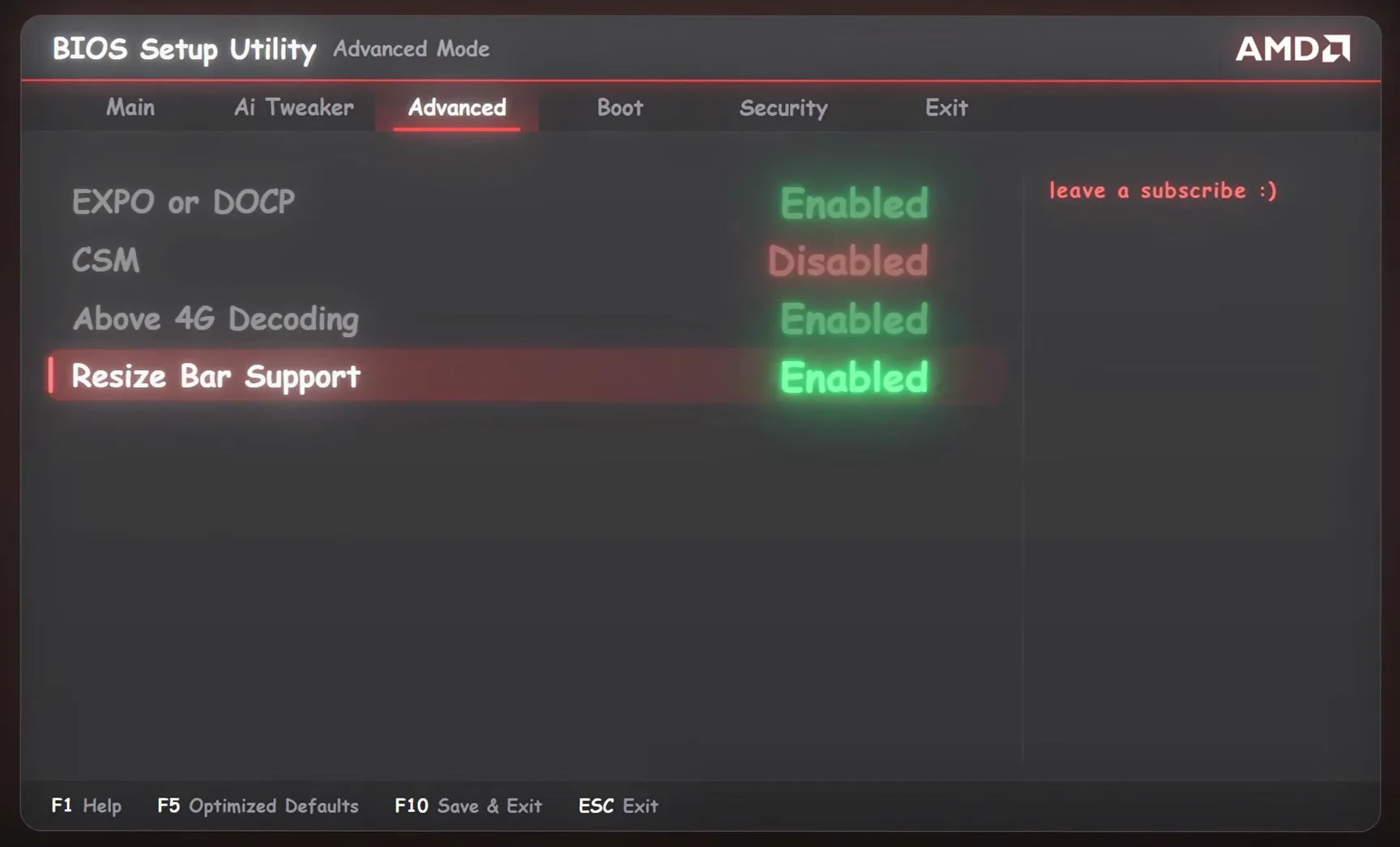
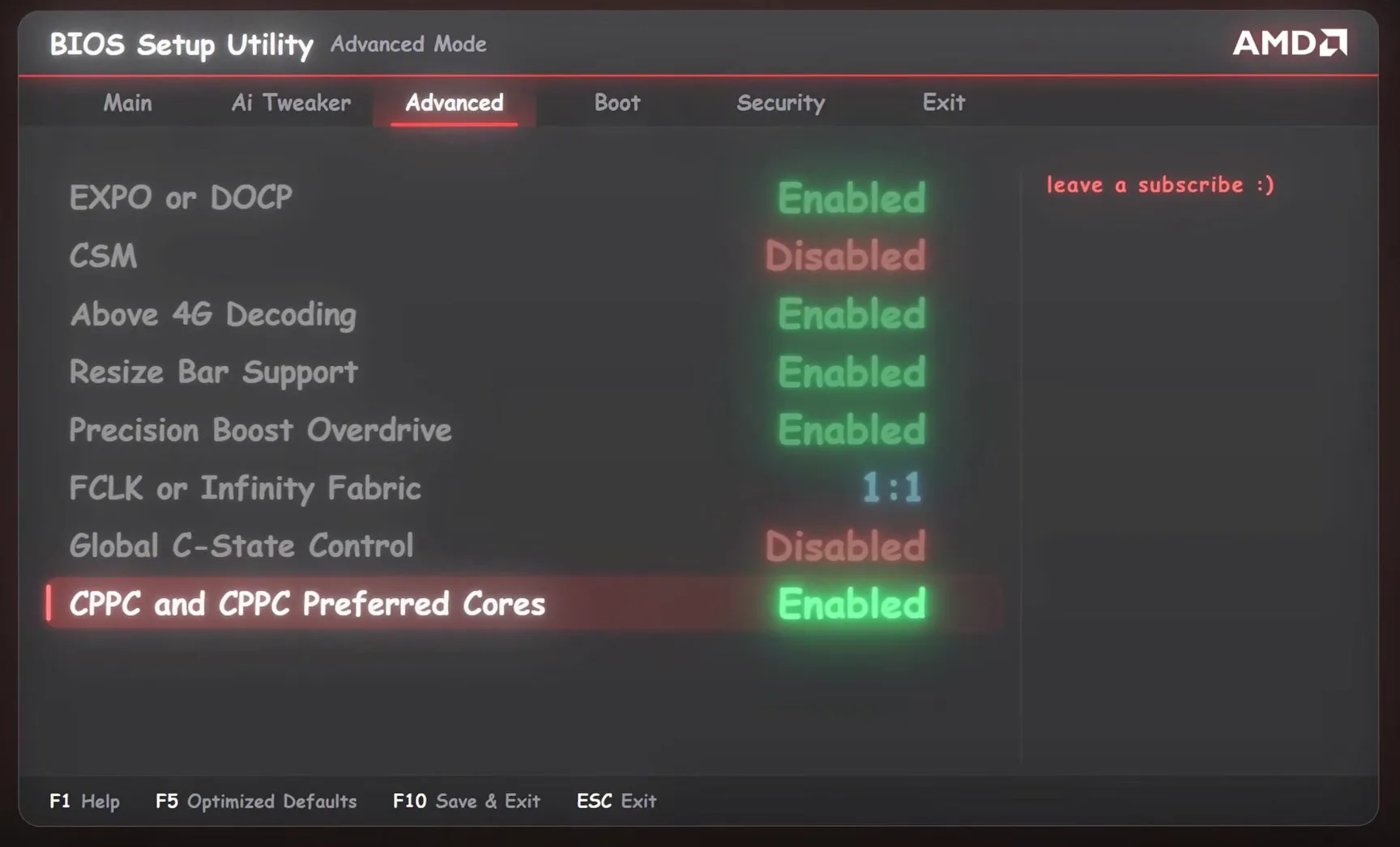
- EXPO or DOCP: Enabled. It is the AMD version of XMP, so your RAM runs at its rated speed.
- CSM: Disabled.
- Above 4G Decoding: Enabled.
- Resize BAR Support: Enabled.
- Precision Boost Overdrive: Enabled, so the processor can boost higher when temperature and power allow.
- FCLK or Infinity Fabric: 1:1 with the memory clock.
- Global C-State Control: Disabled.
- CPPC and CPPC Preferred Cores: Enabled, so Windows sends games to the fastest cores.
- DF C-States: Disabled.
- PCIe ASPM and CPU ASPM: Disabled.
Out of everything in the BIOS, one setting must stay on: TPM. On Intel it is called Intel PTT, on AMD AMD fTPM. Games like VALORANT use a kernel anti-cheat that won't start without it, and Windows 11 needs it too. The RIP Tweaks list shows it as Enabled for that reason.
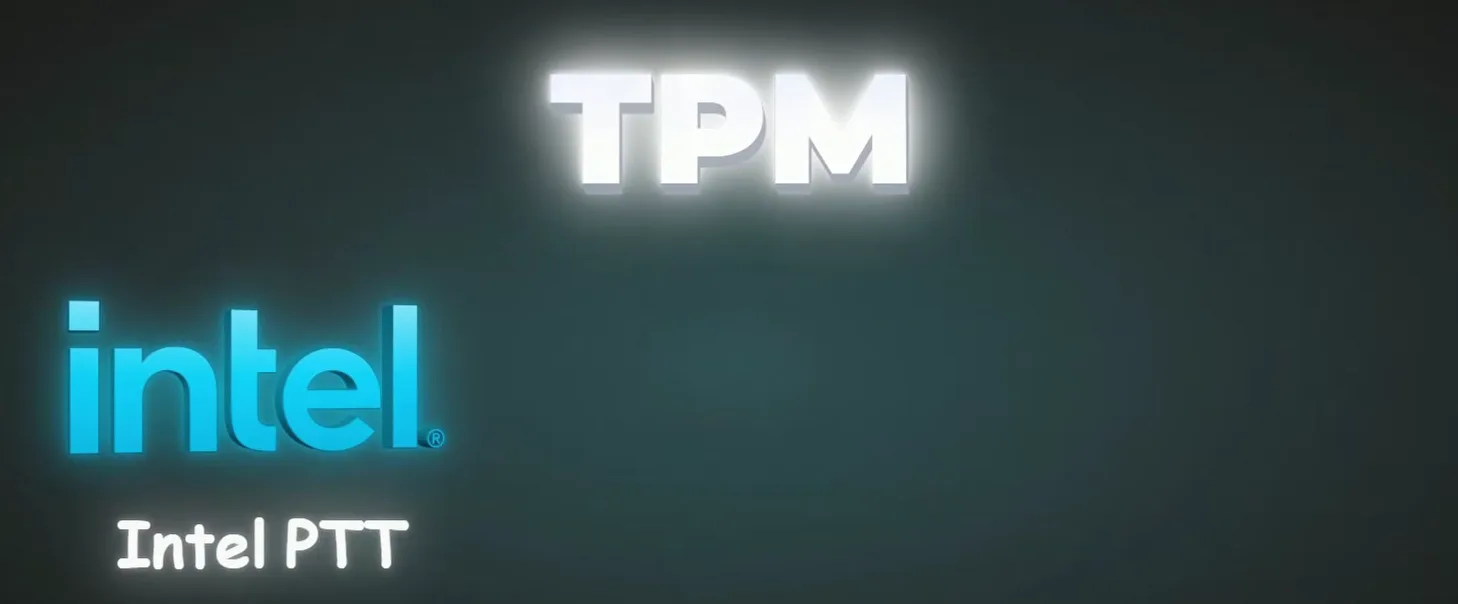
When every setting is done, press F10, confirm Save & Exit, and the PC restarts with the new settings.
Don't do this
Don't turn TPM off to chase FPS. VALORANT will not start, and with BitLocker or device encryption on, Windows can ask for your recovery key. If the BIOS asks to reset TPM keys while you change other settings, cancel.
RIP Tweaks has one more level. In BIOS Settings, click the red Extreme button at the top right. The window says it plainly: Dangerous, Desktop only. These profiles push your hardware to its limit, and applying them on a laptop can brick it. The video calls them very dangerous, so use them only if you are willing to go to the biggest extreme.
BIOS SettingsExtremeIntel BIOS Extreme or AMD BIOS Extreme
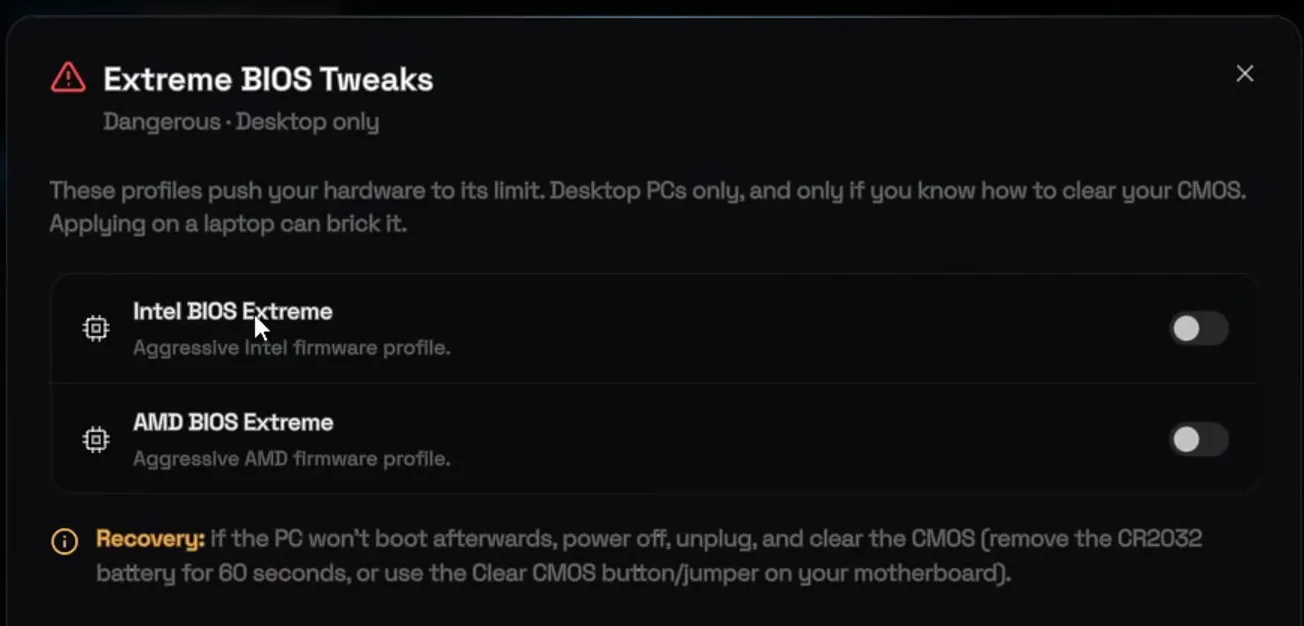
Turn on Intel BIOS Extreme if you have an Intel CPU or AMD BIOS Extreme if you have an AMD CPU, never both. Before you do, read the next step: it is your way back if the PC does not start.
Careful
Never use the extreme profiles on a laptop. On most laptops the CMOS battery is hard to reach, if you can reach it at all, so a failed boot is very hard to fix.
If anything goes wrong and the PC does not start, shut it down, unplug the power cable, open the case and take out the round CMOS battery (a CR2032 coin cell) on the motherboard. The video waits 15 minutes before putting it back; the app's Recovery note says 60 seconds is enough, or you can use the Clear CMOS button or jumper if your board has one. The BIOS is then back to its defaults.
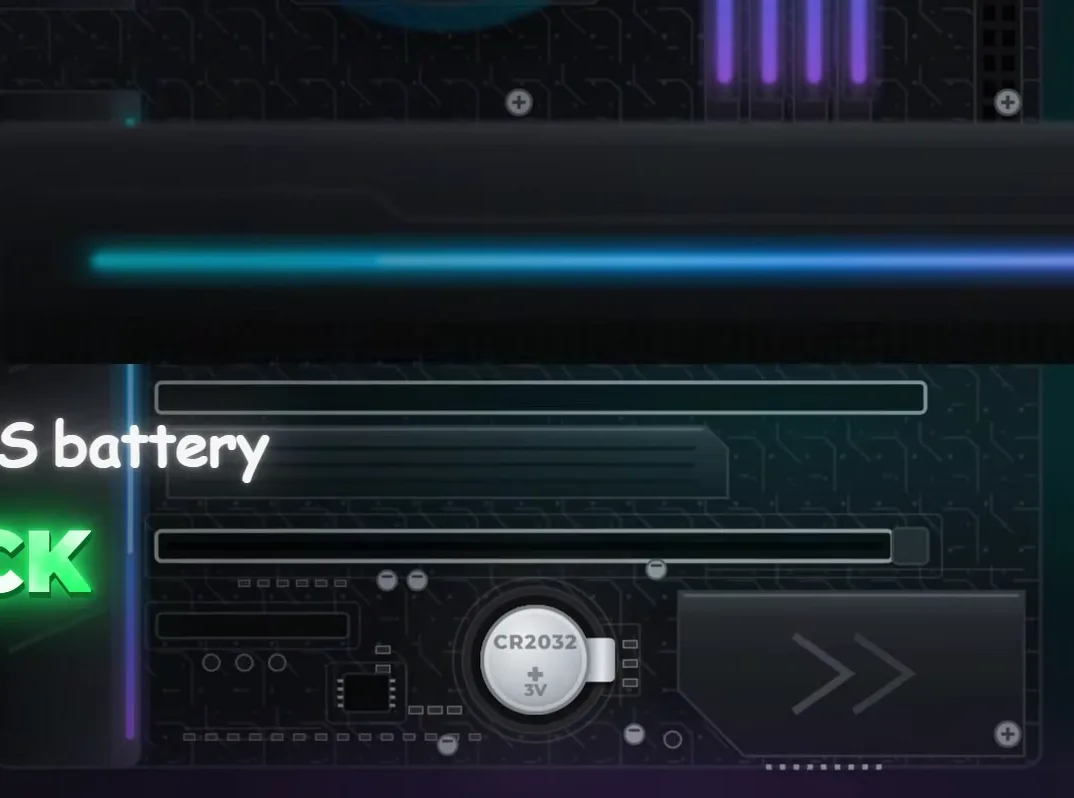

After the reset, go back into the BIOS and apply the safe Intel or AMD settings from the steps above again. Leave the extreme profile off if it caused the problem.
How to undo it
A CMOS reset also undoes XMP, EXPO and every other change, so expect your RAM to run at its slower default speed until you turn the profile back on.
How to check it worked
After the restart, check in Windows that the main settings took effect:
- XMP or EXPO: open Task Manager, then Performance, then Memory. The Speed shown should match the speed on your RAM box, not a lower default.
- CSM off: press Win+R, run
msinfo32and look for BIOS Mode: it should say UEFI. - Resize BAR: in the NVIDIA Control Panel open System Information and look for Resizable BAR: Yes. On a Radeon card, AMD Software calls it Smart Access Memory.
- TPM: run
tpm.msc. It should say the TPM is ready for use. - Then play the same map or replay you played before the changes and compare FPS, 1% lows and how smooth it feels. Results are your own: every PC starts from a different place.
Key settings at a glance
FAQ
What are the best BIOS settings for FPS?
The ones in the video: your RAM profile on (XMP, EXPO or DOCP), CSM off, Above 4G Decoding and Resize BAR on, C-States and ASPM off. Then the platform settings: Gear 1, Speed Shift and Turbo Max 3.0 on Intel, PBO, FCLK 1:1 and CPPC Preferred Cores on AMD.
Does enabling XMP or EXPO increase FPS?
It typically helps, mostly in CPU-heavy games and in 1% lows, because without it most RAM runs at a slow default speed. The app calls XMP the most important BIOS setting for that reason.
Should I disable C-States for gaming?
The video disables Global C-States on both platforms (and DF C-States on AMD) for lower input delay. The cost is a little more power use and heat at idle, so turn them back on if you mainly care about a quiet, cool PC.
Will turning off TPM give me more FPS?
No, and the video says to keep it on. VALORANT's kernel anti-cheat won't start without TPM (Intel PTT or AMD fTPM), and Windows 11 needs it as well.
Are these BIOS settings safe?
The video calls the Intel and AMD lists safe, with one exception: keep Intel Virtualization on if you use emulators like BlueStacks or virtual machines. The Extreme profiles are separate, dangerous and for desktops only.
My BIOS uses different names. What do I do?
Every board maker names things a bit differently, and the menus move around. Use the BIOS search if it has one, look in the Advanced and overclocking tabs (Ai Tweaker in the video), and leave a setting alone if you can't find it.
Can I use these settings on a gaming laptop?
Many laptop BIOS menus hide most of these options. Change what you can find from the safe list, but never use the Extreme profiles on a laptop. For laptop tweaks, see our gaming laptop FPS boost guide.
How do I reset my BIOS if the PC won't start?
Unplug the PC, take out the CMOS battery on the motherboard and put it back after a while (the video waits 15 minutes), or use the Clear CMOS button or jumper. Then re-apply the safe settings. Our hidden BIOS settings guide covers more options for Intel and AMD.
 RIP Tweaks
Do it in a few minutes with RIP Tweaks
- Free plan for Windows 10 and 11
- A backup first, and every tweak can be switched off again
- Made for higher FPS, lower input lag and steadier ping
Free · Windows 10 and 11
