How to Optimize a Gaming Laptop for More FPS and Less Input Lag (2026)

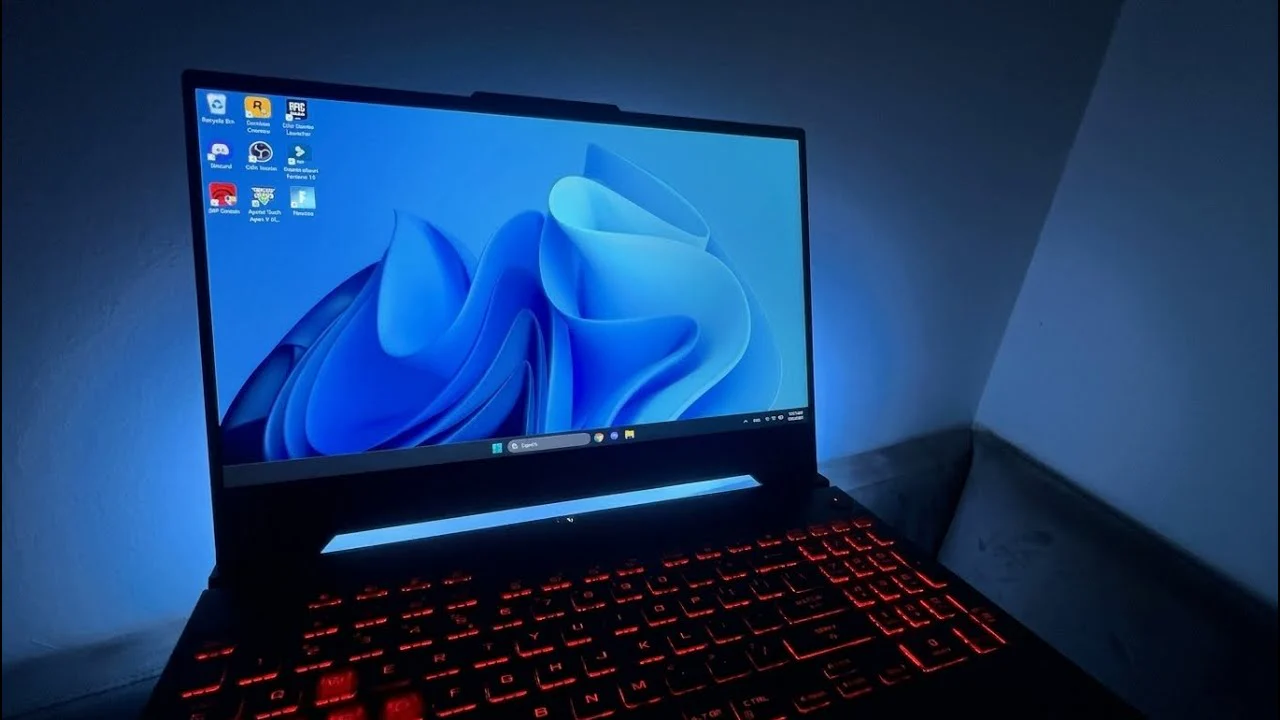
Written version of our video, every step checked against it.
Quick answer
- Test first: measure the laptop in one game with fixed settings before you change anything, so you have your own baseline.
- Apply the free tweaks in RIP Tweaks: CPU, SSD, network, input lag, power plan and the game's NVIDIA profile. Restart and test again.
- Then the Pro tweaks: GPU and driver, RAM, BIOS, advanced debloat, Windows, network latency, adapter tuner and the Fortnite page.
- Restart and compare. On the laptop in the video the frame rate rose and got steadier, and the process count at boot fell from 176 to about 90.
- Your gain depends on the hardware, the cooling and what Windows was running before; typically the biggest change is a steadier frame rate.
This guide is for anyone whose gaming laptop feels slower than its spec sheet: laggy games, dipping frame rate, a battery that drains fast. The laptop in our video has an RTX 4060, 16 GB of RAM and a Ryzen 7 and still felt slow after a year. It is an older video, so the app screens in the pictures look different from today's RIP Tweaks. The ideas and settings are the same.
The video begins with a fresh Windows 11 23H2 install made from a USB stick, so no old software is left over. Before any tweak, it installs Fortnite and measures the laptop as it comes. The laptop is plugged into a capture card and recorded on a second PC, so OBS or any recording program does not run on the laptop and the numbers are not skewed.
The in-game settings for the test: full screen, 1080p, the unlimited performance mode, everything on the lowest setting except 3D resolution, and NVIDIA Reflex Low Latency on.
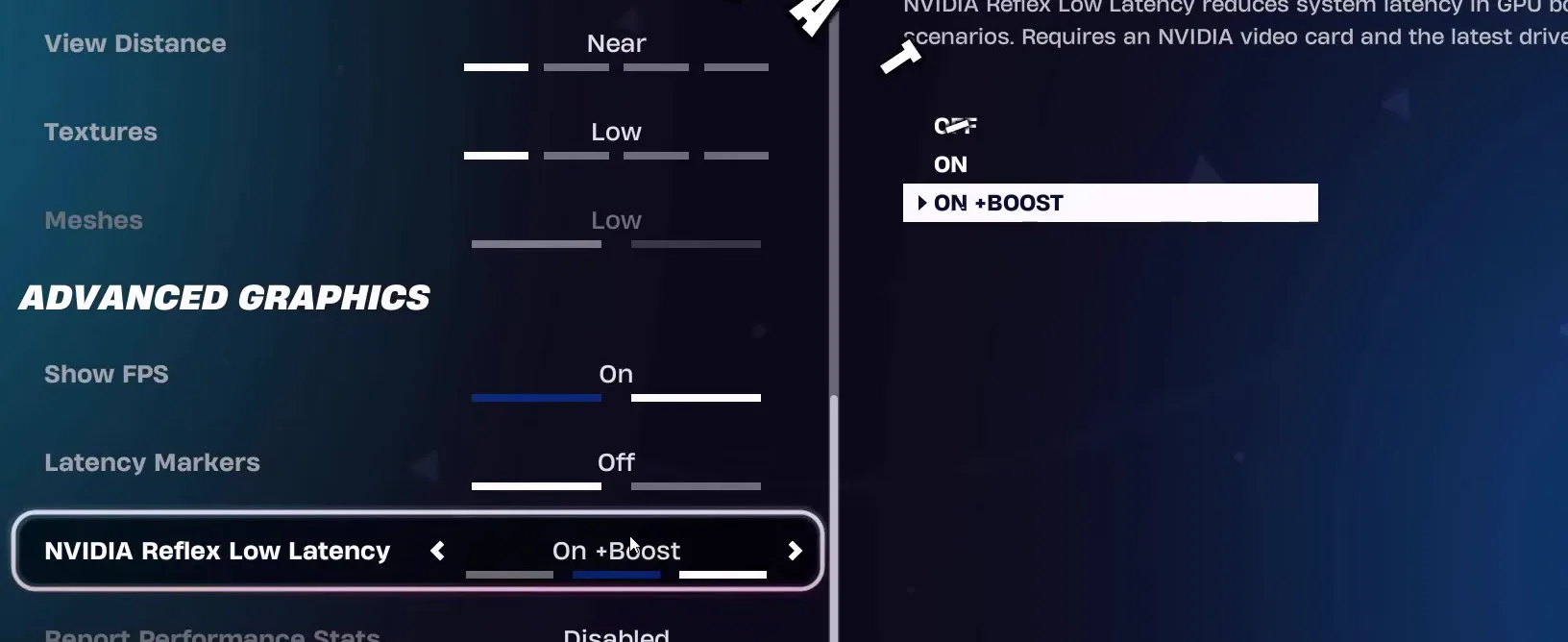
On the laptop in the video this gave around 200 FPS, dipping to about 170. That is the number of that one laptop, not a promise for yours. Write down your own baseline in the same game and the same spot.
Tip
Turn on the in-game FPS counter now, like the video does. Our FPS counter guide shows how to read it.
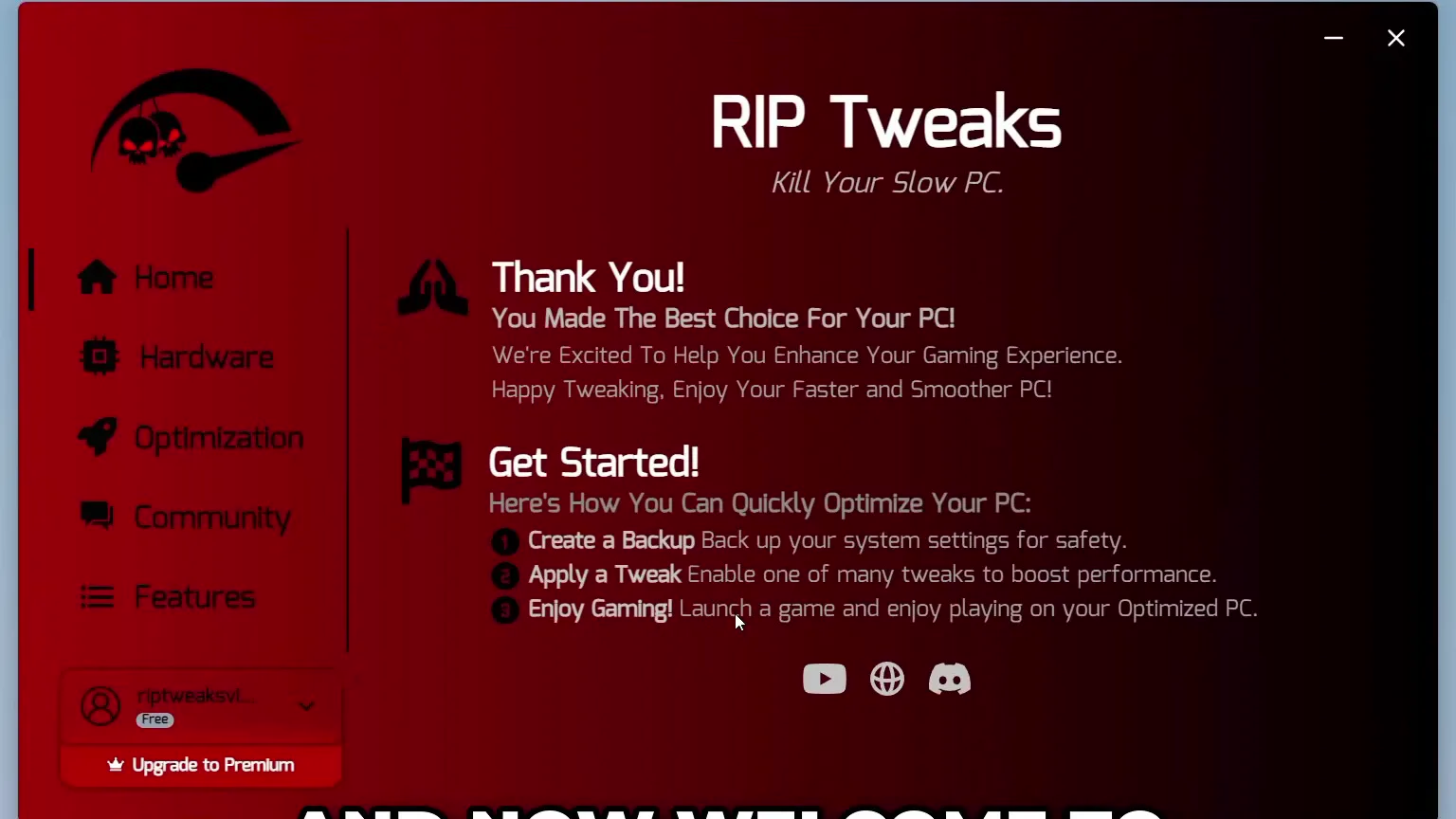
The video reaches the app through the RIP Tweaks Discord: open the free tweaks channel, click the download button and visit the site. You can also download it directly from riptweaks.com. Create an account or log in with Google, download the free version, open the zip file, run the installer (next, next, install, finish), log in and click through the first-run questions.
How to undo it
Create the backup on the home screen before your first tweak. It is the way back if you do not like a change.
Go through the sections in the order the video uses. Each tweak has a description, detailed information and disclaimers, so you can read what it does before you apply it.
OptimizationHardwareCPUAMDApply
- CPU: pick your processor brand (AMD in the video) and apply.
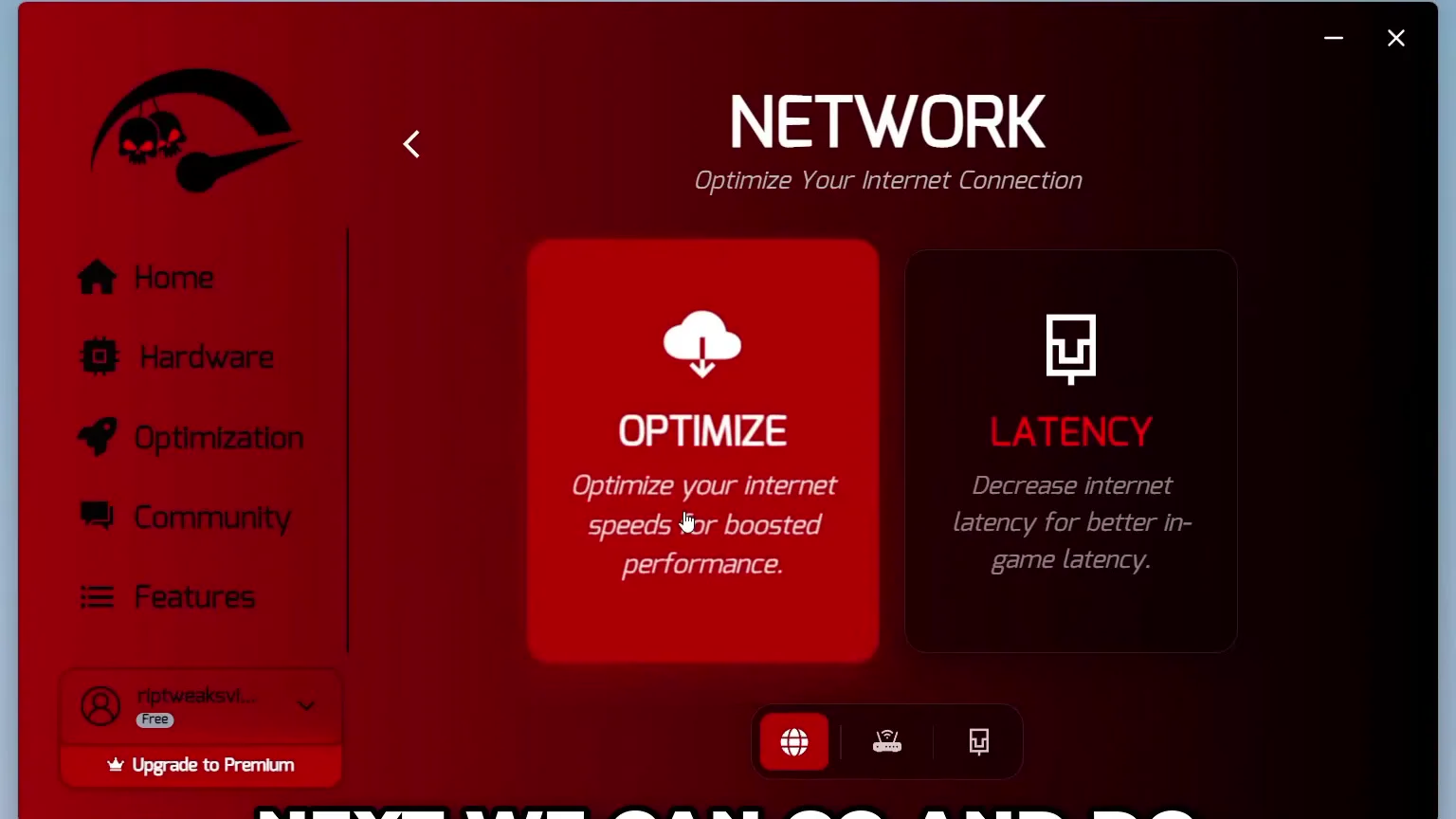
- SSD and network: optimize and apply the SSD tweaks, then the network tweaks.
- Input lag: apply the keyboard tweaks, the mouse tweaks and the custom USB ports optimization.
- Power: in Windows, optimize and apply the power tweaks, then apply the power plan with idle turned on.
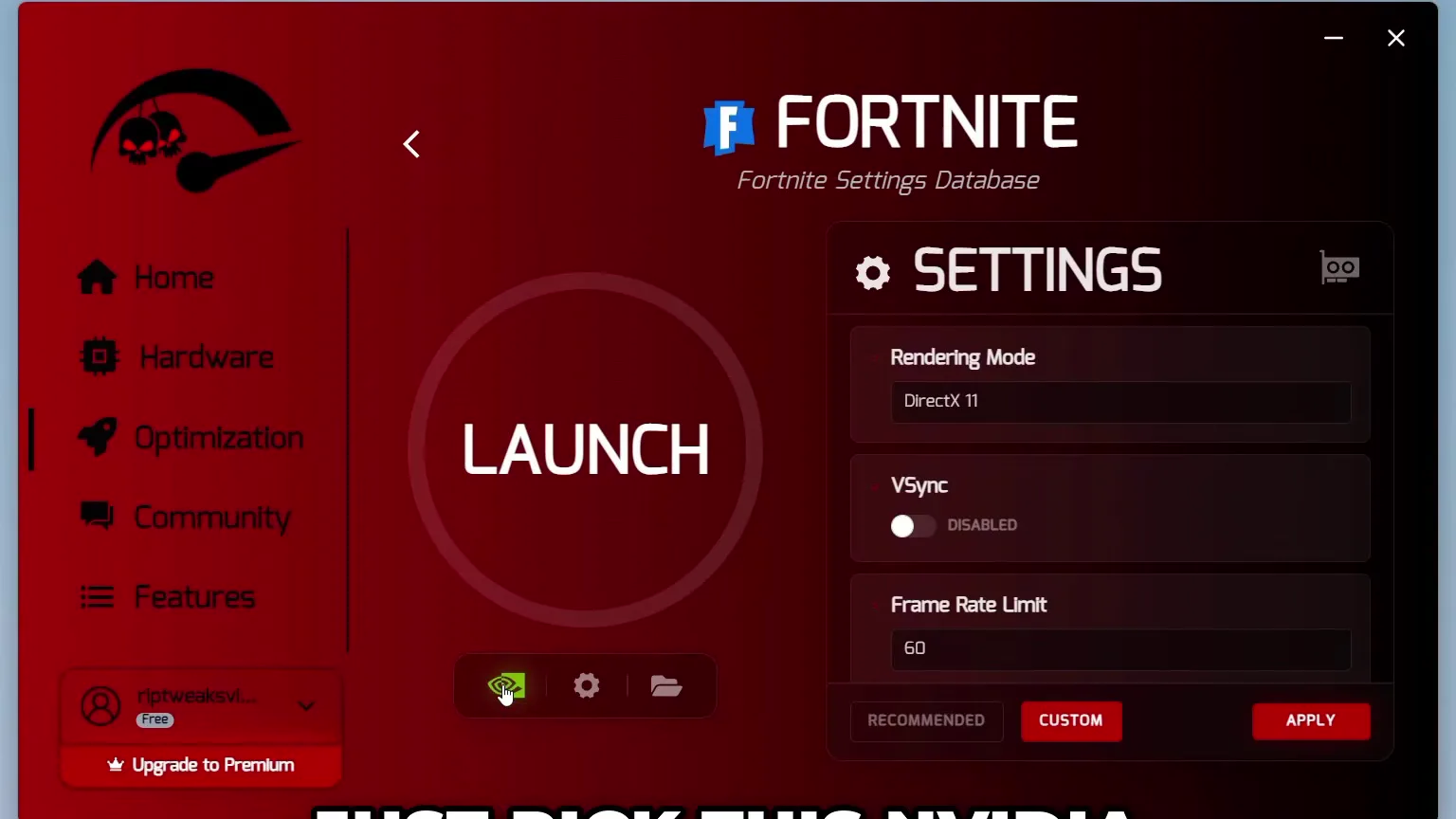
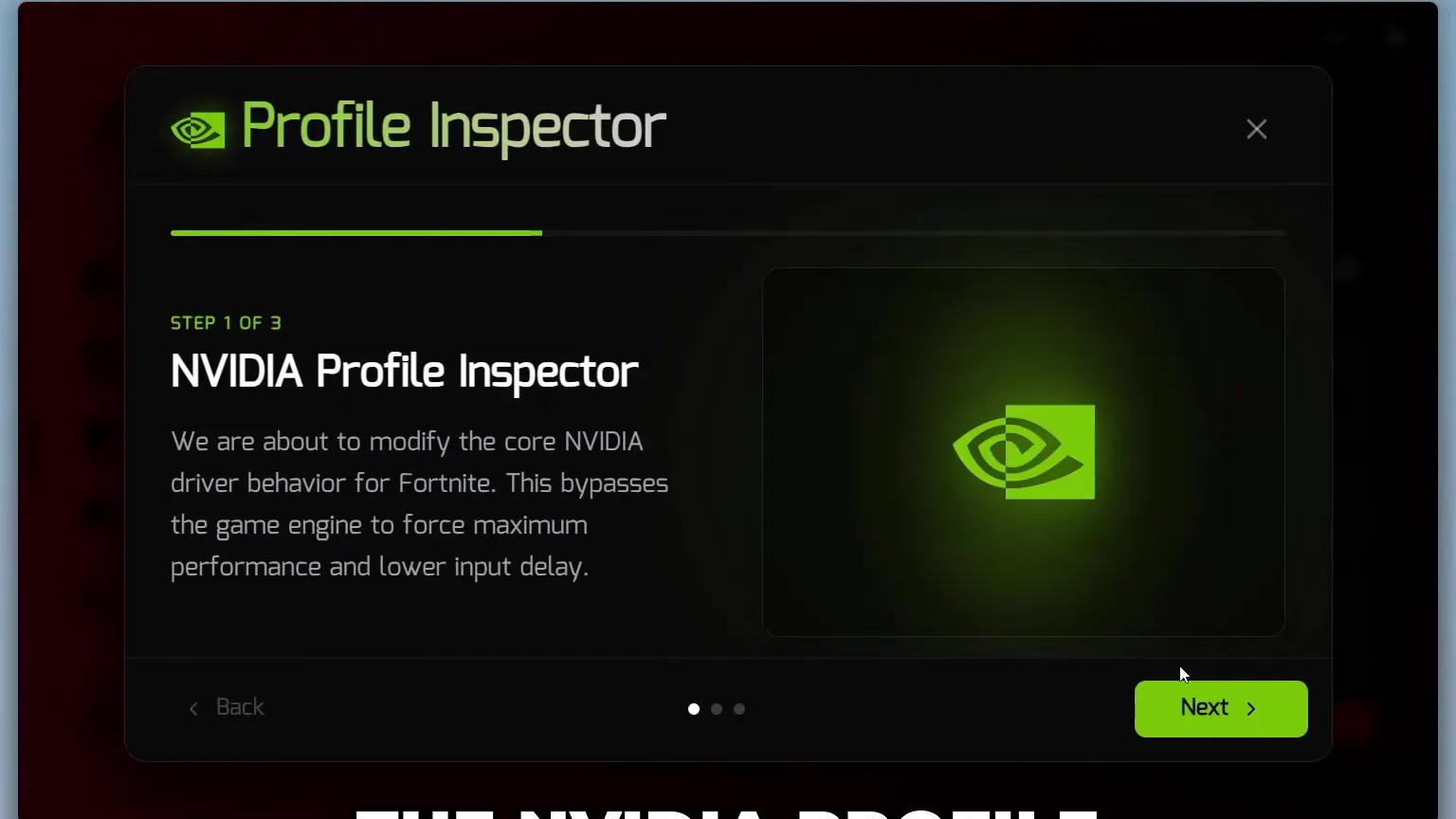
GamesFortniteNVIDIA Profile InspectorFPS Boost profile
Last in the free pass: in Games pick Fortnite, open the NVIDIA Profile Inspector and choose the FPS Boost profile. Then close the app and restart the PC.
After the restart the laptop in the video showed around 250 FPS and stopped dipping to 170 or 180. Leon points out this is only a small part of what the app can do.
For the second half, the video upgrades on riptweaks.com: Try Premium, pick Pro, Buy now and pay. Pick whichever payment method you prefer in the checkout. After the purchase the app shows a Pro badge and opens more tweaks. This time the video starts with the hardware section.
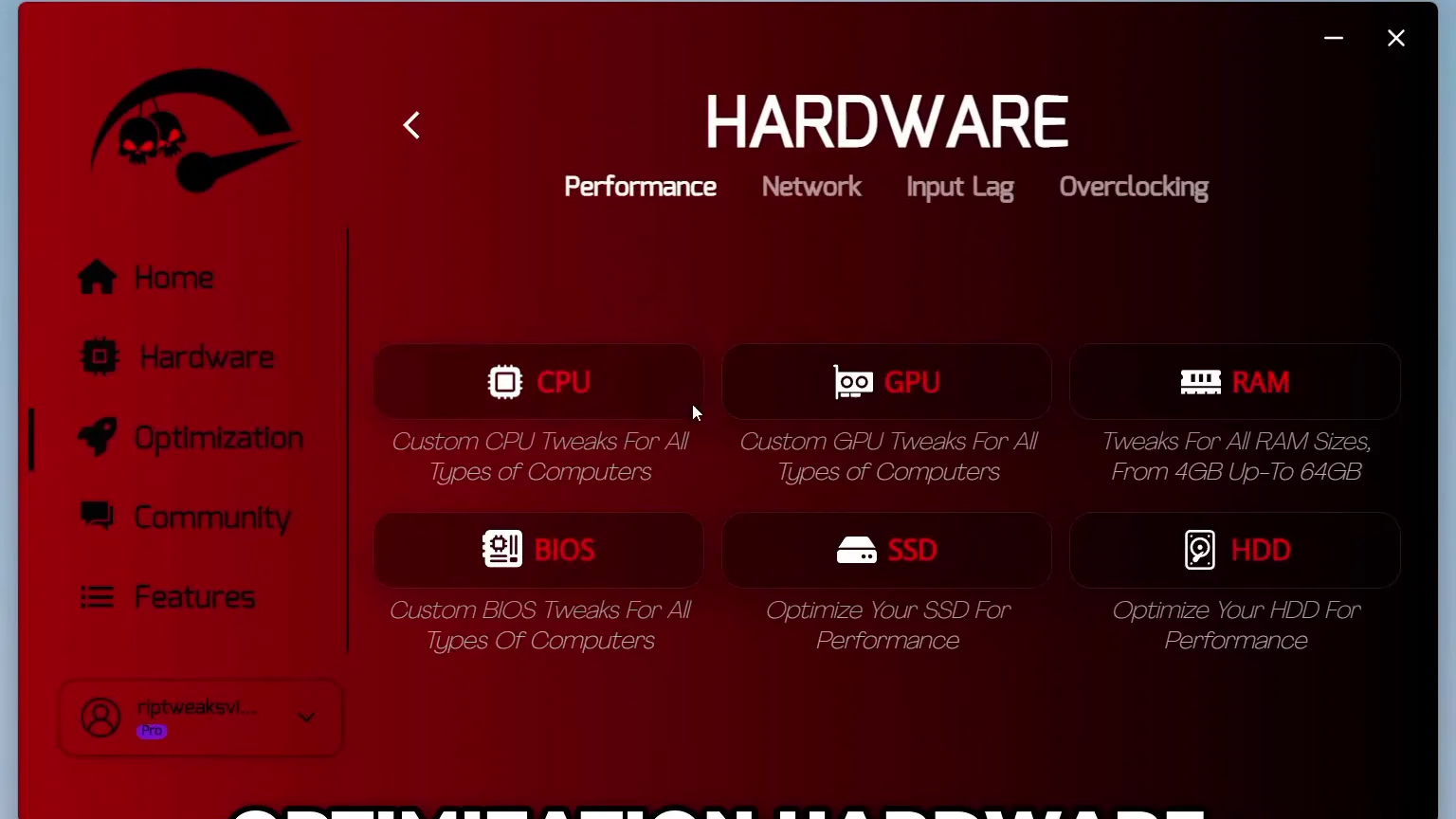
OptimizationHardwareGPUNvidiaOptimizeApply
Optimize the NVIDIA GPU, then the driver with the guided steps (next, next, finish). Then pick your RAM size (16 GB in the video) and apply, run the BIOS tweaks and the SSD tweaks again. Our NVIDIA settings guide explains the driver side.
Good to know
The BIOS section in the app is a set of tweaks you apply inside Windows. For the settings in your actual BIOS, see our Intel and AMD BIOS settings guide.
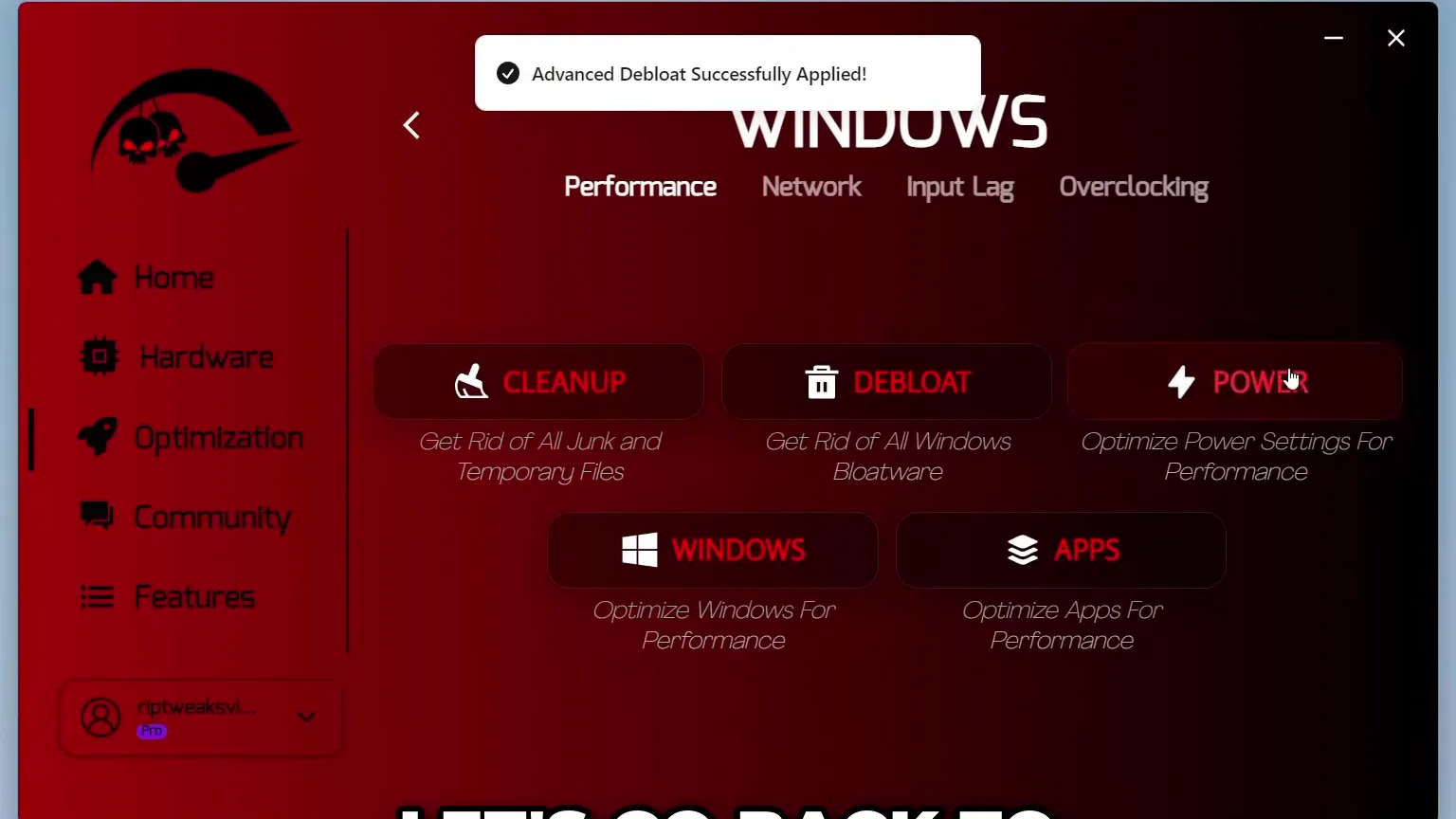
Open Windows, then Debloat, and choose Advanced Debloat. Before it ran, the laptop had 176 processes with the RIP Tweaks app open. Wait until the app says the debloat was applied.
OptimizationWindowsDebloatAdvanced DebloatExecute
Careful
Debloat removes preinstalled apps and services. A fresh install, as in the video, has little to lose. On a PC you already use, make the backup first and read what the tweak removes.
The video then repeats and extends the pass: power optimize and apply, then in Windows select Windows 11 and apply, which changes many settings back to calmer, Windows 10 style behavior. In the network section optimize the latency, then use the adapter tuner and apply the tuning. Wait until each one finishes before starting the next.
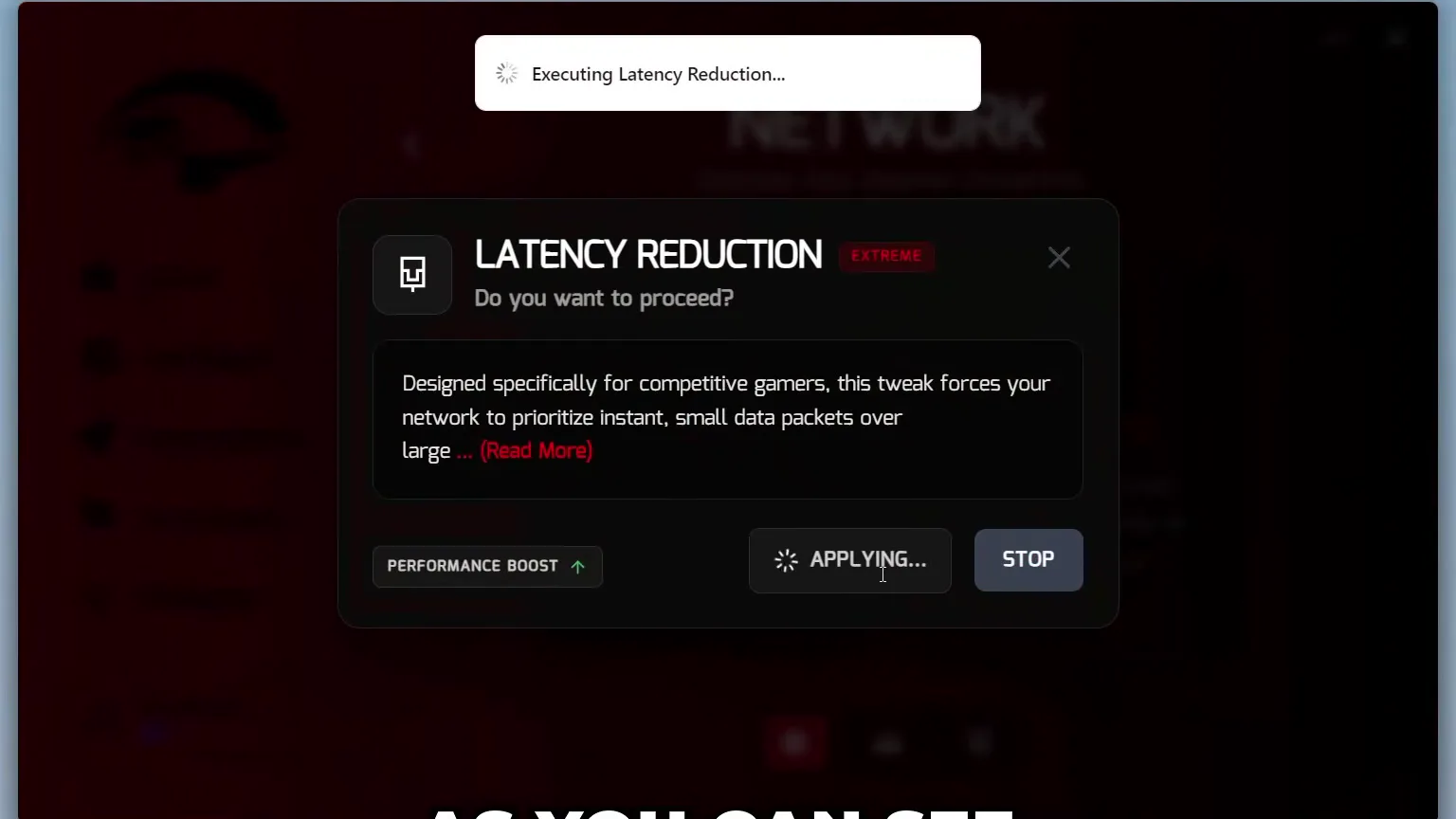
In the input lag section apply the custom USB driver optimization as well.
GamesFortniteSettingsApply
Open the game's page in the app, go to its settings and apply all the Fortnite tweaks. Then open the NVIDIA profile section, click next, pick the FPS Boost profile and finish. Close the app and restart the PC.
At boot the laptop in the video ran about 90 processes, down from 176, and about the same after launching Fortnite, without removing anything important. In the game it showed around 300 FPS, usually between 280 and 290 at the low end, and a steadier frame rate than after the free tweaks.
Leon sums it up as going from about 180 to about 300 FPS on that laptop. That is his own result on one machine, not a promise. For the process side in depth, see our guide to reducing background processes.
How to check it worked
Do what the video does and keep everything else equal:
- Test in the same game, with the same settings, in the same spot, before and after.
- Look at how steady the frame rate is, not only the average: the dips are what you feel as stutter and input lag.
- Open Task Manager after a restart and compare the process count with your note from before.
- If you can, record from a second PC, or use a light overlay, so the test does not slow the laptop.
- Keep the laptop plugged in and on its performance mode while you compare.
Don't do this
If your FPS did not move at all, do not apply more tweaks at random. Read why your FPS did not increase first.
Key settings at a glance
FAQ
Can a gaming laptop really perform better after tweaking?
Often it runs steadier, because Windows does less in the background and the processor stops clocking down at the wrong moments. A laptop is still limited by its cooling and power budget, so typically the gain is smoother frame rates and lower input lag rather than a different class of hardware.
Do I need Pro to do this?
No. The free tweaks in the first half of the video are available to everyone and already helped on the laptop in the video. Pro adds more tweaks, such as the GPU and driver steps, RAM, BIOS and the advanced debloat.
How do I get more FPS on a laptop?
Start with the cheap changes: low in-game settings, the performance power plan, the laptop plugged in, fewer background processes and the NVIDIA profile for your game. The video does all of this and compares each step against the same test.
Can I undo the tweaks?
Yes. Every tweak can be switched off on its own in the app, and the backup you create on the home screen brings the whole PC back.
Does it work on every laptop?
The laptop in the video has an NVIDIA card and an AMD processor, and the steps pick your own brand. See can I use RIP Tweaks on a laptop for the details, and our Fortnite FPS guide for the game side.
 RIP Tweaks
Do it in a few minutes with RIP Tweaks
- Free plan for Windows 10 and 11
- A backup first, and every tweak can be switched off again
- Made for higher FPS, lower input lag and steadier ping
Free · Windows 10 and 11
