
Free Voice Changer for Discord, Fortnite and Soundboard Pranks (EaseUS VoiceWave)

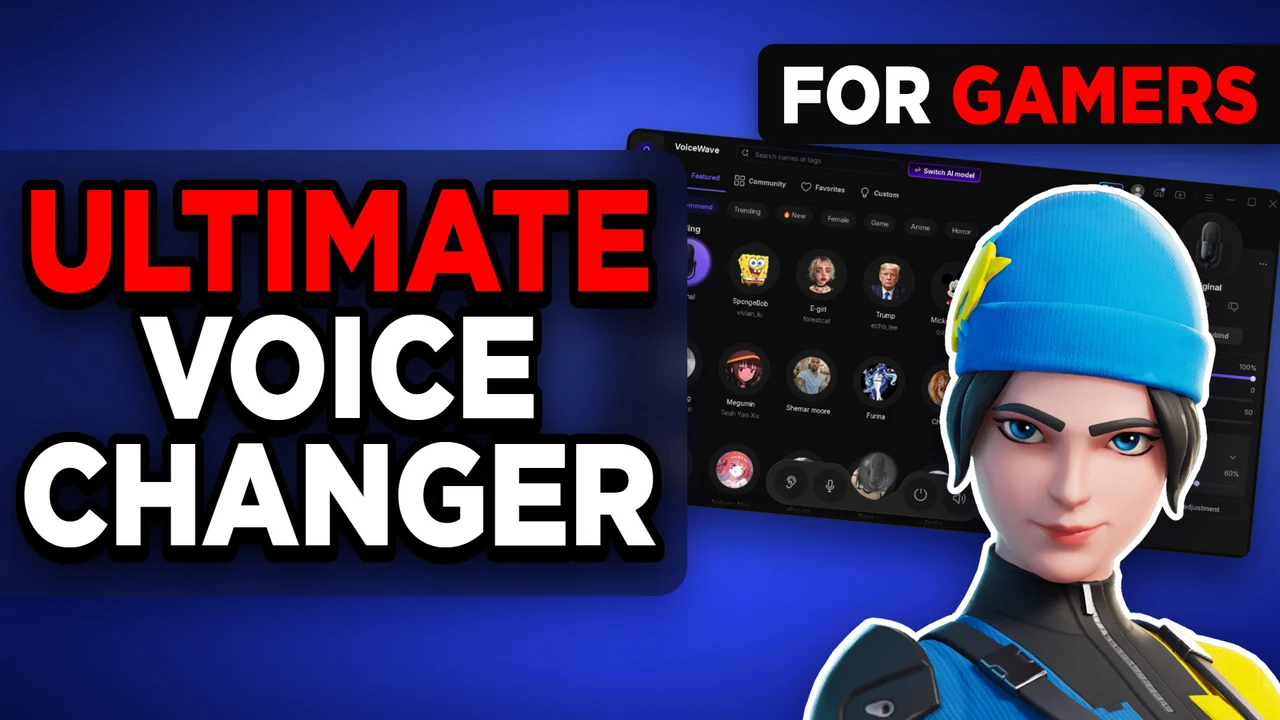
Written version of our video, every step checked against it.
Quick answer
- Install EaseUS VoiceWave from the first link in the video description, open the home page and click a voice such as Cristiano Ronaldo.
- Give a voice a key under Add keybind. In the video the Original voice sits on Ctrl+O, so one key press brings your normal voice back.
- Open the soundboard and set a key on a sound. The video puts Discord Join on F9, and it plays from anywhere.
- In Discord, open Voice & Video and choose VoiceWave Microphone (EaseUS Virtual Device) as the microphone.
- In Fortnite, set Voice Chat Input Device to the same device and click Apply. For all other Windows apps, select it under Input in the sound settings.
This guide is for anyone who wants a free real-time voice changer for Discord, Fortnite or any other Windows app, with celebrity, cartoon and game character voices plus a soundboard for pranks. It follows our video in order: install, pick a voice, switch back with a key, use the soundboard, then the VoiceWave microphone in Discord, in Fortnite and in Windows.
Open the description and click the first link. It leads to the download page of EaseUS VoiceWave. Click Download for Free, wait for the download, save the file, double click it, click Run and then Install.
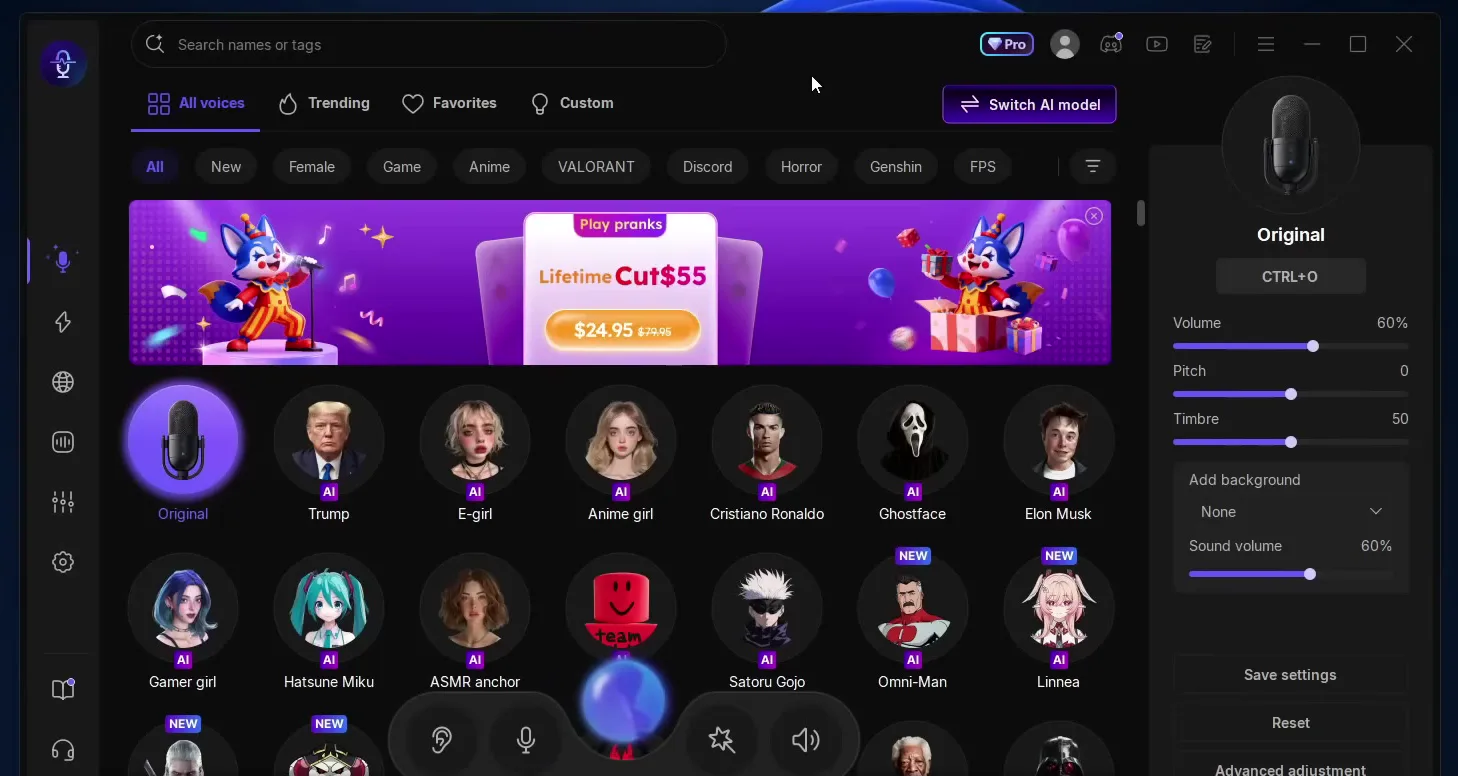
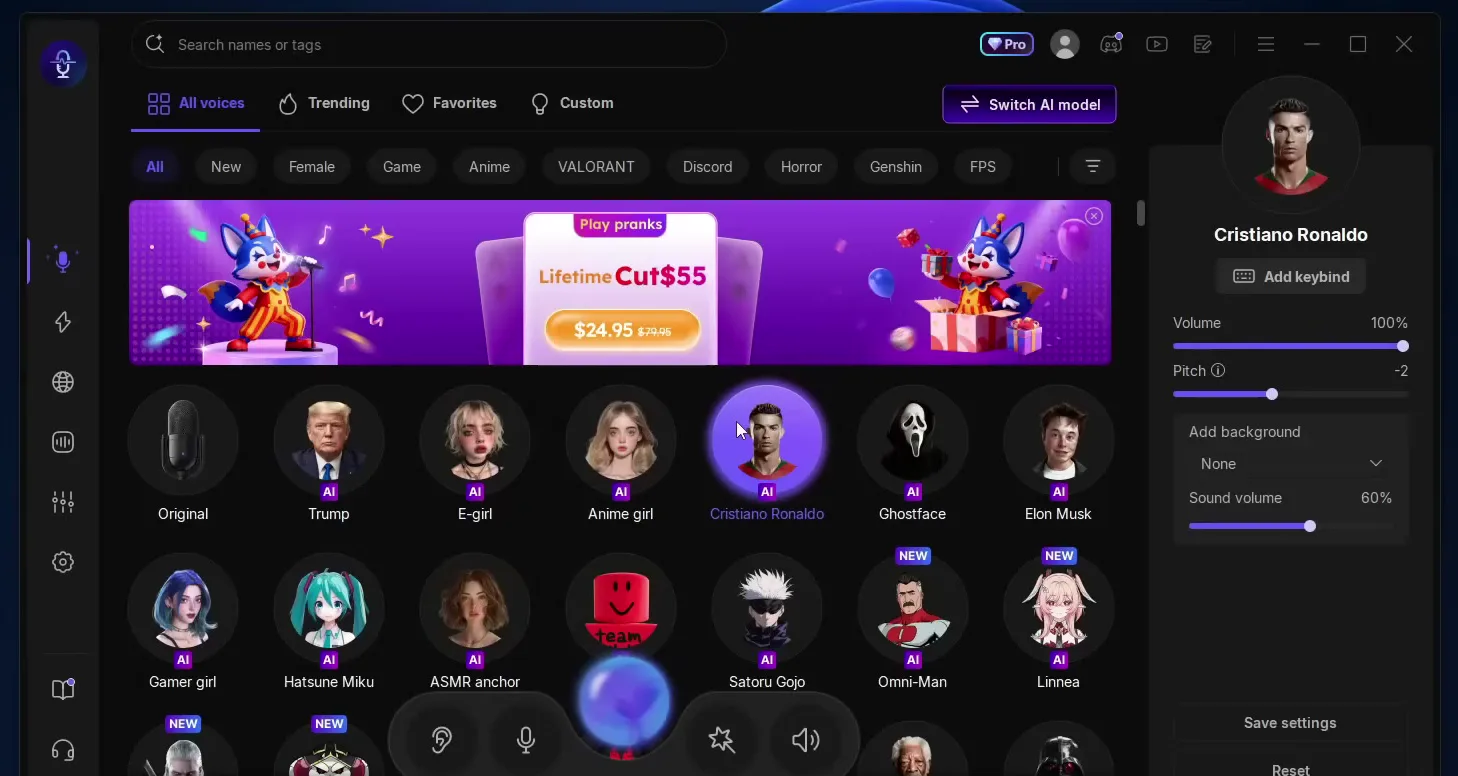
When the setup ends you land on the home page. Pick a voice, click its round icon and start speaking. The video starts with Cristiano Ronaldo, and on the PC in the video the voice is extremely realistic and works right away. The settings of the selected voice (volume, pitch, timbre) are on the right.
Good to know
Use the first link in the video description for the download, so you get the installer from the official EaseUS page and not from a third-party site.
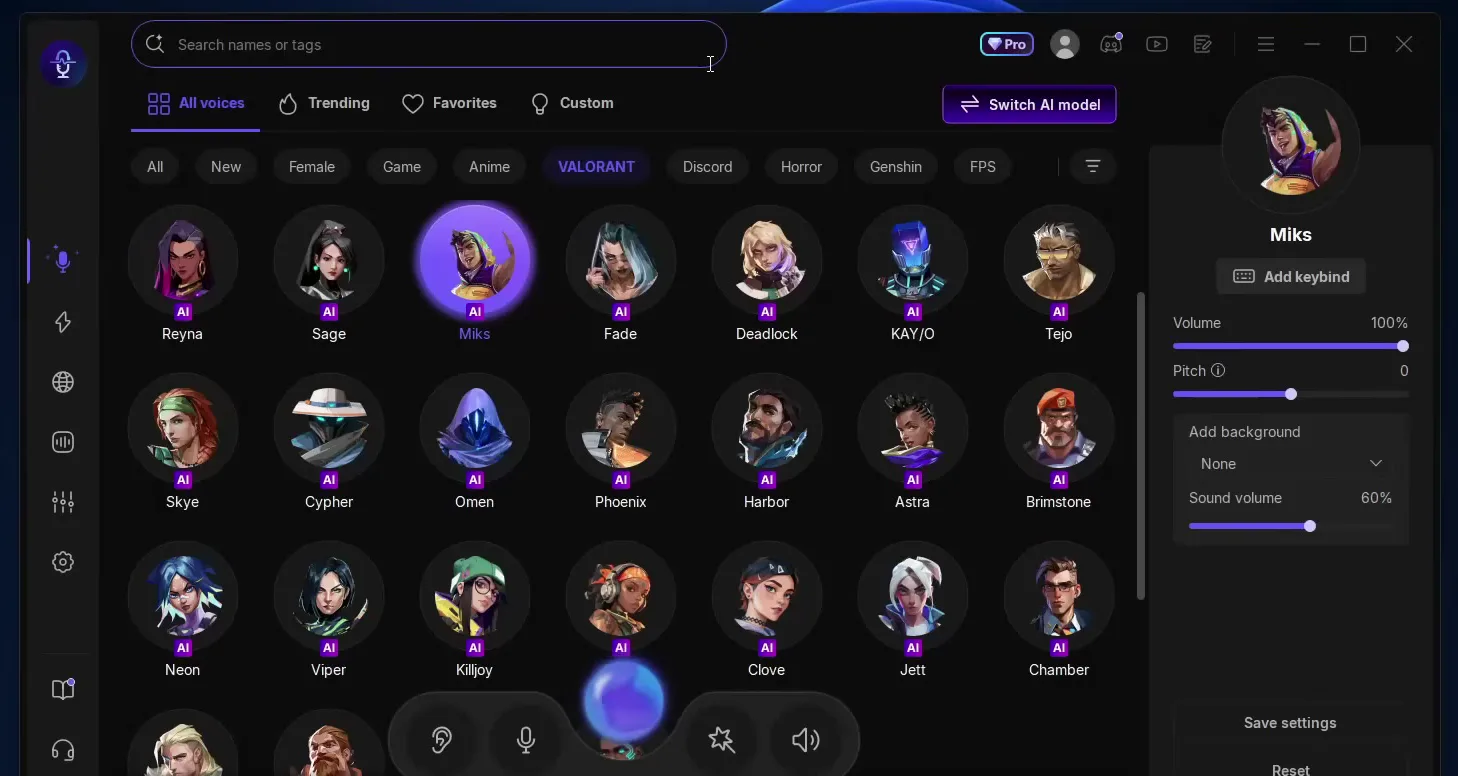
The video shows how far the voice list goes. You can be a girl to surprise your friends, a cartoon character such as Peter Griffin or Stewie, or Huggy Wuggy, and you can troll everyone with them. There are also the VALORANT agents: the video picks Miks, and the filter row above the voices (All, Female, Game, Anime, VALORANT, Discord, Horror, Genshin, FPS) narrows the list. Every other game character is in there too, according to the video.
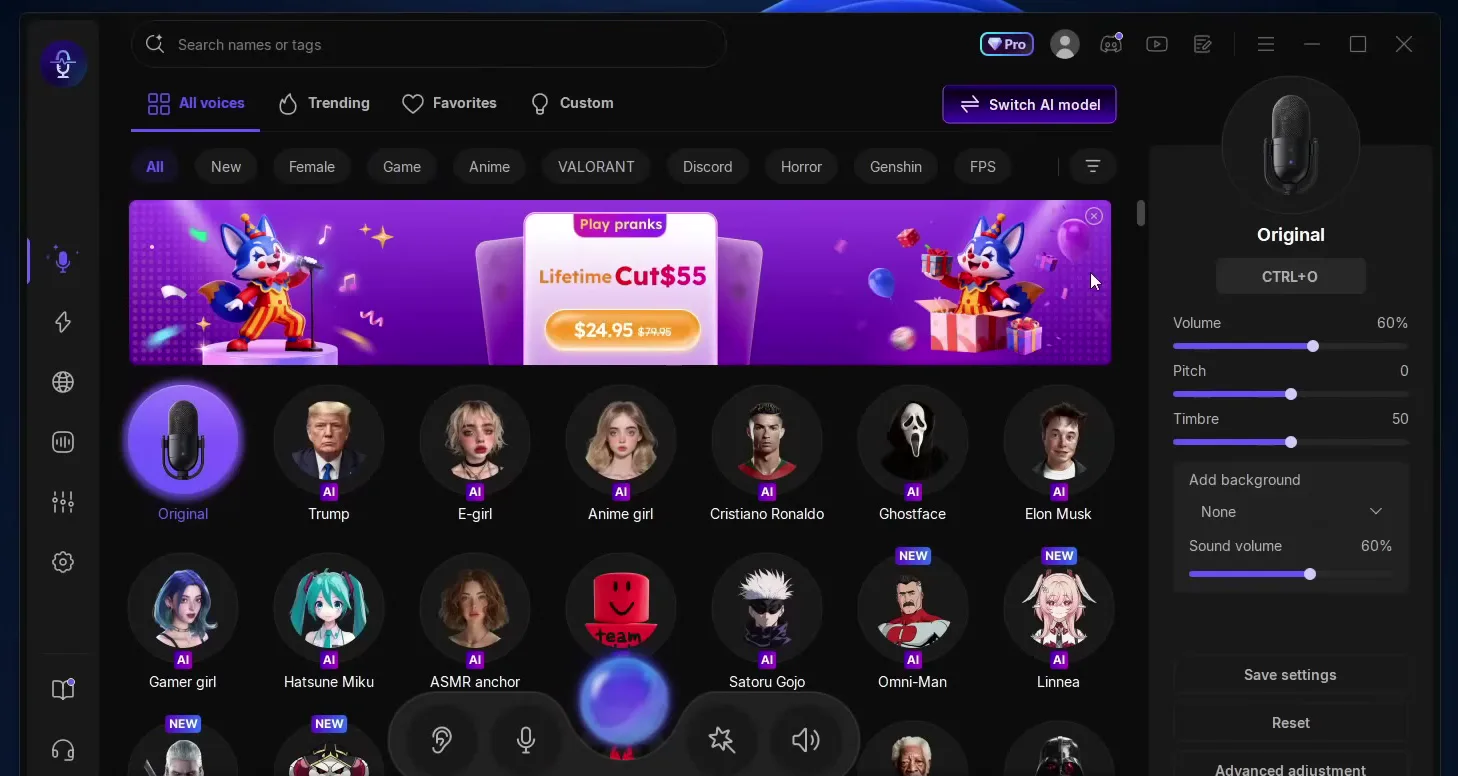
A keybind is a key that switches a voice on. Select a voice and click the button that says Add keybind; it waits for you to press any key. The video sets one for the Original voice, and the panel shows Ctrl+O. Now, from any other voice, pressing that key brings your normal voice back at once.
VoiceAdd keybindPress your key
Tip
Pick a key you do not use in your game. A key that is also bound in the game would switch your voice every time you press it in a match.
The video calls the soundboard one of the best parts: it is the lightning icon in the left sidebar. All sounds lists hundreds of effects with filters such as Funny, Horrors, Game, FPS-S and Movie. The video trolls with an Airhorn, Taco Bell sounds and, as its favourite, the Discord join sound.
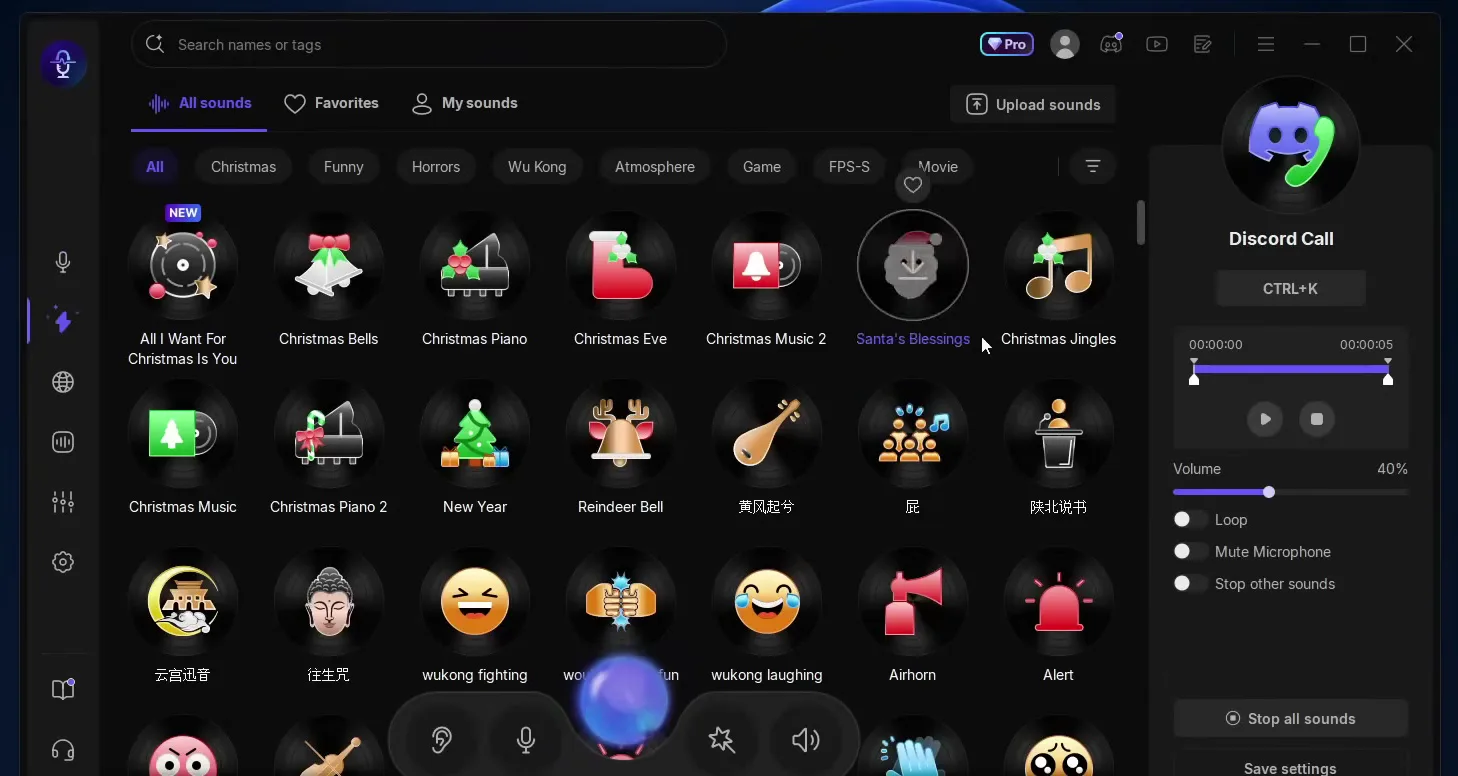
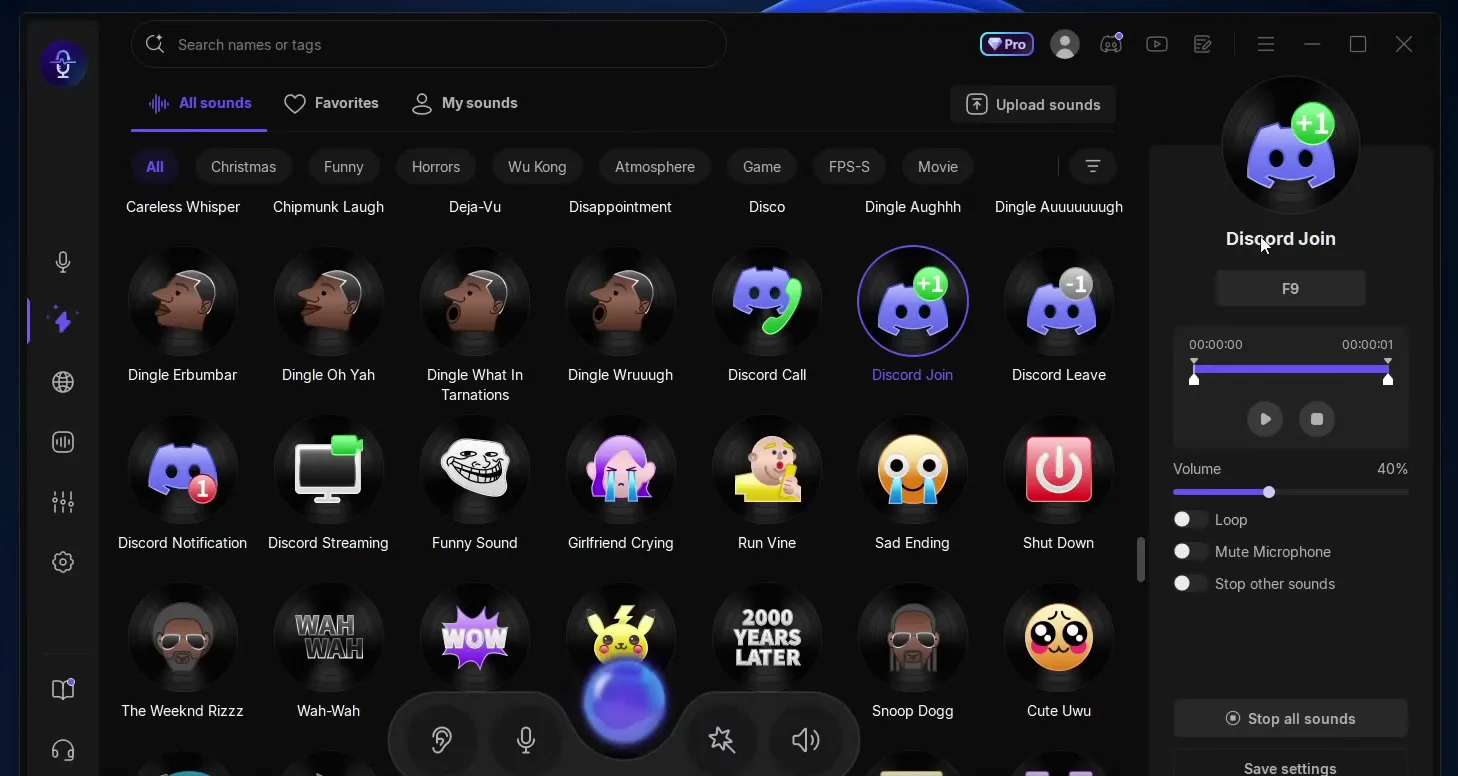
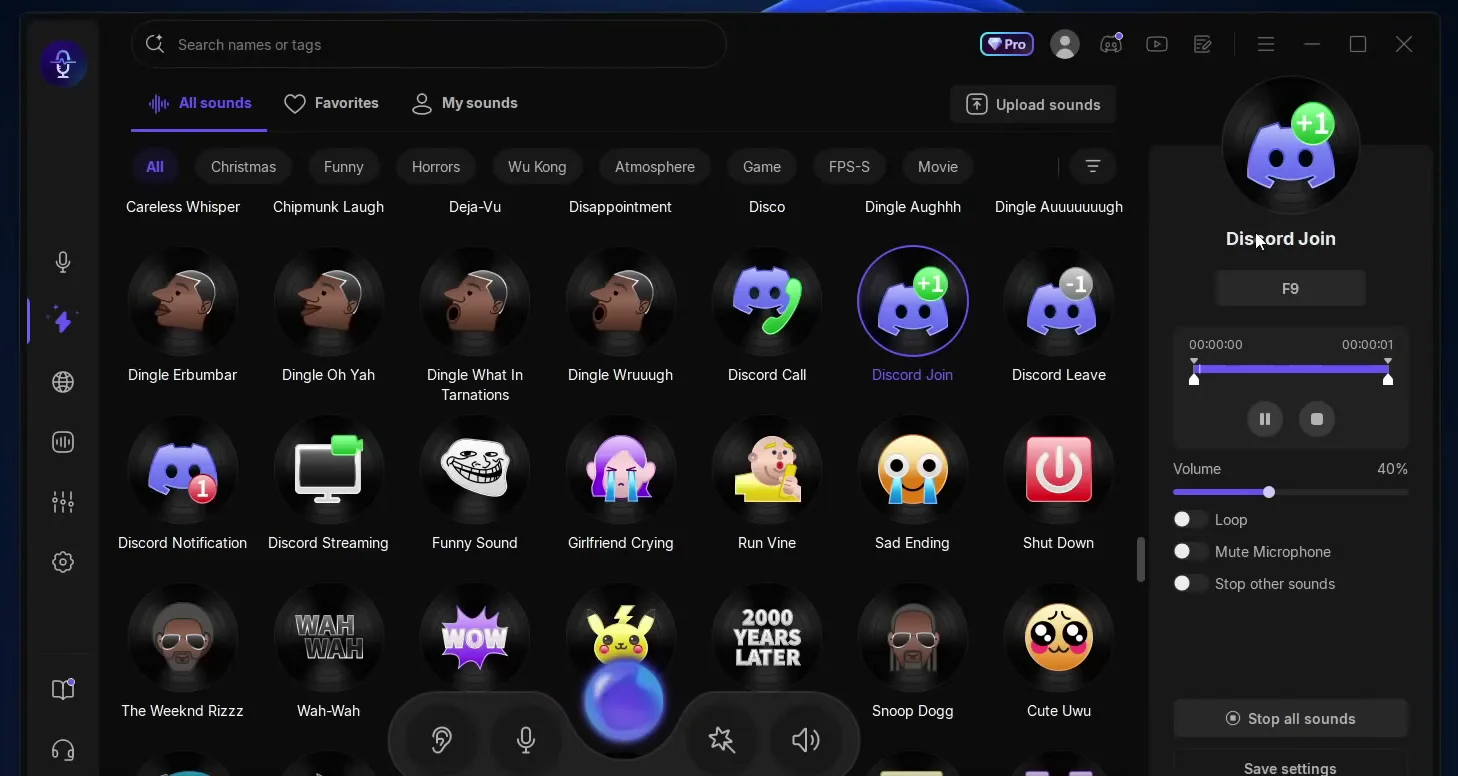
Select a sound and set its key the same way as for a voice. The video puts Discord Join on F9: press F9 anywhere on the PC and the sound plays through your microphone. The panel also has Volume (40% in the video), Loop, Mute Microphone, Stop other sounds and a Stop all sounds button.
The video uses it to make friends think people are joining and leaves the call, and it admits the prank is pretty annoying. Discord Leave sits right next to it.
SoundboardDiscord JoinAdd keybindF9
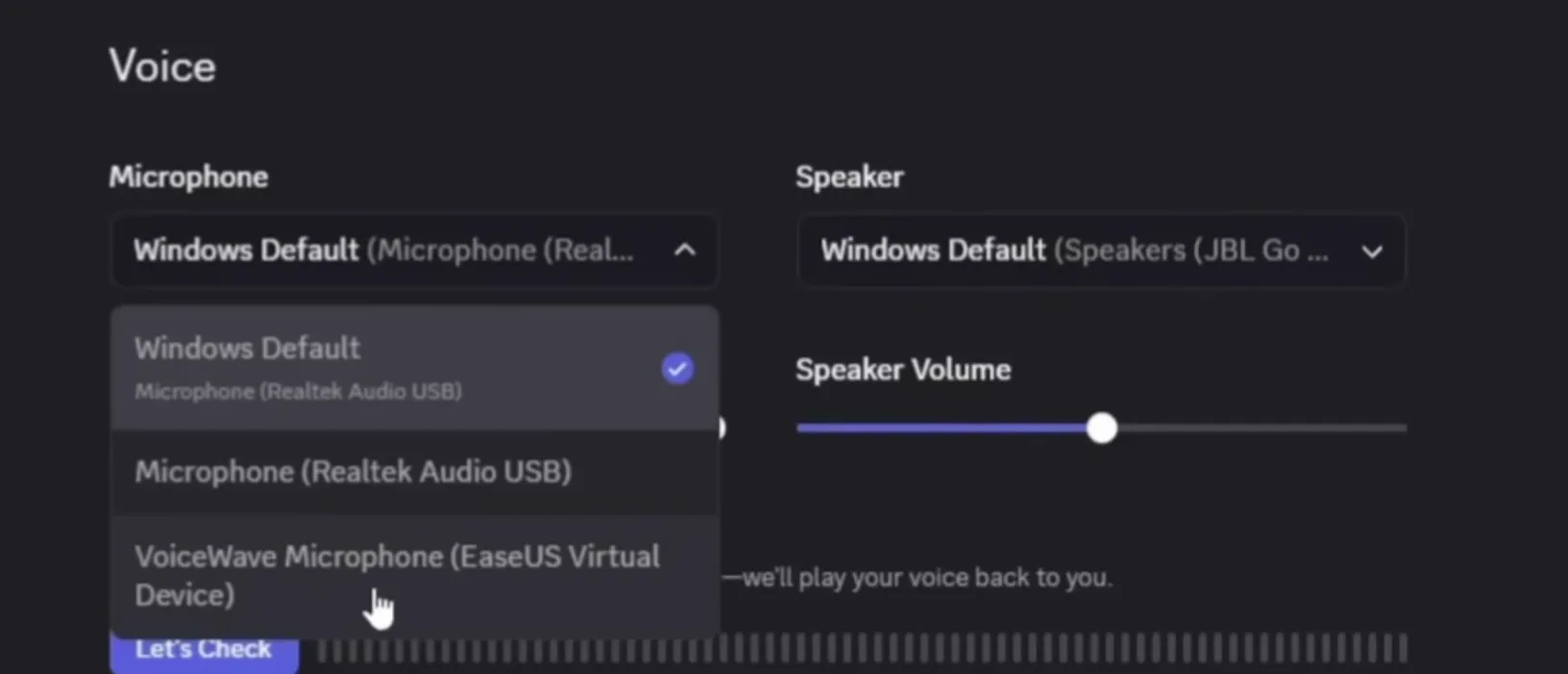
Open Discord and its user settings, scroll to Voice & Video and open the Microphone list under Voice. Choose VoiceWave Microphone (EaseUS Virtual Device). Then switch on an AI voice in VoiceWave and test it.
User SettingsVoice & VideoMicrophoneVoiceWave Microphone
Careful
VoiceWave must be running with a voice switched on. If it is closed, the virtual microphone has nothing to send.
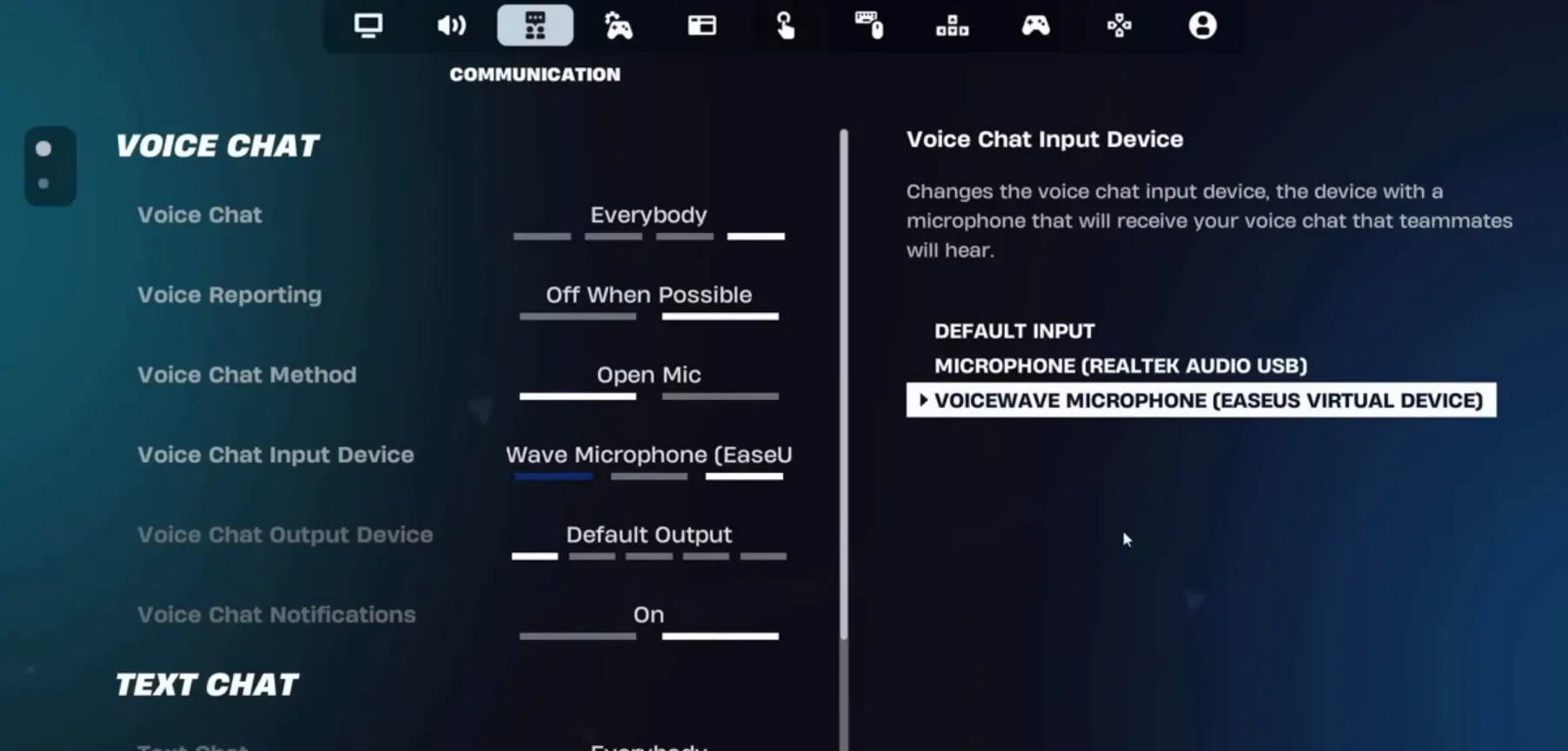
In Fortnite, click the menu button, open Settings and go to the voice chat settings (the Communication tab). Scroll down to Voice Chat Input Device, select VoiceWave Microphone (EaseUS Virtual Device) and click Apply. That is all the video does for Fortnite.
MenuSettingsCommunicationVoice Chat Input DeviceVoiceWave MicrophoneApply
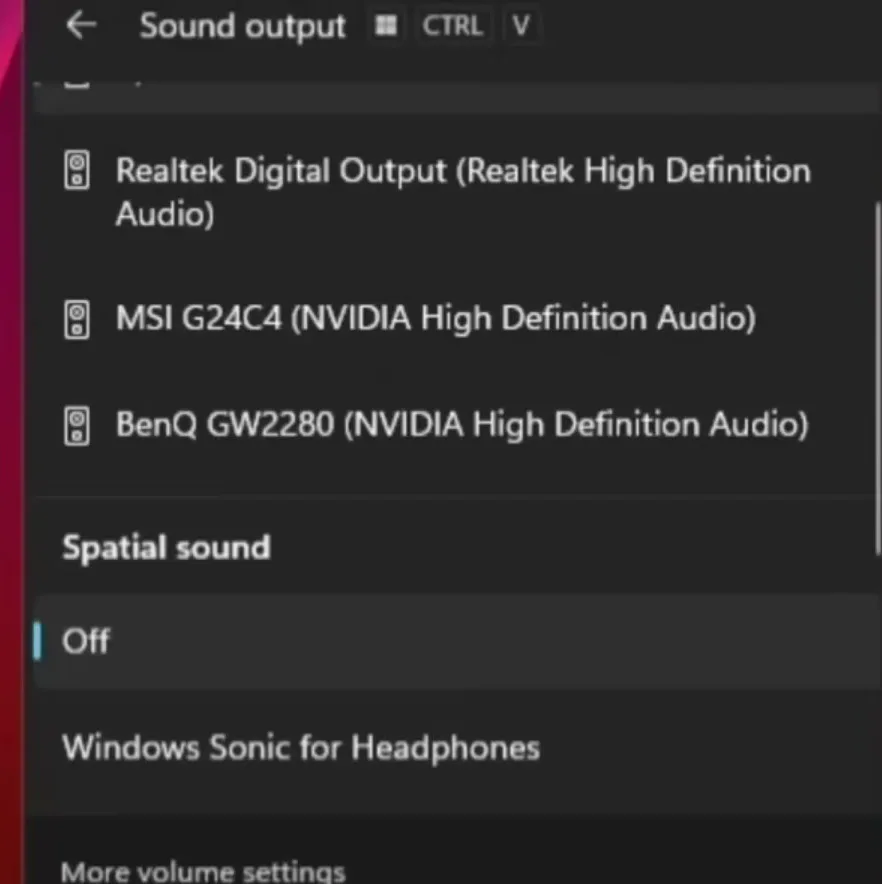
To change the input for every app, click the speaker icon in the taskbar, then the button that opens the sound menu, and click More volume settings. In the Input section, click VoiceWave Microphone. Finally, the video sets the input volume to 100 and says you are all set.
Speaker iconMore volume settingsInputVoiceWave Microphone
The video says the voice works in the popular apps, including Discord, TeamSpeak and OBS.
How to check it worked
- With a voice switched on, speak and look at the input level of the VoiceWave microphone in the Windows sound settings. If it moves, your voice reaches Windows.
- Join a Discord call and ask a friend what they hear. If they hear your normal voice, the app still uses your real microphone.
- Press your soundboard key, F9 in the video. Your friend should hear the sound in the same call.
How to undo it
To get your own voice back, click Original or press its key. To remove VoiceWave from an app, choose your normal microphone in that app's input setting again.
Key settings at a glance
FAQ
Is there a free voice changer for Discord and Fortnite?
The video installs EaseUS VoiceWave from its free download button and uses it in both. The app shows a Pro badge, so check inside it which voices your plan includes.
How do I use a voice changer in Discord?
In Discord open User Settings, Voice & Video, and set the Microphone to VoiceWave Microphone (EaseUS Virtual Device). Keep VoiceWave open with a voice switched on.
How do I use a voice changer in Fortnite?
Open Settings, go to the voice chat settings, set Voice Chat Input Device to the VoiceWave microphone and click Apply.
Can I go back to my normal voice quickly?
Yes. Give the Original voice a key, Ctrl+O in the video, and press it from any voice.
Can I play soundboard sounds while I talk?
Yes. Set a key on a sound, such as F9 for Discord Join, and it plays through the same microphone. Mute Microphone and Stop other sounds in the sound's panel change how it mixes with your voice.
Does it work in OBS and TeamSpeak too?
The video says it can be used in popular apps such as Discord, TeamSpeak and OBS. Select the VoiceWave microphone as the input device in the app.
Does it work on Mac?
The video shows Windows only. For a female voice setup, see our e-girl voice changer guide, and for keys on voices, the voice changer hotkey guide.
Try EaseUS VoiceWave
EaseUS VoiceWave is the real-time voice changer used in the video. It works in Discord, games and streaming apps, and you can try it for free before you decide.
This article and the video are a paid partnership with EaseUS.