I Let ChatGPT Optimize My PC for Fortnite: ChatGPT Tweaks vs RIP Tweaks (2026)

Written version of our video, every step checked against it.
Quick answer
- Baseline on the PC in the video: 100 to 120 FPS in Fortnite on a creative map with the lowest settings.
- ChatGPT wrote a .bat file with 20 tweaks (Game Mode, Game Bar, visual effects, High Performance power plan, temp files): 130 to 140 FPS.
- RIP Tweaks on the same laptop: a backup first, then Hardware, Windows, Power and Debloat tweaks.
- Fortnite started from the Games page with Performance game mode: 22 apps quieted and about 1.5 GB of RAM freed.
- Result: 250 to 260 FPS on the PC in the video, against 130 to 140 FPS with ChatGPT's tweaks.
This page is for anyone who wondered whether ChatGPT can optimize a gaming PC for Fortnite. It follows our test step by step: what ChatGPT gave us, how to turn its answer into a .bat file and run it, the FPS it got, and then every click we made in RIP Tweaks on the same laptop, with the settings and the FPS after each run.
In this video
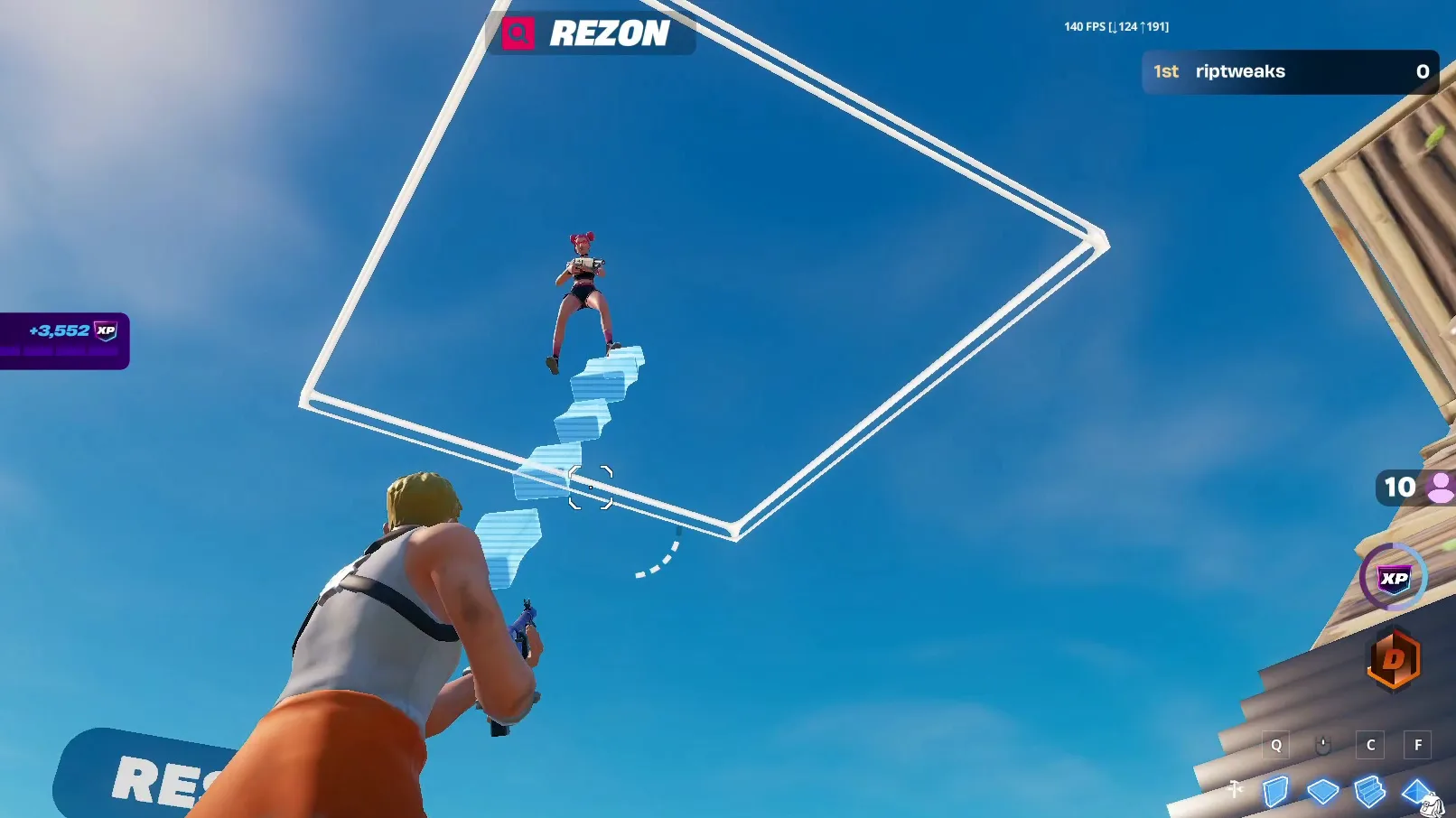
Before you change anything, write down the FPS you get now. The video tests on a creative map with Fortnite on the lowest settings possible and the FPS counter on. With no tweaks at all, the laptop in the video gets around 100 to 120 FPS.
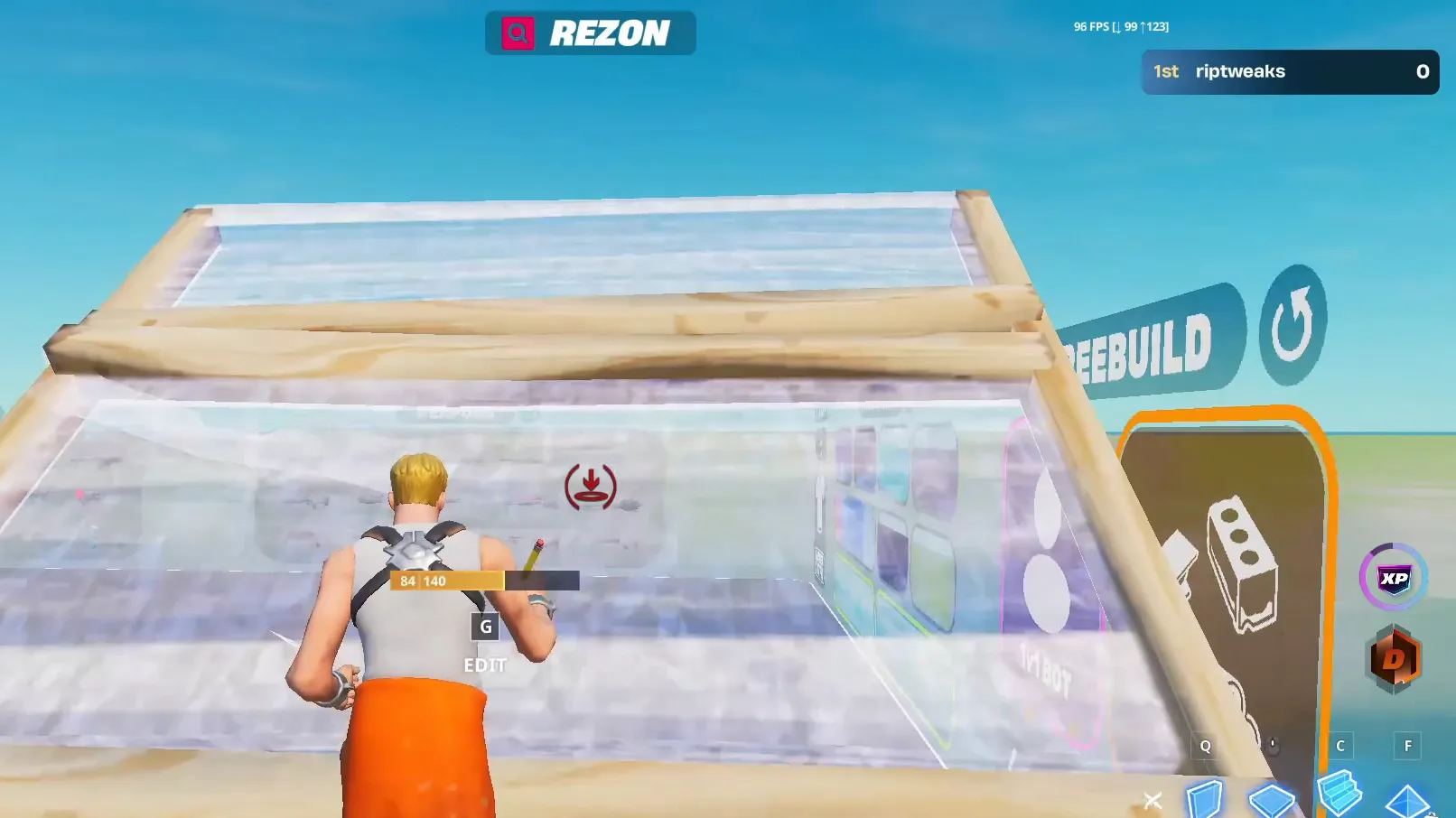
Test the same map and the same spot every time. Then each FPS number you see later compares like for like.
Open ChatGPT and type the request the video uses: can you optimize my pc using pc tweaks. ChatGPT answers with a list of what it can tune (gaming, Windows, CPU and RAM, GPU, cleanup) and asks a few questions first.
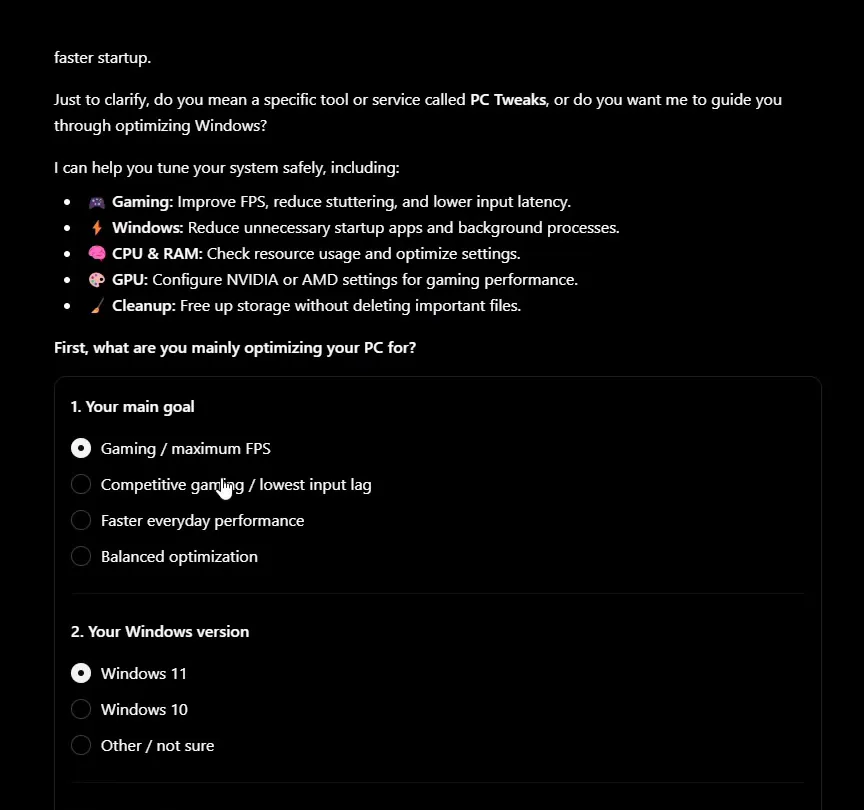
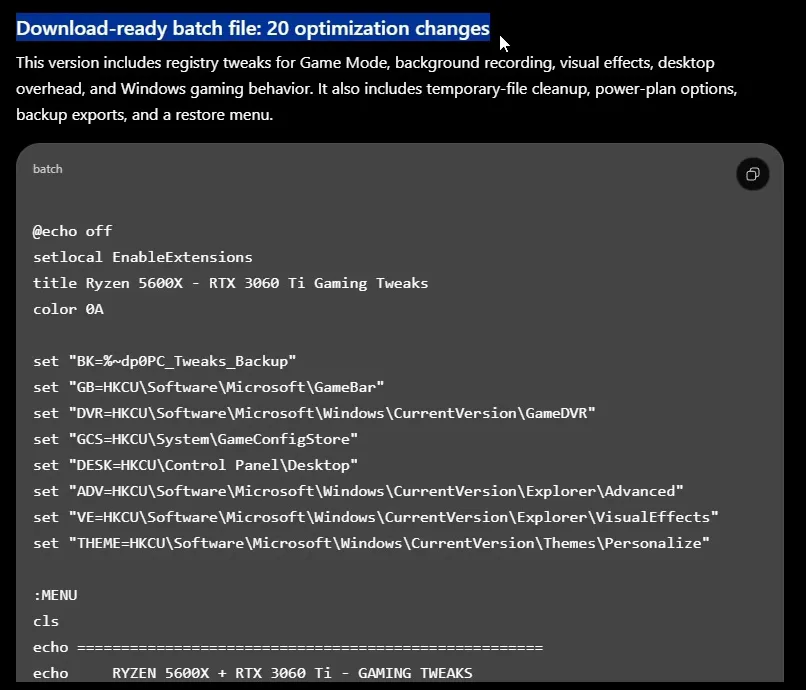
In the video the main goal is gaming, the system is Windows 11, and to the question about a PC tweaks app the answer is simply "optimize my PC". ChatGPT then writes a download-ready batch file with 20 optimizations: registry tweaks for Game Mode, background recording and visual effects, a temp file cleanup, power plan options, registry backups and a restore menu.
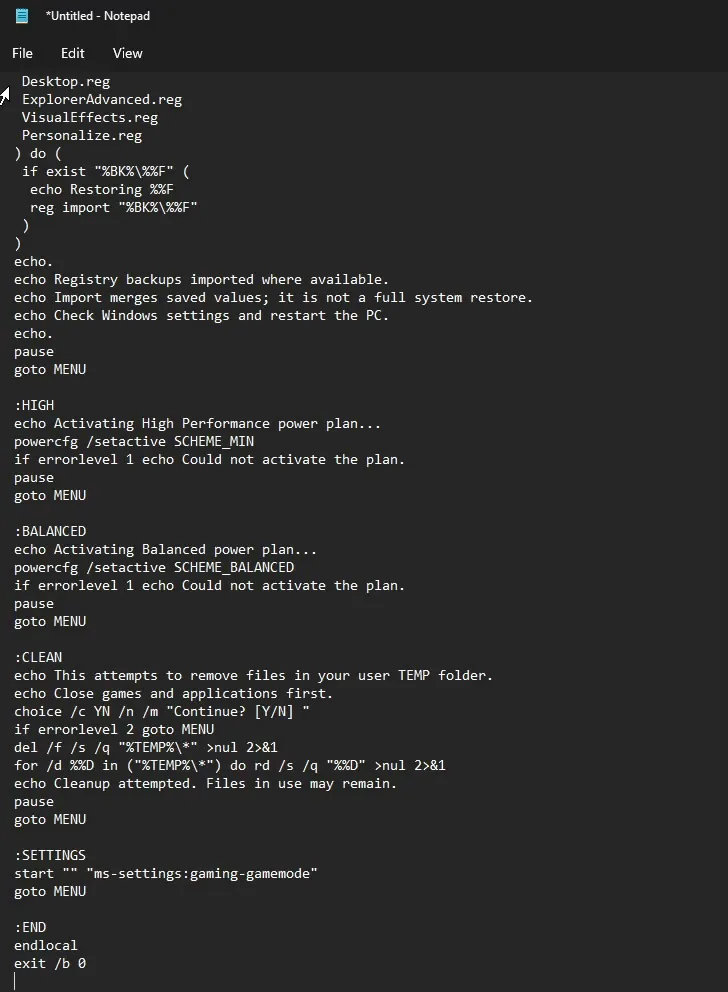
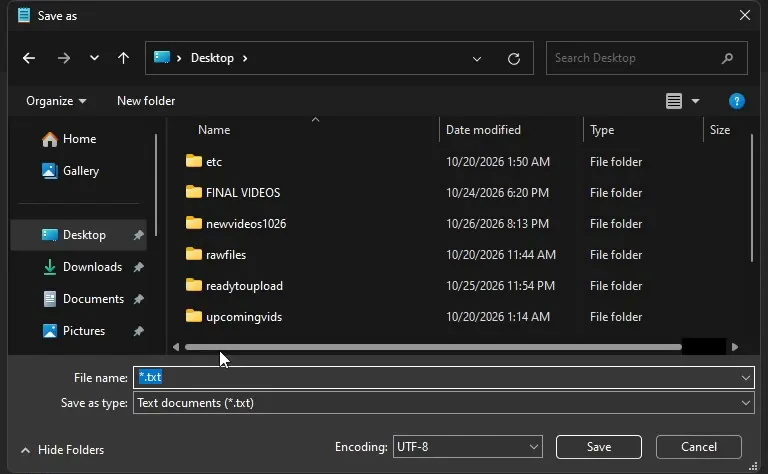
Copy the code with the copy button on the code block. Open Notepad, paste it, then click File and Save as. Name the file something like chatgpt tweaks.bat, set Save as type to All files and click Save.
NotepadFileSave asAll filesSave
Careful
A .bat file runs with full rights on your PC. Read through what ChatGPT wrote before you start it, and only run scripts you can follow line by line.
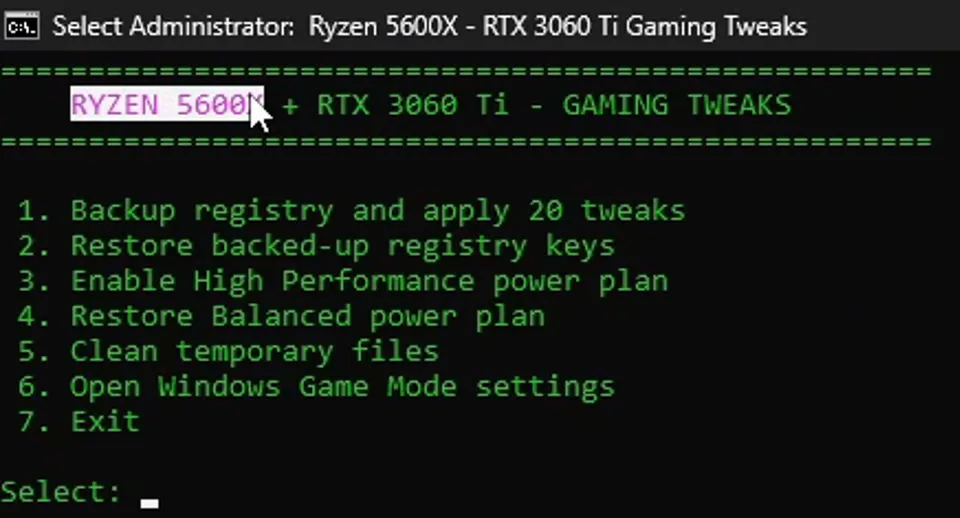
Start the .bat file. It opens a menu with seven options. The video runs 1. Backup registry and apply 20 tweaks first, presses any key to continue, then 3. Enable High Performance power plan, 5. Clean temporary files and 6. Open Windows Game Mode settings, where Game Mode is already on. Option 2 (restore the backed-up registry keys) stays untouched.
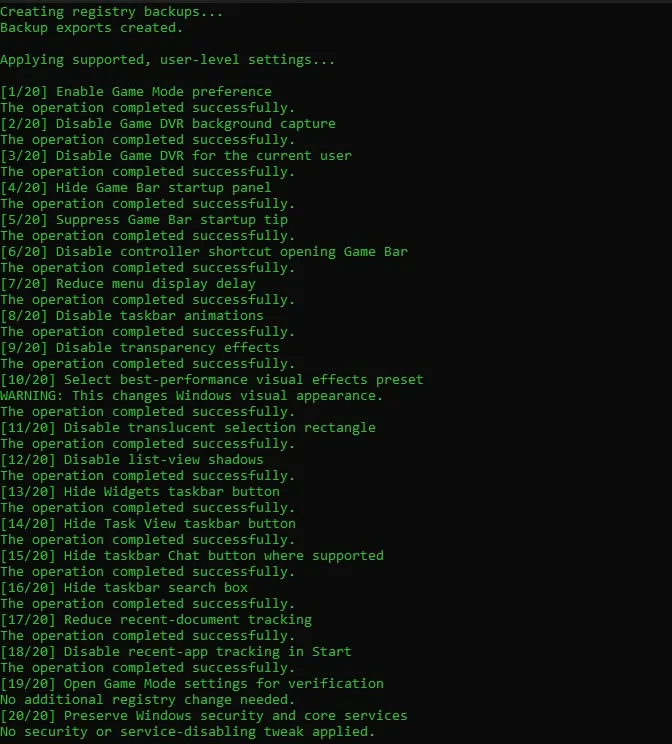
The 20 tweaks are mostly Windows comfort settings: Game DVR and Game Bar off, shorter menu delay, no taskbar animations or transparency, the best-performance visual effects preset, hidden Widgets, Task View, Chat and search on the taskbar, less recent-file tracking. Two of the 20 change nothing at all, and the script itself ends with "They are not guaranteed to increase FPS."
Good to know
ChatGPT built the script for a Ryzen 5 5600X and an RTX 3060 Ti. The laptop in the video has an AMD Ryzen 7 7435HS and an RTX 4060 Laptop GPU. A chatbot cannot see your hardware, so it guesses.
Now the same laptop gets optimized with RIP Tweaks. In the video, type discord.gg/riptweaks into your browser, join the server, open the free-tweaks channel and click the Download RIP Tweaks button, then Download. You can also download it straight from riptweaks.com/download.
Run the installer and wait for it to finish. When the app opens, create your account: type a username, your email and a password, then click Create Account.
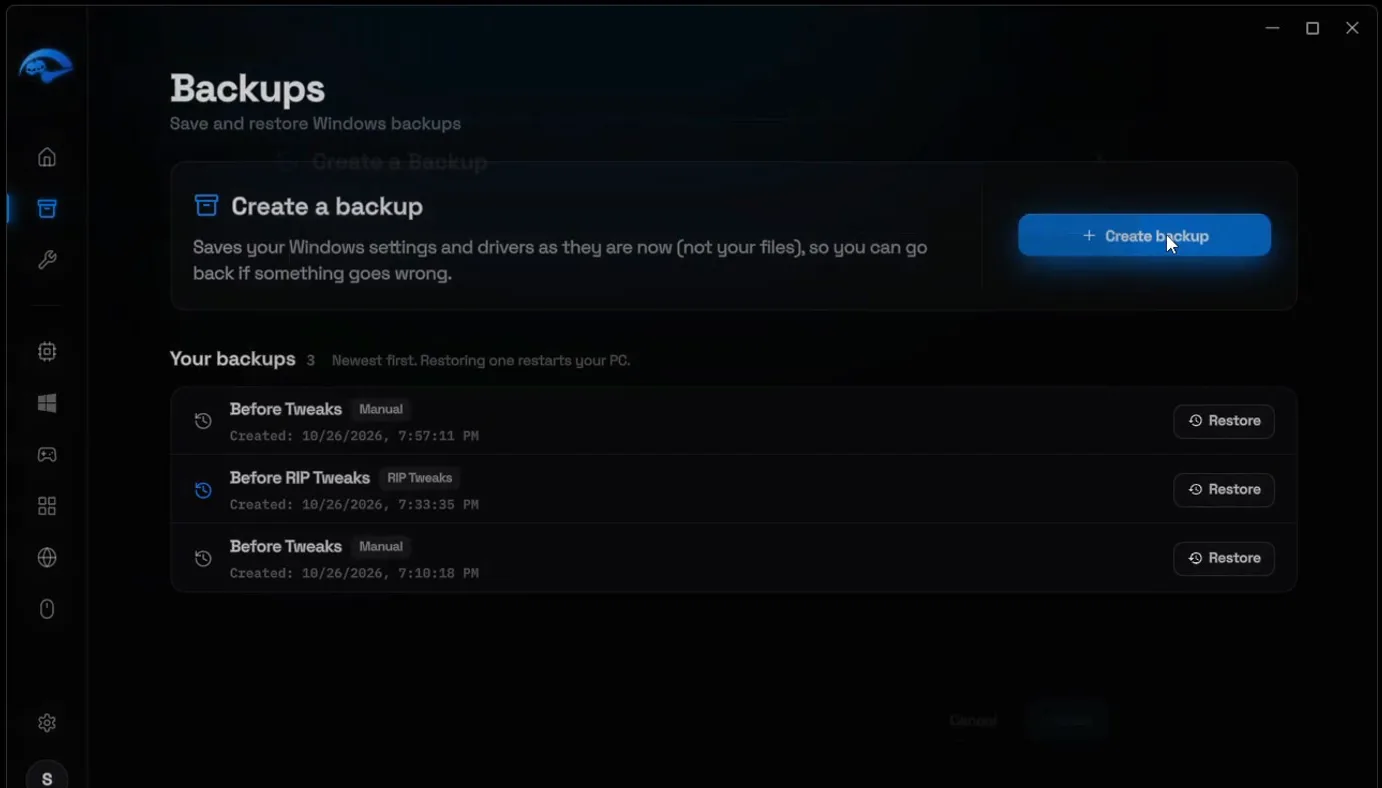
Click Backups in the sidebar, then Create backup. Name it Before RIP Tweaks, click Create and wait until it is done.
BackupsCreate backupBefore RIP TweaksCreate
How to undo it
To go back, open Backups and click Restore next to Before RIP Tweaks. The app says it plainly: restoring a backup restarts your PC.
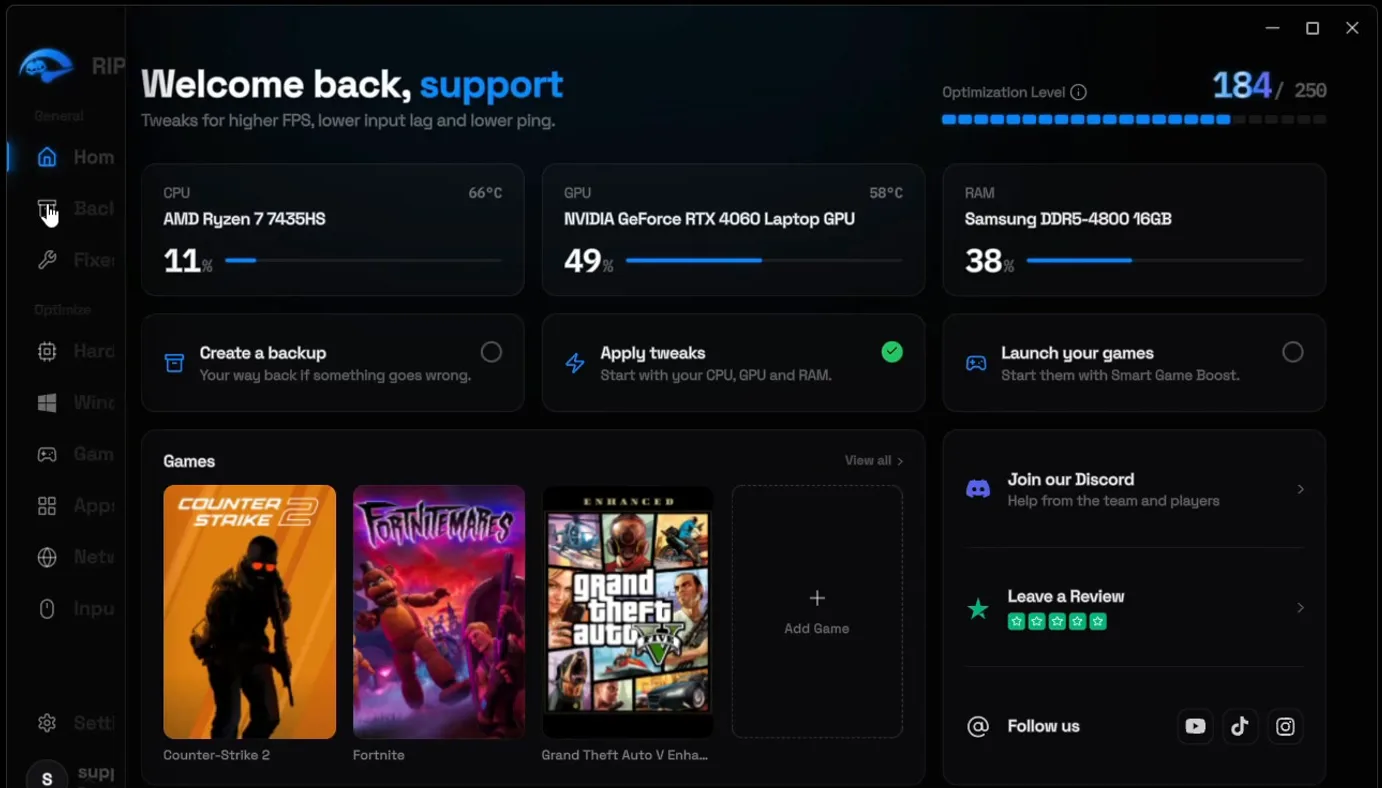
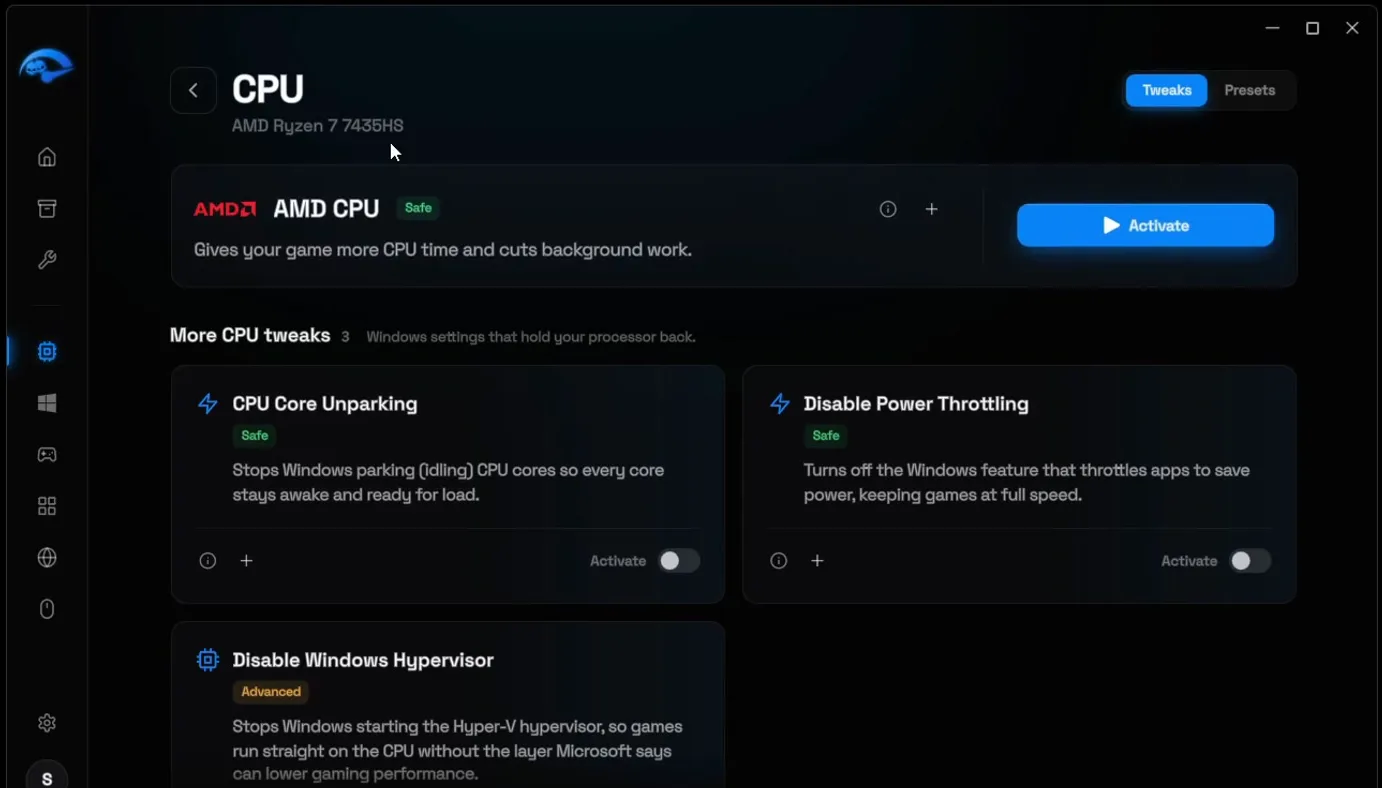
Click Hardware in the sidebar. You get CPU, GPU, RAM, BIOS and drives. Open CPU: the app detects the right processor on its own, here the AMD Ryzen 7 (not the Ryzen 5 that ChatGPT guessed). Click Activate on AMD CPU, then switch on the rest of the CPU tweaks below it: CPU Core Unparking, Disable Power Throttling and Disable Windows Hypervisor.
HardwareCPUAMD CPUActivate
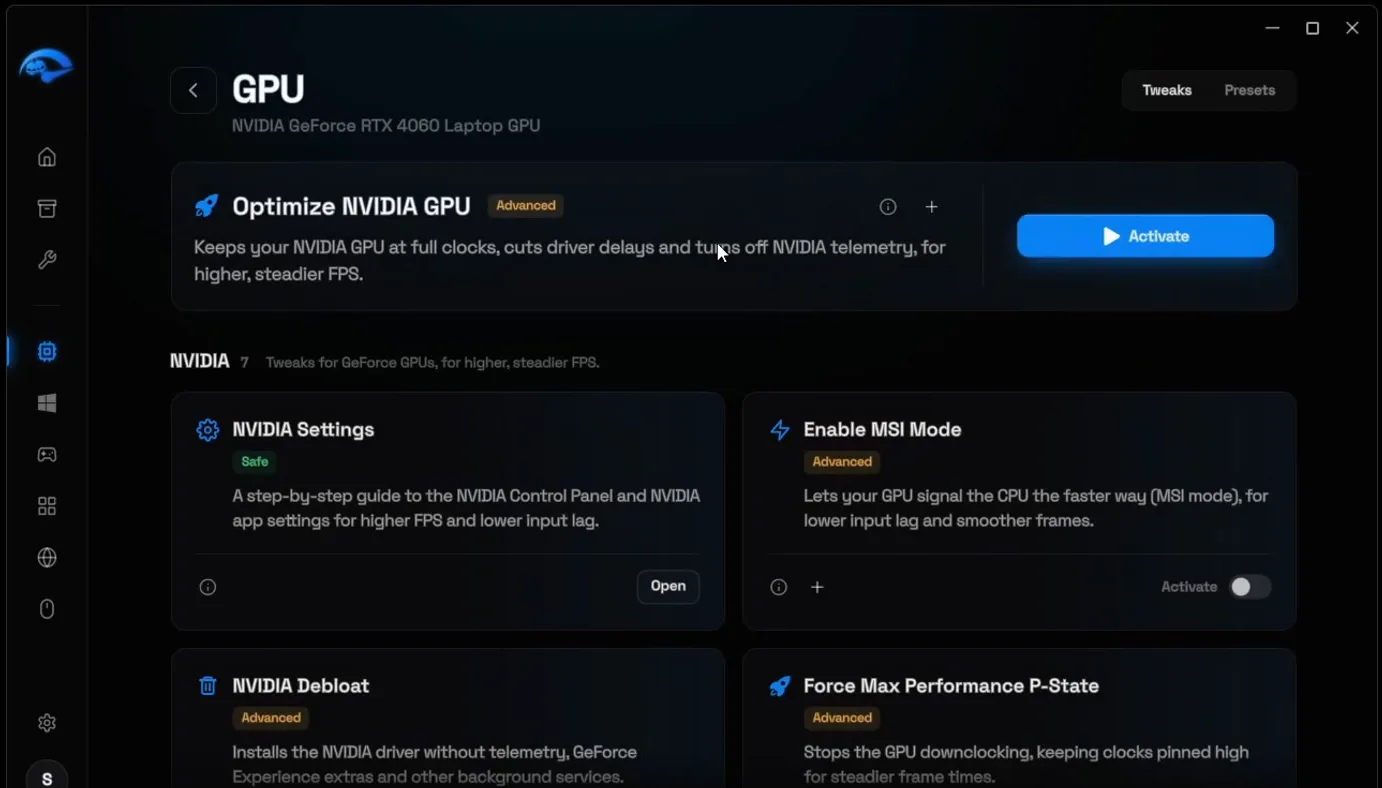
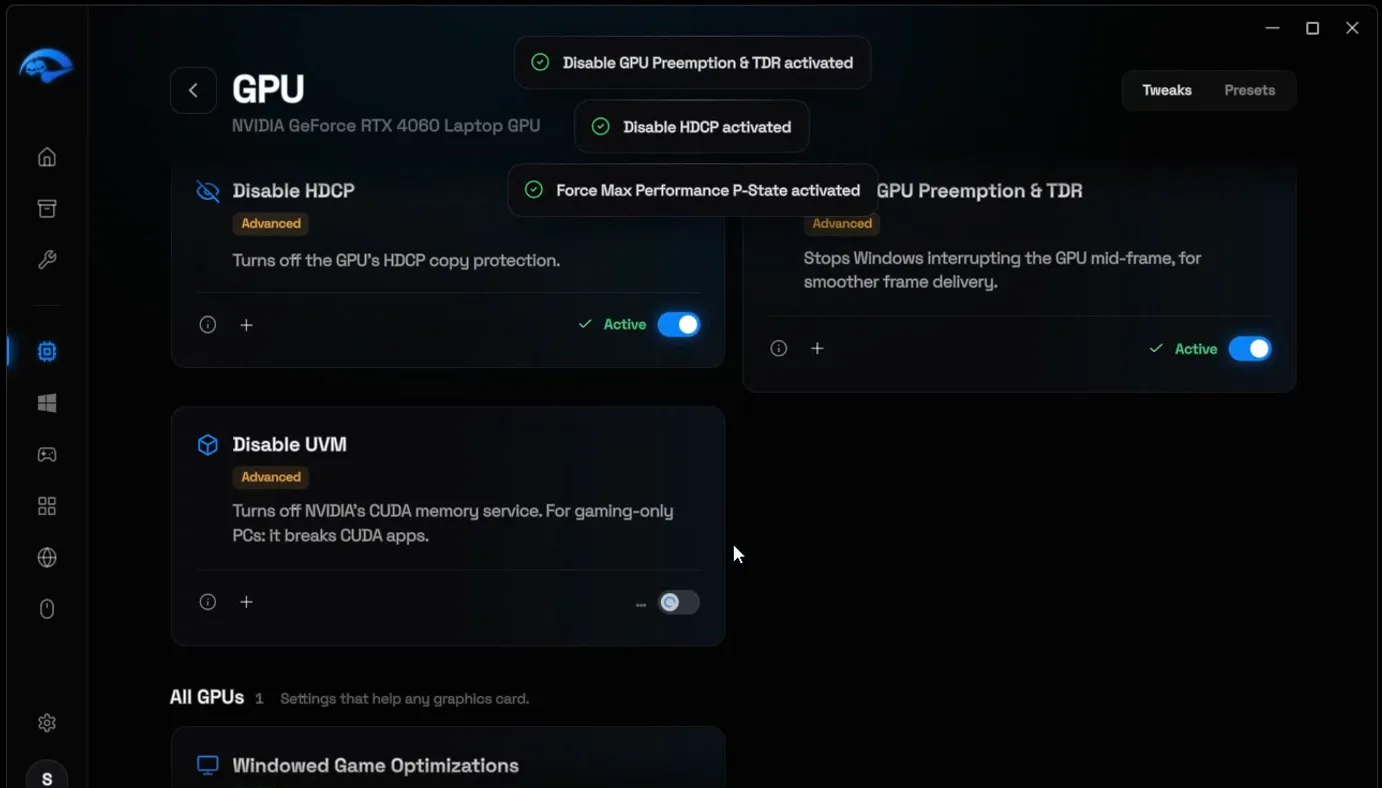
Go back and open GPU. The app finds the RTX 4060. Click Activate on Optimize NVIDIA GPU, then turn on the NVIDIA tweaks under it for the most FPS: Enable MSI Mode, Force Max Performance P-State, Disable HDCP, Disable GPU Preemption & TDR and the others. Our NVIDIA settings guide covers this page in more depth.
Tip
The app labels Disable UVM as being for gaming-only PCs because it breaks CUDA apps. If you use your graphics card for rendering or AI tools, leave that one switch off.
Go back and open RAM. The app offers the optimization for the RAM it found, here 16 GB: click Apply. Then open BIOS and click Activate on BIOS Tweaks. It sets Windows' timer and interrupt options, so you never enter the BIOS menu for it. Last, open the drives, optimize the SSD and set NVMe power saving to off.
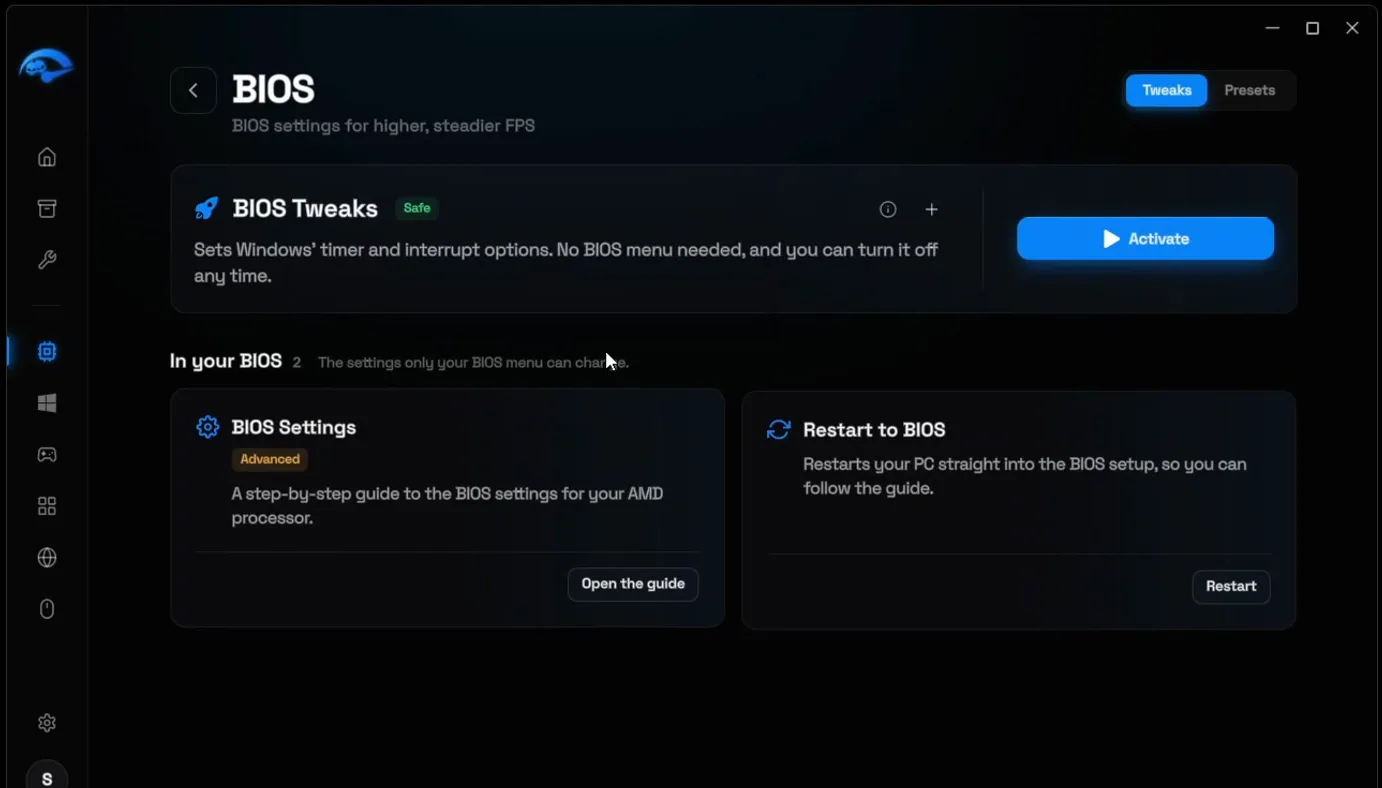
For the settings inside the real BIOS menu, the app has a step-by-step guide on this page, and our Intel and AMD BIOS settings guide walks through them.
This is the part ChatGPT left out. Open Windows, then the Windows card, and click Activate on Windows 11 Optimization. Then switch on the system tweaks below it: Ultimate Power Optimization, Disable Background Apps, Disable Hibernation, Disable Fullscreen Optimizations and the rest.
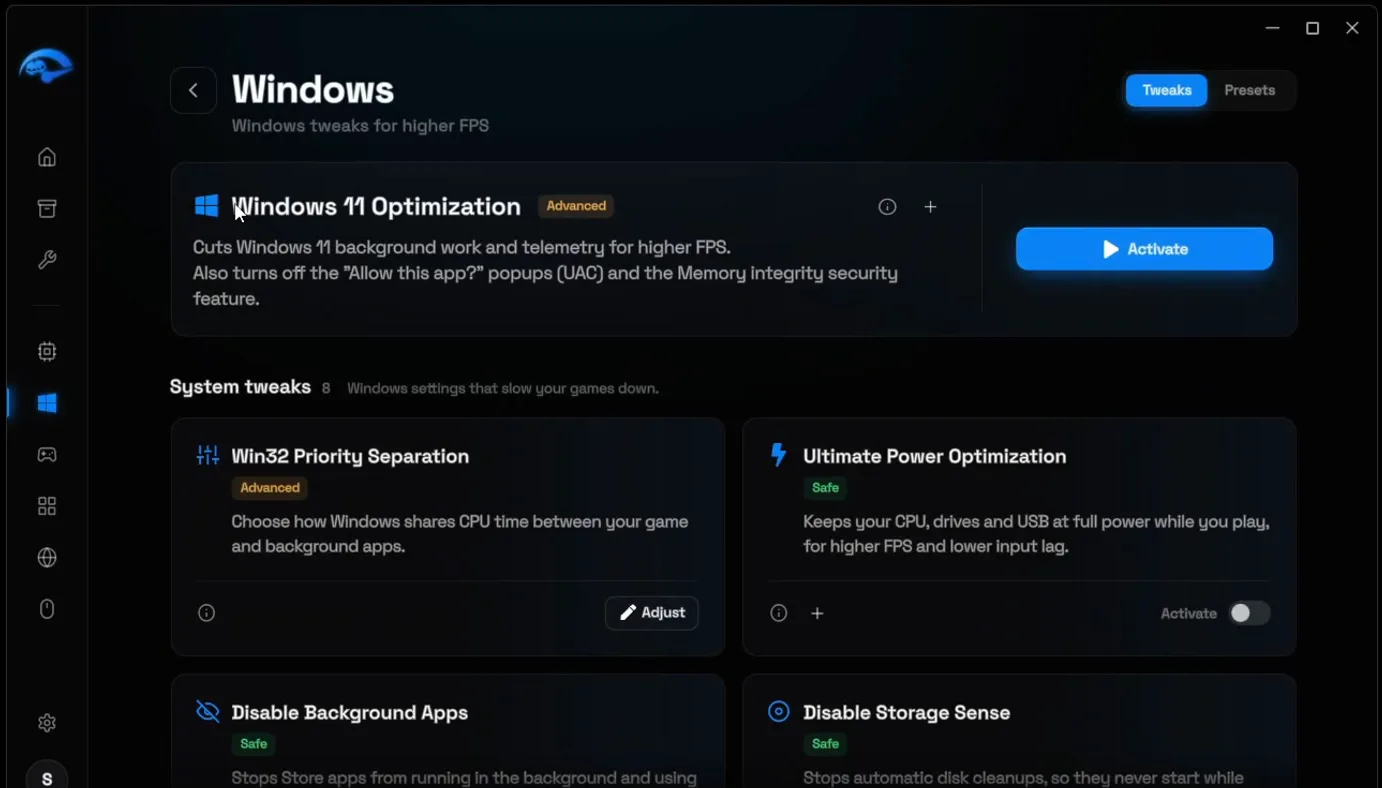
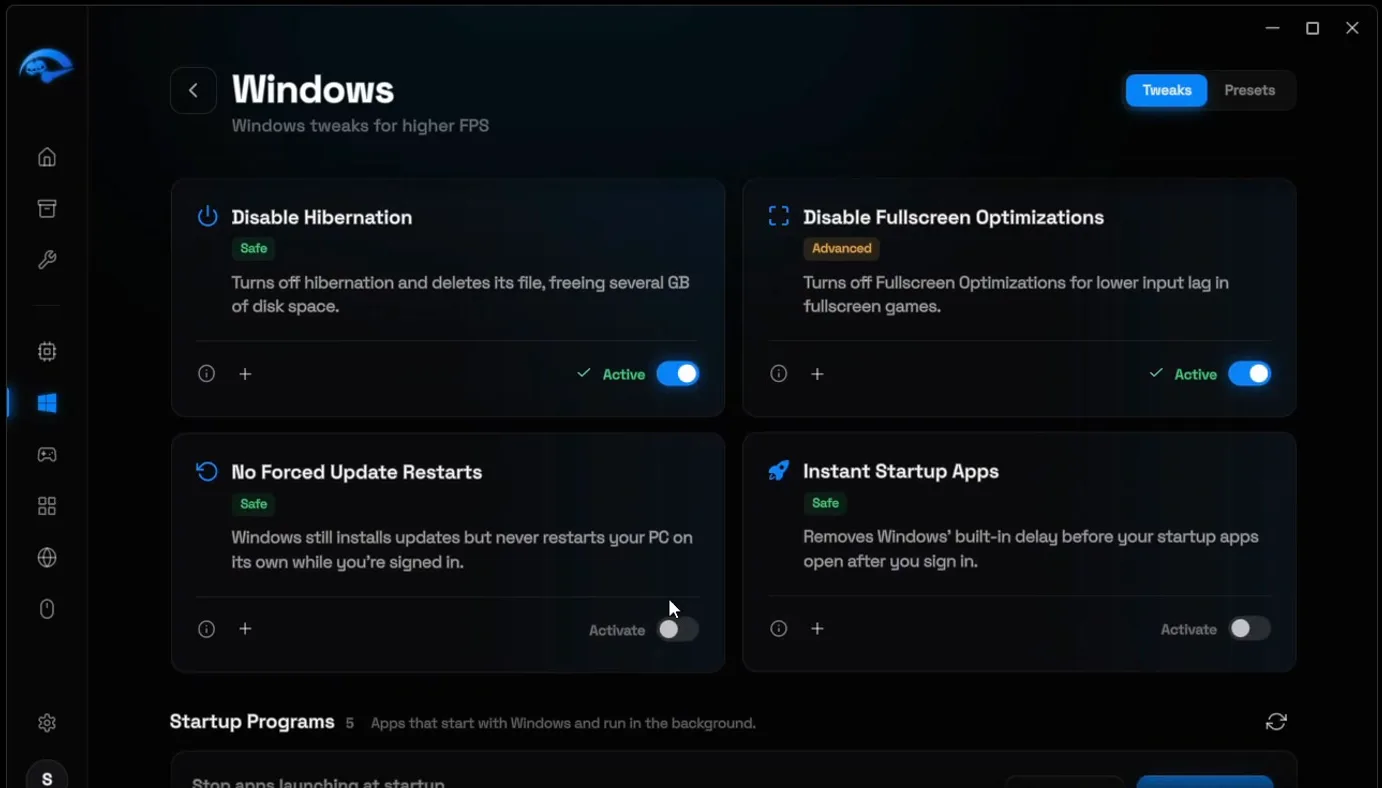
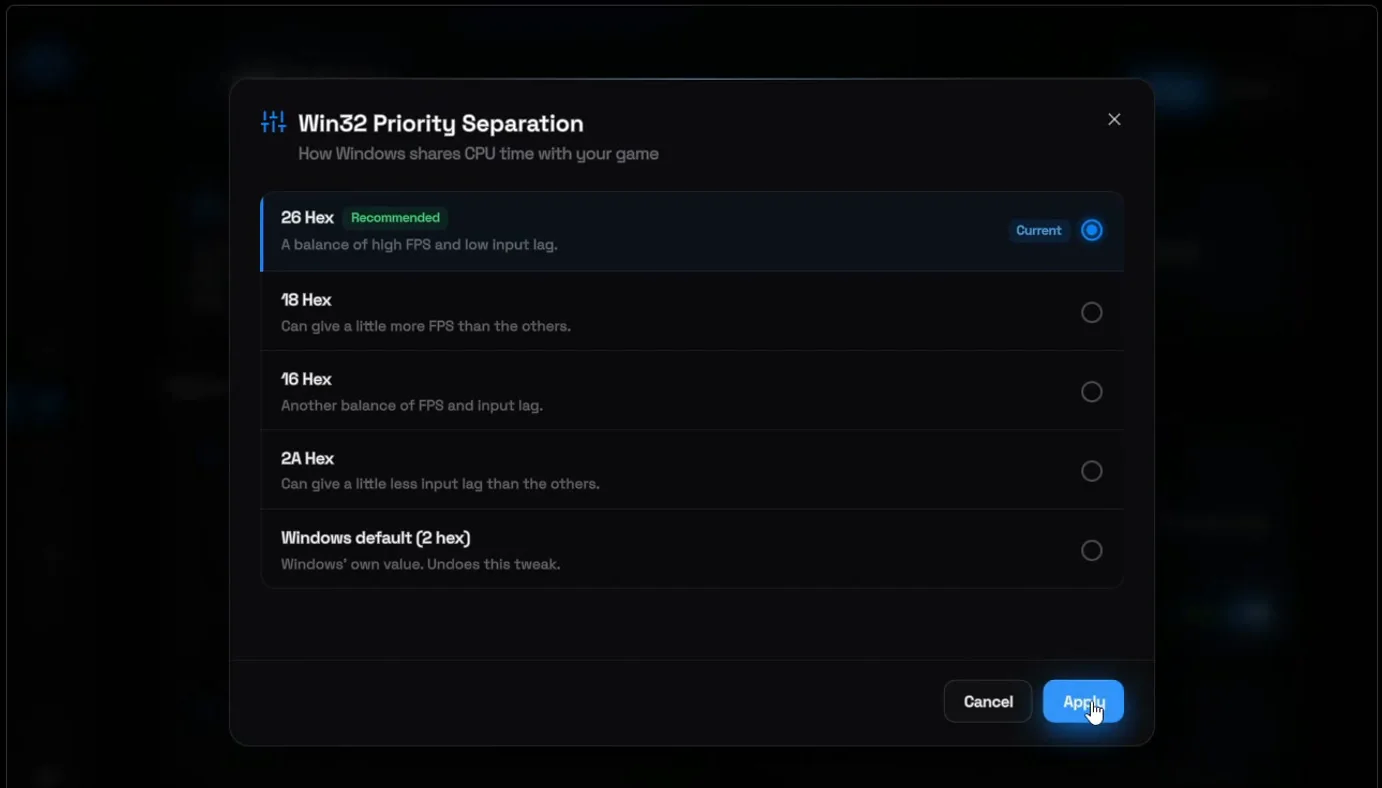
Under Startup Programs, disable the apps that start with Windows. In the video everything goes, including a Logitech app. Then scroll back up to Win32 Priority Separation, click Adjust, pick 26 Hex and click Apply.
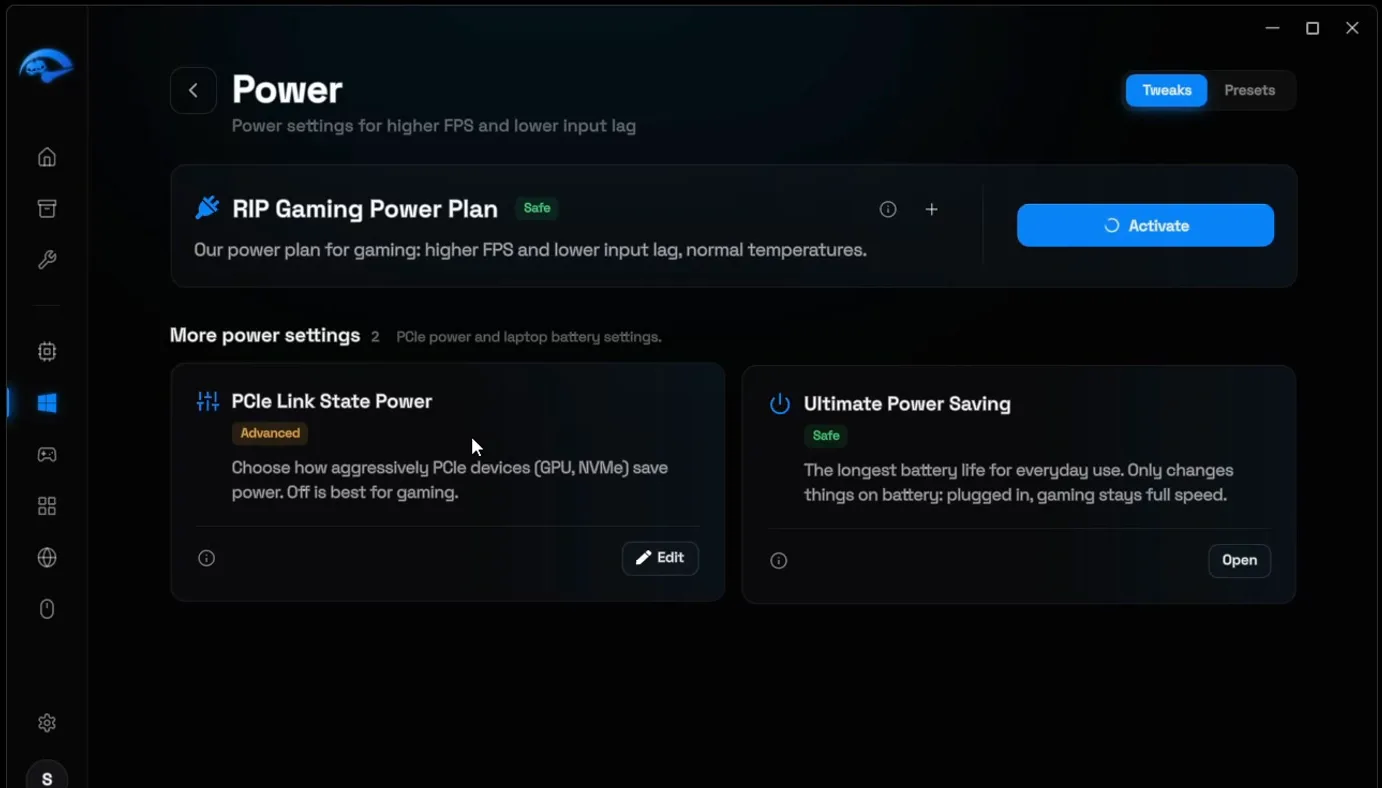
Go back to Windows and open Power. Click Activate on the RIP Gaming Power Plan. It replaces the High Performance plan that ChatGPT's script turned on. While it activates, click Edit on PCIe Link State Power, pick Off and click Apply.
WindowsPowerPCIe Link State PowerEditOff
Go back and open Debloat. It removes pre-installed apps you never open, like Weather and News, that keep running in the background. There are three ways: Basic (free, safe for every PC), Advanced (deeper, for gaming PCs) and Custom, where you pick each item. Advanced and Custom come with Premium.
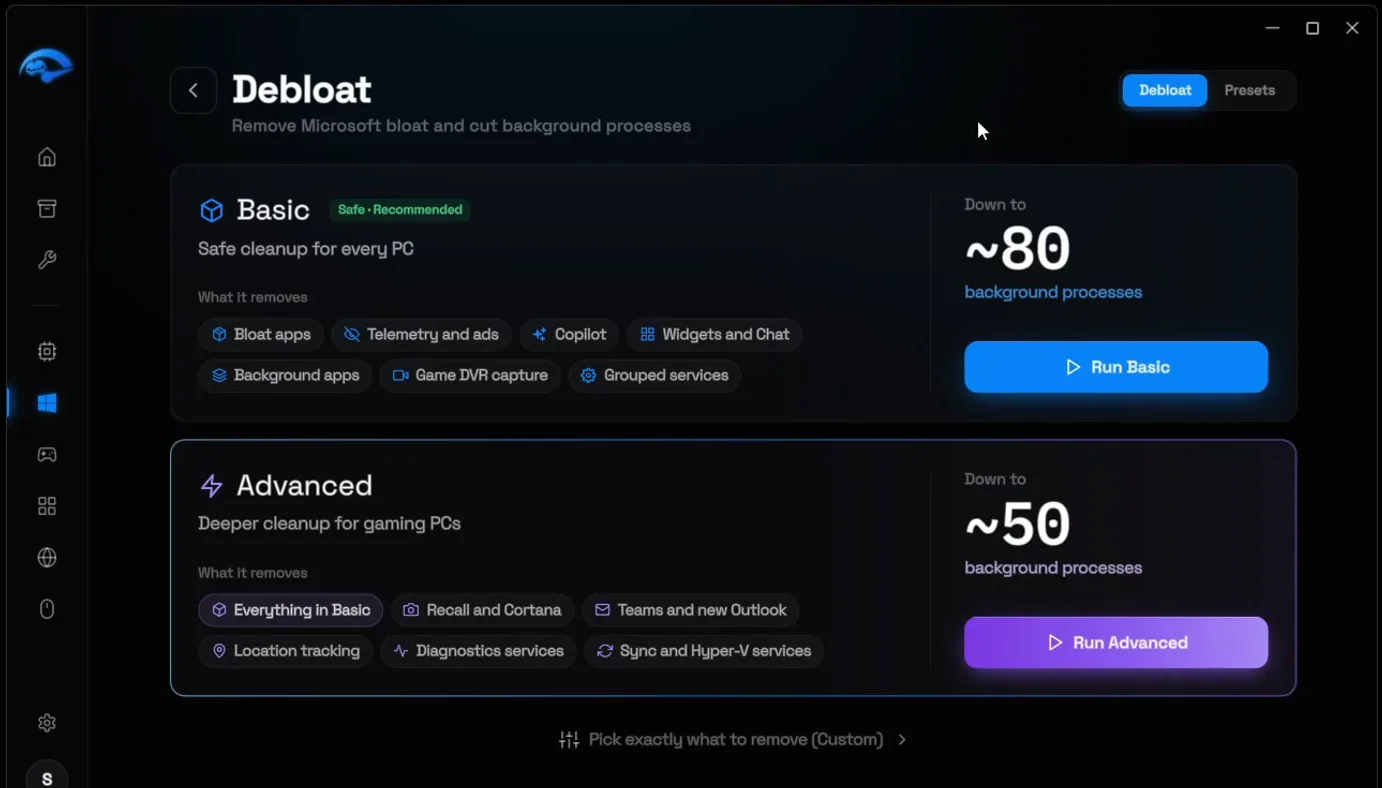
The video picks Custom: apps like Solitaire, People and Sound Recorder, the telemetry and privacy items, the AI and Copilot parts, services like Xbox and a few more tweaks, 48 items in total. Click Debloat, wait, then click Close when it says it is finished.
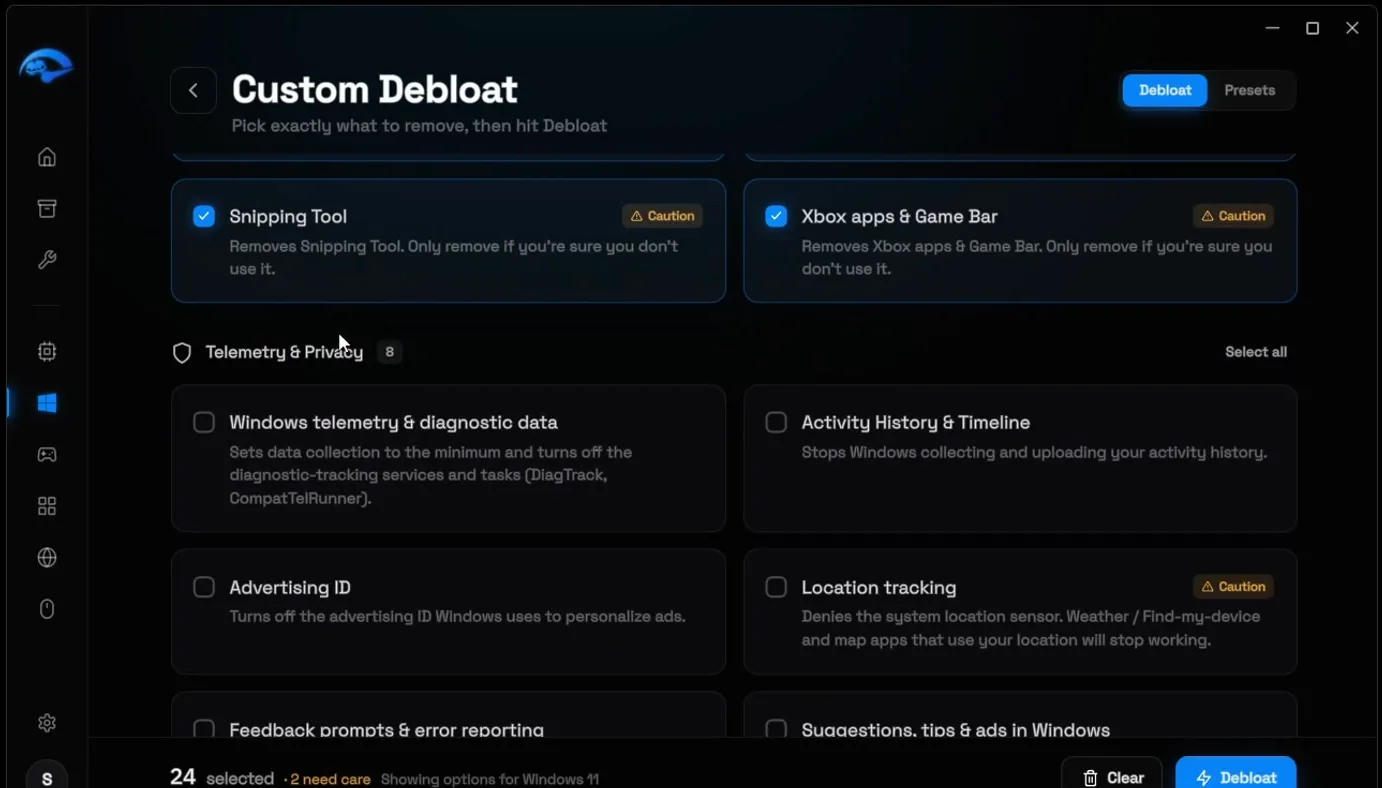
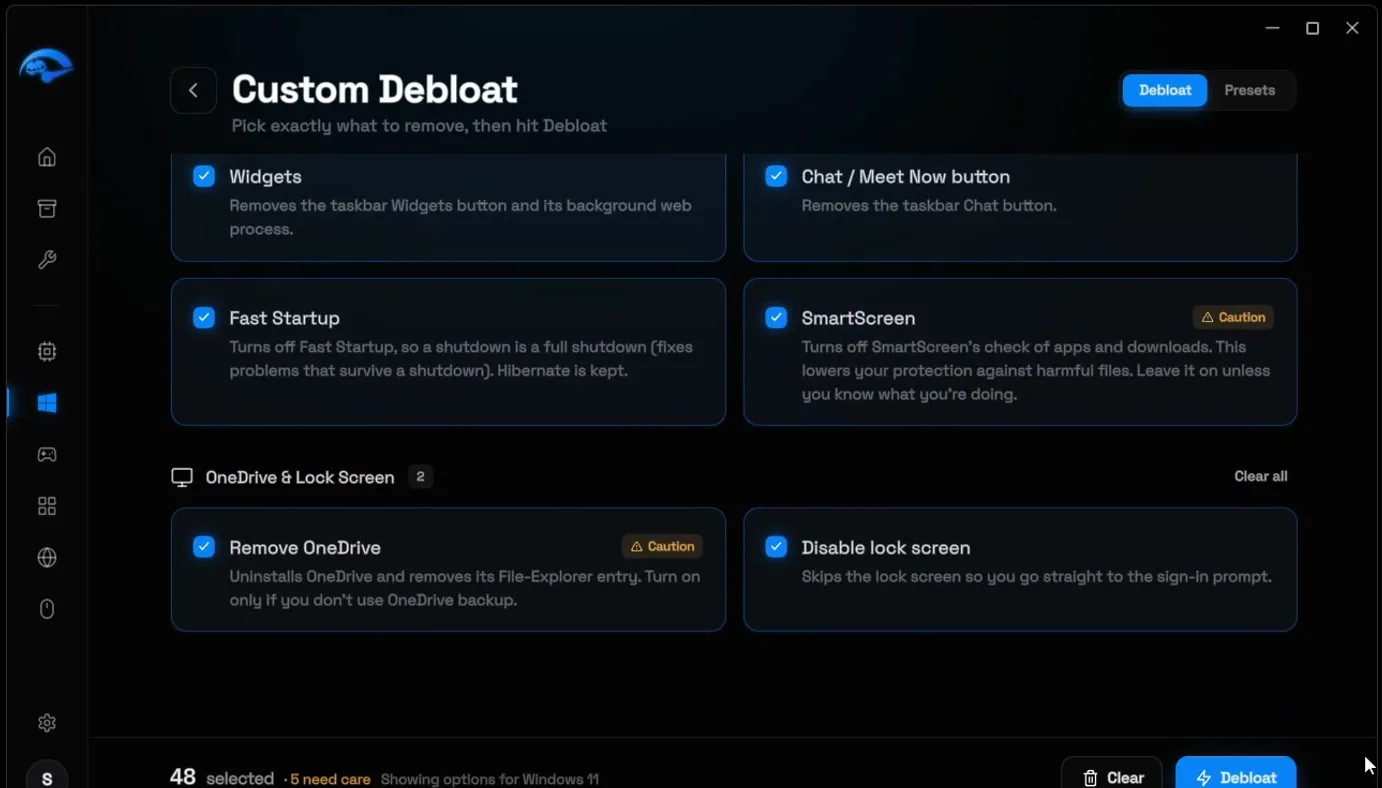
Fewer background apps also means fewer processes. Our guide to reducing background processes shows the count before and after.
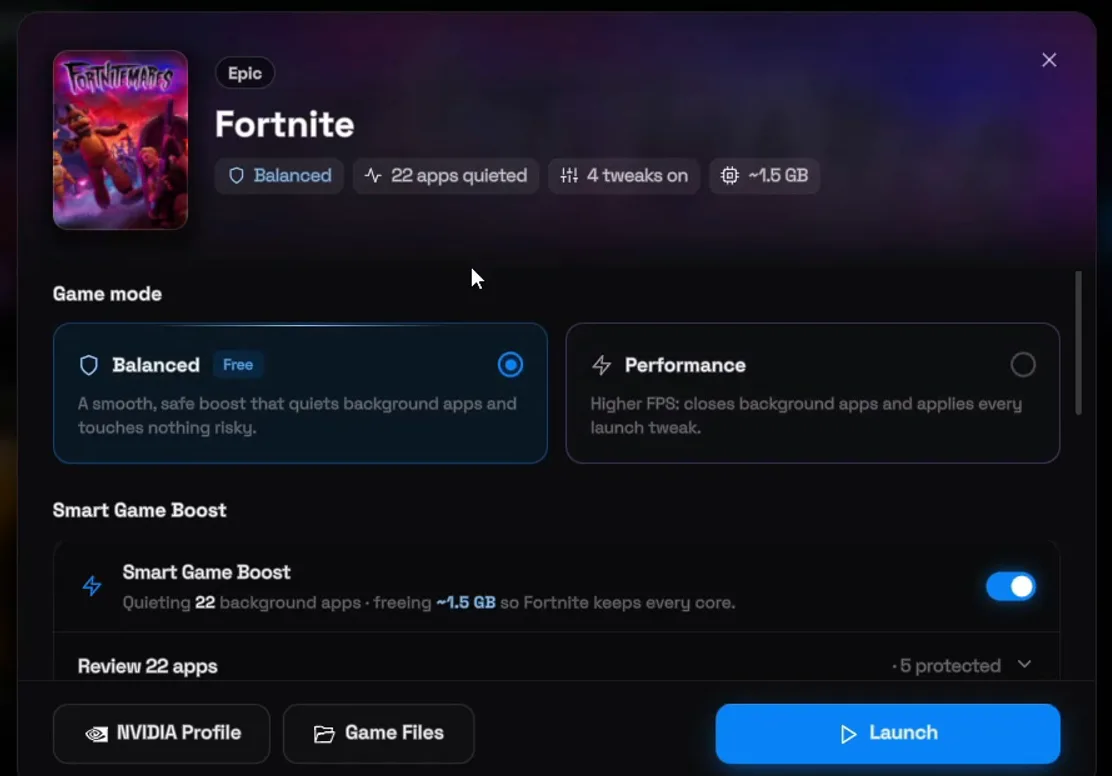
Open Games, the game mode tool of RIP Tweaks, and click Fortnite. You get two game modes:
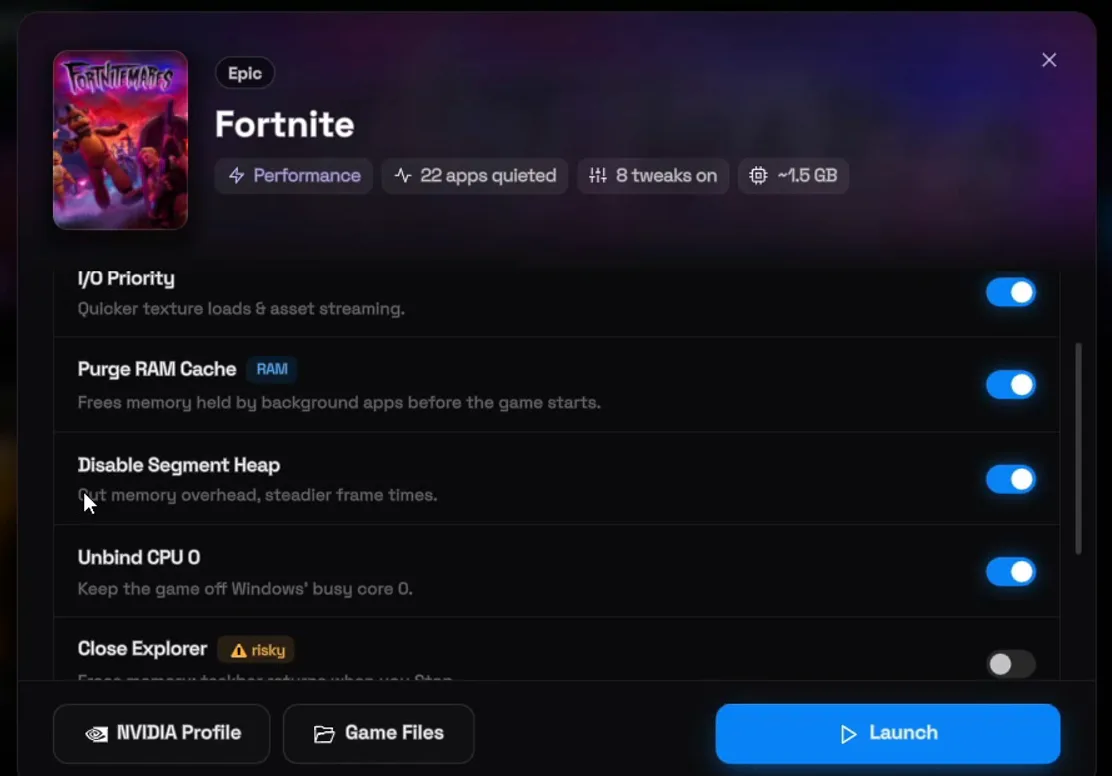
- Balanced (free): quiets your background apps and applies Fortnite tweaks while you play, such as GPU priority, I/O priority and Purge RAM Cache.
- Performance (Premium): quiets even more background apps and adds more tweaks, such as Disable Segment Heap and Unbind CPU 0, for even more FPS.
Tip
Balanced costs nothing and touches nothing risky. Start with it, test your FPS, and move to Performance if you want more.
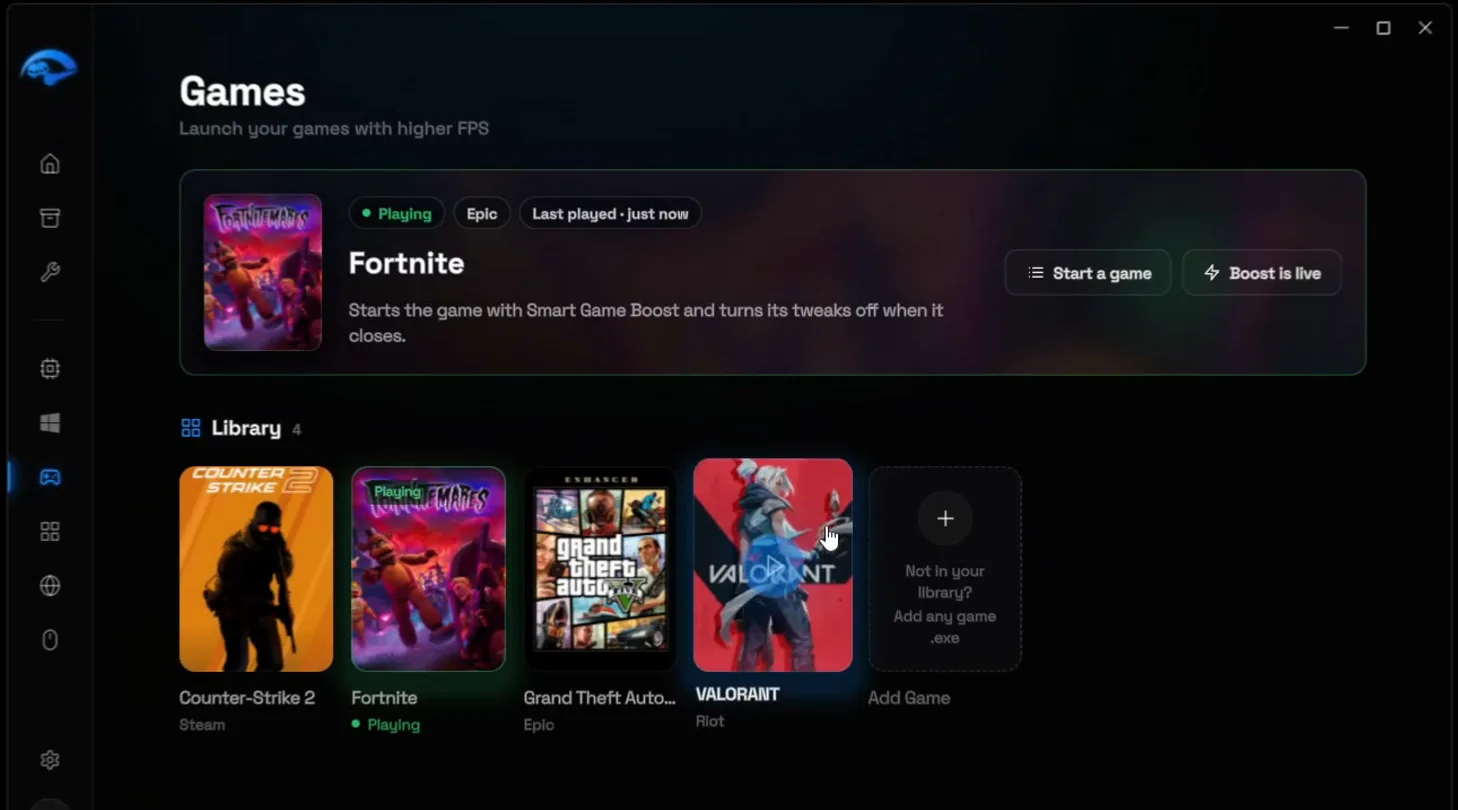
Pick your mode (the video uses Performance) and click Launch. In the video, 22 apps are quieted and 1.5 GB of RAM is freed, and the Games page shows Fortnite as Playing with Boost is live.
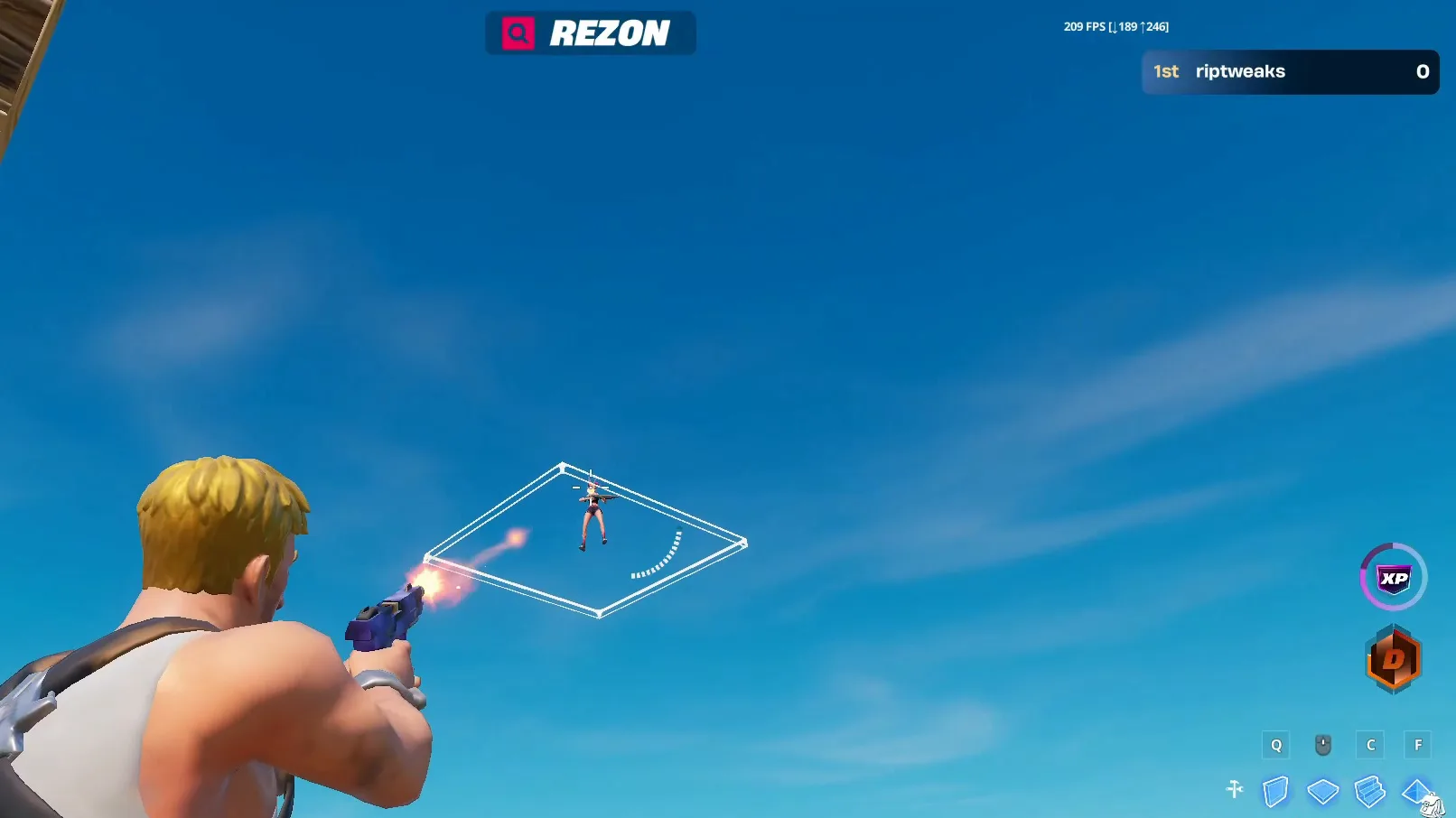
On the same creative map with the same lowest settings, the laptop now gets 250 to 260 FPS. Side by side: around 100 to 120 FPS before, 130 to 140 FPS with ChatGPT's tweaks, 250 to 260 FPS with RIP Tweaks.
How to check it worked
- Test the exact same map and spot as your baseline, with the same in-game settings and the FPS counter on. Compare the range you see, not one frame.
- In RIP Tweaks, the switches you turned on show Active, and the Games page shows Boost is live while Fortnite runs.
- Look at the Home page: the Optimization Level counts how many tweaks are on.
- If the FPS doesn't move, restart the PC once. ChatGPT's script also warns that some settings need a sign-out or restart.
For lower ping in Fortnite as well, see our Fortnite FPS, input delay and ping guide.
Key settings at a glance
FAQ
Can ChatGPT optimize my PC for gaming?
Partly. In the video it wrote a working .bat file with 20 tweaks and took Fortnite from 100 to 120 FPS to 130 to 140 FPS on the PC in the video. It guessed the wrong CPU and GPU, though, left out most Windows and hardware tweaks, and its own script says the changes are not guaranteed to raise FPS.
Is it safe to run a .bat file from ChatGPT?
Only if you read it first. A .bat file can change anything on your PC. The script in the video backed up the registry keys it touched and offered a restore option, but another answer could look different. Make a backup or restore point before you run any script.
How do I undo ChatGPT's PC tweaks?
Run the same .bat file again and pick 2. Restore backed-up registry keys and 4. Restore Balanced power plan, then restart. The script itself says the restore merges the saved values and is not a full system restore.
How much FPS did RIP Tweaks give compared with ChatGPT?
On the PC in the video, a laptop with an AMD Ryzen 7 7435HS and an RTX 4060 Laptop GPU: 100 to 120 FPS before, 130 to 140 FPS with ChatGPT's tweaks and 250 to 260 FPS with RIP Tweaks, on the same creative map with the lowest settings. Your numbers depend on your hardware.
Is RIP Tweaks free?
The download is free, and so are Basic Debloat and the Balanced game mode. The Custom and Advanced debloat and the Performance game mode used in the video are part of Premium.
Does this work on Windows 10?
Yes. RIP Tweaks works on Windows 10 and 11. The video uses Windows 11, so the Windows 11 Optimization card is the one shown; the app shows the options for your own Windows version.
Does it work for other games than Fortnite?
Yes. The hardware, Windows, power and debloat tweaks apply to every game. The Games page in the video also lists Counter-Strike 2, GTA V and VALORANT, and you can add any game by its .exe. For a full run on another PC, see how we optimized a PC with one free app.
Which Fortnite settings were used for the test?
The lowest settings possible, on a creative map, with the FPS counter on. Every run used the same map and settings, so the three FPS ranges compare directly.
 RIP Tweaks
Do it in a few minutes with RIP Tweaks
- Free plan for Windows 10 and 11
- A backup first, and every tweak can be switched off again
- Made for higher FPS, lower input lag and steadier ping
Free · Windows 10 and 11
