
AI Girl Voice Changer Download and Setup for PC (2026)

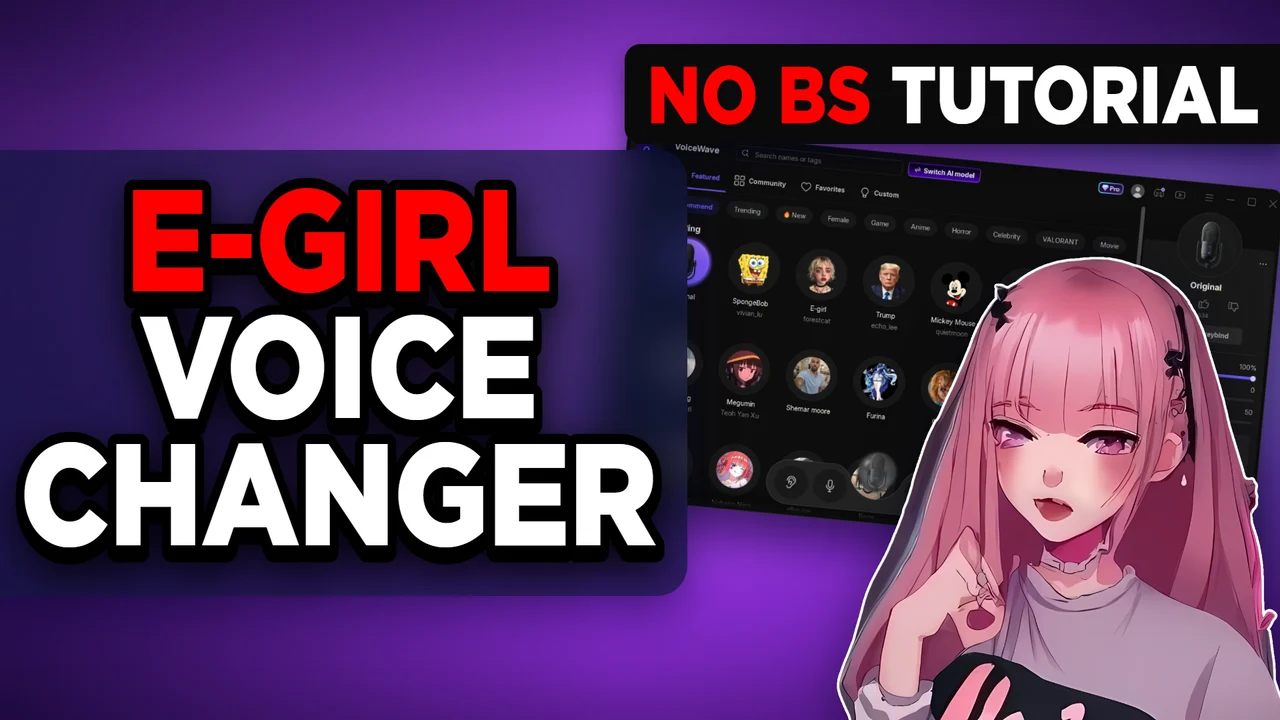
Written version of our video, every step checked against it.
Quick answer
- Open the first link in the video description, click Download for Free and let EaseUS VoiceWave finish installing.
- Click Switch AI model, keep Voice Quality Priority as the current mode and confirm with Switch now and OK.
- Click the E-girl voice and talk: your voice changes live. The pitch slider makes it higher or lower.
- Open the soundboard and give a sound a key such as F10, or search the community library for more.
- In Windows, select VoiceWave Microphone under Input and keep the volume at
100, so every game and app gets the new voice.
This is the short, no-nonsense route to an AI girl voice on a Windows PC: download, one AI setting, one click on a voice, and one Windows microphone setting. It follows the video step by step, including the soundboard keybinds and community sounds, and it is meant for anyone who just wants to install the voice changer and talk in Discord or a game.
Want the longer version with the community voice tab and a Fortnite example? Read our e-girl voice changer guide. This page is the quick beginner path.
In this video
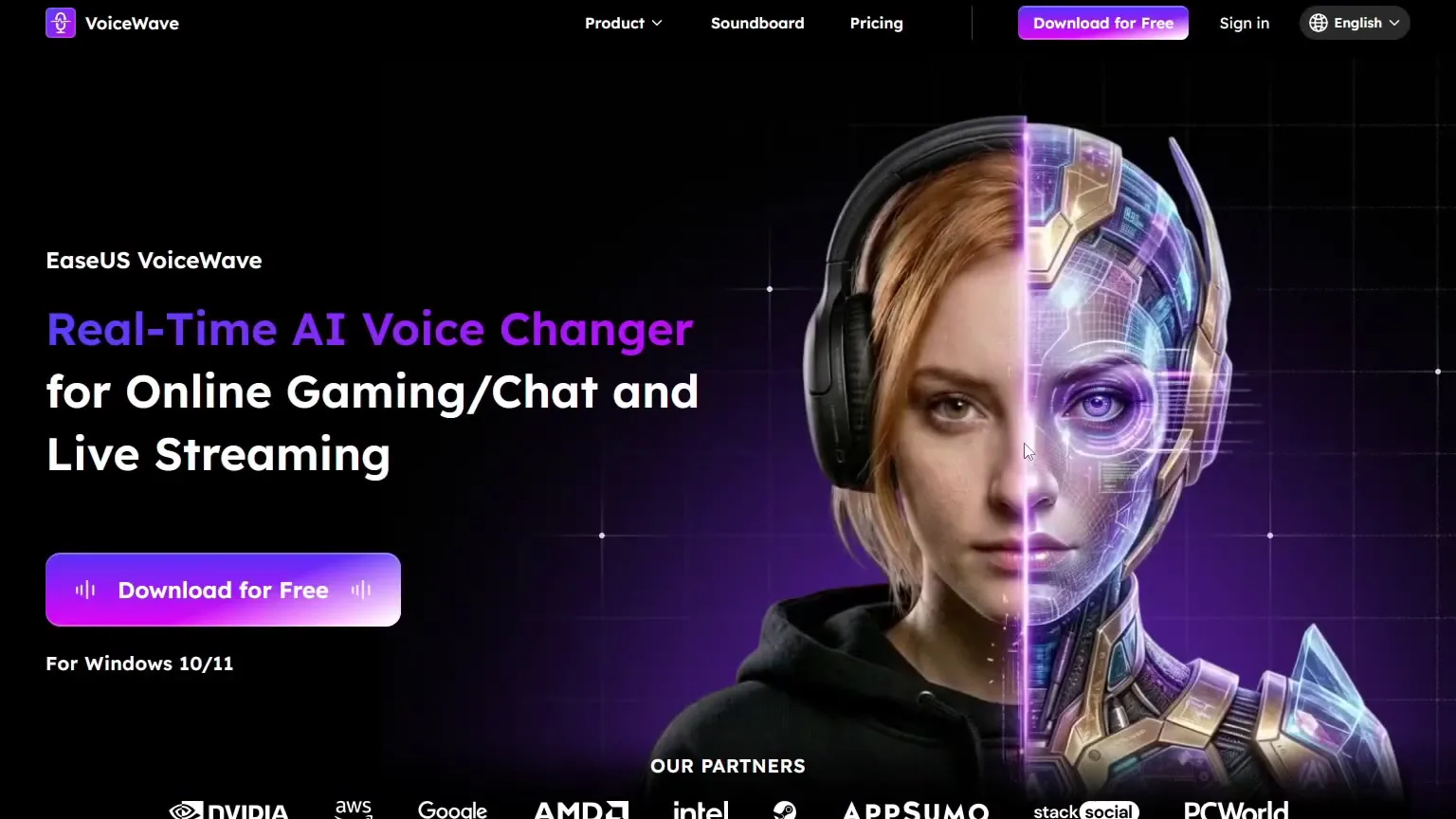
Click the first link in the video description. It leads to the EaseUS VoiceWave website, where you click the purple Download for Free button. The label under it says the app is for Windows 10/11. Run the installer and wait until it has fully finished before you do anything else.
Good to know
While the installer runs, a small help panel in the corner explains that Windows SmartScreen may ask about it. If that happens, click More info, then Run anyway, as the panel shows. Only do this for the installer you downloaded from the link in the video.
When the app opens, click Switch AI model at the top. In the window that opens, make sure Voice Quality Priority is the current mode. If it is not, switch on voice quality priority, click Switch now, and when the app says it has switched, click OK.
Switch AI modelVoice Quality PrioritySwitch nowOK
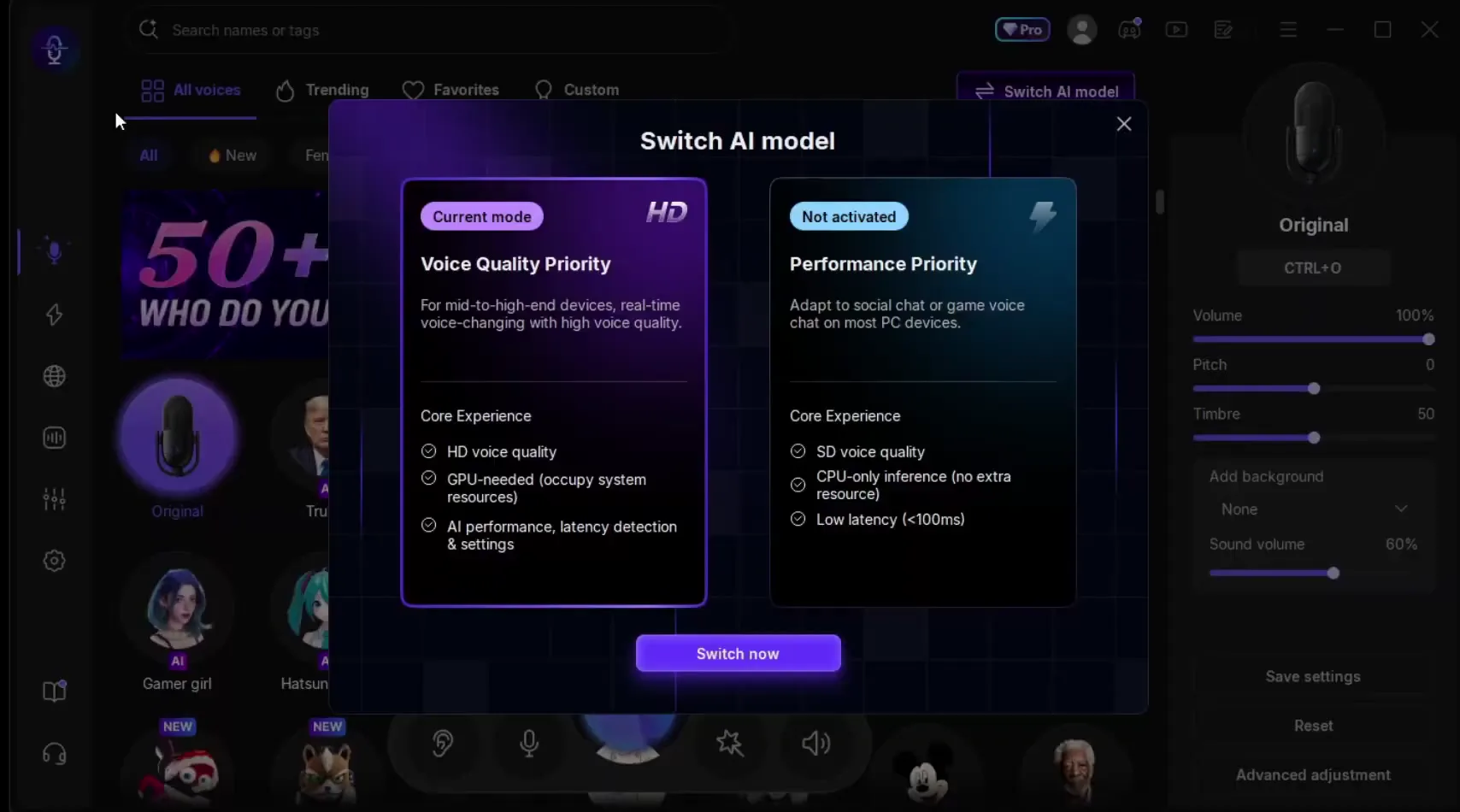
The window explains both modes. Voice Quality Priority is for mid-to-high-end devices, gives HD voice quality and needs the GPU. Performance Priority gives SD quality, runs on the CPU only and lists low latency (under 100 ms). This is the only setting the video changes before it tries voices.
Tip
If your PC is older and the changed voice stutters, open the same window and try Performance Priority. It is the lighter mode and needs no extra graphics resources.
Now pick a voice. The All voices tab lists them in rows, with Original (your normal voice) first. Click E-girl in the first row and speak into your microphone: the video shows that the voice changer works straight away and sounds like a girl.
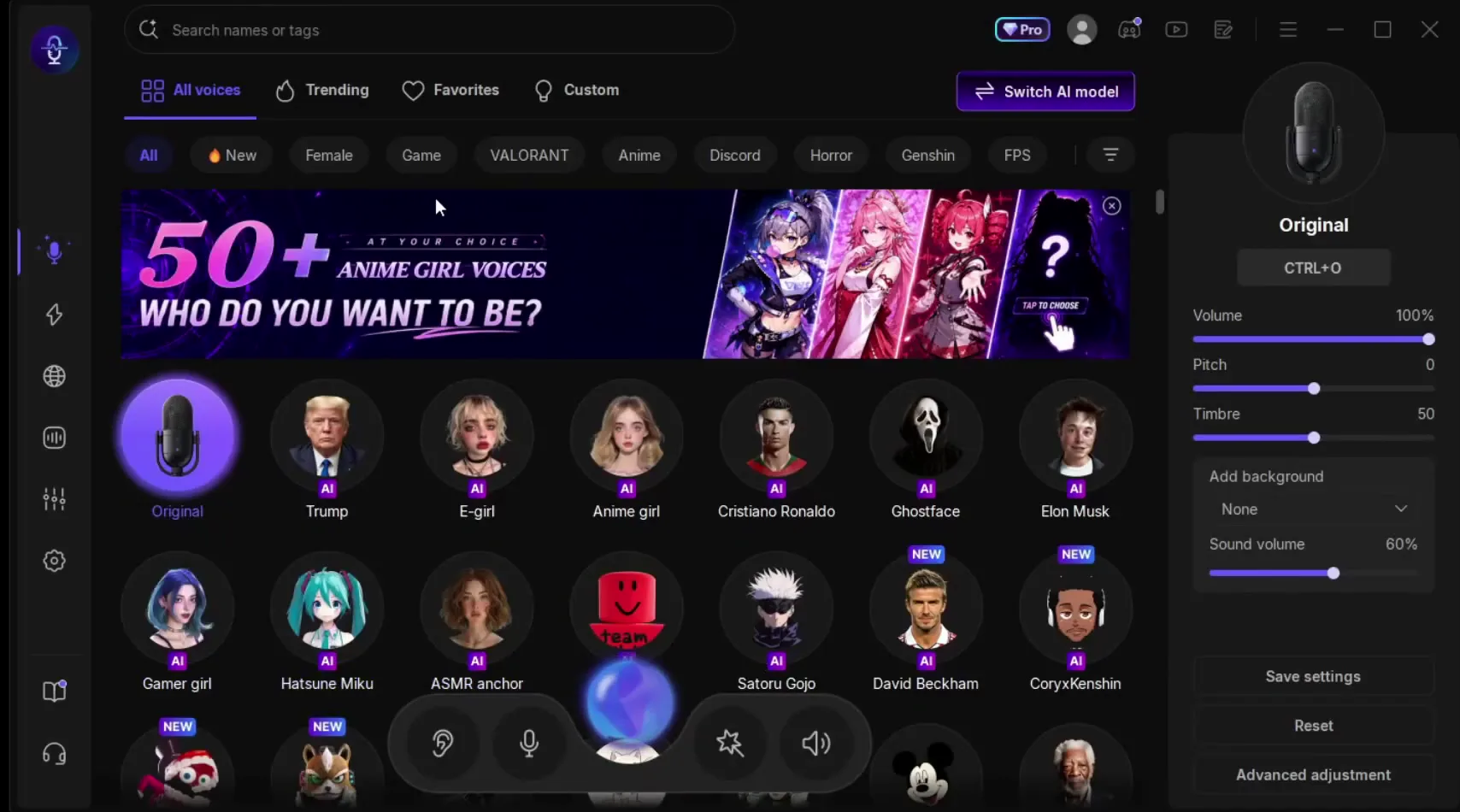
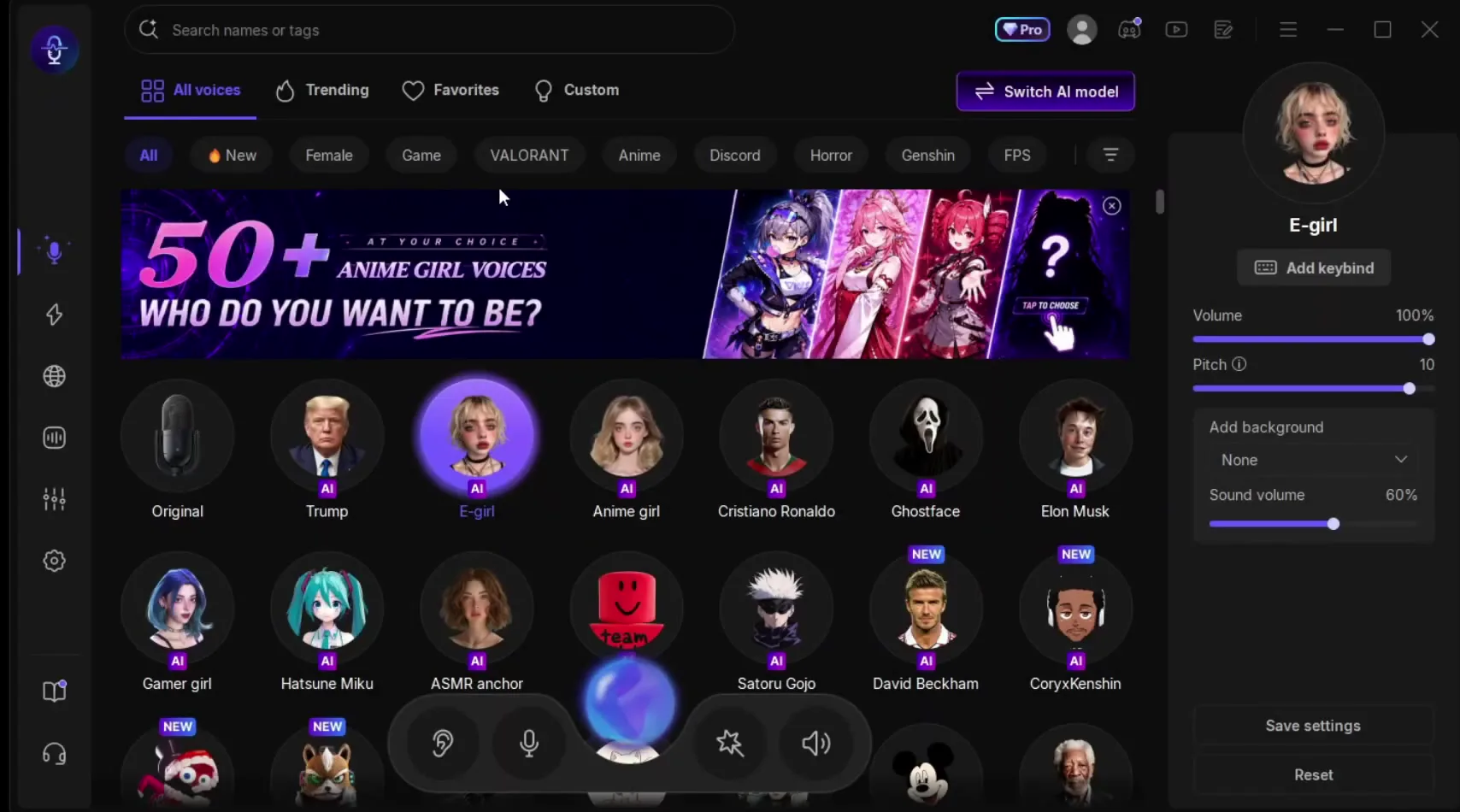
The panel on the right holds the voice's own settings. On the PC in the video, E-girl loads with Volume 100% and Pitch 10, and the video starts with those. The video says the voice works with any voice you talk with, so you do not need a special microphone.
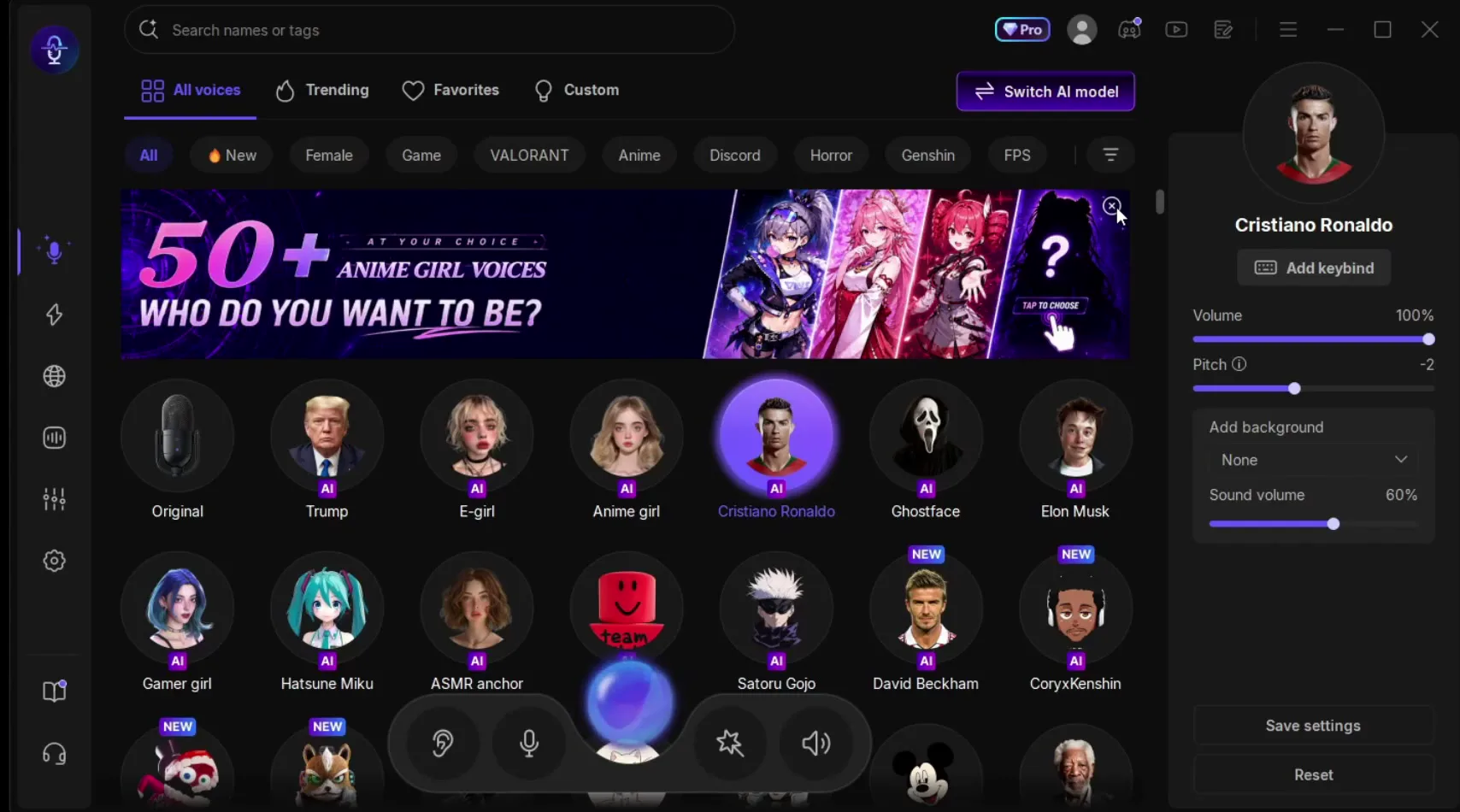
You can use any voice as much as you like and swap between them with one click. The video tries Cristiano Ronaldo, then a singer voice, and says the app has over 500 voices in total, including celebrities and game characters. To change how it sounds, drag the Pitch slider in the panel on the right: up for a higher voice, down for a lower one.
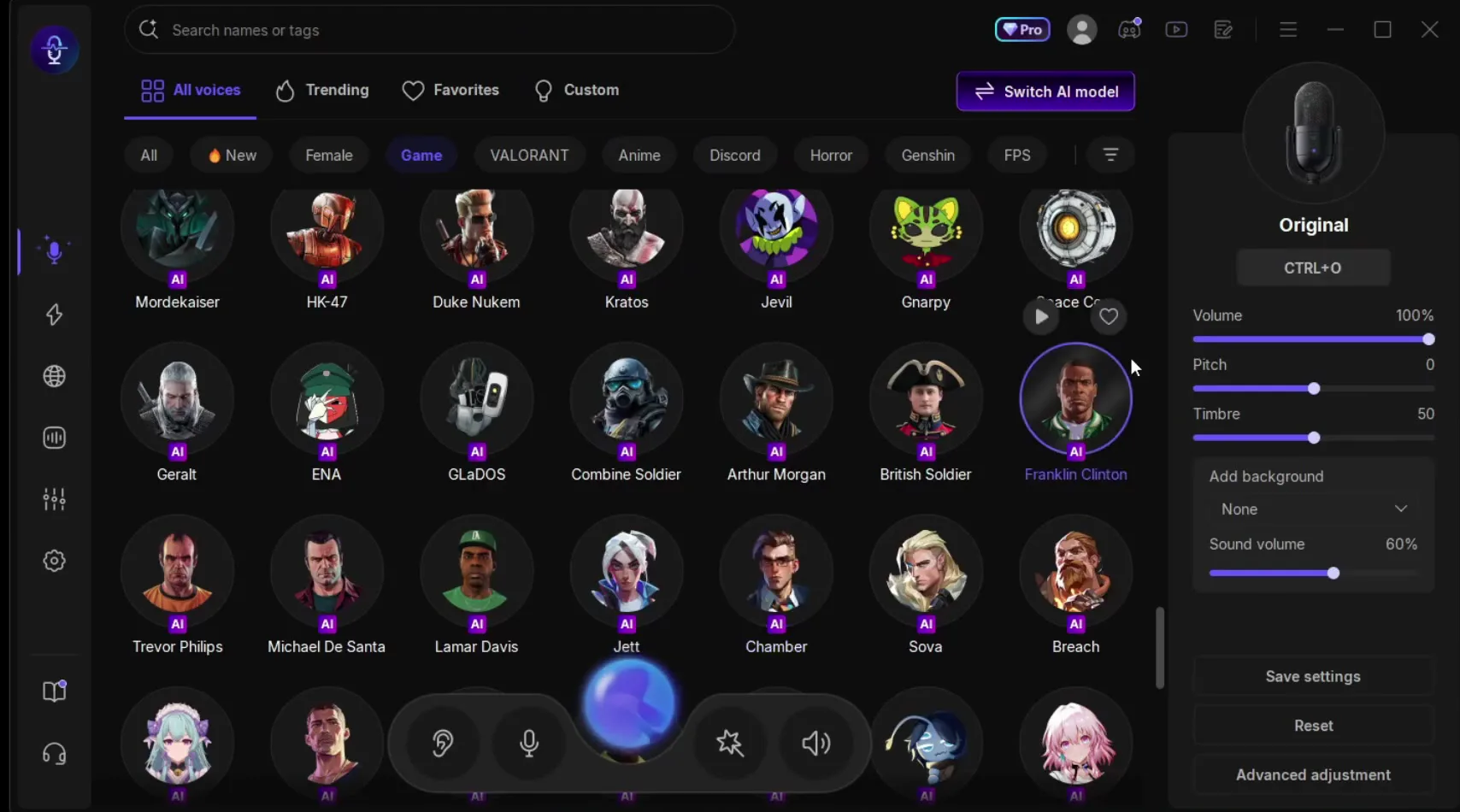
For game characters, open the Game filter above the voices. The video calls Franklin, Trevor and Michael from the list its favourites and says they are the most realistic ones, with Franklin sounding the best.
If you want only girl voices, the Female filter sits in the same row, and the search bar at the top finds voices by name or tag.
The video then shows the soundboard. Click the soundboard icon in the left sidebar and you get a large All sounds section with filters such as Funny, Horrors, Game and FPS-S. Click a sound such as the Airhorn to play it. You can play sounds with the mouse at any time while you talk.
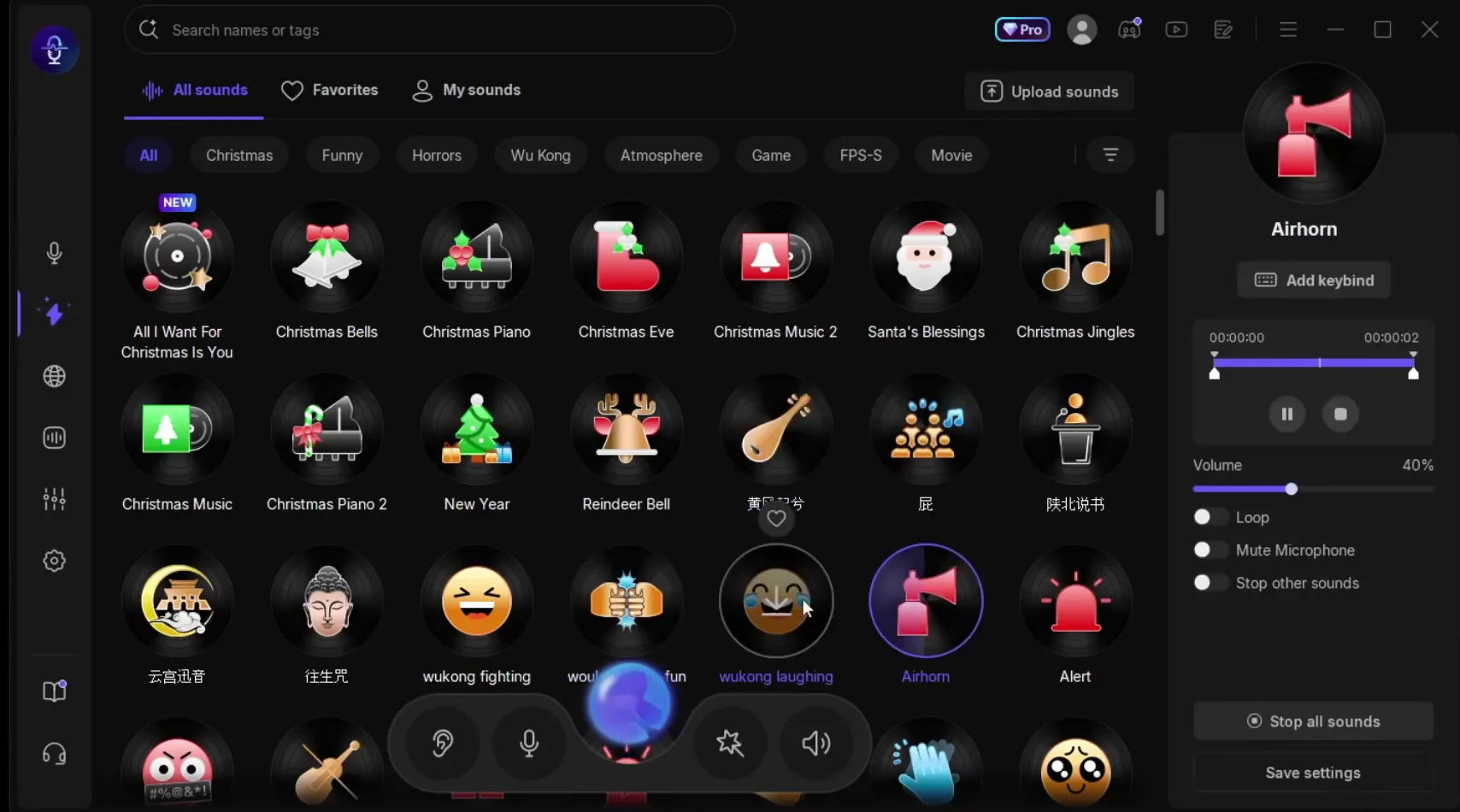
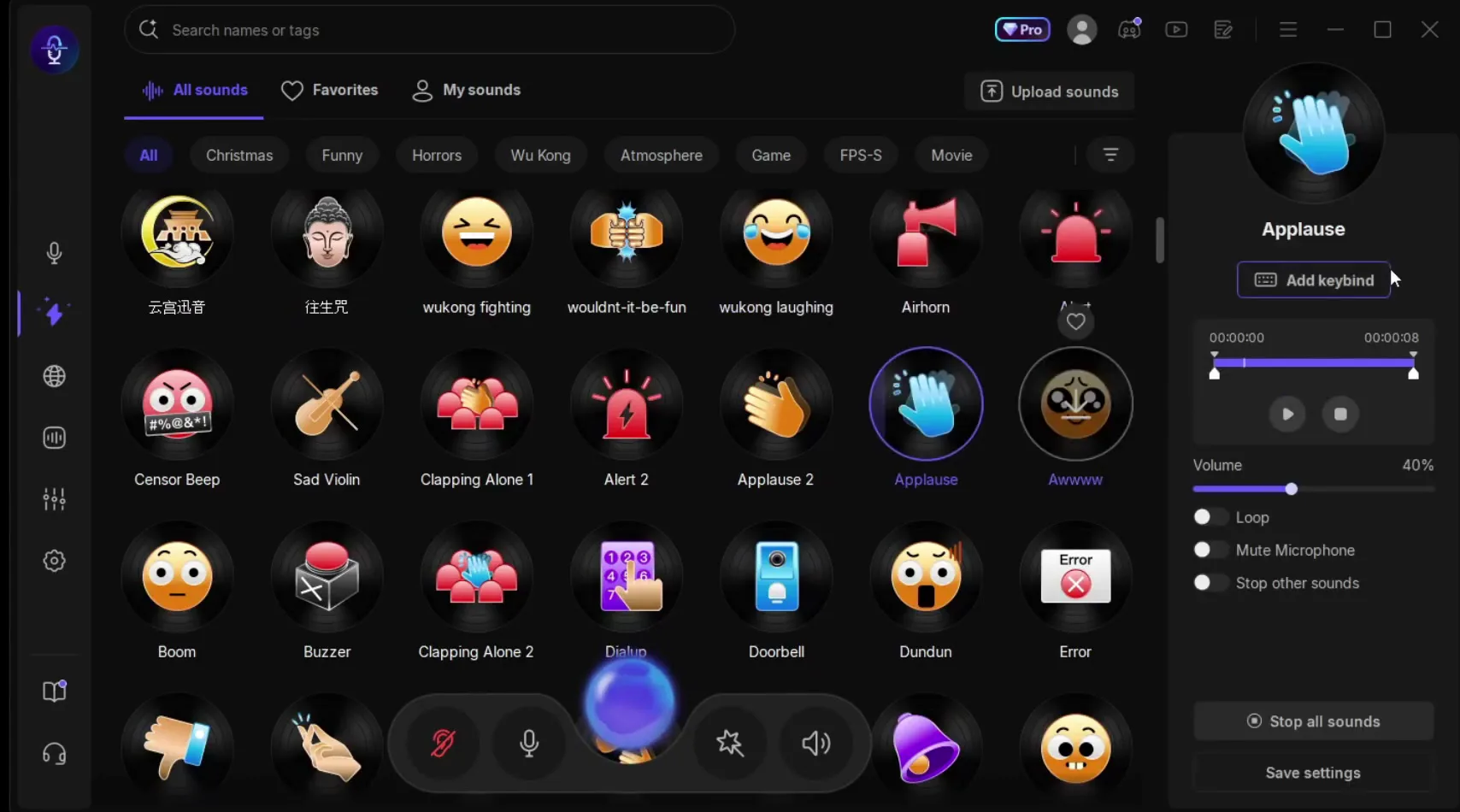
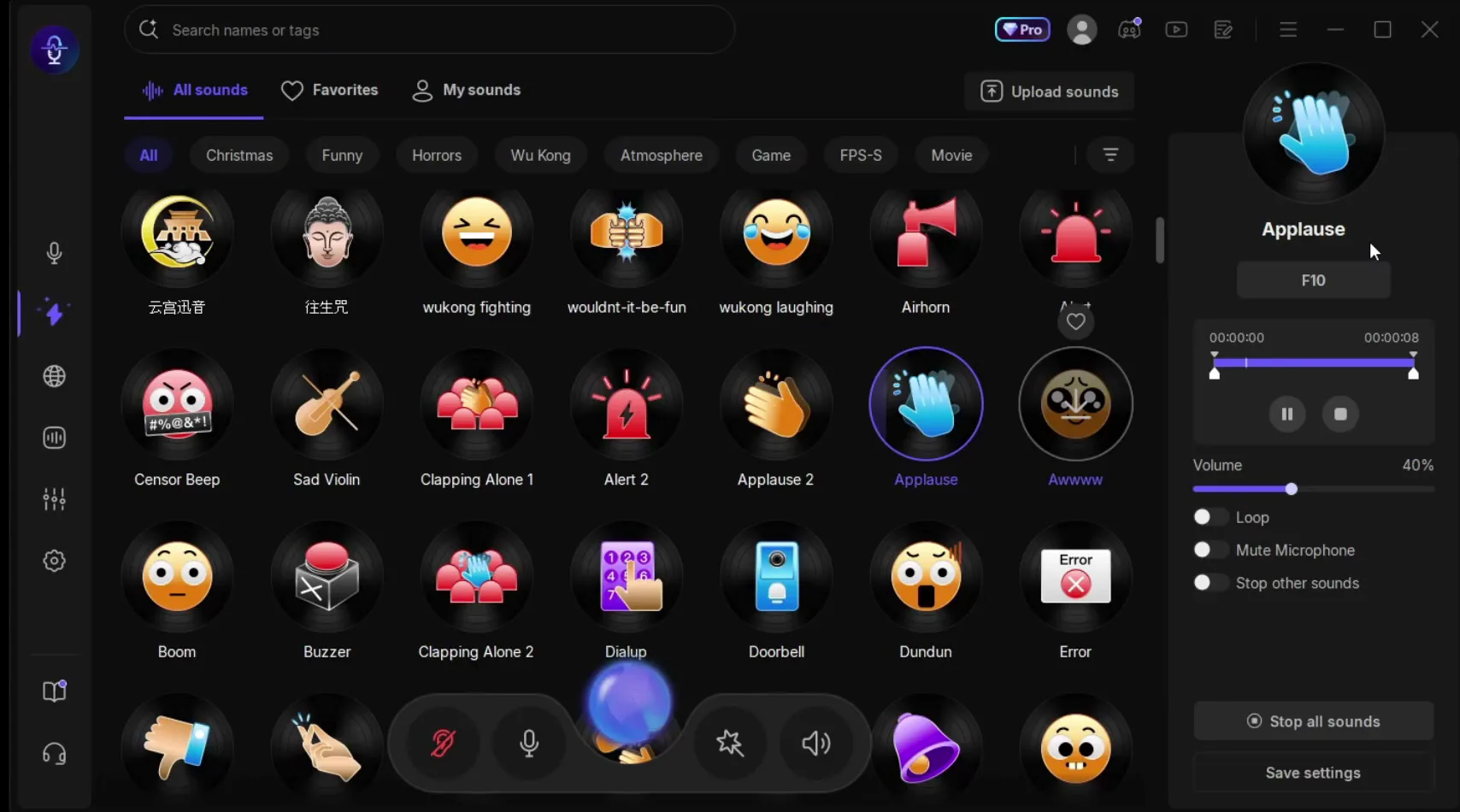
Instead of clicking, give the sound a key. Select the sound, click Add keybind and press the key you want. The video uses F10: every press of F10 plays the sound, and you can spam it to troll your friends.
All soundsApplauseAdd keybindF10
Careful
Pick a key you do not use in your game. F10 plays the sound every time it is pressed, so a key that also does something in the match will do both.
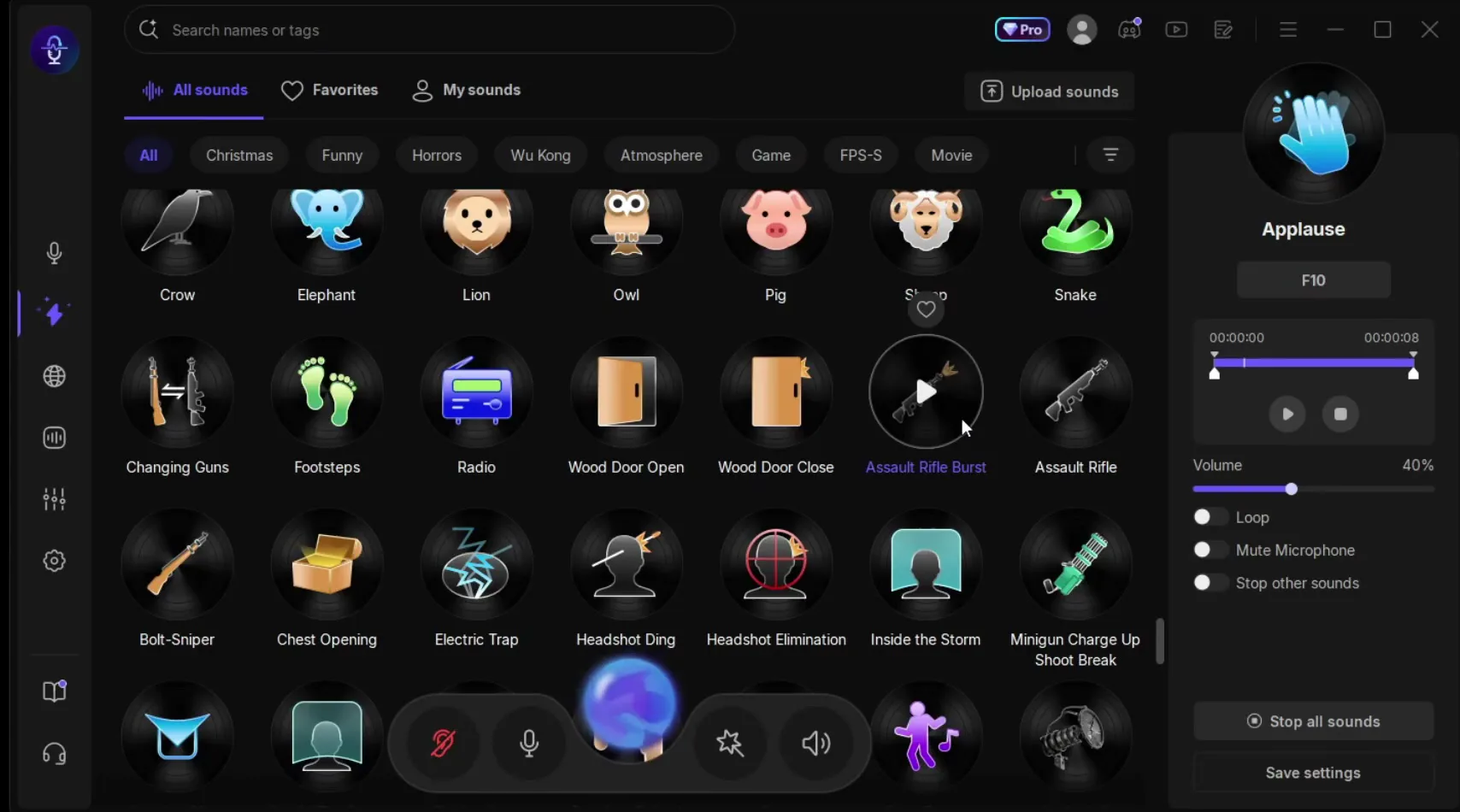
The video's favourite part: the soundboard has gun sounds that copy the sound of Fortnite and other games. Scroll to the FPS sounds, pick one such as Assault Rifle Burst and bind it to any key on your keyboard the same way. In the video the burst rifle sound is the exact sound from the game.
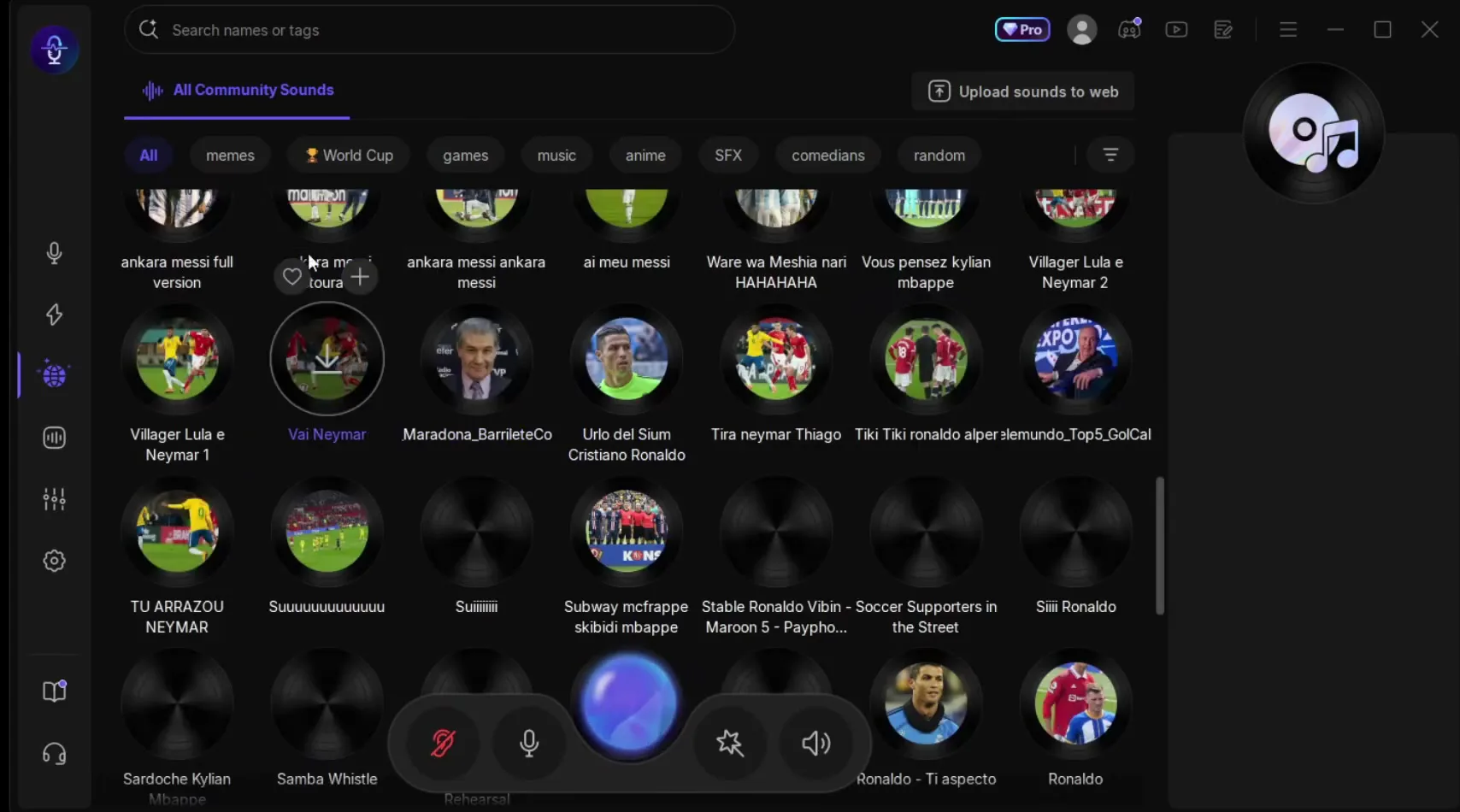
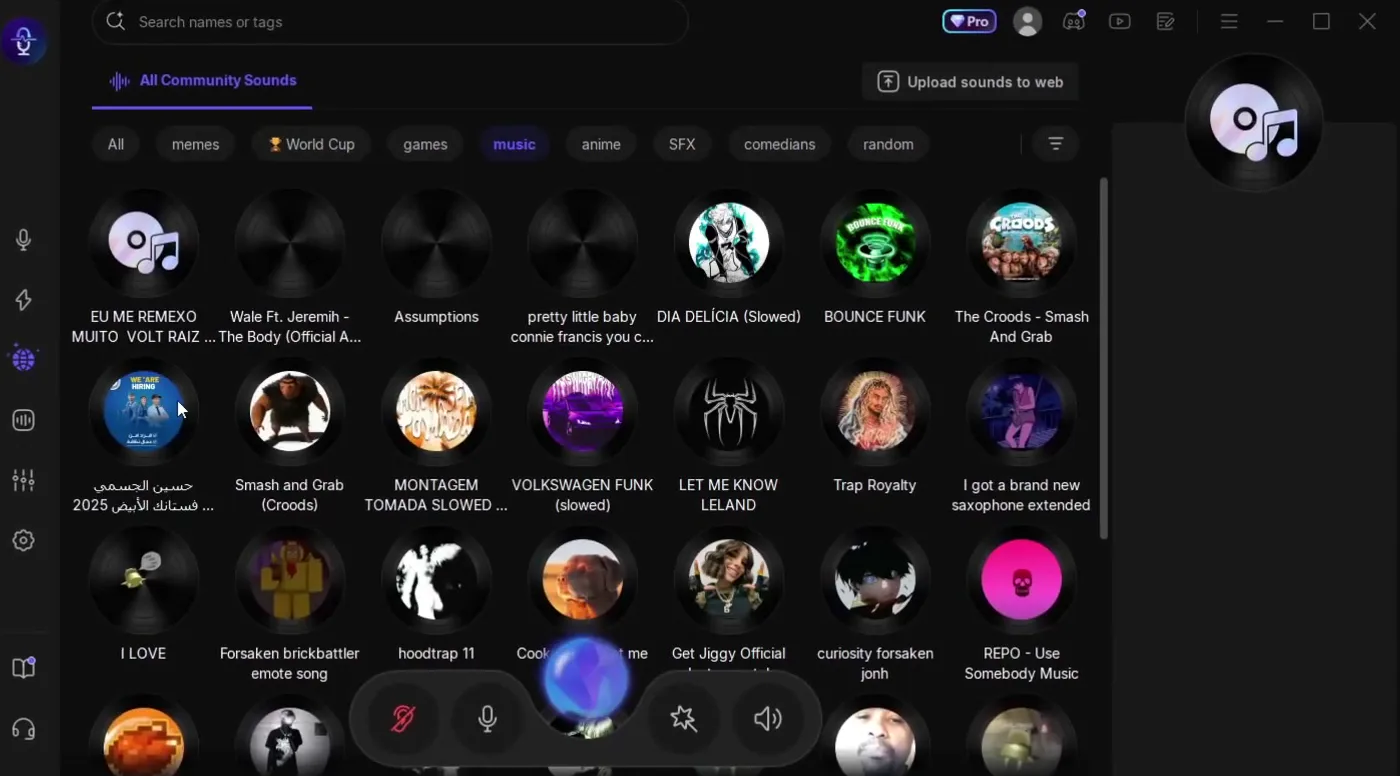
The globe icon in the left sidebar opens All Community Sounds. It has filters for memes, World Cup, games, music, anime, SFX, comedians and random. The video mentions viral songs, memes, World Cup sounds and anime, and says you can bind any of them to a key.
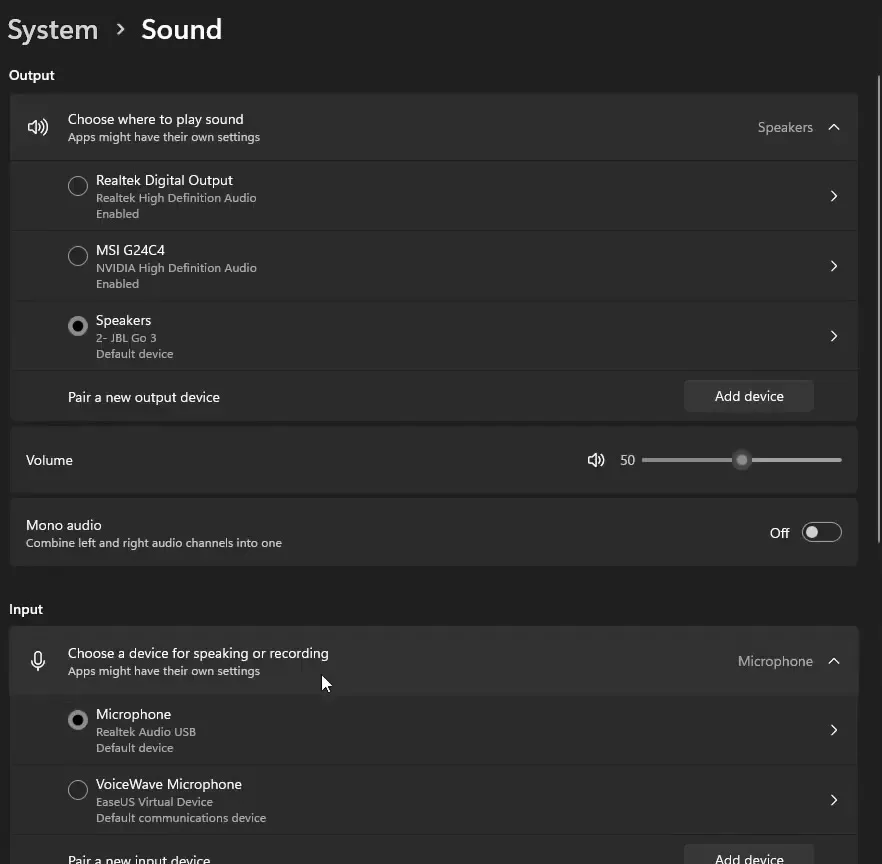
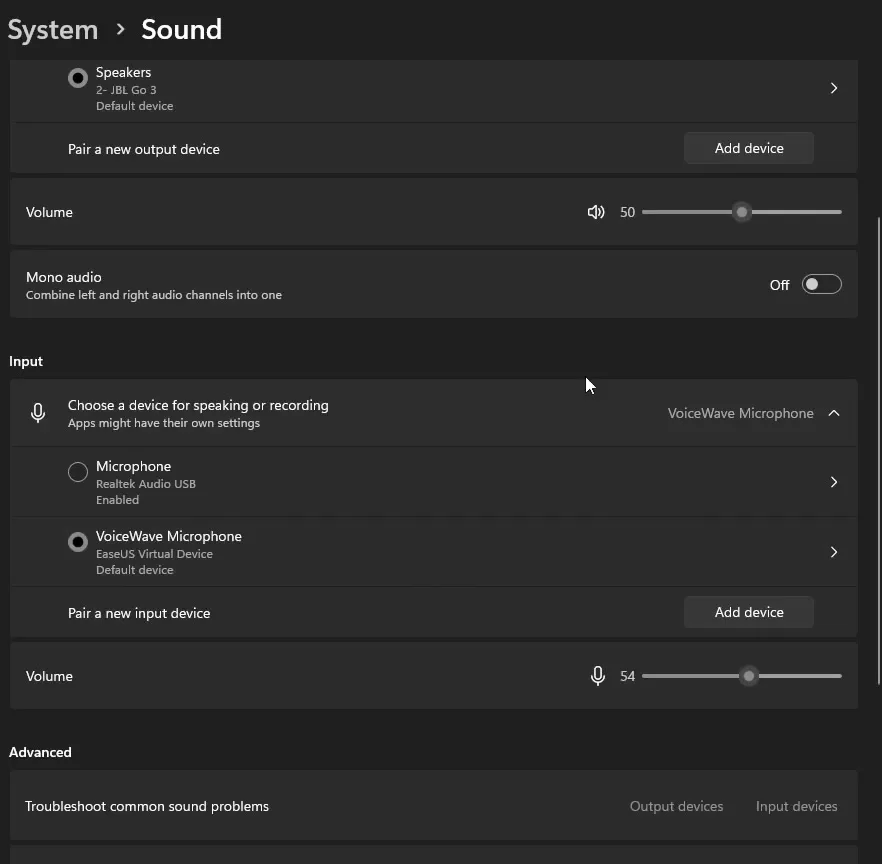
Last step, and it is what makes the voice work in Discord and games. Open the settings, go to the section the video shows and select VoiceWave Microphone, so all of Windows uses it. Then make sure the volume is set to 100. After that, any game that takes the Windows microphone gets the changed voice automatically.
Windows SettingsSystemSoundInputVoiceWave Microphone
Good to know
The Windows page itself says "Apps might have their own settings". If Discord or a game uses one specific microphone, choose VoiceWave Microphone in its voice settings too.
How to check it worked
- Keep VoiceWave open with E-girl selected, speak, and watch the input bar in the Windows Sound settings. If it moves under VoiceWave Microphone, the changed voice is reaching Windows.
- Join a Discord call with a friend and ask what they hear. If they hear your normal voice, the app is still using your real microphone.
- Press your soundboard key (F10 in the video). Your friend should hear the sound too.
- If nobody hears you at all, check that the volume is at
100.
How to undo it
To get your own voice back, click Original in VoiceWave. To stop using VoiceWave completely, select your normal microphone again under Input in the Windows Sound settings.
Key settings at a glance
FAQ
How do I download an AI girl voice changer for PC?
In the video, you open the first link in the description, click Download for Free on the EaseUS VoiceWave page and run the installer. The page says the app is for Windows 10/11.
Does the AI girl voice change in real time?
Yes. VoiceWave changes your voice while you talk, so there is nothing to record. In the video the voice changer works the moment you click a voice.
Is the AI girl voice changer free?
The video calls it free and starts from the Download for Free button. The app also shows a Pro badge at the top, so check inside the app which voices and features your plan includes.
Does it work in Discord and games?
Yes. The video says it works in Discord, Fortnite, Valorant, Warzone, OBS and basically any app that uses a microphone, once VoiceWave Microphone is selected. For Discord details, see our Discord and Fortnite voice changer guide.
Which AI model should I pick?
Voice Quality Priority, as in the video: HD quality, for mid-to-high-end devices, using the GPU. Performance Priority is the lighter option with SD quality, CPU only and low latency (under 100 ms) according to the app.
How do I make the voice higher or lower?
Select a voice and drag the Pitch slider in the panel on the right. E-girl loads with Pitch 10 on the PC in the video.
How do I put a sound on a key?
Select the sound in the soundboard, click Add keybind and press a key. The video uses F10. For more on voices and sounds on a hotkey, see the voice changer hotkey guide.
How do I get my normal voice back?
Click Original in VoiceWave. To remove VoiceWave from the chain, select your normal microphone again under Input in the Windows Sound settings.
Try EaseUS VoiceWave
EaseUS VoiceWave is the real-time voice changer used in the video. It works in Discord, games and streaming apps, and you can try it for free before you decide.
This article and the video are a paid partnership with EaseUS.