Hidden BIOS Settings for Intel and AMD: The Full List for Less Input Lag (2026)

Written version of our video, every step checked against it.
Quick answer
- Enter the BIOS (spam F2 or the key on the boot screen) and set your RAM to Profile 1 (XMP on Intel, DOCP or EXPO on AMD).
- Turn on Resize BAR and Above 4G Decoding, turn off CSM, Fast Boot and Global C-States, and use the BIOS search to find each one.
- Intel: Turbo Boost Max 3.0 and Speed Shift on, SpeedStep off, Gear 1. AMD: PBO and CPPC Preferred Cores on, SVM Mode off.
- Hyper-Threading (Intel) or SMT (AMD) off for lower latency, on if you multitask. Set the high precision timer and both ASPM options to disabled.
- Everything undoes with a CMOS reset: take the battery out for 15 minutes. The hidden tweaks from our Discord are for desktop PCs only.
The BIOS is the step most people never touch: they tune Windows and the game, then leave the motherboard on its defaults. In the video, Leon says that optimizing the BIOS alone gave him 100 extra FPS on his PC, and he walks through the same settings for Intel and AMD, then the ones you cannot see in the menu. This page is the written version, step by step, with the exact values. For what each setting does, see our BIOS settings for gaming guide, and for the short checklist version see the Intel and AMD BIOS checklist.
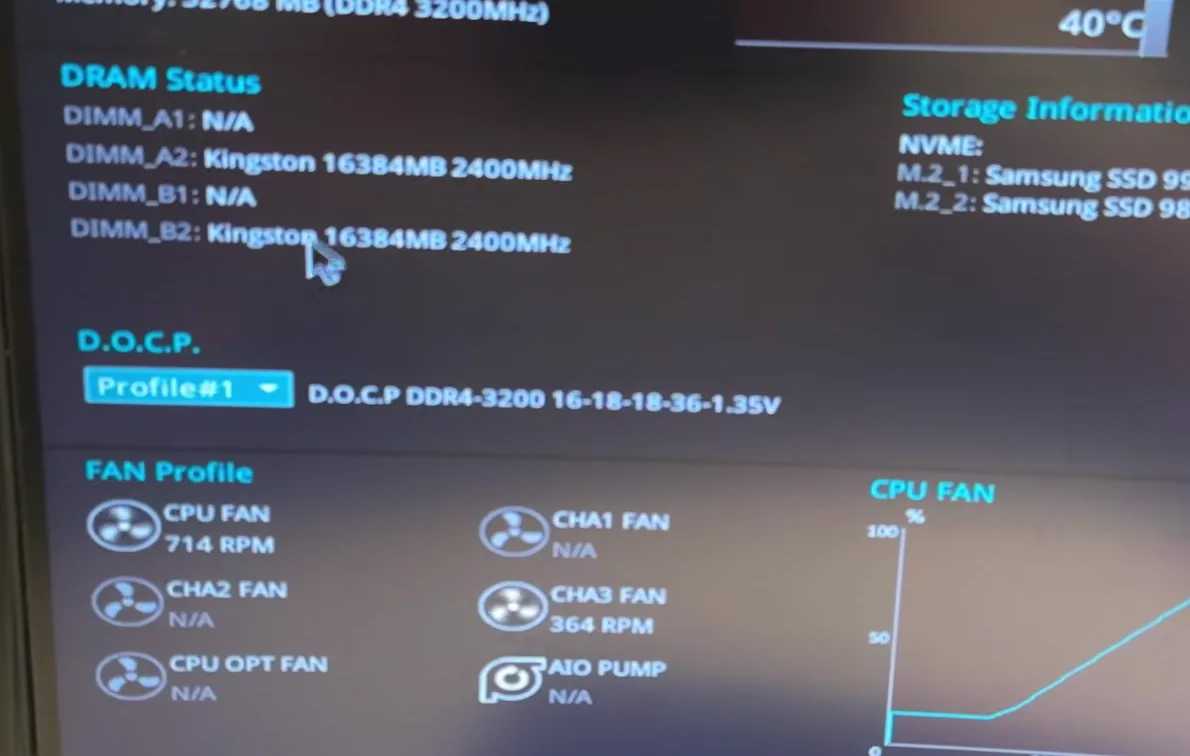
Power on the PC and press F2 again and again, or whichever key the boot screen shows, until the BIOS opens. The first thing to fix is the memory. RAM usually runs at a slow default speed until you switch on its profile. Click the profile option and choose Profile 1, or the profile with the highest frequency your RAM supports.
On Intel boards this option is called XMP, on AMD boards DOCP or EXPO.
Good to know
Your menu looks different from this one. The option can be called XMP, DOCP, EXPO or an AI or memory preset, and it may sit on the first page or under the overclocking tab.
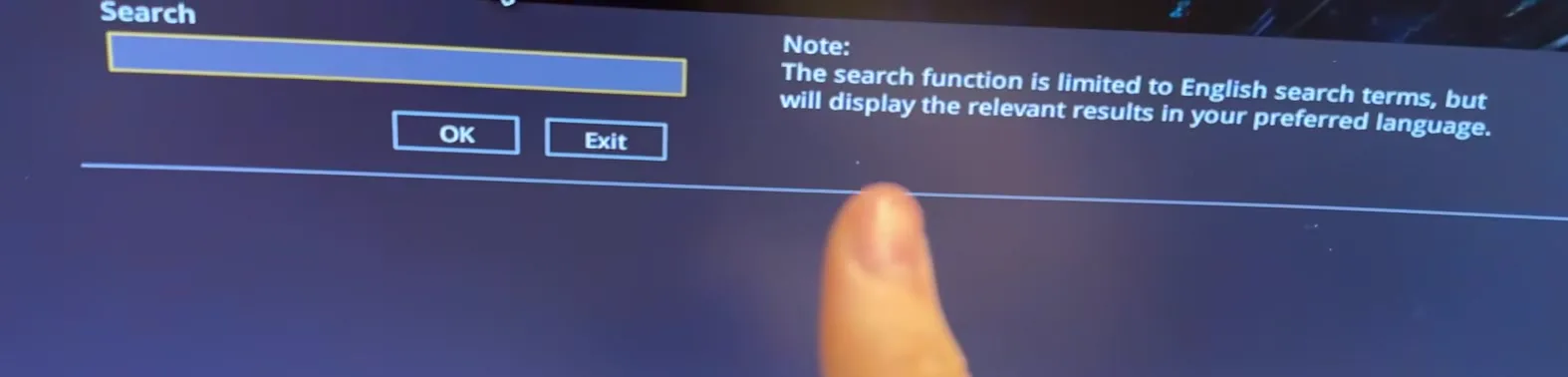
Every motherboard names and places settings differently, so the video does not give menu paths. Instead, click the Search button in the BIOS, type the name of the setting you want and open it from the results. Do this for every setting in the lists below.
Start with XMP set to the correct RAM frequency, then change these:
- Resize BAR Support: enabled
- Above 4G Decoding: enabled
- CSM: disabled
- Fast Boot: disabled
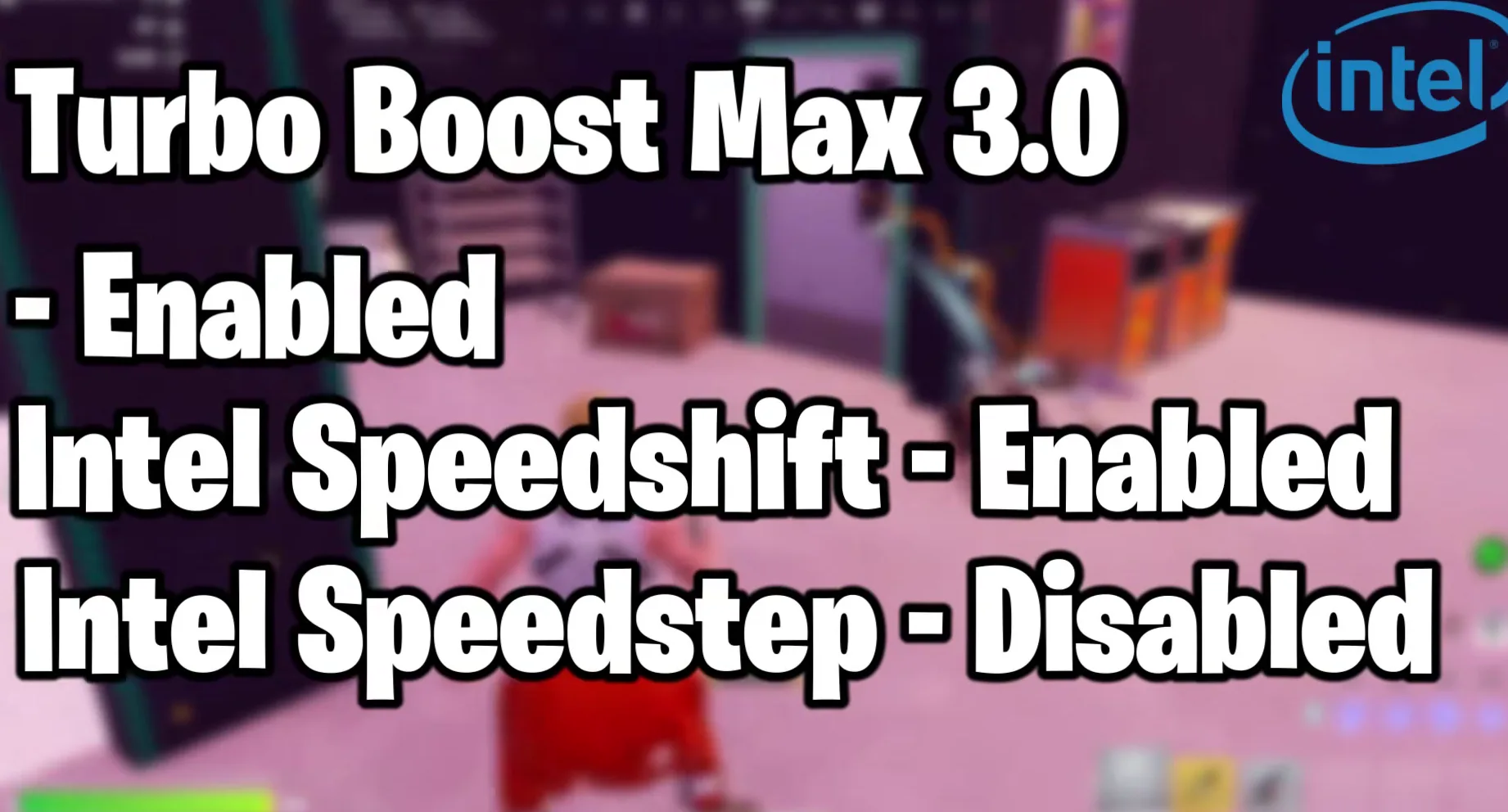
- Turbo Boost Max 3.0: enabled
- Intel Speed Shift: enabled
- Intel SpeedStep: disabled
- Global C-States: disabled

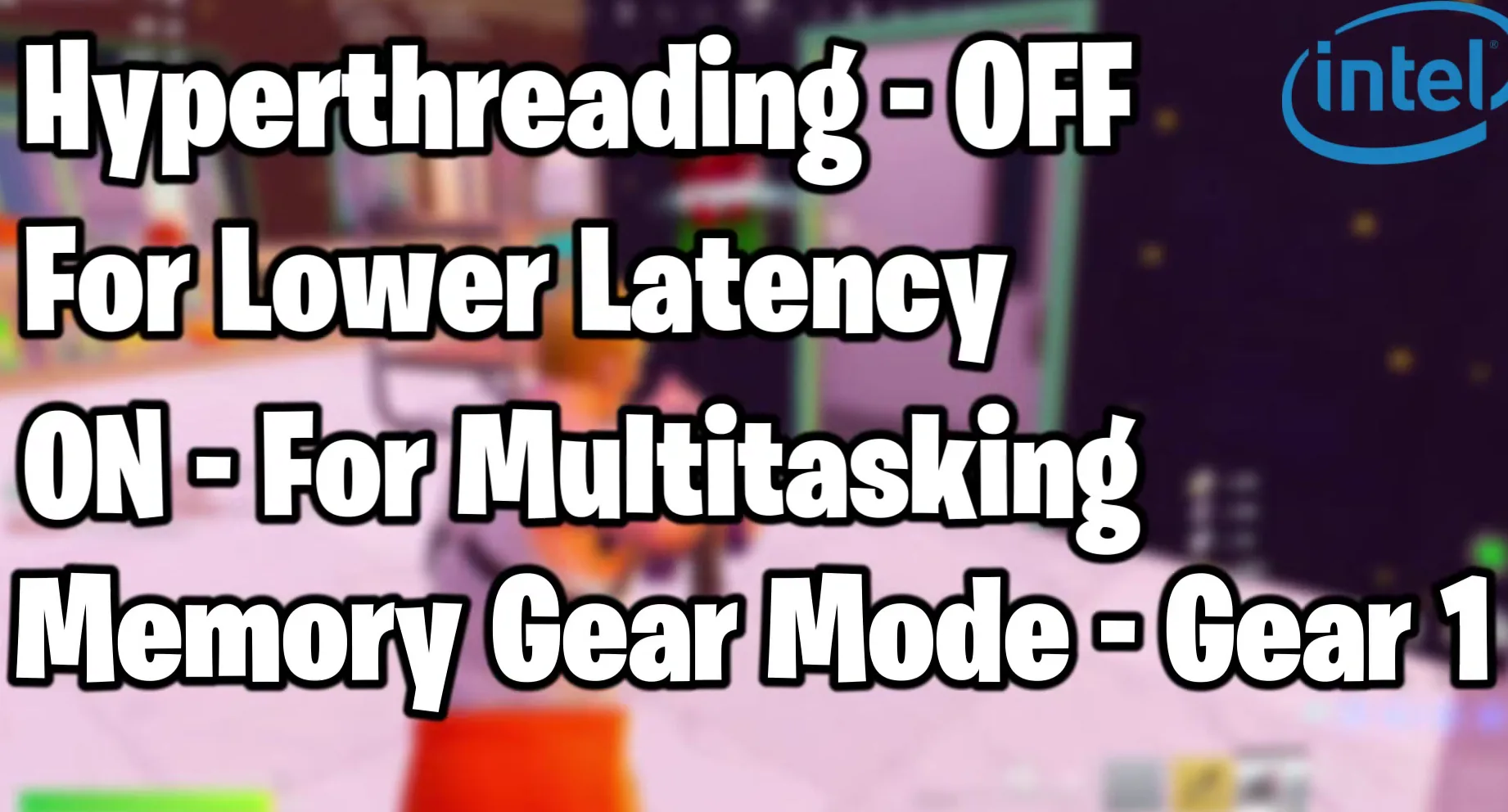
Then the choice that depends on how you use the PC: Hyper-Threading off for lower latency, or on if you want to use the PC normally for multitasking. Finish with Memory Gear Mode on Gear 1, the high precision timer disabled, and PCH (PCIe) ASPM and CPU ASPM both disabled.
Tip
Not sure about Hyper-Threading? Leave it on first. Change it later on its own, so you can tell whether it helped.
The AMD list starts the same way: DOCP (or EXPO) set to the correct frequency, Resize BAR Support enabled, Above 4G Decoding enabled, CSM disabled and Fast Boot disabled. Then the Ryzen items:
- Global C-States: disabled
- SMT Mode: off for lower latency, on for multitasking
- SVM Mode: disabled
- Precision Boost Overdrive (PBO): enabled
- CPPC Preferred Cores: enabled
- High precision timer: disabled
- PCH (PCIe) ASPM: disabled
- CPU ASPM: disabled


Careful
SVM Mode is AMD's virtualization switch. The video turns it off, but if you run virtual machines or emulators on this PC, keep it on.
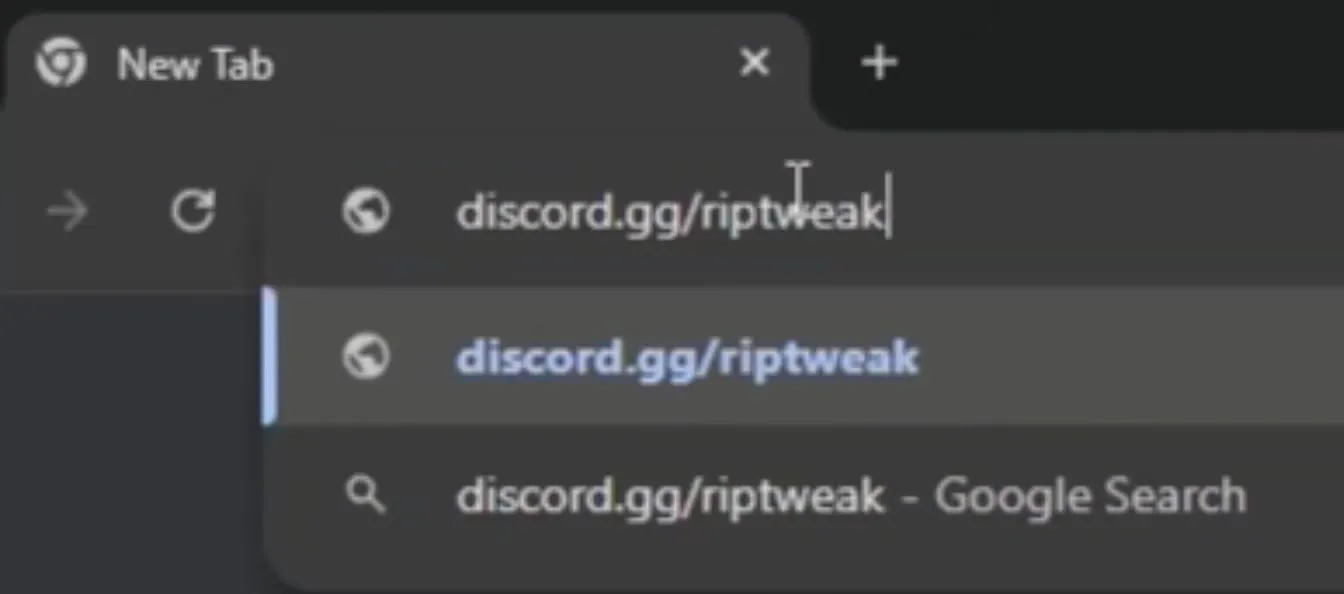
What you see in the BIOS menu is only part of it: some tweaks are hidden. The video applies them automatically. Open your browser, type discord.gg/riptweaks and press Enter. In the server, open the YouTube Tweaks channel and click the download button, then scroll down to RIP Tweaks BIOS tweaks and click its download button.
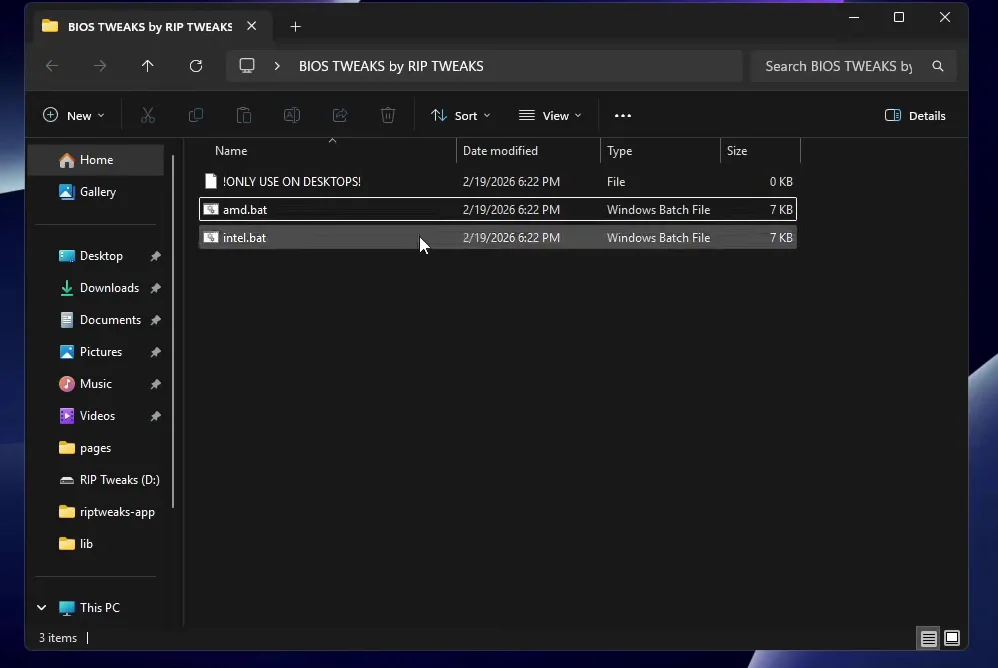
Right-click the download, open it with Windows Explorer and drag the files out. The folder holds a note named !ONLY USE ON DESKTOPS! and two batch files: amd.bat and intel.bat. Run the one that matches your processor, as administrator. The PC in the video has an AMD CPU, so Leon runs amd.bat.
Don't do this
Run it only on a desktop PC, never on a laptop. The only way to reset these tweaks is the CMOS battery, which is easy to reach on a desktop. The video does not recommend it on a laptop.
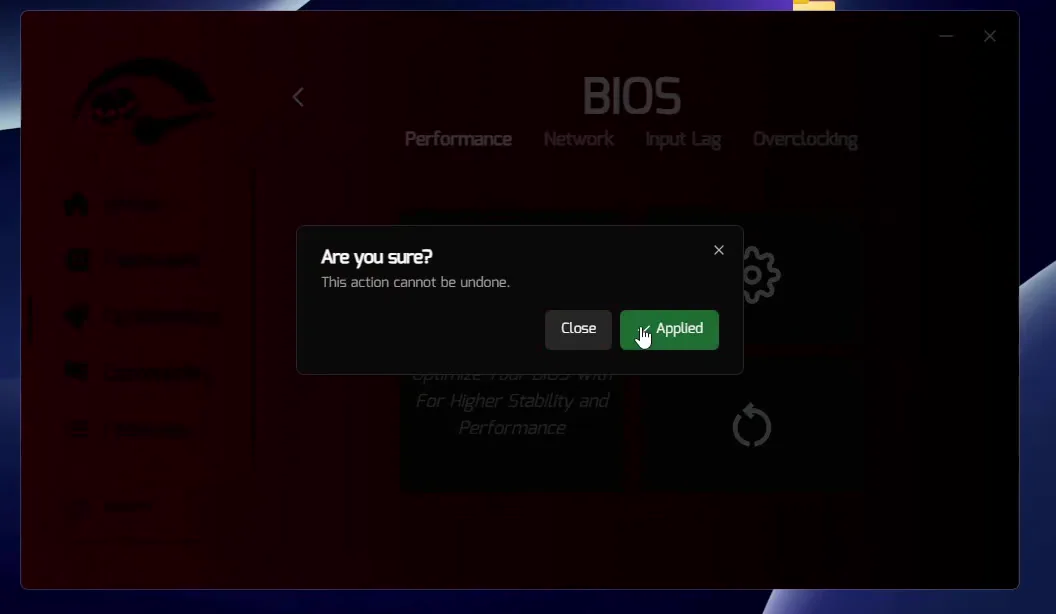
While the batch file runs, the video also opens RIP Tweaks V4 and applies the same kind of tweaks from the app. It uses the secret settings for AMD to get the best performance.
OptimizationHardwareBIOS
How to check it worked and how to undo it
Test in the same situation before and after, for example the same map and the same spot in a practice match:
- Back in the BIOS, search each setting again and confirm it shows the value from the lists above. The RAM profile should show your RAM's rated speed.
- In your game, compare your 1% lows and how often the frame time spikes, not only the average FPS. Leon's headline result is 100 extra FPS on his PC, but every PC starts from a different place.
- Change one group at a time if you can, for example Hyper-Threading or SMT alone, so you know what helped.
How to undo it
All of these changes are revertible by resetting the CMOS: switch the PC off, take the small battery out of the motherboard, wait 15 minutes and put it back. The BIOS returns to its defaults, including the hidden tweaks. If the PC does not start after a change, this is the fix.
Key settings at a glance
FAQ
What are the best BIOS settings for gaming on Intel and AMD?
The video's list: RAM on Profile 1, Resize BAR and Above 4G Decoding enabled, CSM and Fast Boot disabled, Global C-States disabled, the high precision timer and both ASPM options disabled. Intel adds Turbo Boost Max 3.0 and Speed Shift on, SpeedStep off and Gear 1. AMD adds PBO and CPPC Preferred Cores on and SVM Mode off.
Should I turn Hyper-Threading or SMT off for gaming?
The video says off for lower latency, on if you use your PC normally for multitasking, for example streaming or running other apps next to the game. If you are unsure, leave it on and test turning it off later as a single change.
How do I get into the BIOS?
Power on the PC and press F2 repeatedly, or any other key shown on the boot screen. On many boards it is Del, so read the key on the boot screen.
Is it safe to change hidden BIOS settings?
Changing the BIOS always carries some risk, but the video shows the safety net: a CMOS reset (battery out for 15 minutes) returns everything to default. Change one group at a time and write down what you changed.
How do I reset the BIOS after the tweaks?
Switch the PC off, remove the CMOS battery from the motherboard, wait 15 minutes and put it back. According to the video, all of the changes are reverted, including the ones from the hidden tweaks.
Can I run the hidden BIOS tweaks on a laptop?
The video says not to. The only way to reset them is the CMOS battery, and that is only easy on a desktop. The download even contains a file named !ONLY USE ON DESKTOPS!.
Which file do I run, amd.bat or intel.bat?
The one that matches your processor, run as administrator. The video has an AMD CPU, so it runs amd.bat.
Where does RAM XMP, DOCP or EXPO fit in?
It is the first setting in the video, because RAM runs slower than its rating until the profile is on. If you want more on memory and the other options, our BIOS settings for gaming page explains them one by one.
 RIP Tweaks
Do it in a few minutes with RIP Tweaks
- Free plan for Windows 10 and 11
- A backup first, and every tweak can be switched off again
- Made for higher FPS, lower input lag and steadier ping
Free · Windows 10 and 11
