How to Get More FPS on a Low End Laptop: $100 Laptop Test (Before and After)

Written version of our video, every step checked against it.
Quick answer
- The video tests a $100 laptop with an AMD C-50 CPU at 1000 MHz, 4 GB of RAM and an SSD. The CPU is the weak part, so every gain comes from asking less of it.
- It measures three things before and after the tweaks: startup time, Fortnite launching and Minecraft 1.8.9 FPS.
- On this laptop the startup went from about 3 minutes 20 seconds to 1 minute 16 seconds, and Minecraft went from single digits and teens to 145 FPS on a flat world.
- Fortnite never launched on this laptop, before or after. Tweaks cannot make a game run on hardware below its minimum.
- Test your own PC the same way: stopwatch for startup, the game's FPS counter for FPS, same place and same settings before and after.
This guide is for anyone with an old, cheap or low end laptop who wants to know what optimizing Windows can really do on weak hardware. It follows our video step by step: what the laptop has, how it was measured before, and what changed after. The video shows an earlier version of the RIP Tweaks app and applies the tweaks off screen, so this page explains the test and its results, not the app's screens as they look today.
The test laptop cost about 100 dollars. In the video it runs at 1 GHz, the lowest CPU speed of the laptop, with 4 GB of RAM. It has an SSD, but the video points out that the SSD hardly matters when the CPU is this slow.
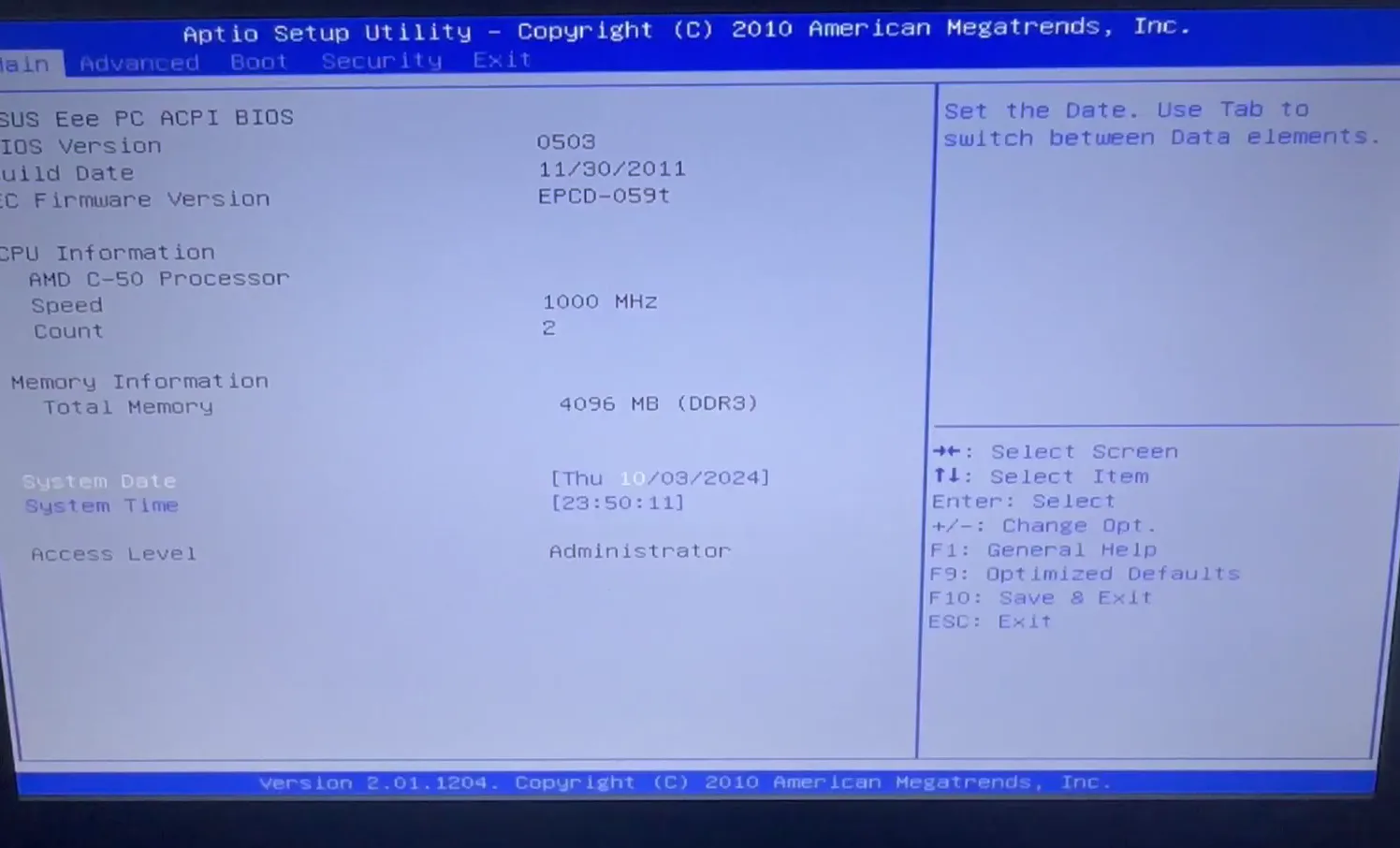
This matters for your own PC too. Tweaks mostly remove work that the CPU and Windows do in the background. They help most where the CPU is the bottleneck, and they do not add graphics power or memory that the laptop does not have.
Good to know
Check your own specs the same way: open Task Manager, then the Performance tab, and read the CPU speed, the RAM and the graphics card. If a game lists higher minimum specs than you have, no tweak will close that gap.
The first test is boot time. The video starts a stopwatch next to the laptop, turns the laptop on and stops the timer when Windows is usable. A slow boot on a laptop like this is a good sign that Windows loads a lot of startup work for a CPU that cannot keep up.
The video reads the result as about three minutes, and then the stopwatch shows 3:22. Even after the desktop appears, the laptop keeps loading things for a while, so the video waits until it is really usable.
Tip
Time your own PC with your phone's stopwatch from the moment you press the power button to the moment the mouse reacts instantly. Do it twice and take the second result, so a one-time update does not skew it.
Next the video clicks Fortnite and starts a timer to see how long the game needs to launch. It never does: the Epic Games launcher opens slowly, then the game fails to start. The video's explanation is that the PC is so slow that the game does not want to launch at all.
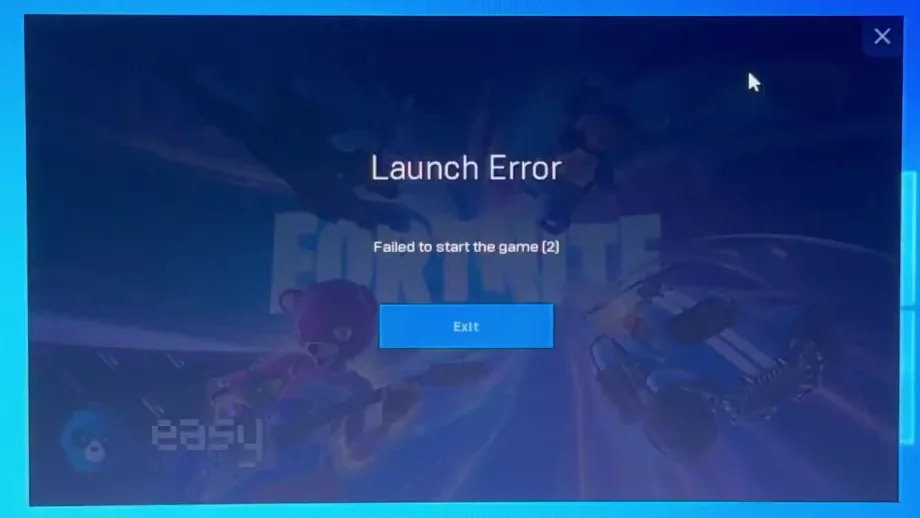
This is an honest result worth keeping in mind. If Fortnite will not start on your PC at all, look at the hardware limits first: the CPU, 4 GB of RAM and the graphics chip on this laptop are far below what the game expects.
With Fortnite out of the picture, the video moves to Minecraft 1.8.9, the version most played for PVP because you can click faster. The test happens on a super flat world, so almost nothing needs to load. Even there the FPS counter drops from 30 to 20 and then to 8.
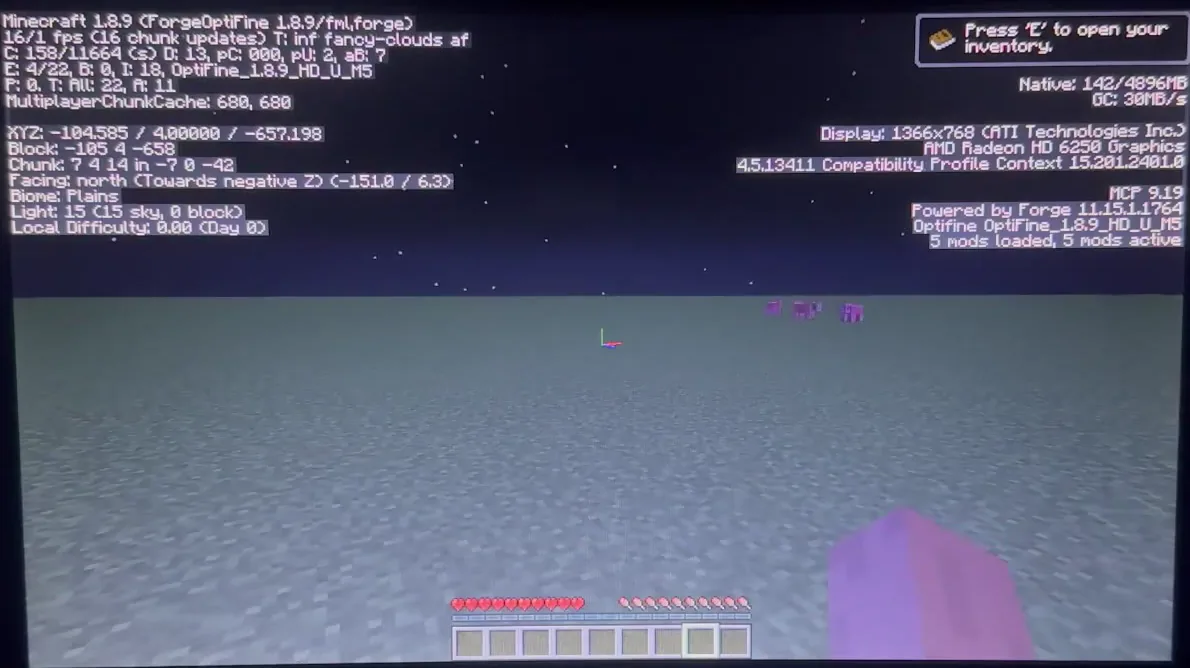
A flat world is the easiest case there is, which is why the video calls this result pretty bad. It also makes the before and after comparison fair: the same empty world, the same version and the same screen resolution.
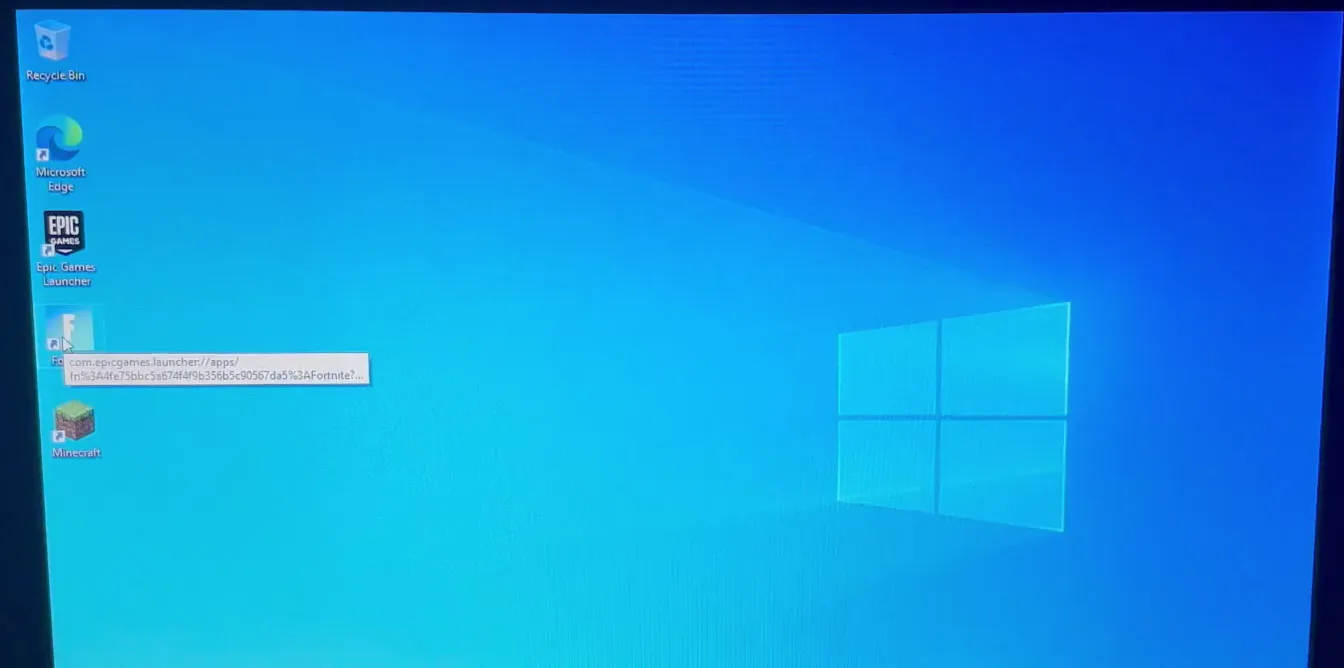
After the tweaks are applied (not shown on screen in this video), the video starts the stopwatch again at zero and boots the laptop. The desktop now has a RIP Tweaks shortcut next to the Epic Games, Fortnite and Minecraft icons.

The result in the video: from about 3 minutes 20 seconds to 1 minute 16 seconds, which Leon calls roughly 2.7 times better on this laptop. This is his own measurement on this one PC, so treat it as an example of what removing startup work can do, not as a promise.
Good to know
Our slow startup and shutdown guide explains the Windows side of this in detail, and the background processes guide shows what to cut.
Fortnite still does not launch after the tweaks. The video says the game rejects this laptop because it is too slow, even with the tweaks on. One interesting detail: the Epic Games launcher itself now opens much faster than before, which the video takes as a sign that the tweaks work.
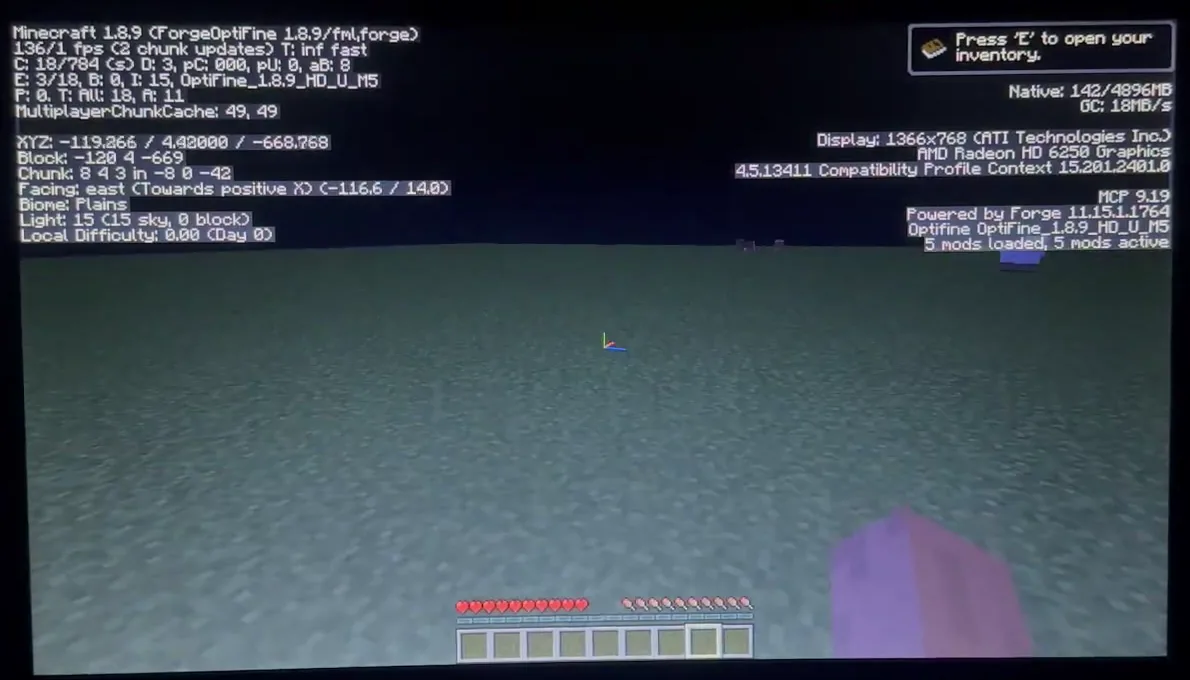
Minecraft on the same flat world now shows 145 FPS, which the video calls the most impressive result of the test. The reason is that Minecraft 1.8.9 is a CPU-bound game, so the tweaks boosted exactly the weakest part of this laptop.
The video ends here because the laptop's storage was full and no other games could be tested. A part two with GTA 5 and other games was offered if enough viewers asked for it.
How to check it worked
Repeat the video's test on your own PC with the same method before and after any change:
- Time the startup with a stopwatch, from pressing the power button to a desktop that reacts instantly. Compare the two times.
- Open your game, stand in the same spot or the same world and read the FPS counter for at least 30 seconds, not for one second.
- Keep the game settings, the resolution and the other open programs identical between the two tests.
- If a game fails to start both before and after, the limit is the hardware, not the settings.
How to undo it
Before you change any Windows setting on a real PC, create a restore point so you can go back. If something misbehaves afterwards, restore it and test again.
Key settings at a glance
FAQ
How do I get more FPS on a low end laptop?
Reduce the work the CPU does in the background, then lower the game's own settings. The video does this on a 1 GHz laptop and measures a faster startup and higher Minecraft FPS. Results depend on your hardware, and a game that is above your minimum specs will not run no matter what you change.
Can a $100 laptop run Fortnite?
Not in the video. The laptop has a 1 GHz AMD C-50 CPU and 4 GB of RAM, and Fortnite failed to start both before and after the tweaks. Our Fortnite Performance mode guide covers the lighter modes for PCs that are closer to the minimum.
Why did Minecraft improve so much while Fortnite did not?
Minecraft 1.8.9 is mostly limited by the CPU, and the video says the tweaks boosted the weakest part of this laptop. Fortnite needs more than this laptop can offer in several ways at once, so a CPU gain alone cannot make it start.
Does an SSD help a slow CPU?
In the video the laptop already has an SSD, and Leon says it does not matter much because the CPU is the bottleneck. An SSD helps load times, but it does not raise FPS when the processor cannot keep up.
Will I get the same results on my PC?
Typically the gains are biggest on weak, older PCs that are bottlenecked by the CPU or full of startup programs, and smaller on a modern PC that is already fast. The numbers on this page are the result on the PC in the video, so measure your own before and after.
How do I optimize Windows 10 for gaming?
Start with the startup and background load, then test your game. Our gaming laptop FPS boost guide goes through the laptop-specific settings, and the slow startup guide covers the boot side.
Does this video show the current RIP Tweaks app?
No. It is an older video from October 2024 with an earlier version of the app, and the tweaks are applied off screen. This page explains the test and its results. Download the current app from riptweaks.com to see how the tweaks look today.
 RIP Tweaks
Do it in a few minutes with RIP Tweaks
- Free plan for Windows 10 and 11
- A backup first, and every tweak can be switched off again
- Made for higher FPS, lower input lag and steadier ping
Free · Windows 10 and 11
