Fortnite High Ping on a Wi-Fi Extender: How to Lower It (2024 Test)

Written version of our video, every step checked against it.
Quick answer
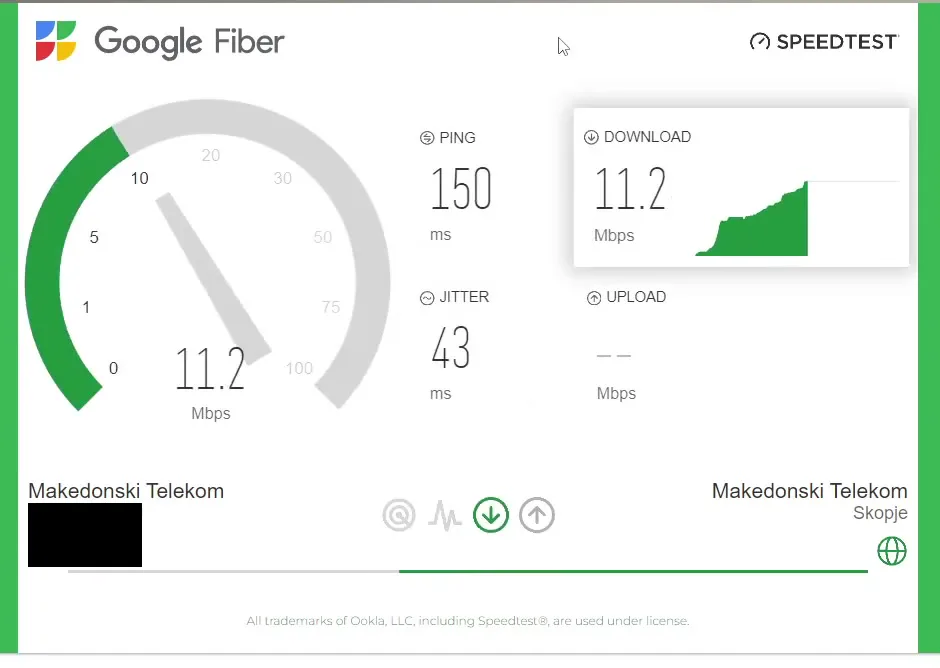
- Measure first: run a browser speed test and look at ping, then check the ping counter in Fortnite. On the PC in the video it started at 150 ms in the test and kept jumping up and down in game.
- The video's connection was a Wi-Fi extender with a cable to the PC, so the first fix is the setup itself. A cable straight to the router is the cleanest option.
- In RIP Tweaks (an earlier version in the video) open the Internet tab and use only Optimize Internet and Reduce Latency. Optimize App Speeds is skipped.
- Inside Optimize Internet, apply both Optimize and Adapter, then click Reduce Latency.
- Re-test the same way. In the video the speed test showed 18 ms and Fortnite about 29 ms. It did not reach zero, because the game servers were far away.
This guide is for anyone whose Fortnite ping bounces up and down on a weak Wi-Fi setup and who wants to know what can be fixed on the PC itself. It follows the video in order: the before test, the extender and cable setup, the two Internet tweak groups, the after test and the check in Fortnite. Results depend on your line and your distance to the servers, so treat the video's numbers as one PC's result, not a promise.
Start with a number you can compare against. The video opens a browser speed test and reads ping and jitter next to download and upload. On the PC in the video the test showed 150 ms ping and 43 ms jitter with about 11 Mbps download. The video runs it twice and gets the same numbers, so the result is not a one-off.
Then the video opens Fortnite with the network stats overlay on and shows the in-game ping going up and down in the hundreds. Spikes matter more than the average: a steady 60 ms feels better than a ping that swings between 20 and 150.
Tip
Write your before numbers down: speed test ping, jitter and the lowest and highest in-game ping. Without them you cannot tell later whether anything helped.
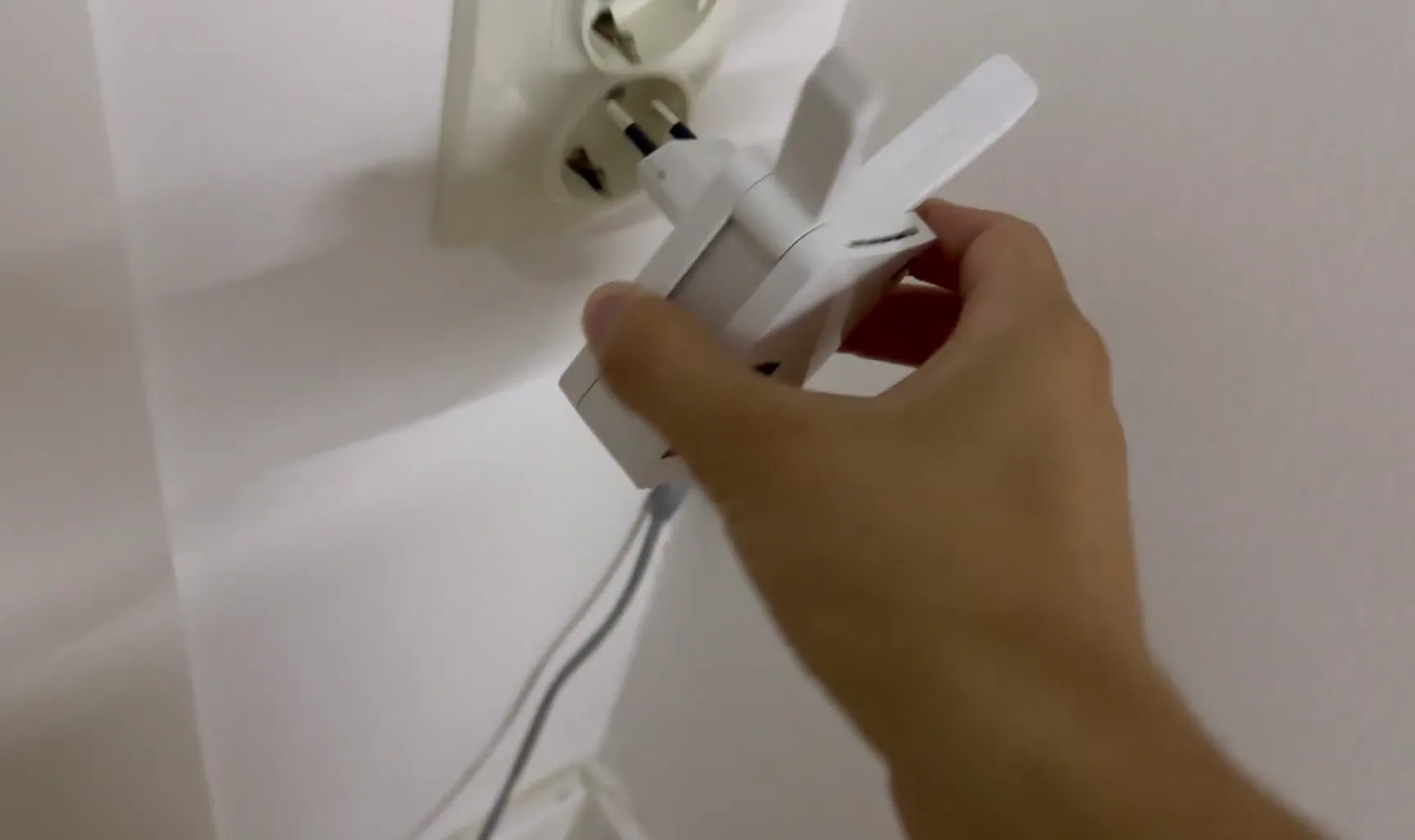
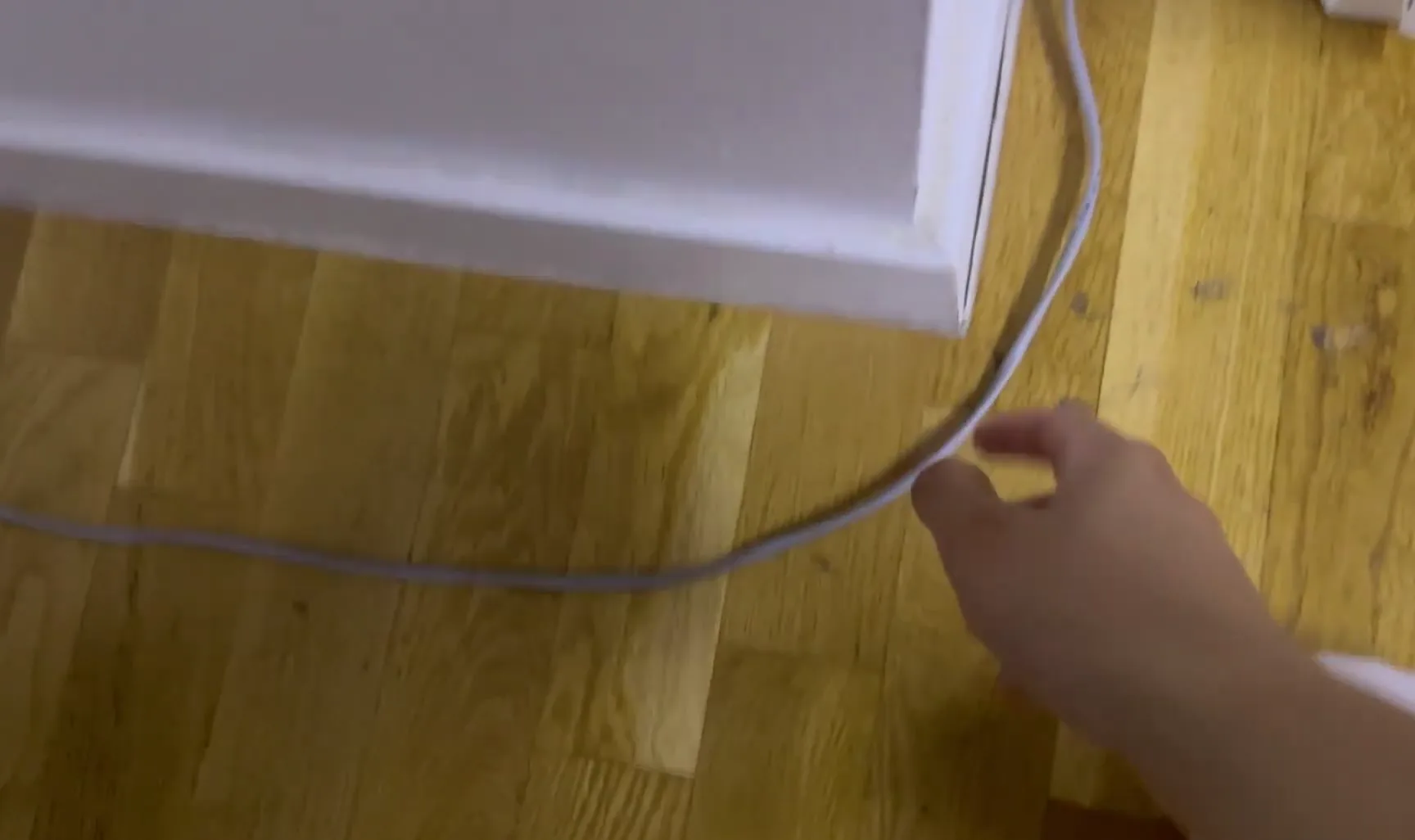
The video shows the setup it is dealing with: an internet extender plugged into a wall socket. It picks up the router's Wi-Fi and the PC gets its connection through a network cable from the extender. The video says this setup is bad enough that the only thing left to try is tweaks on the PC.
Good to know
Everything below tunes the PC. It cannot remove the extra hop the extender adds. If you can, run a cable from the router to the PC and compare, as in our Ethernet vs Wi-Fi extender ping test.
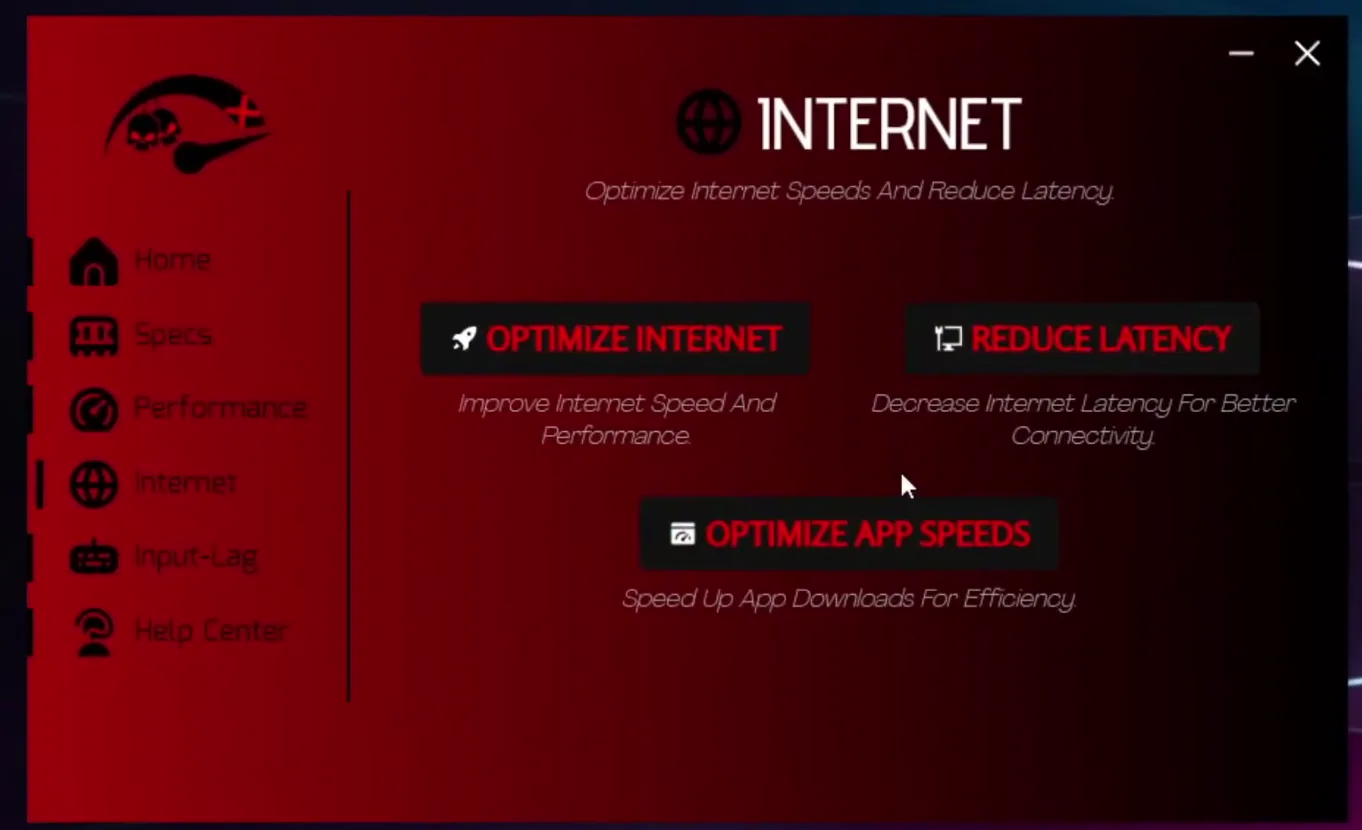
The video uses an earlier version of RIP Tweaks, so the screens look different from the app today, but the idea is the same. Its Internet page has three buttons: Optimize Internet, Reduce Latency and Optimize App Speeds. The video uses only the first two, because those are the ones aimed at your connection. Optimize App Speeds is about app downloads.
InternetOptimize Internet
Careful
Make a Windows restore point before you apply network tweaks, so you can go back if something behaves differently on your PC.
Inside Optimize Internet there are two cards. First click Optimize and wait until it finishes. Then go to the Adapter card and apply it the same way. The video then goes back and clicks Reduce Latency, which shows a Reduce Ping confirmation when it is done.
InternetOptimize InternetOptimizeAdapterReduce Latency
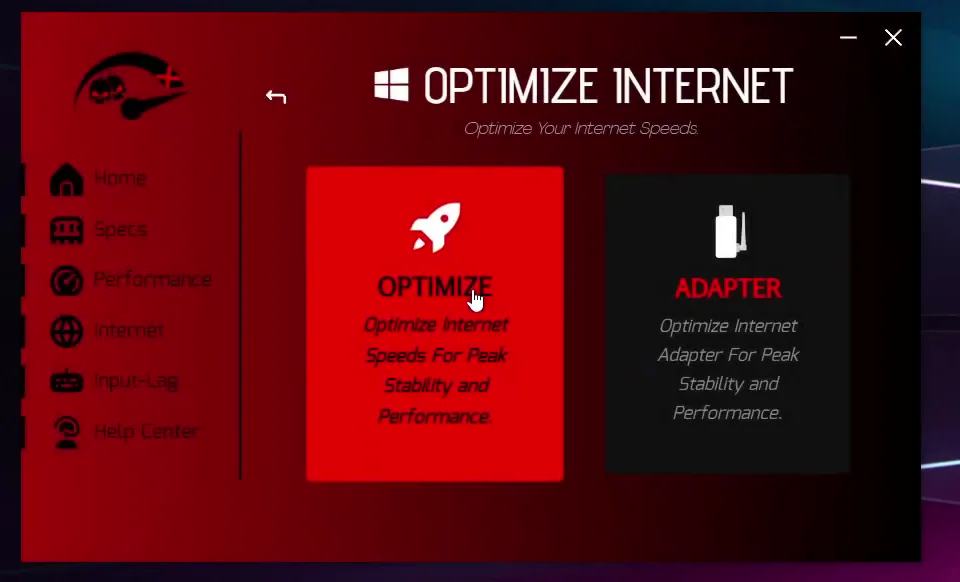
The Adapter card targets the network adapter your PC uses, which is why it is worth applying even when the cable runs to an extender.
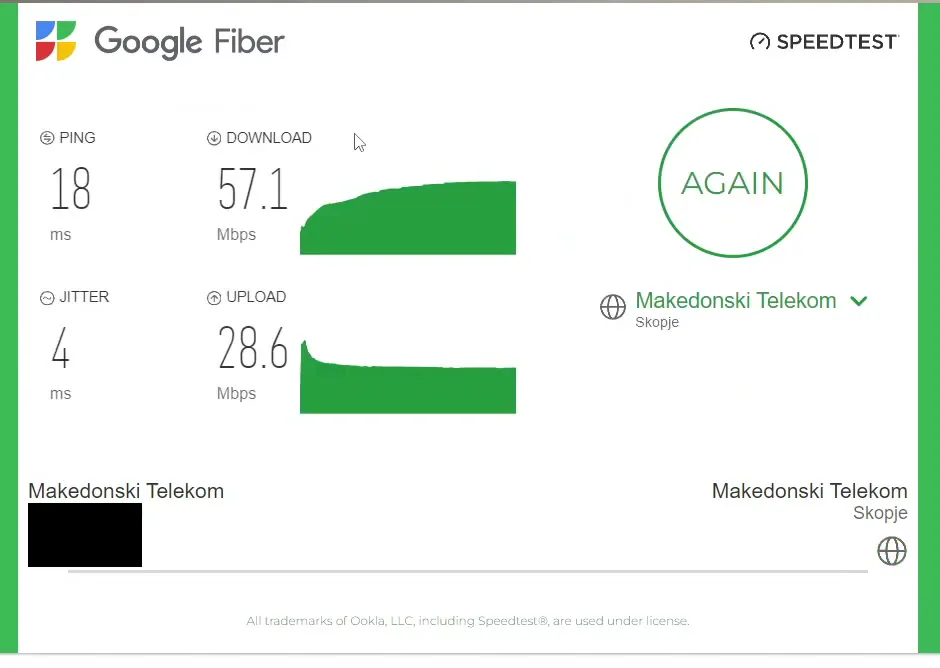
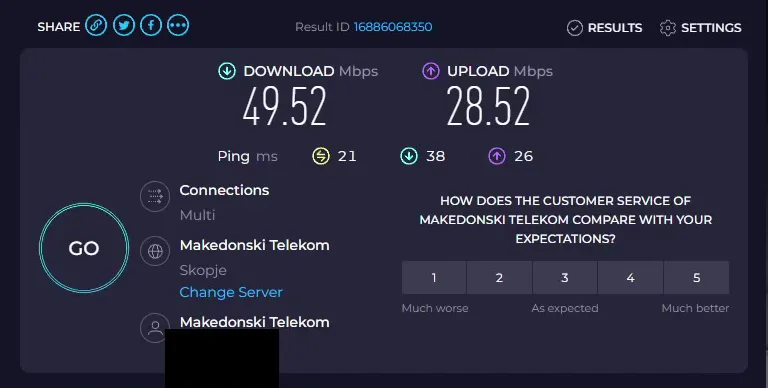
Repeat the exact test from the start so the numbers compare. On the PC in the video the browser test now showed 18 ms ping and 4 ms jitter, with about 57 Mbps download and 28.6 Mbps upload. A second speed test site gave 21 ms ping and 49.5 Mbps down.
Good to know
These are Leon's numbers on one connection. Your result depends on your line, your Wi-Fi and the distance to the server, so treat any gain as typically smaller or larger.
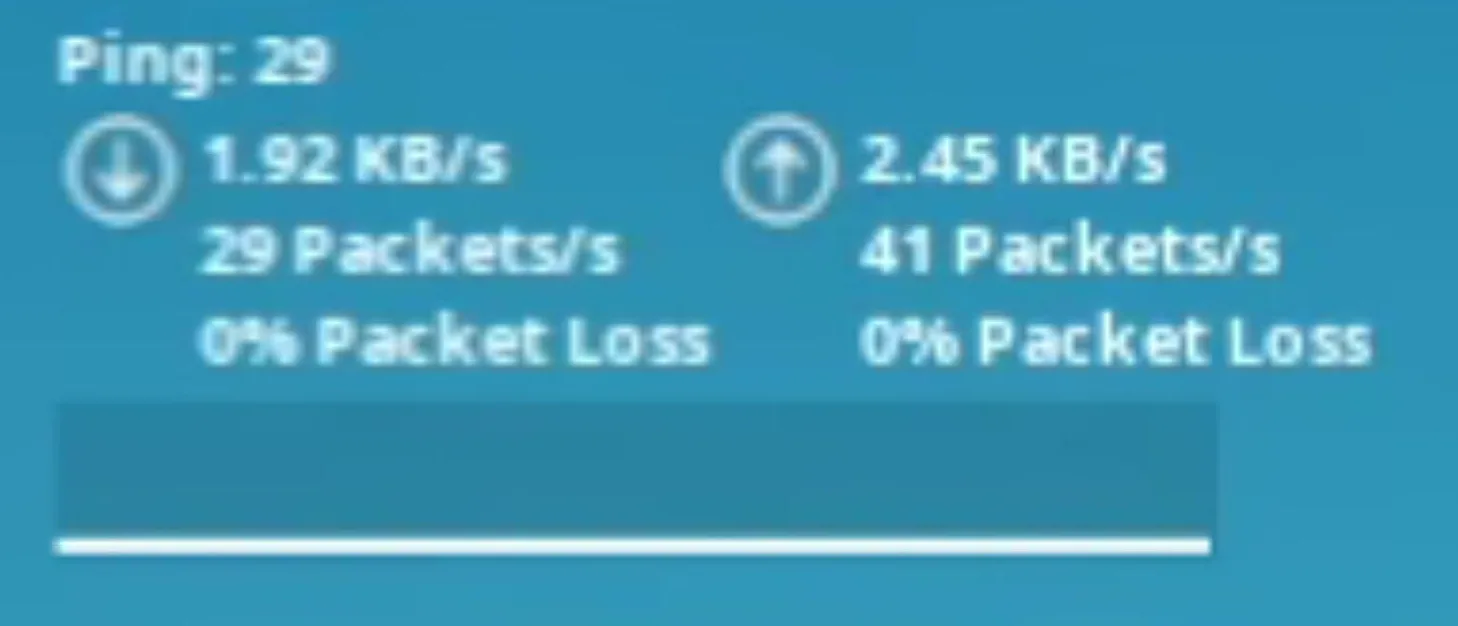
The speed test is only a proxy, so the video finishes in Fortnite with the network stats overlay. The in-game ping now reads 29 with 0% packet loss in both directions, down from the hundreds. The video says it could not reach zero because the game servers are far away: distance sets a floor that no PC setting can remove.
How to check it worked
- Run the same speed test before and after, at the same time of day, and compare ping and jitter, not only download speed.
- In Fortnite, turn on the network stats overlay and watch for a few minutes. A lower, steadier ping and 0% packet loss is the goal.
- If the ping still spikes, the cause is probably outside the PC: Wi-Fi signal, the extender or your provider. Our ping spikes and packet loss guide and the bufferbloat guide go further.
How to undo it
To undo the changes, use the restore point you made before applying them.
Key settings at a glance
FAQ
Can you really get 0 ping in Fortnite?
No. In the video the ping dropped a lot but did not reach zero, because the servers are too far away. Distance to the game server sets the lowest ping you can get.
Why is my Fortnite ping so high on Wi-Fi?
Wi-Fi shares the air with other devices, and an extender adds another wireless hop between you and the router. Both show up as spikes. A cable to the router is the most reliable fix; PC tweaks help on top of that.
Does an extender with a network cable fix the lag?
Not by itself. In the video the PC was cabled to the extender and the ping was still bad, because the extender talks to the router over Wi-Fi.
Which RIP Tweaks options did the video use for ping?
Only Optimize Internet (Optimize and Adapter) and Reduce Latency. Optimize App Speeds was not used. The video shows an earlier version of the app, so look at the current app for how the screens look today.
Will it lower my ping by the same amount as in the video?
Not necessarily. Ranges vary by line, Wi-Fi quality and server distance. The video shows one PC's result.
Is it safe to apply network tweaks?
They change Windows network settings, so make a restore point first and test in a match after. If anything feels worse, restore it.
How do I see my ping in Fortnite?
Turn on the network stats overlay in the game's settings. It shows ping, packets per second and packet loss, as in the video.
What else lowers input lag and FPS drops in Fortnite?
Ping is only one part. See our Ethernet vs Wi-Fi extender test for the cable comparison.
 RIP Tweaks
Do it in a few minutes with RIP Tweaks
- Free plan for Windows 10 and 11
- A backup first, and every tweak can be switched off again
- Made for higher FPS, lower input lag and steadier ping
Free · Windows 10 and 11
