How to Get Lower Ping in Fortnite: Ethernet Instead of a Wi-Fi Extender, Plus the Network Tweaks

Written version of our video, every step checked against it.
Quick answer
- Do not trust the ping number inside Fortnite. Open cloudping.info, click HTTP Ping and note the lowest region: that is the best you can get.
- Connect the PC to the router with an Ethernet cable instead of a Wi-Fi extender. On the PC in the video this alone lowered the HTTP ping.
- Download the RIP Tweaks Free Pack V7, run it as admin and create a restore point first.
- Open 9 Network and run 1 Reduce Ping and 2 Boost Internet, then the other menus if you want.
- Run the HTTP test and check Fortnite again. On the PC in the video the lows moved from about 40 to 19.
This guide is for anyone whose Fortnite ping is high because of weak Wi-Fi. It follows the video step by step: how to measure your real ping, why a cable to the router beats a Wi-Fi extender, and the network tweaks that were run afterwards. The video shows an earlier version of the free pack, a window with a numbered menu, so this page explains the ideas and the menu entries it used, not how the current RIP Tweaks app looks.
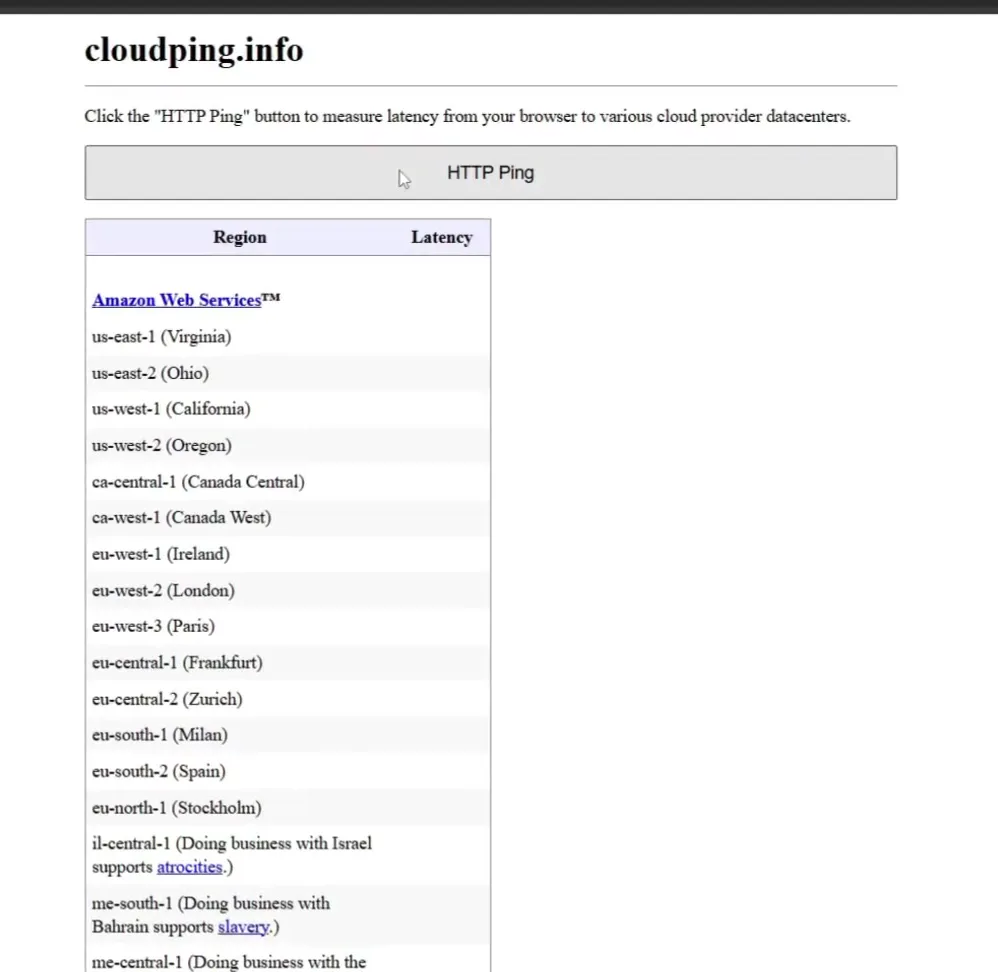
The ping number Fortnite shows is not a good test, so the video measures it outside the game. Open your browser, go to cloudping.info, click HTTP Ping and wait until the Latency column fills. Look for the region with the lowest number: it is the closest server to you, and it is the lowest ping you can realistically get.
Browsercloudping.infoHTTP Ping
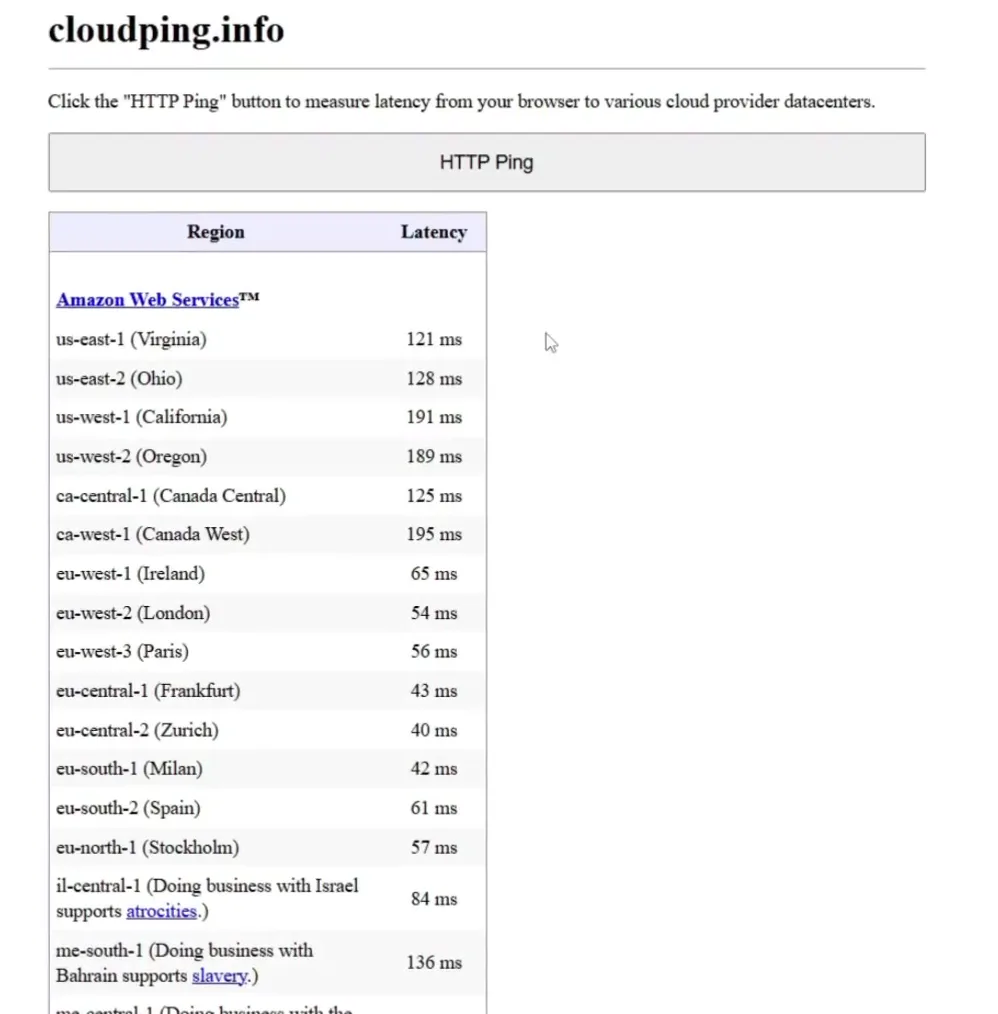
On the PC in the video the lowest result was 39 ms, EU Central 2. Running the test a second time gave a similar result, so the video treats about 40 ms as the lowest ping this connection can reach to that server. Write your own number down, because every later step is compared with it.
Good to know
Your lowest region depends on where you live. Always compare the same region before and after, not different ones.
The video's starting setup was an Ethernet cable from the PC into a Wi-Fi extender. The extender then talks to the router over Wi-Fi, so the weak link is still wireless. The test in the video is simple: connect the PC straight to the router with a long cable and run the same HTTP test again.
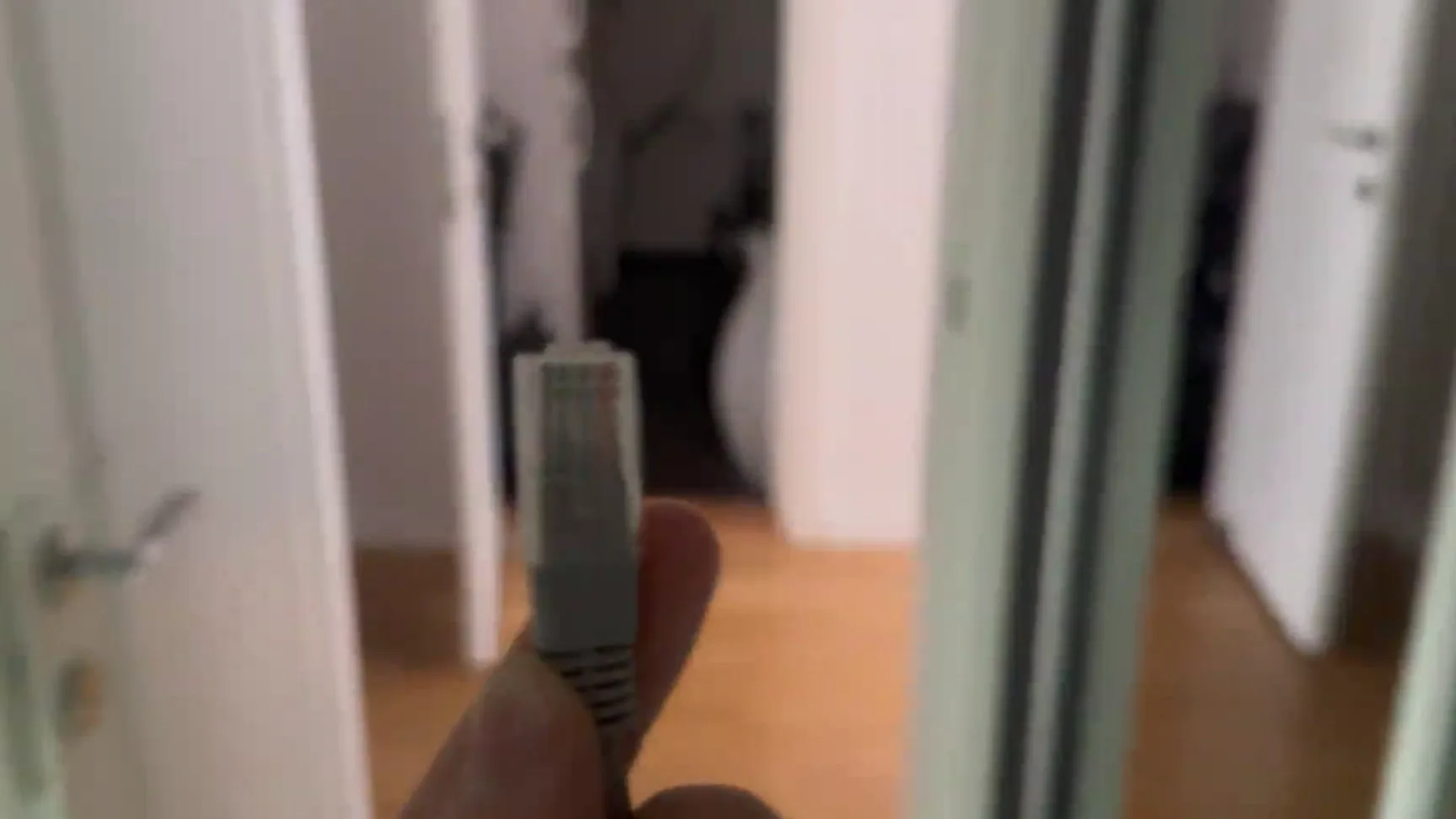
The cable in the video is 15 m long and the router is two rooms away. One end goes into the PC, the cable is pulled through the house, and the other end goes into the router. When the connection came up, the video ran the HTTP test again and the ping was lower than through the extender. The video's conclusion: connecting the Ethernet cable to the router instead of the extender is the much better option.
Tip
If you cannot run a cable that far, put the PC or the router closer to each other, or use any wired path to the router. Fewer wireless hops is what the video's test favours.
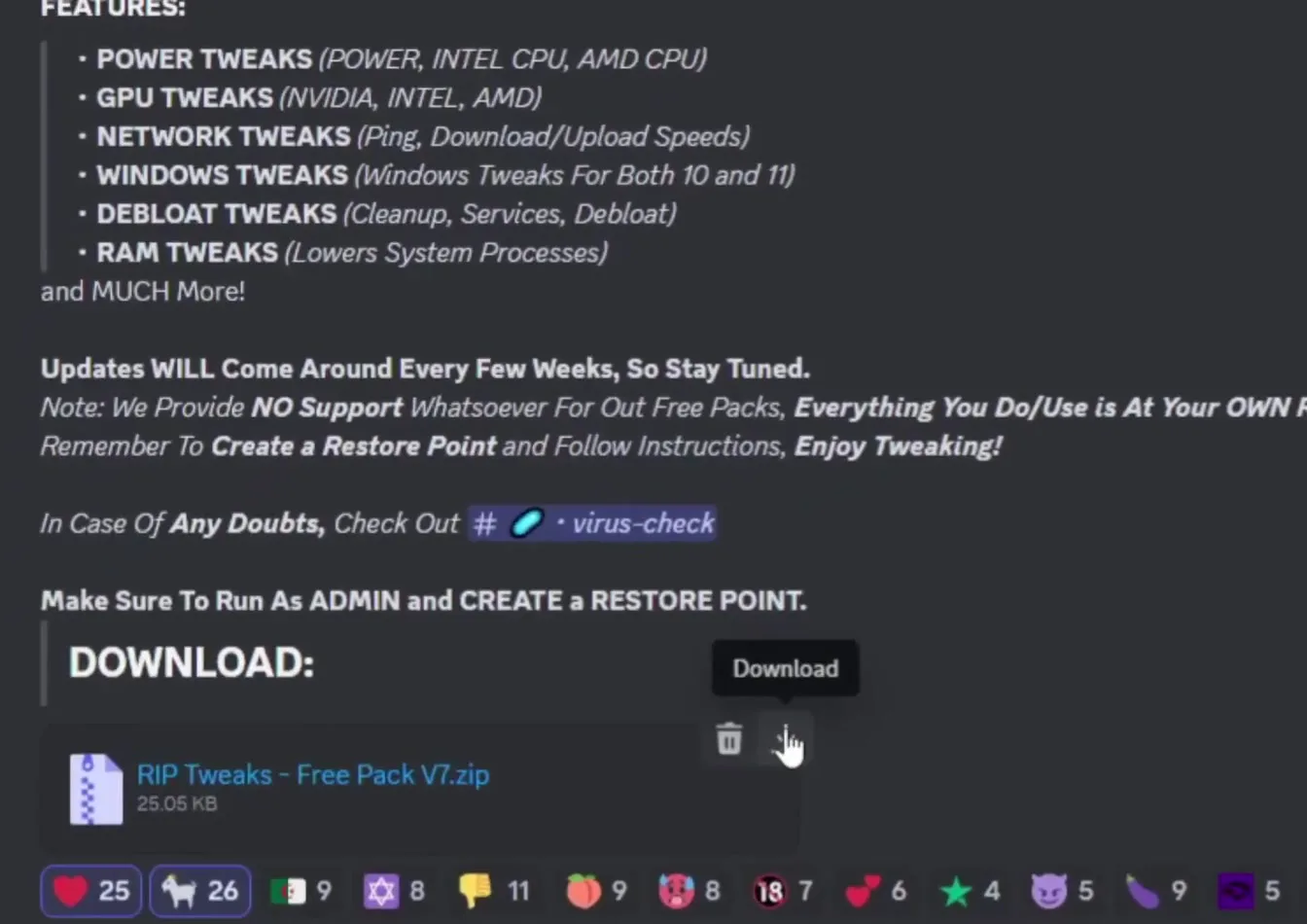
With the cable in place, the video lowers the ping further with the free pack. Open the RIP Tweaks Discord, go to the free-tweaks channel and download RIP Tweaks - Free Pack V7.zip (about 25 KB). The post there says to run as admin and to create a restore point.
Discordfree-tweaksRIP Tweaks - Free Pack V7.zipDownload
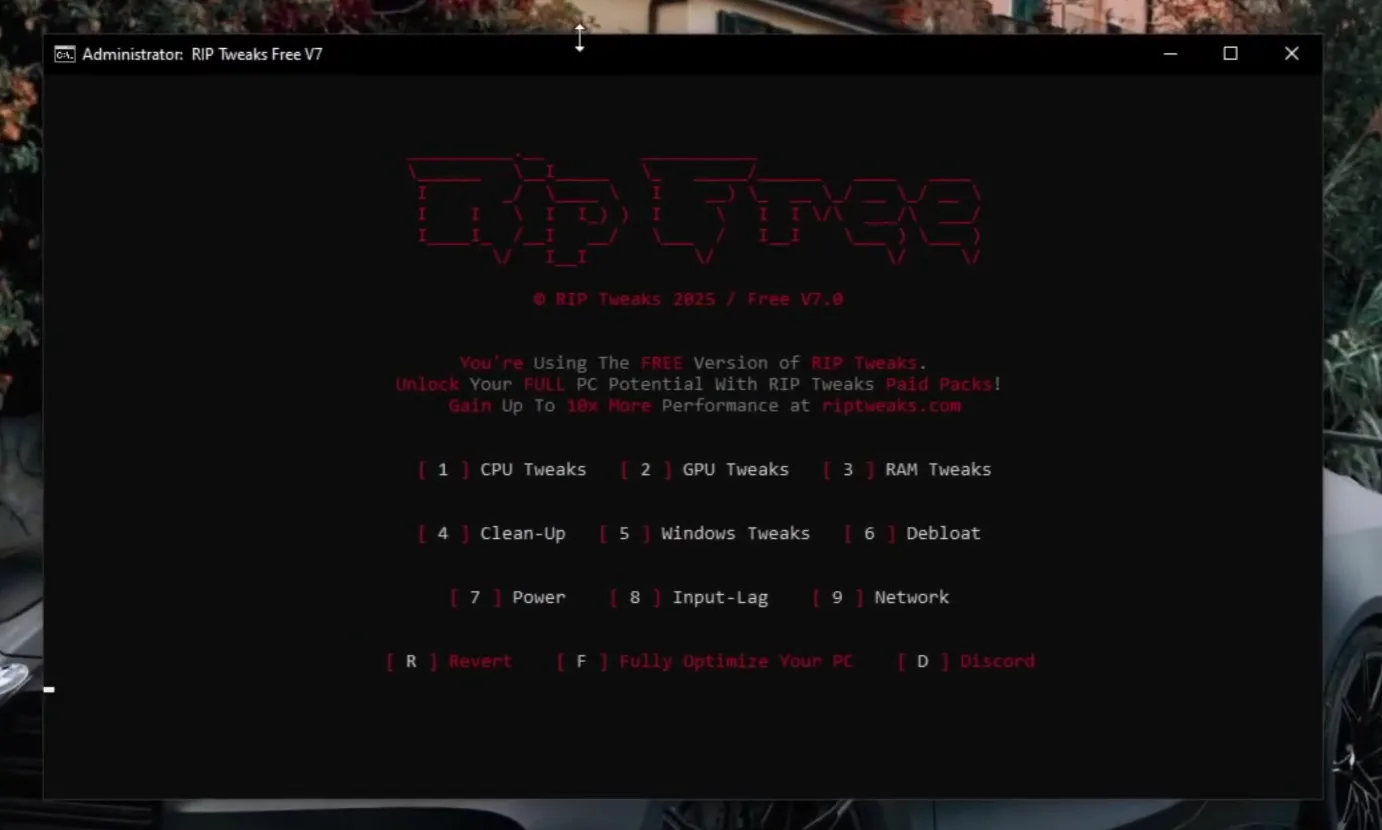
Save the zip, right-click it and open it with Windows Explorer, then drag the .bat file out to the desktop. Right-click that file and choose Run as administrator. A black window opens with a numbered menu.
How to undo it
Before any tweak, press the option for the restore point (number 1 on the first screen in the video) and wait until it finishes. The menu also has R Revert.
The video starts with the network tweaks because they are the ones aimed at ping. Press 9 for Network and Enter. First pick 1 Reduce Ping, which the menu describes as a way to lower your ping when you have spikes. In the video it restarts a bunch of services and tweaks network registry values. Then pick 2 Boost Internet, described as the ultimate internet tweak for all types of PCs.
9 Network1 Reduce Ping2 Boost Internet
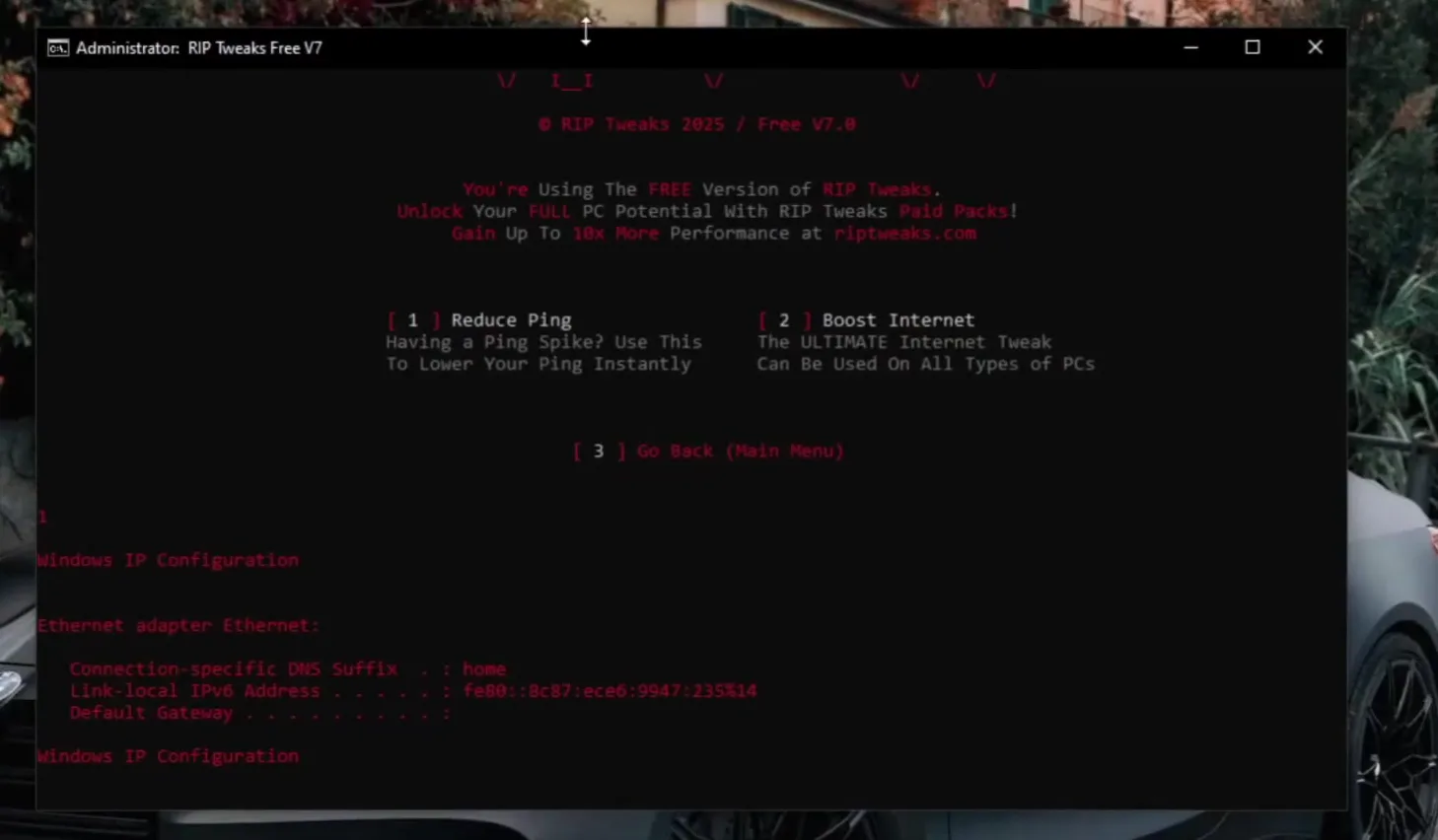
Wait until each option finishes before you press the next one. Option 3 takes you back to the main menu.
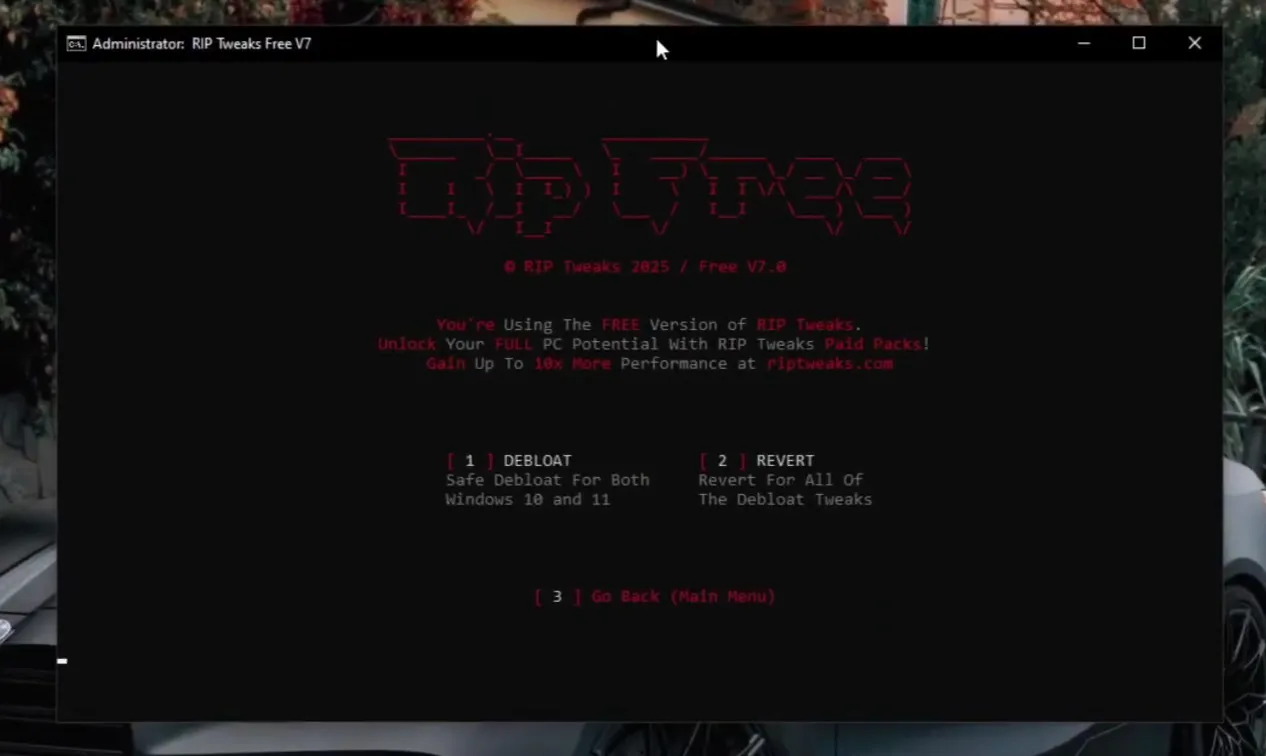
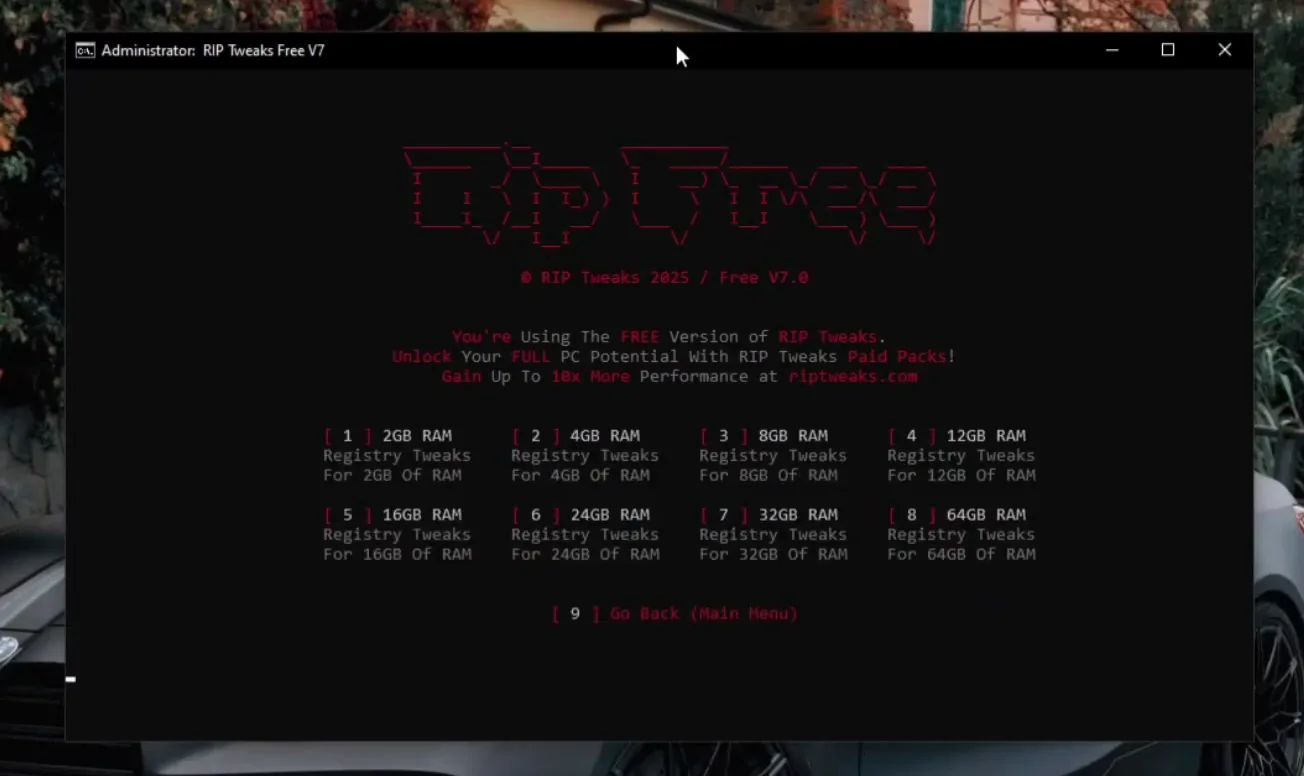
Back on the main menu, the video runs the remaining groups as well, because they cost nothing to try: Windows Tweaks (the Windows 10 option), the service tweaks, Debloat to disable apps running in the background, Power tweaks for the power settings, CPU Tweaks (the AMD option, since that is the CPU in the video), GPU Tweaks and RAM Tweaks. These mainly target FPS and input lag, not ping.
Careful
Choose the entries that match your hardware: the AMD CPU option only on an AMD CPU, the RAM entry for your real amount of RAM. The video also points to our bufferbloat guide for the in-depth internet part, and the free pack comes without support, as the Discord post says.
Now repeat the first step: open cloudping.info, click HTTP Ping and compare the lowest region with your first result. In the video the ping dropped clearly. Then start Fortnite with the network stats shown and look at the ping value in the top left.
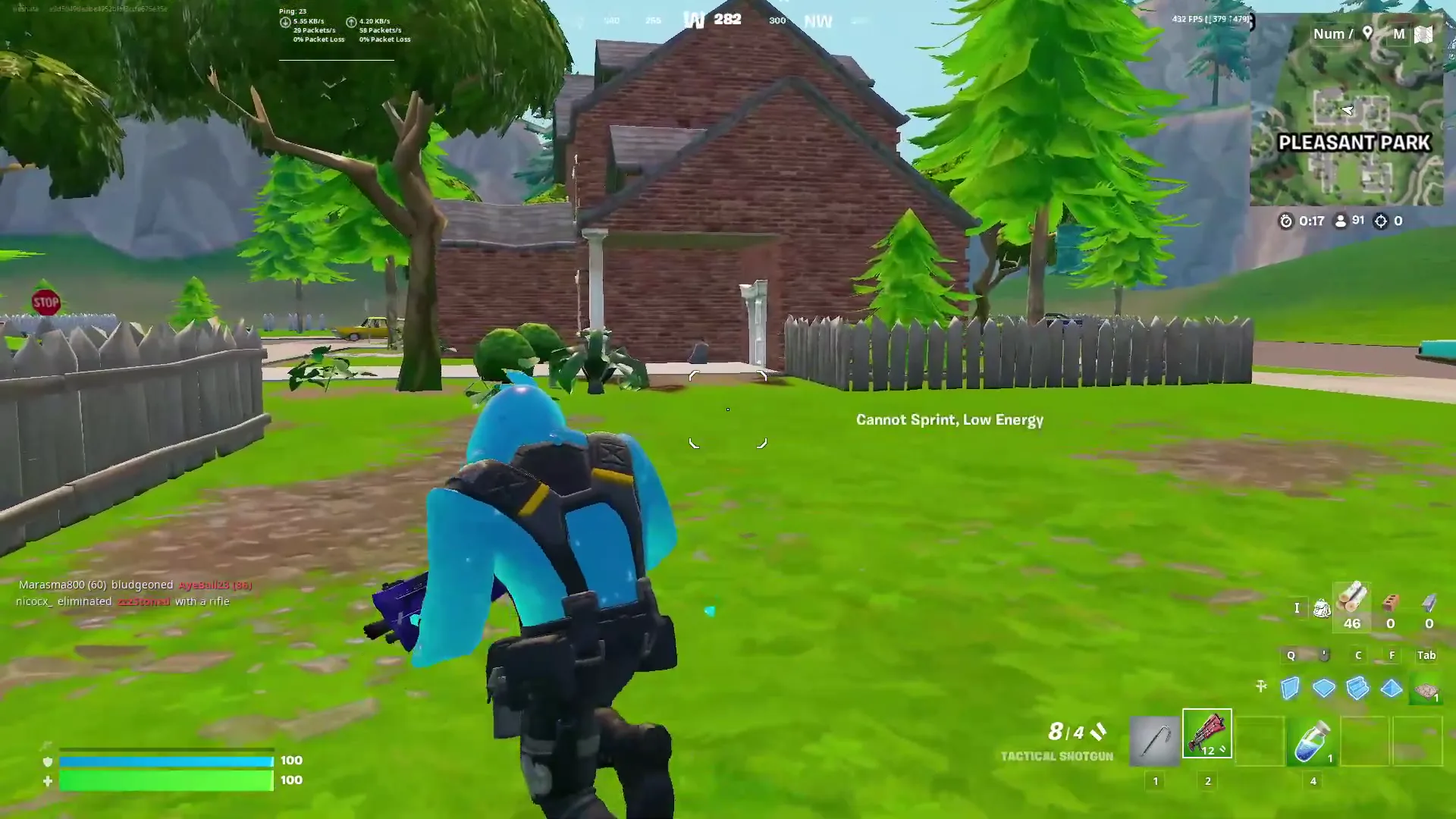
In the clip the in-game ping sits around 19 to 26, almost the same as the HTTP test, which the video calls really good. It also climbs to a high spike now and then, but it stays much better than the roughly 40 ms from before. These are Leon's numbers on his own PC and line, not a promise: results typically depend on your connection, your provider and your distance to the server.
How to check it worked
- Run HTTP Ping on cloudping.info before and after, on the same region. After the cable and the tweaks the number should be lower, and a wired line should vary less between runs.
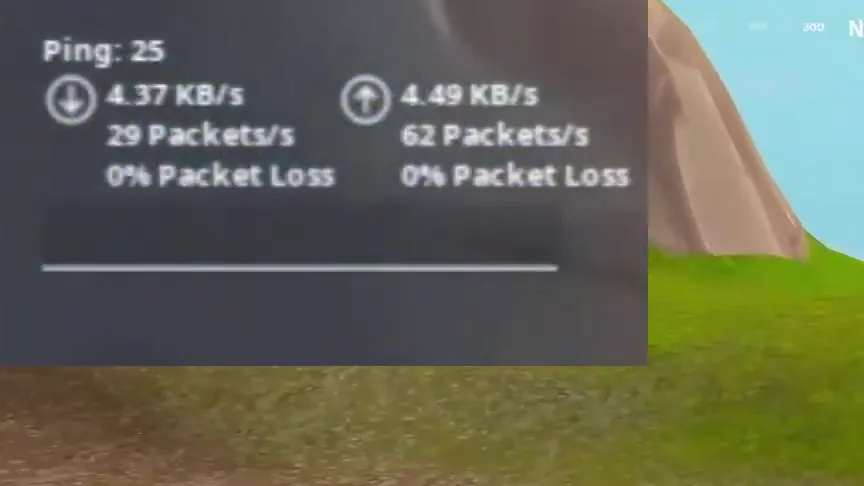
- In Fortnite, show the network stats and look at Ping and both Packet Loss values. Packet loss should stay at 0%, as in the video.
- Play a full match. A low average with sudden jumps points to something else on your network. Our ping spikes and packet loss guide and the how to lower ping page cover that.
Don't do this
If the ping did not drop, do not keep stacking tweaks. Check the cable first: a Wi-Fi extender in between, or a loose plug, can cost more than any setting. The network tweaks and your ping page explains what the network settings can and cannot do.
Key settings at a glance
FAQ
How do I check my real ping for Fortnite?
Open cloudping.info, click HTTP Ping and read the lowest region. The video uses it because the ping shown in Fortnite is not accurate, and the lowest region is the best you can theoretically get.
Is Ethernet really better than a Wi-Fi extender for ping?
In the video, yes: the PC was cabled to a Wi-Fi extender, and moving the cable to the router lowered the HTTP ping on the same test. An extender still carries your data over Wi-Fi, so a cable straight to the router is typically the stronger setup.
Can a tweak give me zero ping?
No. Ping is the travel time to the server, so distance sets a floor. In the video the lowest region was about 40 ms, and the in-game ping ended around 19 to 26 on that PC. Tweaks and a cable help you get close to your floor, not under it.
What do Reduce Ping and Boost Internet do?
The menu describes Reduce Ping as a quick way to lower ping during spikes. In the video it restarts services and changes network registry values. Boost Internet is described as the ultimate internet tweak for all types of PCs.
Do the CPU, GPU and RAM tweaks lower ping?
Not directly. In the video they are run for FPS and responsiveness, while the ping part is the cable and the Network menu. If your spikes continue, see our bufferbloat guide.
Is it safe to run, and can I undo it?
The video creates a restore point first, and the menu has a Revert option, with its own Revert inside Debloat. The Discord post says the free pack comes without support and is used at your own risk, so make the restore point before you start.
Does this work with a 15 m cable?
The video uses a cable about 15 m long and it connected fine. Check that the cable is a proper Ethernet cable, and test with HTTP Ping after you plug it in to see if it helped.
 RIP Tweaks
Do it in a few minutes with RIP Tweaks
- Free plan for Windows 10 and 11
- A backup first, and every tweak can be switched off again
- Made for higher FPS, lower input lag and steadier ping
Free · Windows 10 and 11
