
How to Lower Ping and Fix Lag: Network Tweaks Explained
Open Network in the sidebar.
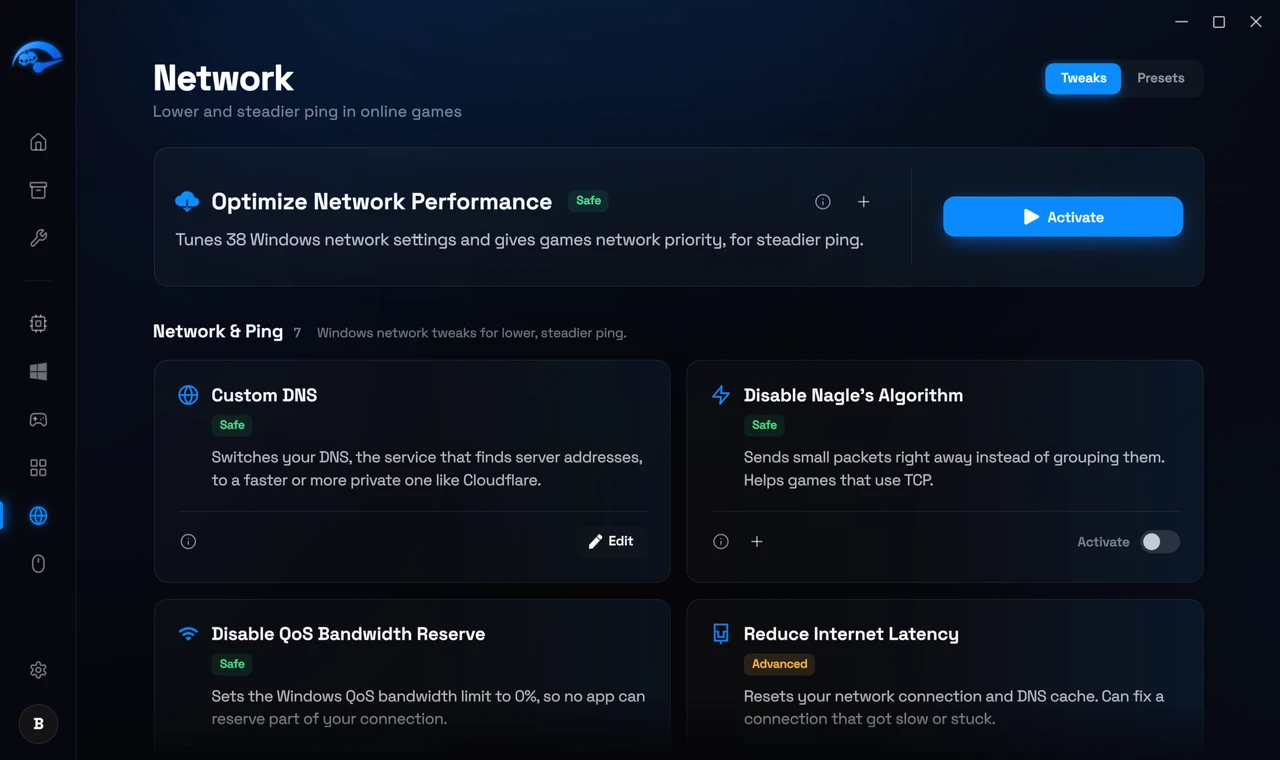
What these tweaks actually change
What they cannot change
So the honest split is this. Network tweaks help with the part of latency that happens on your PC, and with stability and jitter. They do not move you closer to the server.
The things that help most, in order
Use a wired ethernet cable rather than wifi
Pick the server region closest to you in the game itself
Stop other devices and downloads competing for your connection
Then apply the network tweaks for the remaining Windows level delay
Undoing them. Every network tweak is a toggle and reverts from the same page. If your connection behaves oddly after a change, switch the tweak off and restart.
What these tweaks can and cannot change
The network section adjusts settings on your own PC that add avoidable delay. It cannot change the distance between you and the game server, the quality of your line, or how your provider routes your traffic. Those are the largest parts of your ping and they are outside any software’s reach.
What it does remove is the local overhead sitting between your input and your connection.
Ping is not the only number
Jitter is how much your ping varies from packet to packet. A stable 60ms plays better than an unstable 30ms, because games can predict consistent delay and cannot predict inconsistent delay. High jitter is what makes other players appear to teleport.
Packet loss is packets that never arrive at all. Even one or two percent is very noticeable, because the game has to either wait or guess, and guessing is what rubber banding looks like.
If your ping looks fine but the game feels wrong, jitter or packet loss is usually the reason.
The things that beat any tweak
Use a cable instead of Wi-Fi
Check what else is using the connection
Check which server you are on
How to test properly
Run a continuous ping to a stable address and watch it while you use the connection normally. You are looking at the spread between the lowest and highest values, not the average. Test wired against wireless, and test at different times of day, because congestion in the evening is a different problem from anything on your PC.
There is a full walkthrough in How to lower ping in games.