How to Reduce Input Lag in Fortnite: Mouse Polling Rate, Pointer Precision and USB Ports

Written version of our video, every step checked against it.
Quick answer
- Plug your mouse and keyboard into the back USB ports of the PC, not the front panel.
- Turn off Enhance pointer precision in the Windows Mouse Properties so your aim stays consistent.
- Set the mouse polling rate to the maximum your mouse supports, such as 1000 Hz, in the mouse brand's own software.
- Apply the mouse, keyboard, USB ports and Device Manager peripheral tweaks in RIP Tweaks, then measure before and after.
- Input lag is the delay between your click and what you see, so every step here targets that chain. Expect a smoother feel, not a fixed number.
This guide is for Fortnite players on a Windows PC who click, see the hit late and want the delay between hand and screen as small as possible. It follows our video in order: what input lag really is, the cheapest fix with a cable, the two mouse settings that matter, and the peripheral tweaks the video applies. The video was recorded with an earlier version of RIP Tweaks, so here the app is only the way to reach the settings, and the Windows and mouse settings are what you copy.
Input lag is the delay between your input and the reaction on your screen. The video walks through the chain: you click the mouse, the PC registers the input and sends it to the Fortnite servers, the servers reply, your PC processes the reply and sends the picture to your monitor, and only then do you see it. Everything on your side of that chain can be tuned: the cable and port, the mouse settings, the drivers and the monitor.
Network ping is a different delay. It is the trip to the servers, which tweaks cannot remove completely. Our Fortnite FPS, input delay and ping guide covers all three together, and this page stays on the input side.
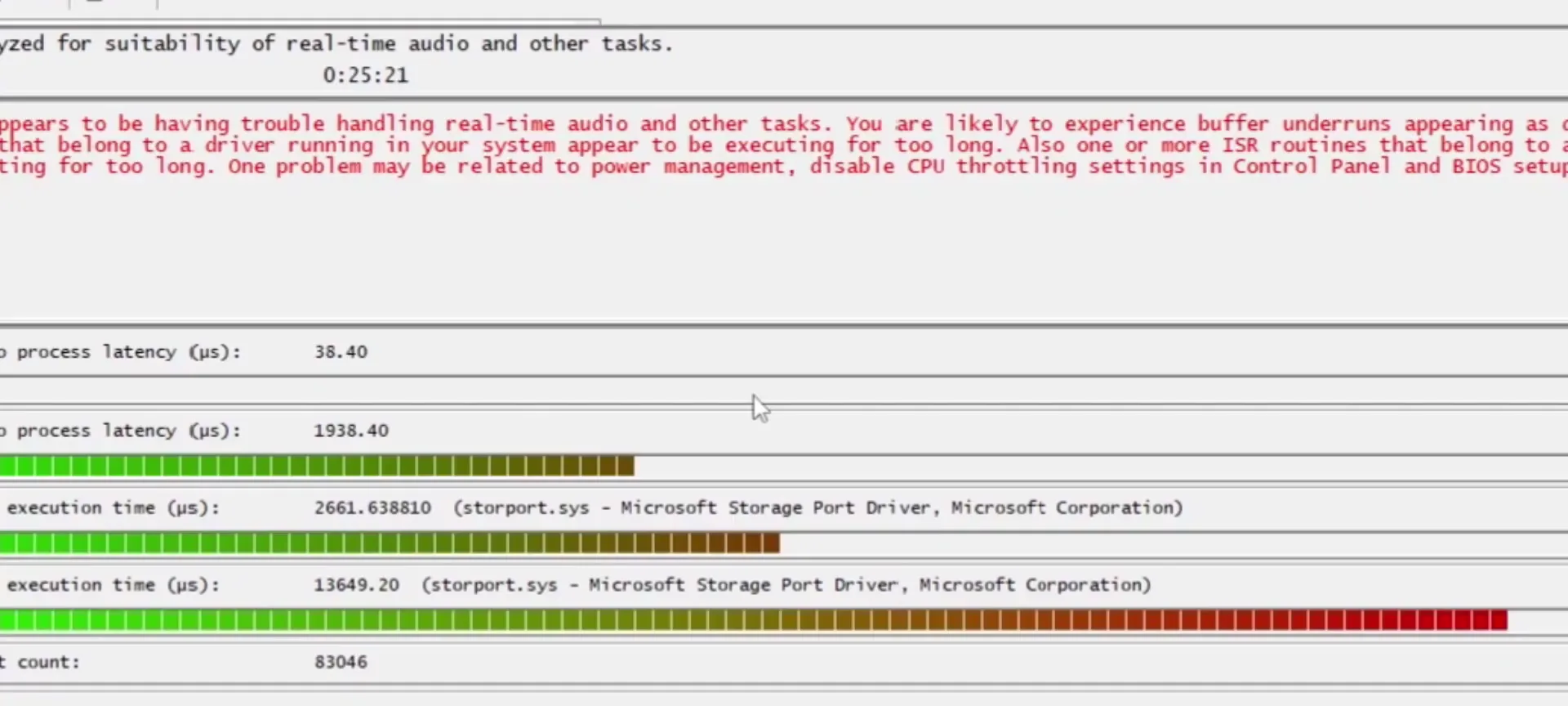
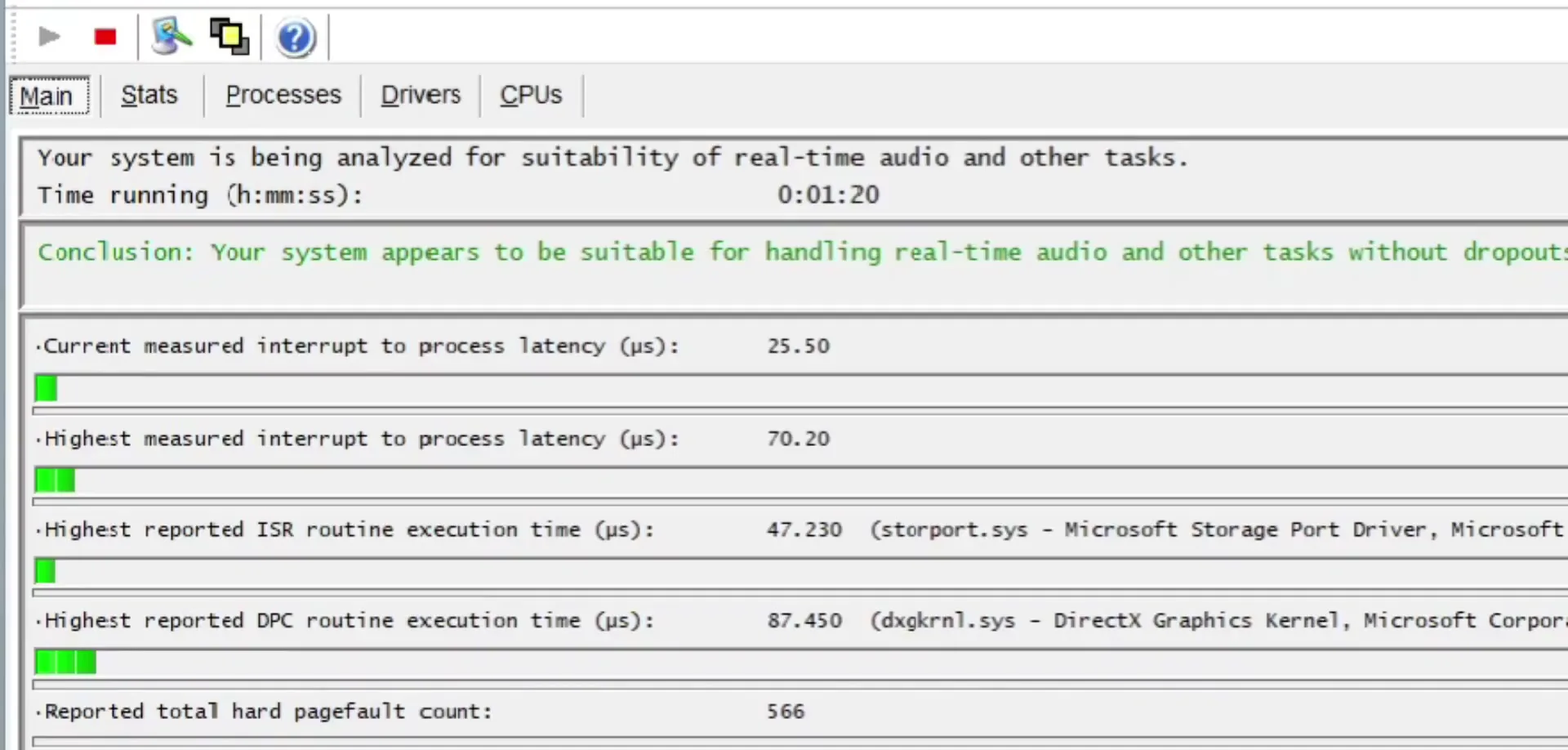
Before you change anything, the video shows its "before": a latency checker that opens in red and warns that the system has trouble handling real-time tasks. Take the same snapshot on your PC first, so you can compare at the end. Our LatencyMon input lag test explains how to read this kind of screen.
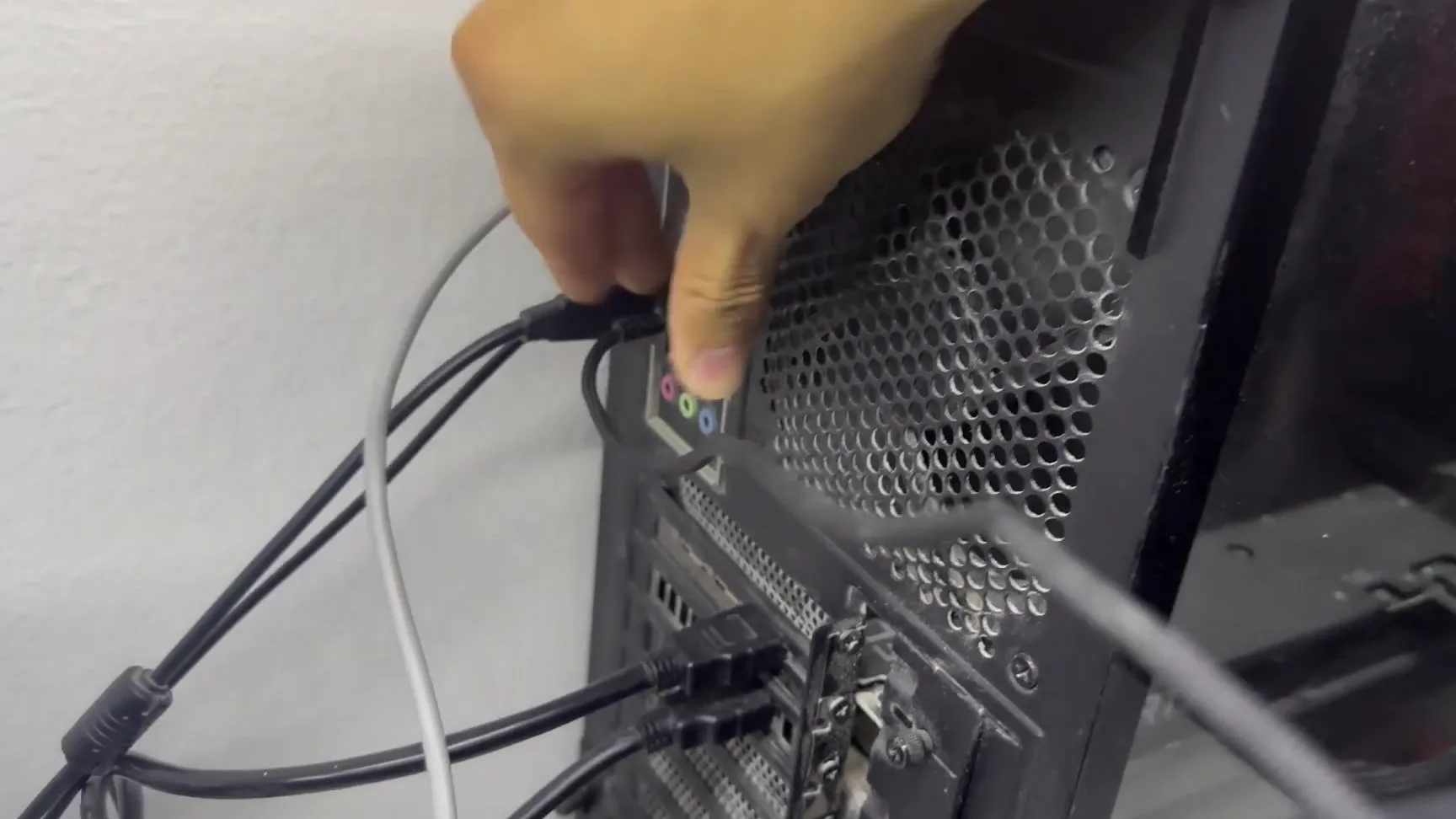
The first fix in the video costs nothing: never plug anything into the front of the case, plug everything into the back. The back ports sit directly on the motherboard. Front-panel ports run through extra internal cables and often share a hub, which is why the video says this removes a lot of input lag.
Tip
Use one port per device and keep the mouse on its own back port. A USB hub or a splitter adds another stop on the way, so avoid them for the mouse and keyboard.
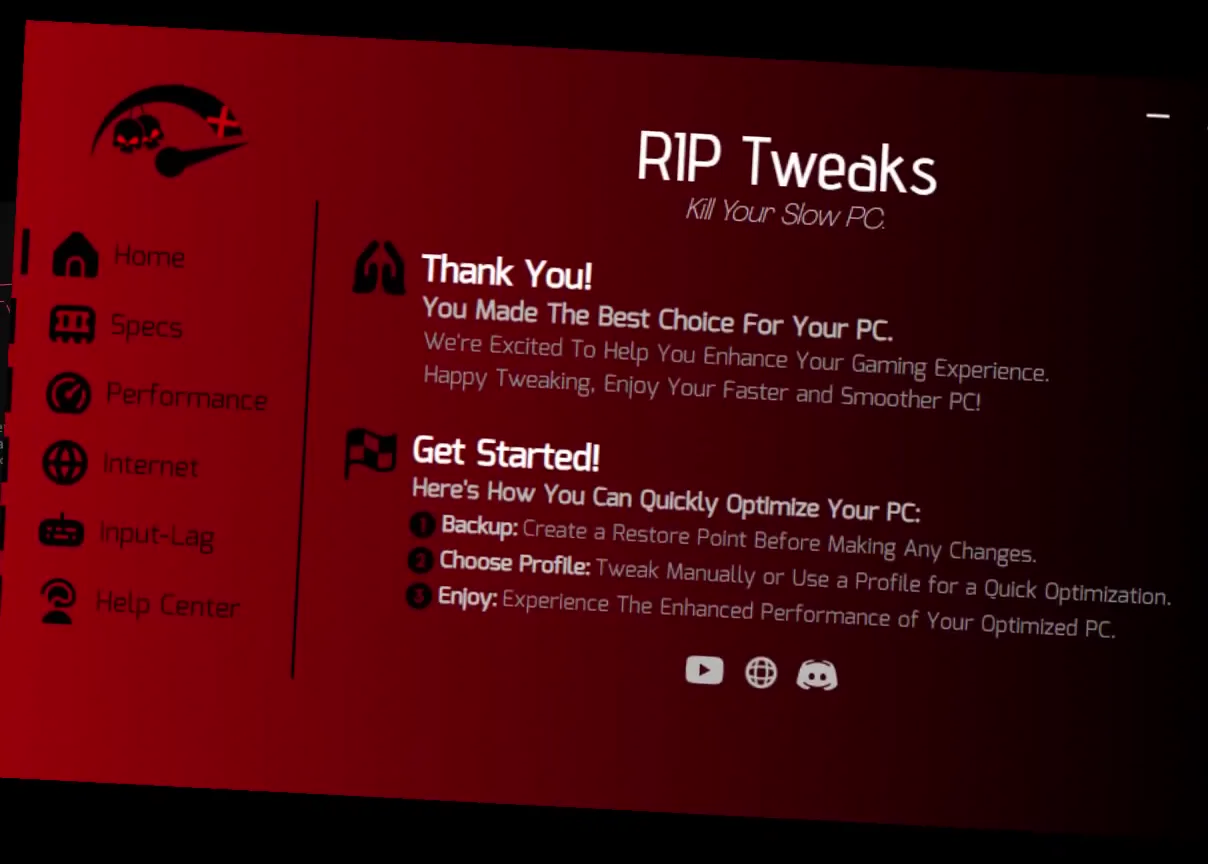
For the next steps the video uses RIP Tweaks. Its input lag area has three options: remove input lag, peripheral tweaks and input lag apps. The video starts with the input lag option and shows a before and after on each setting, with a clear improvement from a single tweak. If you do not use the app, every setting in the next steps can also be set by hand in Windows, as shown.
Input-LagPeripheral Tweaks
Good to know
This is an older video, so the app screens differ from the current RIP Tweaks. The ideas below are the same, and the Windows and mouse settings look the same on any PC.
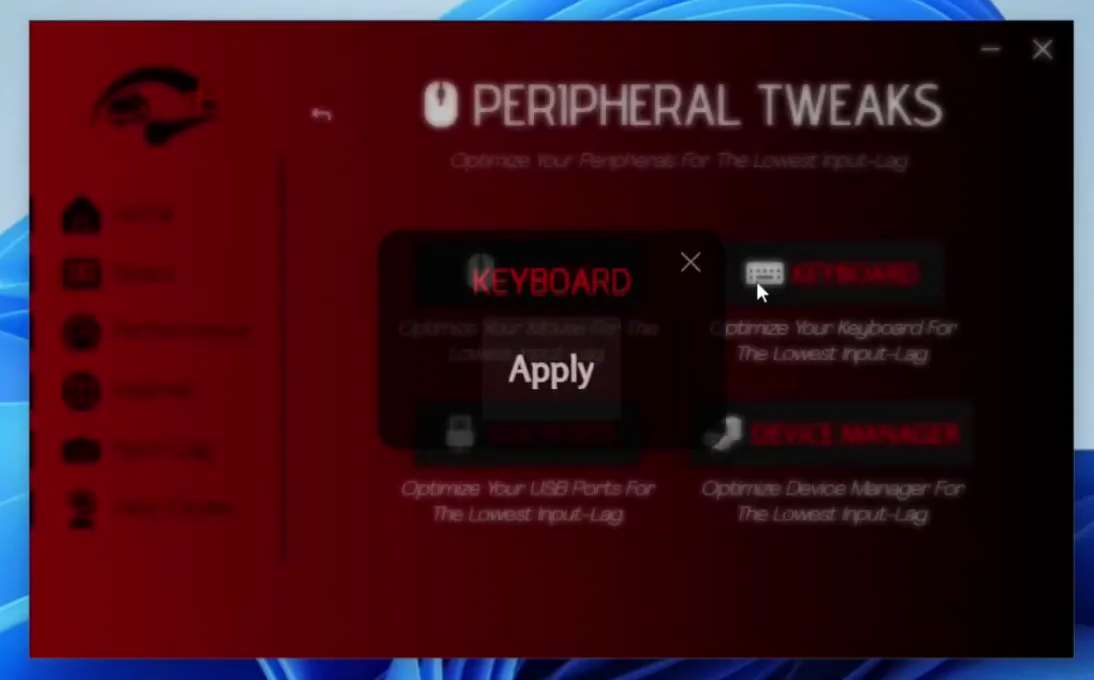
Peripheral Tweaks has four tweaks: Mouse, Keyboard, USB Ports and Device Manager. The video applies all four and shows the before and after of the whole section instead of one by one, to save time. Each tile has an Apply button, as the keyboard tile in the shot shows.
Tip
Make a restore point before applying system tweaks, so you can go back. Our restore point and MSI mode guide shows how.
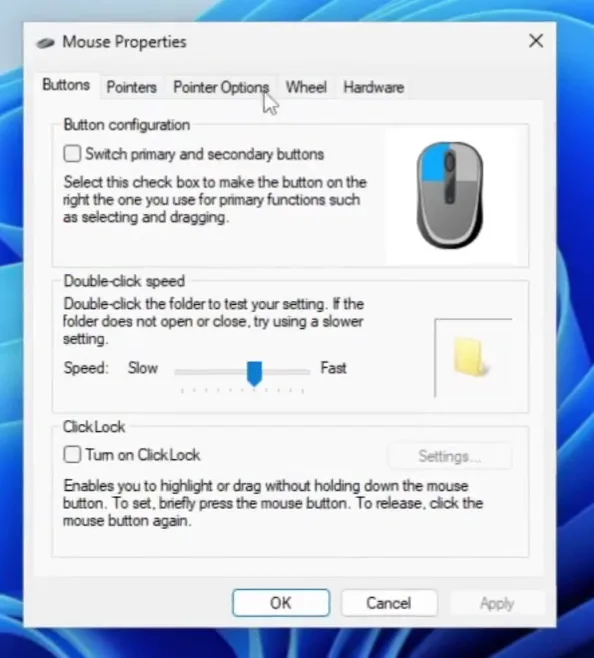
This is the setting the video warns about the most: disable Enhance pointer precision. It is Windows mouse acceleration, and it makes the cursor move farther when you swipe fast. In Fortnite that breaks muscle memory, because the same hand movement gives a different aim each time. Open it by hand like this:
Windows SettingsBluetooth & devicesMouseAdditional mouse settingsPointer OptionsEnhance pointer precision (off)
How to undo it
If the cursor feels odd afterwards, tick the box again in the same tab and click Apply. Give the new feel a few minutes first, because aim with acceleration off needs a short adjustment.
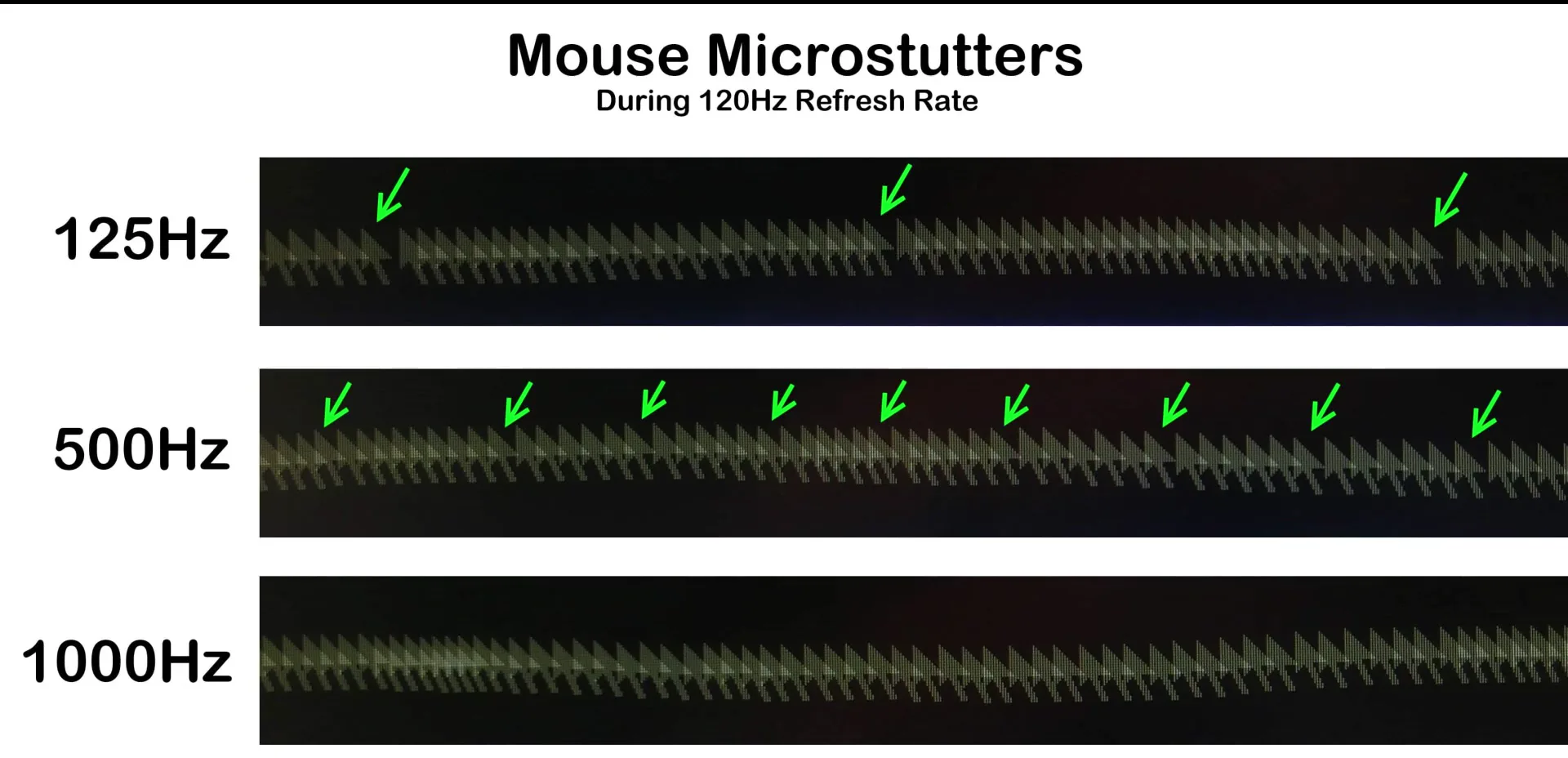
The polling rate is how many times per second the mouse reports its position to the PC. The video says to put it to the maximum you can, maybe 1000 Hz. It uses a little more CPU, but the video calls it really worth it. Find the software for your mouse (Razer, Logitech or any other brand), open its polling rate option and pick the highest value.
Careful
A higher polling rate costs some CPU. On a very weak PC, test it in a match: if the frame rate drops or stutters, step down one level, for example from 1000 Hz to 500 Hz, and keep the highest value that runs well.
How to check it worked
- Run the same latency checker as at the start and compare the highest values. On the PC in the video the red warning turned into a green conclusion.
- In Mouse Properties, open Pointer Options and confirm Enhance pointer precision is unticked.
- Open your mouse software and confirm the polling rate still shows the highest value after a restart.
- Play a few minutes of Fortnite: the same swipe should land in the same spot each time. If you also want a frame rate and ping reading, turn on the in-game counters.
Key settings at a glance
FAQ
What is input lag in Fortnite?
It is the delay between your input, like a mouse click, and the reaction on your screen. In the video it is the chain from your click through the PC and the Fortnite servers back to your monitor, and your PC's part of it is what these settings shorten.
Are front USB ports really worse than back ones?
The video says plugging into the back removes a lot of input lag. Back ports sit on the motherboard, while front ports run through extra internal cables. It is free to test, so move your mouse and keyboard to the back and compare.
Should I turn off Enhance pointer precision?
The video says yes, for aiming games: it can wreck your aim because the cursor speed changes with how fast you move. With it off, the same movement always gives the same distance. You can turn it back on in the Pointer Options tab.
What polling rate should I use for Fortnite?
The video recommends the maximum your mouse supports, maybe 1000 Hz. It uses some CPU, so if a weaker PC stutters, step down to 500 Hz and keep the highest value that runs smoothly.
Where do I change the polling rate?
In the mouse brand's own software, such as the Razer or Logitech app. Windows has no setting for it, so a mouse without software has a fixed rate.
Does this lower my ping too?
No. These settings reduce the delay on your own PC, not the trip to the servers. For ping, see our bufferbloat guide and the Ethernet vs Wi-Fi extender guide.
Is the app in the video the same as today's RIP Tweaks?
No. The video is from October 2024 and shows an earlier version. The settings it explains, back ports, pointer precision and polling rate, work the same, but the app menus have changed.
 RIP Tweaks
Do it in a few minutes with RIP Tweaks
- Free plan for Windows 10 and 11
- A backup first, and every tweak can be switched off again
- Made for higher FPS, lower input lag and steadier ping
Free · Windows 10 and 11
