How to Lower Input Lag in Fortnite: A Before and After LatencyMon Test

Written version of our video, every step checked against it.
Quick answer
- Measure first: run LatencyMon for a minute or so and note its conclusion and the highest latency values.
- Download the free tweaks pack from the RIP Tweaks Discord, right-click the batch file and choose Run as administrator.
- Type
restoreand press Enter to create a restore point, then open the input tweaks menu. - Apply Remove Input-Delay, 16 Hex, Optimize Keyboard and Optimize Mouse, then the CPU, GPU, Windows, RAM, drive and game tweaks.
- Run the same LatencyMon test again. On the PC in the video the input lag was cut in half with the free pack.
This guide is for Fortnite players on Windows who want less input delay and want proof that it changed. It follows the video in order: a LatencyMon test before, the free tweaks pack, the same test after, and then the paid pack's keyboard, mouse and Device Manager tweaks. The video is from December 2024 and shows an earlier version of the pack, so use it for the ideas and the order of work, not as a picture of today's app.
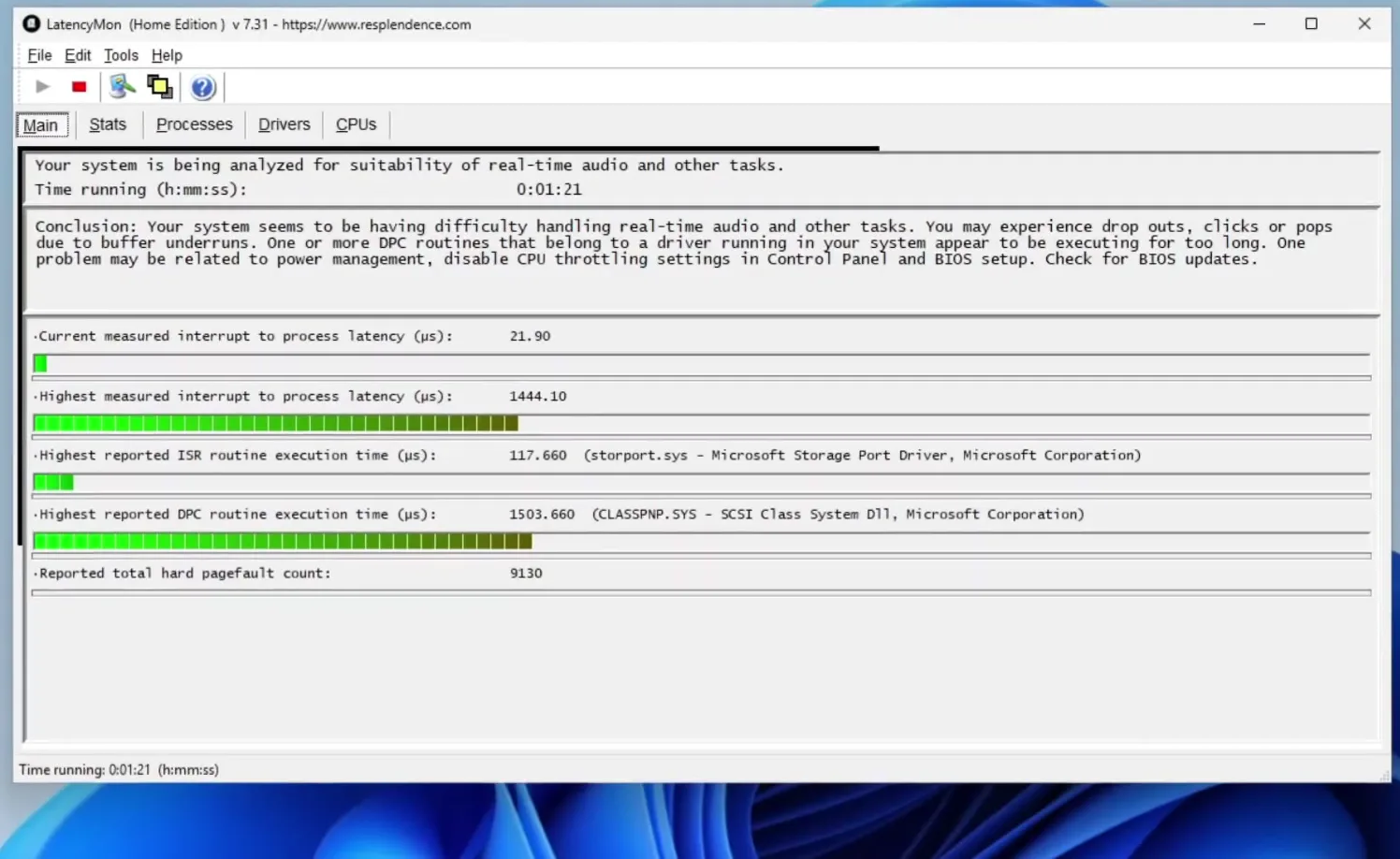
The video starts with a test in LatencyMon, a free monitor that reports how fast Windows drivers answer. Let it run for a while and look at two things: the conclusion line at the top and the Highest measured interrupt to process latency value. On the PC in the video the conclusion is red: the system "appears to be having trouble handling real-time audio", and the highest latency is in the thousands of microseconds, with a storage driver (storport.sys) at the top of the list.
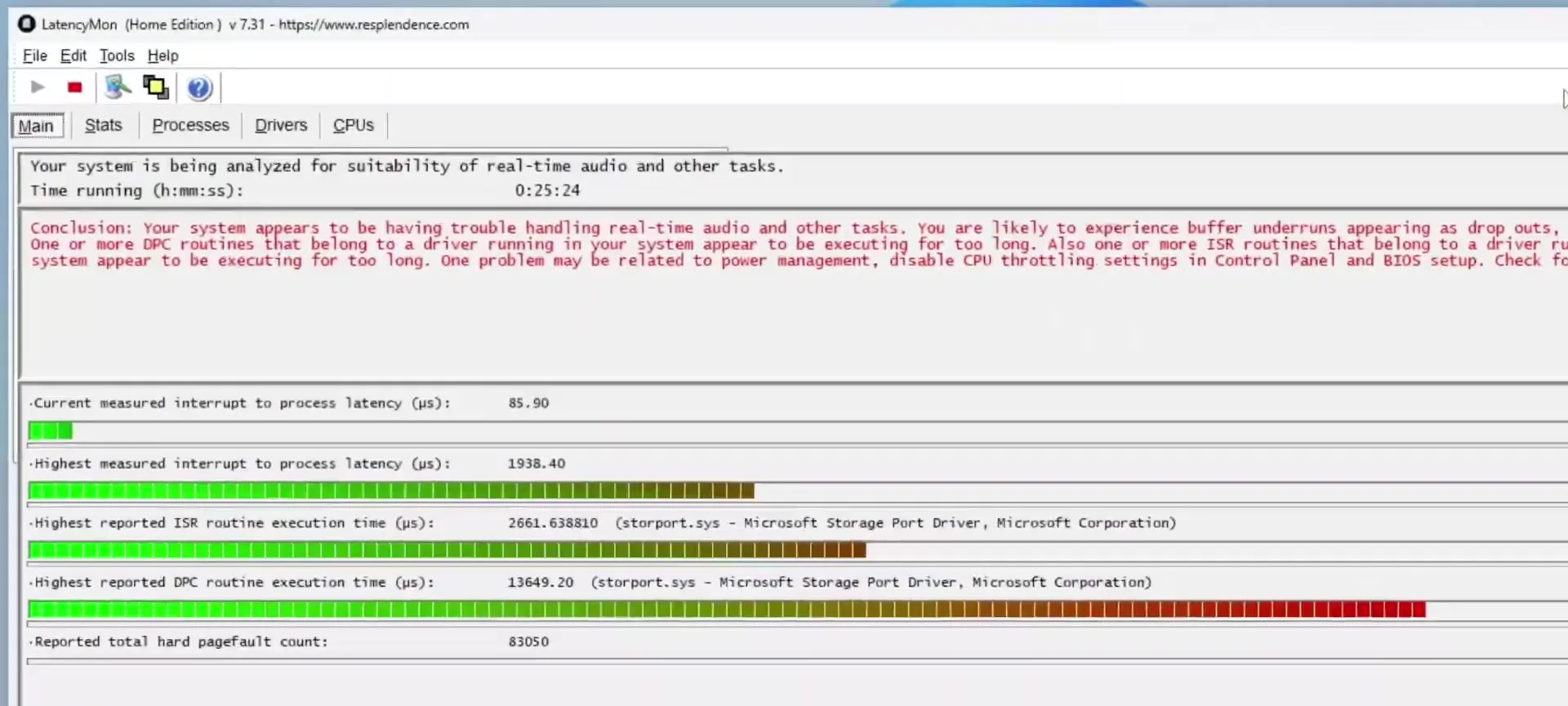
Take a screenshot of this window. Without a number from before, you cannot tell whether anything changed later.
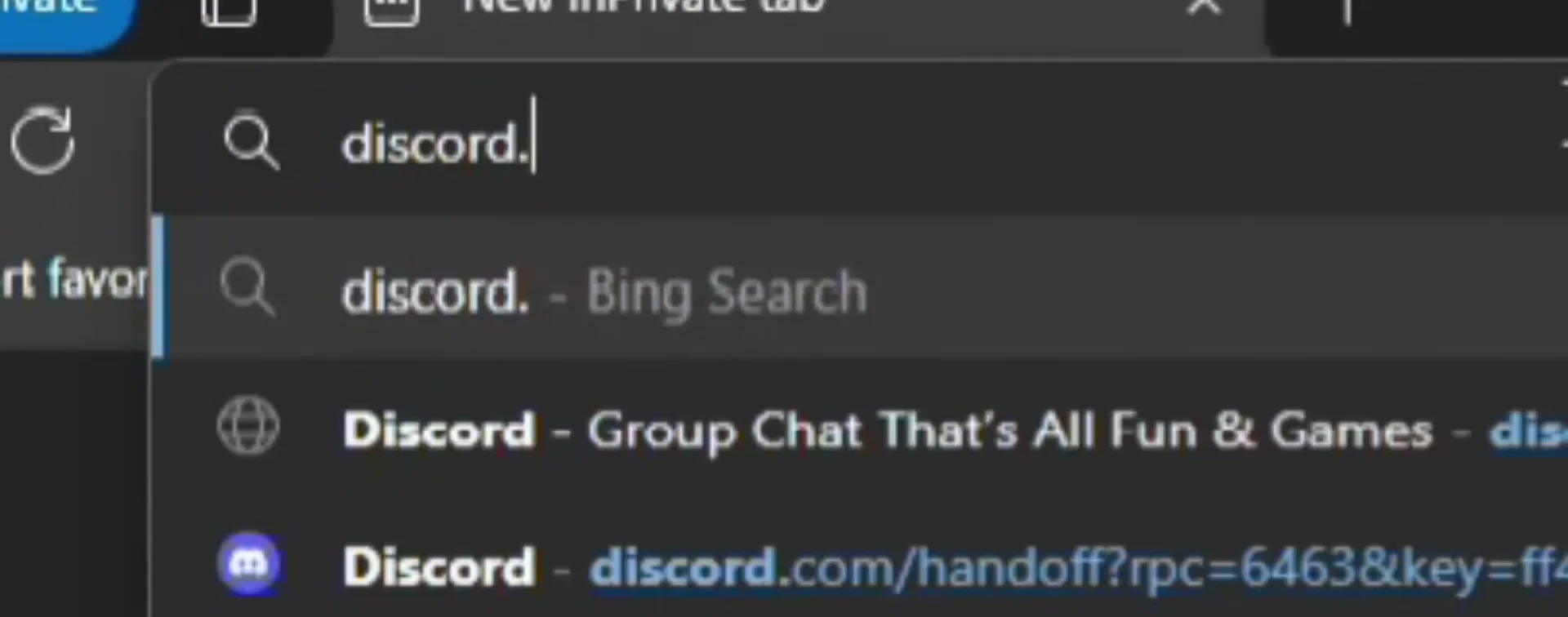
Open your browser and go to discord.gg/tweaks. Join the server, open the free channel and download the free tweaks pack. It is a folder: drag it out of the zip file to your desktop.
Tip
Only take the pack from the official RIP Tweaks Discord link. A batch file that runs as administrator can change system settings, so never run one from a random re-upload.
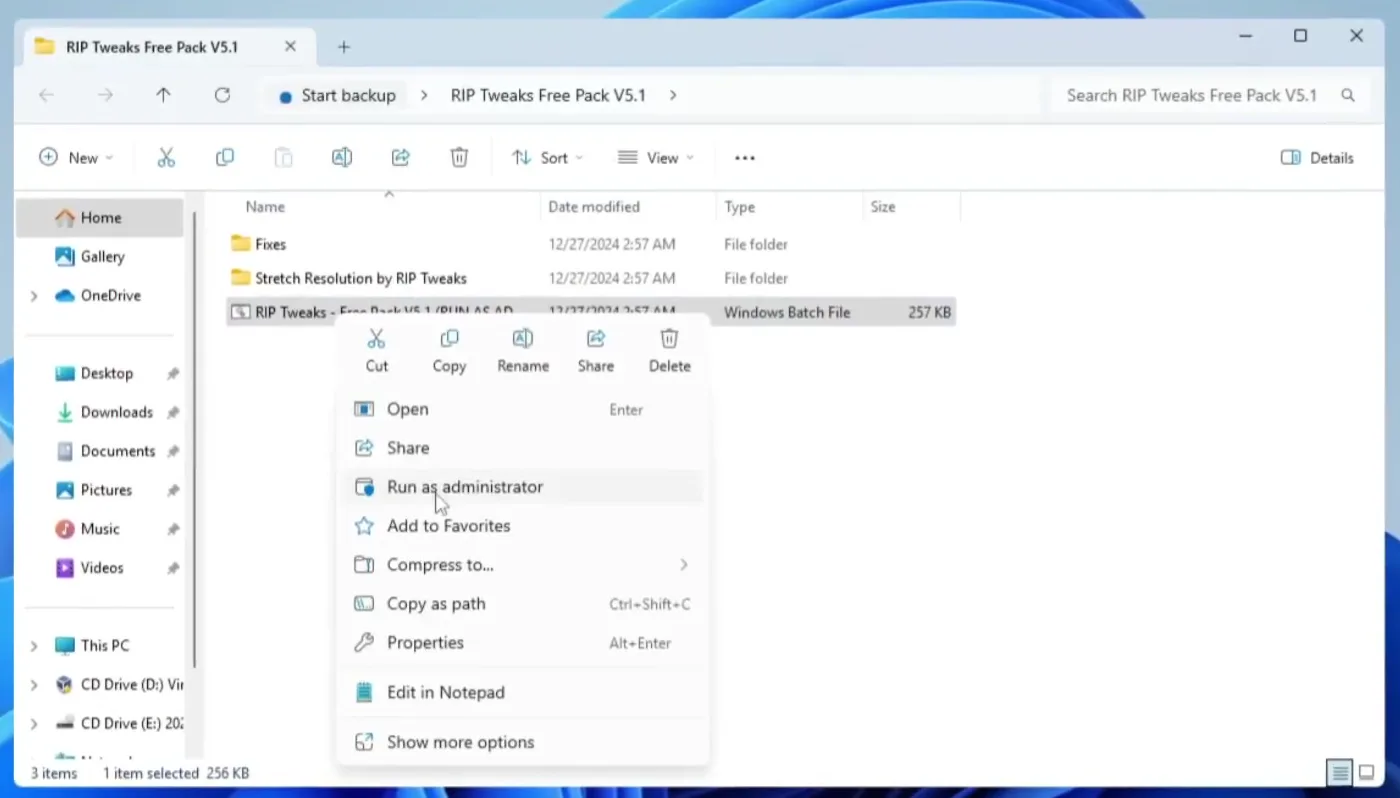
Open the folder (it is named after the pack version, V5.1 in the video). It holds two folders and one Windows batch file. Right-click the batch file and click Run as administrator. The tweaks change system settings, which is why they need admin rights.
Right-click the batch fileRun as administrator
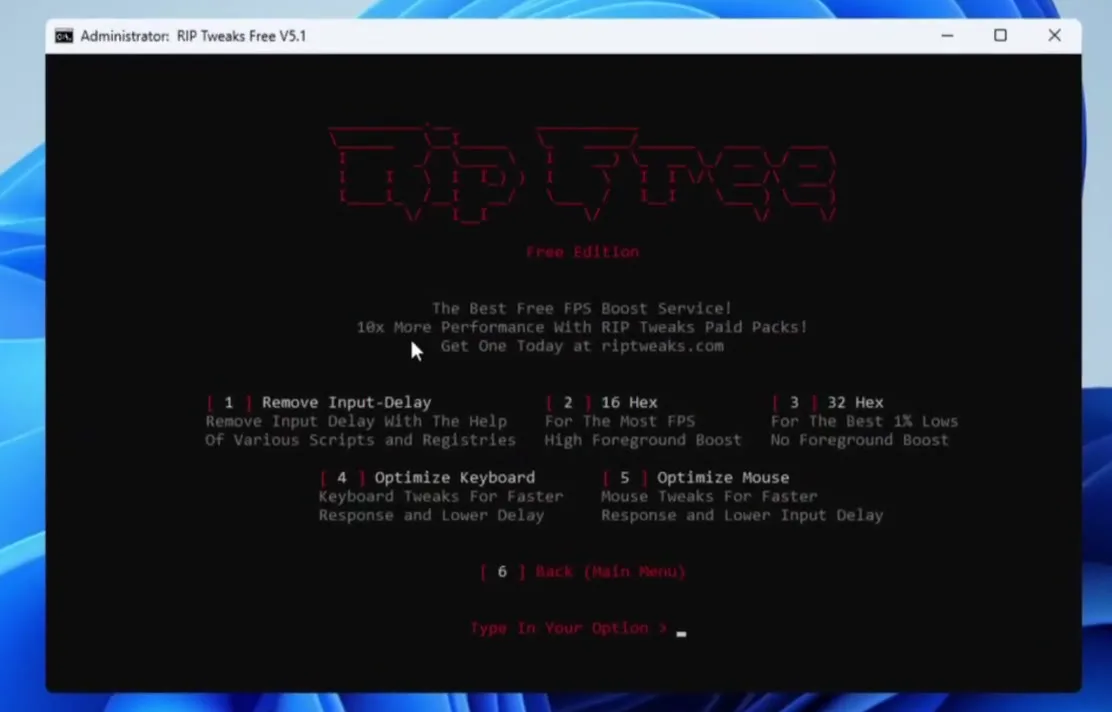
In the black window, type restore and press Enter. Give it a few seconds: this is the backup step, so you can go back if something does not feel right. Then open the input tweaks menu. In the version shown in the video it lists these options:
- Remove Input-Delay: scripts and registry changes aimed at input delay.
- 16 Hex: described in the menu as the one for the most FPS, with a high foreground boost.
- 32 Hex: described as the one for the best 1% lows, with no foreground boost. The video uses 16 Hex.
- Optimize Keyboard and Optimize Mouse: tweaks for faster response and lower input delay.
Careful
Do the restore step before the first tweak. If a restore point is not created, stop and fix that first instead of continuing.
The video does not stop at one option. It works through the input menu (Remove Input-Delay, 16 Hex, Optimize Keyboard, Optimize Mouse) and then goes through every remaining tweak group in the pack: CPU, GPU, Windows, RAM, drive and game tweaks, including the one for Fortnite. Each one prints lines of "The operation completed successfully" while it runs.
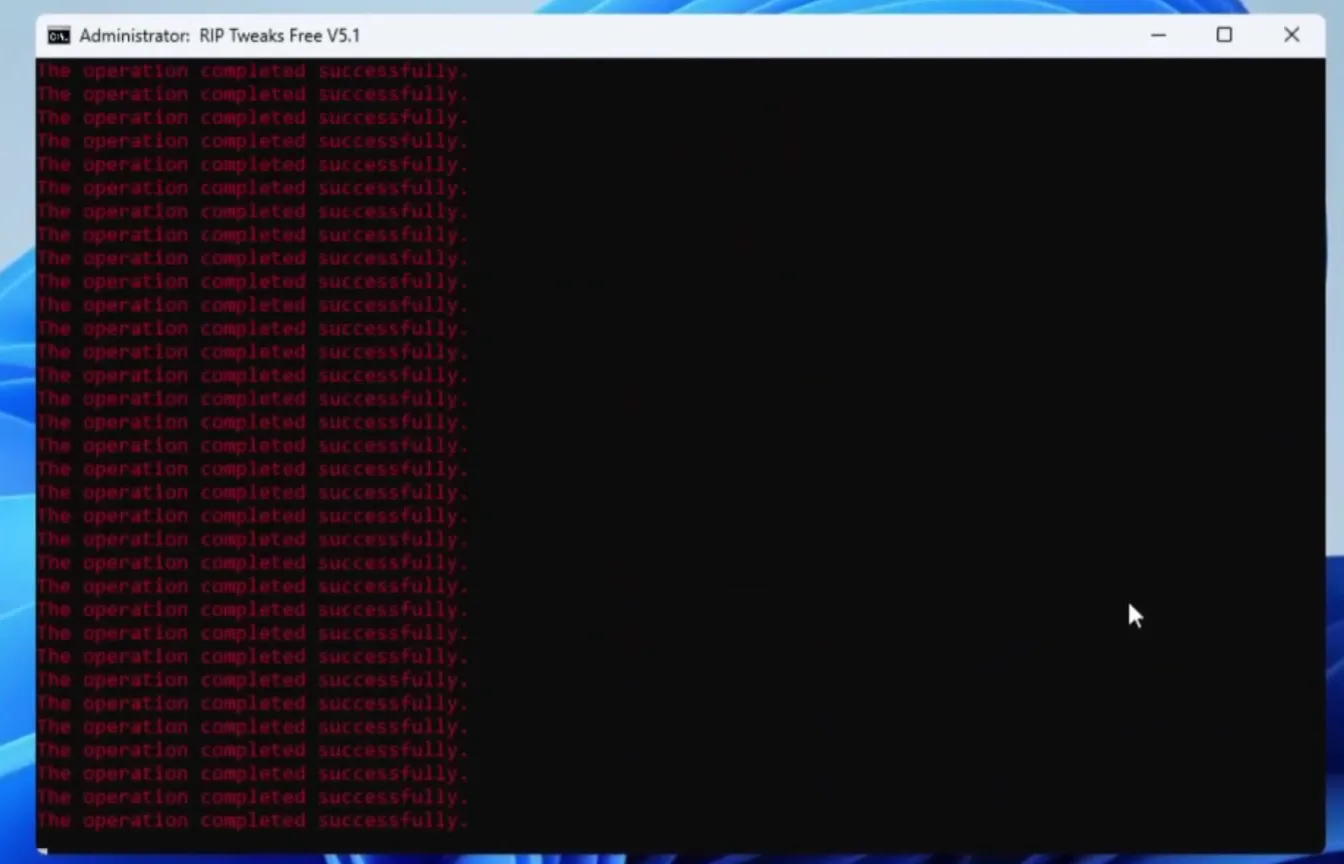
Wait for each option to finish and go back to the menu before you pick the next one.
Run LatencyMon again for about the same time. In the video the free pack halves the input lag on that PC, and the video shows a before and after comparison next to each other. That is Leon's result on his machine, not a promise: the gain depends on how much your drivers and settings were holding the PC back.
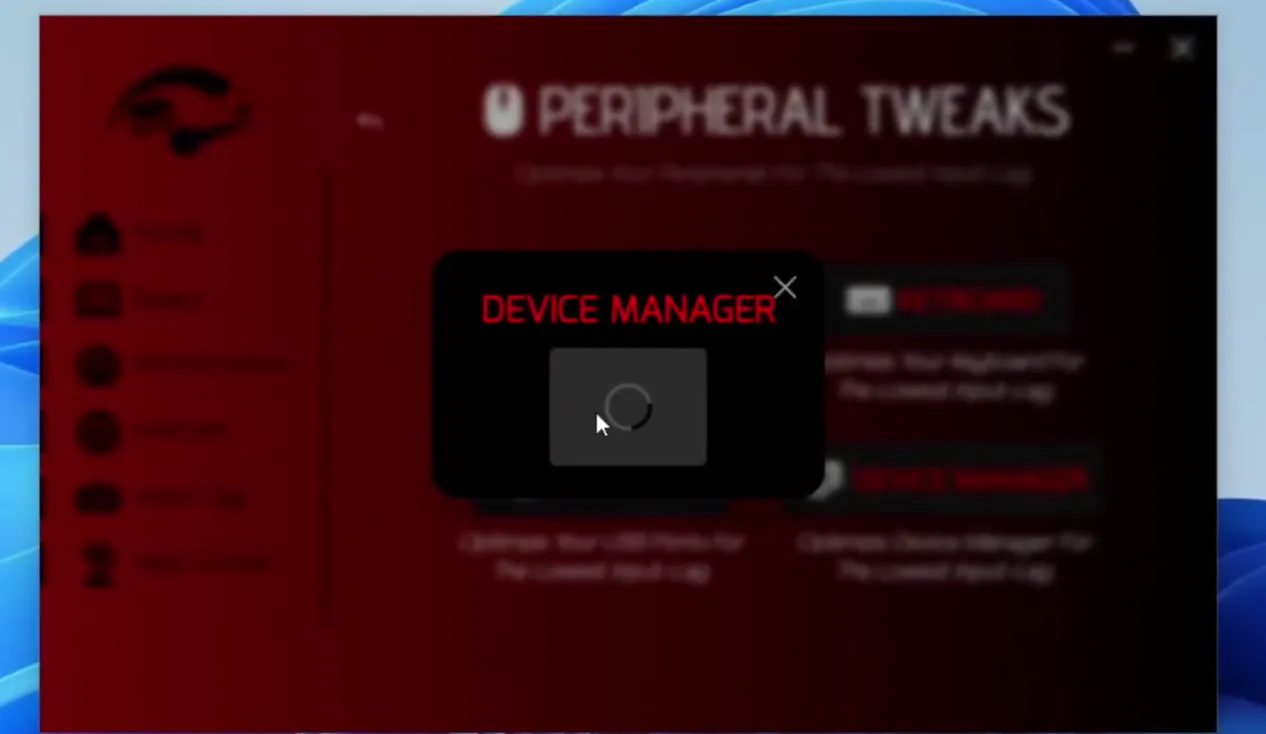
The video then shows the paid RIP Tweaks from riptweaks.com. It applies every tweak in the pack, including the peripheral ones: optimizing the keyboard, the mouse, Device Manager and the other peripherals. In the app of that time, this was a Peripheral Tweaks page with tiles for each of them.
Good to know
This was an earlier version of the app. The current app is organised differently, so use this step for the idea (the input devices are tweaked too, not only Windows) and look at the current app for the exact buttons.
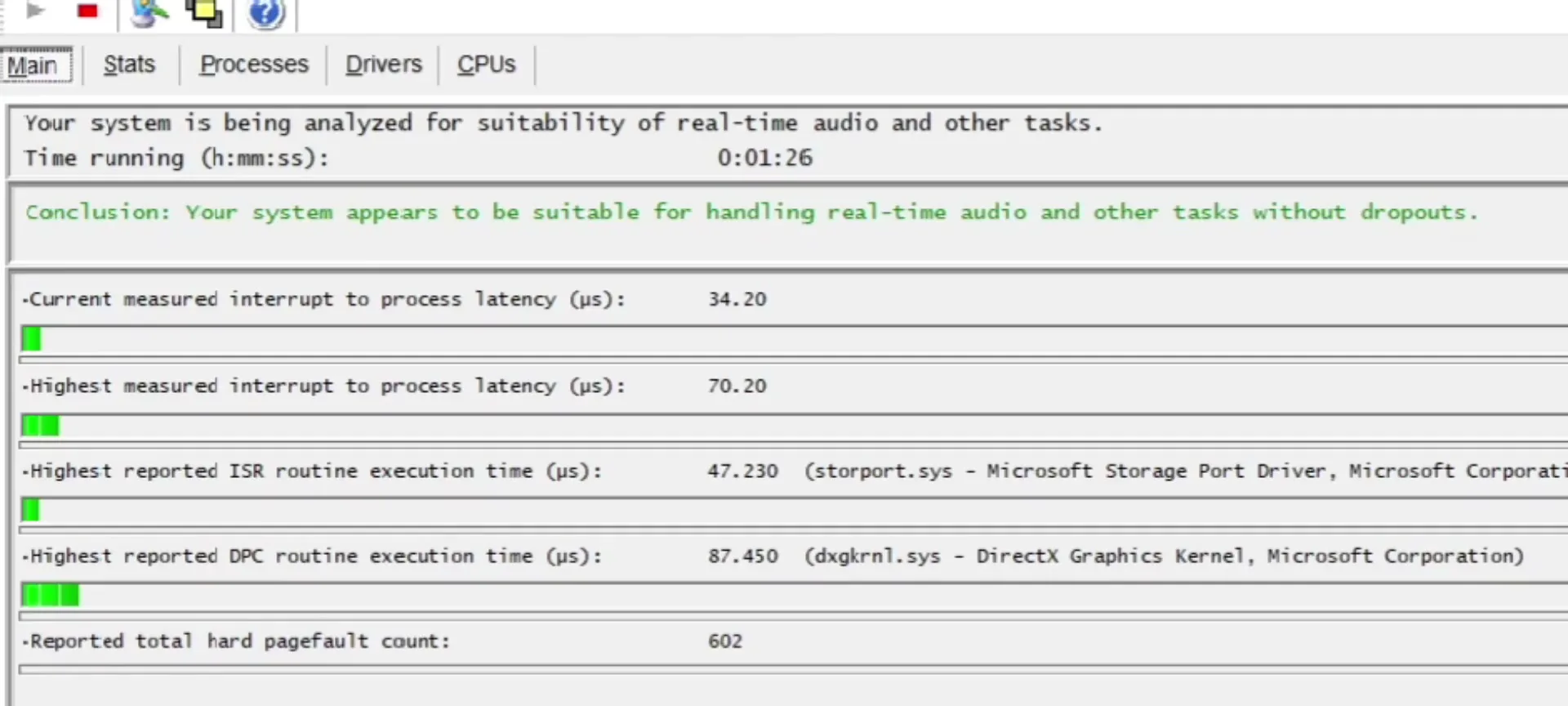
After the paid tweaks, the video's final LatencyMon reading turns green: the conclusion says the system appears suitable for real-time audio and other tasks without dropouts, and the highest latency values are far lower than before. Leon says the input lag is gone on that PC, then goes straight into a Fortnite match.
How to check it worked
- Run LatencyMon for a similar time before and after. The conclusion should move from red toward green and the highest interrupt latency should drop.
- Look at the driver named in the highest DPC and ISR lines. In the video it changes from a storage driver (storport.sys, classpnp.sys) to a graphics driver (dxgkrnl.sys) with a much lower time.
- Play a few minutes of Fortnite and judge by feel: aim and building should respond more directly. A lower number is only useful if the game also feels more responsive.
How to undo it
If something feels worse, use the restore point you created with restore at the start: search for "Create a restore point" in Windows, open System Restore and pick it.
Key settings at a glance
FAQ
How do I lower input lag in Fortnite on PC?
The video's order is: measure with LatencyMon, create a restore point, apply the input tweaks (Remove Input-Delay, 16 Hex, keyboard, mouse), apply the CPU, GPU, Windows, RAM, drive and game tweaks, and test again. For the rest of the chain, see our Fortnite FPS, input delay and ping guide.
What does LatencyMon actually measure?
It measures how long Windows drivers take to handle interrupts and deferred routines. High values with a red conclusion mean a driver is holding up the system, which can show up as stutter or delayed input. It is a check for Windows tweaks, not a full click-to-photon measurement.
Is the free tweaks pack enough?
On the PC in the video the free pack cut the input lag in half, and the paid pack's peripheral tweaks went further. Results vary by PC, so run the same LatencyMon test on yours. Our free PC optimizer guide covers the free route in more detail.
What is the difference between 16 Hex and 32 Hex?
In the pack's own menu, 16 Hex is described as the option for the most FPS with a high foreground boost, and 32 Hex as the option for the best 1% lows with no foreground boost. The video picks 16 Hex. Choose one of them, not both.
Is it safe to run a tweaks pack as administrator?
It needs admin rights because it changes Windows settings. Download it only from the official Discord link, create the restore point first and keep it, so you can roll back. Nothing here is a guarantee for any game's anti-cheat or for every PC.
Does this video show the current RIP Tweaks app?
No. It is from December 2024 and shows the free pack V5.1 and an early paid app. The ideas (measure, back up, input tweaks, system tweaks, measure again) still apply, but the current app has a different layout. See the RIP Tweaks PC optimization guide for how to do this today.
Why does the input lag drop after tweaking the keyboard and mouse?
Those tweaks change how Windows and the device drivers handle the keyboard and mouse, so inputs are processed with less waiting. The video applies them in both packs and then confirms with a second LatencyMon run.
 RIP Tweaks
Do it in a few minutes with RIP Tweaks
- Free plan for Windows 10 and 11
- A backup first, and every tweak can be switched off again
- Made for higher FPS, lower input lag and steadier ping
Free · Windows 10 and 11
