Free FPS Boost Pack for Windows: Restore Point, Ping and Input Delay Tweaks, 16 Hex vs 32 Hex

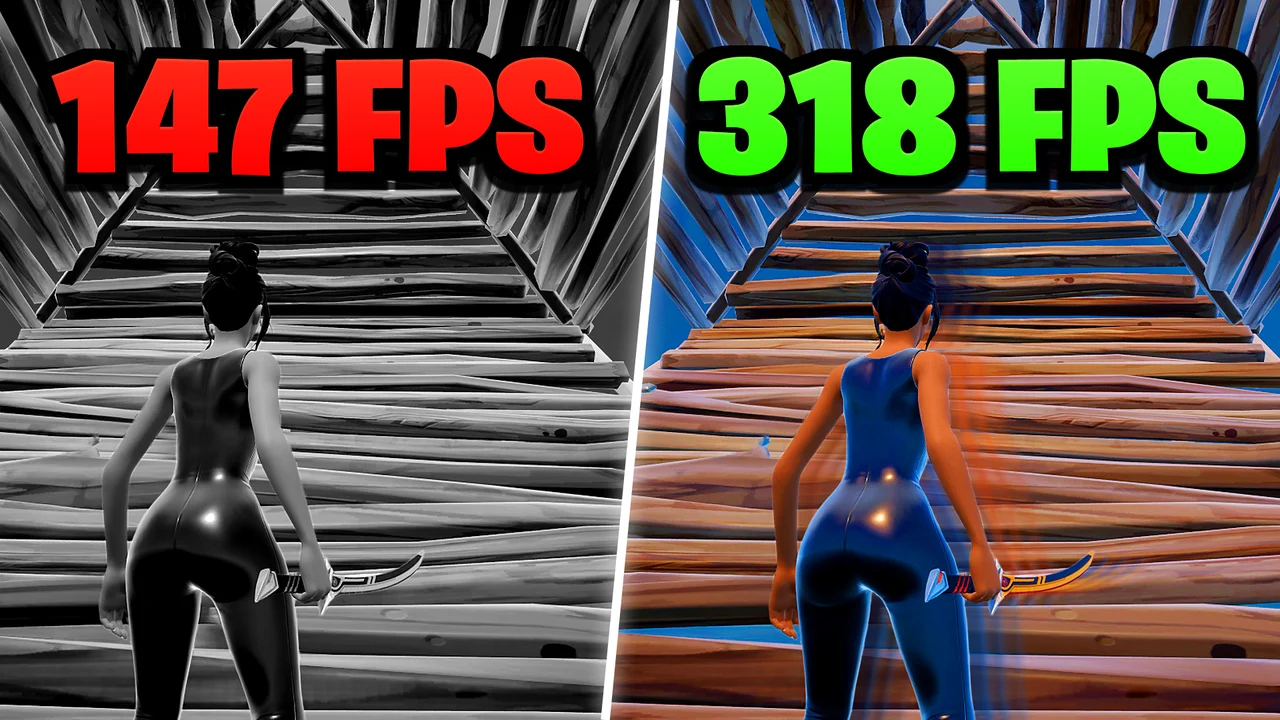
Written version of our video, every step checked against it.
Quick answer
- Download the RIP Tweaks Free Pack from the free-tweaks channel of the RIP Tweaks Discord, unzip it and run it as administrator.
- At the warning screen type
restoreto let the pack make a restore point, and make a second one by hand in Windows as well. - The pack is a text menu: you press the number of an option on your keyboard, you cannot click. The video applies Power, GPU (NVIDIA), Ping, Input and Windows tweaks.
- Under Input Tweaks choose 16 Hex for the most FPS or 32 Hex for the best 1% lows. The video picks 16 Hex.
- To undo everything, use System Restore in Windows and pick the restore point from before the tweaks.
This guide is for anyone who wants more FPS, lower input delay and a lower ping from a free pack on a Windows PC, without paying for anything first. It follows the video click by click and keeps the safe order: backup first, tweaks second, and a clear way back.
Good to know
This is an older video. It shows an early free pack that runs as a text menu in a console window, not the RIP Tweaks app as it looks today. The ideas and the order still apply, but the screens in this article are from that older pack.
The video starts in the RIP Tweaks Discord server (link in the video description). Open the free-tweaks channel, find the RIP FREE V1.0 post and click the RIP Tweaks - Free Pack.zip file. Save it anywhere on your computer.
Discordfree-tweaksRIP Tweaks - Free Pack.zipSave
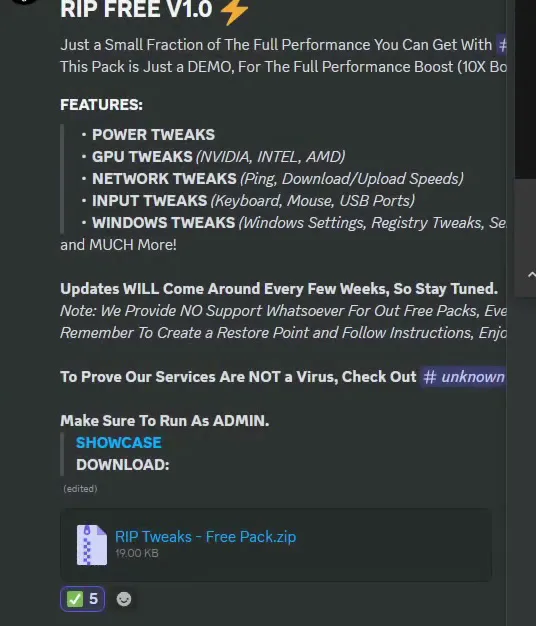
Without WinRAR the zip may not open normally. The video's fix: right-click the file, choose Open with, then Windows Explorer, and drag the pack folder to your desktop. The file it needs is the one inside; the rest of the download is not needed.
Right-click the pack file and choose Run as administrator. Click Yes if Windows asks. Tweaks that change system settings need these rights, so a normal double-click is not enough.
Right-click the packRun as administratorYes
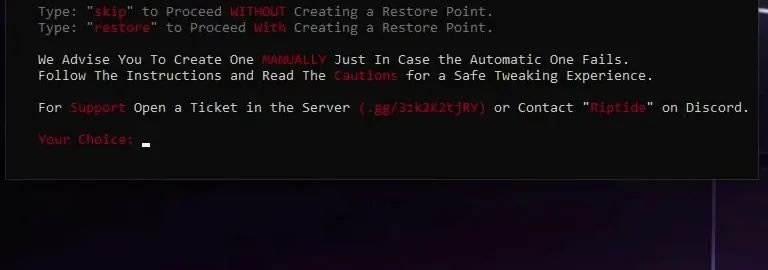
The warning screen offers two words: skip continues without a restore point, restore makes one first. The video recommends restore, then Enter. The pack does the rest.
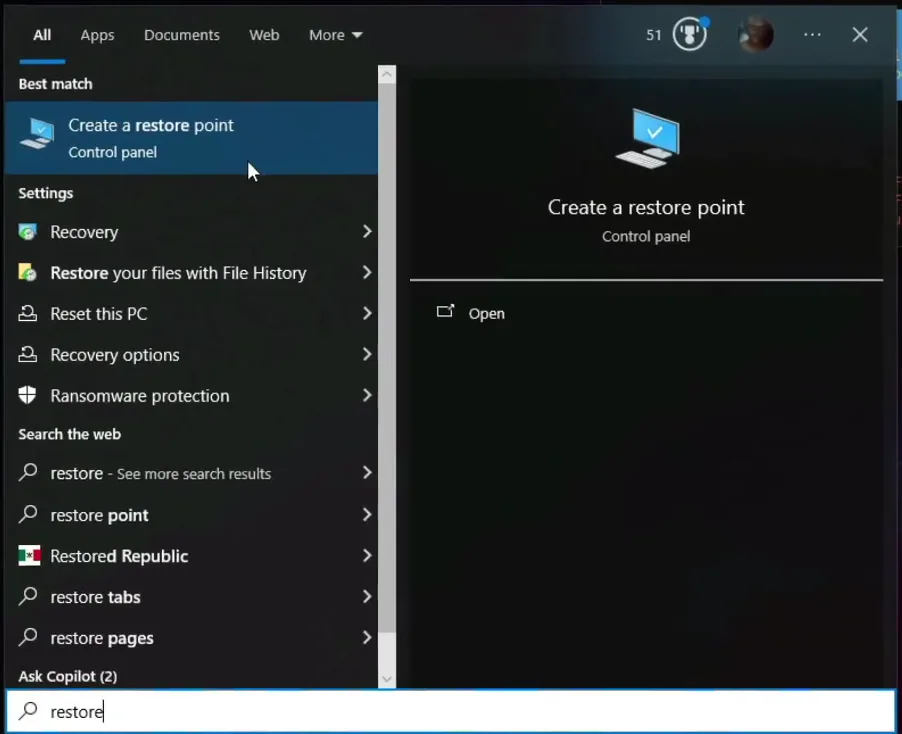
The video also makes a second one by hand in case the automatic one fails. Click the Windows icon, type restore and open Create a restore point. Select the drive marked System (usually C:), click Create, type a name (the video uses backup) and click Create again. It takes a few seconds, then you click Close.
StartCreate a restore pointLocal Disk C (System)CreateName itCreate
Tip
Two restore points cost almost nothing. If the pack's automatic one fails, the manual one still gives you a way back.
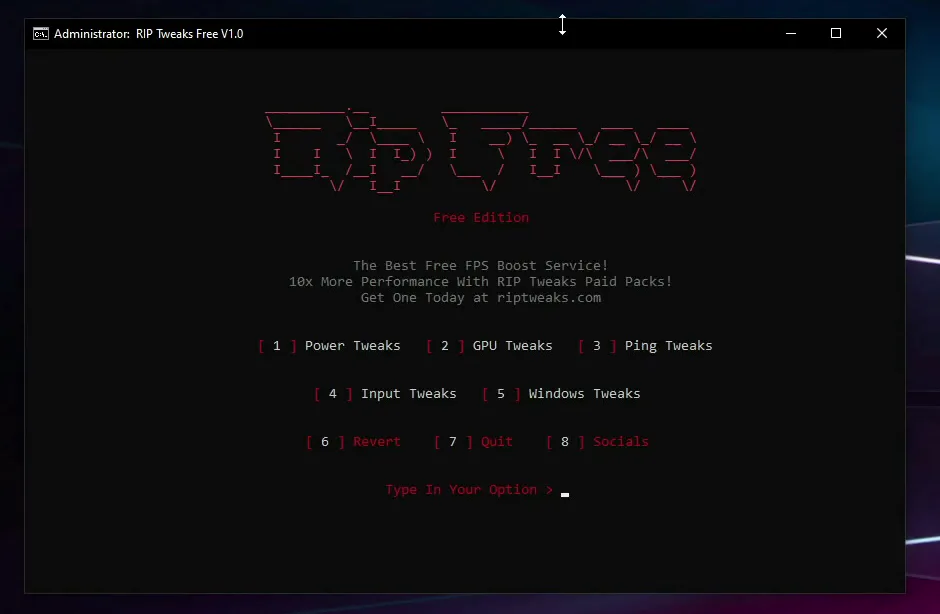
The pack has no buttons to click. Every option has a number in brackets and you press that number on the keyboard. The main menu in the video has 1 Power Tweaks, 2 GPU Tweaks, 3 Ping Tweaks, 4 Input Tweaks, 5 Windows Tweaks, 6 Revert, 7 Quit and 8 Socials.
Press 1 for Power Tweaks and the tweaks apply right away. Every submenu has a Back or Main Menu number at the bottom, so you can always return.
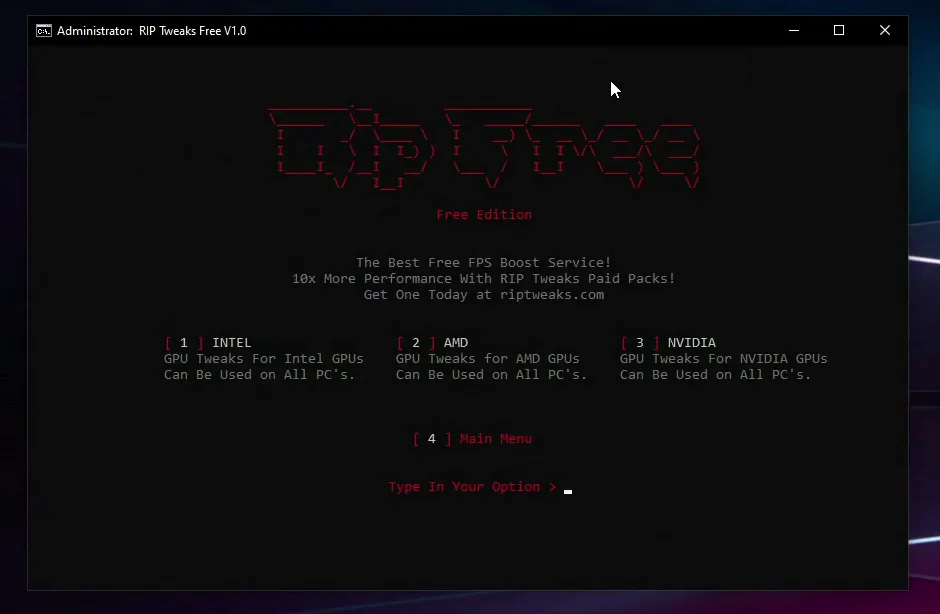
Press 2 for GPU Tweaks. The submenu asks for your graphics card: 1 Intel, 2 AMD or 3 NVIDIA. The video has an NVIDIA card, so it presses 3. Choose the brand of your own card, not the one in the video.
2 GPU Tweaks3 NVIDIA (your own brand)
Careful
Pick the entry that matches the card in your PC. If you are not sure, open Task Manager, then the Performance tab, then GPU, and read the name there before you press a number.
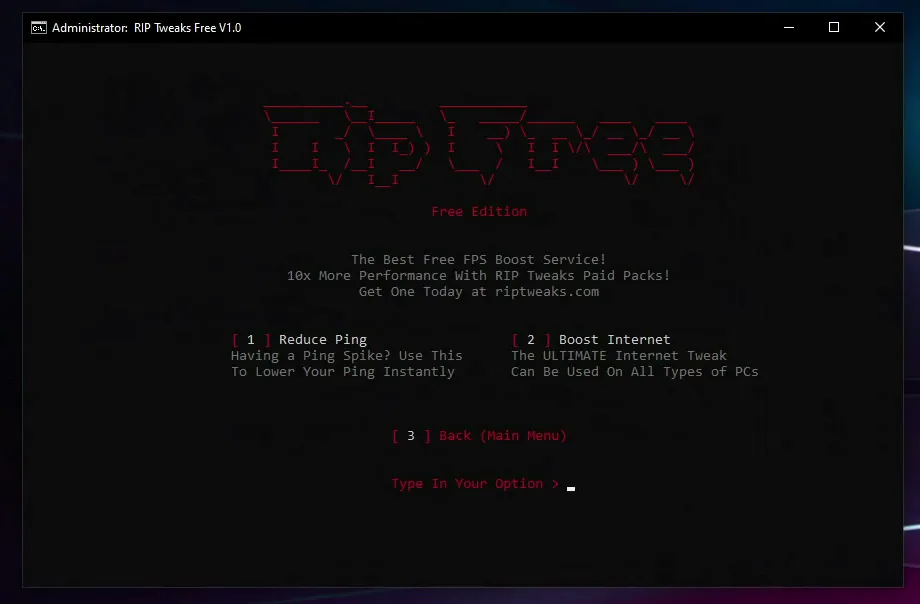
Back in the main menu press 3 for Ping Tweaks. The video presses 1 for Reduce Ping (described as the option for ping spikes) and waits. It takes a while to apply and depends on how fast the PC is, so give it a few minutes. Then it presses 2 for Boost Internet, which also takes a moment. The console font may change a bit while it runs; the tweak is still applying. Press 3 to go back to the main menu.
3 Ping Tweaks1 Reduce Ping2 Boost Internet3 Back
For the cause of lag that these tweaks do not touch, see our guide to fixing bufferbloat.
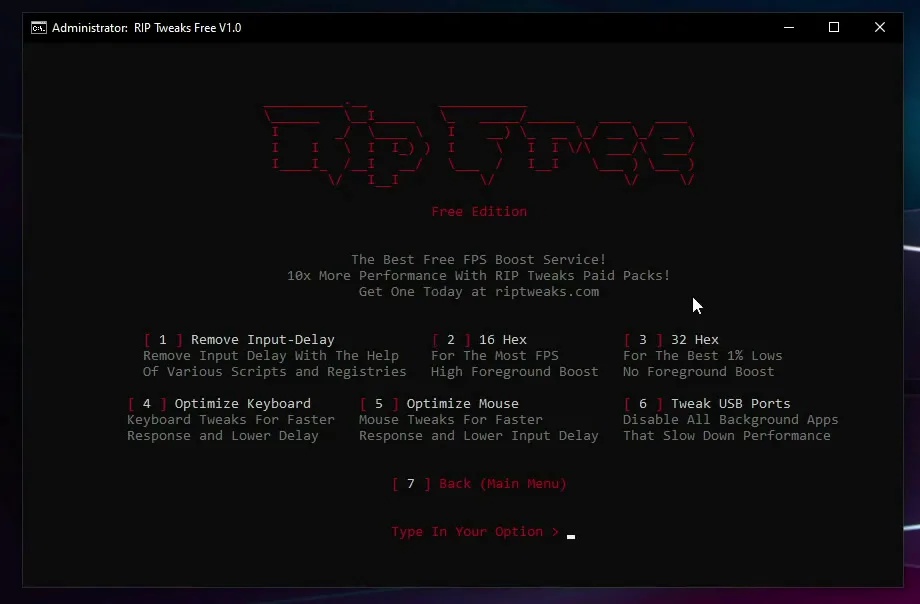
Press 4 for Input Tweaks. The menu has six options: 1 Remove Input-Delay (various scripts and registry changes), 2 16 Hex, 3 32 Hex, 4 Optimize Keyboard, 5 Optimize Mouse and 6 Tweak USB Ports. The video presses 1, then one of the hex options, then 4, 5 and 6 in turn.
The two hex options are the confusing ones. As the video explains them and as the menu words them:
- 16 Hex: for the most FPS, with a high foreground boost.
- 32 Hex: for the best 1% lows, with no foreground boost. Your dips (the lowest FPS) are what it optimizes.
Pick one, not both. The video wants the most FPS, so it presses 2. Some of these tweaks apply instantly: the video notes that something flashes in the bottom-left corner of the screen, which tells you it was applied.
4 Input Tweaks1 Remove Input-Delay2 16 Hex (or 3 32 Hex)4 Optimize Keyboard5 Optimize Mouse6 Tweak USB Ports7 Back
Tip
Not sure which hex option to take? If your complaint is low average FPS, use 16 Hex like the video. If the average is fine but the game stutters or dips, 32 Hex is the one aimed at that.
Press 5 in the main menu. Three options: 1 Disable All Animations (useless animations and transitions off), 2 DirectX Tweaks and 3 Windows Tweaks, the all-around tweak that the menu describes as 1000+ Windows tweaks for a smoother, faster Windows. The video applies all three, one after another. It can take a few minutes, depending on the PC. Wait until each one finishes, then press 4 to go back.
5 Windows Tweaks1 Disable All Animations2 DirectX Tweaks3 Windows Tweaks4 Back
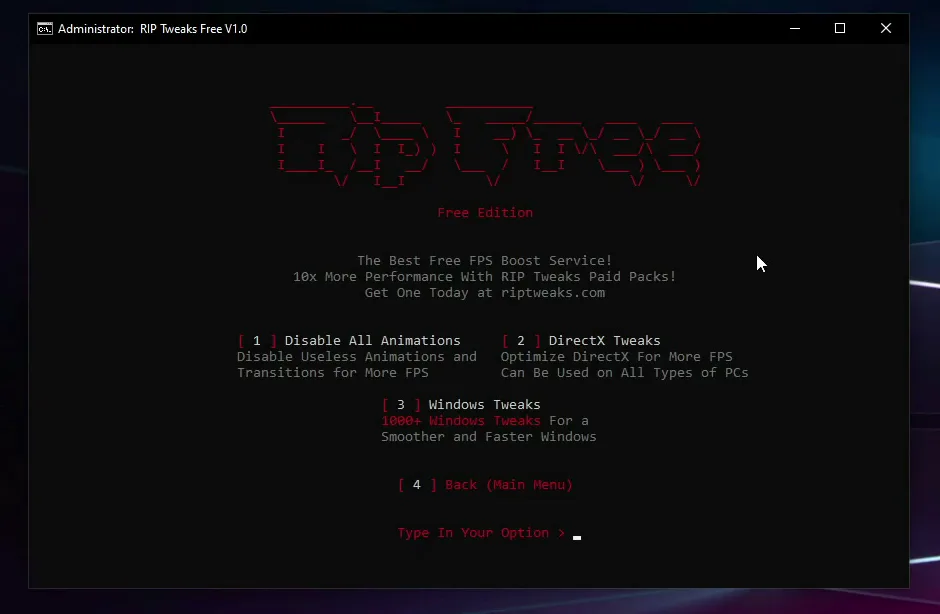
When all of them are done, close the pack with 7 (Quit) from the main menu.
The pack's own 6 Revert option was not available in the video. To undo the tweaks, use Windows itself: click the Windows button, search restore, open Create a restore point, then click System Restore. Choose Choose a different restore point and click Next.
The list shows both of your restore points. The one named RIP Tweaks Restore Point is the automatic one made before tweaking; the one called Backup (type Manual) is the one you named yourself. Select either, click Next and finish the wizard. Windows reverts the changes if you had problems or just want the tweaks gone.
StartCreate a restore pointSystem RestoreChoose a different restore pointNext
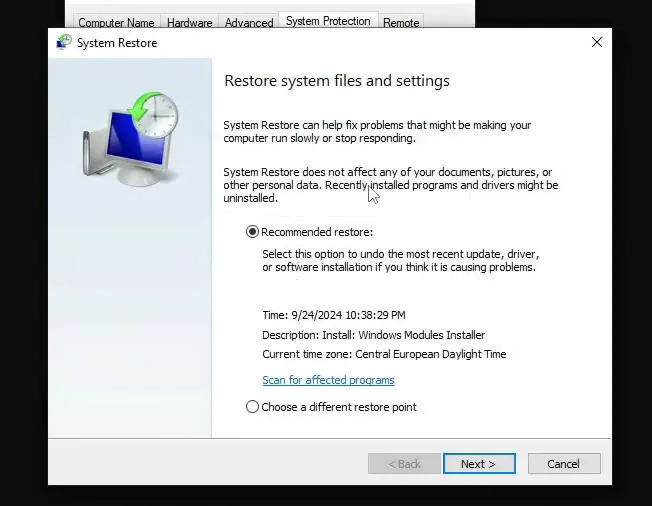
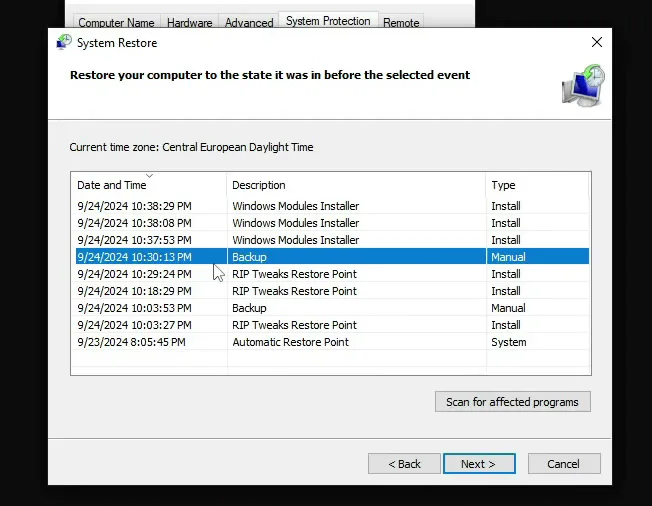
How to undo it
This is the way back for every tweak in this article. Restoring does not touch your documents or pictures, but programs and drivers installed after the restore point may be removed.
How to check it worked
The pack does not show a score, so test it yourself:
- Measure before you tweak: note your FPS in a game you play and your ping in its settings or a network test. Use the same spot or map afterwards.
- Restart Windows after the last tweak, then run the same test. Registry and network changes are not all active until the next start.
- If you picked 16 Hex, watch your average FPS. If you picked 32 Hex, watch the dips and lows instead.
- If something behaves worse, restore the restore point from the step above and apply the tweaks again, one menu at a time, to find the one that caused it.
Key settings at a glance
FAQ
What is the difference between 16 Hex and 32 Hex?
As the video and the menu describe them, 16 Hex is for the most FPS with a high foreground boost, and 32 Hex is for the best 1% lows with no foreground boost. Pick one: 16 Hex for a higher average, 32 Hex if your dips are the problem.
Is the free FPS boost pack really free?
Yes, the download in the video is free from the RIP Tweaks Discord. The description calls it a demo and a showcase of a small part of what the paid packs do, so do not expect it to cover everything. Typically gains depend on your PC and the game.
Why can't I click the options in the pack?
It is a console menu. You press the number of an option on your keyboard and the tweak is applied. That is how it works in the video for every option and submenu.
Is it safe? Should I make a restore point?
Make one, yes. The video recommends two: the automatic one (type restore at the warning) and a manual one in Windows. If anything goes wrong, System Restore puts your PC back to that point.
How long do the tweaks take?
Some apply instantly. The ping and Windows tweaks can take a few minutes, longer on a slower PC. The video says to wait and not close the window.
How do I revert the tweaks?
Use System Restore in Windows and choose the RIP Tweaks Restore Point or your manual Backup, as shown in the last step. The pack's Revert entry (number 6) was not available in the video.
Does this work for Fortnite and other games?
The tweaks are system-wide: power, GPU, network, input and Windows settings, so they apply to any game. For a game-specific walkthrough with a similar free pack, see our Fortnite free FPS boost pack guide, and for the restore point habit and more Windows settings, the Windows FPS tweaks guide.
 RIP Tweaks
Do it in a few minutes with RIP Tweaks
- Free plan for Windows 10 and 11
- A backup first, and every tweak can be switched off again
- Made for higher FPS, lower input lag and steadier ping
Free · Windows 10 and 11
