Free Fortnite FPS Boost Pack: Every Menu and Option Explained

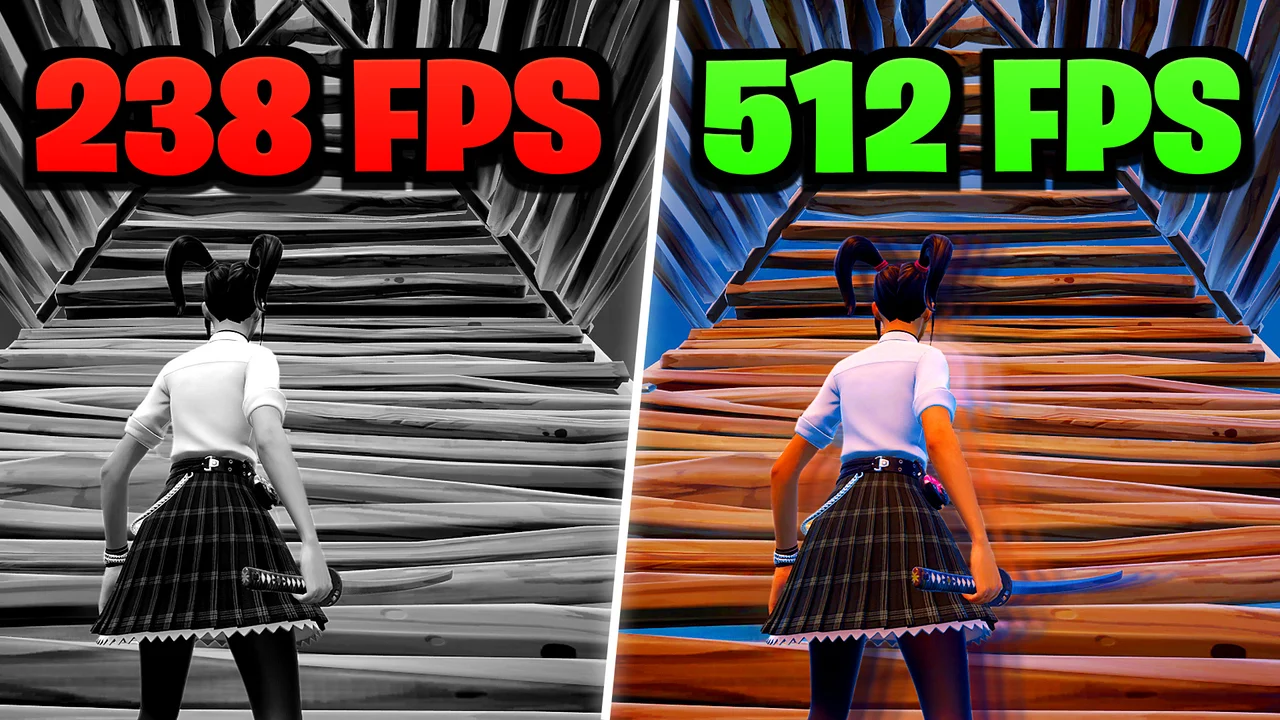
Written version of our video, every step checked against it.
Quick answer
- Download the RIP Tweaks Free Pack from the free-tweaks channel on our Discord, extract it and run the batch file as administrator.
- Type
restoreat the first prompt to create a restore point. It is the only way to undo what the pack changes. - Work through the main menu by typing its numbers: Power, GPU, Ping, Input, Windows, Debloat, RAM and Games.
- For RAM, check your amount in Task Manager first and pick the matching option (32 GB in the video).
- Finish in Games with option 1, Fortnite. Typically this lowers input delay and can raise FPS, depending on your PC.
This is a written walkthrough of an older video that uses the free RIP Tweaks pack as a simple text menu. It is for anyone who wants a free Fortnite FPS and input delay boost on Windows without hunting for settings one by one. The video shows an earlier version (V4.1), so this page explains what each menu does and the order to use it, not how the app looks today.
Open your browser, go to discord.gg/riptweaks and join the server. Open the free-tweaks channel and download the zip file in the pinned post, called RIP Tweaks Free Pack V4 in the video.
Discordfree-tweaksRIP Tweaks Free Pack V4.zipDownload
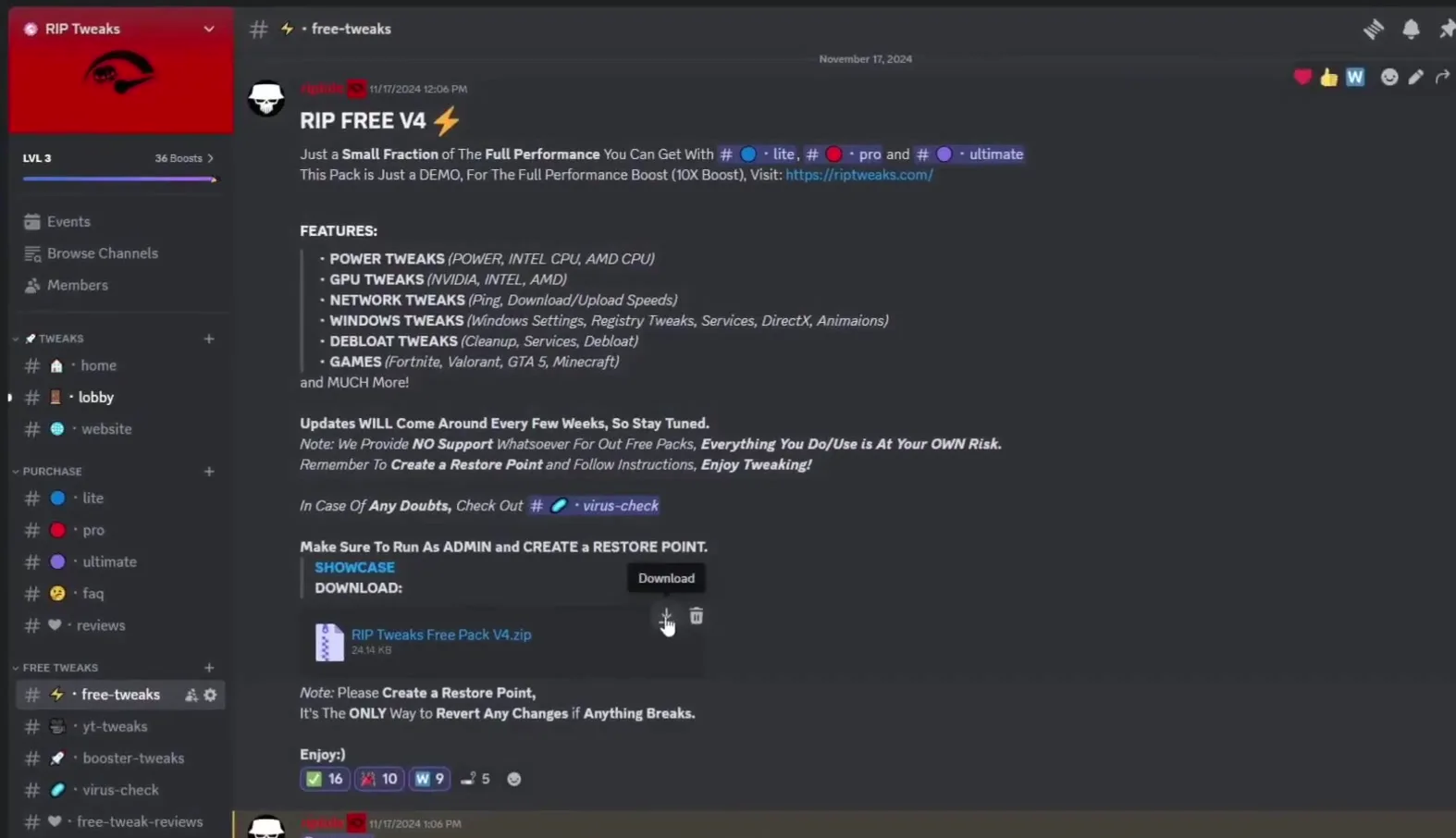
The post lists what is inside: power tweaks for Intel and AMD CPUs, GPU tweaks for NVIDIA, Intel and AMD, network tweaks, Windows tweaks, a cleanup and debloat section, and a games section with Fortnite, VALORANT, GTA 5 and Minecraft. It also says there is no support for the free pack and to create a restore point first.
Good to know
Download the pack only from the official RIP Tweaks Discord server, never from a re-upload on another site. The post is also the place to check for newer versions, because the one in the video is from 2024.
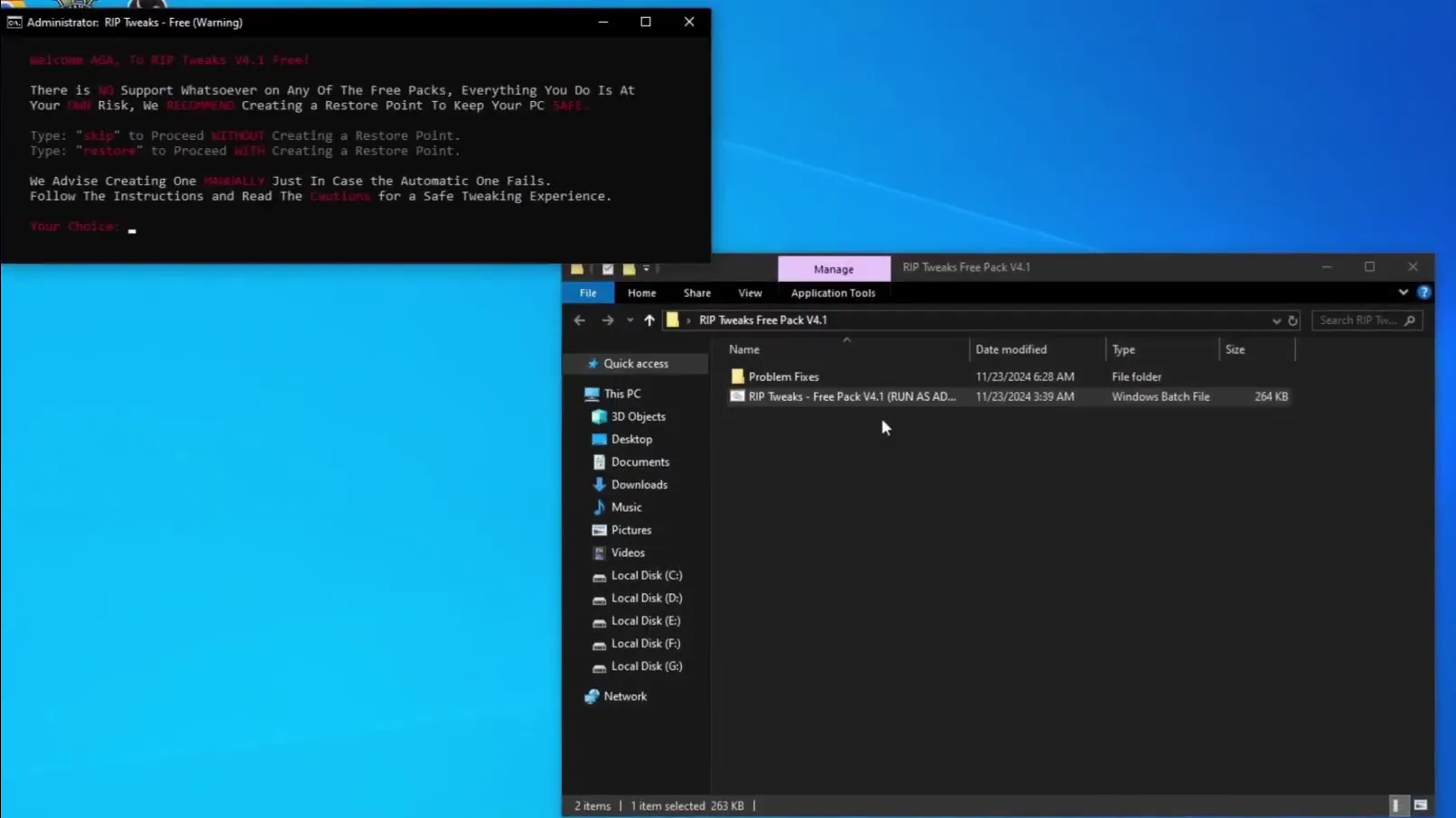
Drag the downloaded file to your desktop, right-click it and open it with Windows Explorer, then drag the folder out of the zip. Inside are a Problem Fixes folder and the batch file RIP Tweaks - Free Pack V4.1 (RUN AS ADMIN). Right-click that file and choose Run as administrator.
Right-click the zipOpen with Windows ExplorerRight-click the batch fileRun as administrator
Careful
The pack needs administrator rights to change Windows settings. Without them the options cannot be applied, so close the window and start the file again with Run as administrator.
The first screen says everything you do with the free pack is at your own risk and recommends a restore point. Type restore and press Enter to create one, then wait a few seconds. Typing skip would continue without one, and the video advises against that: a restore point is the only way to revert the changes made in the video.
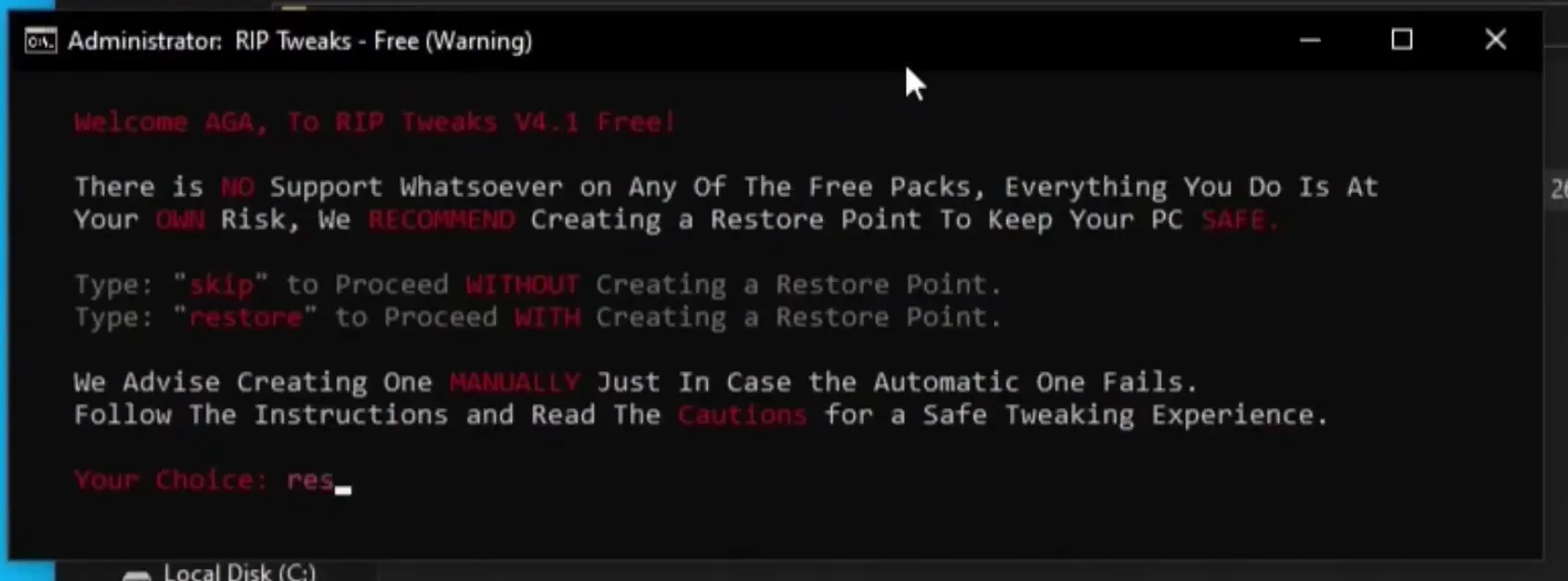
The window itself says to also create a restore point manually in case the automatic one fails, so open the Windows System Protection settings and check that a new point is listed before you continue.
After the restore point the home page of the pack opens: a numbered list. The rule from the video is simple: to open an option, type its number and press Enter. Every sub menu has a Back (Main Menu) entry, always the last number in that menu.
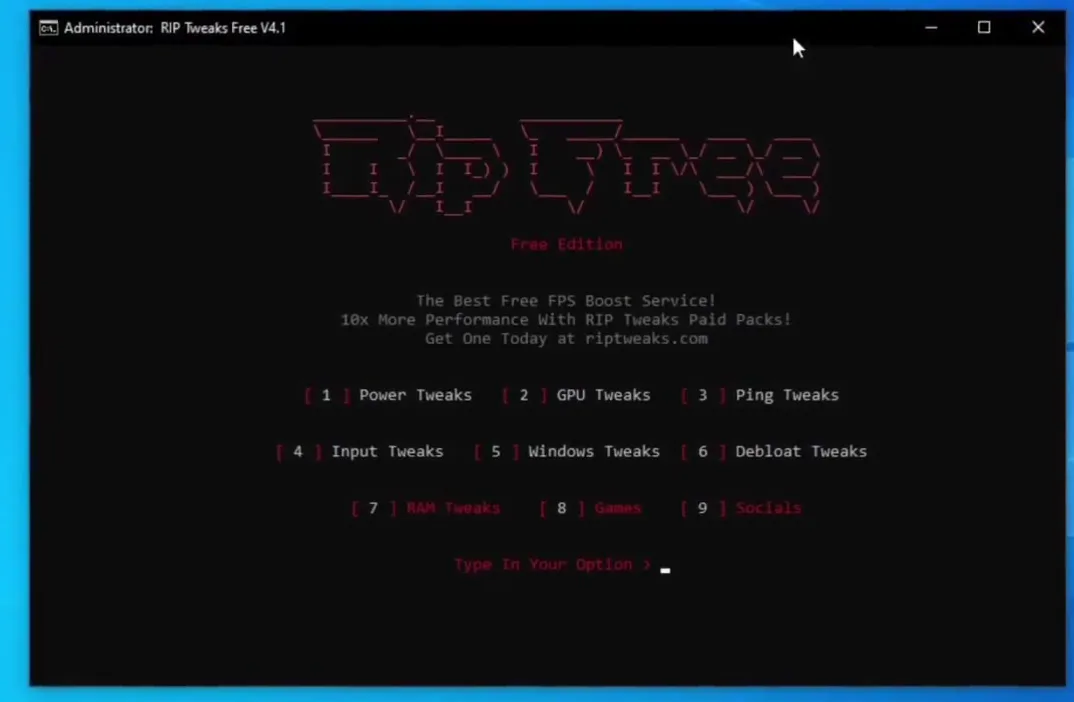
The rest of the video goes through these menus from the top, and so does this page.
Option 1 opens the power menu: Power Tweaks for general power settings, AMD CPU and Intel CPU. Pick the one that matches your processor, and Back is number 4. Then open option 2, GPU Tweaks, and select your graphics card. The video has an NVIDIA card and presses 3.
1 Power Tweaks3 Intel CPU4 Back2 GPU Tweaks3 NVIDIA
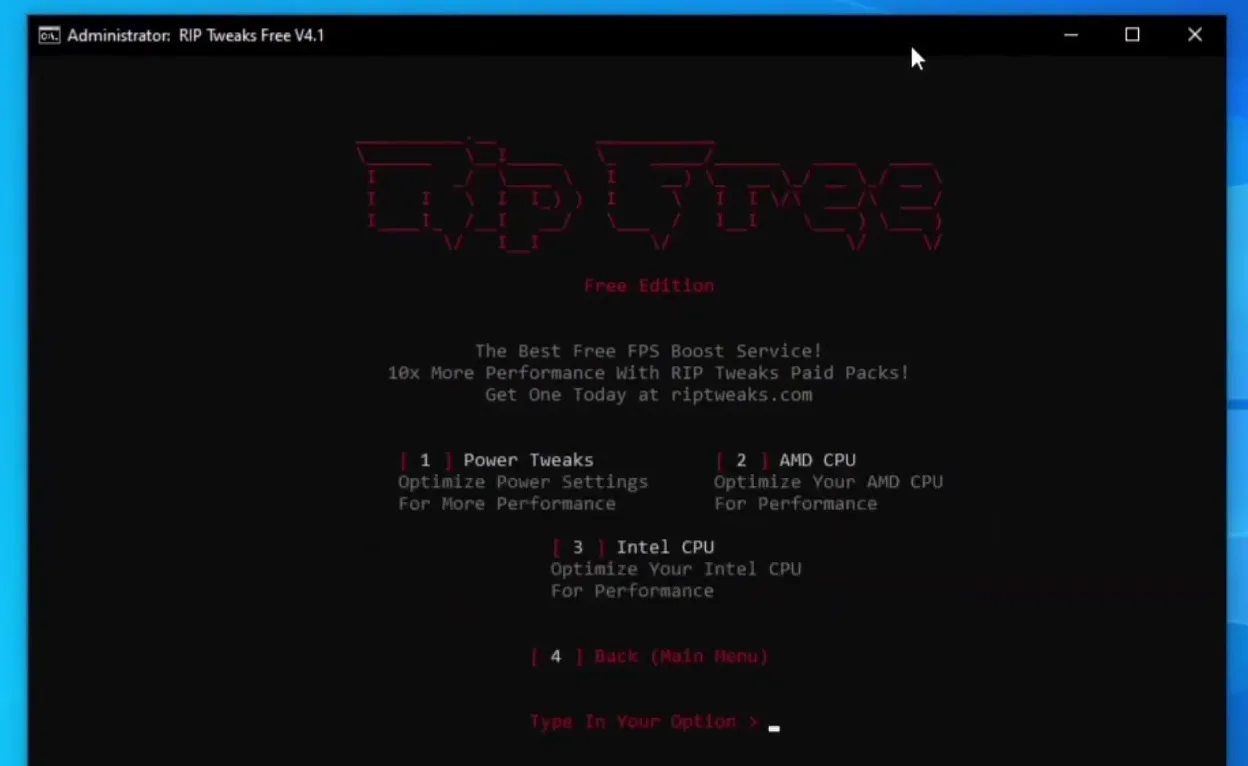
Do not copy the numbers blindly: 3 is the NVIDIA option in the video's GPU menu, but your PC may need a different one, so read the option text first.
Back in the main menu, open Ping Tweaks (3). It has two options: Reduce Ping, described as a fix for a ping spike, and Boost Internet, a network tweak the menu says can be used on all types of PCs. The video runs both, 1 first and 2 after it, then goes back with 3.
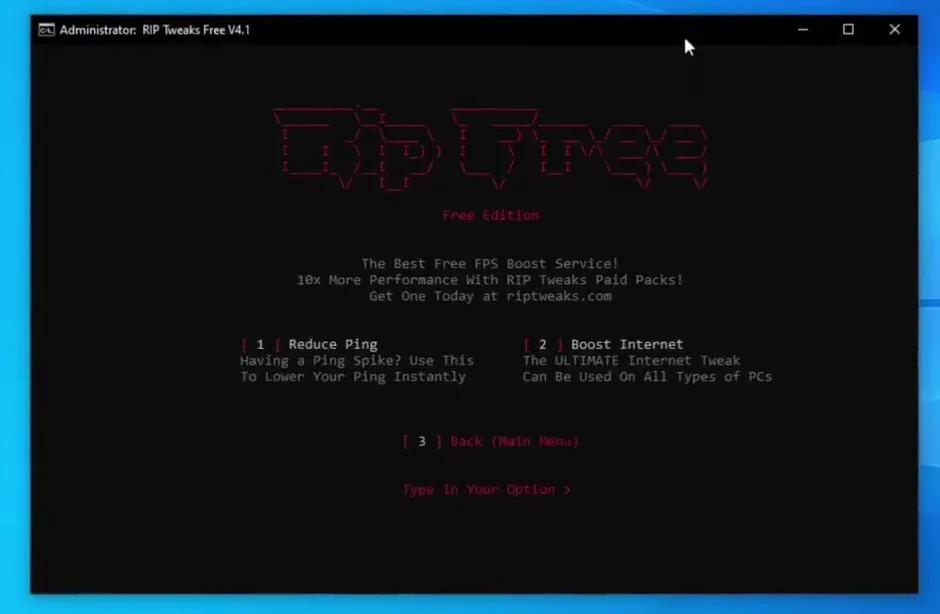
These affect your connection settings in Windows. They do not change the route to Fortnite's servers, so a Wi-Fi or ISP problem needs a different fix, such as the one in our Ethernet vs Wi-Fi extender ping guide.
Open Input Tweaks (4) and run the input delay option, as the video does. The menu in the video lists Remove Input-Delay, two options for the foreground boost called 16 Hex and 32 Hex, Optimize Keyboard and Optimize Mouse.
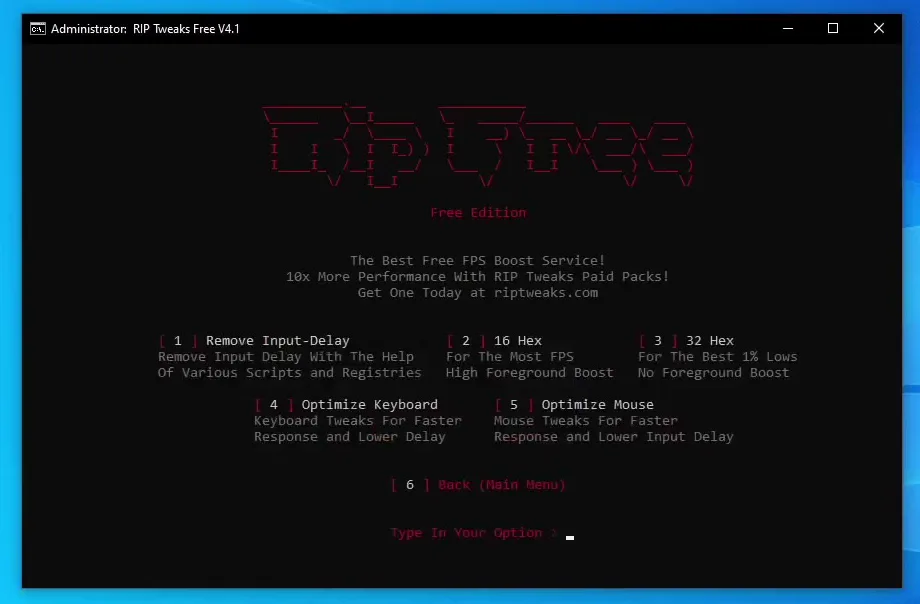
The menu's own descriptions say 16 Hex is for the most FPS with a high foreground boost, and 32 Hex is for the best 1% lows with no foreground boost. Pick one of them, not both, and test it in a match.
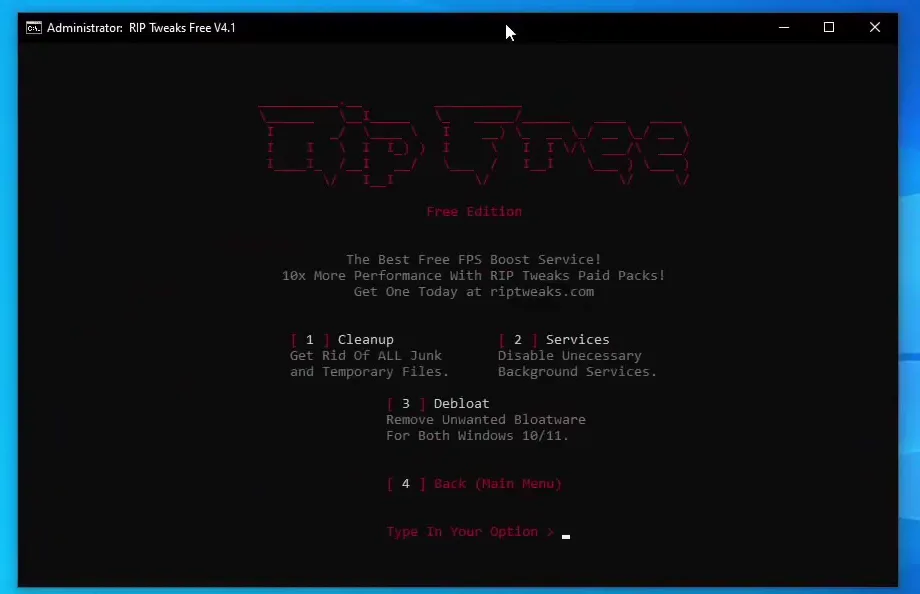
Next come Windows Tweaks (5). In the video this is where animations are turned off and DirectX and other Windows settings are tweaked. Then open Debloat Tweaks (6), which the video describes as removing the apps that run in the background and slow your PC down.
Careful
Debloat removes preinstalled Windows apps. If you use one of them, such as the Xbox app, check what the option removes before you run it, and keep your restore point.
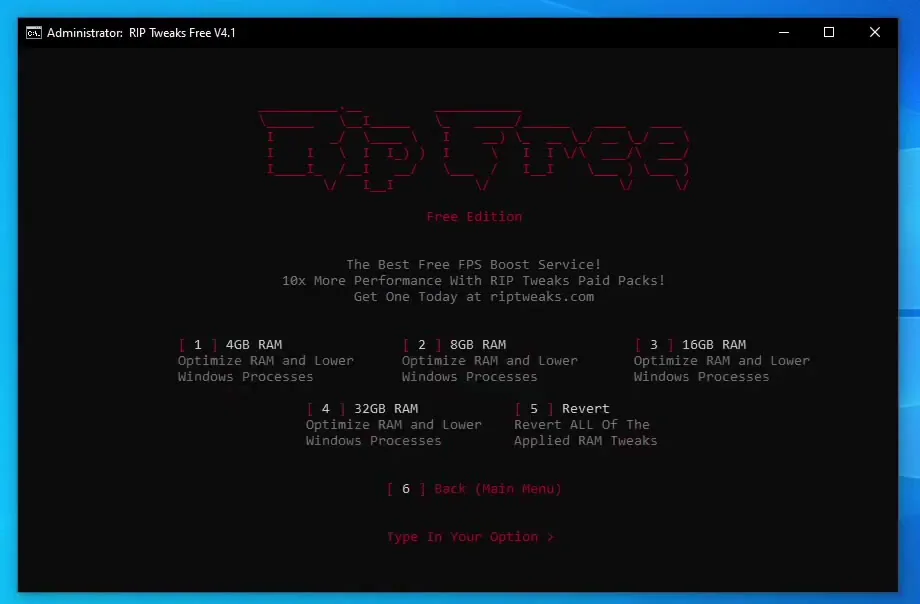
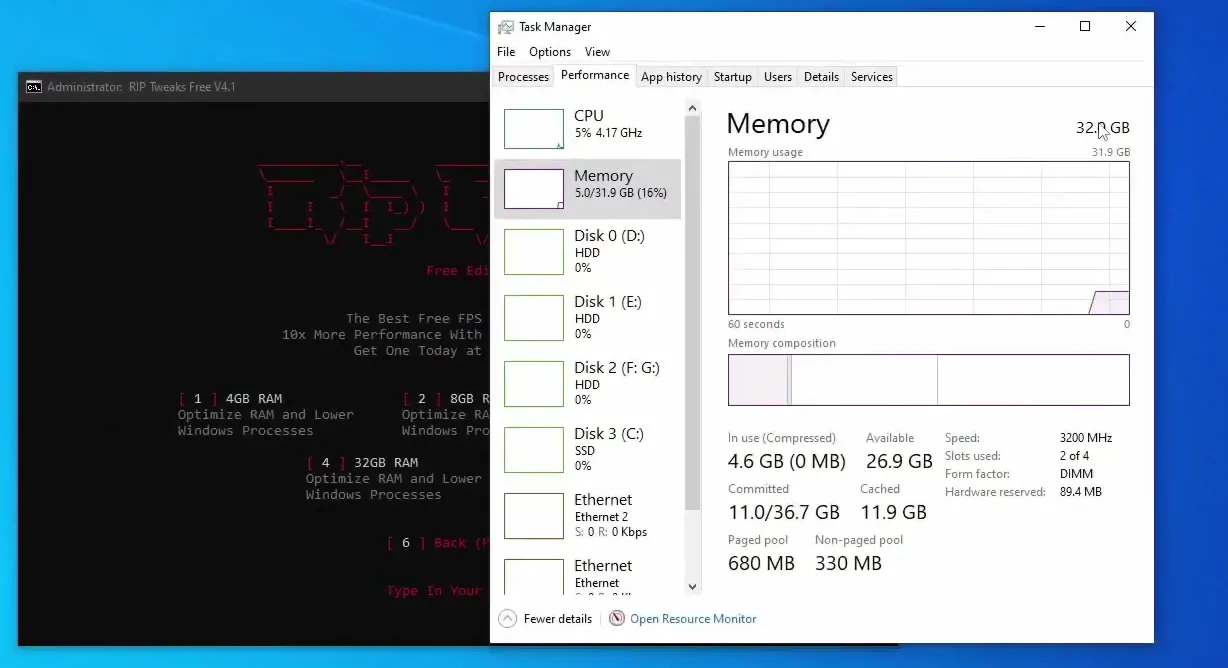
Open RAM Tweaks (7). The menu has one option per memory size: 4 GB, 8 GB, 16 GB and 32 GB, plus Revert to undo all applied RAM tweaks. To find your size, right-click the taskbar, open Task Manager, go to Performance and click Memory.
Right-click the taskbarTask ManagerPerformanceMemory
How to undo it
If the PC feels worse after the RAM step, open the RAM menu again and choose Revert (5 in the video's menu). It reverts all RAM tweaks applied by the pack.
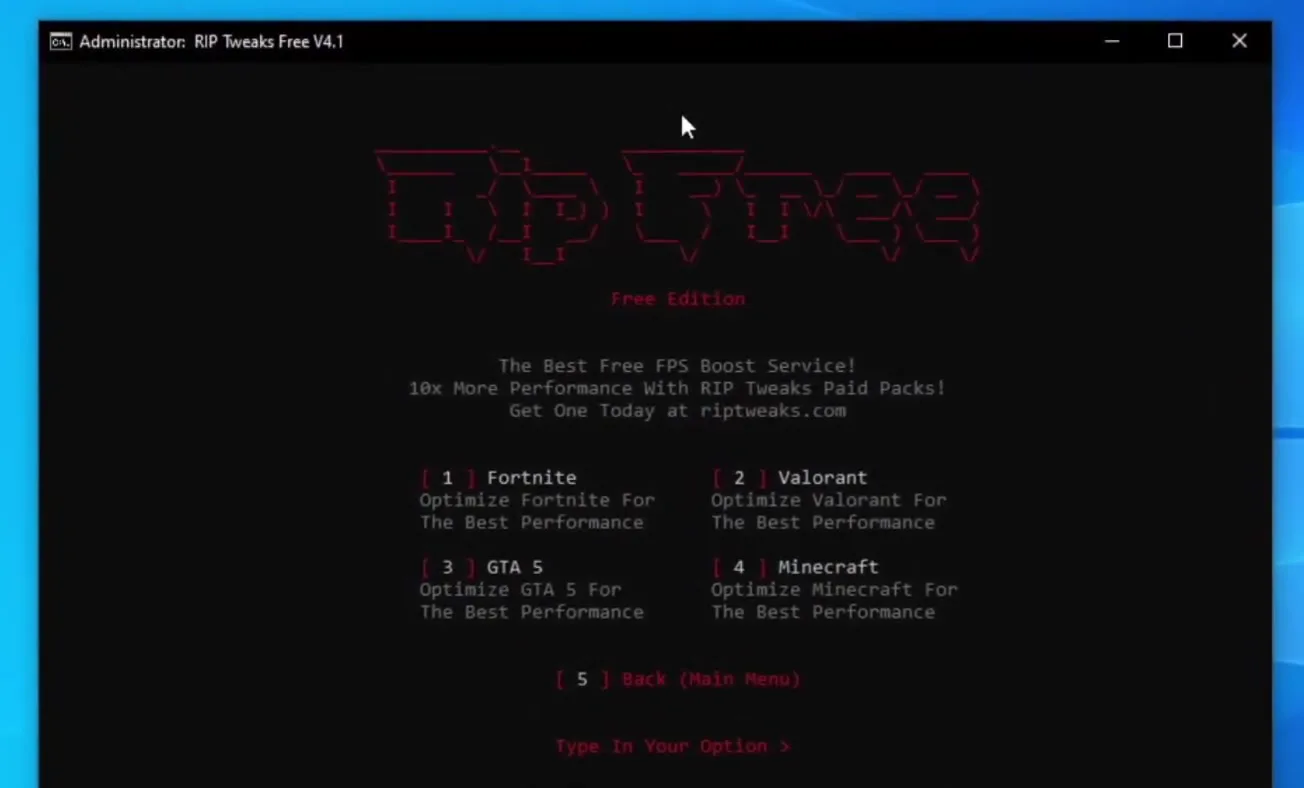
The last stop is Games (8). It has four games: Fortnite, Valorant, GTA 5 and Minecraft. The video picks Fortnite with option 1 and that is the end of the setup. Restart Windows once afterwards so every change is loaded.
For more settings inside the game itself, see our free PC optimizer for Fortnite FPS page and the Fortnite FPS, input delay and ping guide.
How to check it worked
The video ends right after the Fortnite option, so check yourself and compare before and after on the same map:
- Turn on Fortnite's FPS counter before you apply the pack and note your FPS and how the game feels in the same spot. Do it again afterwards.
- Restart Windows first. Some of the registry and service changes only apply after a restart.
- Open the Windows System Protection settings and confirm the restore point from the first step exists, so you have a way back.
- Typically the biggest gain is on older or heavily loaded PCs. A strong, clean PC may show little change, and that is normal.
If Windows behaves oddly after the pack, stop applying more options and roll back with the restore point you made in the first step.
Key settings at a glance
FAQ
Is the free Fortnite FPS boost pack really free?
Yes. In the video it is a free zip in the free-tweaks channel of the RIP Tweaks Discord. The pack itself says it has no support, so everything you run is at your own risk and a restore point is recommended.
How much FPS will I get?
It depends on your PC. Typically a pack like this helps most on older or heavily loaded systems and adds little on a clean, fast one. The result in the video is the creator's own result on his PC, so measure before and after on yours.
Do I have to create a restore point?
The video says to, and the pack asks for it first. Type restore at the first prompt. It is the only way shown in the video to go back after the tweaks.
Why run it as administrator?
The tweaks change power plans, services and other Windows settings, and Windows only allows that for an administrator. Right-click the batch file and choose Run as administrator.
Which RAM option should I pick?
The one that matches your installed memory. Check it in Task Manager under Performance, then Memory. The video has 32 GB and picks option 4, the 32GB entry.
Which GPU option should I pick?
The one for your graphics card brand. The video has an NVIDIA card and presses 3 in its GPU menu. Read the names in your own menu before you type a number.
Does this work for games other than Fortnite?
The Games menu in the video also lists Valorant, GTA 5 and Minecraft. The power, ping, input, Windows, debloat and RAM tweaks apply to the whole PC, so they are not tied to one game.
This is the V4.1 pack. Is it still how RIP Tweaks looks?
No. The video shows an earlier version, a text menu in a console window. The ideas still apply, but check the RIP Tweaks Discord or the free optimizer page for the current version before you download anything.
 RIP Tweaks
Do it in a few minutes with RIP Tweaks
- Free plan for Windows 10 and 11
- A backup first, and every tweak can be switched off again
- Made for higher FPS, lower input lag and steadier ping
Free · Windows 10 and 11
