
Game Character Voice Changer for PC: Be Ice King, a CT or Yoda Live (EaseUS VoiceWave)

Written version of our video, every step checked against it.
Quick answer
- Download EaseUS VoiceWave with the free download button on its official site and install it.
- Pick a voice on the home page: the Game row has Ice King, CS Counter-Terrorists and CS Terrorists, the AI row has Yoda, Trump and more.
- Put a key on any voice or soundboard sound with Add keybind, for example Alt+1 to jump back to Original.
- In Discord or in Windows, set the input device to VoiceWave Microphone.
- Keep VoiceWave open while you play: the changed voice goes to every app that uses that microphone.
This guide is for anyone who wants to talk as a game character, a celebrity or a robot in Discord, Fortnite, Minecraft or any other game on a Windows PC, for free and live. It follows our video from the download to the Windows microphone setting: pitch, keybinds, the AI and Game voices, the soundboard, changing the voice of a finished audio file, building your own voice and the two places that send the voice into your games.
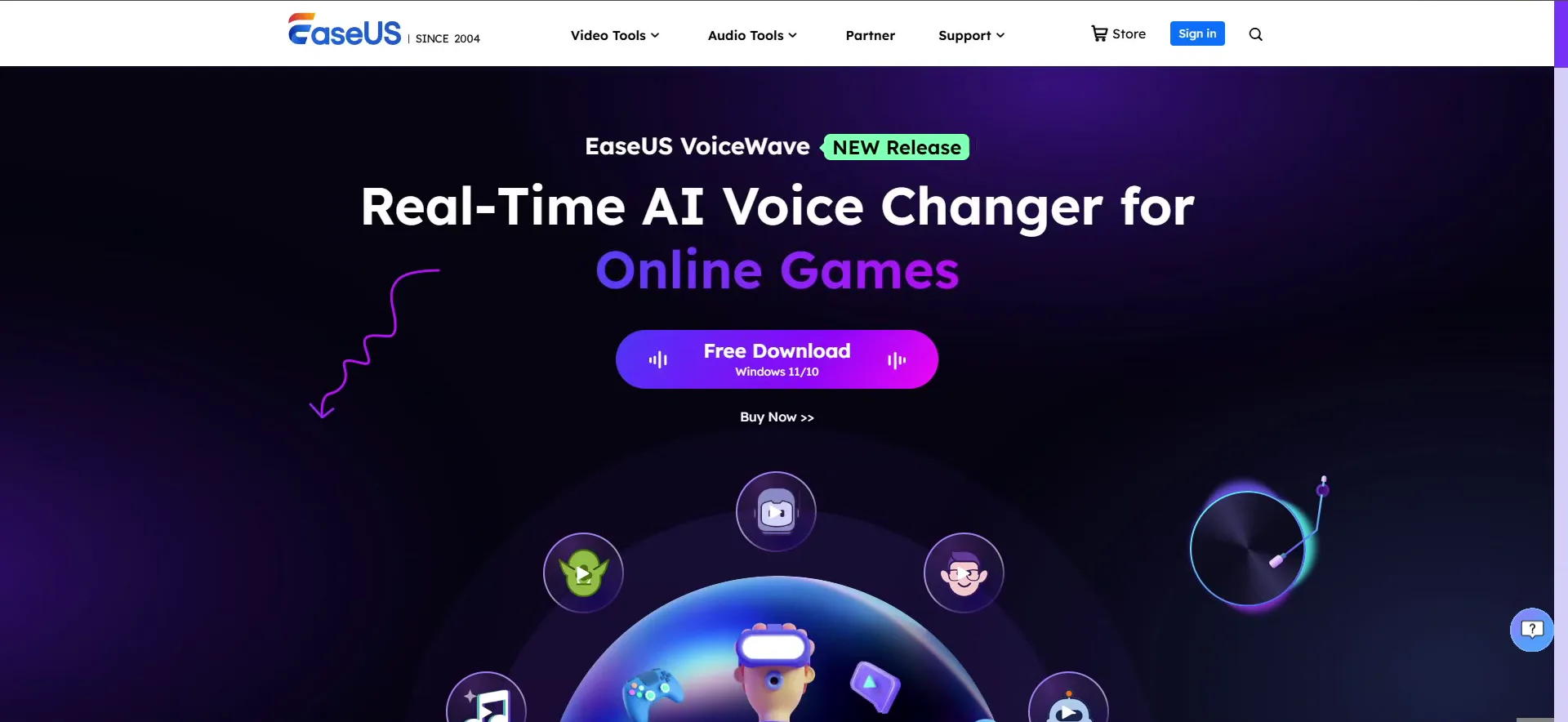
Use the first link in the video description or search for the EaseUS voice changer in Google. The product page lists what the app does: a soundboard, an audio recorder, a noise reducer, an audio mixer and a lot of popular voice effects. Click the Free Download button (the label under it says Windows 11/10), drag the installer to your desktop, run it, click Install and wait until the install finishes.
Good to know
Download the installer only from the official EaseUS page that the description link opens, not from mirror sites. Windows only: the page offers the app for Windows 11 and 10.
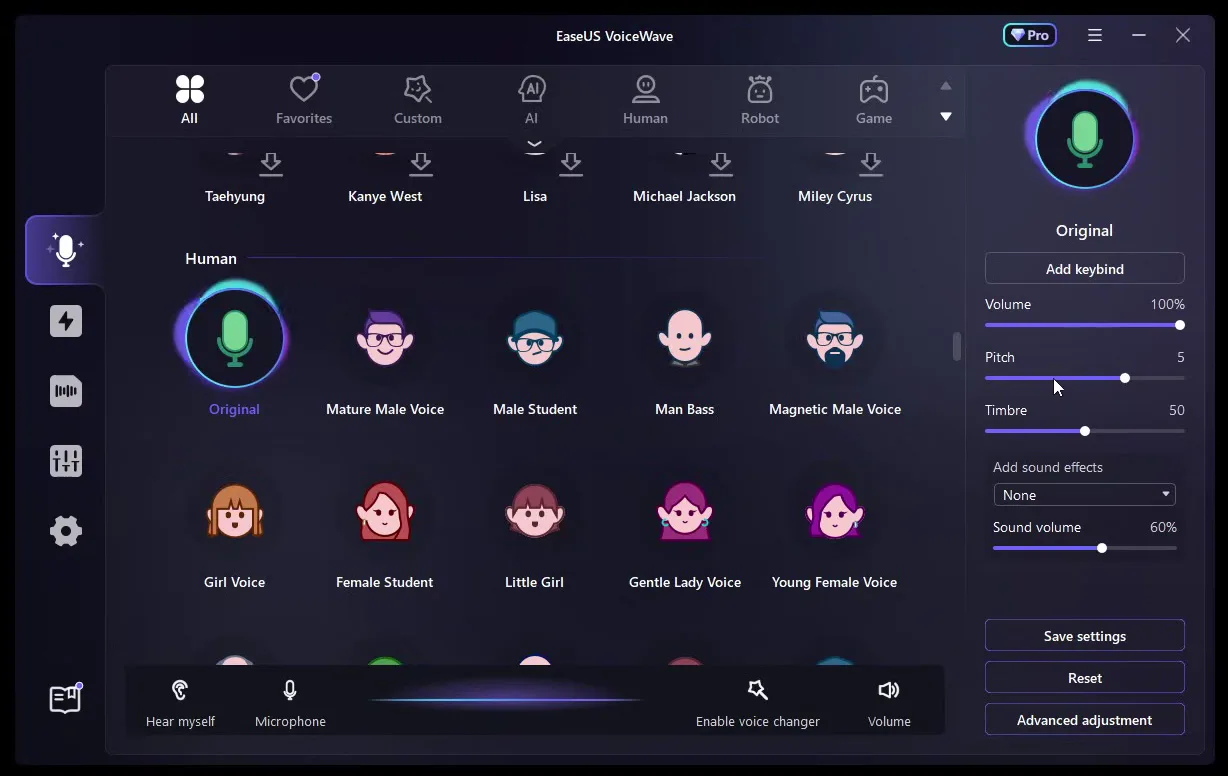
After the install the app opens on its home page. The voices sit in groups (All, Favorites, Custom, AI, Human, Robot, Game) and the selected voice has its own panel on the right with Volume, Pitch, Timbre and Add sound effects. In the video the pitch slider goes up to 5 and the voice turns squeaky. Click Reset under the panel to put the adjustments back.
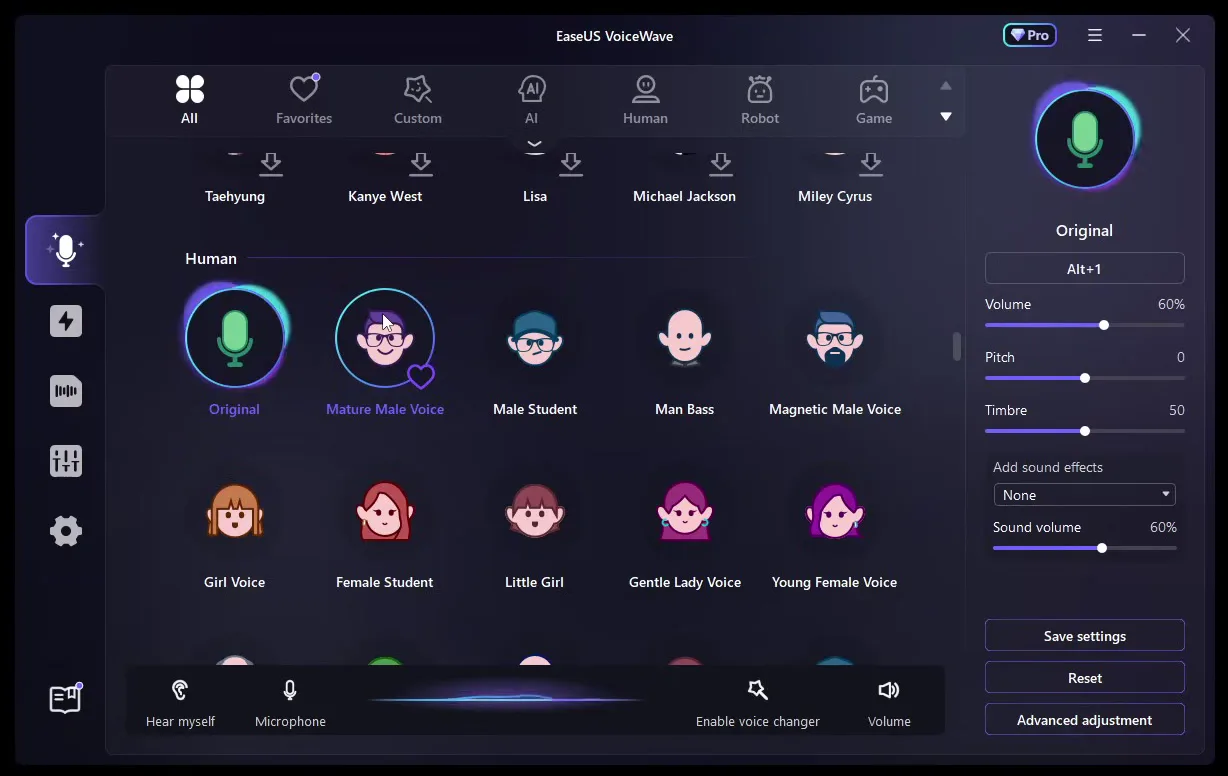
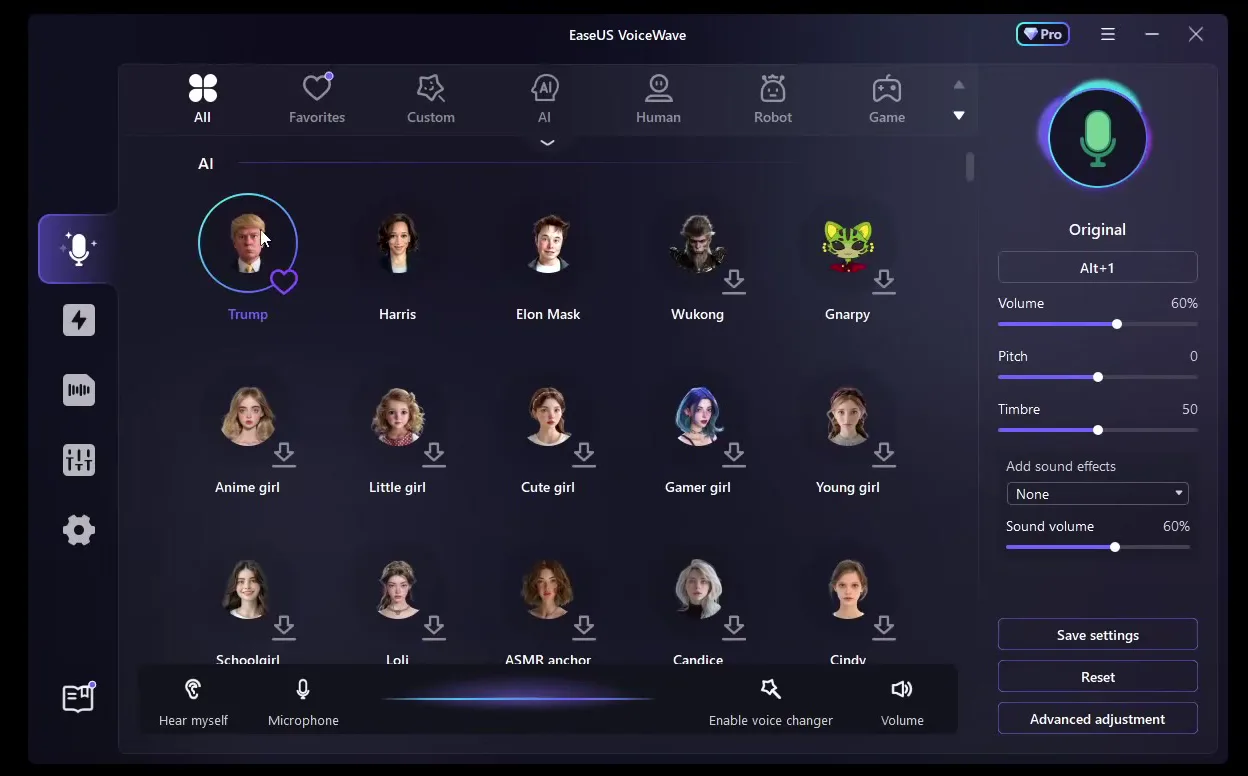
If you want to switch a voice with one key, select it and click Add keybind. The video uses Alt+1 on the Original voice: whenever a funny voice is on, pressing the combination gives you your normal voice back instantly.
Select a voiceAdd keybindPress your keys
The video calls the AI section the most legendary part of the app. It is a grid of celebrity and character faces: Trump, Harris, Elon Musk, Wukong, Gnarpy and more below. A download arrow on a voice means it still has to download once. Click the voice, wait a moment, then talk: you hear the celebrity voice live. The video tries Trump, Harris and later Yoda from the same list.
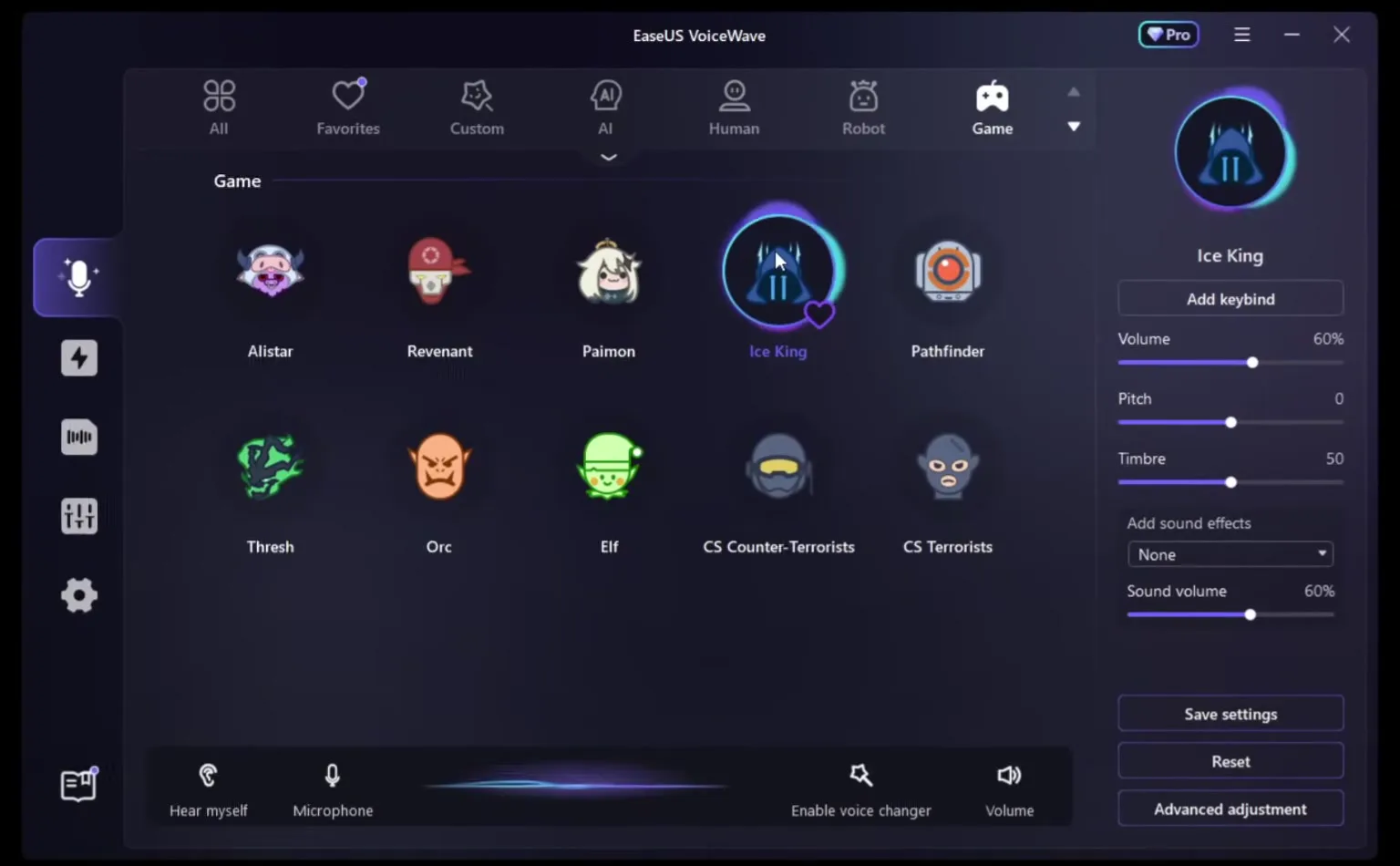
This is the part that gives the video its name. Open the Game tab at the top of the voice list. It holds game character voices such as Alistar, Revenant, Paimon, Ice King (the one the video picks, from Fortnite), Pathfinder, Thresh, Orc, Elf, CS Counter-Terrorists and CS Terrorists. In the video you can be a counter-terrorist, a terrorist or Ice King just by clicking, and there are plenty of other characters like Yoda in the AI section.
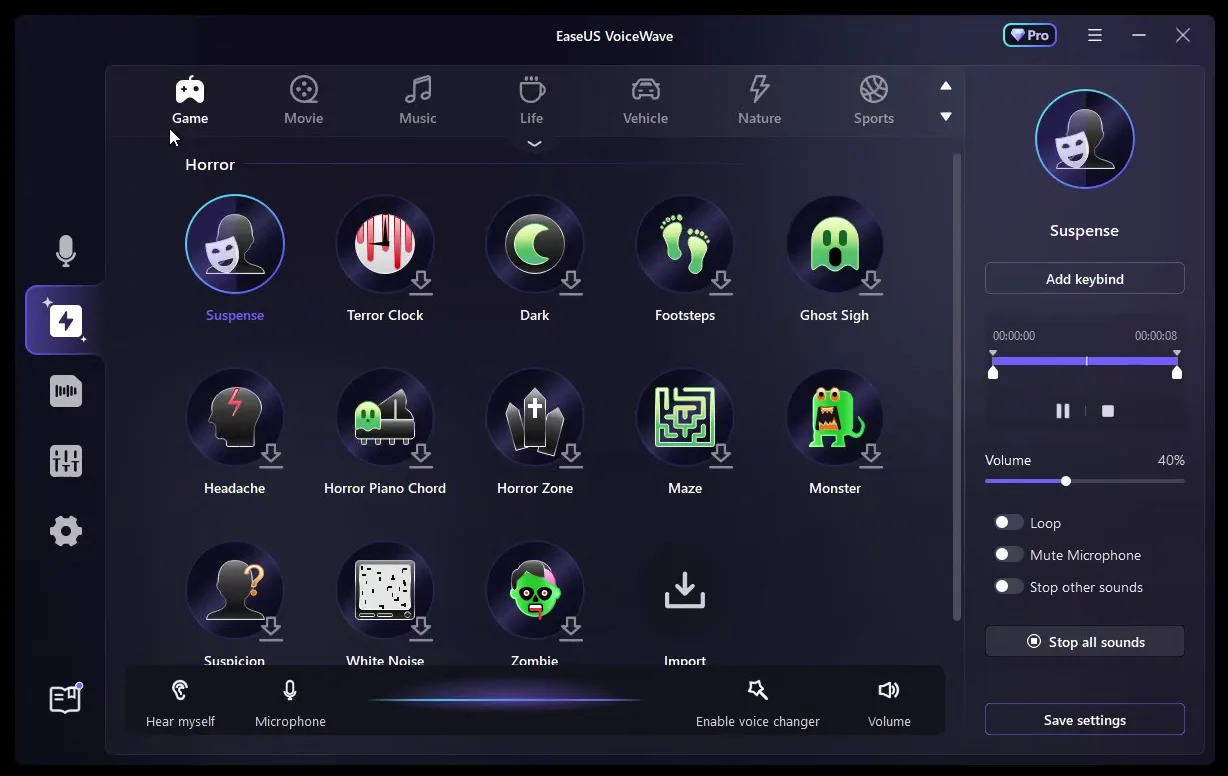
The second icon in the left sidebar is the soundboard, with 300+ sounds and effects, according to the video. Select a sound such as the Airhorn and the right panel shows a play and stop button, a start and end trim, a Volume slider (40% here) and the switches Loop, Mute Microphone and Stop other sounds. Click Add keybind and press a key: the video puts the air horn on 9.
Soundboard (left sidebar)AirhornAdd keybind9
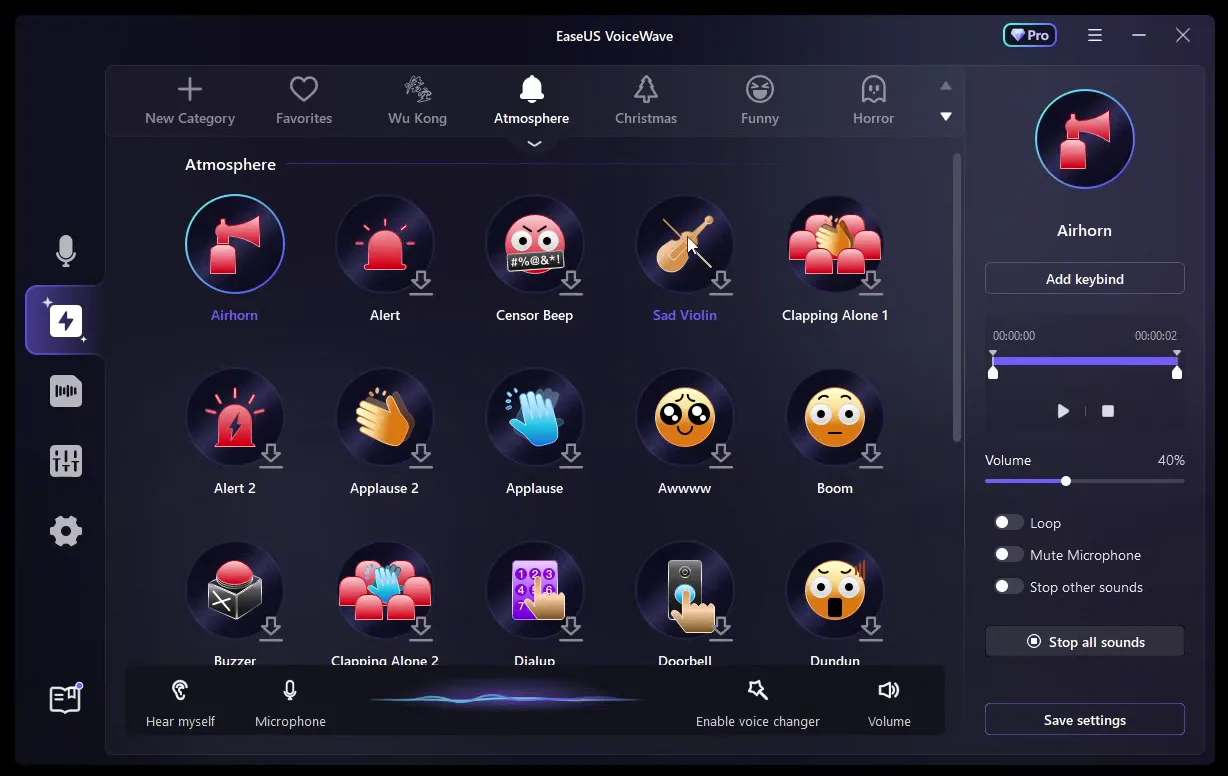
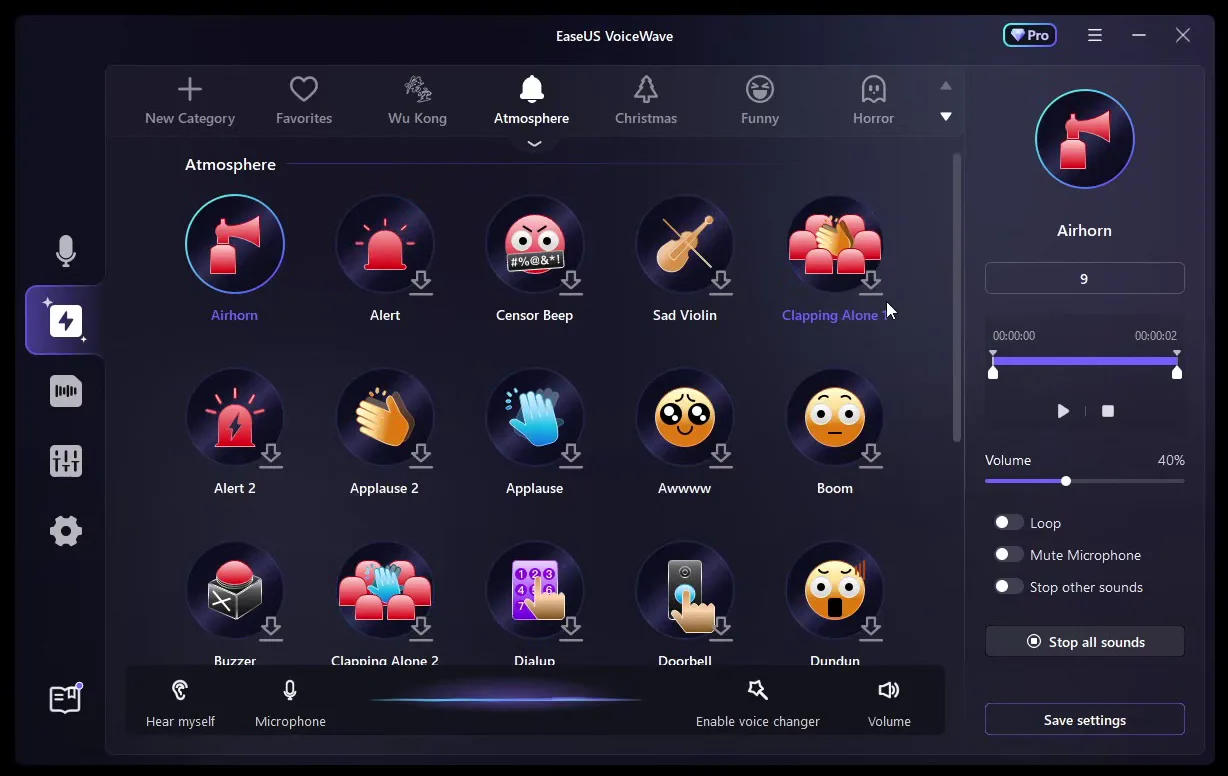
The sounds are sorted in categories along the top, from Atmosphere and Funny to Horror, with Game, Movie, Music, Life, Vehicle, Nature and Sports further along. The Horror category has suspense sounds like Suspense, Terror Clock, Footsteps and Zombie. A New Category button lets you build your own.
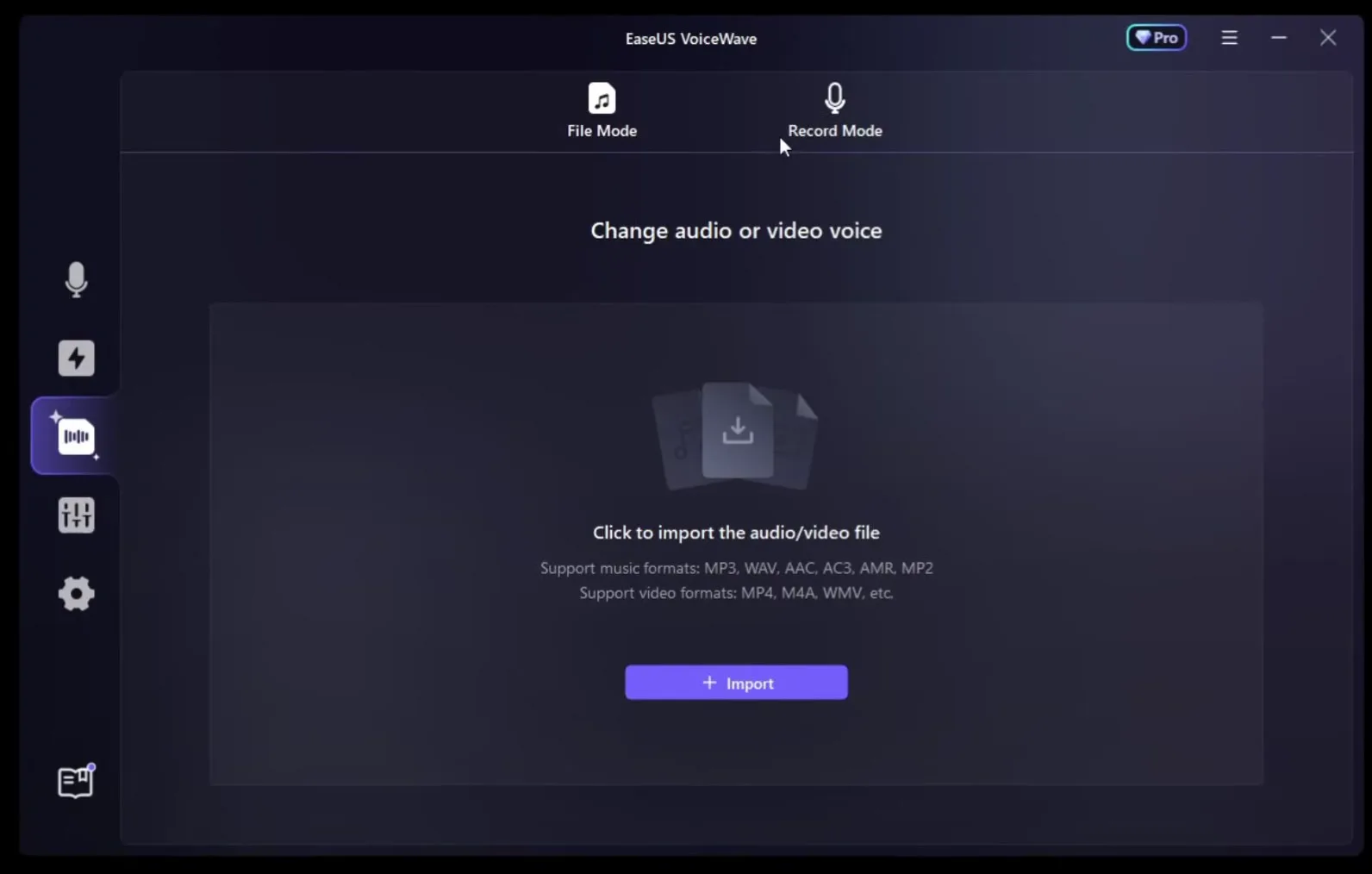
You are not limited to live talking. In the third sidebar icon, File Mode lets you import an audio or video file (MP3, WAV, AAC, AC3, AMR, MP2 and video such as MP4, M4A, WMV), pick a voice and export the result. The video drags a file in and changes it instantly.
Third icon (left sidebar)File ModeImport
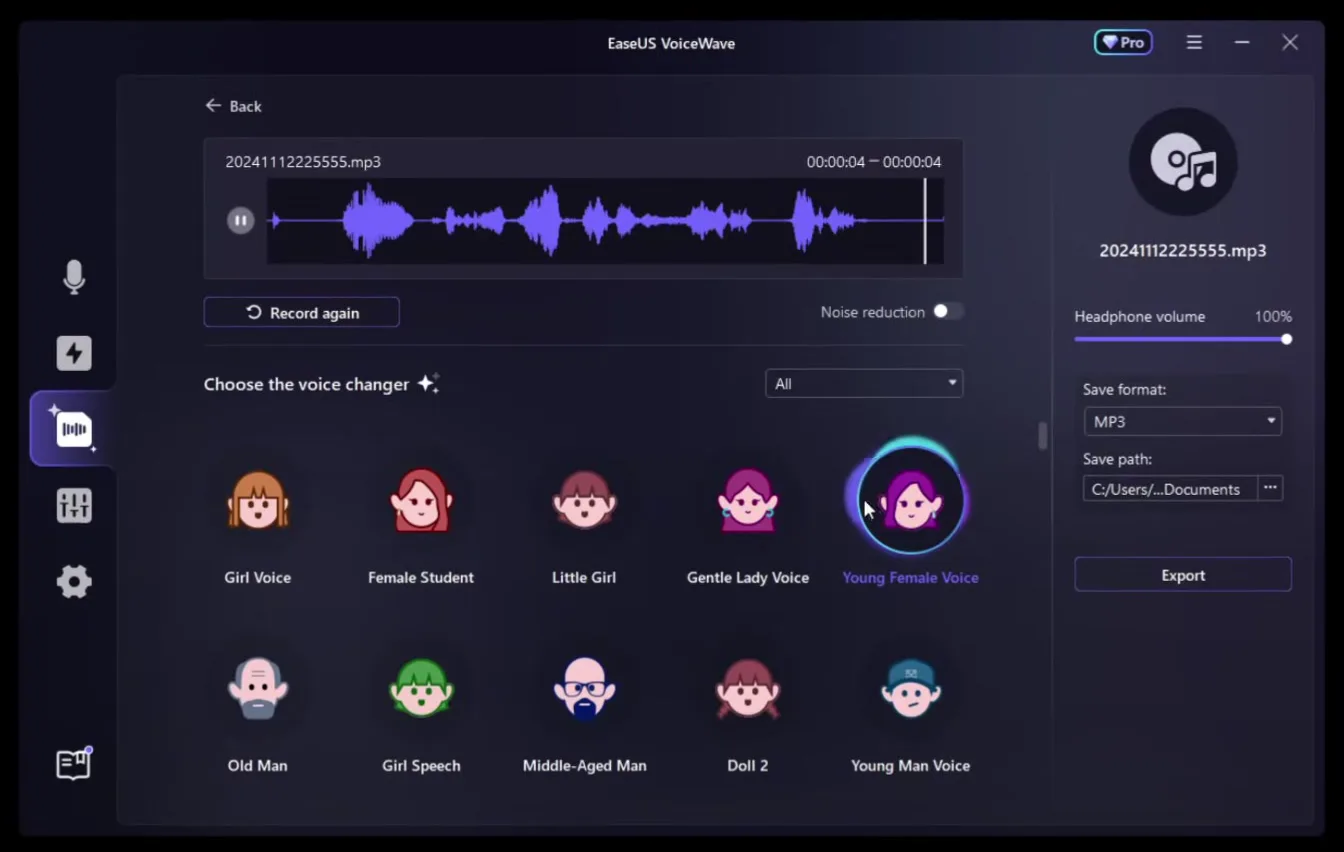
Record Mode records you directly in the app. In the video the same sentence is played back as a female voice and then as a robot. After a file loads, pick a voice under Choose the voice changer, set Save format (MP3) and Save path and click Export.
Tip
The Noise reduction switch sits right above the voice list in this screen, off by default. Turn it on if your recording has background hiss.
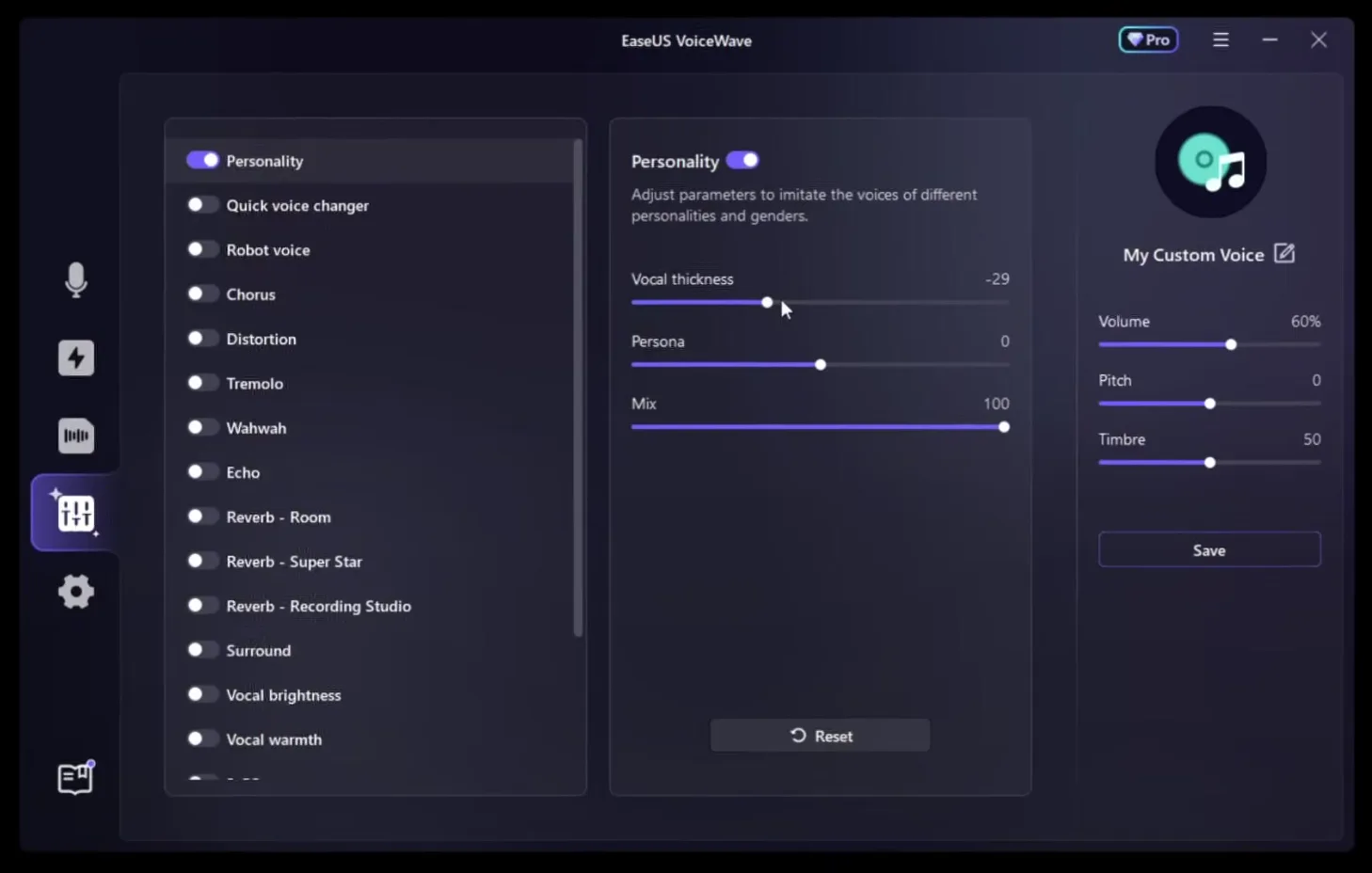
The fourth sidebar icon is the custom voice editor. Switch on Personality and move Vocal thickness down to make the voice deeper. The video lands on -29 with Persona at 0 and Mix at 100, and says it makes the voice sound premium. The left list also has switches for Quick voice changer, Robot voice, Chorus, Distortion, Tremolo, Wahwah, Echo, three reverbs, Surround, Vocal brightness and Vocal warmth. Click Save to keep it as My Custom Voice.
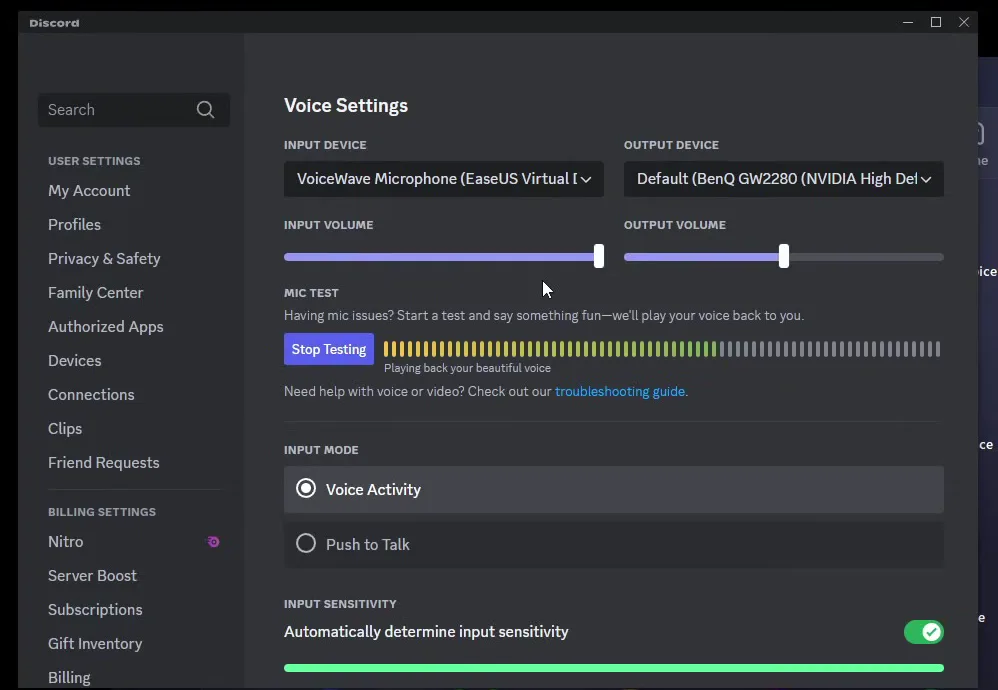
To talk in Discord with your new voice, open its settings, go to Voice & Video and select VoiceWave Microphone as the input device. The video then says "look at my voice" and plays the changed voice back through Discord's mic test.
Discord settingsVoice & VideoInput DeviceVoiceWave Microphone
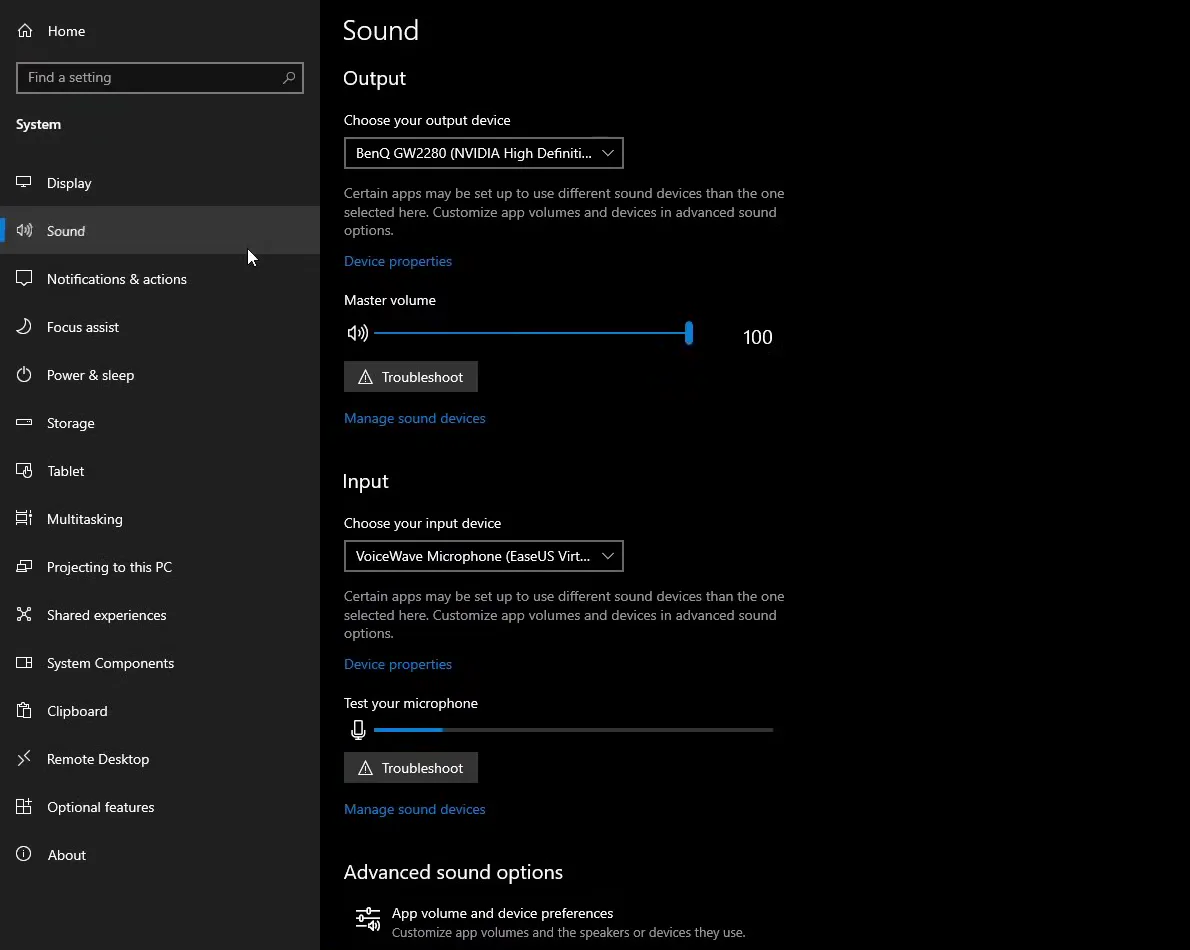
For all apps and games at once, set the input device in Windows. Click the Windows icon, open Settings, then System and Sound, and under Input choose VoiceWave Microphone (EaseUS Virtual Device).
Windows iconSettingsSystemSoundInputVoiceWave Microphone
Careful
Keep the VoiceWave app running. The virtual microphone gets its voice from the app, so closing the app leaves games and Discord with nothing to hear.
How to check it worked
- With a voice selected, talk and watch the level bar in Discord's mic test (or the test bar in the Windows sound settings) while it plays your voice back.
- Join a call with a friend and ask what they hear. A normal voice means that app still uses your real microphone: open its voice settings and choose VoiceWave Microphone.
- Press your soundboard key (9 for the Airhorn in the video) and check that the sound reaches your friend.
How to undo it
To sound like yourself again, click Original or press the key you gave it. To stop using VoiceWave completely, select your real microphone again as the input device in Windows and Discord.
Key settings at a glance
FAQ
Is there a free voice changer for PC games?
The video installs EaseUS VoiceWave from its free download button and uses it live in Discord and across Windows. The app shows a Pro badge at the top, so check inside the app which voices and features your plan includes.
Can I sound like a game character in real time?
Yes. The Game tab has voices such as Ice King, Alistar, Paimon, Pathfinder, Thresh, CS Counter-Terrorists and CS Terrorists. Click one, talk and the changed voice comes out live.
How do I use it in Discord?
Open Discord's settings, go to Voice & Video and select VoiceWave Microphone as the input device. Keep VoiceWave open. Our Discord and Fortnite voice changer guide covers the same setup in more depth.
How do I use it in Fortnite, Minecraft or any other game?
Set VoiceWave Microphone as the input device in the Windows sound settings, keep the app open and start the game. If a game has its own microphone setting, point it at VoiceWave Microphone too.
Can I switch back to my normal voice quickly?
Yes. Put a keybind on Original, as the video does with Alt+1, or click Original in the voice list. For more on keys, see our voice changer hotkey guide.
Can I change the voice of a recording after I made it?
Yes. Open File Mode, import the audio or video file, choose a voice and export it. Record Mode records you inside the app first.
Can I make a voice deeper?
Use the custom voice editor: turn on Personality and lower Vocal thickness. The video uses -29 and finds it makes the voice sound premium. For a female voice instead, see our AI girl voice changer guide.
Try EaseUS VoiceWave
EaseUS VoiceWave is the real-time voice changer used in the video. It works in Discord, games and streaming apps, and you can try it for free before you decide.
This article and the video are a paid partnership with EaseUS.