Free Fortnite FPS Pack for Windows 10: Restore Point, Tweaks and Revert (Nov 2024 Season)

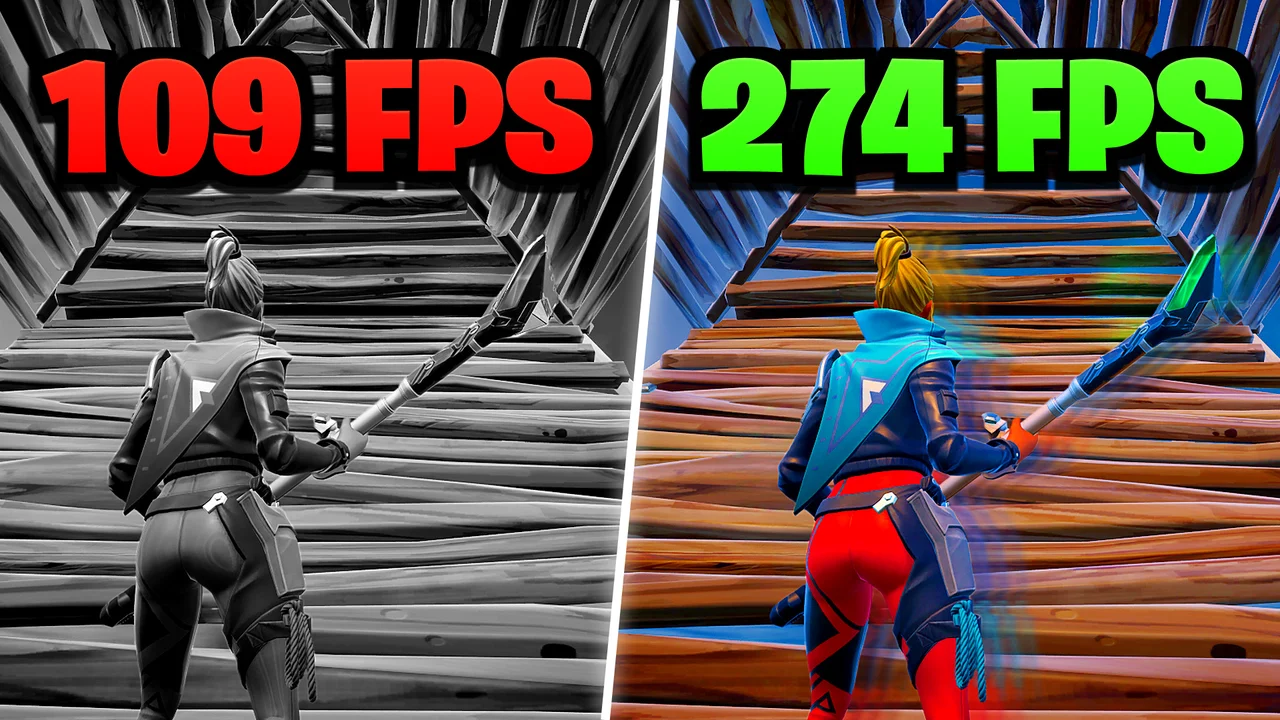
Written version of our video, every step checked against it.
Quick answer
- Download the free pack from the free-tweaks channel in the RIP Tweaks Discord and open it from the zip.
- Right-click the file, choose Run as administrator, and type
restoreat the first prompt so Windows makes a restore point before anything changes. - Every menu works with the number keys: type a number, press Enter. Power, GPU, Ping, Input, Windows and Debloat tweaks are the main menu, and Games holds the Fortnite tweak.
- The Debloat tweak removes apps from Windows, so skip it if you want to keep all of yours.
- To undo everything, type
restoreagain, open System Restore and pick the RIP Tweaks V4 Restore Point.
This guide is for anyone who plays Fortnite on a Windows 10 PC or a low-end laptop and wants a free, safe way to lower stutter and input lag without editing the registry by hand. It follows the video from November 2024 step by step. The video shows an earlier version of the free pack (V4), so this page explains the ideas and menus it covers, not how the app looks today.
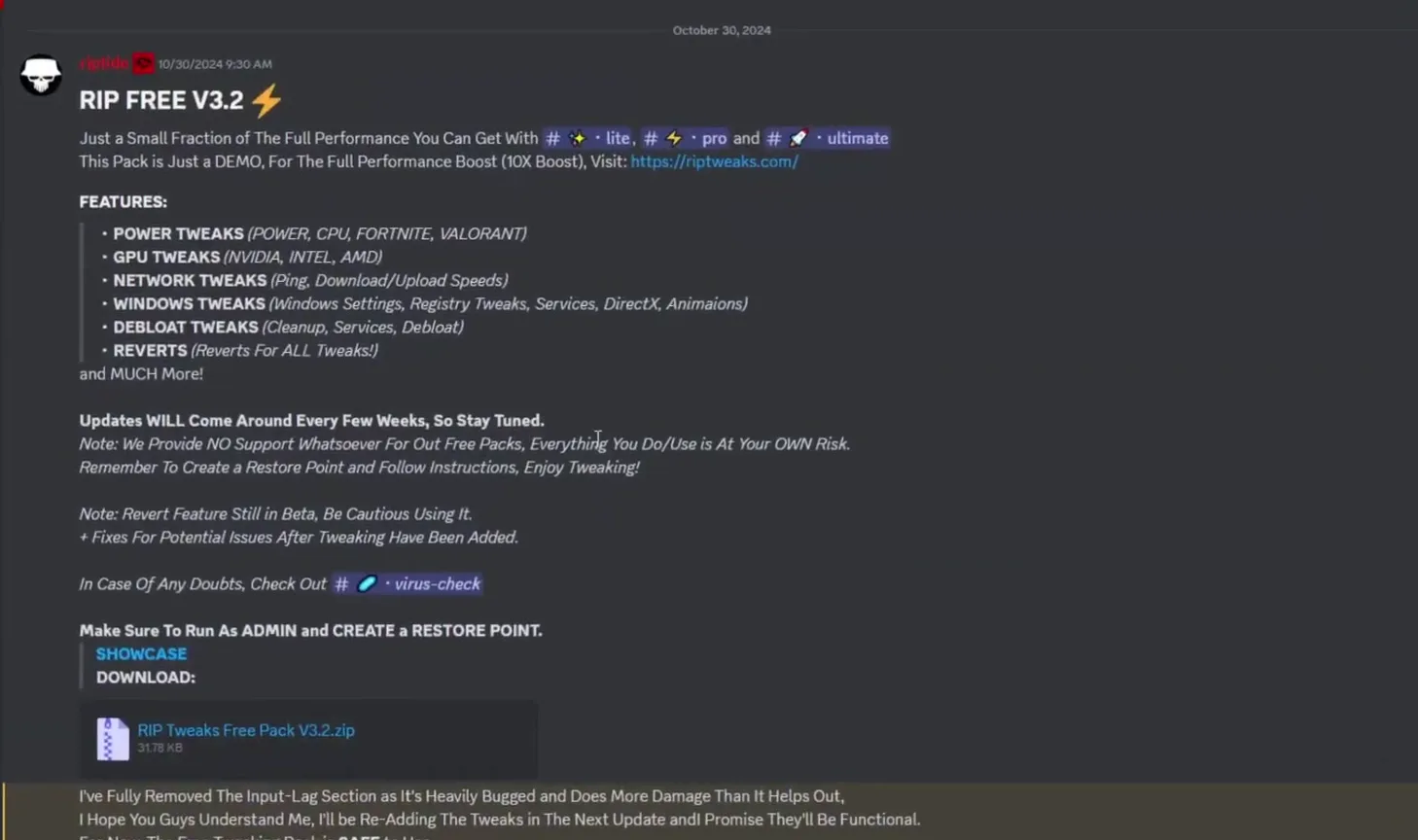
Open the link in the video description to join the RIP Tweaks Discord server, then open the free-tweaks channel. The pinned post at the top lists what the pack does and has the zip file to download. Click it, continue the download, and drag the zip to your desktop.
Discordfree-tweaksDownload the zip
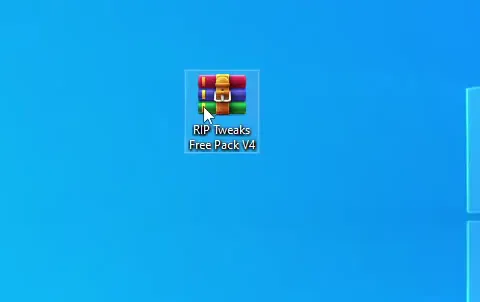
Right-click the zip, choose Open with and then Windows Explorer. It opens like a normal folder, and you drag the pack out of it onto the desktop.
Good to know
The post in the channel says the free pack comes without support and that you use it at your own risk. That is exactly why the next step, the restore point, matters.
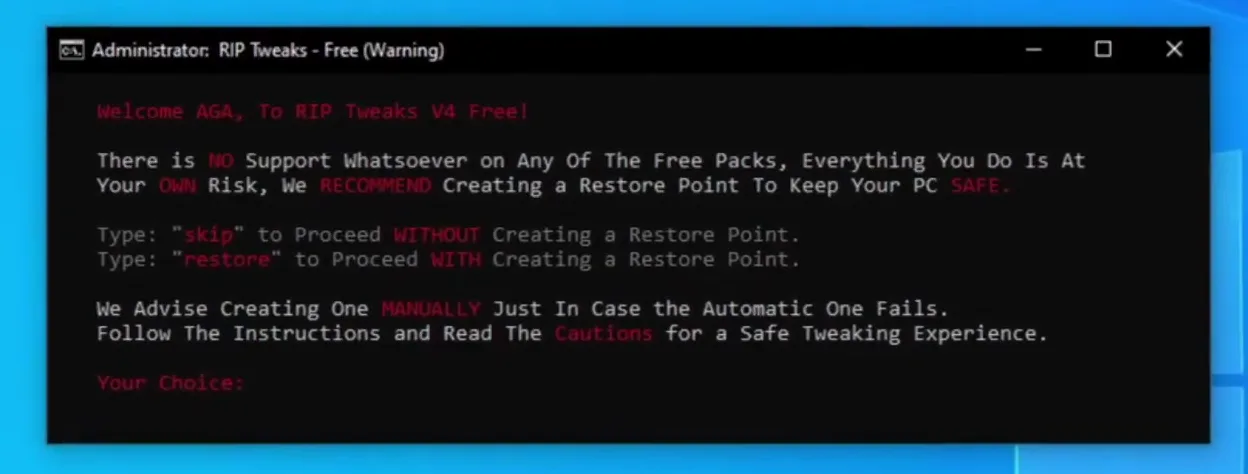
Open the extracted folder and right-click the pack file, then choose Run as administrator. A window greets you and asks whether to make a restore point. Type restore to make one, or skip to go on without it. The video types restore, and it is the safest choice.
Right-click the packRun as administratorType restore
Don't do this
Do not type skip unless you already made your own restore point. The prompt itself advises making one by hand too, in case the automatic one fails.
After the restore point the home screen appears. Every option is tied to a number on your keyboard: type the number, press Enter, and that menu opens. In the video, 1 opens Power Tweaks. In the V4 free pack the main list had Power, GPU, Ping, Input, Windows and Debloat tweaks, then Games, Quit and Socials. The same rule works in every submenu, and each one has a Back (Main Menu) number at the bottom.
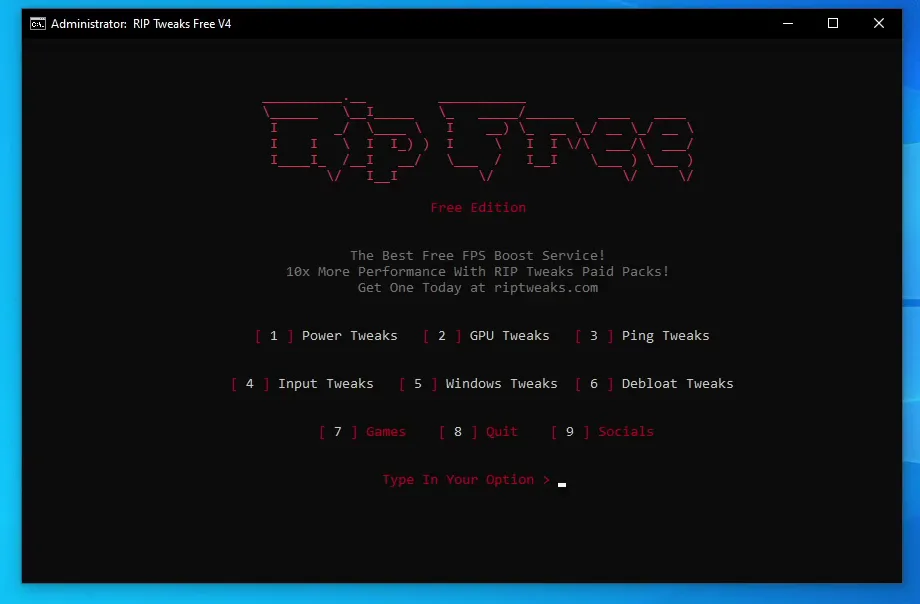
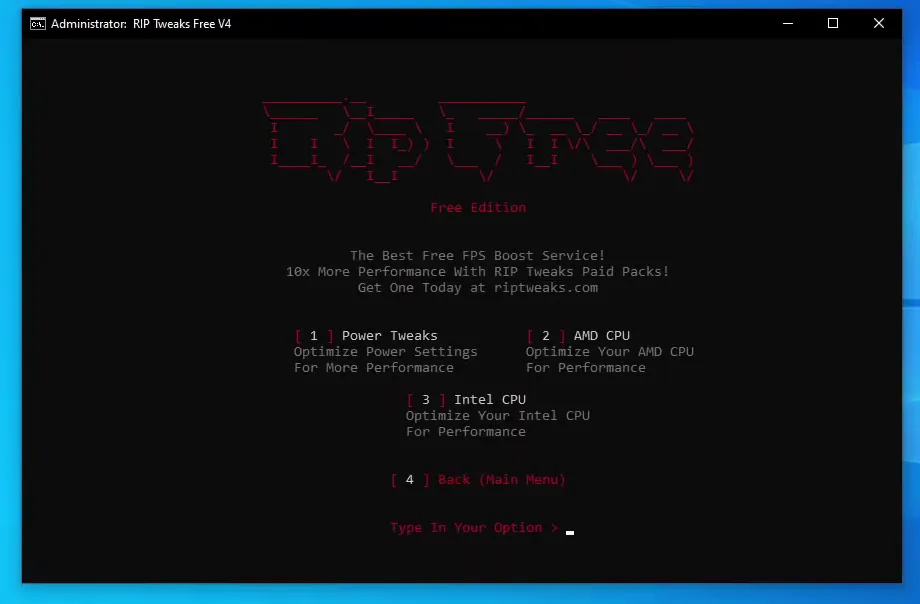
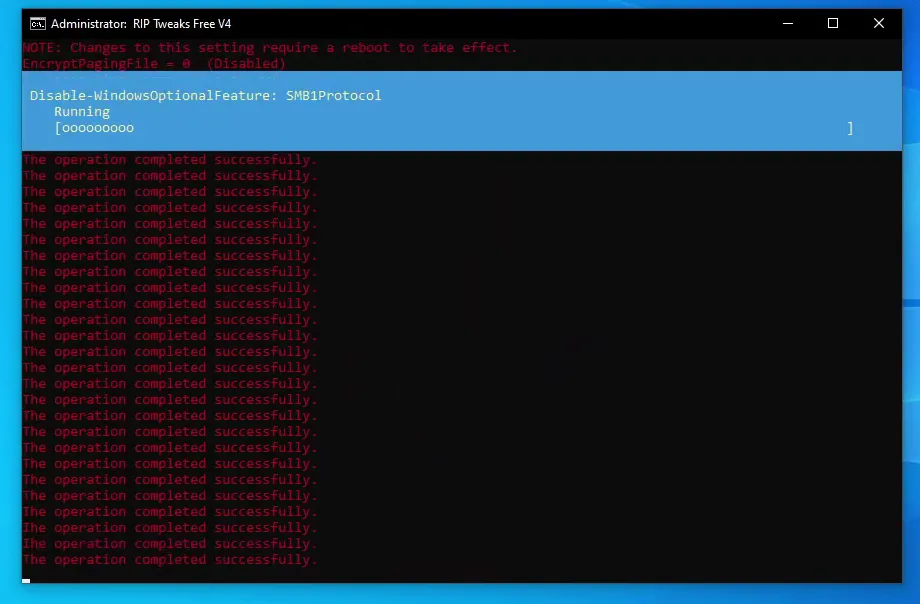
The video goes through the groups in order: power tweaks first (its menu also has separate AMD and Intel CPU options, so pick the one that matches your processor), then Ping, Input lag and Windows tweaks. Each option prints a long list of lines while it runs, and the window shows The operation completed successfully for each change. Wait until it stops before you press anything. Some Windows changes ask for a reboot to take effect.
Tip
Pick only the CPU option for your own processor, AMD or Intel. The other one is not for your PC.
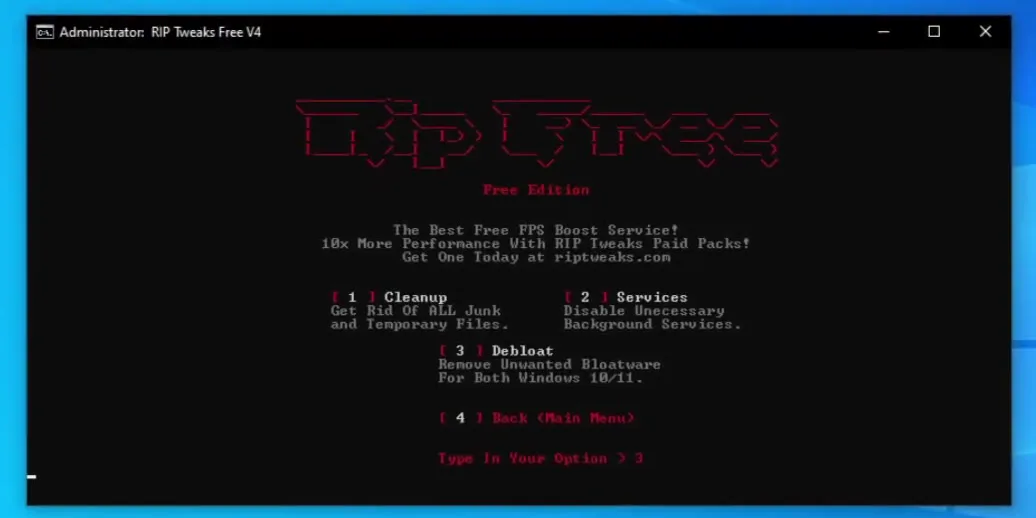
When the Windows tweaks finish, go back to the main menu and open Debloat Tweaks. It has three options: Cleanup deletes junk and temporary files, Services disables unnecessary background services, and Debloat removes unwanted preinstalled apps for Windows 10 and 11.
Main menuDebloat TweaksCleanup / Services / Debloat
Careful
The video warns that the Debloat option removes preinstalled apps, so some of your apps will be gone. If you do not want that, skip option 3 and use Cleanup and Services only.
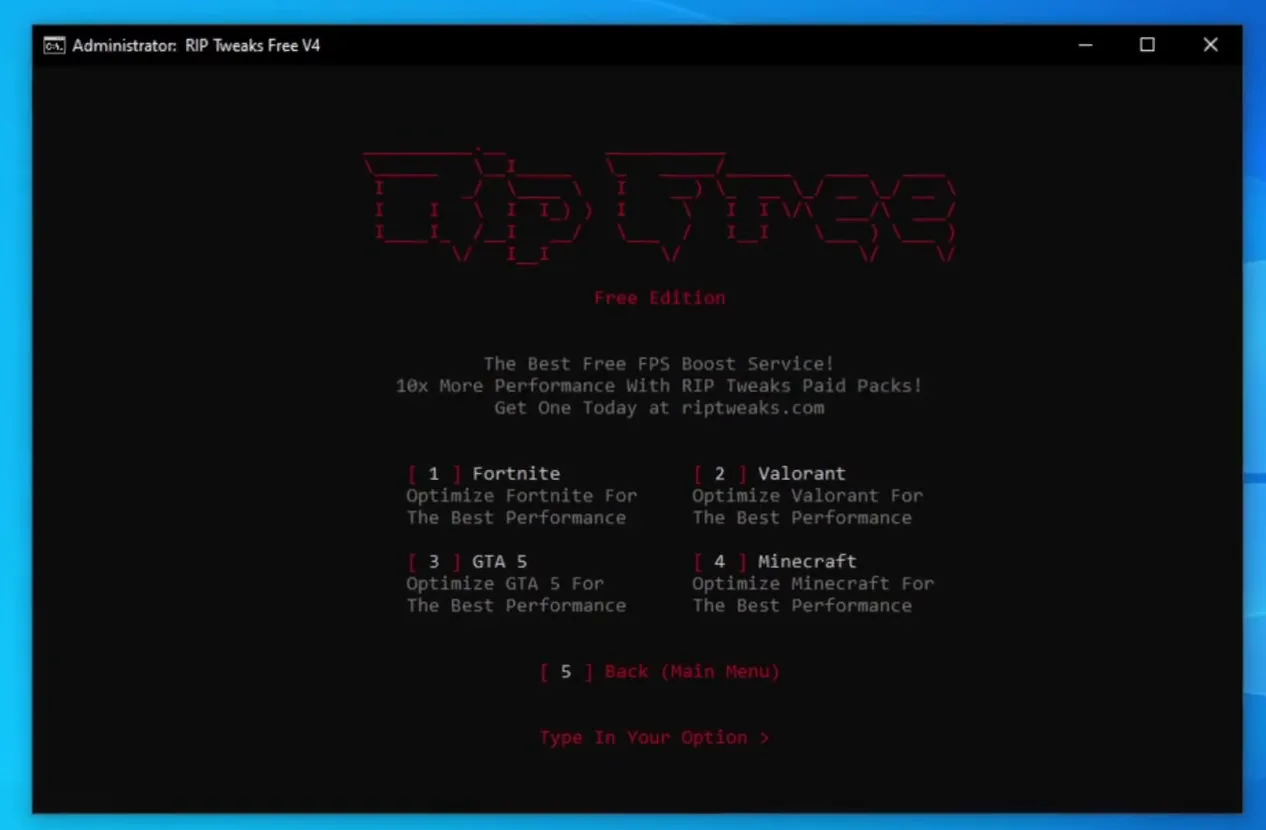
Back on the main menu, type 7 for Games. The free pack V4 had four games: Fortnite is 1, Valorant is 2, GTA 5 is 3 and Minecraft is 4. Type 1 to apply the Fortnite tweak and let it finish. Close the window afterwards, restart Windows if a tweak asked for it, and then start Fortnite.
Main menu7 Games1 Fortnite
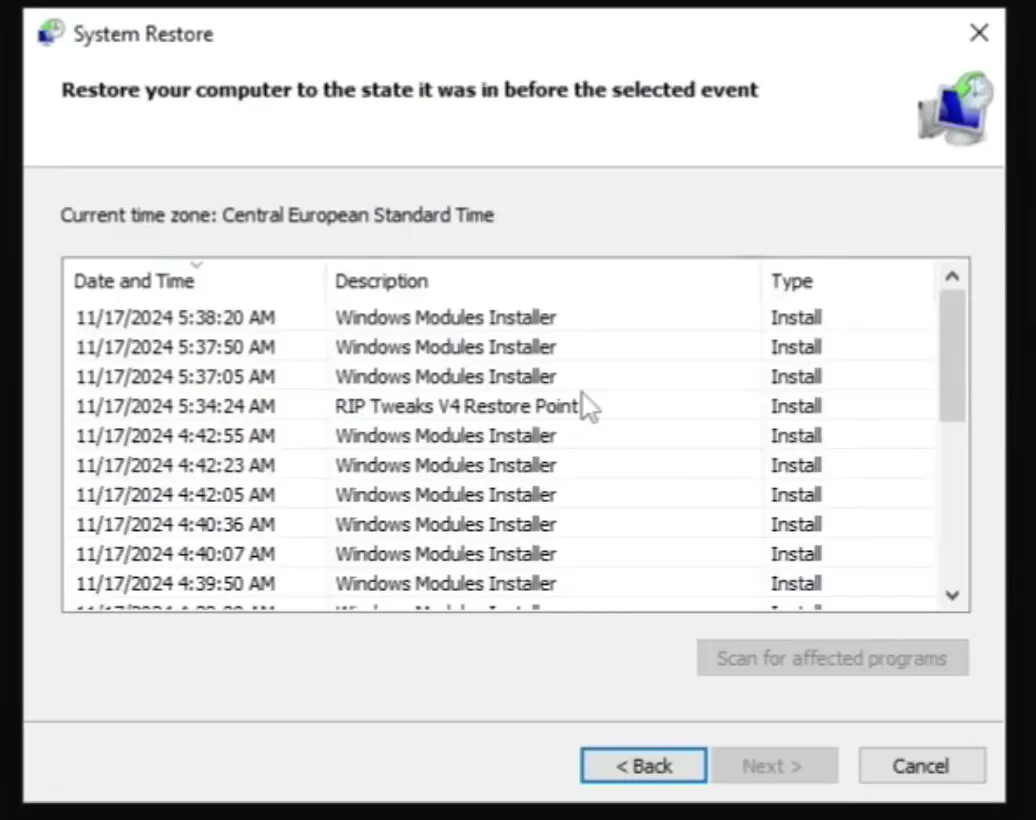
If you change your mind, or something behaves differently, run the pack again and type restore at the prompt. In the video, this opens System Restore. Click Choose a different restore point and select the RIP Tweaks V4 Restore Point. Click Next twice and Windows puts your PC back to the state before the tweaks.
System RestoreChoose a different restore pointRIP Tweaks V4 Restore PointNext
How to undo it
System Restore changes Windows settings and installed software back to that point. Save your work first, because Windows restarts.
How to check it worked
- After the reboot, open Fortnite and turn on the FPS counter in its settings. Run the same match mode on the same map as before and compare the frame rate and how smooth it feels. Typically a tweak pack helps most on weaker PCs and low-end laptops, so do not expect the same on every machine.
- Watch frame times and input feel, not only the average FPS: fewer stutters and drops matter as much as a higher number.
- To confirm the restore point exists, open System Restore and look for RIP Tweaks V4 Restore Point in the list before you tweak anything else.
Key settings at a glance
FAQ
Is the free Fortnite FPS pack safe?
The video treats safety through the restore point: the pack asks you to make one first and shows how to go back to it. The pack's own post also says it comes without support and that you use it at your own risk, so make the restore point every time. Our guide to Windows FPS tweaks with a restore point explains the same habit.
How do I undo the tweaks?
Run the pack, type restore, then open System Restore, choose Choose a different restore point, select the RIP Tweaks V4 restore point and click Next twice. Your PC returns to how it was before the tweaks.
Will it work on a low-end laptop?
The video is aimed at that kind of PC too, since the tweaks target the CPU, GPU, Windows settings and background services. Typically weaker hardware gains most from cutting background load, but your result depends on the machine. Our gaming laptop FPS guide covers laptop-specific points.
Which Windows does it work on?
The video runs on Windows 10, and the Debloat menu says it covers Windows 10 and 11. Because it is an early version of the pack, check the current RIP Tweaks app for the supported systems.
Does it only help Fortnite?
No. The general groups (Power, CPU, Ping, Windows, Debloat) apply to the whole PC. The Games menu in this version also had Valorant, GTA 5 and Minecraft.
Do I have to run the Debloat option?
No. The video says it removes preinstalled apps, so some of yours will be deleted, and tells you to skip it if you do not want that. Cleanup and Services are separate options.
Is this the current RIP Tweaks app?
No. The video shows the free pack V4 from late 2024, a text menu with number keys. The ideas (restore point first, tweak by group, Fortnite tweak, revert) still apply. For the latest version, see our free PC optimizer for Fortnite guide.
 RIP Tweaks
Do it in a few minutes with RIP Tweaks
- Free plan for Windows 10 and 11
- A backup first, and every tweak can be switched off again
- Made for higher FPS, lower input lag and steadier ping
Free · Windows 10 and 11
