Free vs Paid FPS Tweaks on a $1000 PC: Fortnite, VALORANT and GTA 5 Test

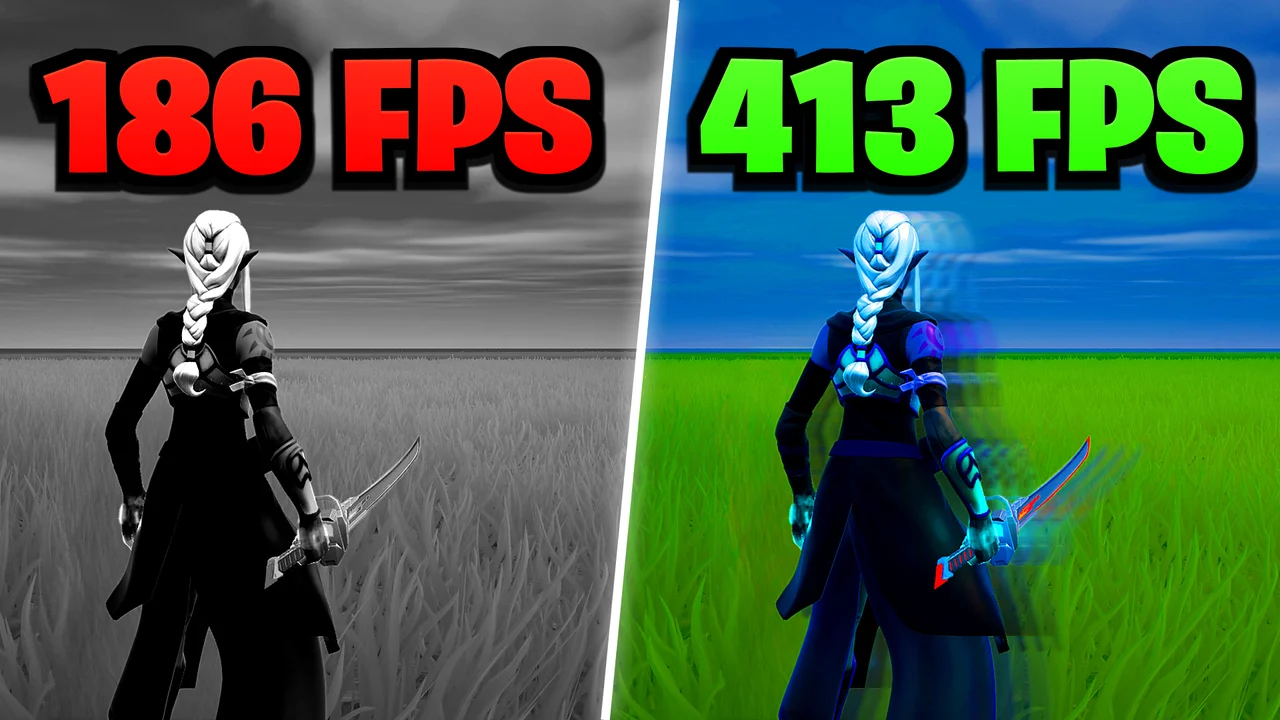
Written version of our video, every step checked against it.
Quick answer
- Test fairly: the same three games (Fortnite, VALORANT, GTA 5), the same settings and the same benchmark before and after each pack.
- Create a restore point before you run any tweak pack. The video does it first, then calls the PC "safe".
- Free pack on the PC in the video: Fortnite on the highest settings went from about 400 FPS to about 600 FPS on an empty map.
- The paid pack in the video covers hardware, Windows, games, internet and input lag. It added more on top of the free pack in all three games.
- Your numbers will differ: results depend on your CPU, graphics card and game. Typically the gain is largest in CPU-bound games at low settings.
This guide is for anyone who wants to know what a free FPS tweak pack and a paid one really change on a mid-range gaming PC. It follows Leon's test on a $1,000 PC: same settings, a benchmark before and after, three games, and the results he read off the screen. The video shows an earlier version of the RIP Tweaks app, so this page explains the ideas and settings, not how the app looks today.
The video compares three of the most played games right now: Fortnite, GTA 5 and VALORANT. For each one the test is the same: note the FPS before any pack, run the pack, then check again with the same settings and the same scene. Nothing else changes between the two runs, so the difference is the tweak pack.
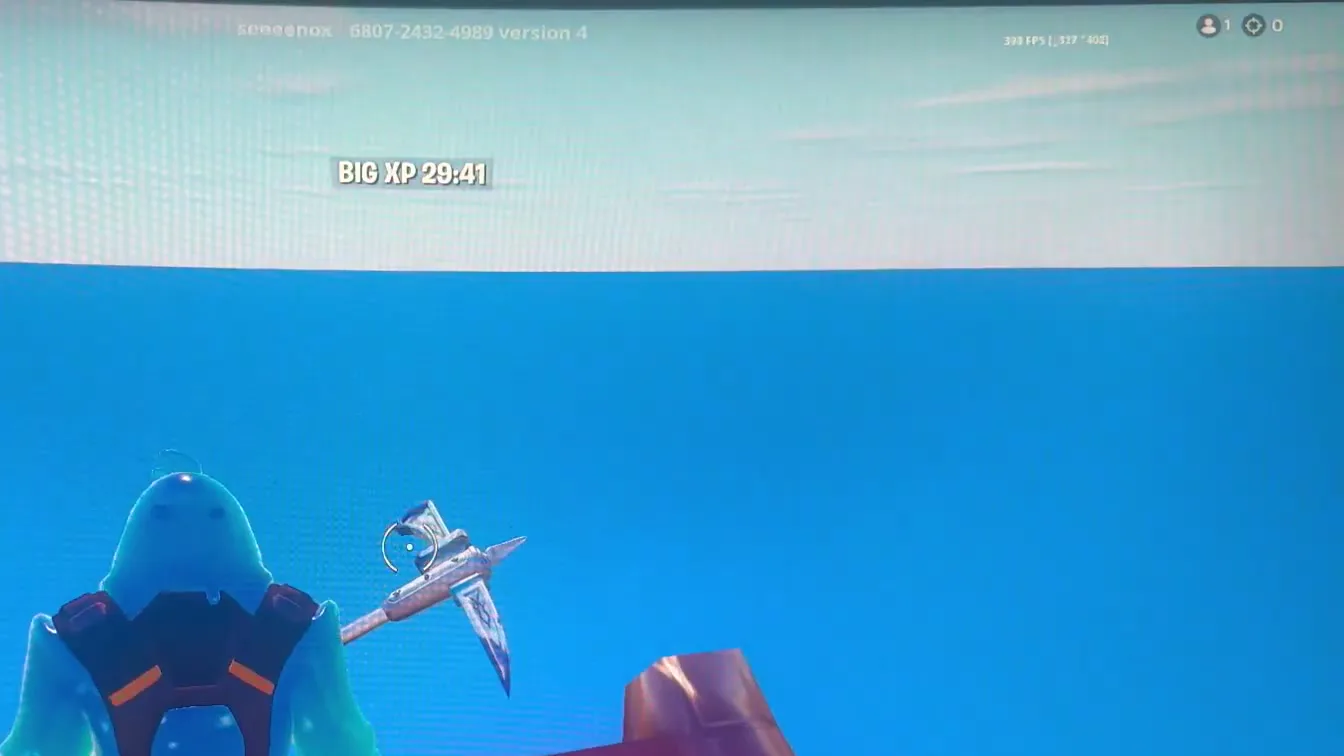
The baseline on the PC in the video: Fortnite on Epic settings showed about 400 FPS on an empty map, and dropping to the lowest settings made almost no difference. VALORANT on the highest settings showed about 340 FPS and about 500 FPS after lowering everything.
Tip
Use a fixed scene: an empty Fortnite map, the same GTA 5 benchmark run, the same VALORANT range. A busy match changes the FPS on its own and ruins the comparison.
The free pack is linked in the video description and lives in the free tweaks channel on the RIP Tweaks Discord server. Download it, but first do the one step the video calls really important: create a restore point. It lets Windows go back to the state before the tweaks if anything misbehaves.
StartCreate a restore pointSystem ProtectionCreate
How to undo it
If a game or driver acts strangely after any tweak pack, open System Restore and pick the restore point you made. See our restore point and MSI mode guide for the full steps.
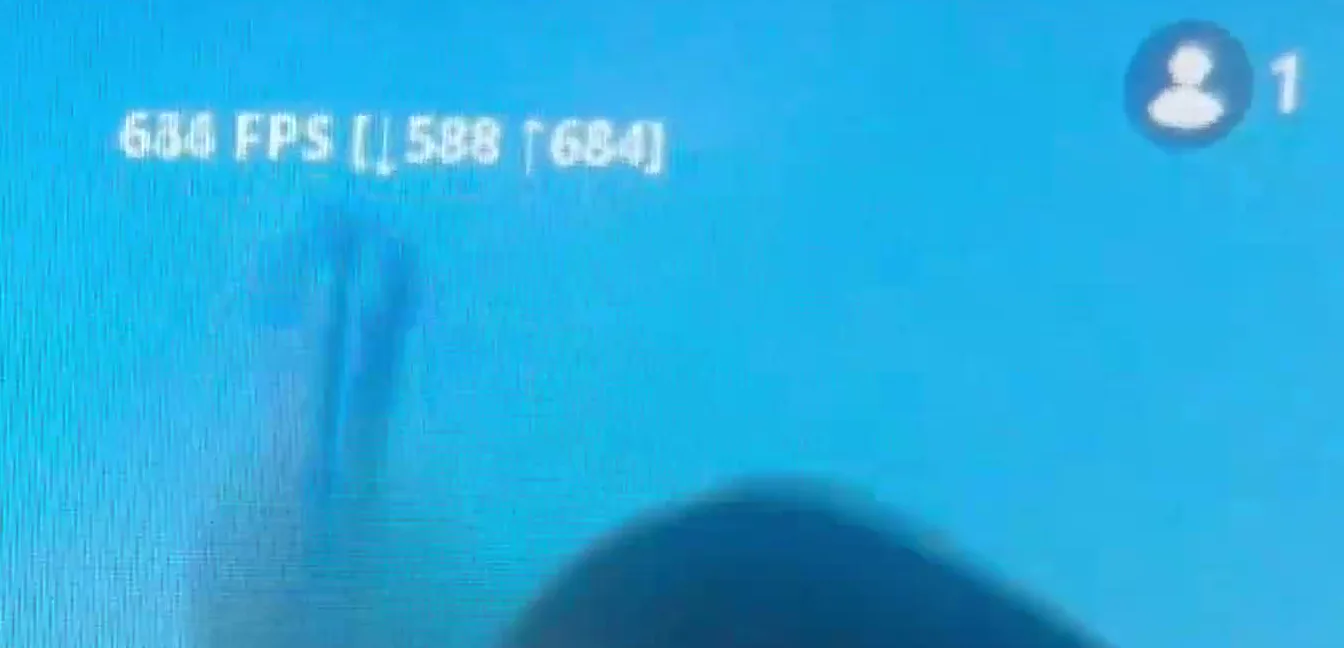
Then run the free pack and test again. On the PC in the video, Fortnite on the highest settings read about 600 FPS afterwards, and a benchmark run showed the improvement in numbers. On the lowest settings in the same game the video reads a further jump.
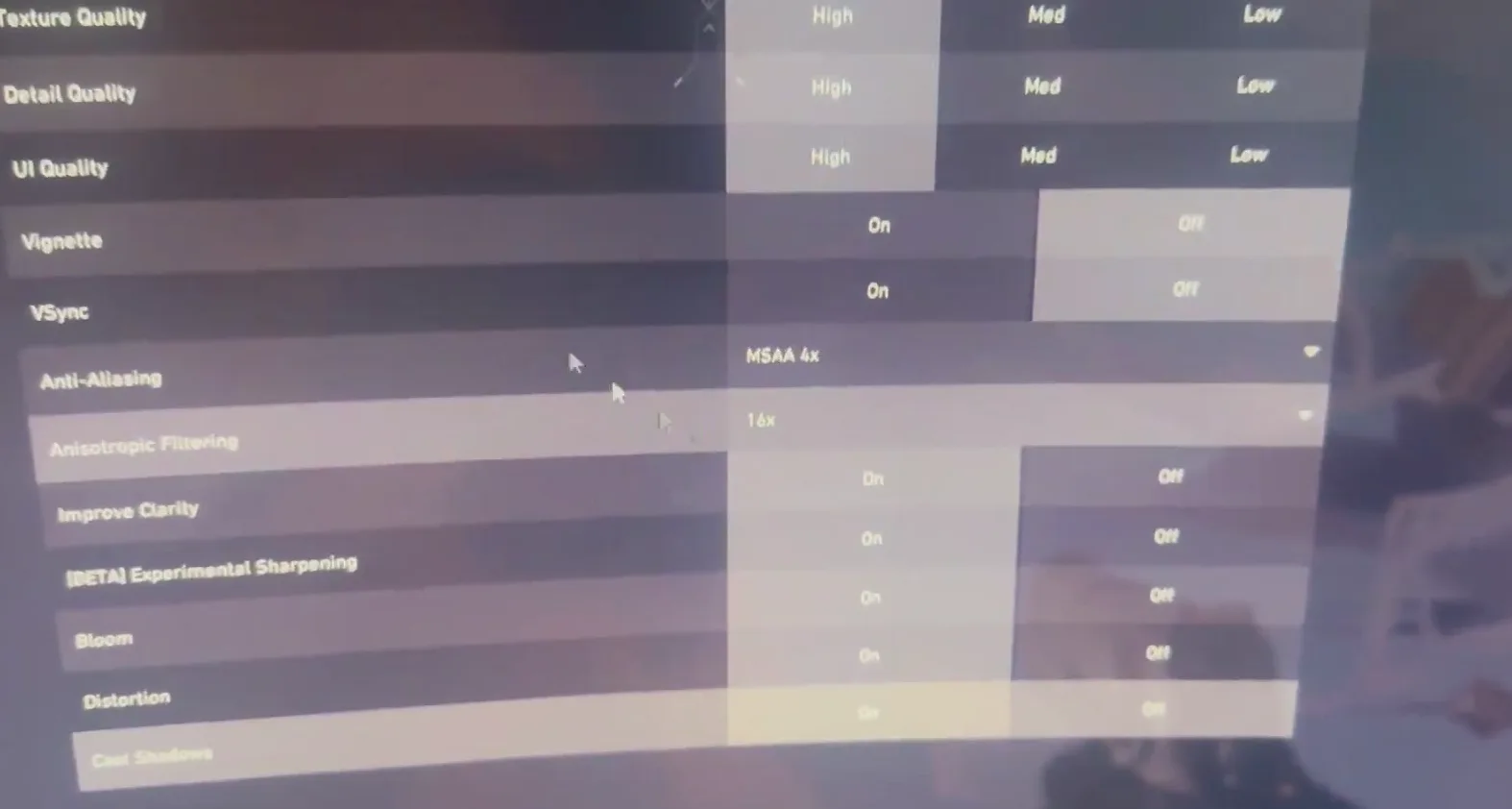
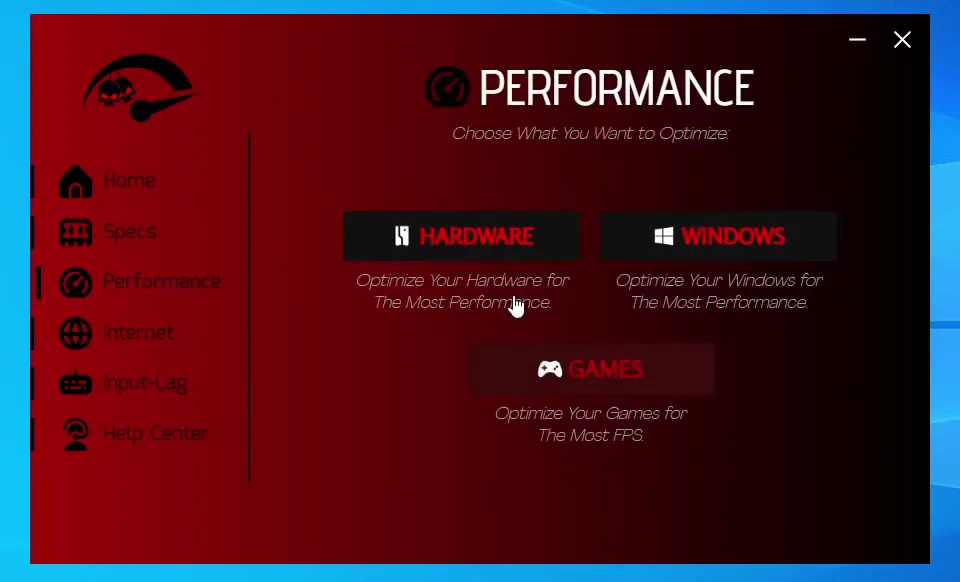
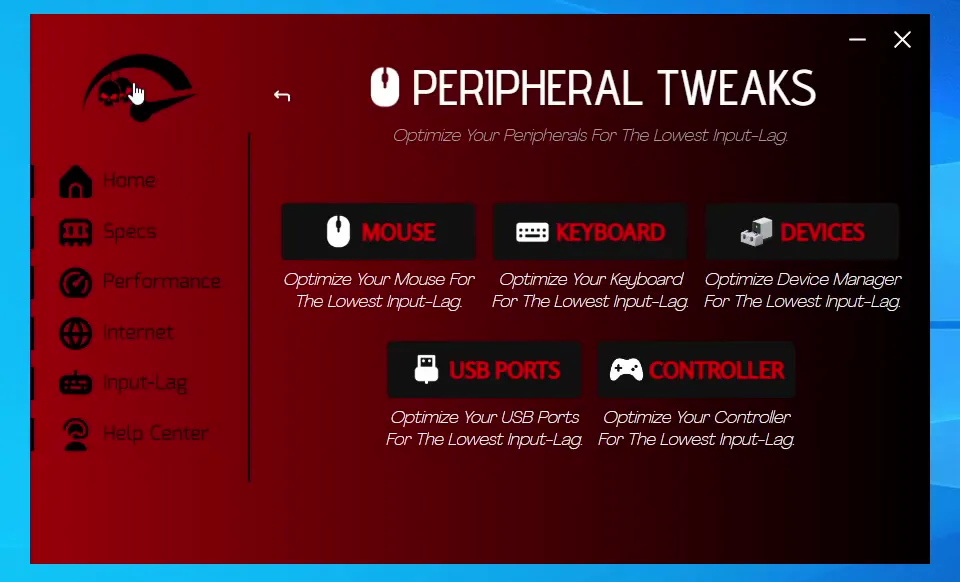
For the paid run the video uses RIP Tweaks Ultimate. Leon walks through what that version of the app could do: show your PC specs, optimize hardware, Windows and power settings, clean up Windows, optimize Discord and Spotify, tune more than 45 games (Fortnite, VALORANT, Minecraft, GTA and more), improve the internet and download speeds for Steam and Epic Games, remove input lag on five kinds of devices including controllers, add custom crosshairs, and apply hidden BIOS tweaks from inside Windows with one button.
Good to know
These screens are from a video that is older than the current app. Menus and names have changed since, so use them to see the idea, not as a map of today's app. Our RIP Tweaks PC optimization guide covers the current steps.
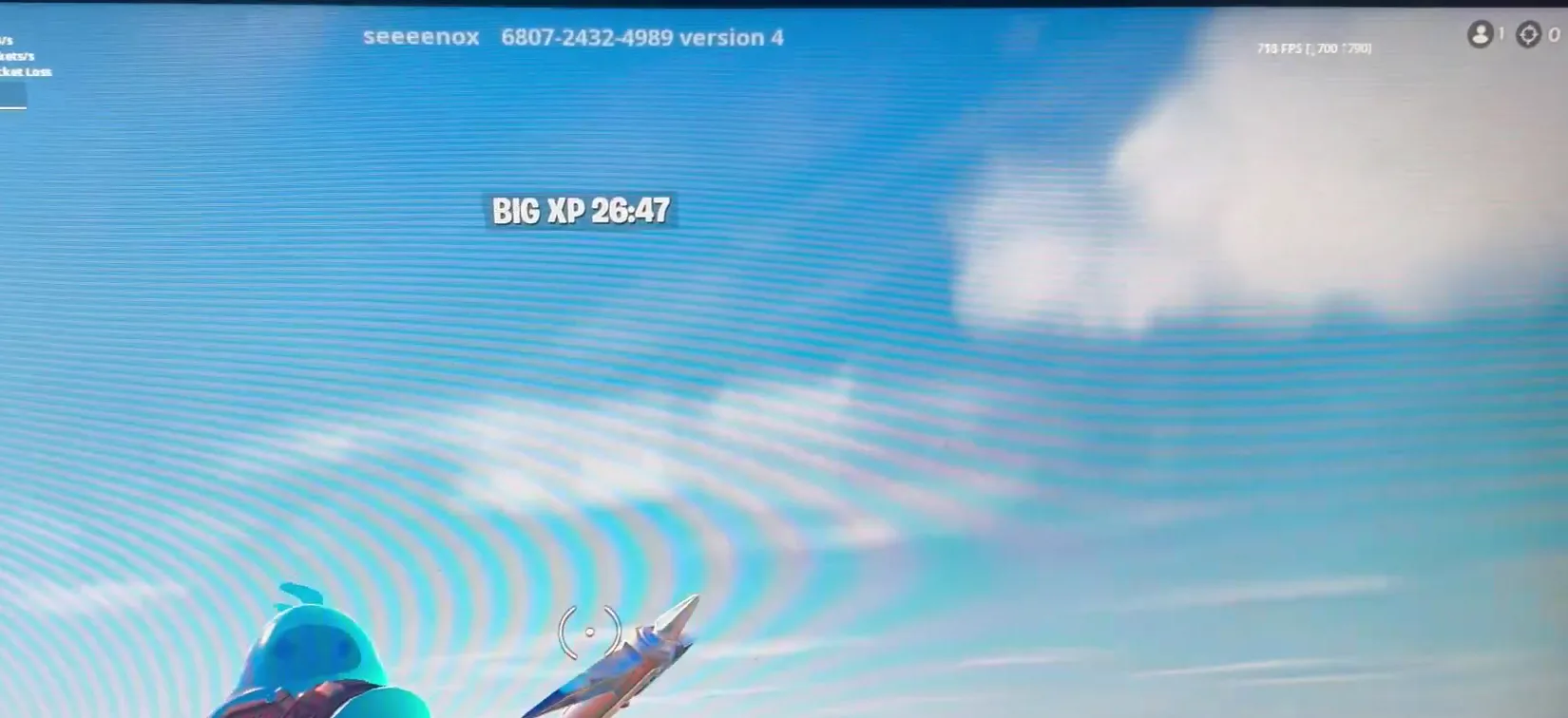
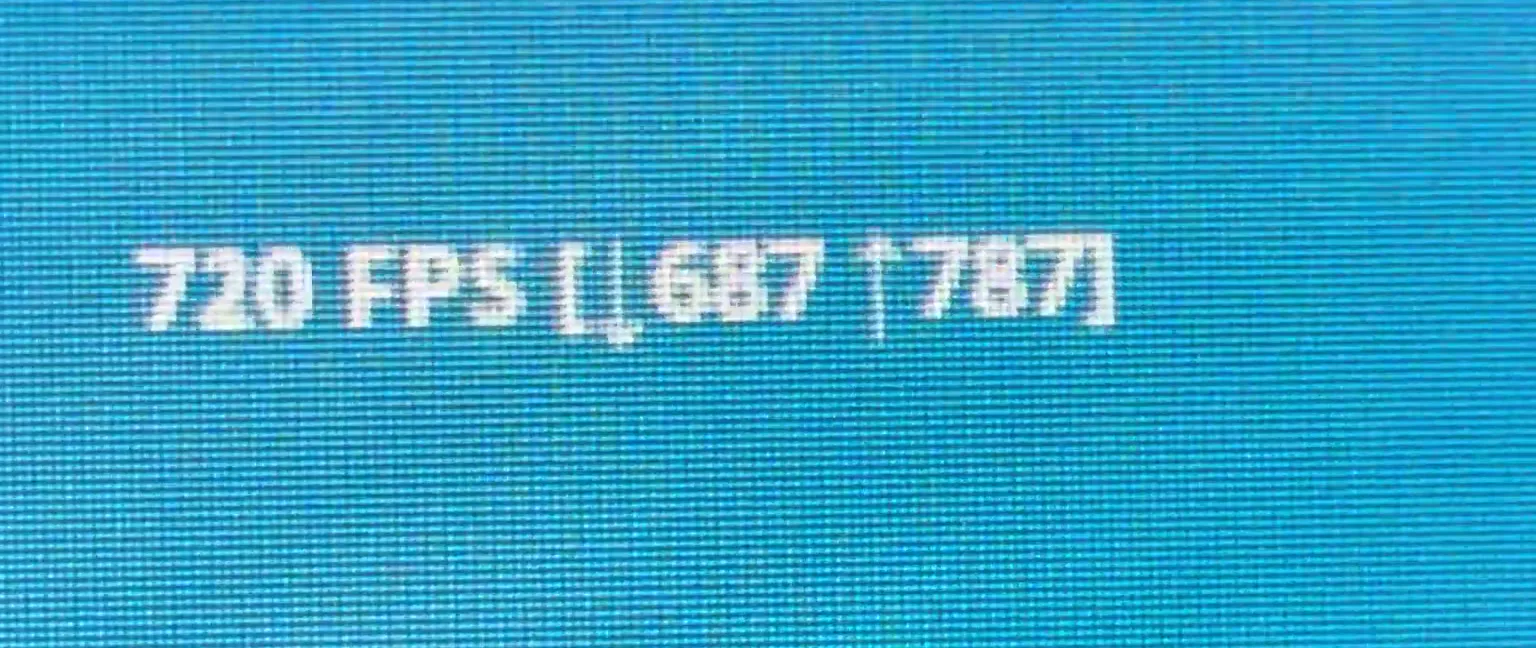
With the paid pack applied, Leon repeats the same tests. Fortnite showed about 750 to 800 FPS on the PC in the video, and VALORANT went past 1,000 FPS on the lowest settings. His own comment: 800 FPS is plenty, and the number at the top is what counts, not the counter's low and high brackets.
Careful
The paid-pack numbers are Leon's result on one $1,000 PC. A different CPU or graphics card gives a different result, and no pack guarantees a number.
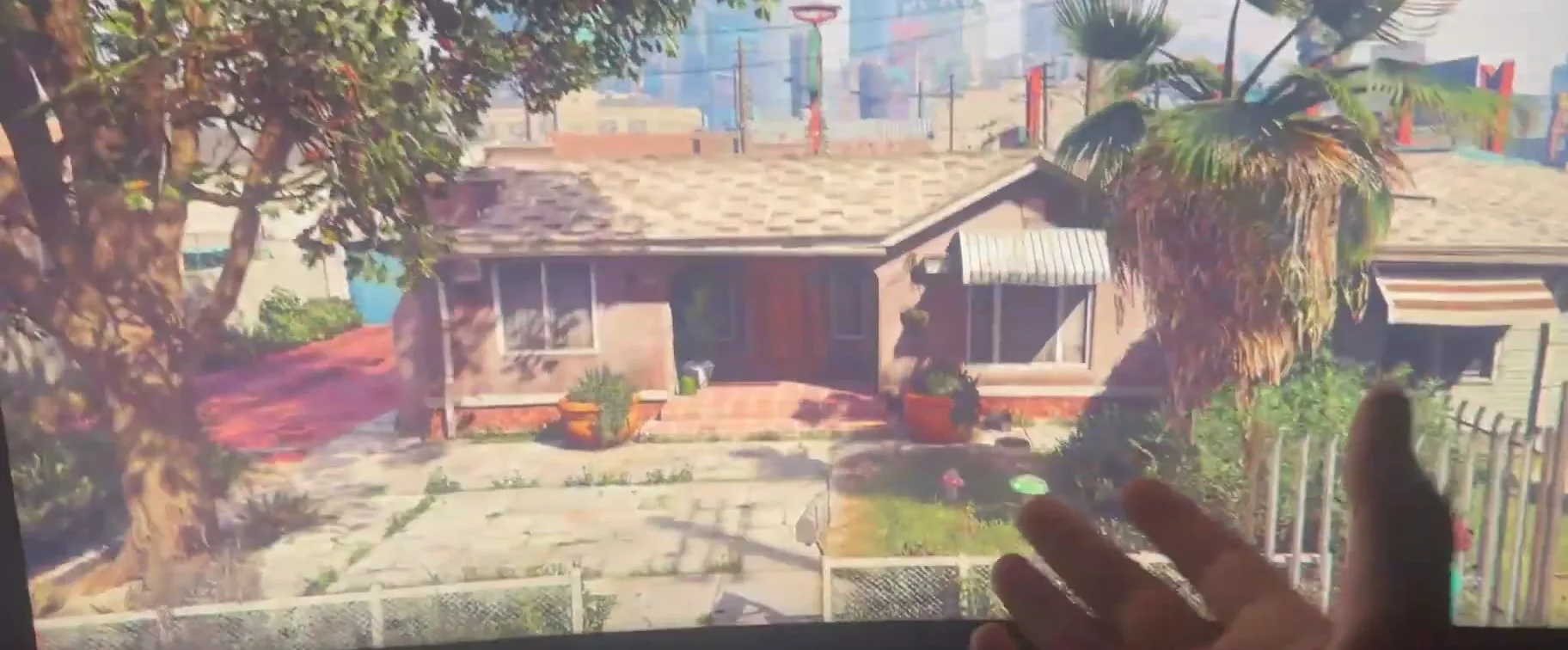
For GTA 5 the video keeps the same settings as before and runs the game's own benchmark, so the run is identical to the one before the tweaks. The result Leon reads is about 120 FPS, and the number moves up and down during the run but ends clearly higher than before.
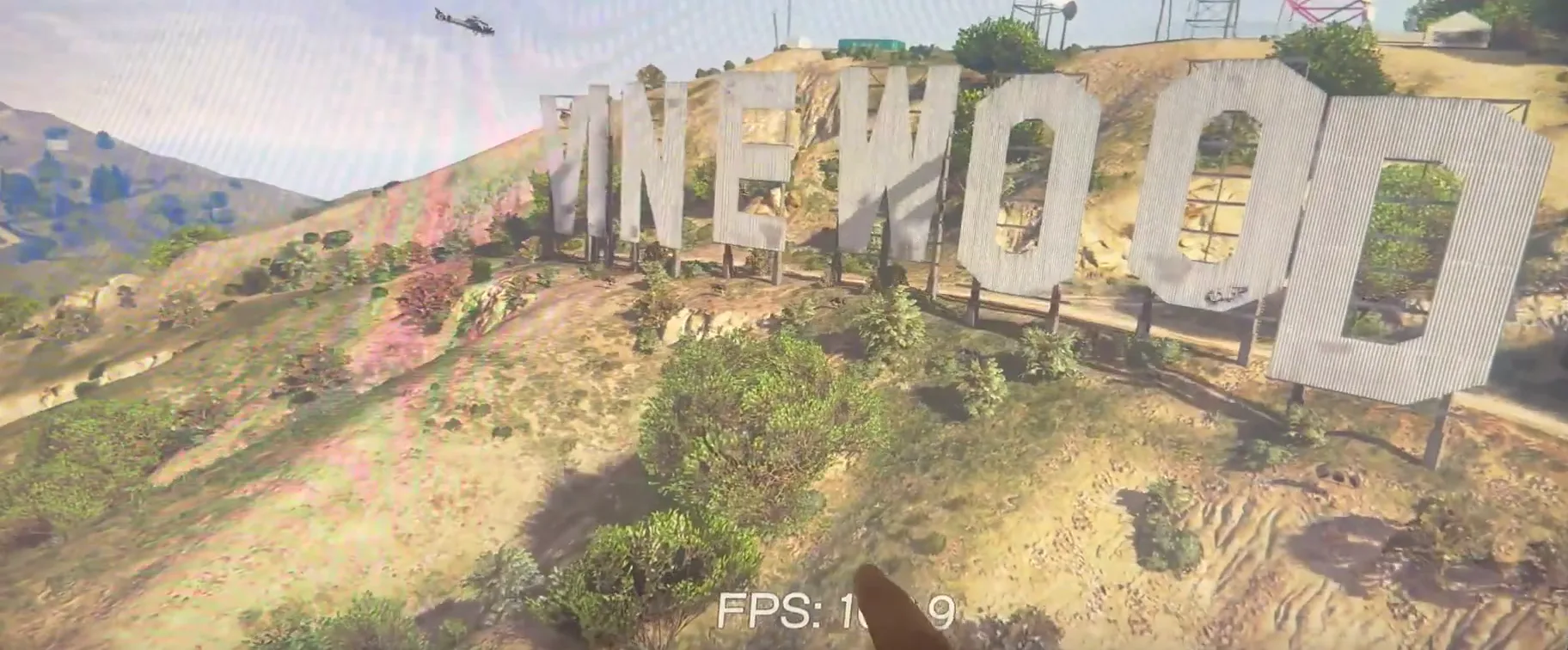
His summary at the end of the video: VALORANT from about 300 to about 1,000 FPS, Fortnite from about 300 to about 700 FPS, and over 80 FPS more in GTA 5. Treat these as one PC's result, not a promise.
How to check it worked
You do not need the exact same PC to repeat the method:
- Turn on the game's own FPS counter or run its benchmark and write down the number before any tweak.
- Apply the pack, restart Windows, then test in the same scene with the same graphics settings.
- Compare the average, not one peak. The Fortnite counter in the video shows a low and a high next to the average, and the average is the one to track.
- If the game stutters or crashes, restore the point you created and test again with fewer tweaks.
For game-specific steps, see our GTA 5 FPS boost guide and the VALORANT FPS and input lag guide. The free PC optimizer guide for Fortnite goes deeper on the free pack.
Key settings at a glance
FAQ
Do free FPS tweaks really work?
They can. On the PC in the video the free pack lifted Fortnite on the highest settings from about 400 FPS to about 600 FPS on an empty map. Results typically depend on your CPU, graphics card and what already runs in the background.
Is a paid FPS pack worth it compared to a free one?
In the video the paid pack added a further step in all three games on top of the free one, and it also covers input lag, internet and Windows settings that a single free script may not. Test both with the same before and after method and decide on your own numbers.
Can you really get 1,000 FPS on a $1,000 PC?
Leon reads over 1,000 FPS in VALORANT on the lowest settings on his PC, but about 700 to 800 in Fortnite and about 120 in GTA 5. How high you get depends on the game: older, CPU-bound shooters at low settings typically go the highest.
Why create a restore point before tweaking?
A restore point lets Windows undo system changes, so a tweak that does not suit your PC can be reversed. The video makes it the one really important step before running the free pack.
Why did lowering graphics settings barely change Fortnite's FPS?
On an empty map the video shows the lowest settings giving almost the same result as Epic. That points at the CPU or background load as the limit, which is the part tweak packs and Windows settings can change.
Does lower input lag come from the same tweaks?
Separately. The video's input-lag section tunes mouse, keyboard, devices, USB ports and controller on top of the FPS tweaks. Our Fortnite FPS, input delay and ping guide explains how they fit together.
 RIP Tweaks
Do it in a few minutes with RIP Tweaks
- Free plan for Windows 10 and 11
- A backup first, and every tweak can be switched off again
- Made for higher FPS, lower input lag and steadier ping
Free · Windows 10 and 11
