Fortnite OG Remix FPS Boost: In-Game Settings, Windows Settings and Free Tweaks Pack

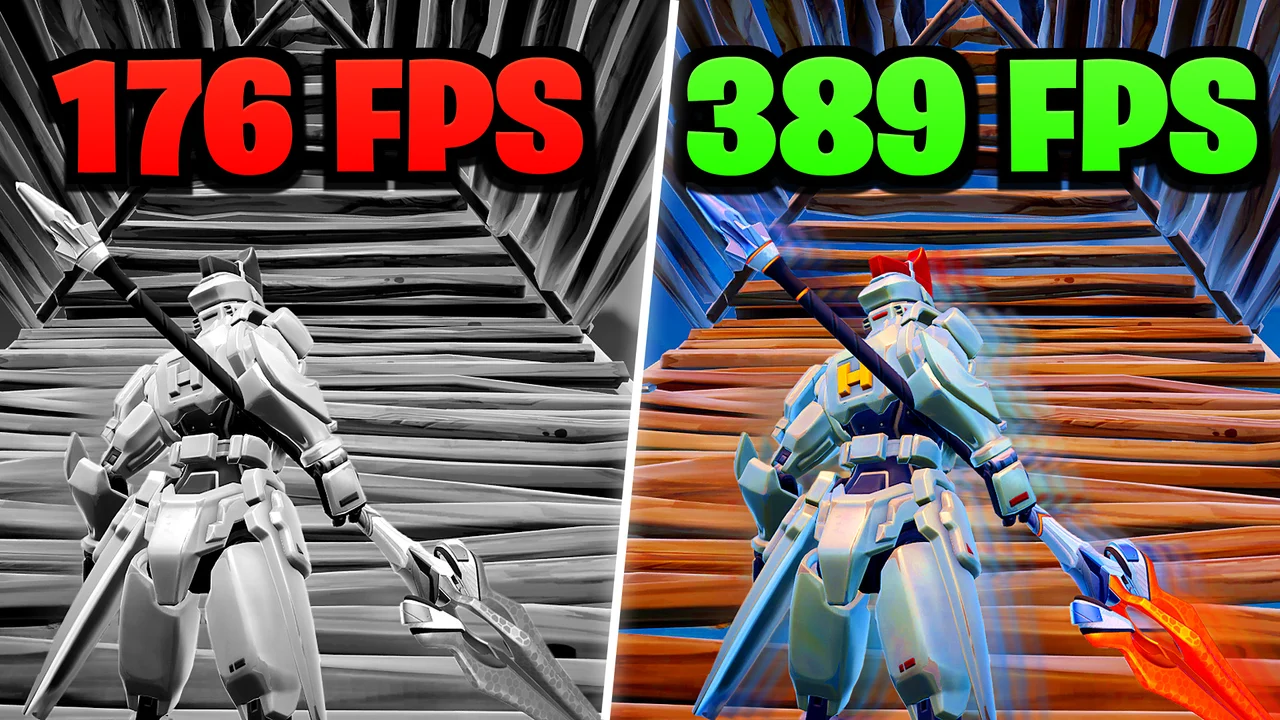
Written version of our video, every step checked against it.
Quick answer
- In the Epic Games Launcher, open Fortnite's Options and untick high resolution textures.
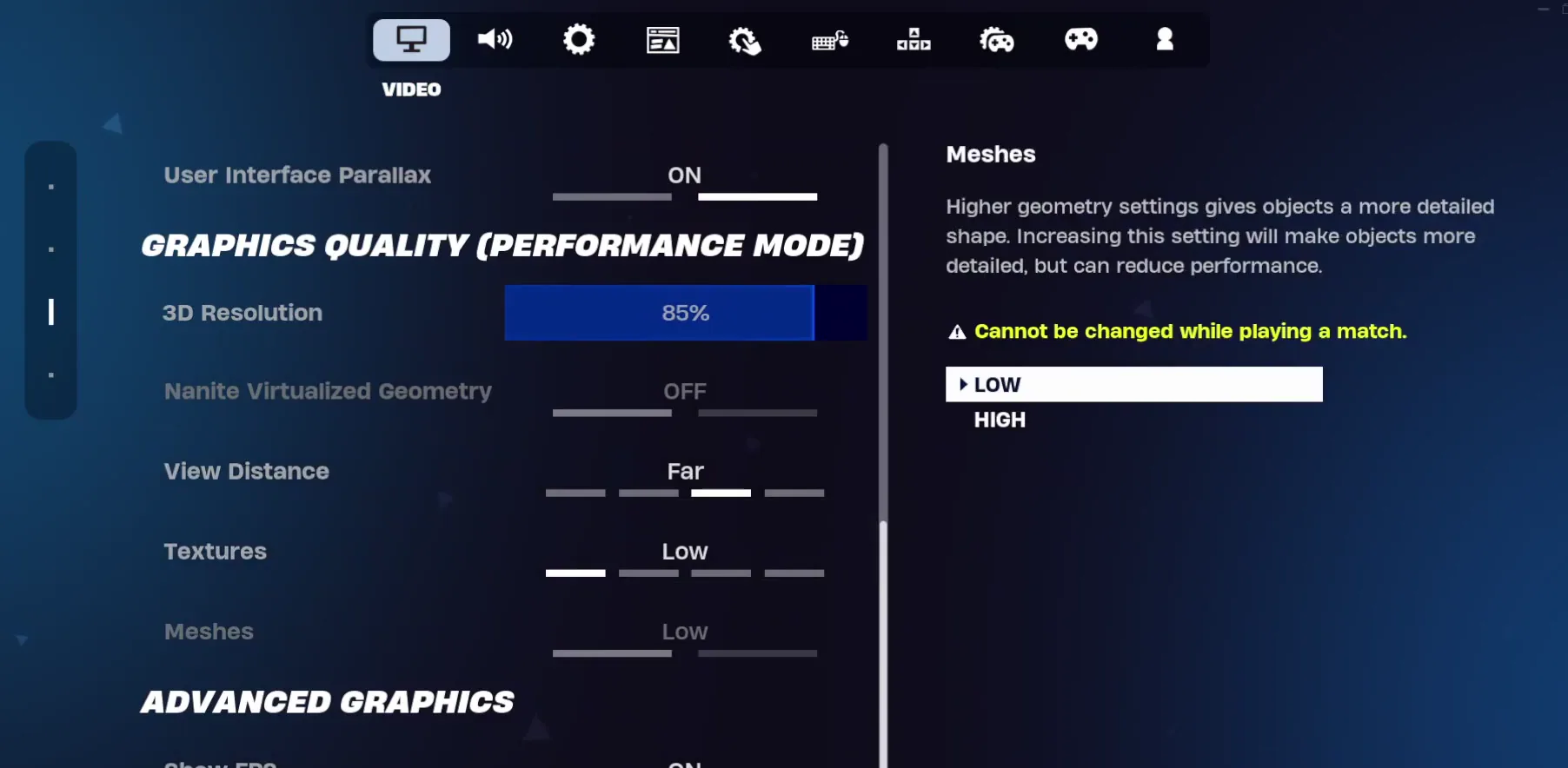
- In Fortnite's Video settings, use Performance mode and set 3D Resolution to
85%. In the Game tab, turn off replays, NVIDIA highlights and the idle energy saving. - In Windows, set Power & sleep to best performance, turn off background apps and check that Hardware-accelerated GPU scheduling is on.
- Create a restore point, then run the RIP Tweaks Free Pack V4.1 as administrator: power, GPU, ping, input, Windows and RAM tweaks, then the Fortnite option under Games.
- On the PC in the video, the same Fortnite settings went from about 300 FPS before the pack to over 400 FPS after it.
This guide is for Fortnite players on a Windows PC who get frame drops and stutters in OG Remix and want more FPS and less input delay without buying anything. It follows our video in order: the Epic launcher option, the Fortnite settings, three Windows settings, and the free tweaks pack with every menu the video clicks.
In this video
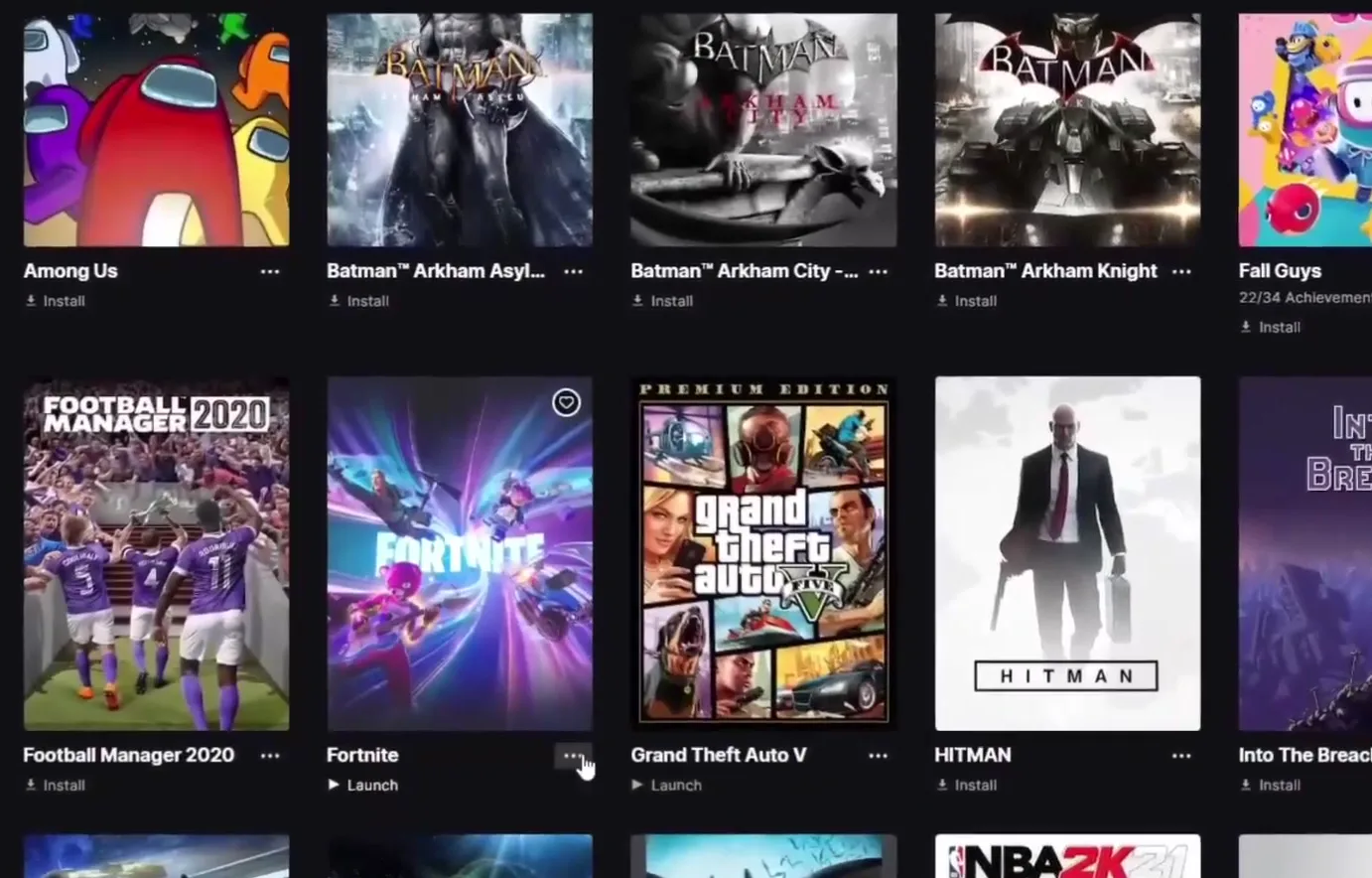
This one is done outside the game. Open the Epic Games Launcher, find Fortnite in your library, click the three dots under it, open Options and untick high resolution textures. Fortnite then uses its smaller texture files.
Epic Games LauncherLibraryFortnite: three dotsOptionsHigh resolution textures (untick)
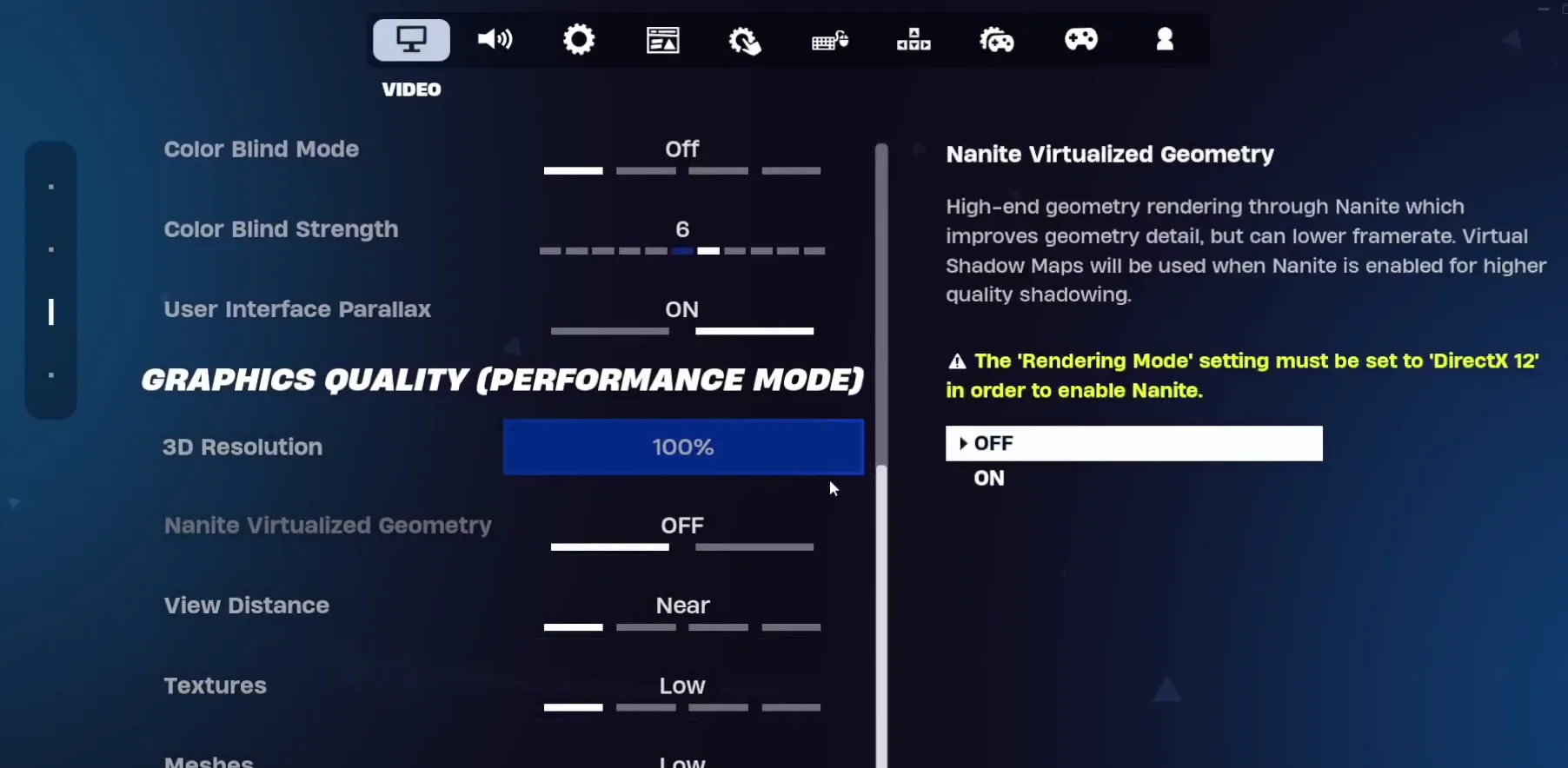
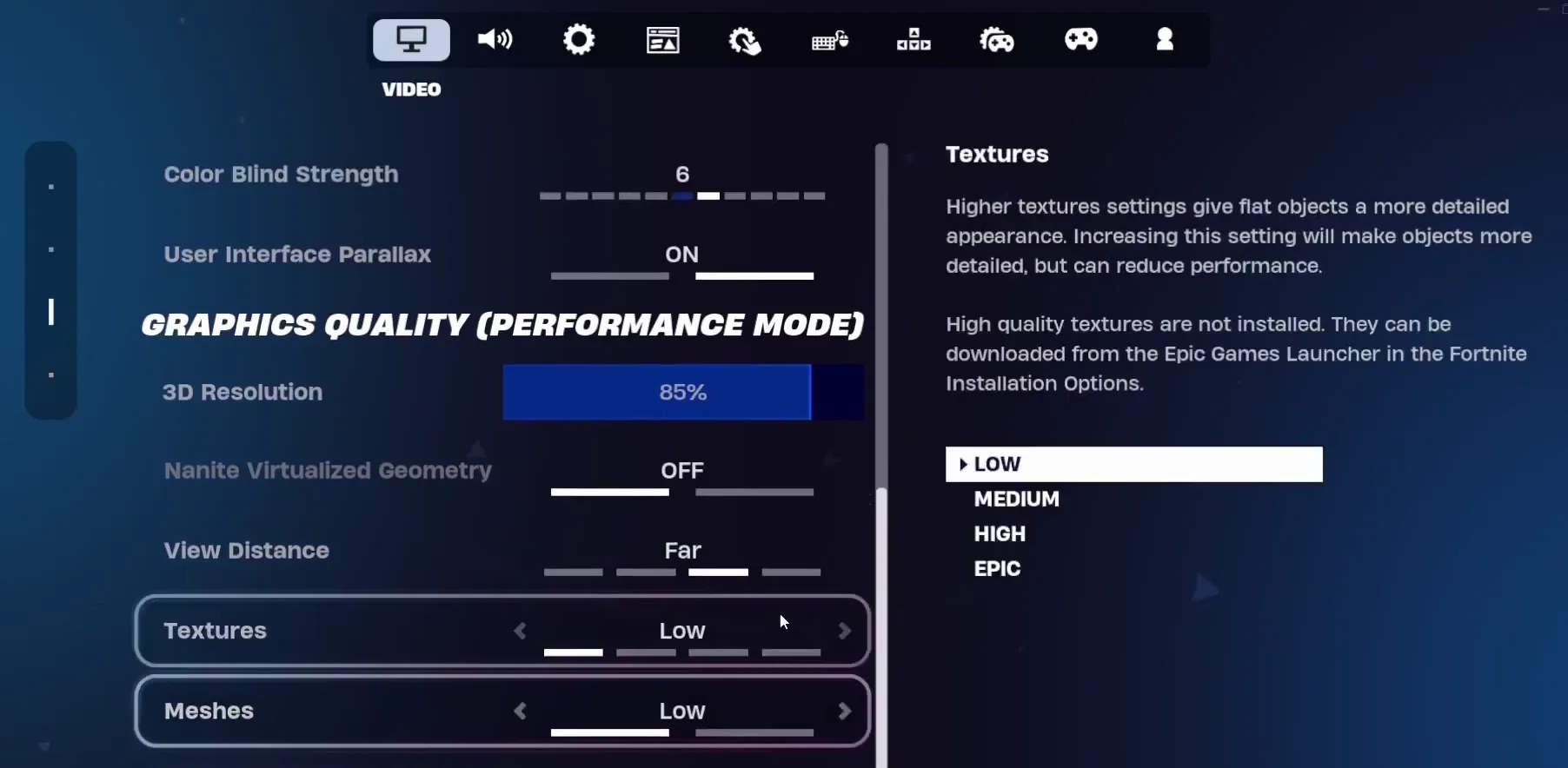
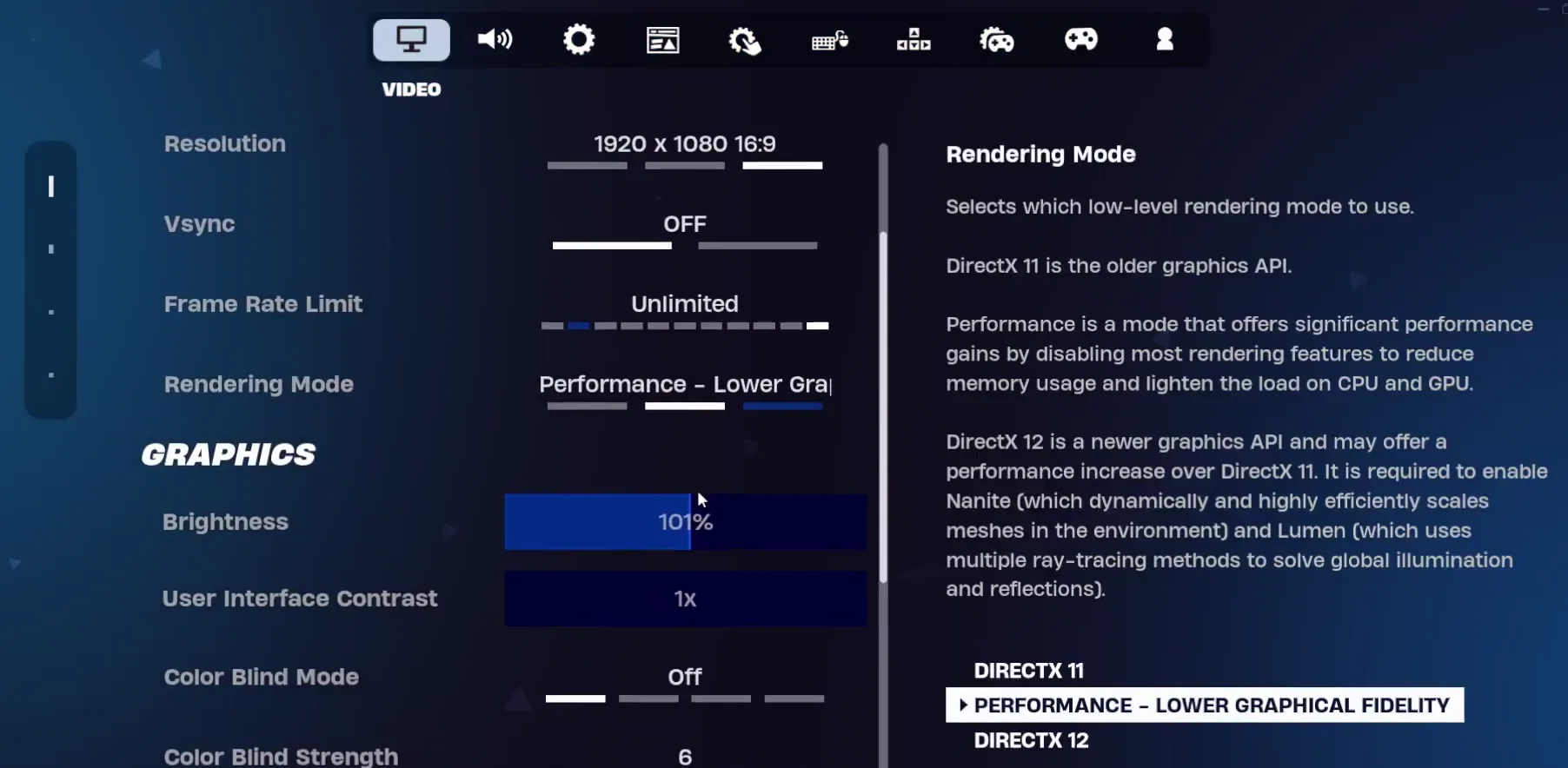
Open Fortnite's settings and go to the Video tab. Make sure Performance mode is on; the section is then called Graphics Quality (Performance Mode). Set 3D Resolution to 85%, which the video calls the best balance between quality and performance. The video also shows Textures and Meshes on Low and Nanite Virtualized Geometry off.
SettingsVideoGraphics Quality (Performance Mode)3D Resolution85%
Tip
View Distance is a personal choice in the video: you can set it to Far, but you do not have to. Players who want to spot enemies earlier keep it higher, the rest can leave it lower.
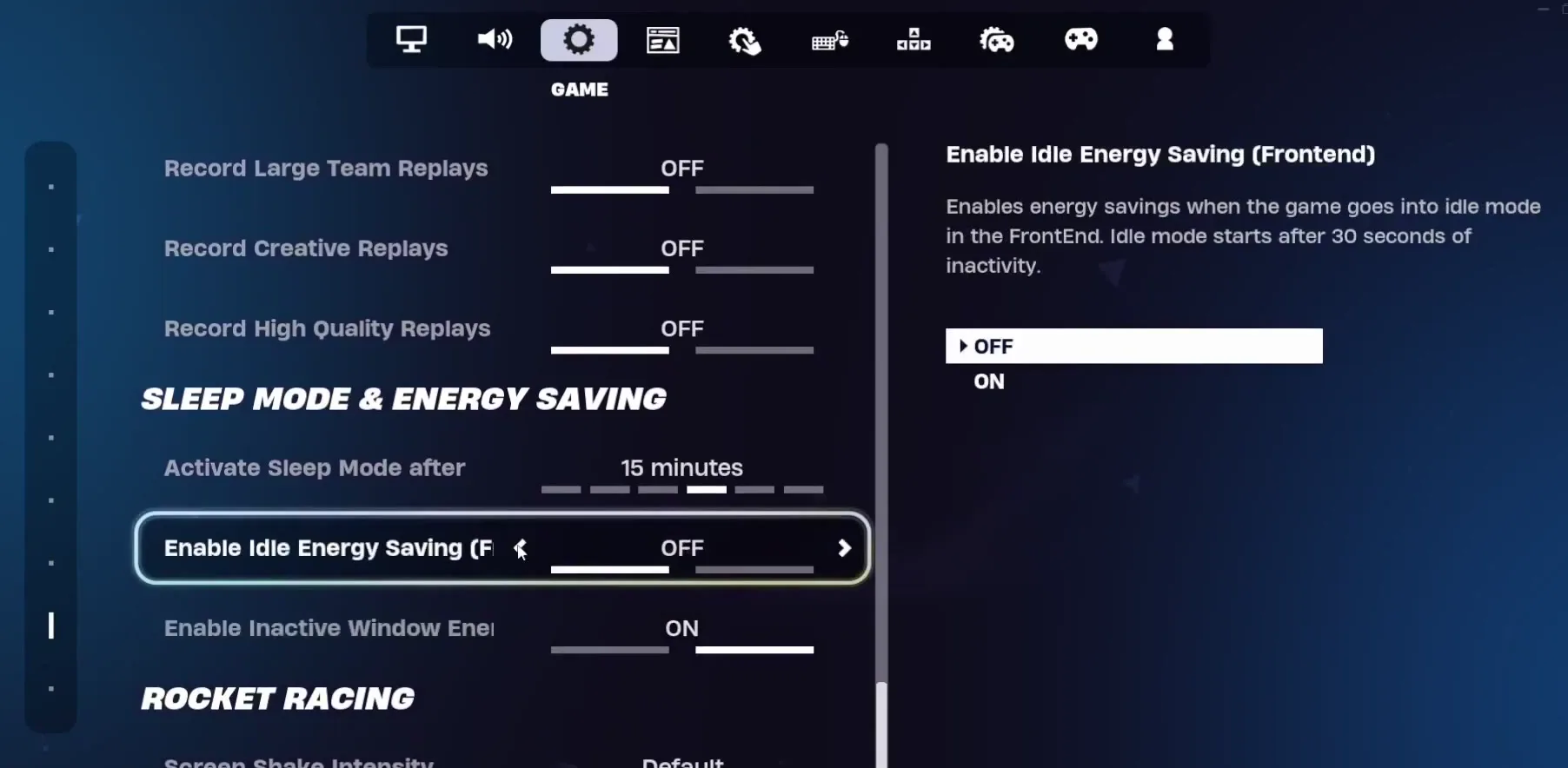
Switch to the Game tab. Turn off NVIDIA highlights, because it uses your PC's resources while you play. In the replay section turn the replay recording options off. Under Sleep Mode & Energy Saving, the video turns off everything it can: the screen shows Enable Idle Energy Saving (Frontend) set to OFF.
SettingsGameReplays (off)Sleep Mode & Energy Saving (off)
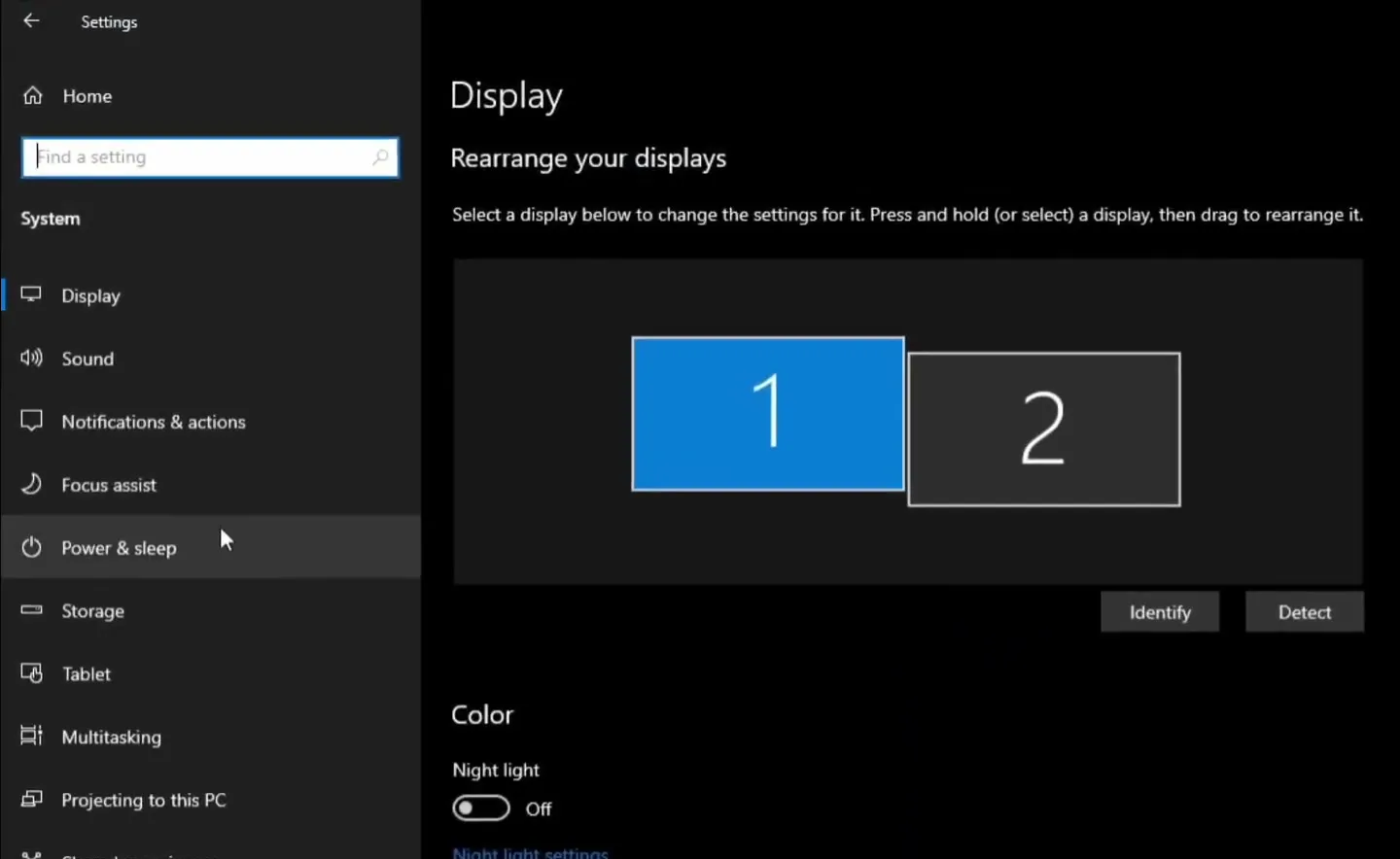
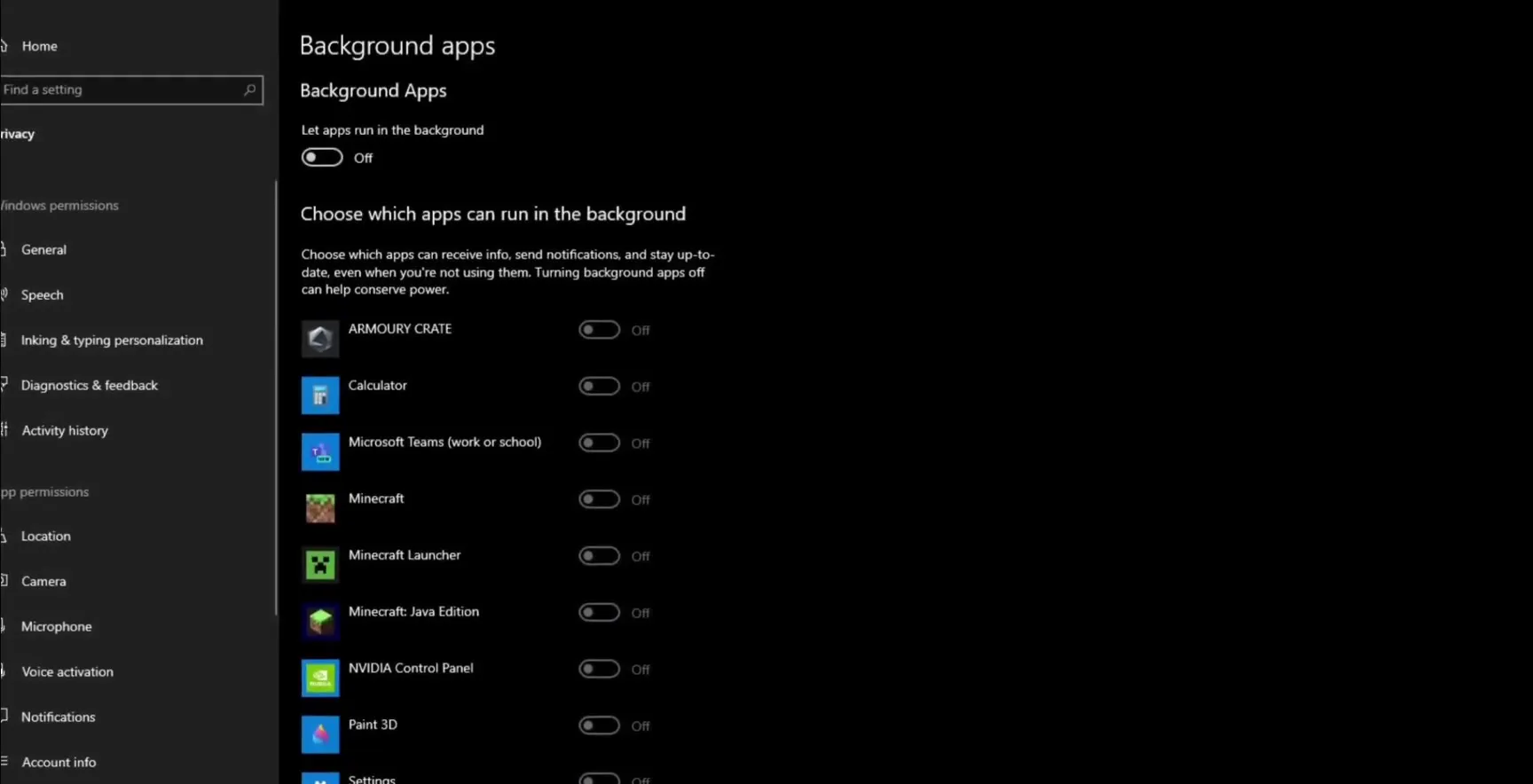
Open Windows Settings, go to System, then Power & sleep, and set the power mode to the best performance option. Then go back, type background apps in the search bar and open it. Switch off Let apps run in the background and every app in the list, so nothing runs behind your game.
SettingsSystemPower & sleepBest performance
SearchBackground appsLet apps run in the backgroundOff
Last Windows step: go back, type GPU in the search bar, open Graphics settings and make sure Hardware-accelerated GPU scheduling is on.
SearchGraphics settingsHardware-accelerated GPU schedulingOn
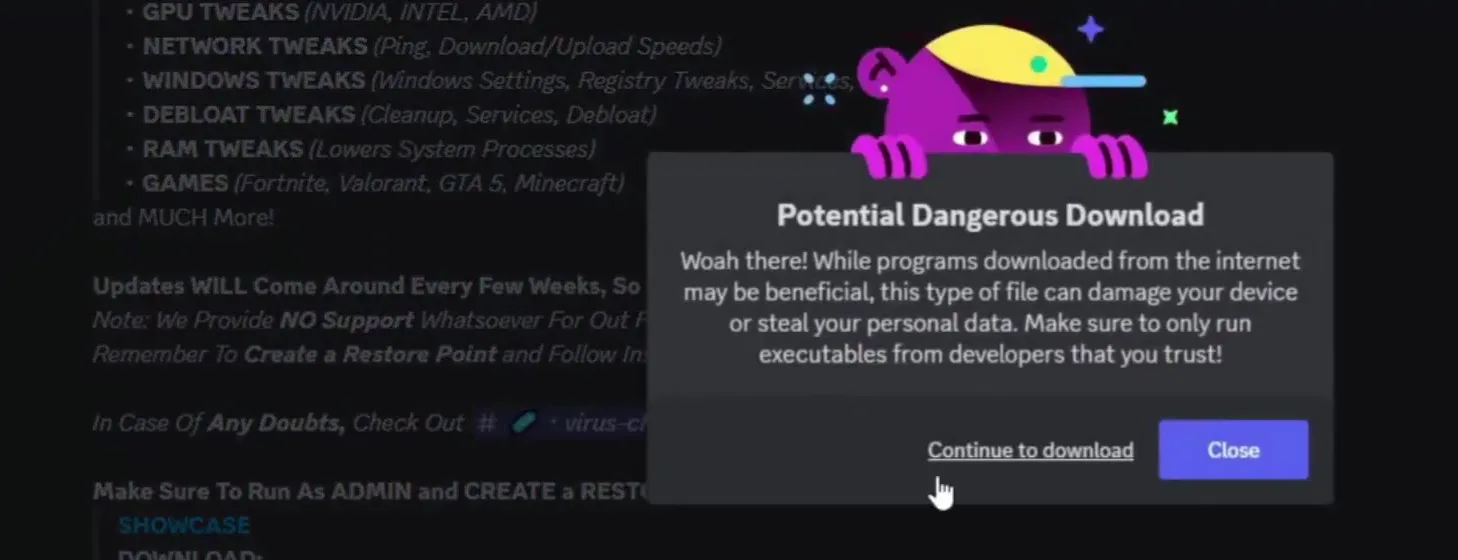
Open your browser and type discord.gg/riptweaks. Discord opens: join the server, go to the free-tweaks channel and download the free tweaks pack. Discord warns about downloading an executable; click Continue to download. When the download is done, drag the pack to your desktop, right-click it and choose Open with Windows Explorer so the files are extracted.
Good to know
The pack in the video is RIP Tweaks Free Pack V4.1, the free version at the time. Download it only from the RIP Tweaks Discord linked in the video description, never from reupload sites.
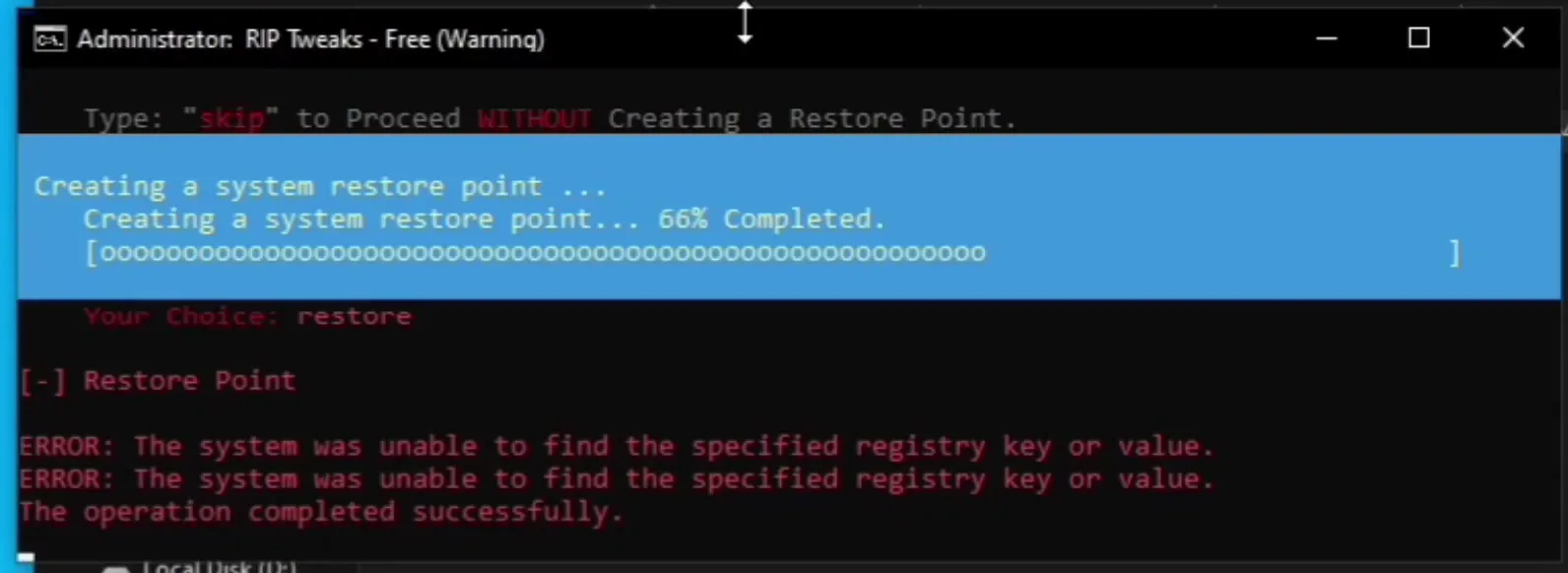
Right-click the pack's file and choose Run as administrator. A message asks whether you want a restore point. The video recommends typing restore: it is the easiest way to revert the tweaks if anything goes wrong. Typing skip continues without one.
How to undo it
To go back later, open Windows System Restore and pick this restore point. This is why the video does not skip it.
The main menu is numbered: every option has a number in front of it, so you type the number and press Enter. The video goes through them in this order and uses Main Menu to return after each one.
- Power Tweaks: runs once and prints a long list of results.
- GPU Tweaks: pick your GPU. The video has an NVIDIA card and chooses the NVIDIA option.
- Ping Tweaks: option 1 (reduce ping), then wait until it finishes.
- Input Tweaks: run all the options, including optimize keyboard and optimize mouse.
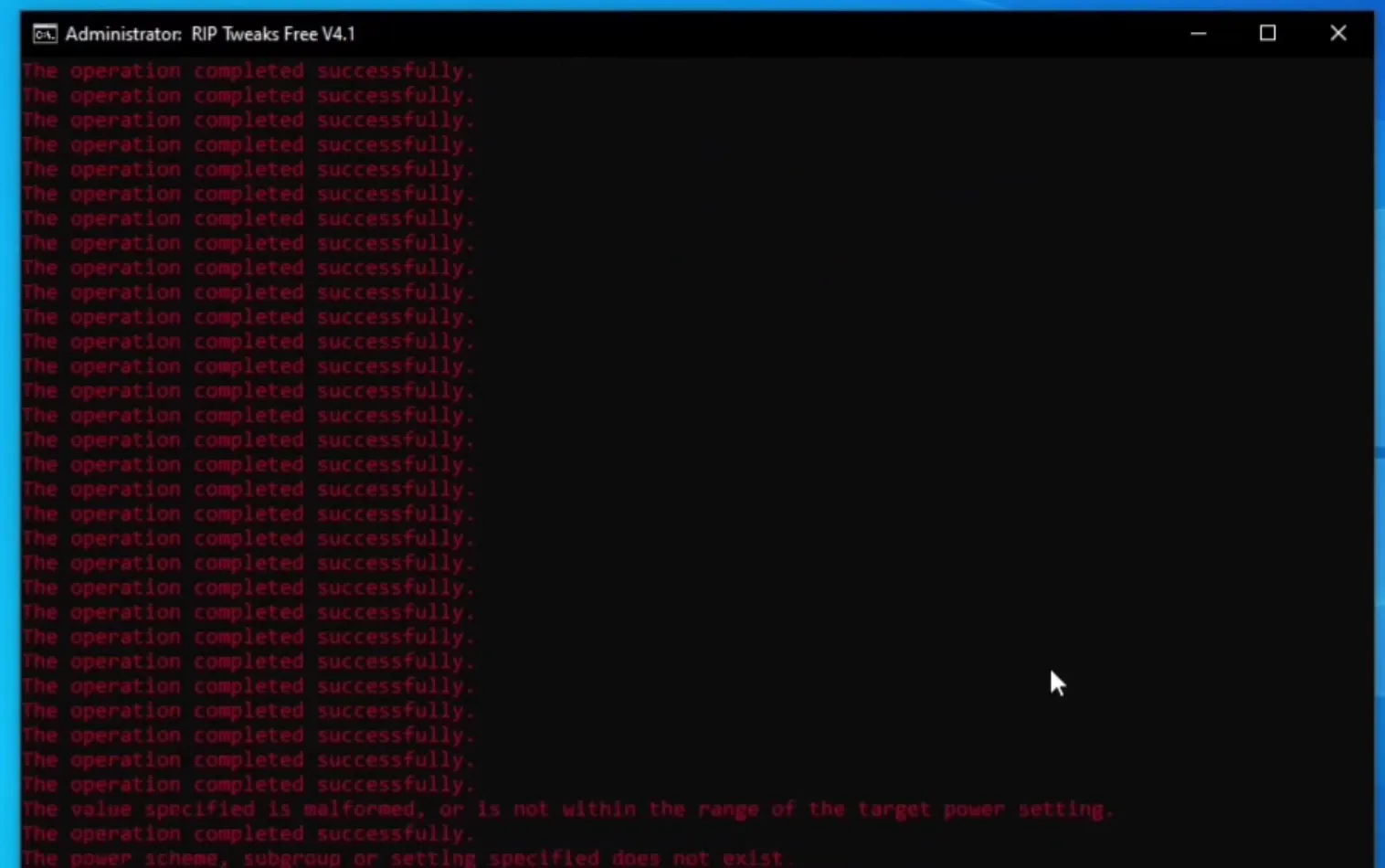
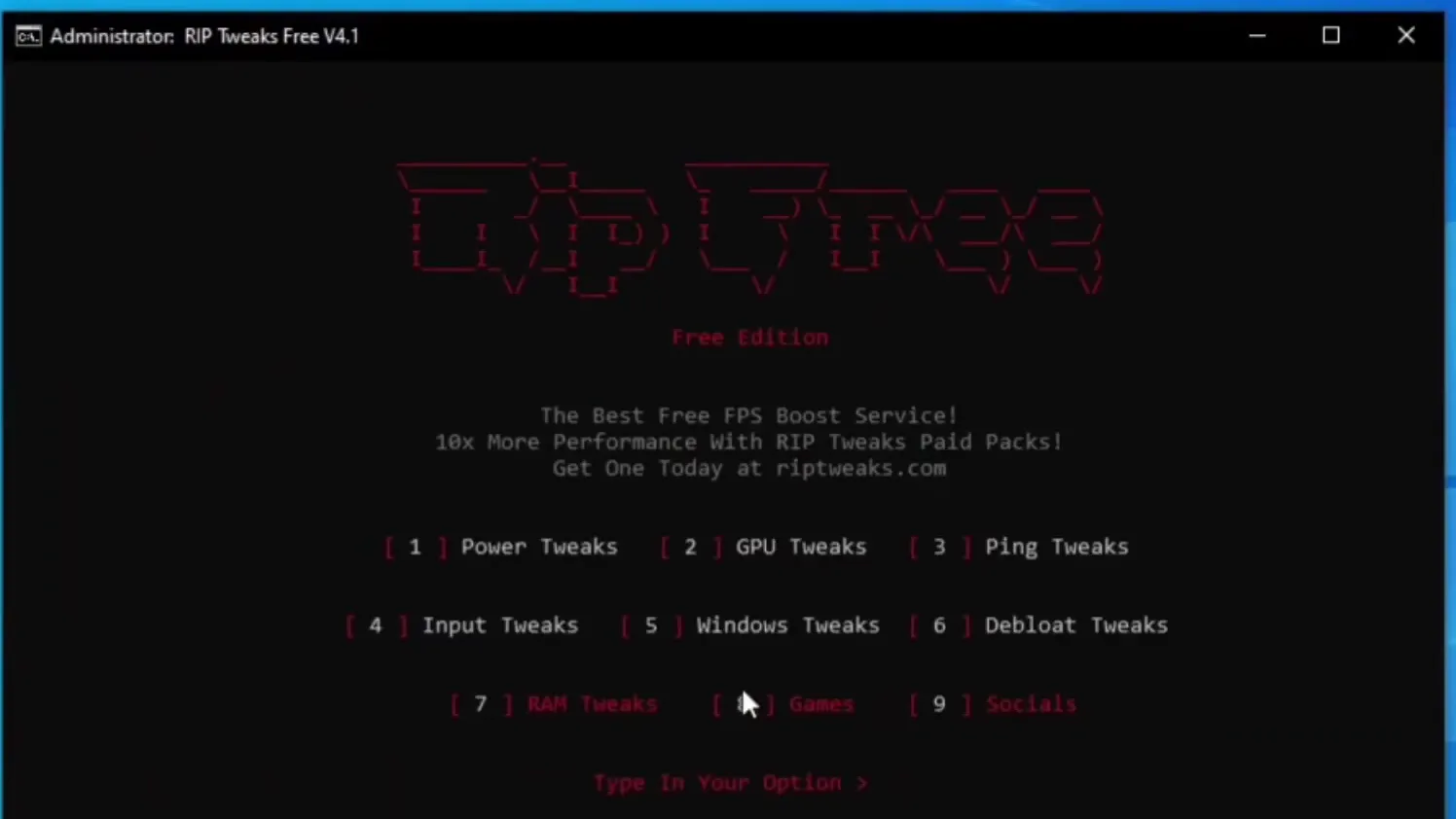
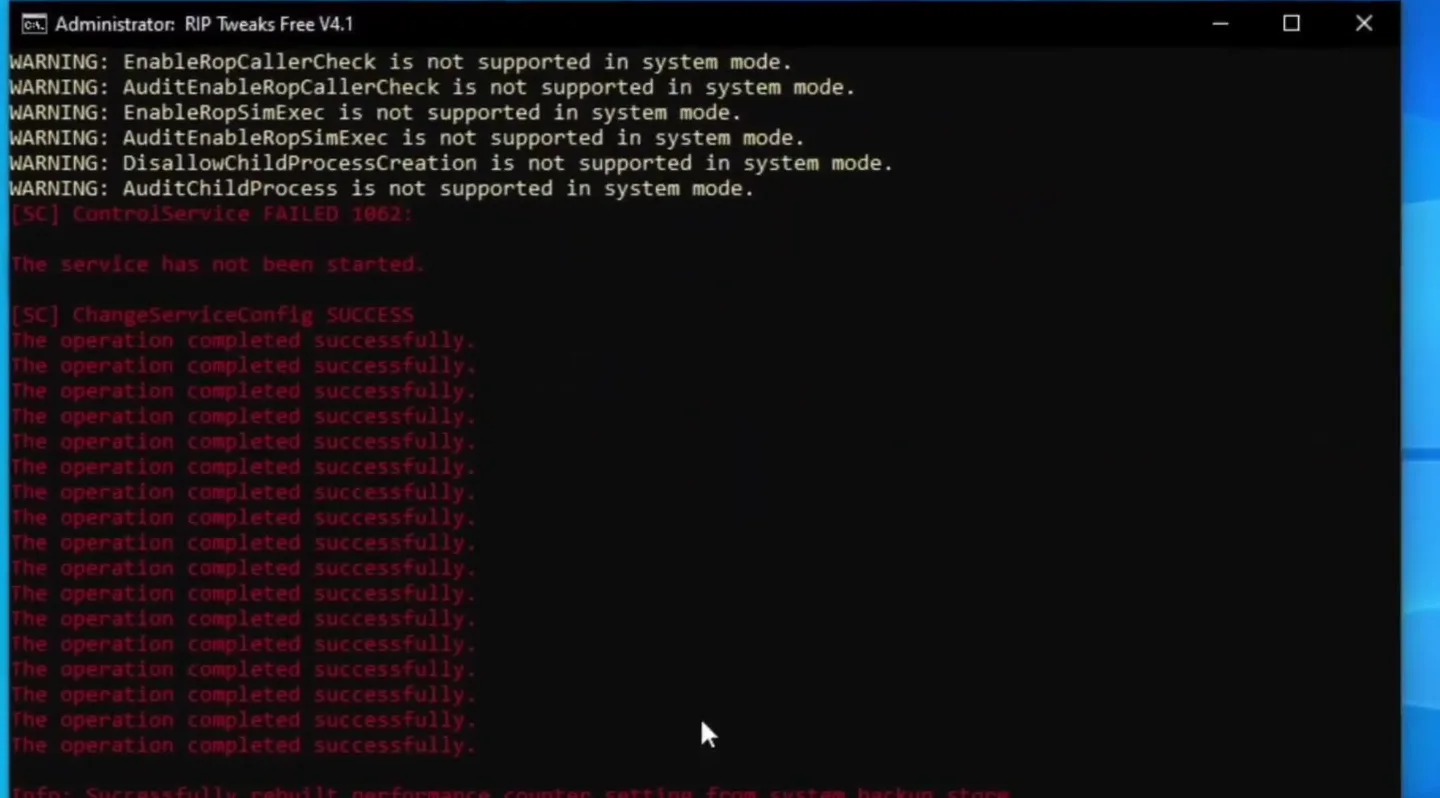
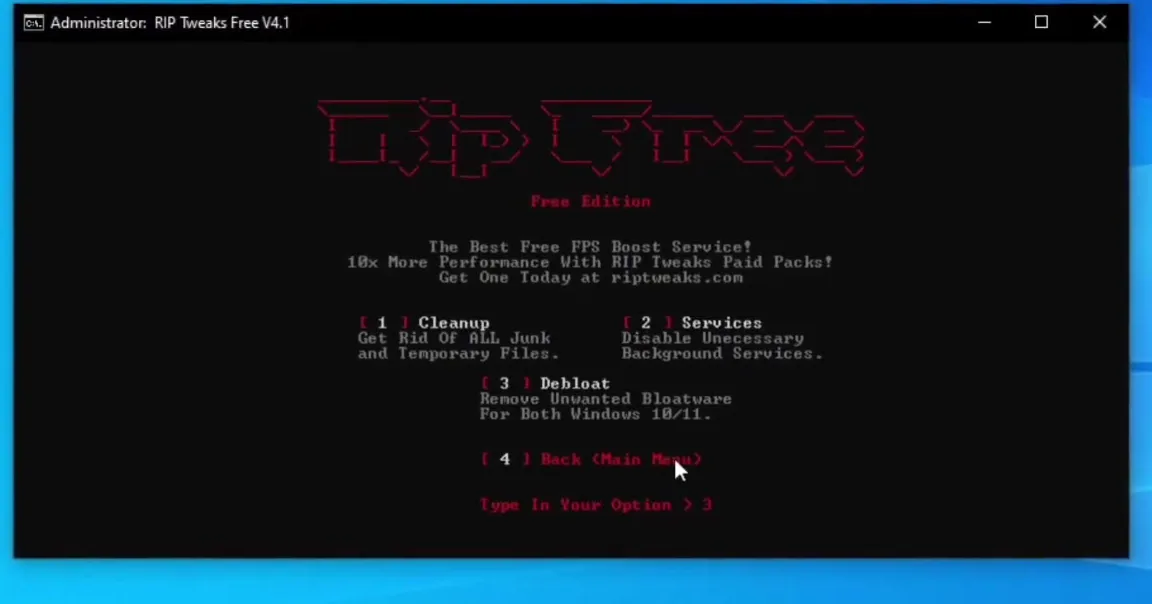
Go back and open the Debloat Tweaks menu. It has three options: Cleanup (junk and temporary files), Services (disables unnecessary background services) and Debloat (removes unwanted apps on Windows 10 and 11). The video does the cleanup, disables the unnecessary services, then clicks Debloat.
Debloat TweaksCleanup / Services / Debloat
Careful
The video's own warning: Debloat disables Windows applications that run in the background. If you want to keep some of them, do not run that option, skip it. Cleanup and Services are separate.
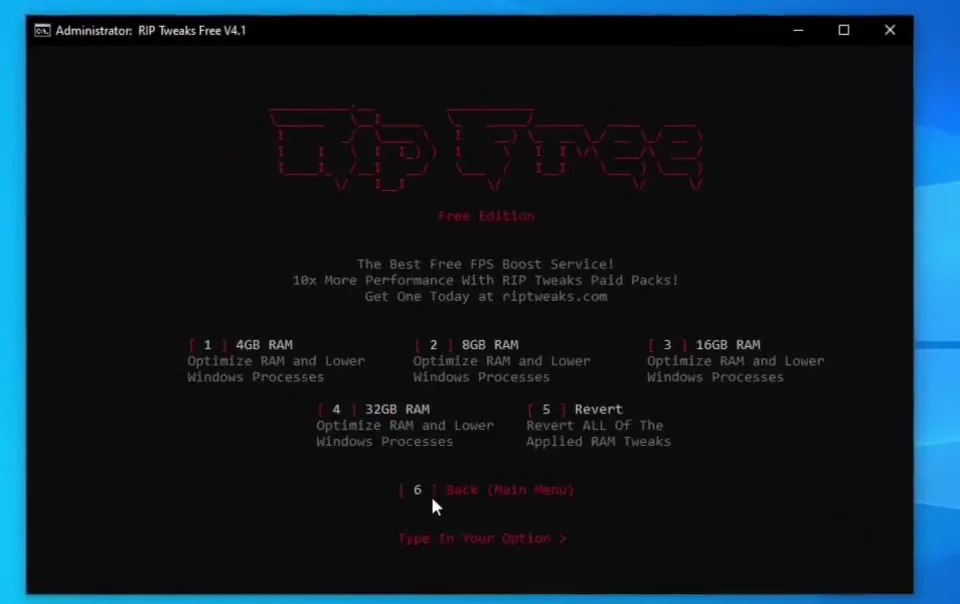
Go back and open RAM Tweaks. To find your amount, right-click the taskbar, open Task Manager, go to Performance and read the memory. The video has 32 GB and clicks the 32 GB option. The menu also has 4 GB, 8 GB and 16 GB, and a Revert option for all applied RAM tweaks.
Tip
Pick the RAM amount Task Manager shows, not a bigger one. The options are written for that amount of memory.
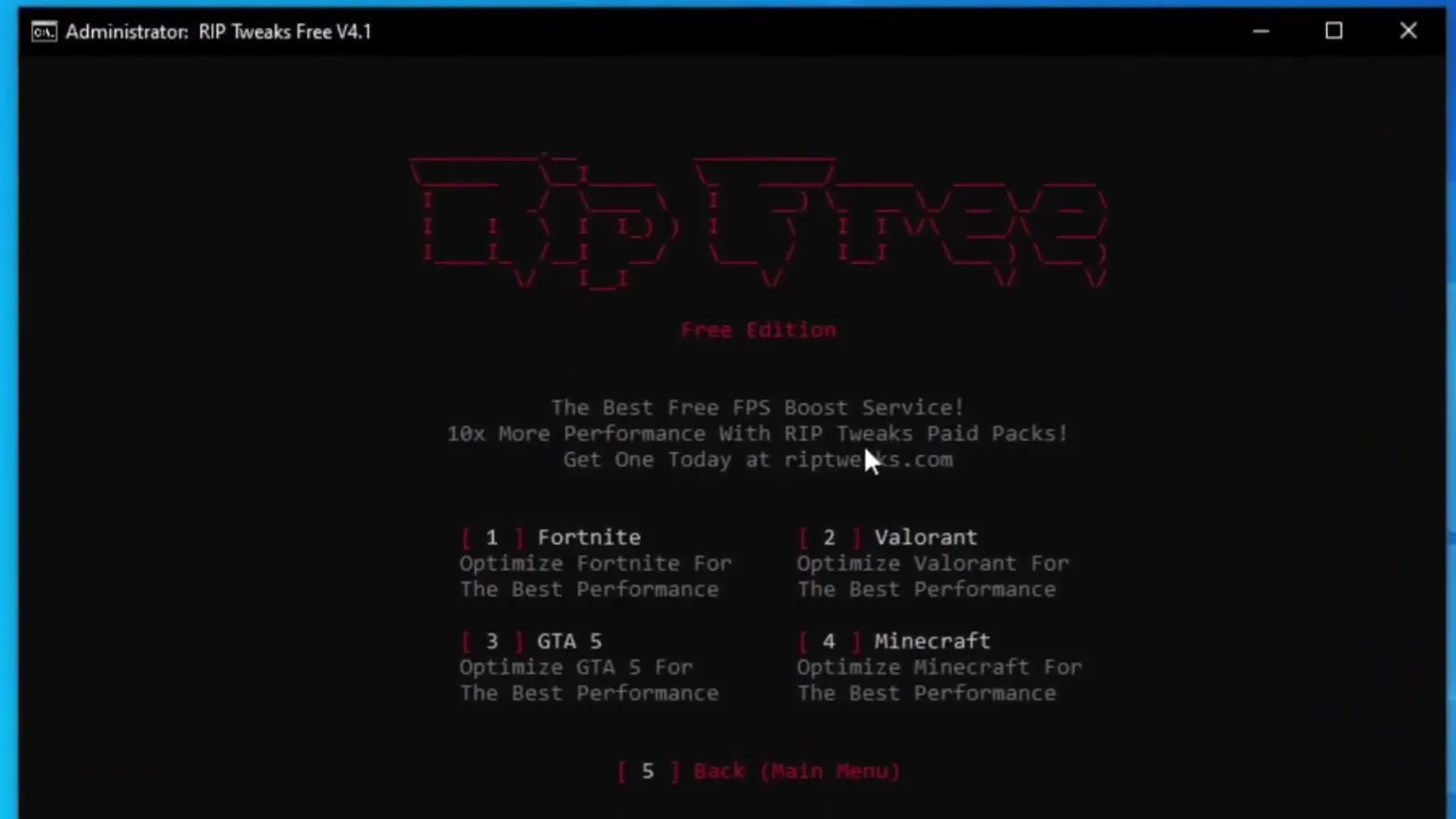
The video compares Fortnite with the same in-game settings before and after the pack. On the PC in the video the FPS counter shows 300 FPS before any tweaks and over 400 FPS consistently after the FPS boost pack. Your result depends on your PC, so test it yourself the same way: same settings, same spot, before and after.
How to check it worked
- Turn on Show FPS in the Video tab, under Advanced Graphics, and note your FPS before you change anything.
- After the restart, load the same match or the same spot with the same settings. Only the FPS number should differ, as in the video.
- Check input delay by feel in the same situation: building, editing and aiming should feel more direct. Do not judge it in the lobby only.
- If Fortnite looks wrong or something misbehaves, revert: the RAM menu has its own Revert, and your restore point undoes the rest.
Key settings at a glance
FAQ
What are the best settings for FPS in Fortnite OG Remix?
The video uses Performance mode, 3D Resolution at 85%, Textures and Meshes on Low and high resolution textures switched off in the Epic launcher. It also turns off replays, NVIDIA highlights and idle energy saving in the Game tab.
Why set 3D Resolution to 85% and not lower?
The video calls 85% the best balance between quality and performance: the picture stays clear while the game renders fewer pixels than at 100%. If you want even more FPS you can test lower values, but that is not what the video does.
How do I lower input delay in Fortnite?
The video combines the in-game settings with Windows best performance power mode, no background apps and the pack's Input Tweaks, which include optimize keyboard and optimize mouse. For more on this, see our Fortnite input delay guide.
Is the RIP Tweaks Free Pack safe to run?
Create the restore point it offers first, as the video recommends, and only download it from the RIP Tweaks Discord. Discord shows a warning for any executable download, which is normal. The Debloat option is the only one the video warns about, so skip it if you want to keep your background apps.
Does this work for the main Fortnite game, not only OG?
The in-game and Windows steps are the same menus. For the newer version of this workflow with the current RIP Tweaks app, see our Fortnite FPS boost and input delay guide, and for the earlier OG video, the Fortnite OG FPS boost guide.
How many FPS will I gain?
It depends on your PC. On the PC in the video the same settings gave about 300 FPS before and over 400 FPS after the pack. Measure your own with Show FPS, as in the check section.
Which RAM option should I choose?
The one that matches your installed memory. Right-click the taskbar, open Task Manager, then Performance, and read the amount. The video has 32 GB and picks the 32 GB option.
 RIP Tweaks
Do it in a few minutes with RIP Tweaks
- Free plan for Windows 10 and 11
- A backup first, and every tweak can be switched off again
- Made for higher FPS, lower input lag and steadier ping
Free · Windows 10 and 11
