
1 min to read
How to Optimize Games for More FPS With Presets and RIP Mode
Open Games in the sidebar. RIP Tweaks scans your PC and shows the games you actually have installed, pulled from Steam, Epic, Riot, Ubisoft, EA and Xbox, plus Minecraft and Roblox. If a game is missing, use the Add Game tile and point it at the game’s .exe file.
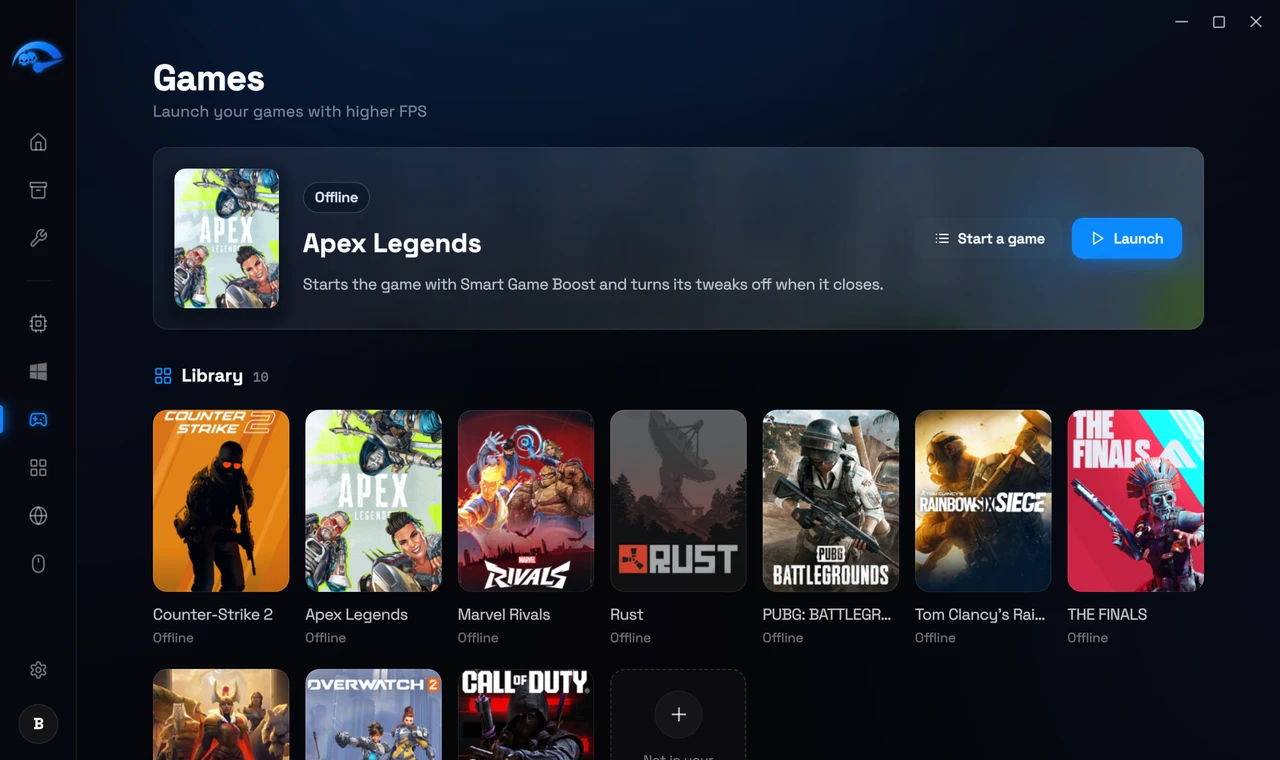
Click any game to open its launcher panel, where you can pick a mode, apply that game’s tweaks and launch it.
RIP Mode
This is the pre game booster. It frees resources right before you play, rather than changing anything permanently:
- Stop Explorer (Premium). Closes the Windows desktop shell, which frees up to around 150MB.
- Clear Cached RAM (Premium). Releases cached memory, which can free up to around 2GB.
- Disable CPU 0. Keeps your game off the core Windows uses most for interrupts.
- Background Apps. Choose which background services to stop for the session.
Game-time quiet mode (Premium)
While a game you started from RIP Tweaks runs, or while RIP Mode is on, the apps you leave open in the background go quiet. It switches itself off and puts everything back the moment you stop playing.
- Efficiency mode. Browsers, launchers, overlays and updaters get Windows Efficiency mode (low priority), so your game gets the CPU.
- Voice stays clear. Voice apps like Discord, TeamSpeak and Mumble only get a little lower priority, never Efficiency mode.
- Never touched. Your game, anti-cheat, audio, OBS and other recorders, Windows and RIP Tweaks. Change the lists or turn it off in Settings > Gaming.
RIP Mode is temporary by design. Everything comes back when you finish.