
Best Free Voice Changer in 2026: EaseUS VoiceWave Setup for Games, Discord and OBS

Written version of our video, every step checked against it.
Quick answer
- Download EaseUS VoiceWave with the first link in the video description and install it; the video calls it free to use.
- Click Switch AI model and make sure Voice Quality Priority is active, not Performance Priority.
- Click a voice such as Cristiano Ronaldo, then press Add keybind and a key like F12 to jump to it any time.
- Browse the football voices, the community sounds and the soundboards, and put the sounds you like on keys too.
- In Windows, open Settings, System, Sound, pick VoiceWave Microphone under Input and restart the PC.
This guide is for anyone who wants a free real-time voice changer for games, Discord, TeamSpeak or OBS on a Windows 10 or 11 PC. It follows our video in order: the install, the AI model that gives the best voices, voices on keybinds, the football player voices, the community sounds, the soundboards and the one Windows setting that makes it all work in every app.
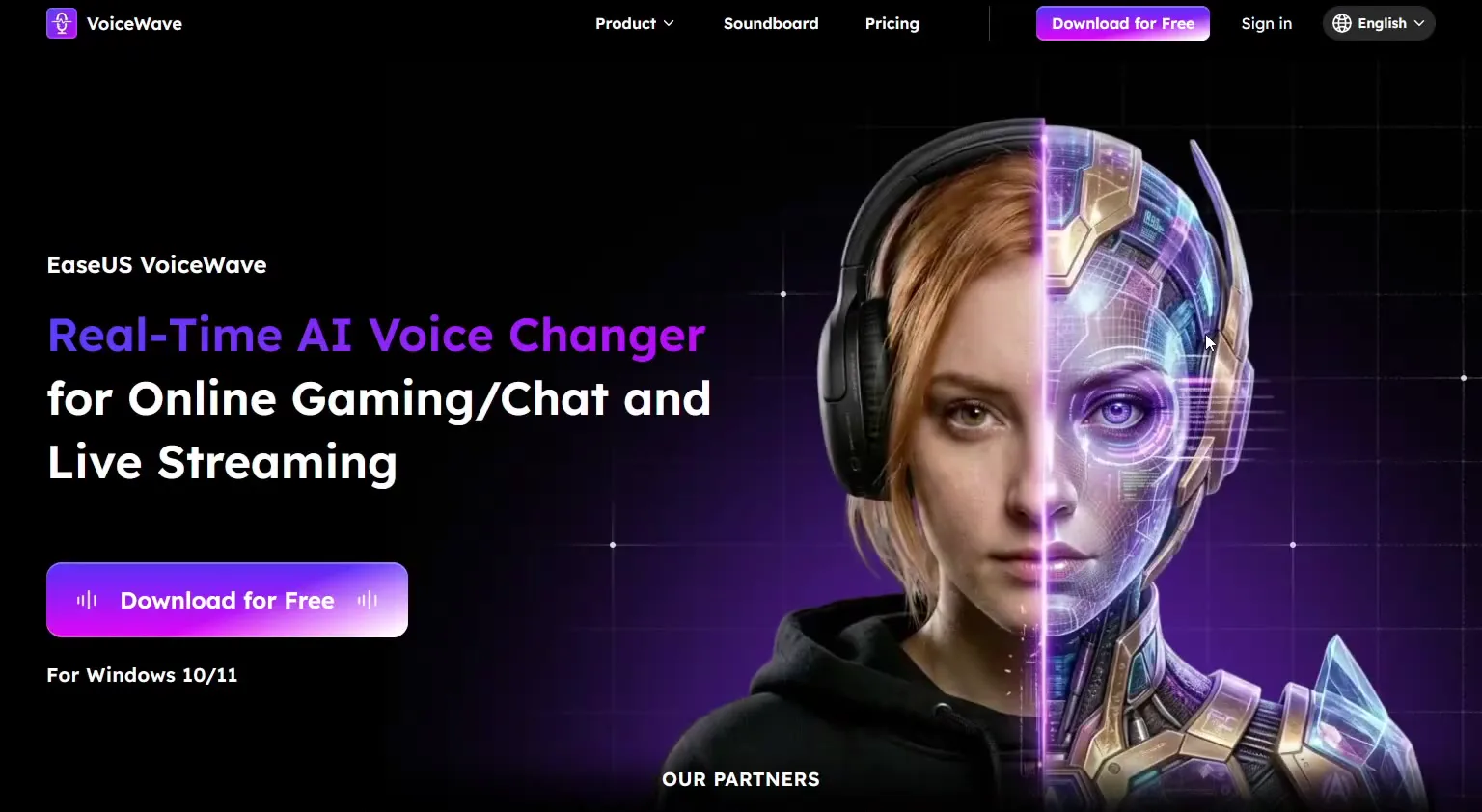
Open the video description and click the first link. It leads to the VoiceWave website, where you click Download for Free. Double-click the downloaded VoiceWave installer, click Run and install the app. When the install finishes, click Start now to open it.
Good to know
Windows may show a security warning before the installer starts. In the video it is a normal "Do you want to run this file?" window, and the video clicks Run. Only download the installer from the link in the description.
The first thing to check is the model. Click Switch AI model at the top right of the voice list and make sure Voice Quality Priority is the current mode, not Performance Priority. In the video this is what gives you the best voices out of all, the strong Cristiano Ronaldo voice included.
Switch AI modelVoice Quality PrioritySwitch now
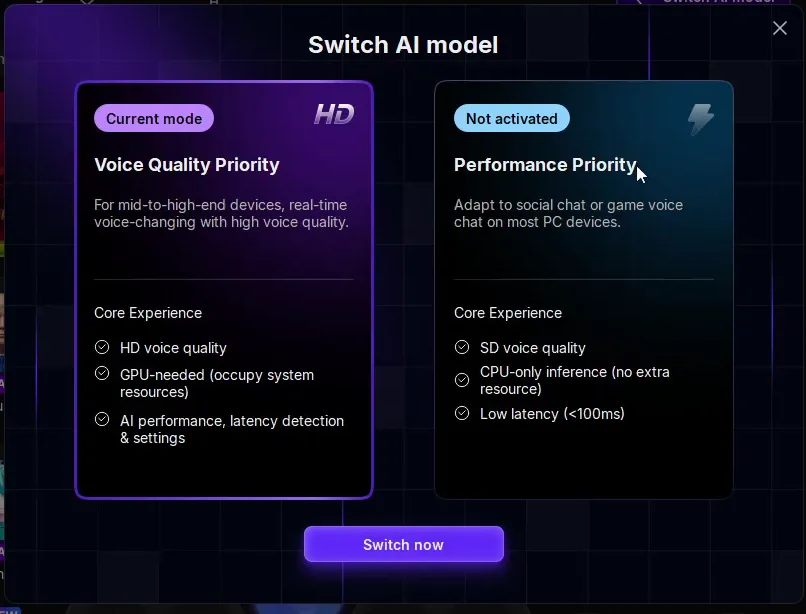
The window explains both options. Voice Quality Priority is for mid-to-high-end devices: HD voice quality, needs the GPU and uses system resources. Performance Priority is SD quality, CPU only and low latency (under 100 ms).
Tip
If the changed voice stutters on an older PC, open the same window and switch to Performance Priority. It trades some voice quality for a lighter load.
Click the voice you want in the All voices list. The video starts with its favorite, Cristiano Ronaldo, and the panel on the right shows his settings. Any voice can get its own key: click Add keybind, then press a key on your keyboard. The video uses F12.
All voicesCristiano RonaldoAdd keybindF12
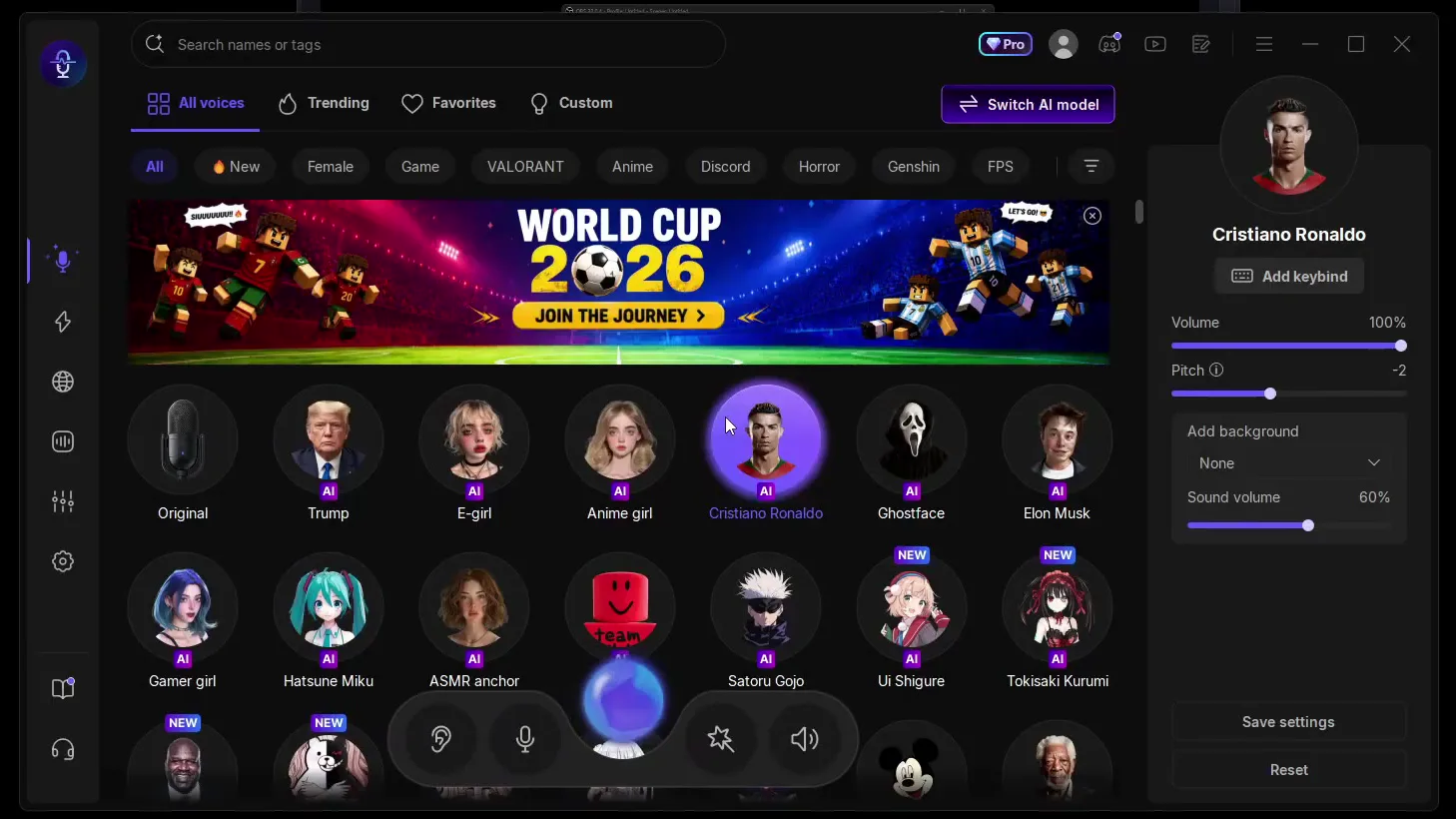
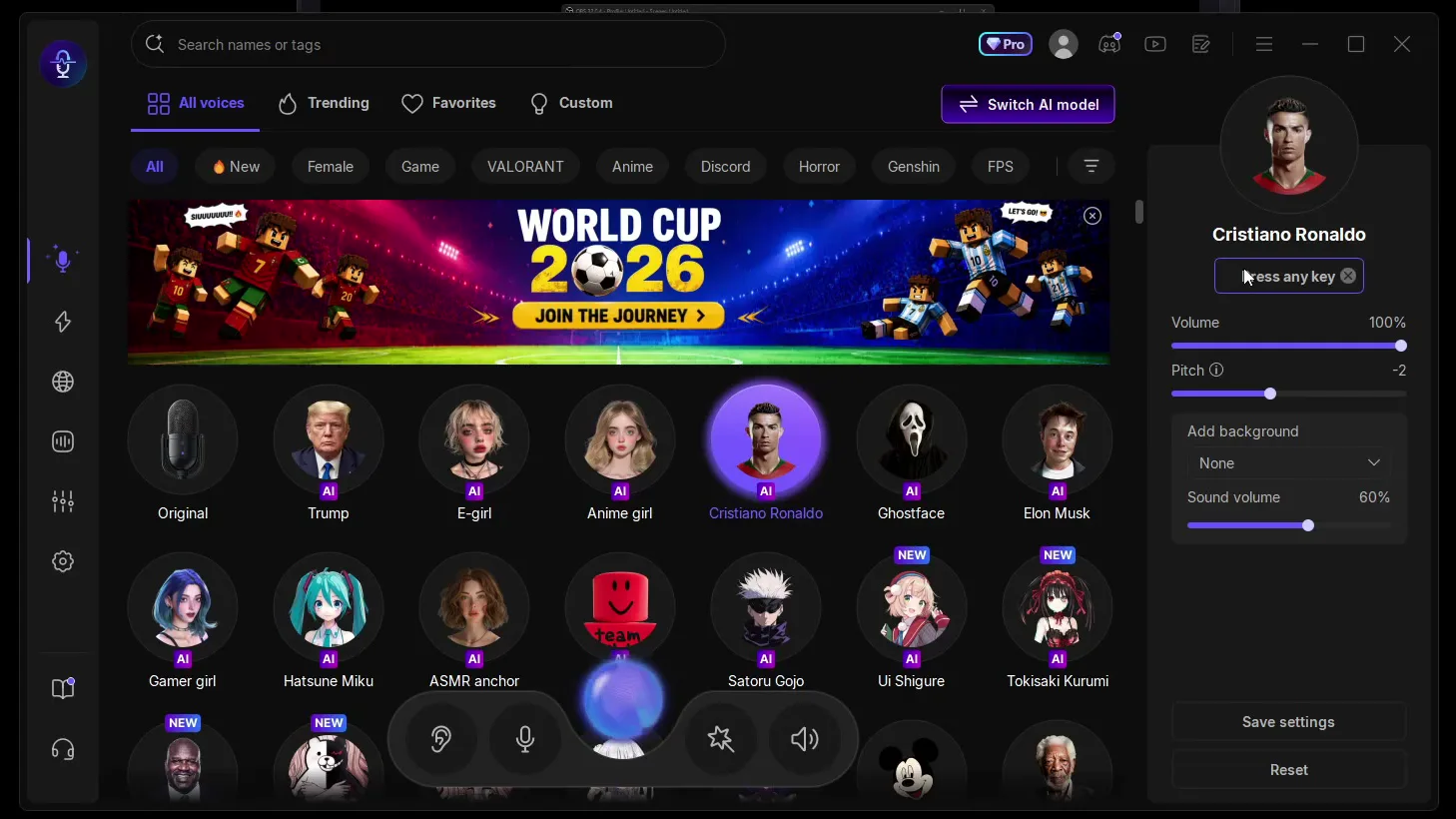
From then on, with any other voice on, one press of F12 switches to Ronaldo. The panel also shows Volume 100% and Pitch -2 for this voice; the video does not change them.
Tip
Pick a key you never use for anything else, like F12. A key your game uses would switch the voice in the middle of a match.
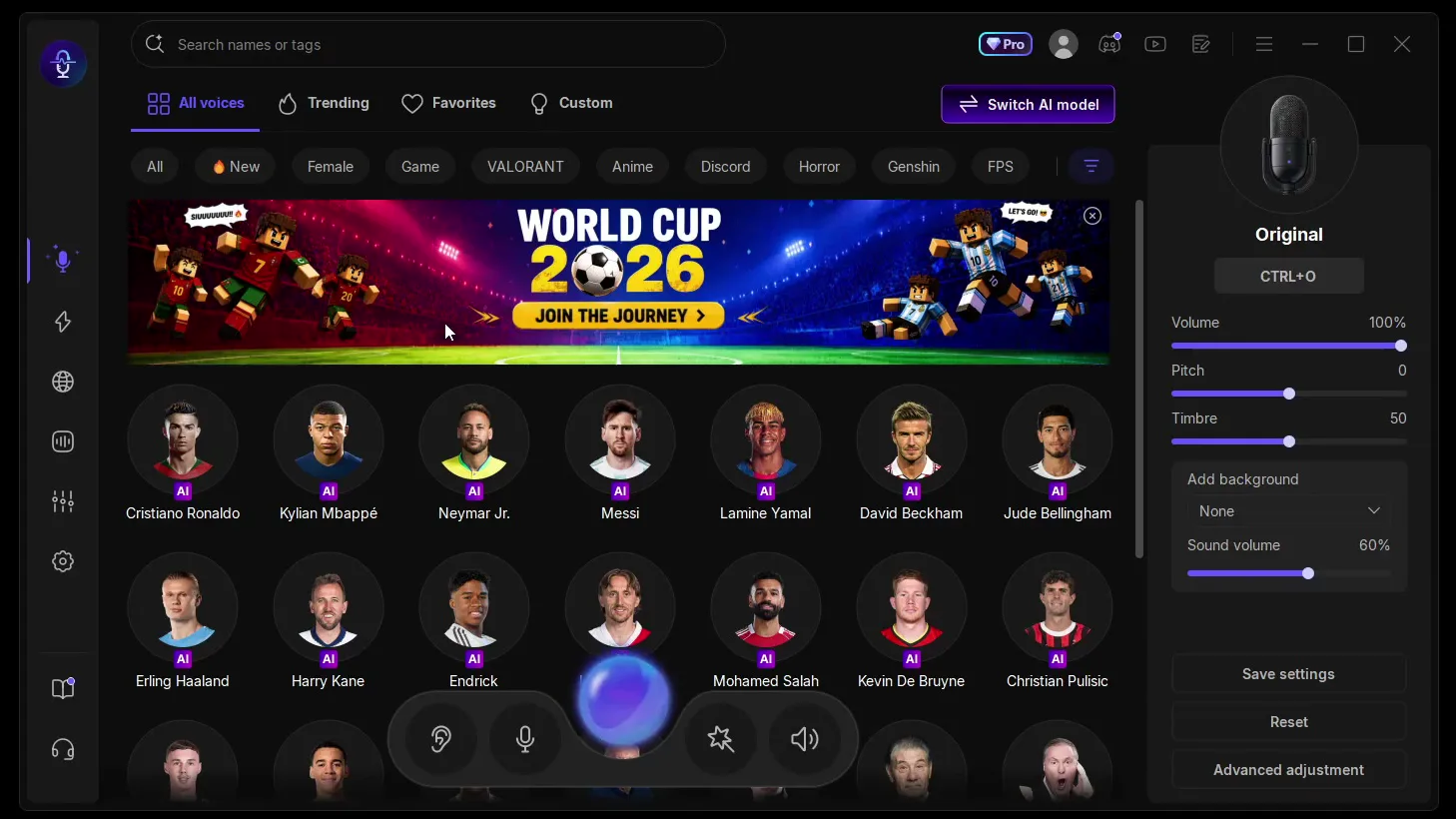
The video was made around the World Cup, and the app has a banner for it. Click it and you get a large library of football player voices: Ronaldo, Mbappé, Neymar, Messi, Lamine Yamal, Beckham, Bellingham, Haaland, Salah and more. Click one, wait for it to load and talk. In the video this becomes a joke voice for friends: Lamine Yamal, Neymar, or even IShowSpeed.
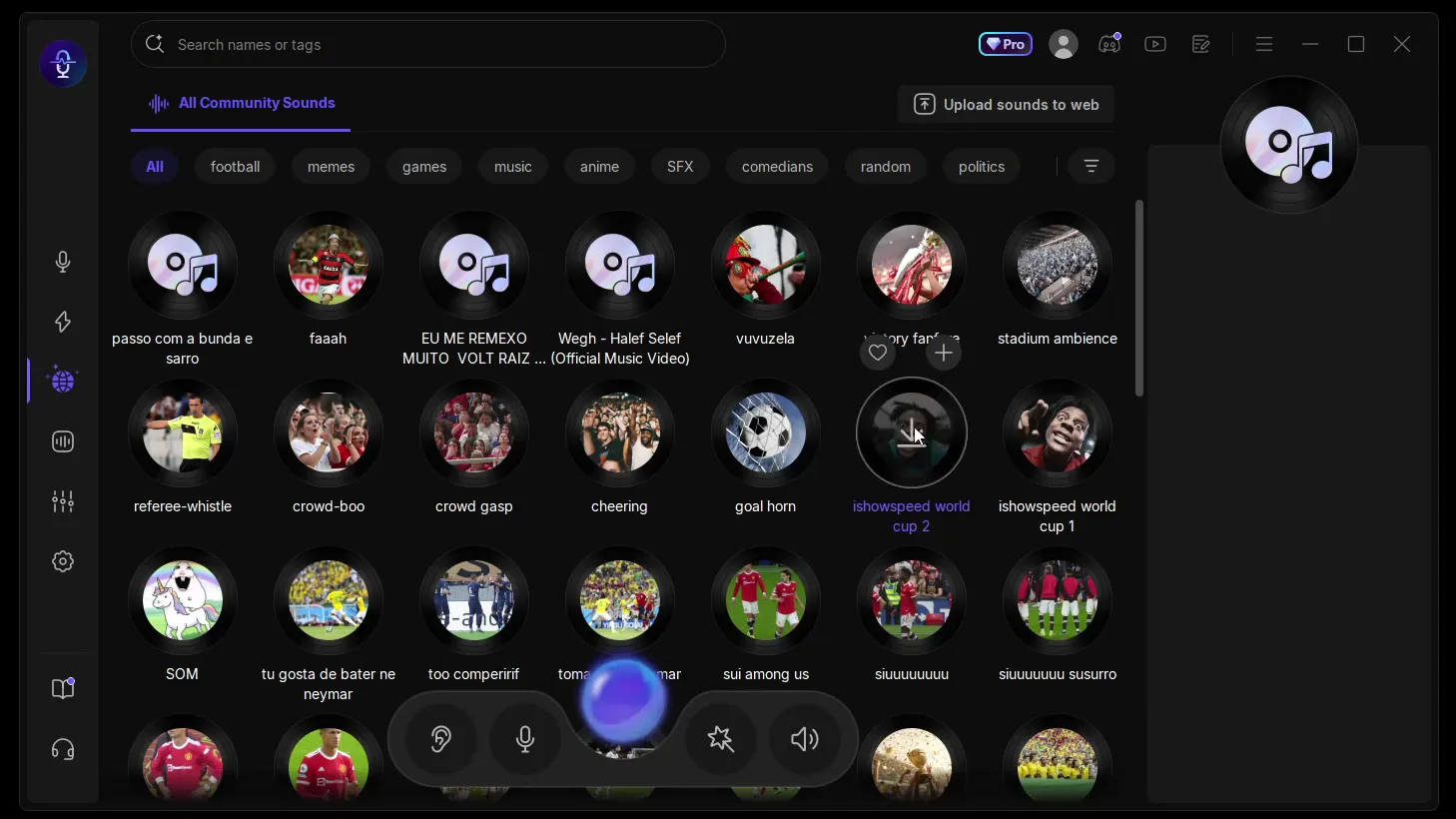
One of the best things in the app, according to the video, is the community library, where people upload their sounds. Open it from the globe icon in the left sidebar. It has filters such as football, memes, games, music, anime, SFX and comedians. The video shows an IShowSpeed World Cup song and a goal horn. Click one to download it.
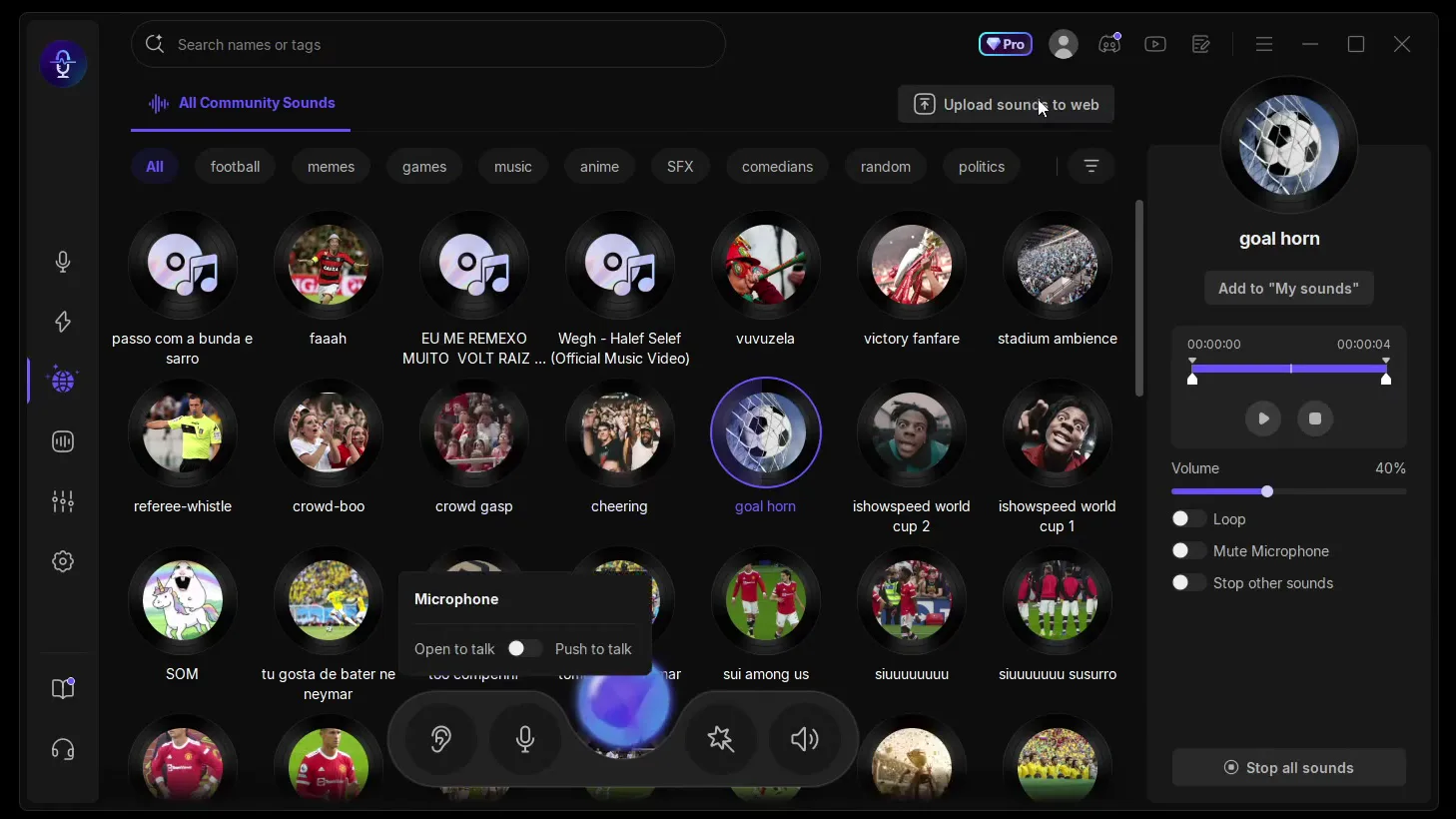
You can add your own too: click Upload sounds to web, choose a file, type a name and that is it.
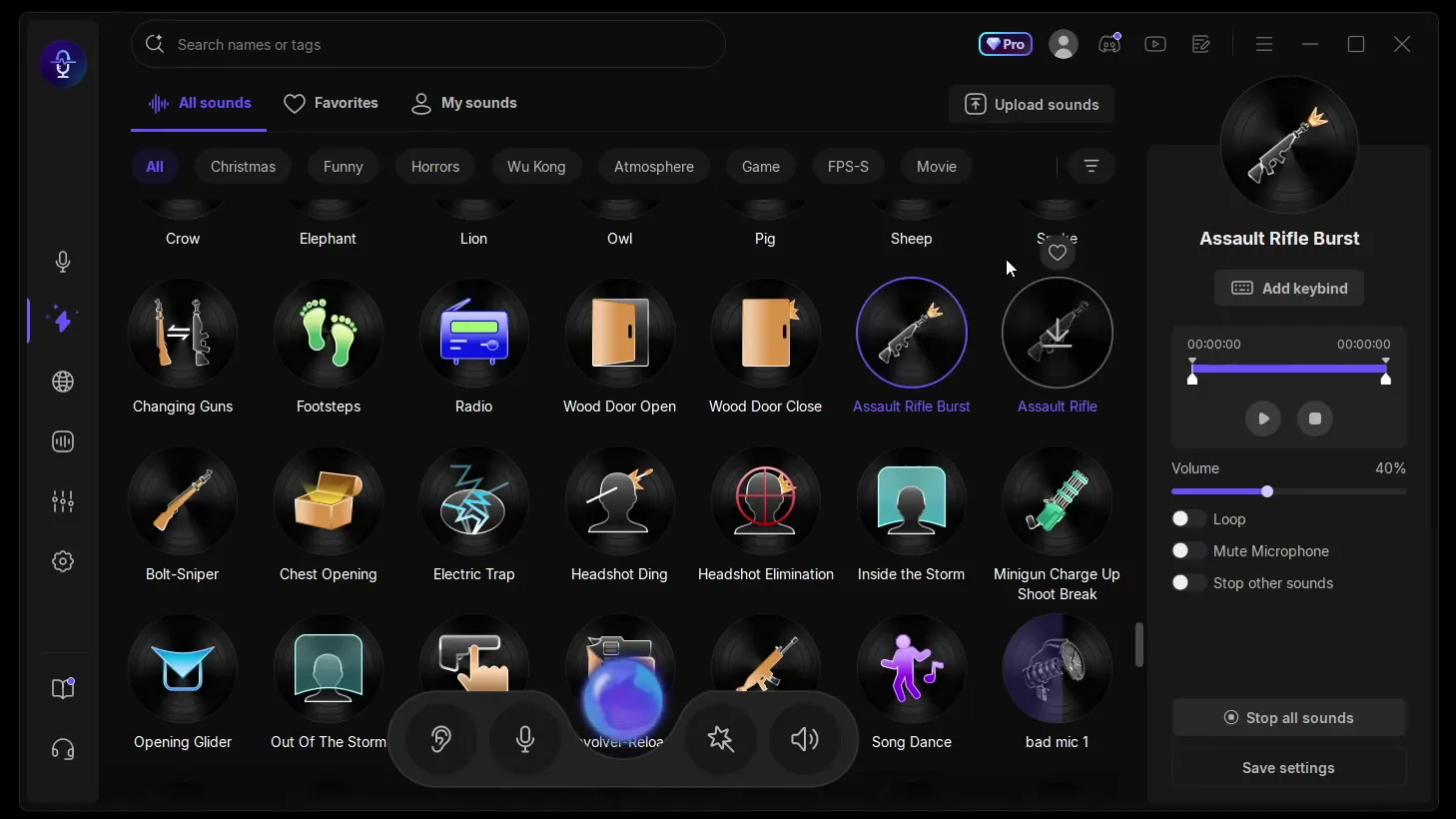
If you prefer ready-made sounds, open the soundboard from the sidebar. The video says there are over a thousand soundboards to click. All sounds has categories such as Funny, Horrors, Atmosphere, Game, FPS-S and Movie, and a search bar at the top. Each sound has its own panel with Add keybind, Volume, Loop, Mute Microphone and Stop other sounds.
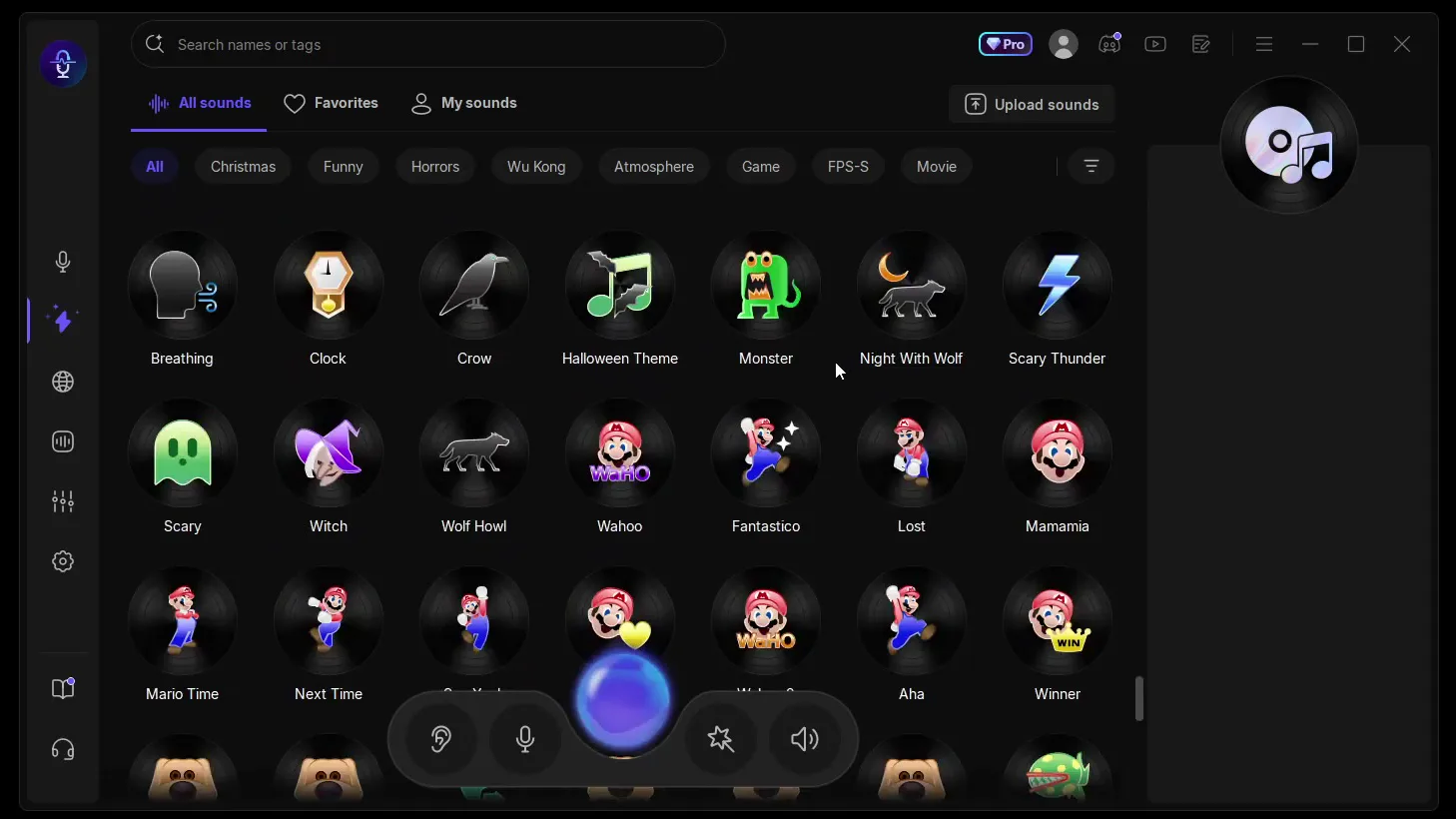
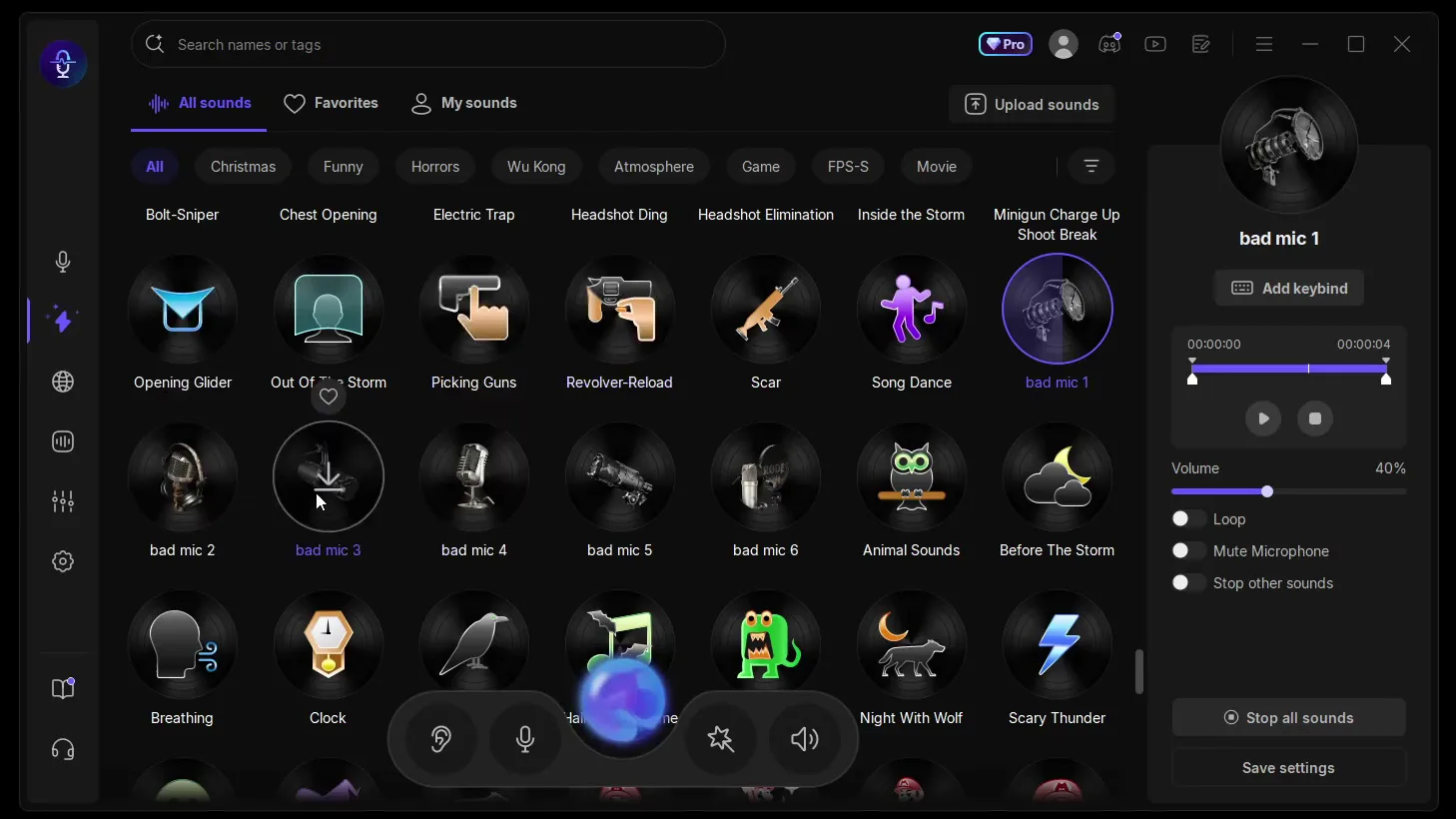
The video's bad mic sound is meant to annoy a friend until they want to throw their headphones.
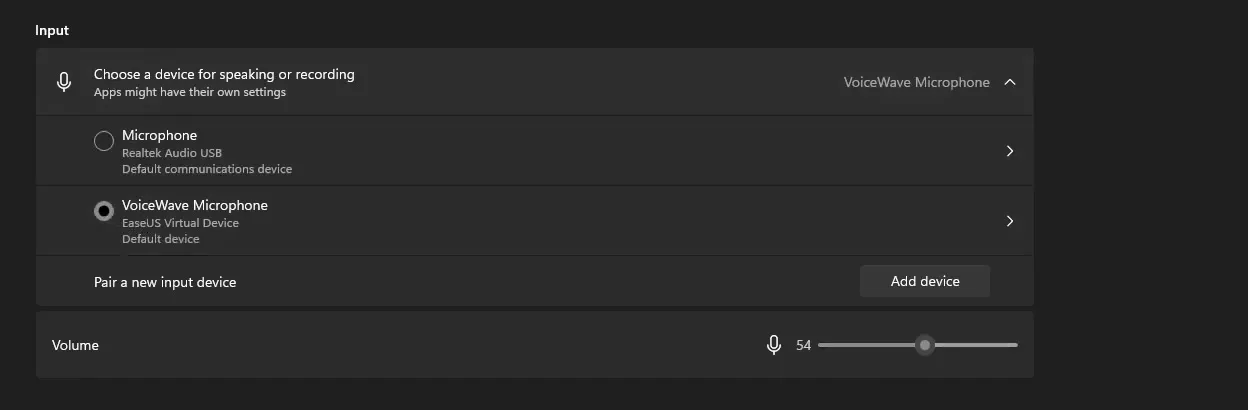
This is the step that makes the voice work across your whole PC and in all your games. Open the Windows settings, go to System, then Sound, scroll down to Input and select VoiceWave Microphone. The video then says to restart your PC, after which it works in all of the games.
SettingsSystemSoundInputVoiceWave Microphone
Careful
Windows notes under this setting that apps might have their own settings. If Discord, TeamSpeak, OBS or a game uses one fixed microphone, choose VoiceWave Microphone in that app's own audio settings too.
How to check it worked
- With VoiceWave open and a voice selected, speak and watch the input level under Input in the Windows sound settings. If it moves, the changed voice is reaching Windows.
- Join a Discord call with a friend and ask what they hear. If they hear your normal voice, the app is still using your real microphone.
- Press your keybind (F12 in the video) and a soundboard key. Your friend should hear the voice switch and the sound in the same call.
How to undo it
To sound like yourself again, click Original, the first voice in the list. To stop using VoiceWave completely, select your normal microphone again under Input in the Windows sound settings.
Key settings at a glance
FAQ
Is EaseUS VoiceWave really free?
The video calls it absolutely free to use, with over 500 voices you can use for free, and installs it from a Download for Free button. The app also shows a Pro badge at the top, so check inside the app what your plan includes.
Does it work in games, Discord, TeamSpeak and OBS?
Yes. In the video it works with every game and with apps such as Discord, TeamSpeak and OBS. Select VoiceWave Microphone as the Windows input, restart the PC, and if an app has its own microphone setting, pick VoiceWave Microphone there as well.
Which AI model should I choose?
Voice Quality Priority, as in the video: HD quality for mid-to-high-end devices, using the GPU. Performance Priority is the lighter model: SD quality, CPU only and low latency (under 100 ms) according to the app.
Which Windows versions does it run on?
The video description says Windows 10 and 11, on any PC or laptop. The website in the video labels the download "For Windows 10/11".
How do I switch voices quickly while playing?
Give a voice a keybind: select it, click Add keybind and press a key. In the video, F12 jumps to Ronaldo from any other voice. Our voice changer hotkey guide covers hotkeys in more detail.
Do I have to restart the PC?
The video does: after selecting VoiceWave Microphone under Input, it restarts the PC and then it works in all the games.
Where can I find girl voices?
The All voices list has a Female filter and a search bar. For a full walkthrough of one of them, see our e-girl voice changer guide.
Try EaseUS VoiceWave
EaseUS VoiceWave is the real-time voice changer used in the video. It works in Discord, games and streaming apps, and you can try it for free before you decide.
This article and the video are a paid partnership with EaseUS.