How to Change Your Voice in Real Time for Free: AI Voice Changer for Games and Discord

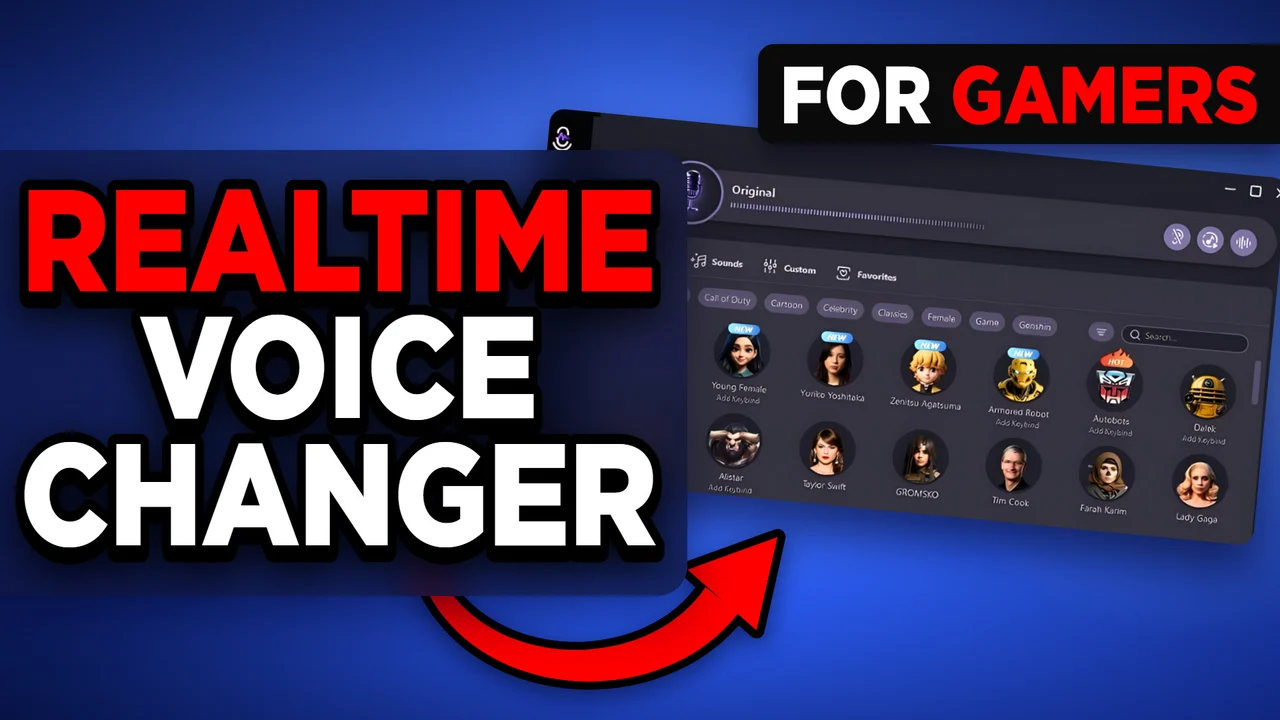
Written version of our video, every step checked against it.
Quick answer
- Download the voice changer from the first link in the video description, run the installer and click Finish.
- In the Select Your Device window pick your main microphone and your headphones, then click OK.
- Click any voice on the Voices tab and talk: character, game and celebrity voices change live.
- Use Sounds for the soundboard (over 100 sounds) and Voice Lab to build your own voice with thickness, pitch and echo.
- Click the power switch at the top left of the app. No other setting is needed: keep the app running in the background and your games, Discord and OBS hear the new voice.
This guide is for anyone who wants to change their voice live in games, Discord, OBS or Zoom on a Windows PC, without recording clips first. It follows our video step by step: download, microphone and headphones, the voice list, the soundboard, Voice Lab and the one switch that turns it on.
Open the first link in the video description. It leads to the download page, where you click Download now. When the file has downloaded, double click it, click Run, then Next, wait until the install is complete and click Finish. The page says it supports Windows 11 and 10.
The app opens with a Select Your Device window. On the left, choose the main microphone you will talk into. On the right, choose the headphones or speakers you listen with. Then click OK.
Select Your DeviceMicrophoneHeadphoneOK
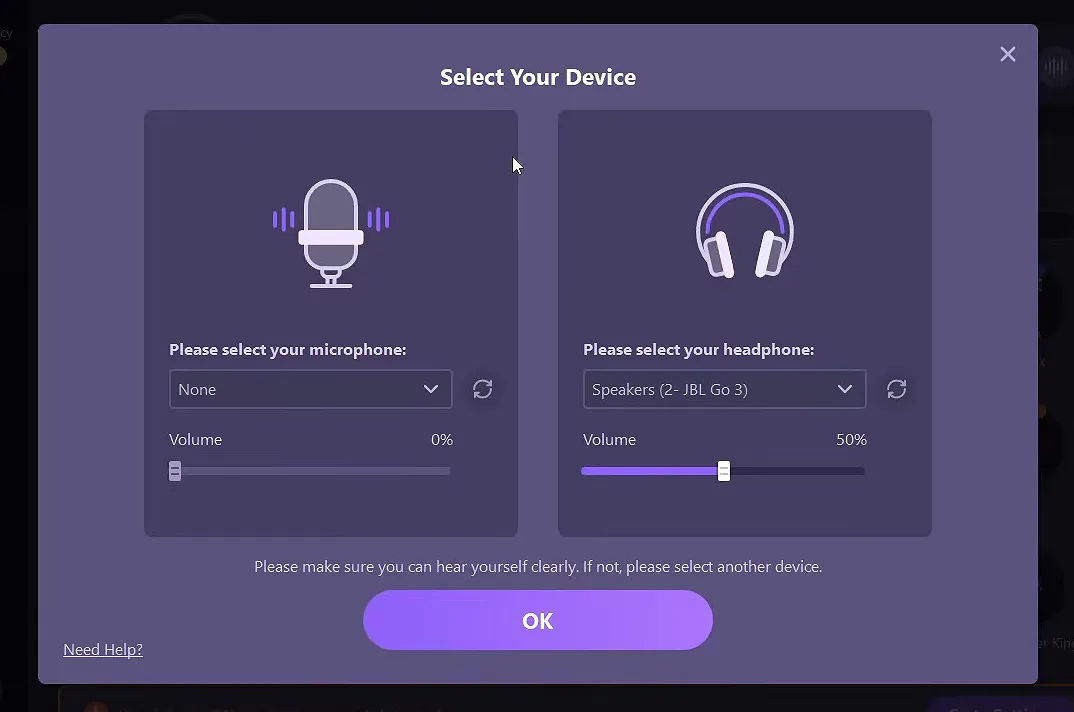
After you click OK you still hear your normal voice. That is the "Original" voice, and it is a quick way to confirm the right microphone is selected before you change anything.
Tip
If the microphone list is empty or says None, plug in your headset first and click the refresh button next to the drop-down. The window itself asks you to make sure you can hear yourself clearly and to select another device if not.
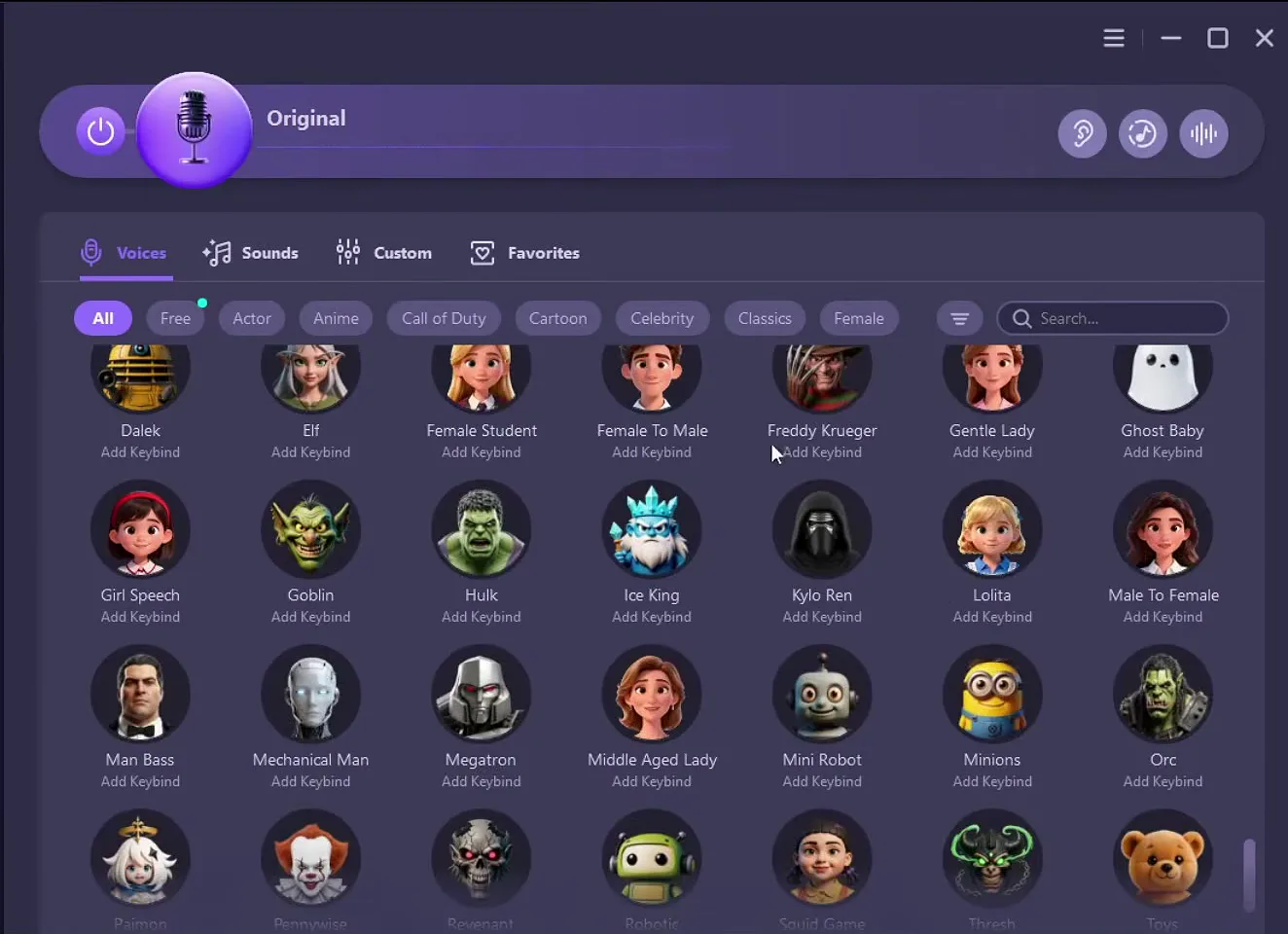
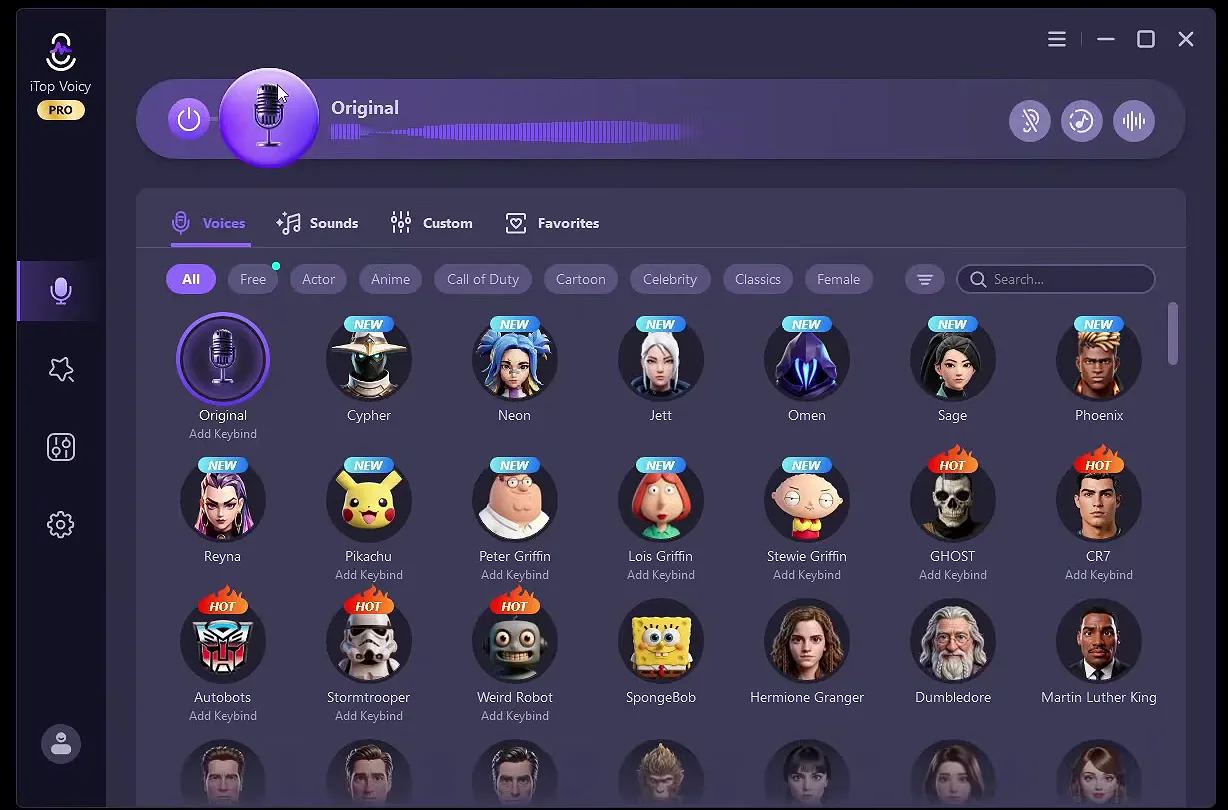
The Voices tab lists every voice with a round picture. Filters sit above the list: All, Free, Actor, Anime, Call of Duty, Cartoon, Celebrity, Classics and Female, plus a search bar. Click a voice and talk: you hear the result straight away.
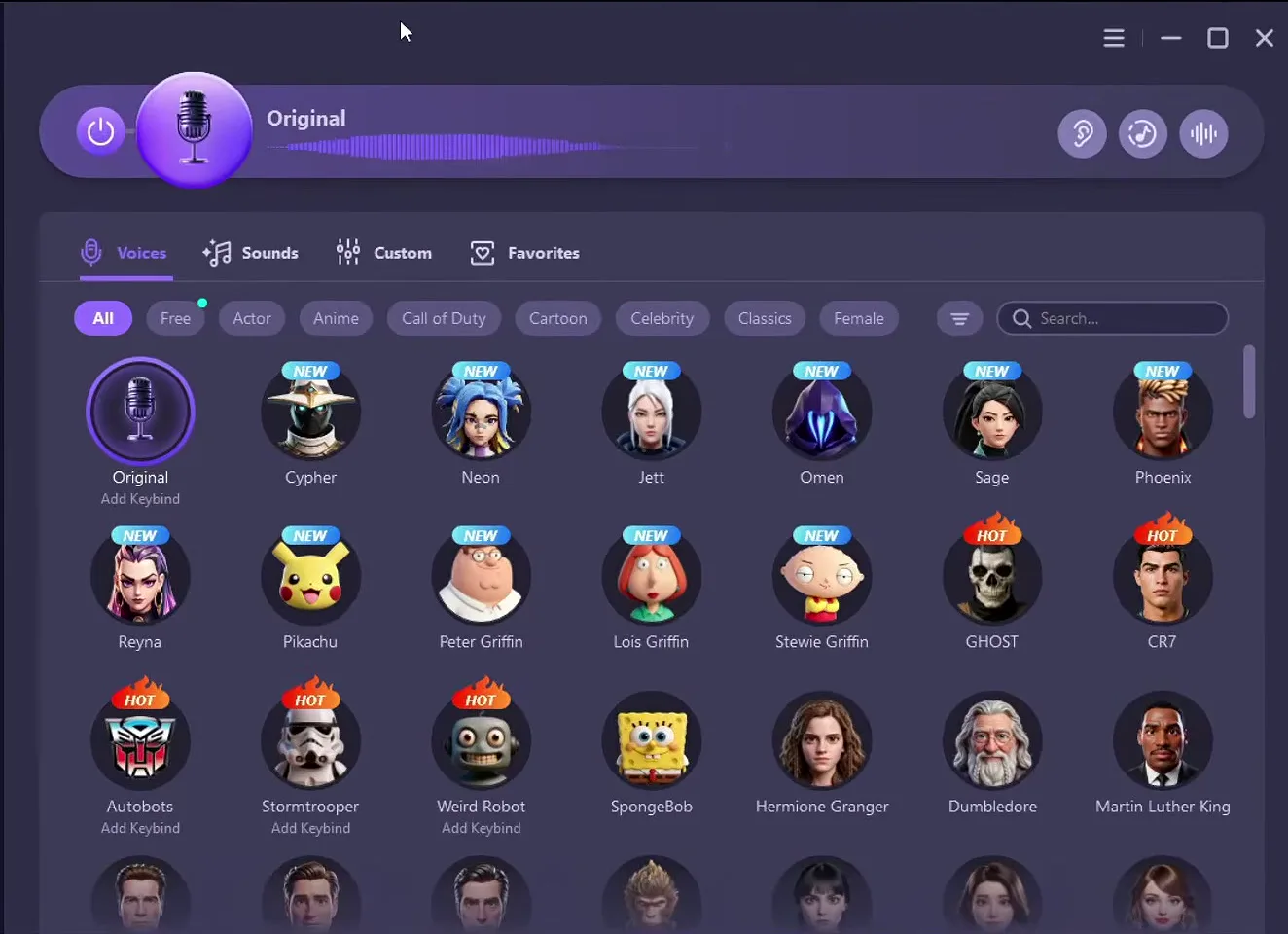
The video tries several: Arnold Schwarzenegger, Ghost from Call of Duty, Peter Griffin, Stewie Griffin, Cristiano Ronaldo (CR7) and Joe Biden. It also names the Valorant agents Cypher, Neon, Jett and Omen, football voices like Neymar and Pogba, anime characters, the Minions, Hulk, Yoda, Venom and Vecna.
Tip
Try a few. Some voices suit your own voice better than others. For a girl voice, open the Female filter, or use the search bar.
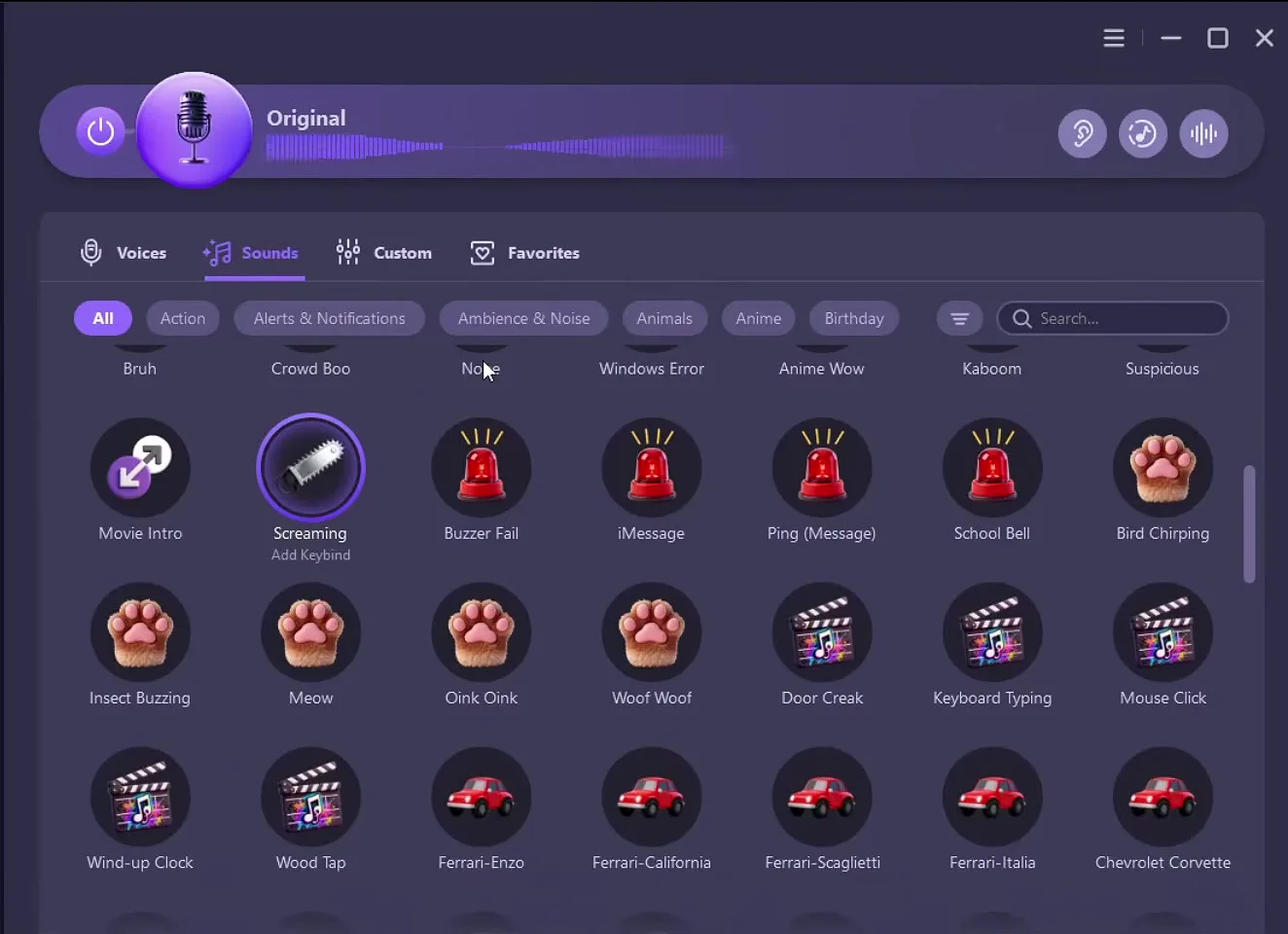
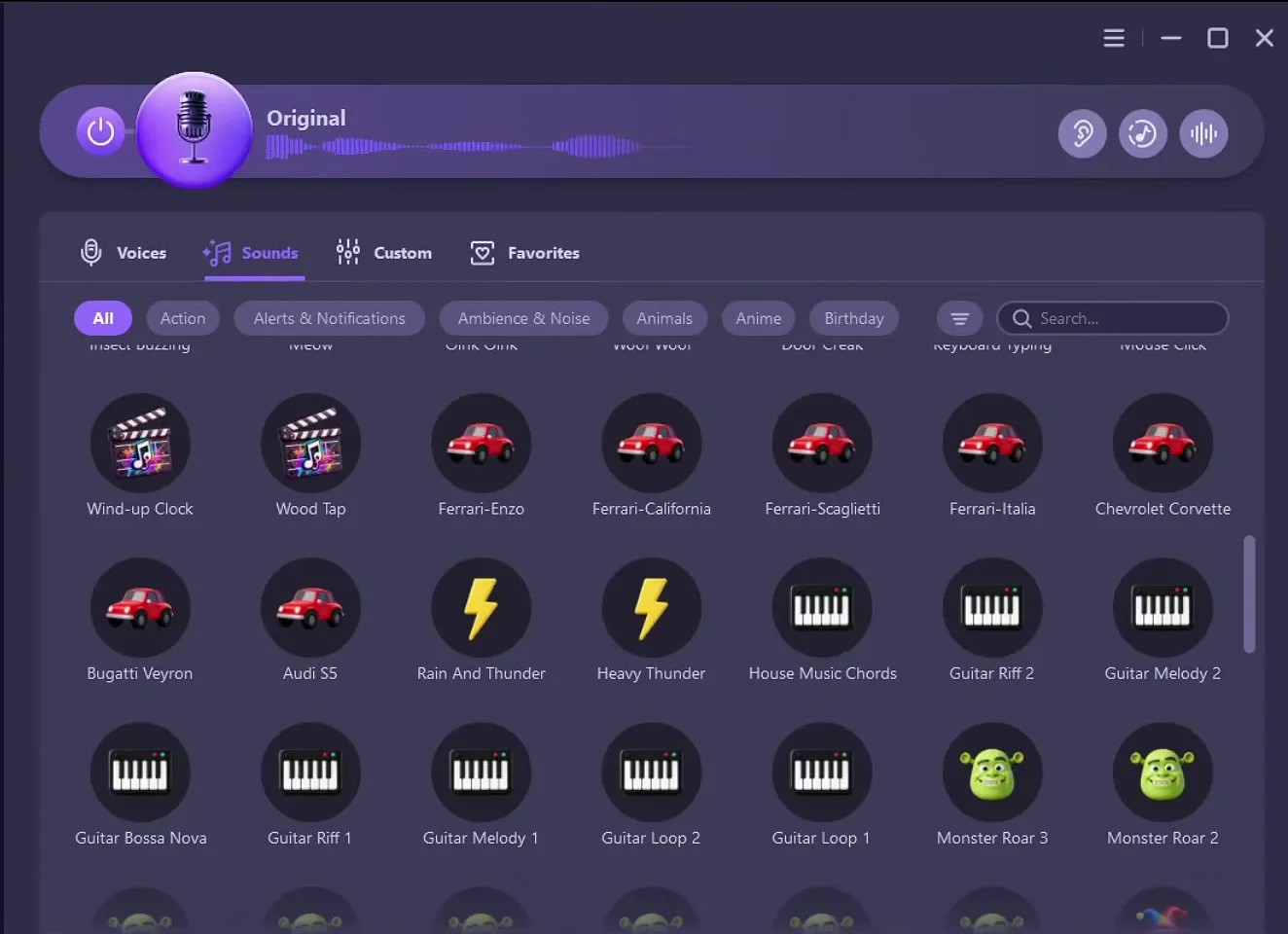
Click the Sounds tab next to Voices. It is a soundboard with the sounds that are currently trending and popular: click one and it plays. The video plays a beep and a scream. There are over 100 sounds, in categories such as Action, Alerts & Notifications, Ambience & Noise, Animals, Anime and Birthday.
SoundsScreaming
Good to know
It is made for jokes with friends in a voice chat. Everyone in the call hears it, so keep it for a moment when they are in the mood.
The star icon in the left sidebar opens Voice Lab (hover it and the tooltip says so). The page is called Create Voice: you switch effects on one by one and build a voice around your own.
Voice LabPersonalityVocal thickness
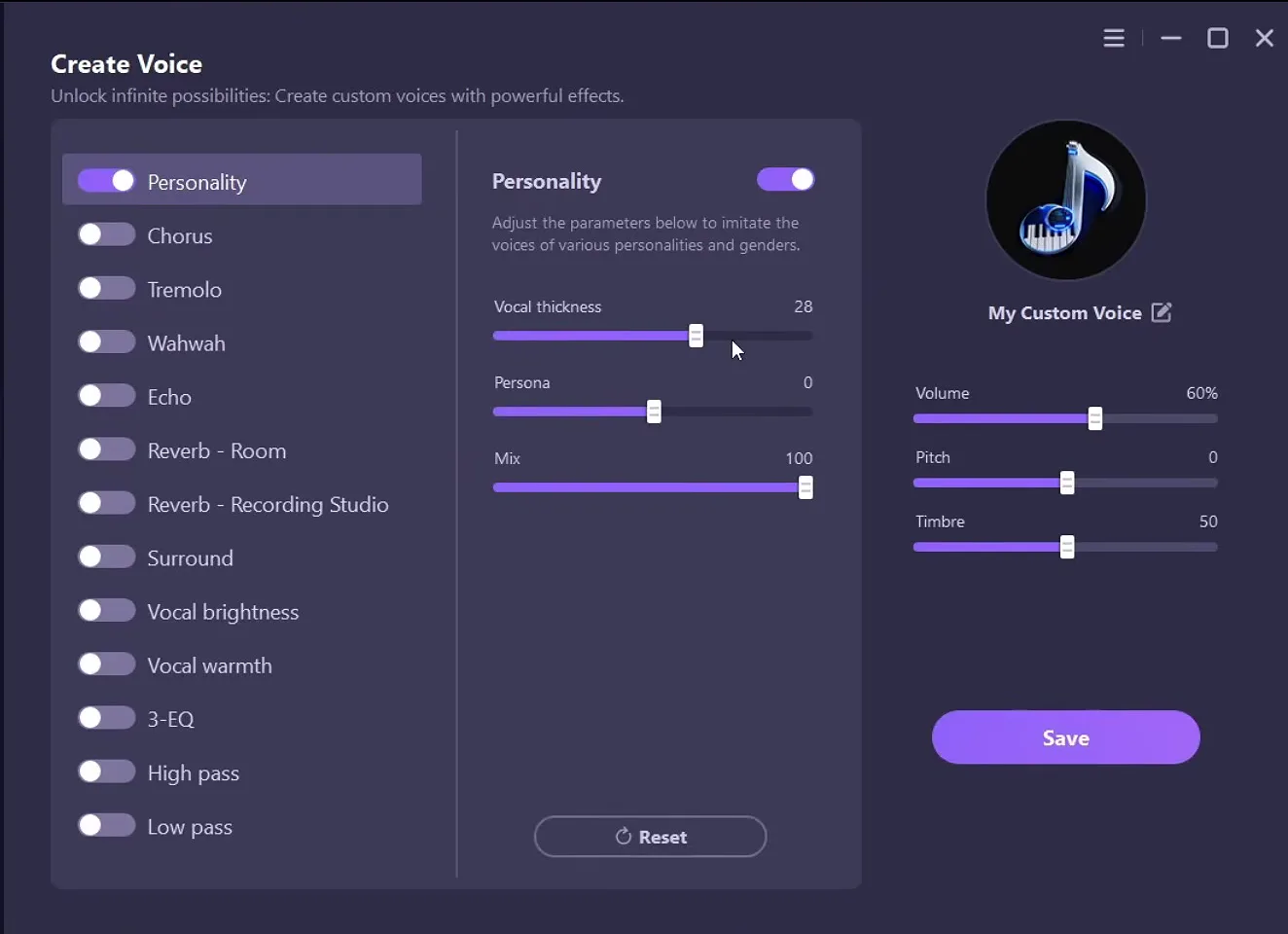
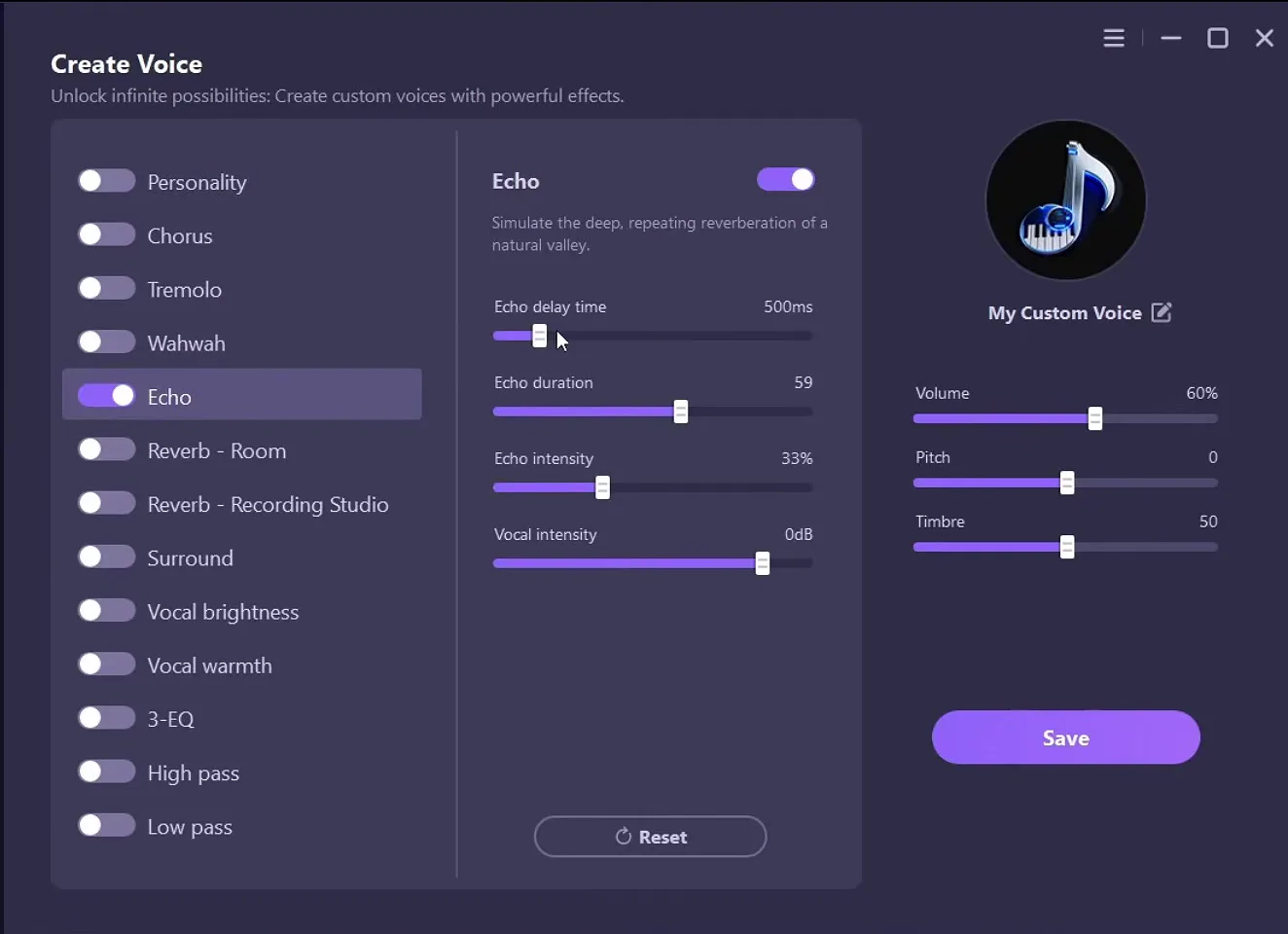
On the Personality effect, turning up Vocal thickness makes your voice deeper. The panel on the right has Pitch: raise it and the voice is high pitched. Then switch on Echo from the same list to add an echo. You hear every change while you talk, so adjust until it sounds right.
How to undo it
The Reset button under the sliders puts the effect back to its start values. Your normal voice is always the Original entry at the top of the Voices tab.
To use the voice in a game, click the power switch at the left end of the bar at the top of the app. That is all it takes. The video says you do not have to set anything in the settings: as long as the app is on and running in the background, you are good to go.
Careful
If a program still hears your normal voice, open that program's audio settings and check that its input is the voice changer's microphone or the Windows default input. This is the usual fix for Discord or a game that has one specific microphone selected.
How to check it worked
- With a voice selected and the switch on, talk and watch the bar at the top of the app: it moves with your voice.
- Join a Discord call with a friend, say a few words and ask what they hear. If they hear your normal voice, the switch is off or Discord still listens to your real microphone.
- Or record a short clip in OBS and listen to it afterwards.
For more on voices on a keybind, read our free voice changer for all games guide, and for Discord specifically our Discord and Fortnite voice changer guide.
Key settings at a glance
FAQ
Does it work in Discord, OBS and games?
The video says it is supported by almost every video game and by platforms like Discord, TeamSpeak and OBS, and that it works on any PC. Keep the app running with the switch on, and select it as the input if a program has its own microphone setting.
Is the AI voice changer really free?
The video title and description say you can start for free, and the voice list has a Free filter. The app also shows a PRO badge in the corner, so check inside the app which voices your plan includes before you rely on one.
Can I make my voice deeper or higher?
Yes. In Voice Lab turn on Vocal thickness to make it deeper, raise Pitch to make it higher and add Echo if you like. You hear the changes live.
Is there a girl voice?
Yes. The voice list has a Female filter, and entries such as Female Student, Gentle Lady and Male To Female. The video's tags mention a girl voice changer, and robot voices are in the list too.
Do I need to change settings in Discord or the game?
The video says you do not have to set anything in the settings. If your friends still hear your real voice, the program is using your real microphone directly: choose the voice changer's microphone or the Windows default input in its audio settings.
Why do my friends hear my normal voice?
Either the power switch is off, the app is closed, or the program listens to a specific microphone. Turn the switch on, keep the app open and check the input device in Discord, OBS or the game.
Does it add delay?
The video does not measure any delay and gives no numbers, so test it yourself: talk in a call with a friend and ask whether your words arrive on time.
 RIP Tweaks
Do it in a few minutes with RIP Tweaks
- Free plan for Windows 10 and 11
- A backup first, and every tweak can be switched off again
- Made for higher FPS, lower input lag and steadier ping
Free · Windows 10 and 11
