How to Update All Your PC Drivers for Better FPS and Less Lag (2026)

Written version of our video, every step checked against it.
Quick answer
- Create a restore point first, so any driver that misbehaves can be rolled back.
- Scan for outdated drivers. On the PC in the video the important ones were the display driver (GPU), Bluetooth and Wi-Fi, network adapters and USB.
- Update them all in one go, let the downloads finish and restart when asked. Take the GPU driver from NVIDIA, AMD or Intel.
- Switch on automatic driver updates so you do not repeat this every few weeks.
- Then stop background apps with a game boost and run a fix for device errors: the video fixes four Device Manager errors this way.
This guide is for anyone whose PC lags, freezes or stutters in games and who wants every driver current on Windows 10 or 11, with NVIDIA, AMD or Intel hardware, on a desktop or a laptop. It follows the video in order: the restore point, the scan, the one-click update, automatic updates, the game boost and the device error fix. For each step it also names the free official route: vendor tools, Windows Update and RIP Tweaks Apps & Drivers.
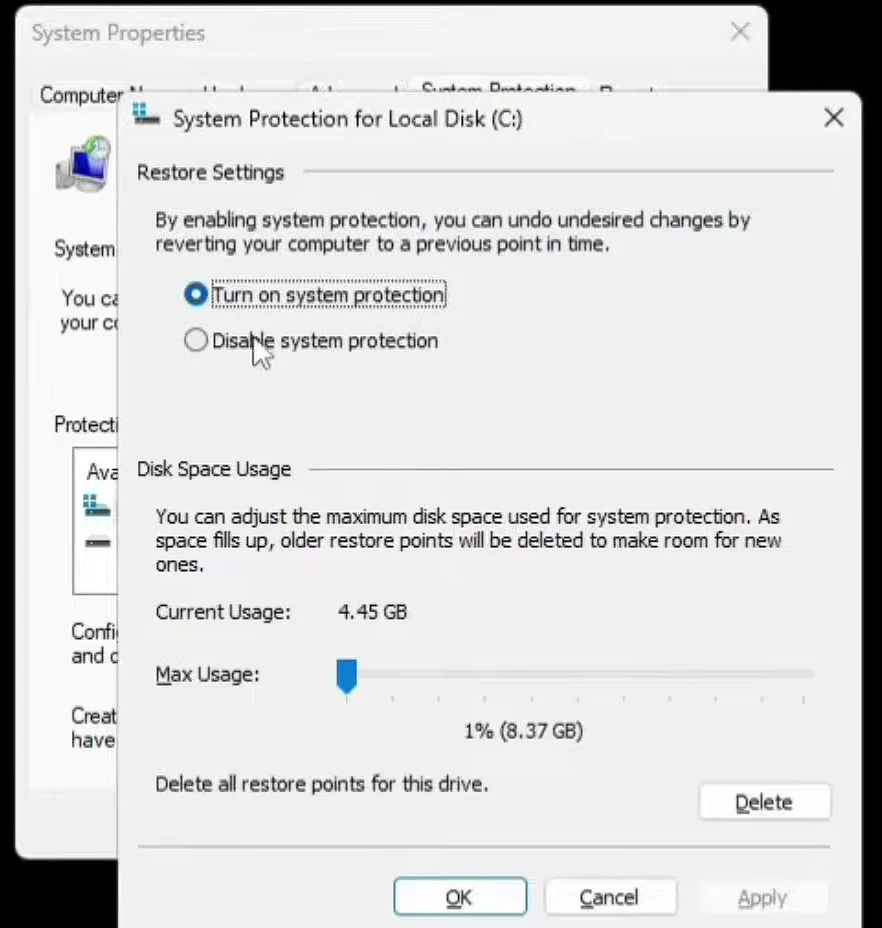
Driver updates are normally safe, but a restore point lets you go back if one misbehaves. Click the Windows button, type restore and open Create a restore point. Select your system disk (C:), click Configure and make sure Turn on system protection is selected.
Windows buttonrestoreSystem diskConfigureTurn on system protection
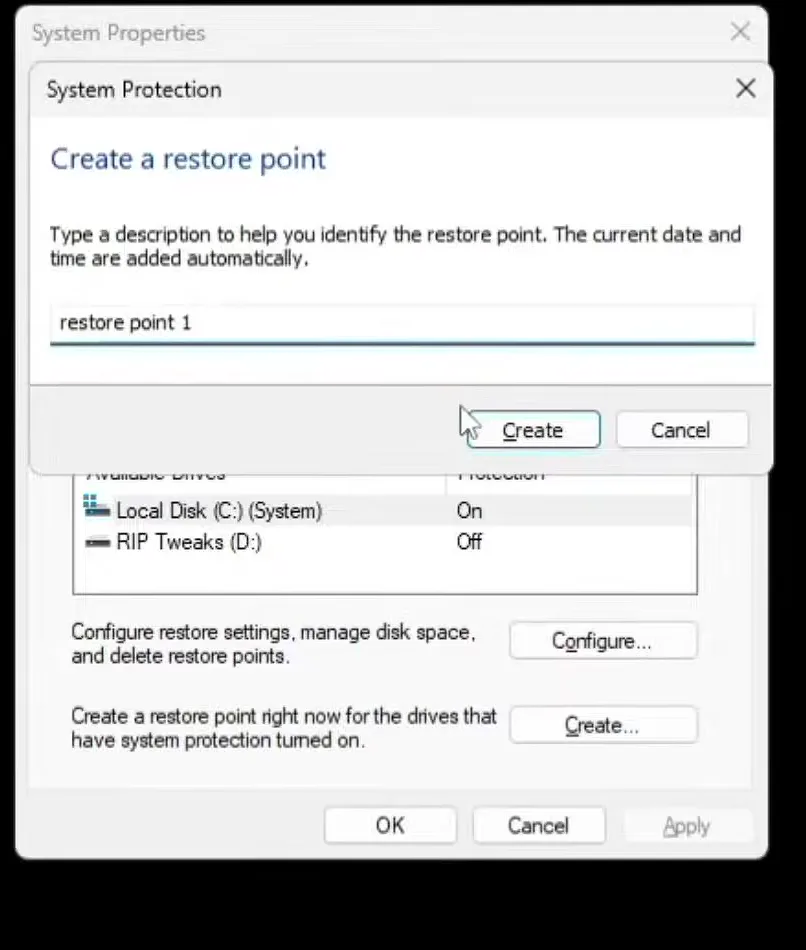
Set Max Usage to 5% as the video does, click Apply, then OK. Back in the System Protection tab click Create, type a name (the video uses "restore point 1") and click Create again. Close everything when it says it is done.
How to undo it
If a driver causes trouble later, open the same System Protection tab and use the restore point, or roll back just that device: Device Manager, right-click it, Properties, Driver, Roll Back Driver.
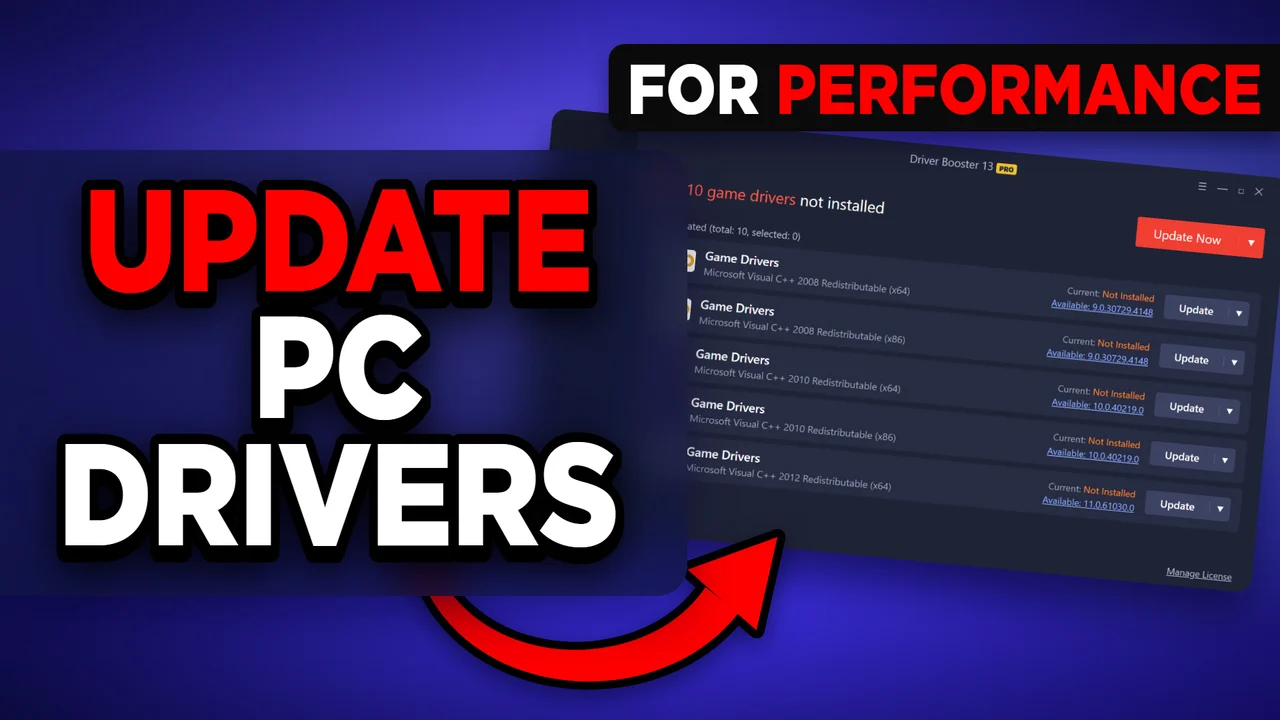
The video installs a free driver updater from the link in its description, runs the installer and clicks Scan now. The scan checks every device in the PC and every driver on it. You do not need a paid tool for this job. The free routes are:
- Official vendor tools: NVIDIA App, AMD Software or the Intel Driver and Support Assistant for the GPU, and your motherboard or laptop maker's support page for chipset, Wi-Fi and audio.
- Windows Update: Settings, Windows Update, Advanced options, Optional updates, then install the driver updates listed.
- RIP Tweaks Apps & Drivers: keep drivers current from the same app that applies your tweaks.
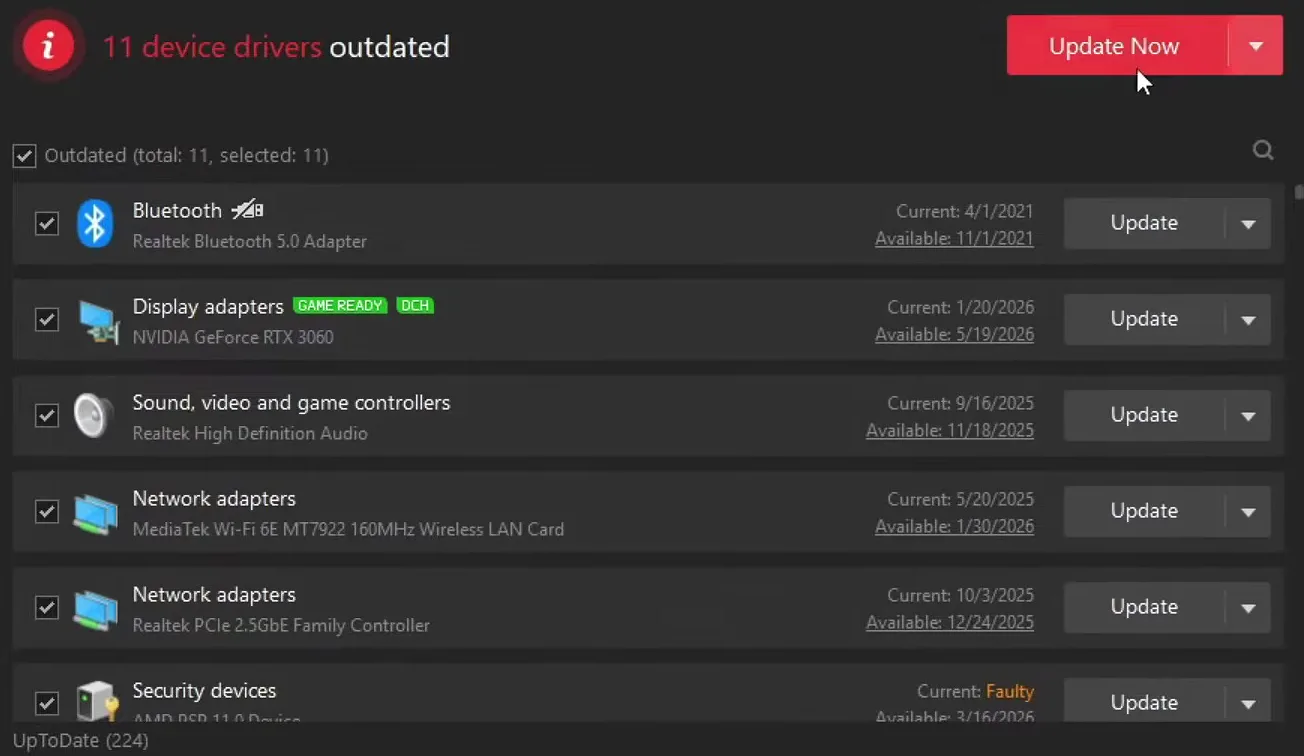
On the PC in the video the scan found a bunch of outdated drivers. The ones that matter for games were the display driver (the GPU), the Bluetooth and Wi-Fi cards, the network adapters and all the USB drivers.
Tip
Whatever tool you use, look at these groups first: GPU (the biggest one for FPS), network and Wi-Fi (old drivers can show up as ping spikes and packet loss), chipset (from the motherboard vendor) and USB and audio (mouse, keyboard and headset).
You can update every driver one by one or all together. The video clicks Update now to update all of them at once, reads the disclaimer and clicks OK. The downloads run, then the drivers install by themselves. When it finishes, the list shows every driver as up to date.
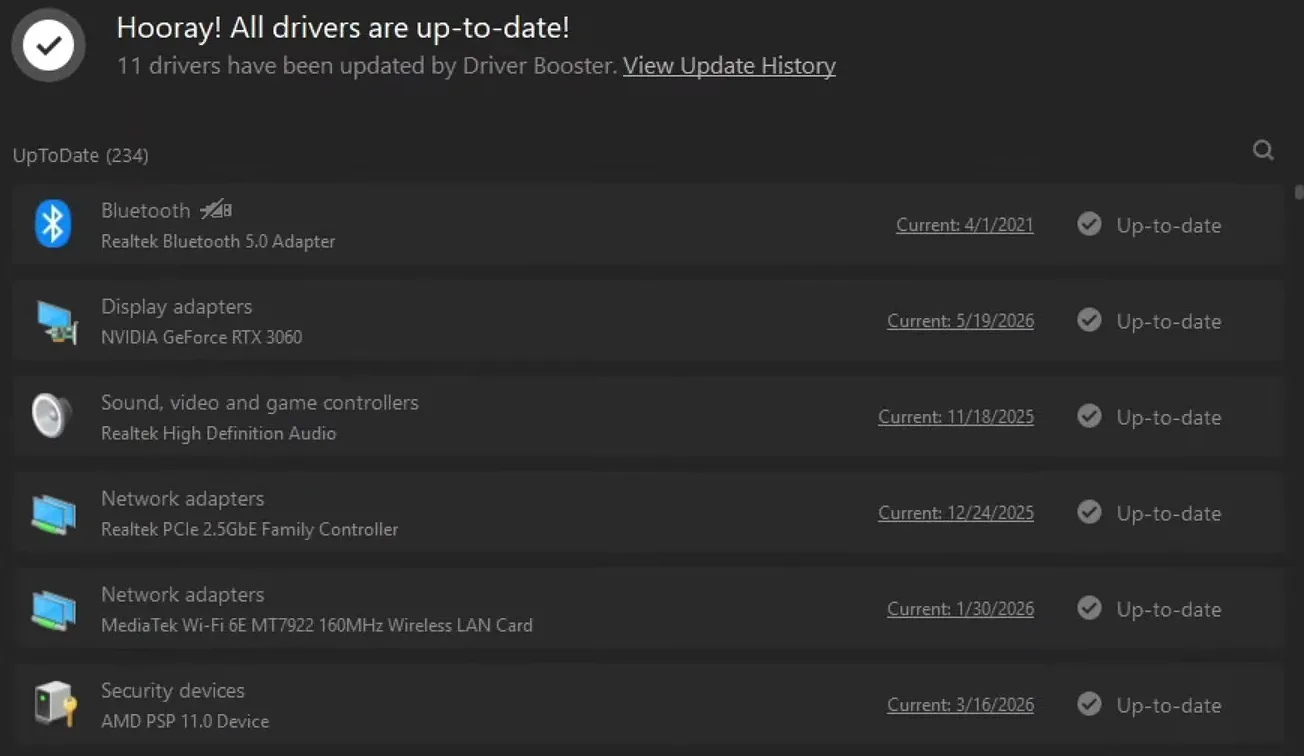
With the manual routes the same idea applies: download, install, and restart the PC when Windows or the installer asks, because some drivers only load after a restart. For the GPU, prefer the driver straight from NVIDIA, AMD or Intel, then tune its settings, for example with our NVIDIA settings guide.
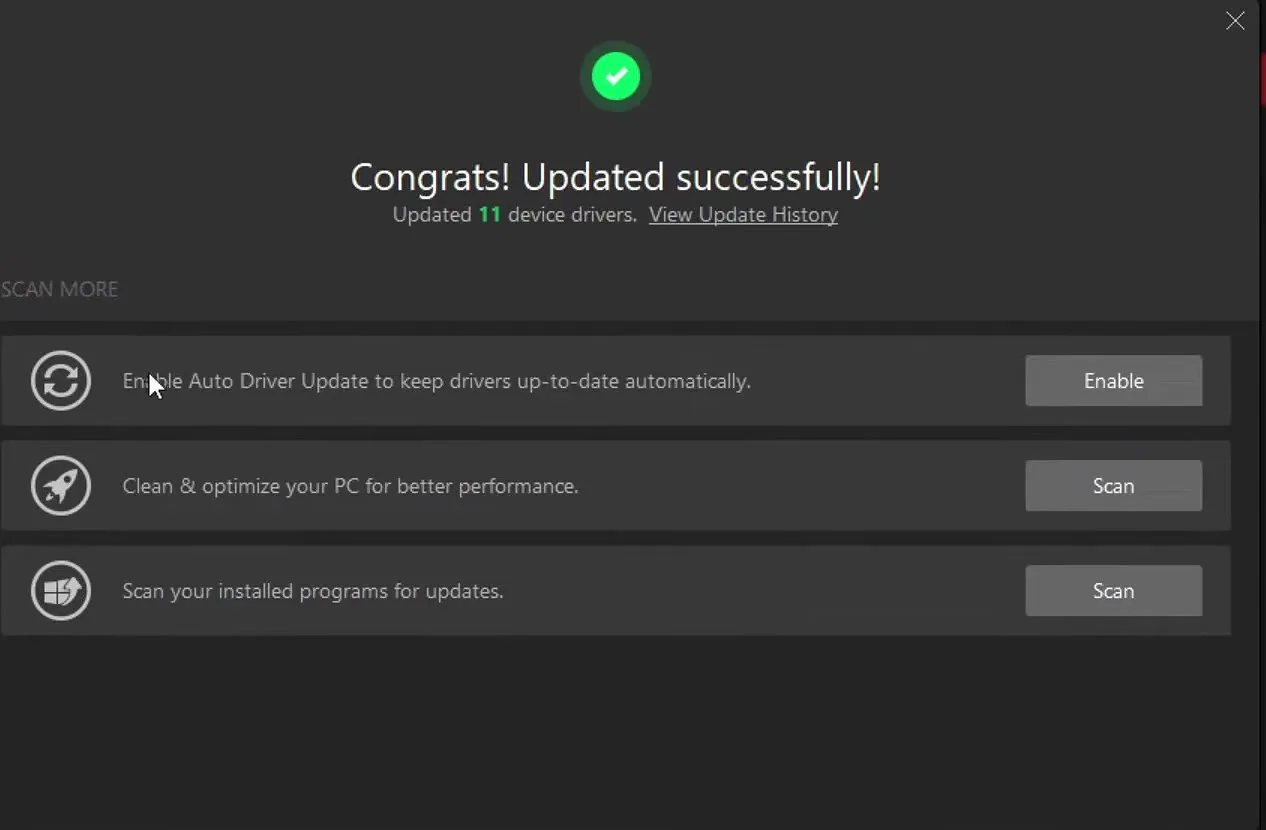
Next the video clicks Enable next to auto driver update, so the drivers stay current without repeating the whole scan. The official tools work the same way: NVIDIA App and AMD Software both tell you when a new GPU driver is out. A check every month or two, and before a game that just got a big update, is enough.
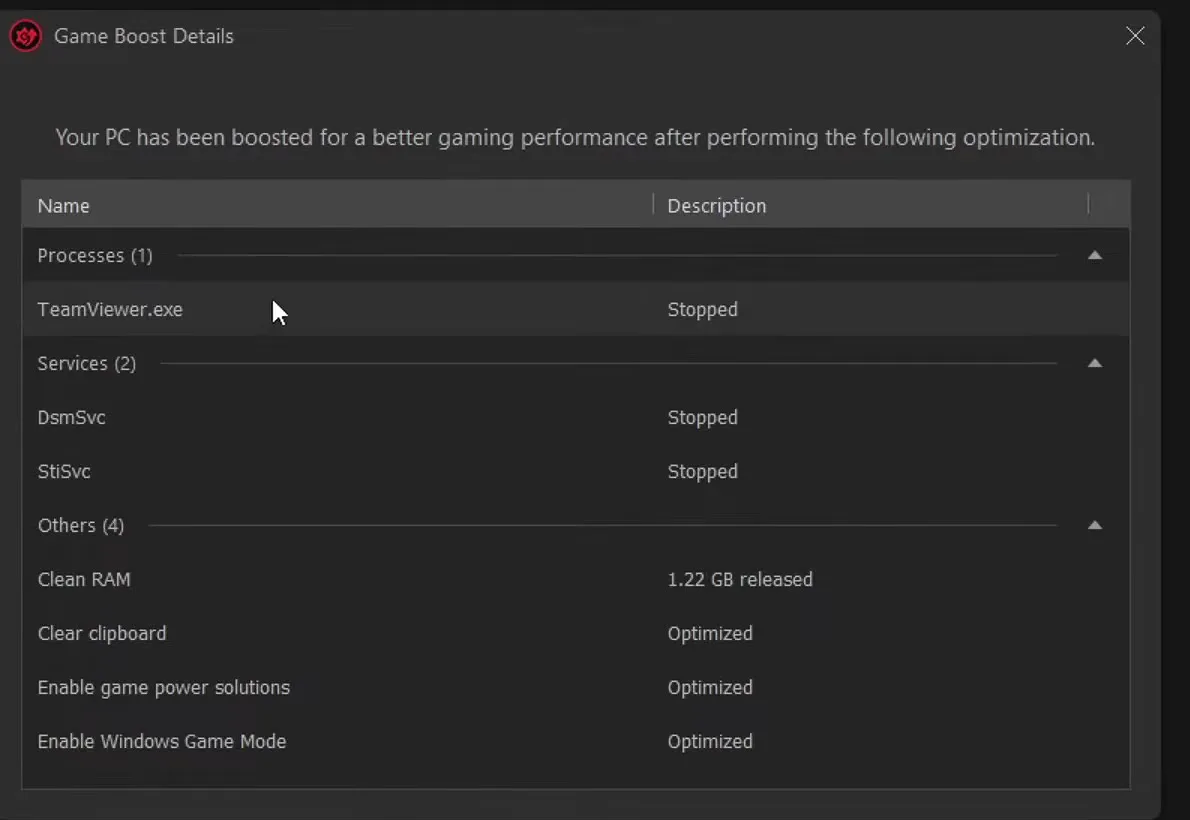
The updater has a Boost button. Click Turn on for game boost and it stops unneeded background applications to free resources. The video says you can use it even if you do not game. Click Details to see what was stopped.
BoostTurn on (game boost)Details
Careful
Read the list before you rely on it. In the video it stops a remote-access program, so anything you still need running in the background should be started again afterwards.
The tools section has one-click fixes. The video opens Fix device error, clicks Detect to see the problems Device Manager has, and finds four errors on its PC. Click Fix and all four are fixed.
ToolsFix device errorDetectFix
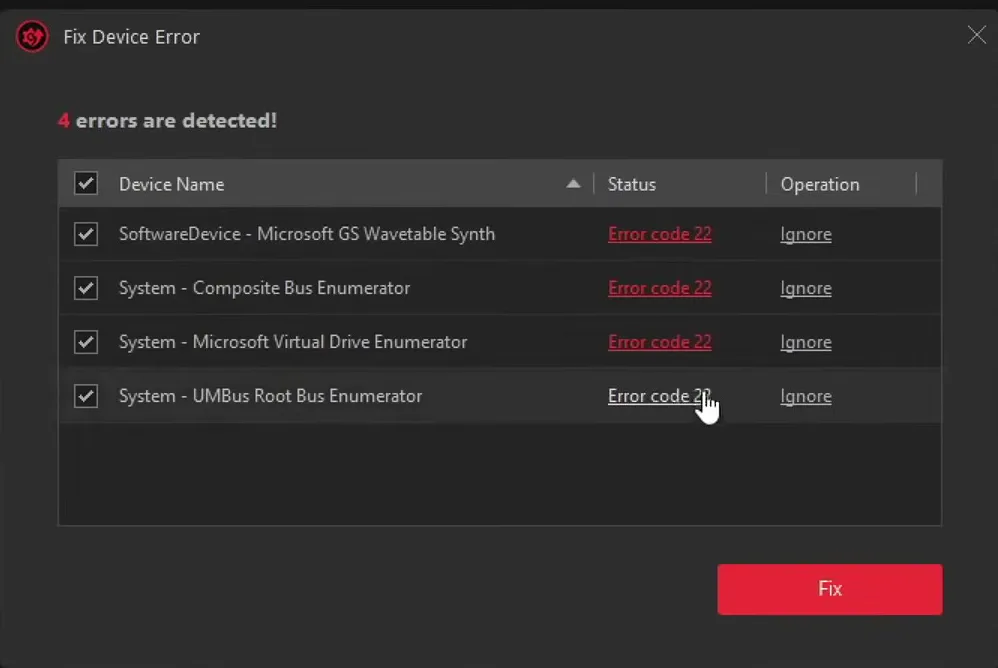
The same tools section can also fix sound problems, as the video shows. To check device errors yourself, press Windows + X, open Device Manager and look for yellow warning icons: a device with one usually has a missing or broken driver.
How to check it worked
- Note your GPU driver version before and after the update.
- In Device Manager, no device should show a yellow warning icon.
- Test in the same game, on the same map and in the same spot, and watch your 1% lows, how smooth it feels and your ping, not only the average FPS.
- Every PC starts from a different place, so your numbers are your own. If your drivers were already current, there is little to gain.
Don't do this
If the game or Windows got worse after an update, stop updating more drivers. Go back with the restore point or roll back the device you changed last.
Key settings at a glance
FAQ
Will updating drivers give me more FPS?
It can, especially a new GPU driver for a new game, and it also removes crashes and stutter caused by old versions. How much you gain typically depends on how old your drivers were and on the game.
Which drivers matter most for gaming?
The GPU driver first, then chipset, network and Wi-Fi, audio and USB. Take them from the hardware maker, your PC maker or Windows Update.
Is it safe to update all drivers at once?
It is normally fine, which is why the video starts with a restore point. If a PC already works well, you do not need to chase every minor version of a driver.
How do I update my NVIDIA or AMD driver?
Use NVIDIA App or AMD Software, or download the driver from the vendor's site, and restart afterwards. Intel graphics have the Intel Driver and Support Assistant.
Can I undo a driver update?
Yes. Use the restore point from step one, or Device Manager, right-click the device, Properties, Driver, Roll Back Driver.
Can outdated drivers cause lag and high ping?
Yes. An old network or Wi-Fi driver can show up as ping spikes and dropped packets. For lag from your connection itself, see our bufferbloat guide.
 RIP Tweaks
Do it in a few minutes with RIP Tweaks
- Free plan for Windows 10 and 11
- A backup first, and every tweak can be switched off again
- Made for higher FPS, lower input lag and steadier ping
Free · Windows 10 and 11
