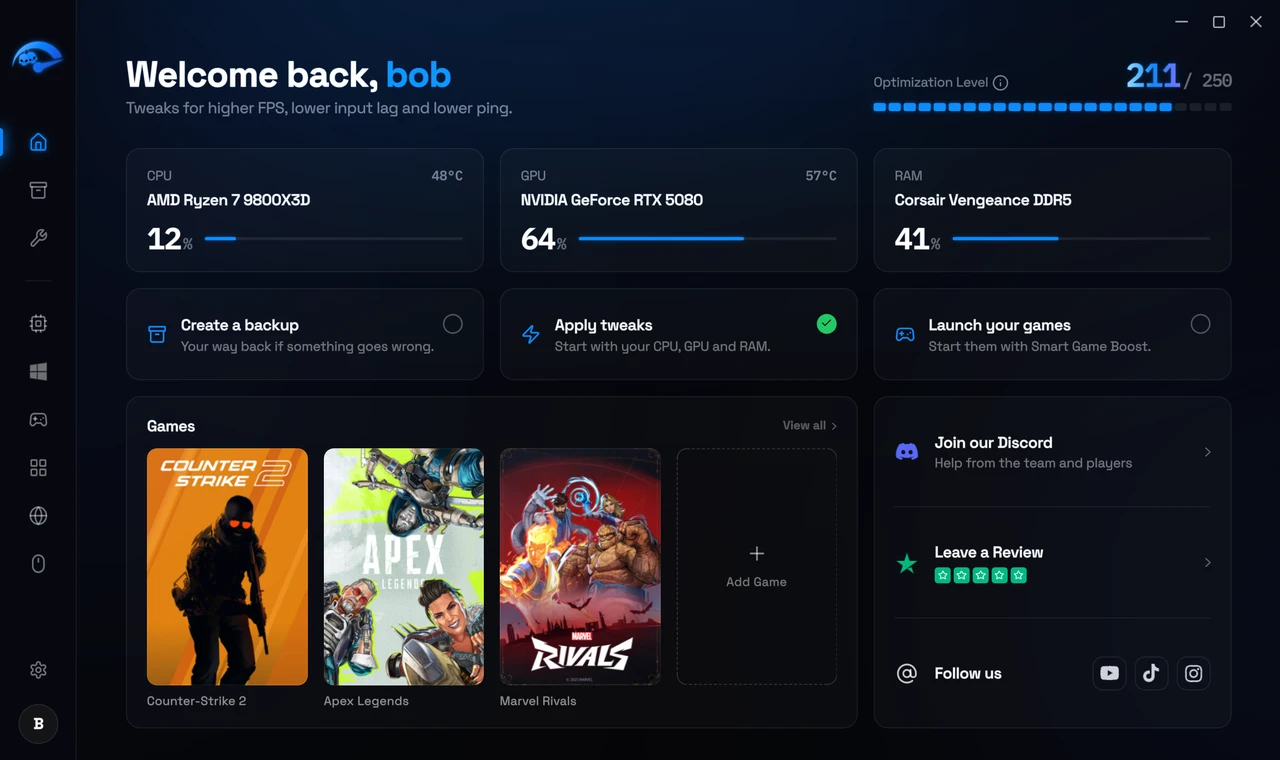
Can Gemini Optimize Your PC for Fortnite? Its .bat File vs RIP Tweaks (2026)

Written version of our video, every step checked against it.
Quick answer
- Baseline on the PC in the video: around 140 FPS in Fortnite on a creative map.
- Asked to optimize the PC, Gemini gave generic advice. Asked for a batch file, it wrote a script with 6 tweaks: temp files, Prefetch, DNS flush, Ultimate Performance plan, Explorer restart.
- The script threw errors (Invalid Parameters) and did not switch the power plan: it had to be selected by hand. Result: 170 to 180 FPS.
- RIP Tweaks on the same laptop: a backup, then Hardware, Windows with 16 Hex, the RIP Gaming Power Plan and the Fortnite game booster.
- Result: around 300 FPS on the PC in the video, almost double the 140 FPS it started with.
This page is for anyone who wants to know if Google's Gemini can optimize a gaming PC for Fortnite. It follows our test step by step: the prompts we typed, how to turn Gemini's code into a .bat file and run it, what the script really did, the FPS after it, and then every click in RIP Tweaks on the same laptop with the FPS at the end.
In this video
Start Fortnite, turn on the FPS counter and write down what you get on one map and one spot. The video tests on a creative map. With nothing tweaked, the laptop in the video gets around 140 FPS, with dips near 100.

Use the same map, spot and settings for every test later. Only then do the numbers compare like for like.
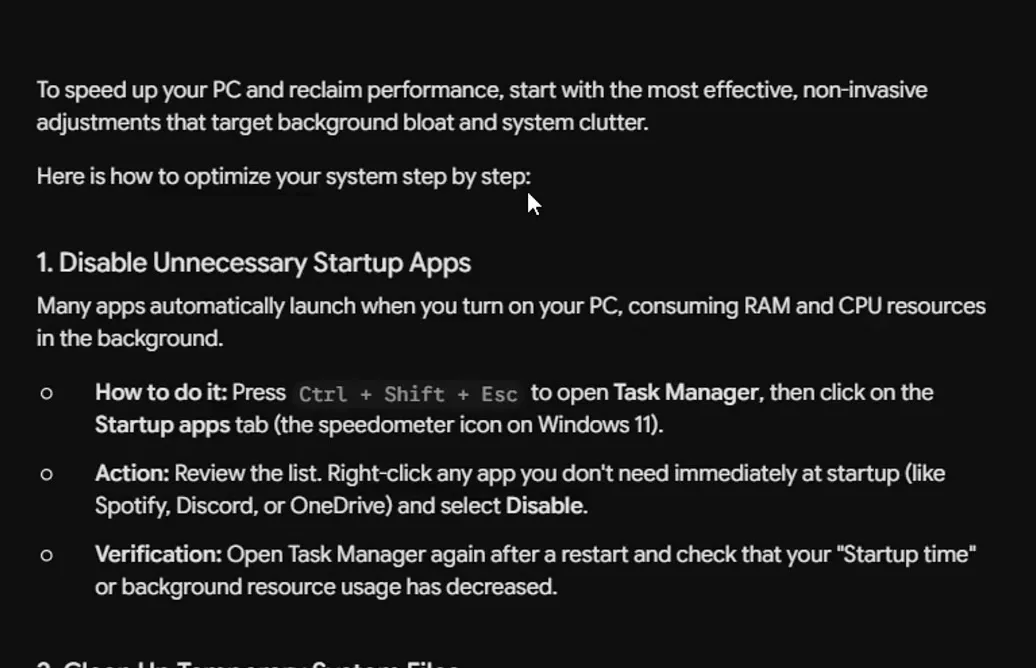
Open Gemini and type optimize my pc. In the video Gemini answers with general advice, the kind any chatbot gives: disable unnecessary startup apps in Task Manager, clean up temporary files, update Windows and your drivers, and set visual effects to best performance.
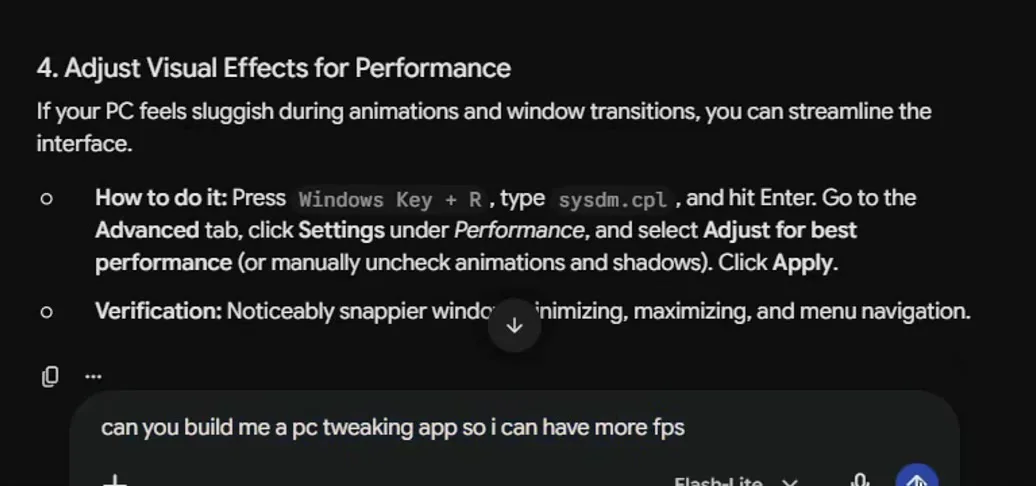
Next the video asks can you build me a pc tweaking app so i can have more fps. Gemini offers a PowerShell route, so the follow-up is give me a batch file for my pc.
Gemini writes a script called Ultimate PC Optimization Script. Click Download code at the top of the code block and save it to your desktop. It arrives as a .txt file named like gemini-code-....txt.
Open the .txt fileFileSave as.txt to .batAll filesSave
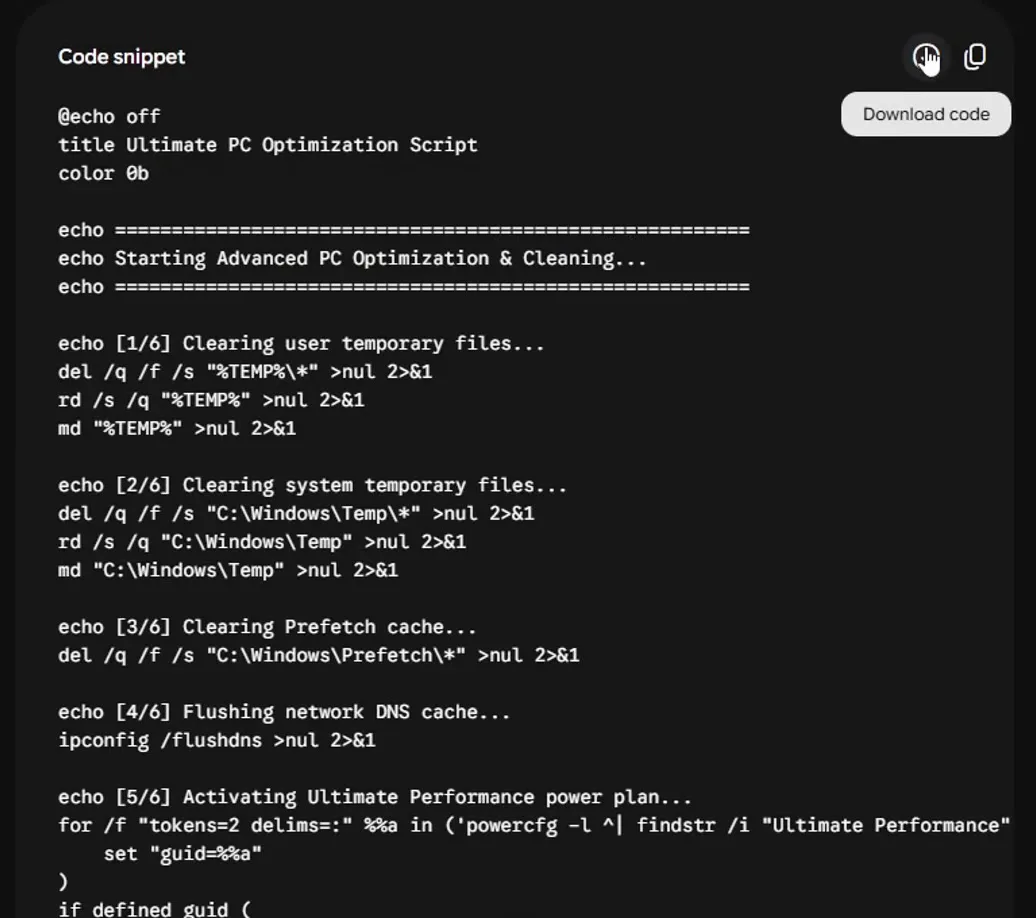
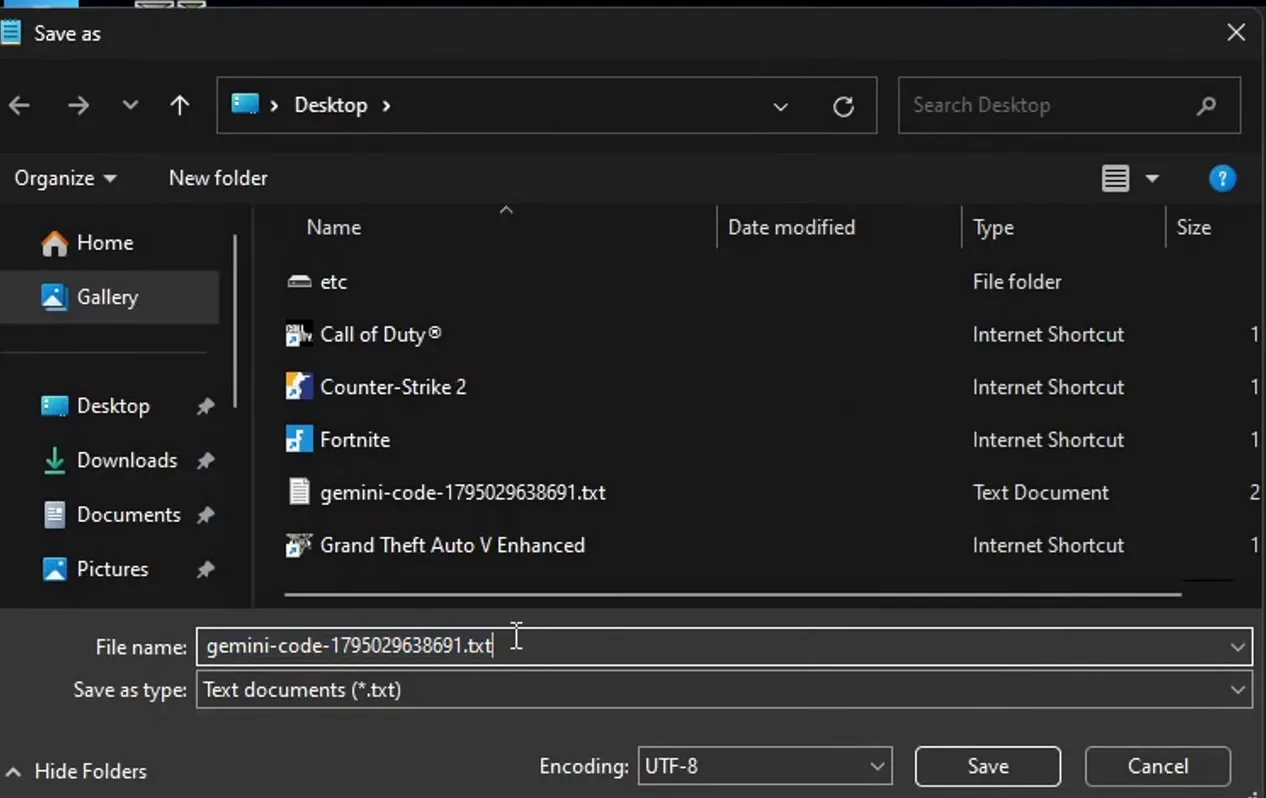
Double-click the .txt file, click File and Save as, replace txt at the end of the name with bat, set Save as type to All files and click Save. Close the editor: the .bat file now sits next to the .txt on your desktop.
Careful
The script deletes files in your Temp folders and the Windows Prefetch folder. The video itself voices the worry about what it will delete. Read every line of a chatbot's script before you run it as administrator.
Right-click the .bat file and choose Run as administrator. A command window opens and runs the six steps one after another.
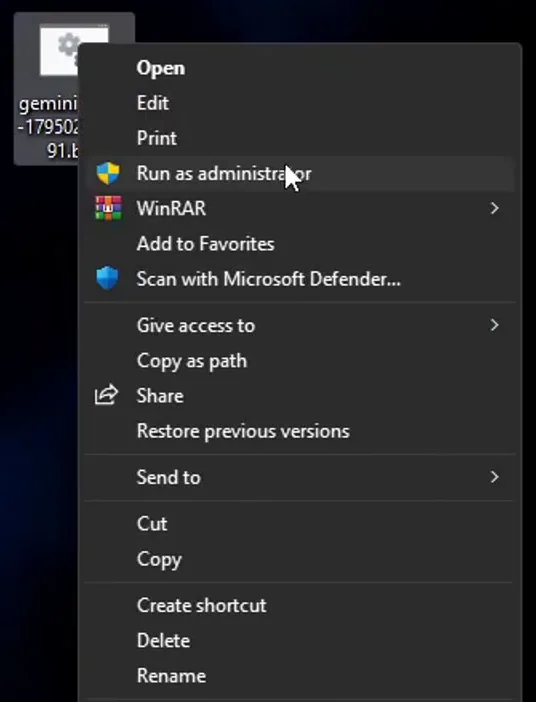
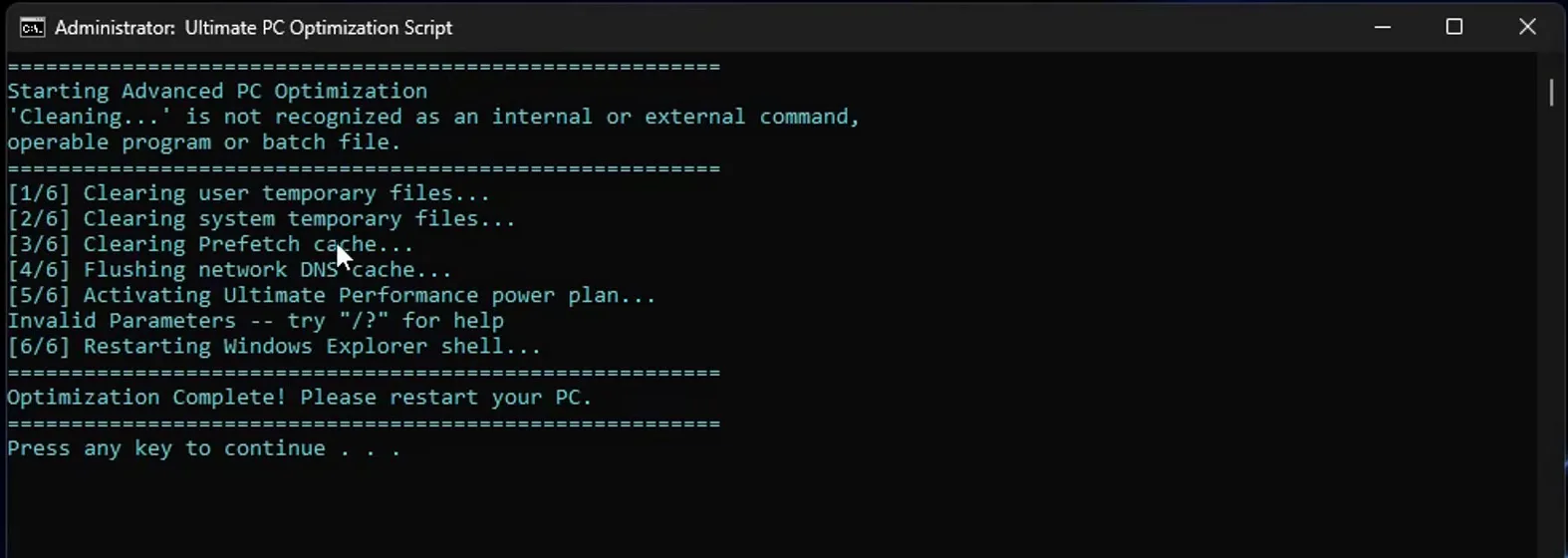
The six steps are all the script does: clear the user temporary files, clear the system temporary files, clear the Prefetch cache, flush the network DNS cache, activate the Ultimate Performance power plan and restart the Windows Explorer shell. Two lines fail along the way: "'Cleaning...' is not recognized as an internal or external command" and, right after the power plan step, Invalid Parameters.
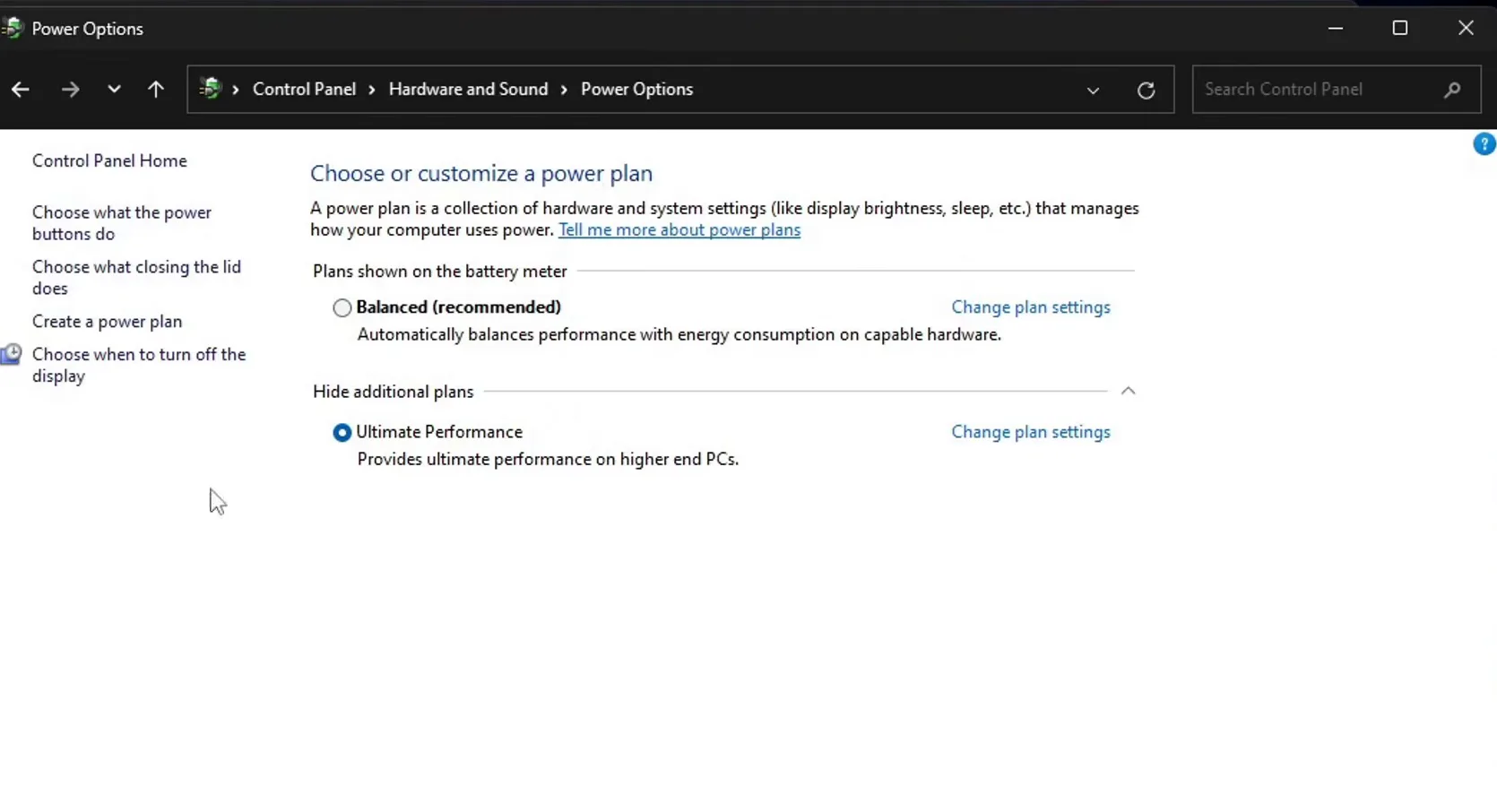
Open Power Options in the Control Panel to see if the plan really changed. In the video it did not: Ultimate Performance appears under the hidden plans, but it is not selected. It has to be clicked by hand.
Control PanelHardware and SoundPower OptionsUltimate Performance
Good to know
The "Invalid Parameters" line in the script's window comes from that power plan command. Gemini's script reports the step as done, but the setting never changed until it was selected in Power Options.

Now the same laptop gets RIP Tweaks. In the video, type discord.gg/riptweaks into your browser and join the server. Open the free-tweaks channel, click Download RIP Tweaks, then Download for Windows, save the file and click Install. You can also get it straight from riptweaks.com/download.
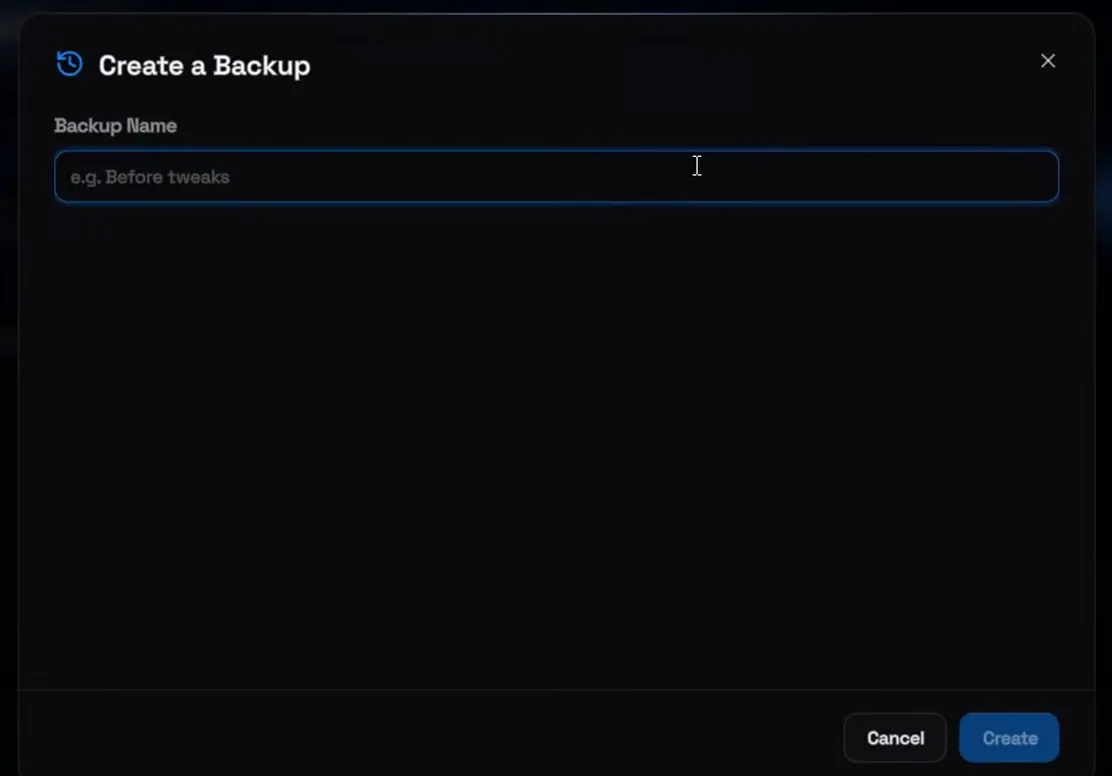
When the app opens, create your account with a username, your email and a password, then click Create account. Go to Backups, click Create a backup, type Before RIP Tweaks and click Create. Wait until it finishes.
BackupsCreate a backupBefore RIP TweaksCreate
How to undo it
Everything after this point can be undone from Backups with the backup you just made. Gemini's script had no such step: deleted temp and Prefetch files are simply gone. See restore points and undoing changes.
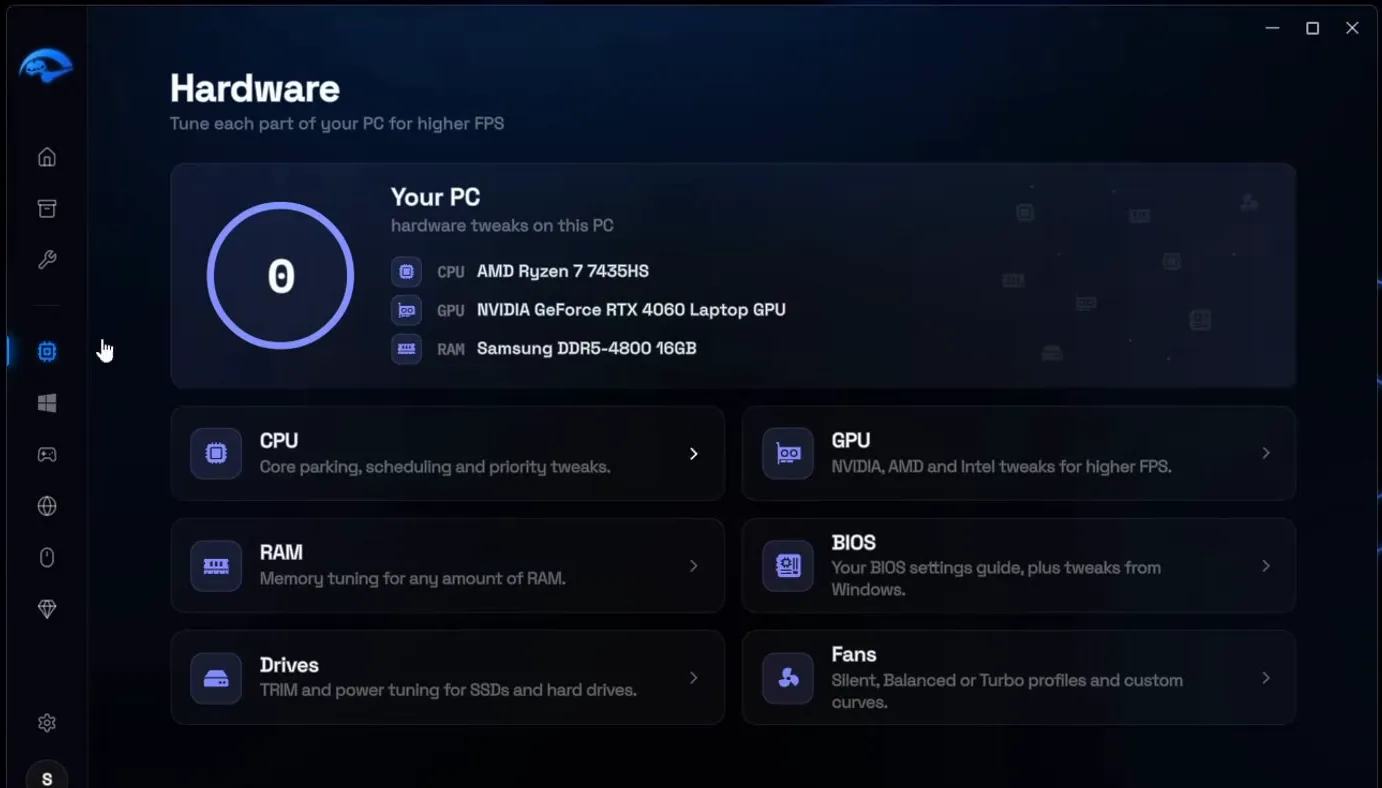
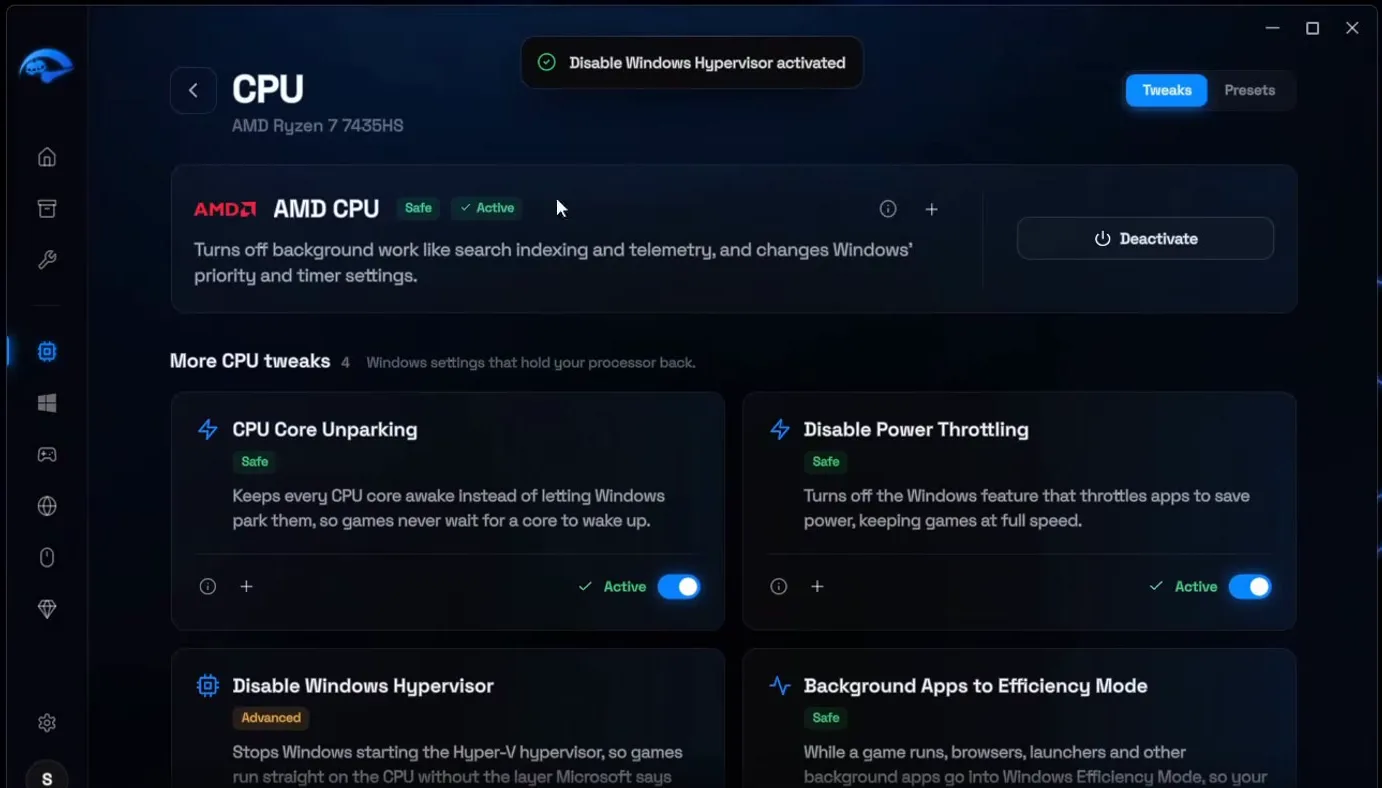
Open Hardware. The page reads your PC on its own: here an AMD Ryzen 7 7435HS, an NVIDIA GeForce RTX 4060 Laptop GPU and 16 GB of Samsung DDR5-4800. Open CPU and click Activate on AMD CPU (an Intel processor gets the Intel options), then switch on the rest: CPU Core Unparking, Disable Power Throttling, Disable Windows Hypervisor and Background Apps to Efficiency Mode.
HardwareCPUAMD CPUActivate
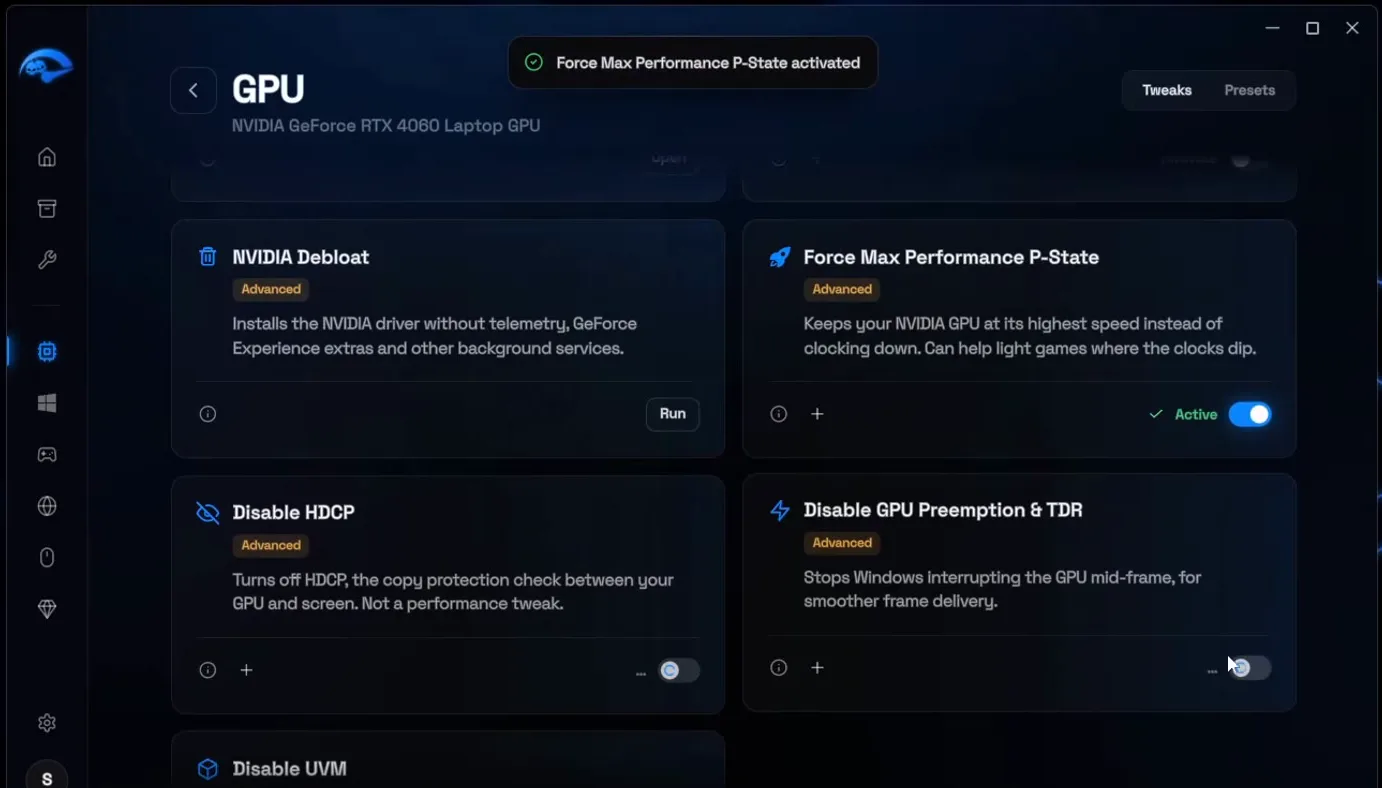
Go back and open GPU. With an NVIDIA card you get the NVIDIA tweaks (AMD and Intel cards get their own). Turn on every one, such as Force Max Performance P-State and Disable GPU Preemption & TDR, plus the two universal tweaks that work on any GPU. Our NVIDIA settings guide goes deeper on this page.
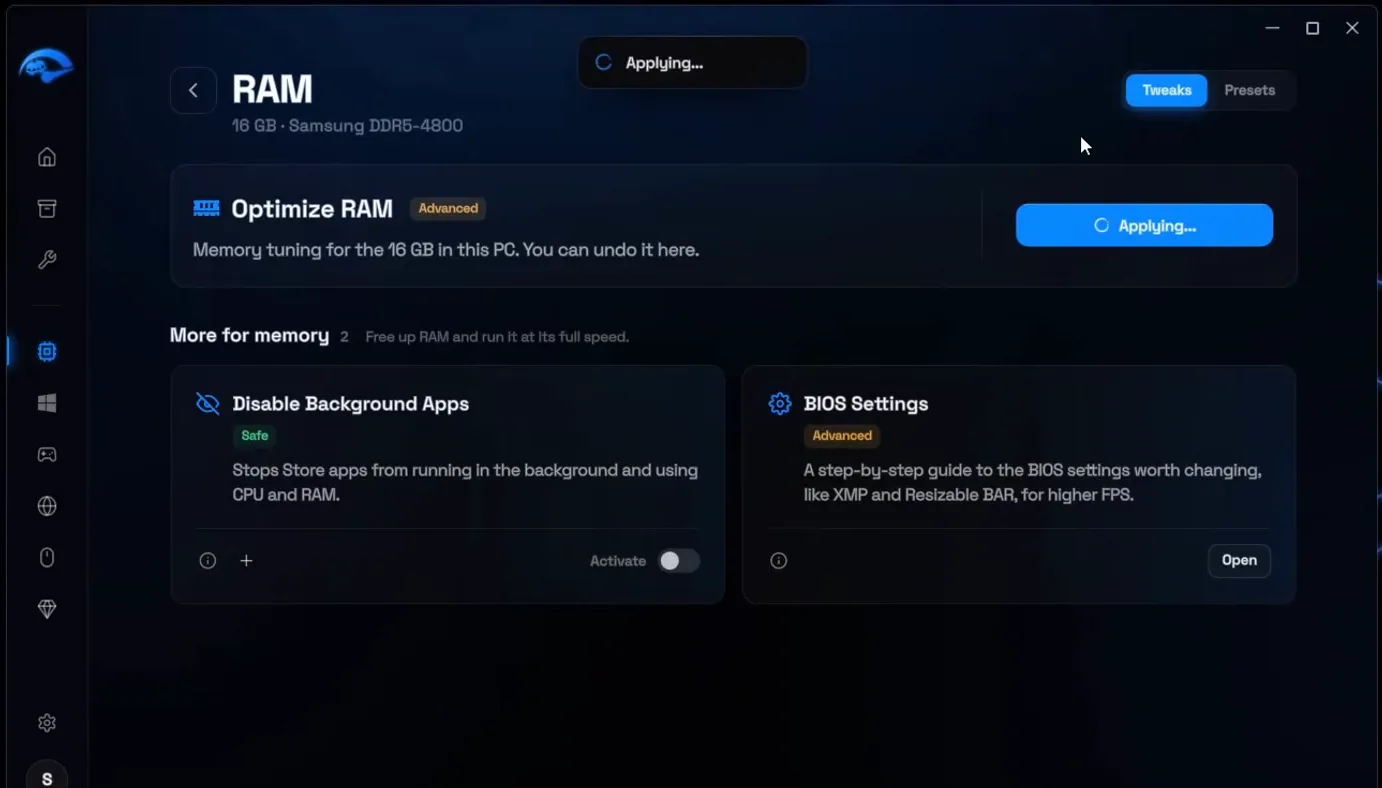
Open RAM and apply Optimize RAM for the amount in your PC, here 16 GB. Turn on Disable Background Apps on the same page, so Store apps stop running in the background. Then open BIOS and activate the BIOS tweaks, which RIP Tweaks applies from Windows.
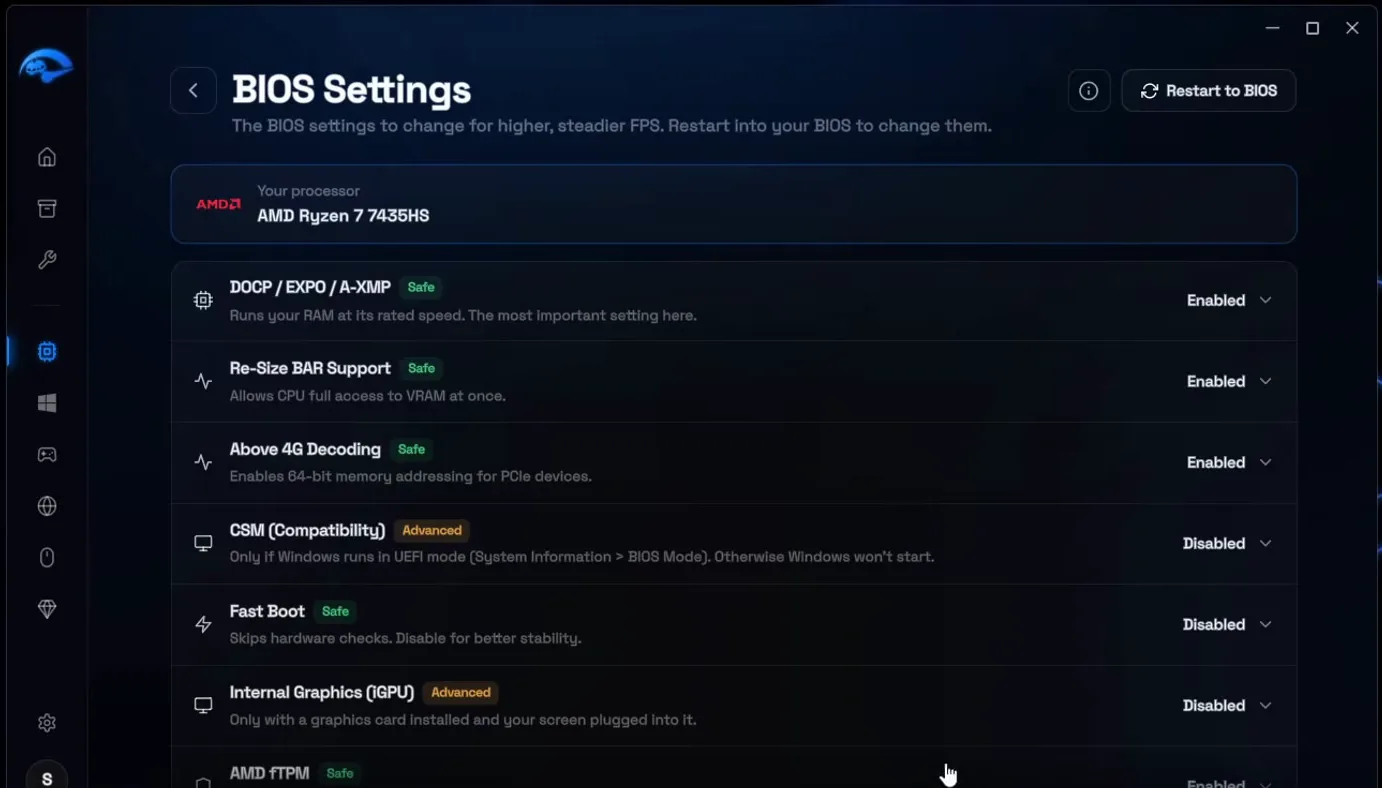
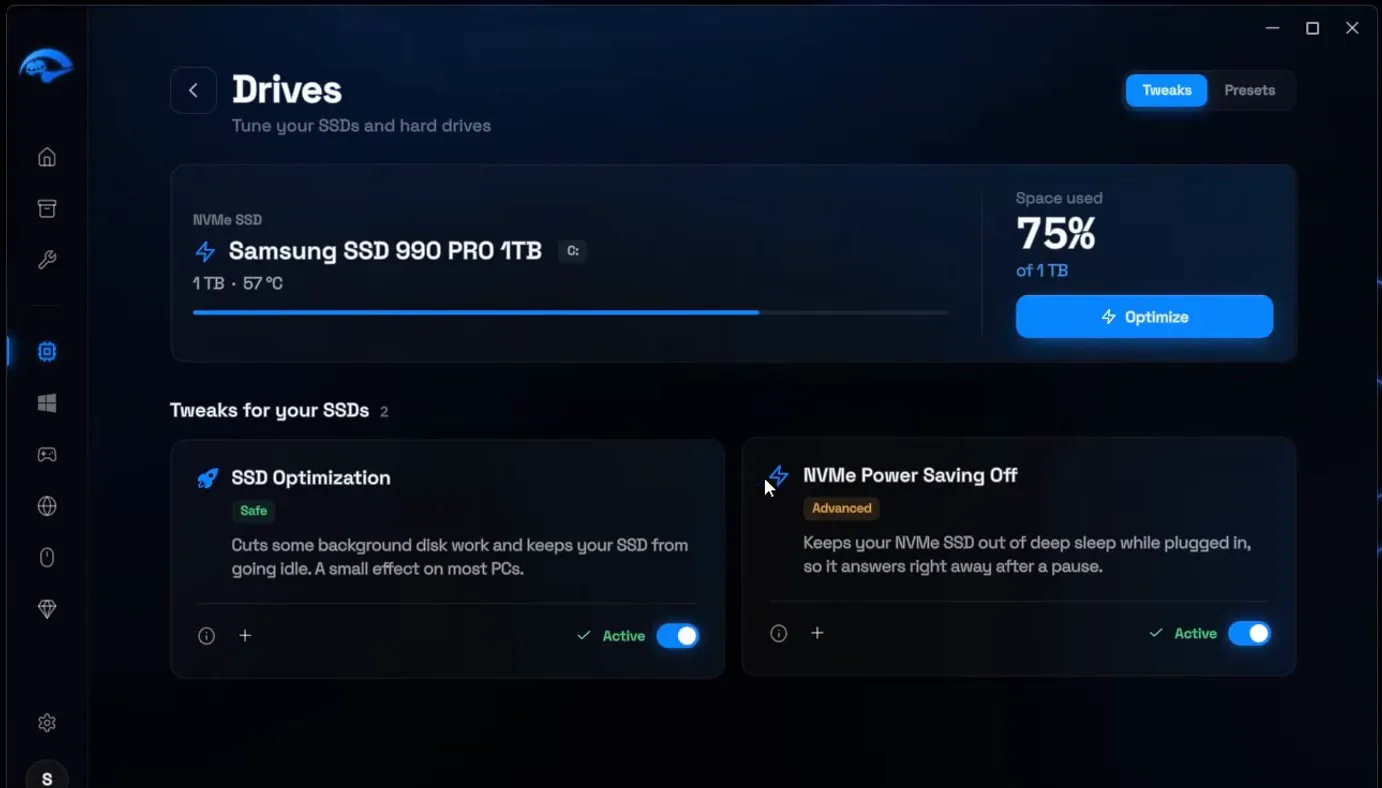
For the settings inside the real BIOS menu, open the guide on that page and go through it yourself, or follow our Intel and AMD BIOS settings guide. Last, open Drives and switch on both SSD tweaks: SSD Optimization and NVMe Power Saving Off. A PC with a hard drive gets the hard drive tweaks here instead.
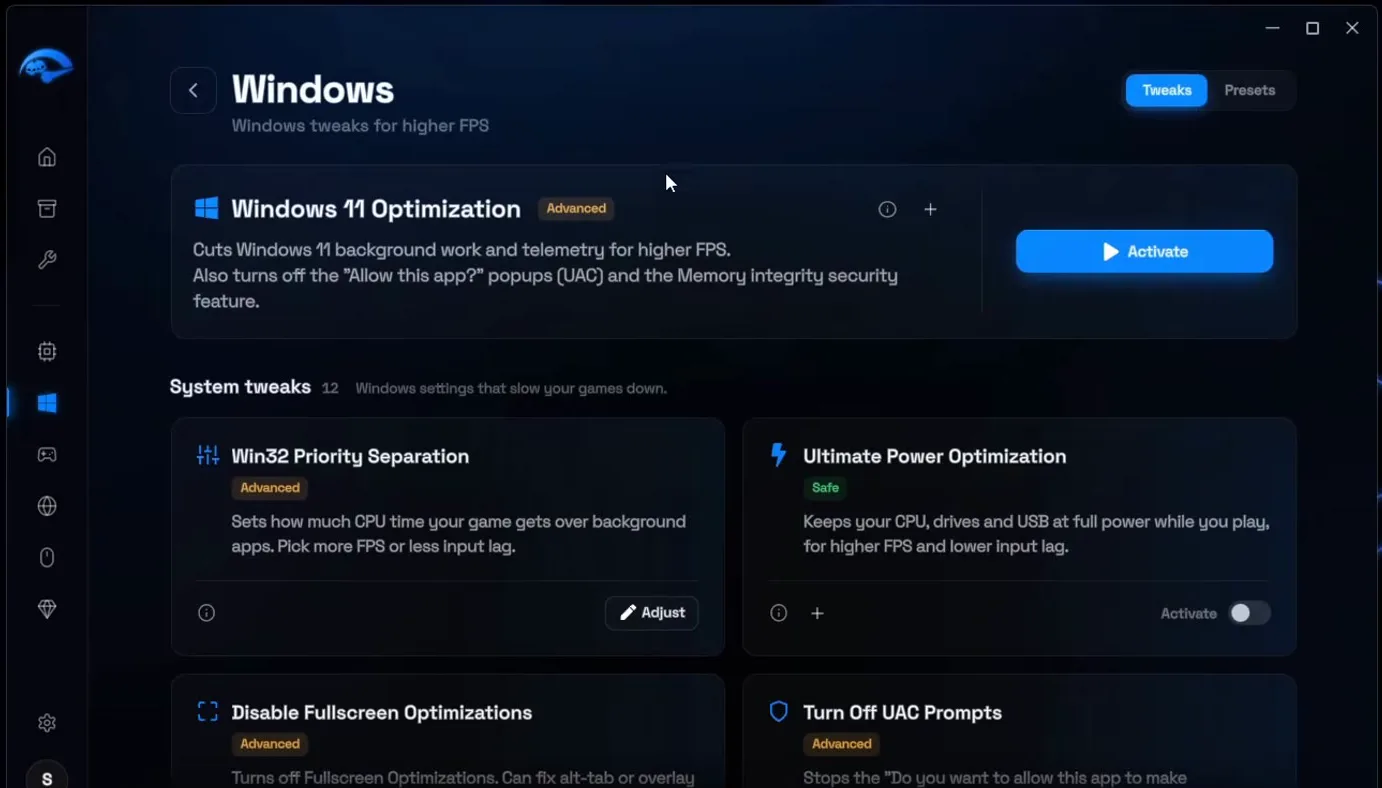
Open Windows, then the Windows card. The app detects your version, here Windows 11 Pro 23H2. Click Activate on Windows 11 Optimization, then turn on the system tweaks below it: Ultimate Power Optimization, Disable Fullscreen Optimizations and the rest. Tweaks your PC can't use are marked, like Remove Unused Windows Parts showing "Not supported on this PC" here, so everything you switch on works on your machine.
WindowsWindowsWindows 11 OptimizationActivate
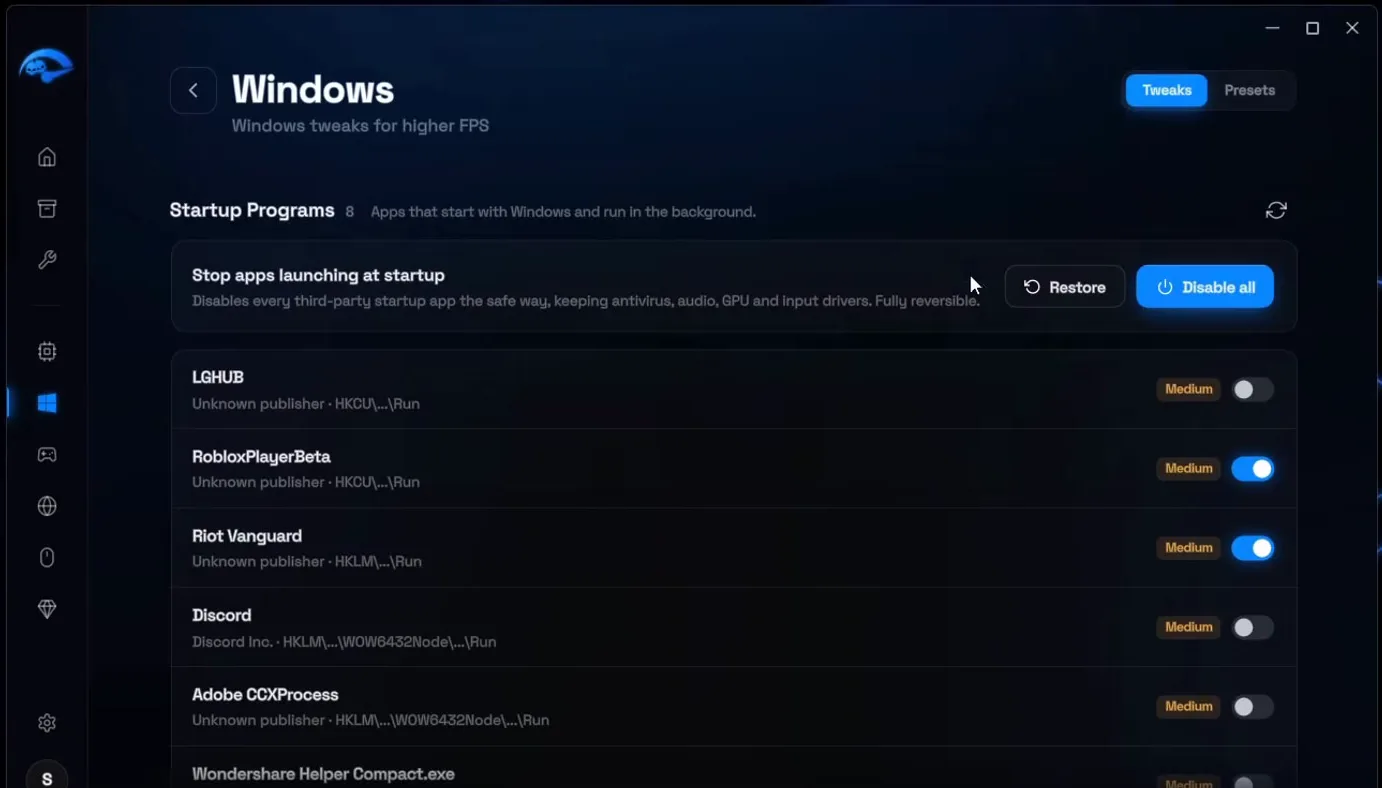
Scroll down to Startup Programs and stop the apps you don't need at startup. In the video Roblox Player was starting with Windows for no reason, so it goes. Disable all keeps antivirus, audio, GPU and input drivers and is fully reversible with Restore.
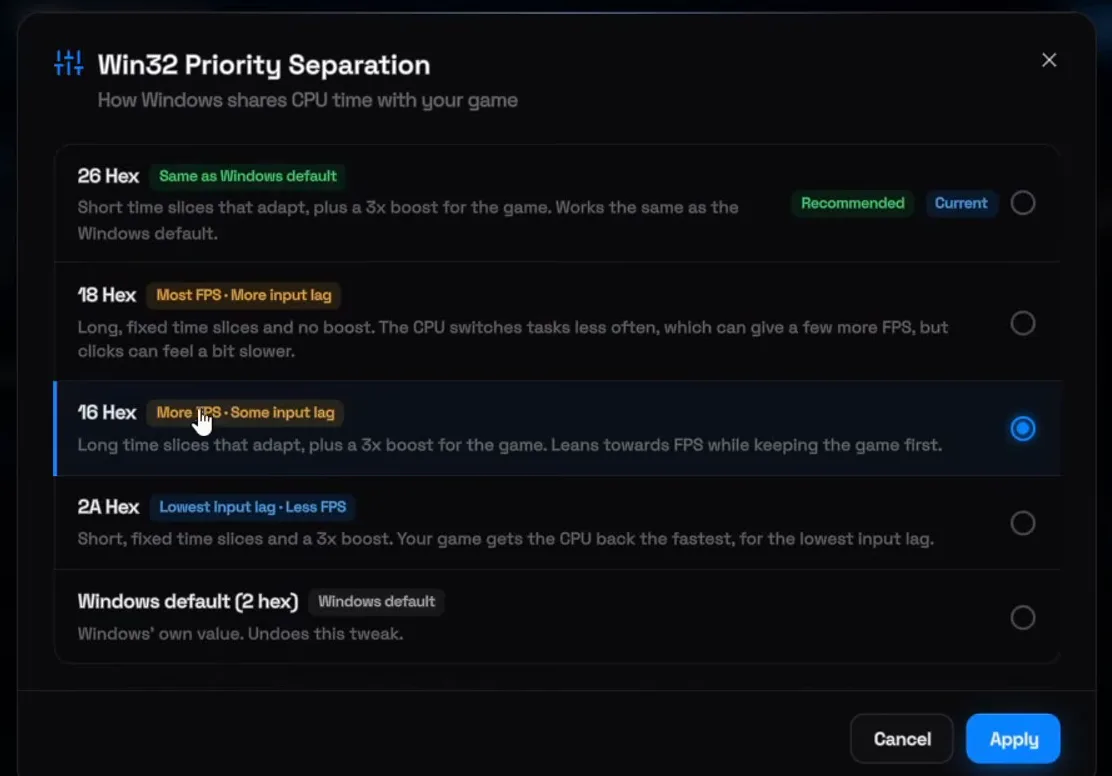
The video calls this the most important part. Scroll back up to Win32 Priority Separation, click Adjust, pick 16 Hex and click Apply. The app labels it "More FPS, Some input lag": long time slices that adapt, plus a 3x boost for the game.
WindowsWin32 Priority SeparationAdjust16 HexApply
Tip
The window explains each value. If you care more about input lag than FPS, 2A Hex is the one marked "Lowest input lag". Our 16 Hex and 32 Hex guide compares them.
Go back and open Power. Click Activate on the RIP Gaming Power Plan. It takes the place of the Ultimate Performance plan that Gemini's script could not even switch on. Then click Edit on Processor Boost Mode, pick Aggressive and click Apply.
WindowsPowerProcessor Boost ModeEditAggressive
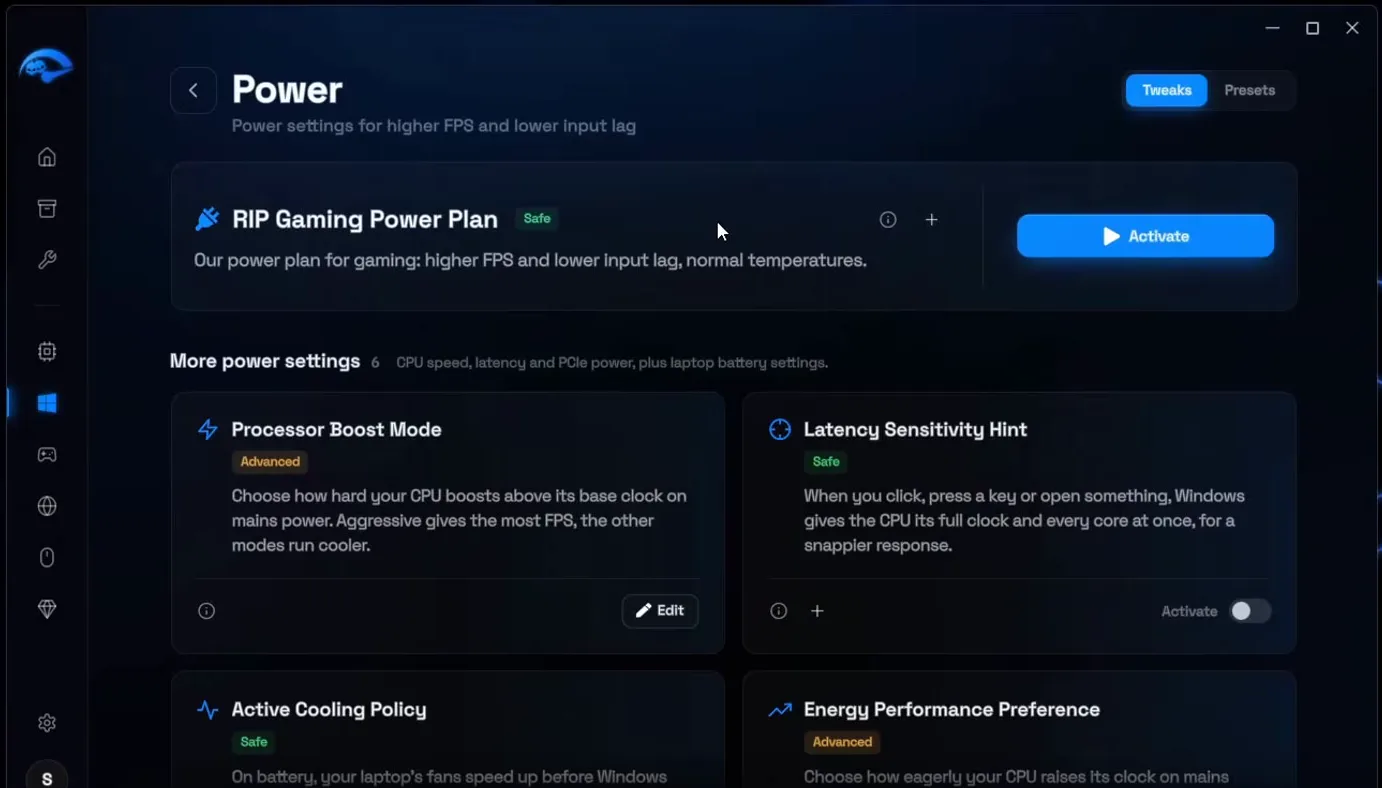
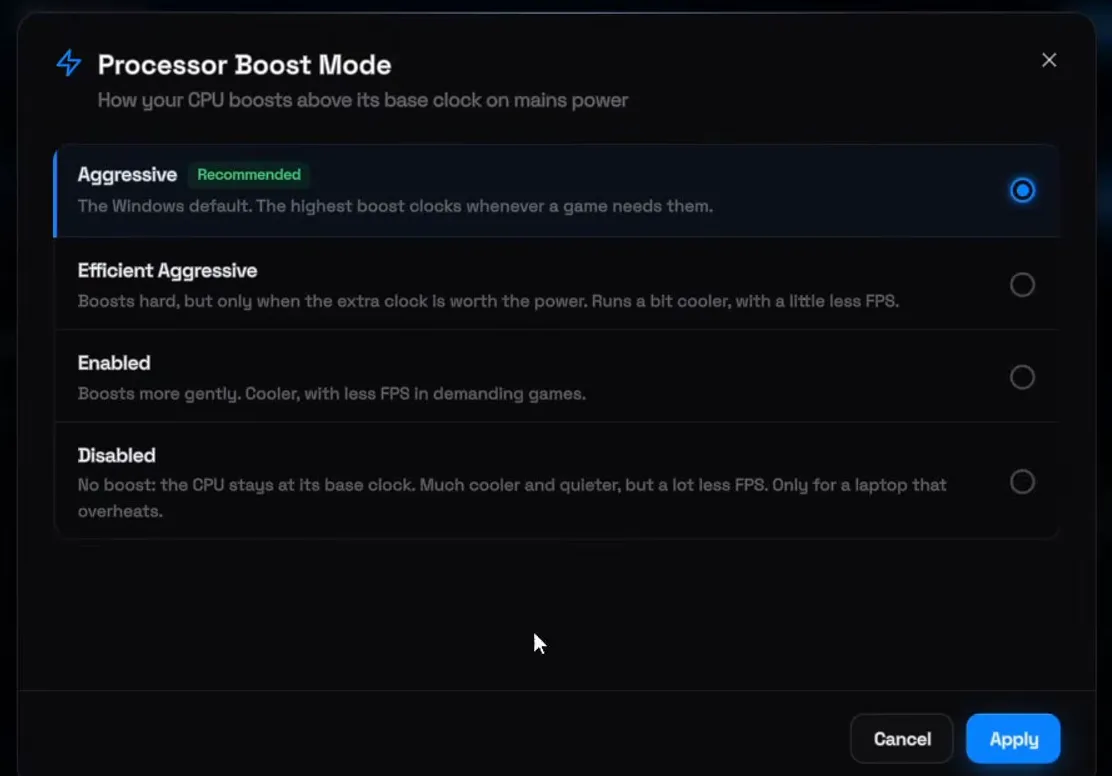
Go through the rest of the power settings and apply the option marked Recommended on each, like Energy Performance Preference set to Gaming in the video. You can test the others too: the best setting is the one that works best on your PC.
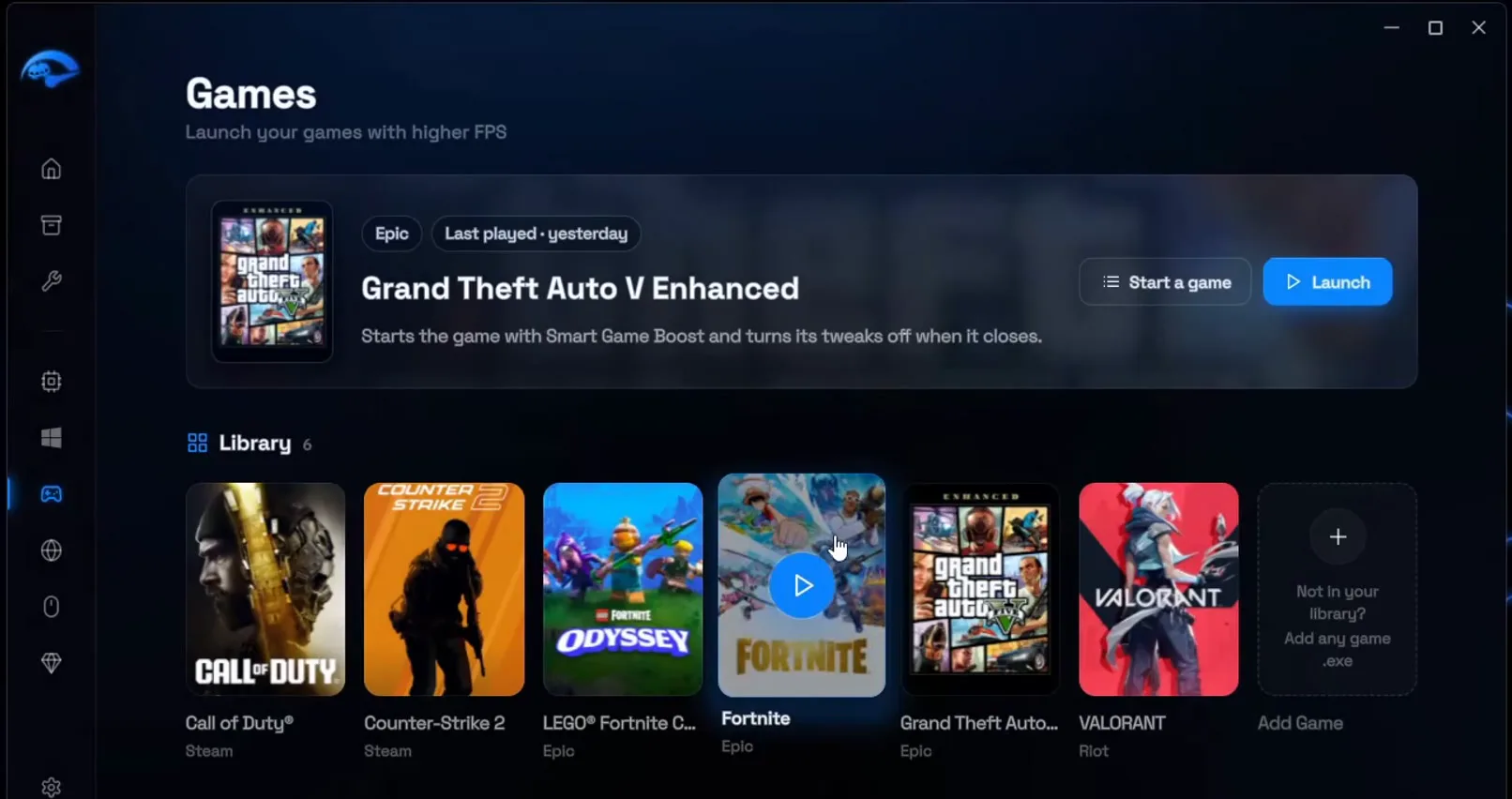
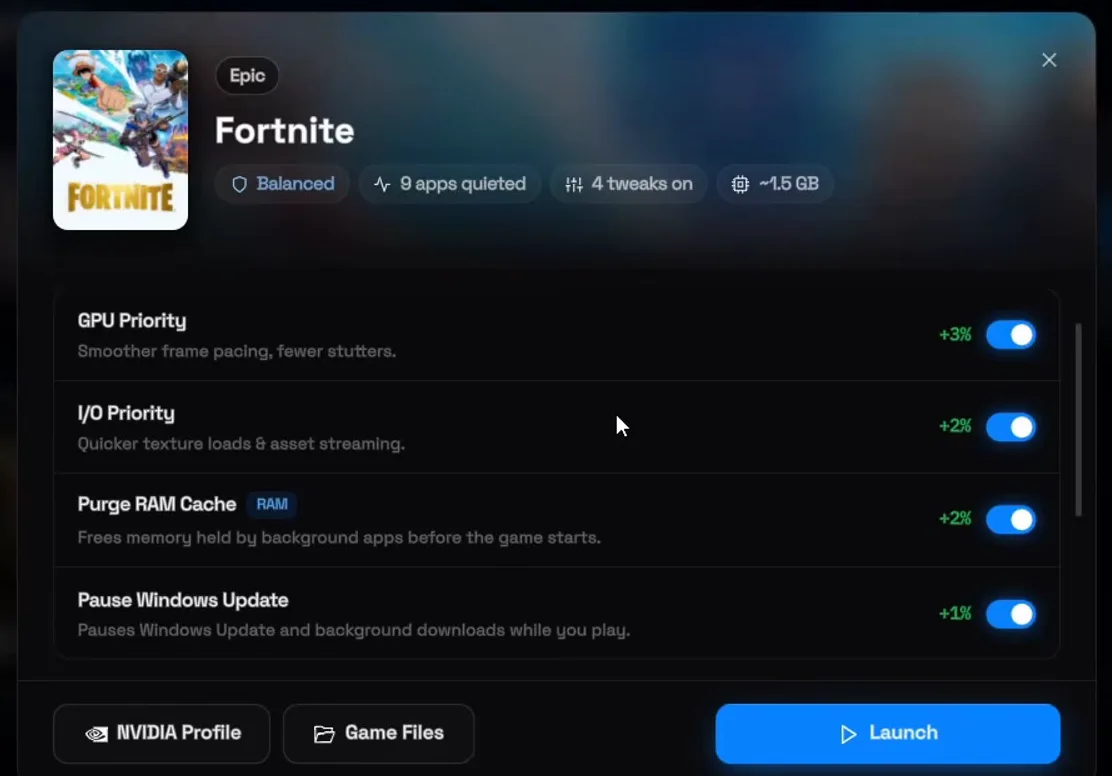
Go to Games last and click Fortnite. This is the RIP Tweaks game booster, with two modes. Balanced is free: it quiets your background apps and turns on four tweaks while you play: GPU Priority, I/O Priority, Purge RAM Cache and Pause Windows Update.
Tip
Balanced is free and "touches nothing risky", as the app says. Start there, test your FPS, and only then decide if you need Performance.
Performance is the Premium mode. In the video it quiets 19 apps instead of 9 and turns on 8 tweaks instead of 4. It also doesn't start Fortnite through the Epic Games Launcher, which otherwise keeps running in the background: the Start with the Epic Games Launcher switch stays off.
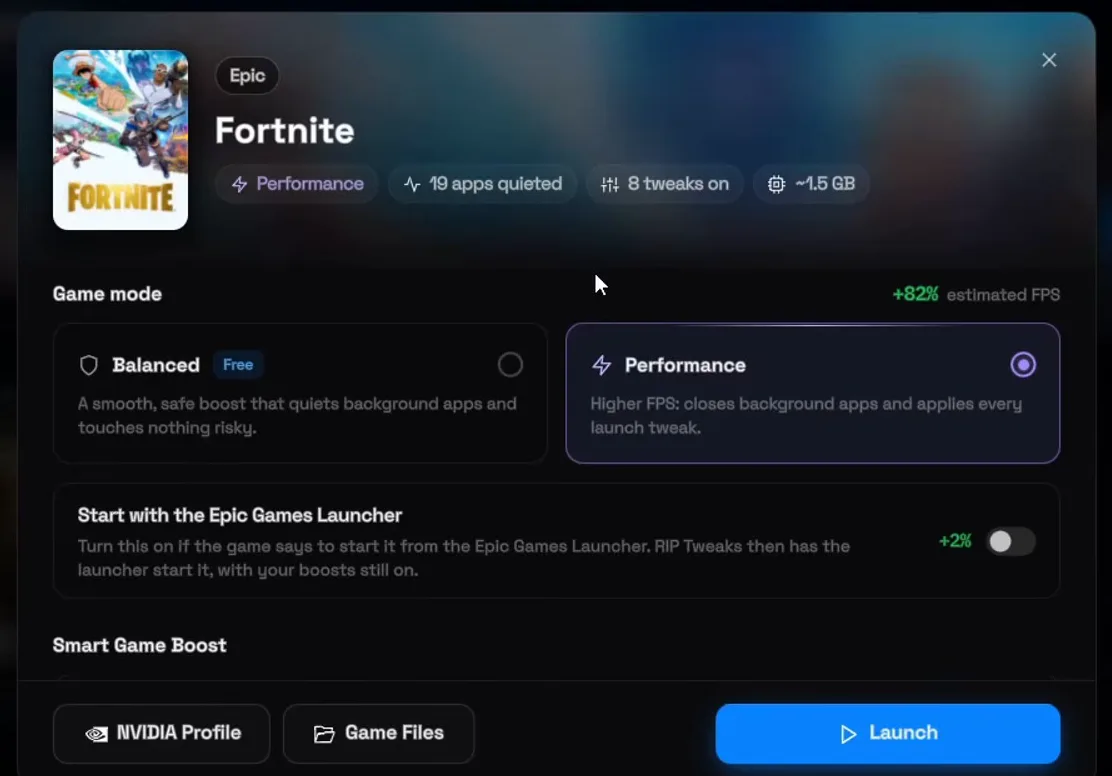
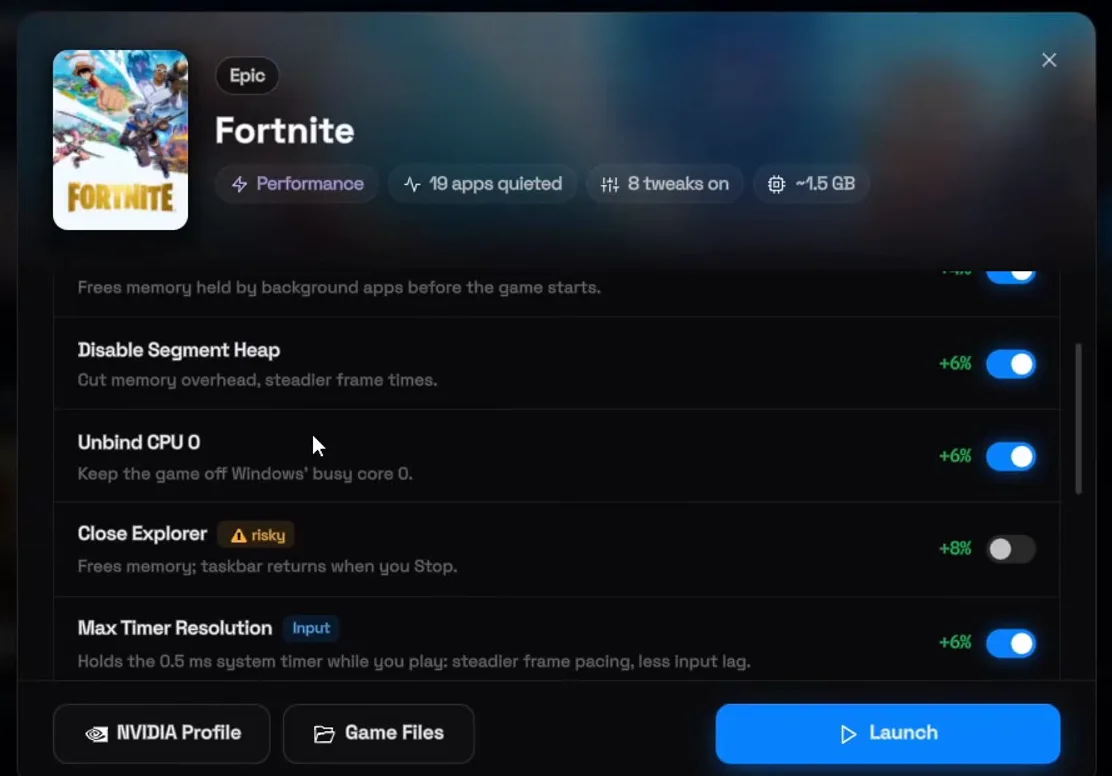
The extra tweaks are the ones the video rates highest: Disable Segment Heap and Unbind CPU 0 for FPS, and Max Timer Resolution, which holds the 0.5 ms system timer while you play for steadier frame pacing and less input lag. Close Explorer is marked risky and stays off in the video. Details on Premium.
Pick the mode you want and click Launch. The Games page then shows Fortnite as Playing with Boost is live, and the boost turns its tweaks off again when the game closes.
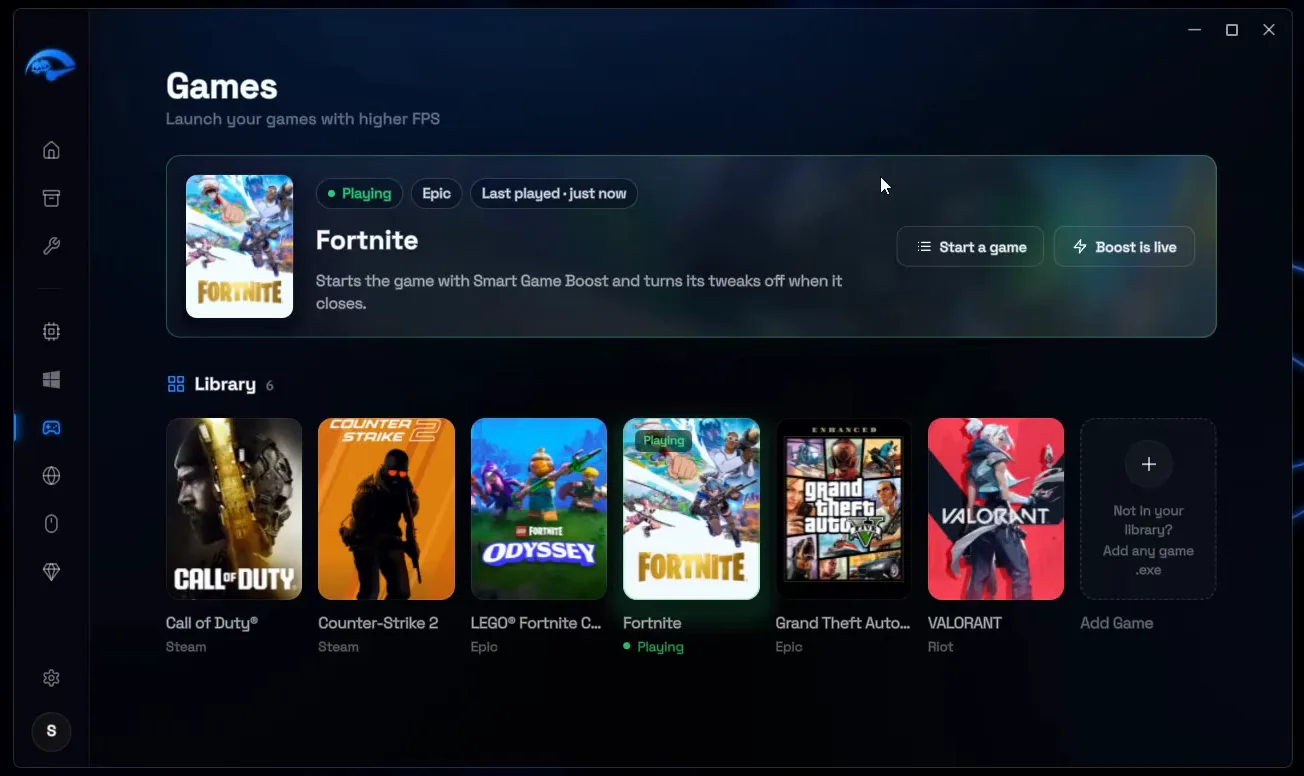
On the same creative map, the laptop now gets around 300 FPS. Side by side on the PC in the video: around 140 FPS before, 170 to 180 FPS with Gemini's six tweaks, around 300 FPS with RIP Tweaks.
How to check it worked
- Test the exact map and spot of your baseline with the same in-game settings, and compare the range on the FPS counter, not one frame.
- After Gemini's script, open Power Options and check which plan is really selected. In the video the script said it was done and it wasn't.
- In RIP Tweaks, the switches you turned on show Active, and the Hardware page counts the hardware tweaks on this PC.
- While Fortnite runs from the game booster, the Games page shows Playing and Boost is live.
- If the FPS doesn't move, restart once. Gemini's own script ends with "Please restart your PC."
For lower ping and input delay in Fortnite too, see our Fortnite FPS, input delay and ping guide.
Key settings at a glance
FAQ
Can Gemini optimize my PC for gaming?
Only a little. In the video its first answer was generic advice, and its batch file did six basic things: clear temp files and the Prefetch cache, flush DNS, set a power plan and restart Explorer. Fortnite went from around 140 FPS to 170 to 180 FPS on the PC in the video, against around 300 FPS with RIP Tweaks.
Is it safe to run a batch file from Gemini?
Read it first, line by line. A .bat file run as administrator can change or delete anything. The script in the video deletes everything in the Temp and Prefetch folders, has no backup or undo step, and two of its commands failed. Make a backup or restore point before you run any script.
Why did Gemini's script say Invalid Parameters?
The error appeared right after the step that should activate the Ultimate Performance power plan. That command failed, so the plan was never switched on: in Power Options it had to be selected by hand. The script still ended with "Optimization Complete!".
How do I undo Gemini's PC tweaks?
Open Power Options and select Balanced again. The deleted temp files can't be brought back, but Windows and your apps create new ones as needed, and the Prefetch folder and DNS cache rebuild by themselves as you use the PC.
How much FPS did RIP Tweaks give compared with Gemini?
On the PC in the video, a laptop with an AMD Ryzen 7 7435HS and an RTX 4060 Laptop GPU: around 140 FPS before, 170 to 180 FPS with Gemini's tweaks and around 300 FPS with RIP Tweaks, on the same creative map. Your numbers depend on your hardware.
Is RIP Tweaks free?
The download is free, and so is the Balanced game booster mode. The Performance mode with Disable Segment Heap, Unbind CPU 0 and Max Timer Resolution is part of Premium, which unlocks over 250 tweaks.
Is 16 Hex better than 26 Hex for Fortnite?
The video picks 16 Hex for the most FPS. In the app, 26 Hex is the same as the Windows default, 16 Hex leans towards FPS with some input lag, and 2A Hex gives the lowest input lag with less FPS. Test the one that suits how you play.
Does this work for other games than Fortnite?
Yes. The hardware, Windows and power tweaks apply to every game, and the Games page in the video also lists Call of Duty, Counter-Strike 2, GTA V and VALORANT, with Add Game for any .exe. For a full run on another PC, see how we optimized a PC with one free app.
 RIP Tweaks
Do it in a few minutes with RIP Tweaks
- Free plan for Windows 10 and 11
- A backup first, and every tweak can be switched off again
- Made for higher FPS, lower input lag and steadier ping
Free · Windows 10 and 11