
2 min to read
CPU, GPU and RAM Tweaks: How to Optimize Your Hardware
Open Hardware in the sidebar. There are six sections.
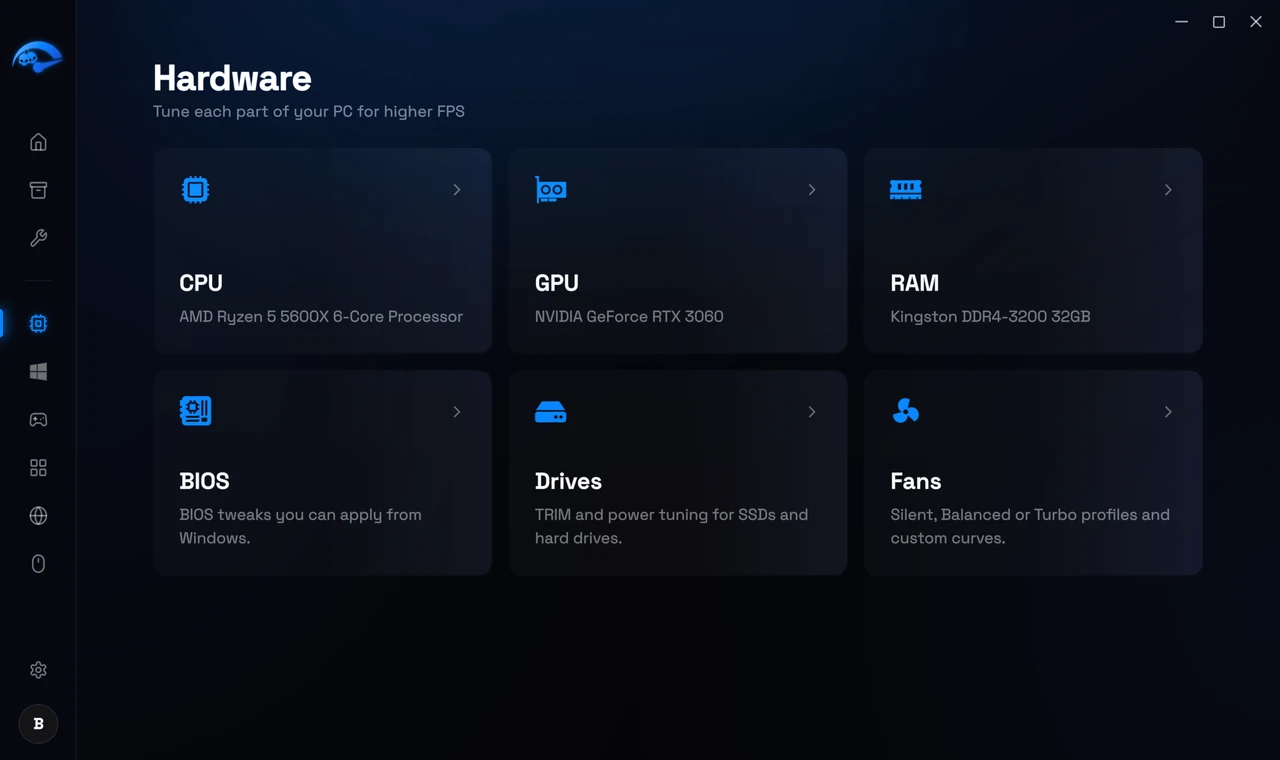
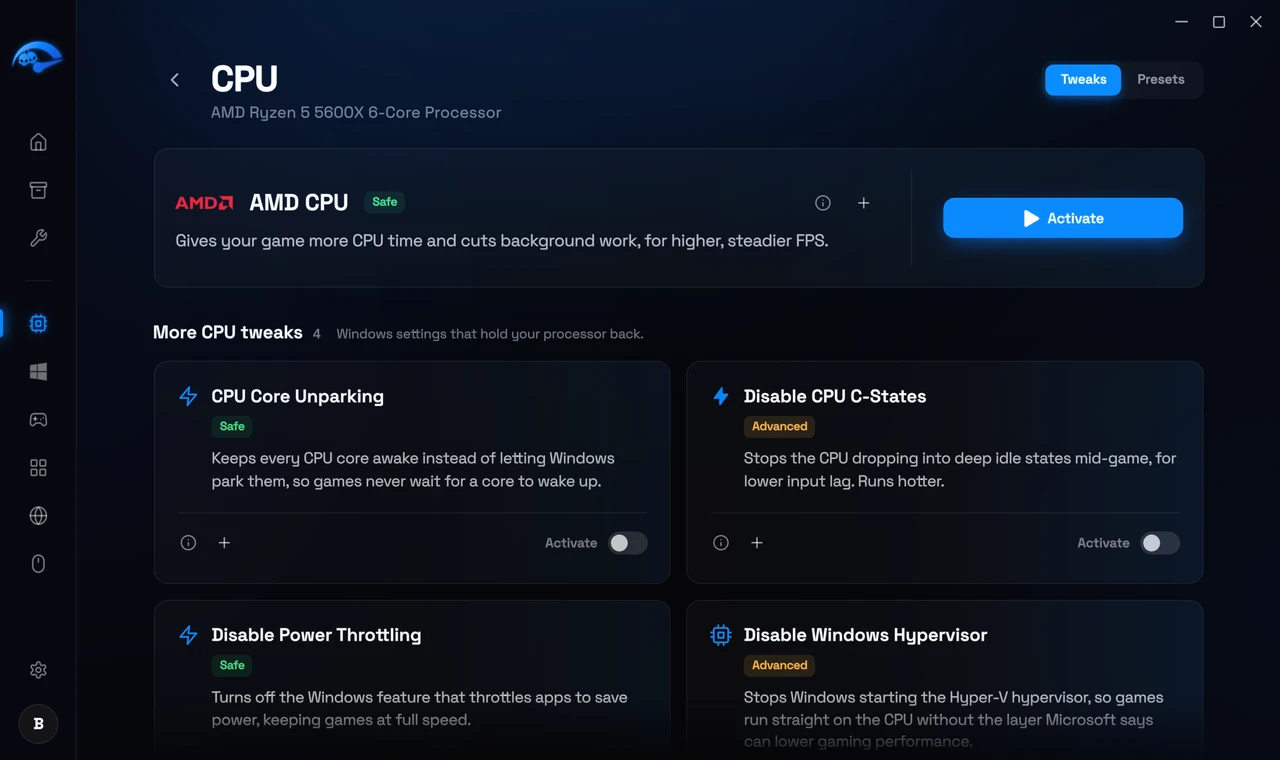
CPU
Core parking, scheduling and priority tuning for your specific processor. Core parking is the one most people notice, since Windows will idle cores to save power and that costs you responsiveness in games.
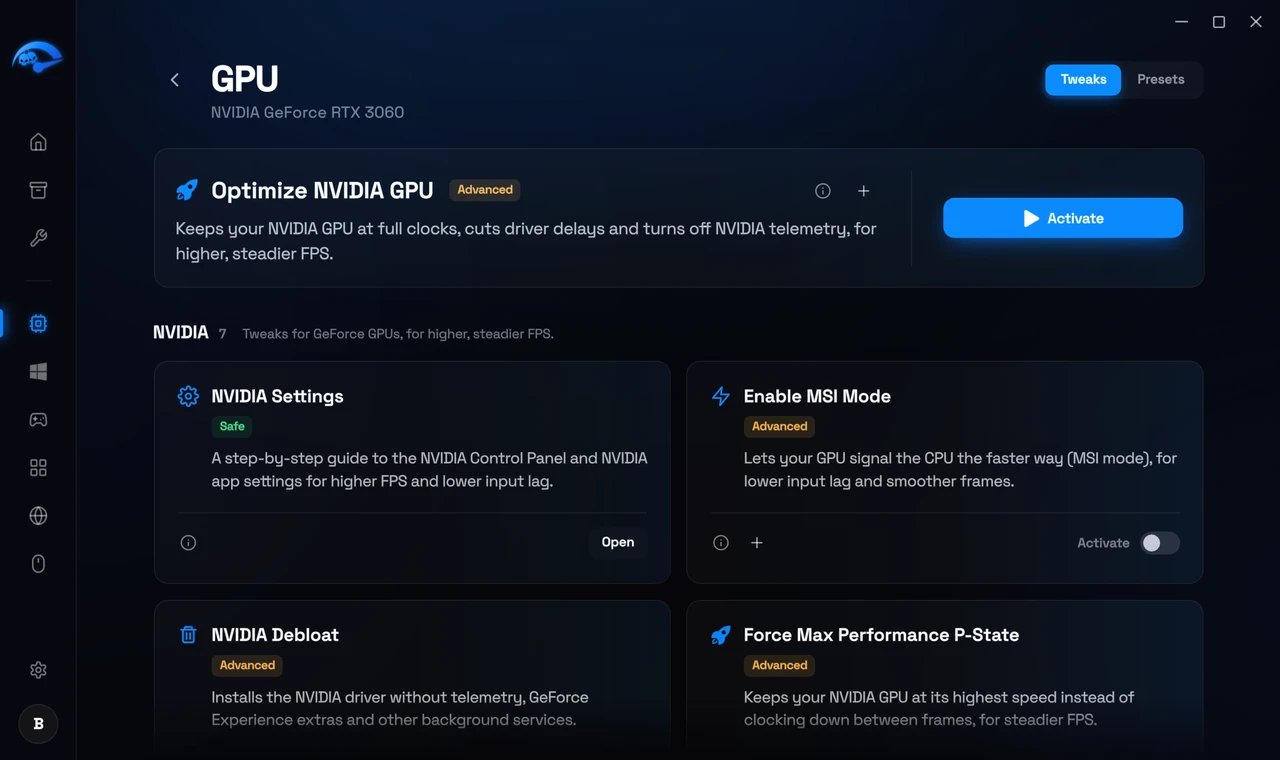
GPU (Premium). Performance settings for NVIDIA, AMD and Intel graphics. These are the driver level options that normally live in the NVIDIA or AMD control panel, set for higher and steadier frame rates.
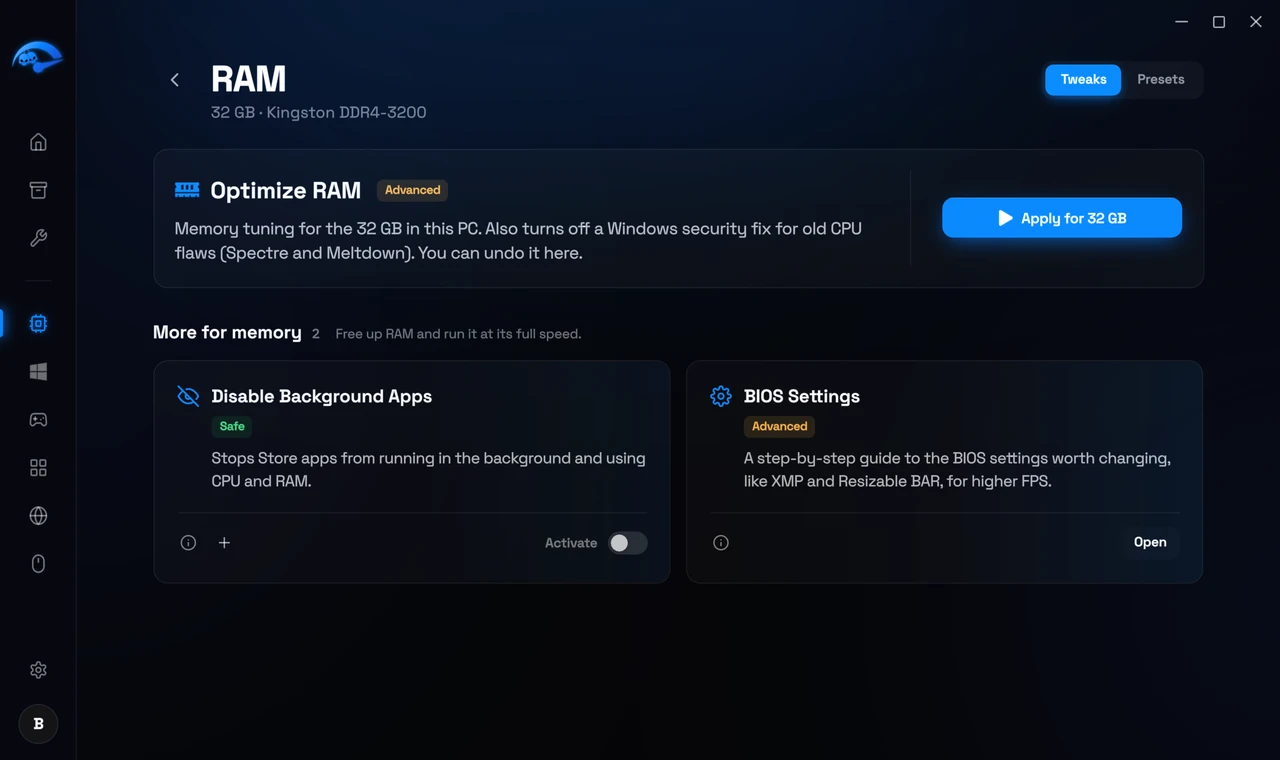
RAM
Memory management tuning that adapts to how much memory you have, anywhere from 4GB to 64GB.
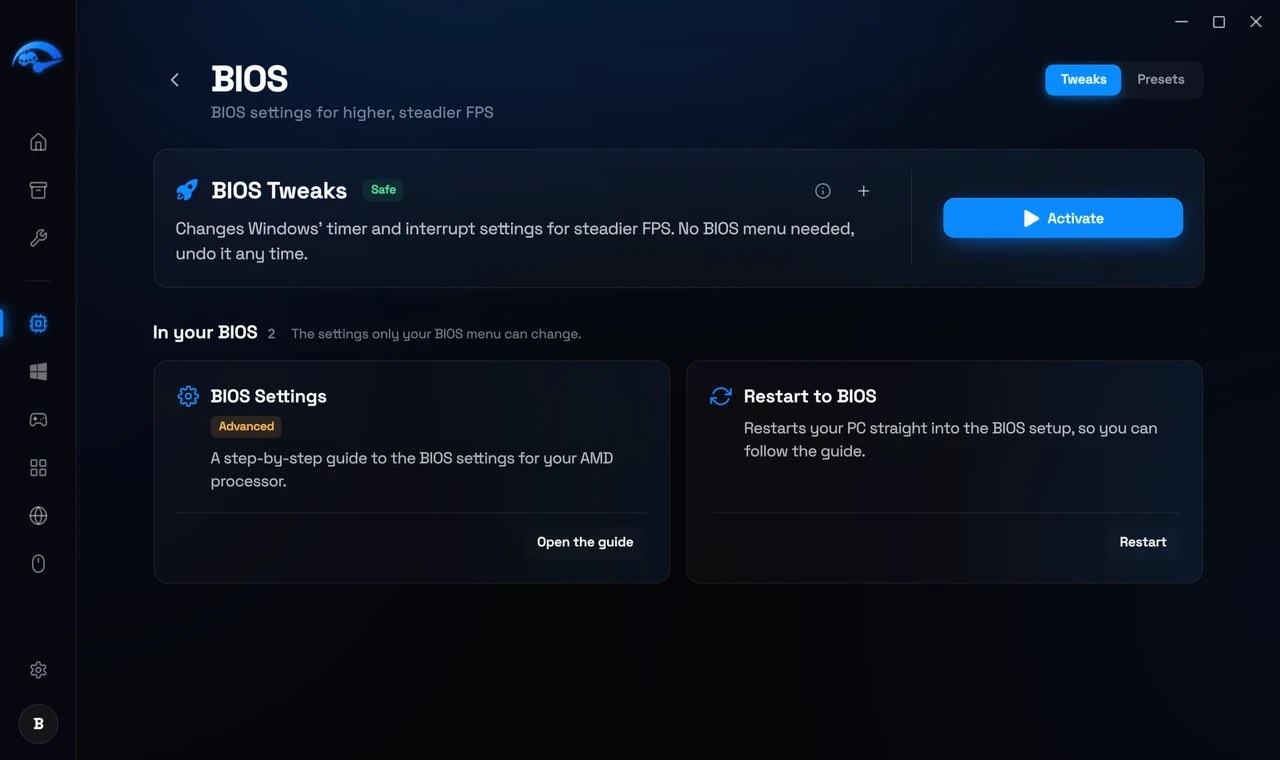
BIOS (Premium)
BIOS related settings that can be applied from inside Windows, without you having to reboot into your motherboard’s BIOS menu.
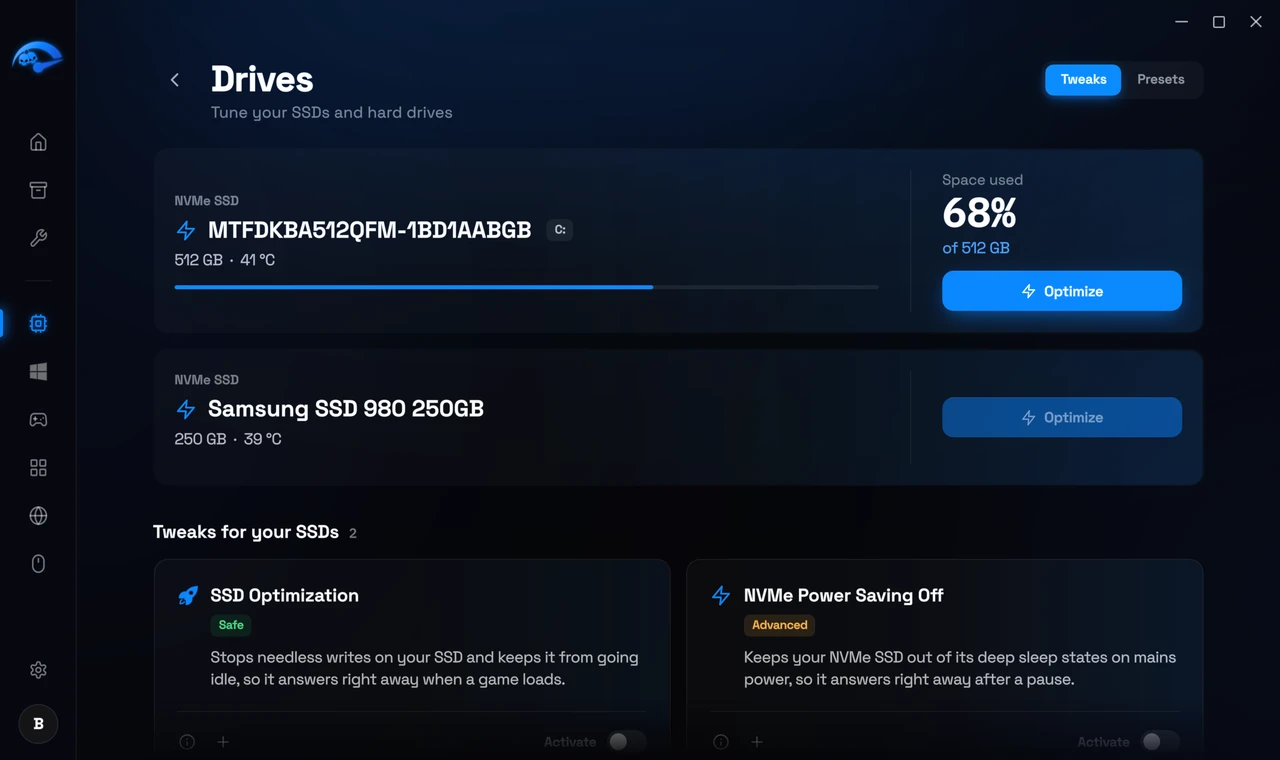
Drives
I/O, TRIM and power settings that keep SSDs and hard drives responsive.
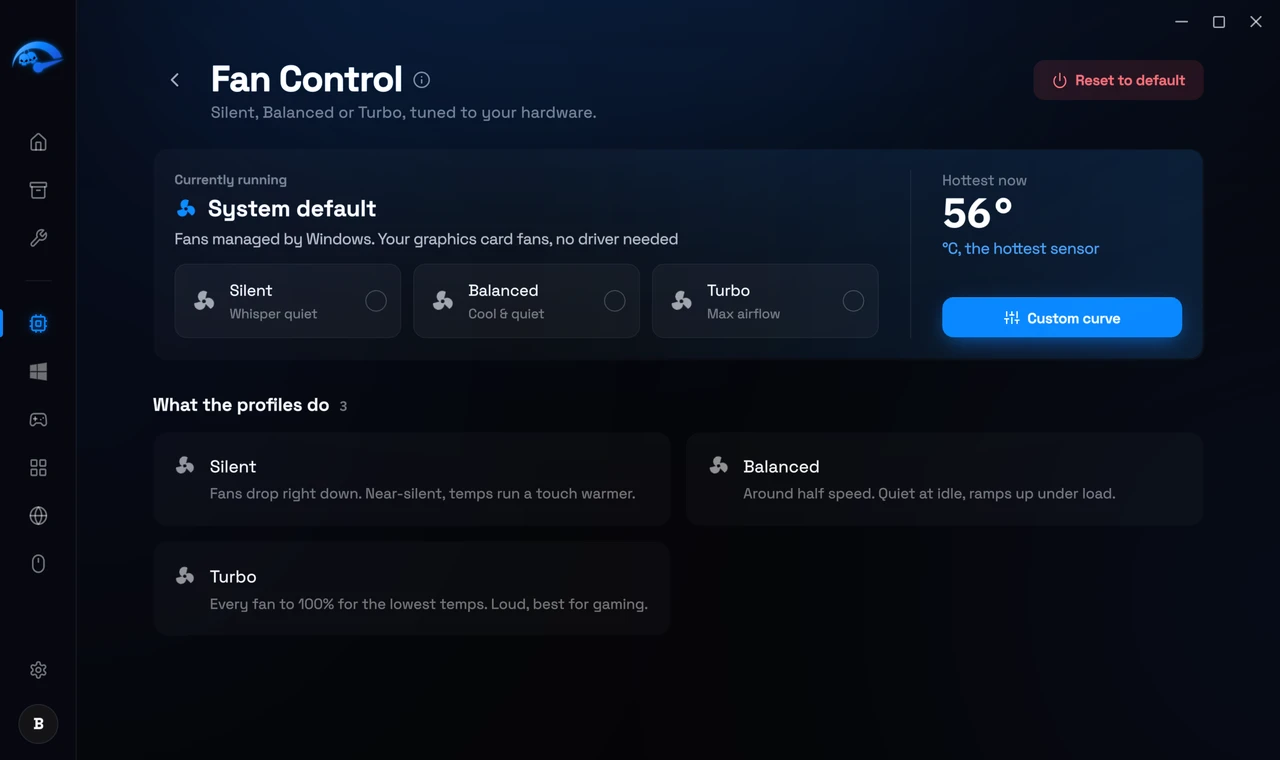
Fans (Premium)
Silent, Balanced and Turbo profiles, plus custom fan curves. Support depends on your motherboard or laptop model, since fan control is manufacturer specific.
Each page has a Tweaks and Presets switch in the top right. Tweaks lets you toggle things individually. Presets lets you save a combination and reapply it later.
Every tweak card shows what it does and whether it is marked SAFE or ADVANCED. Start with the SAFE ones.