
2 min to read
How to Debloat Windows 10 and 11 and Speed Up Your PC
Open Windows in the sidebar. There are five sections.
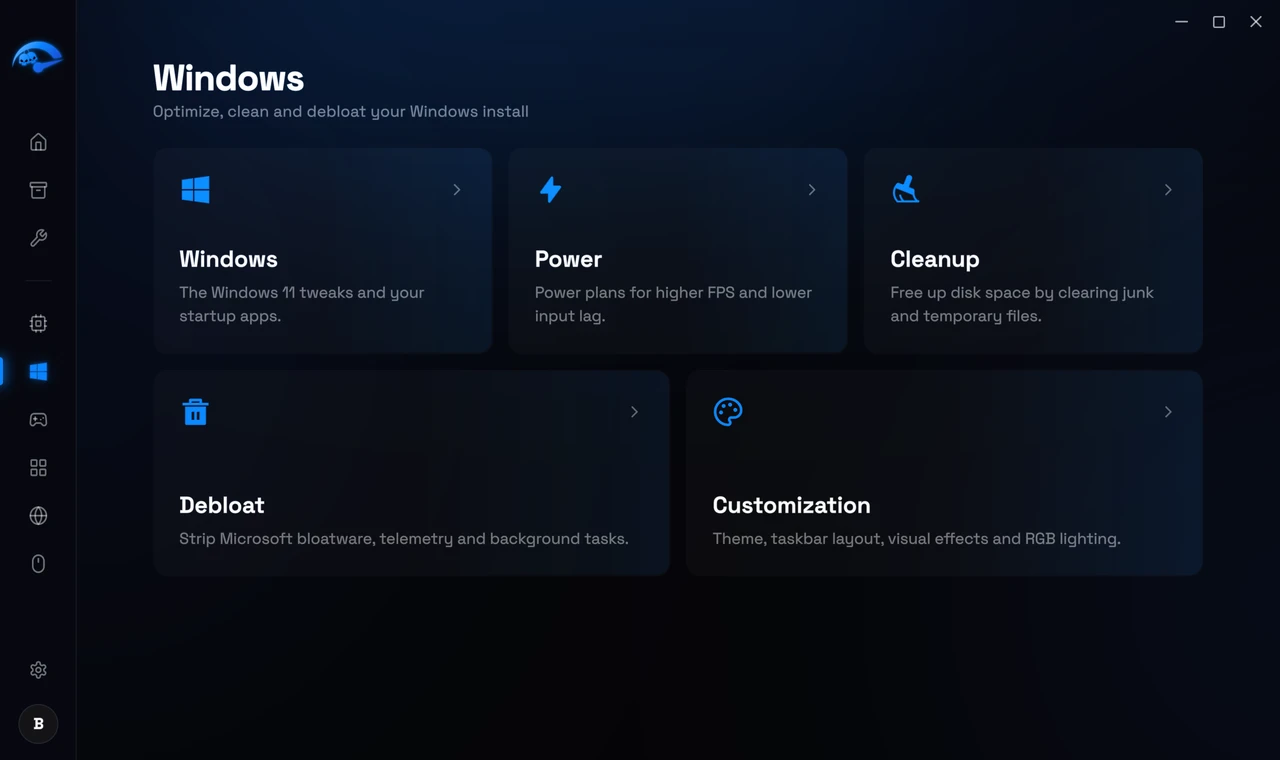
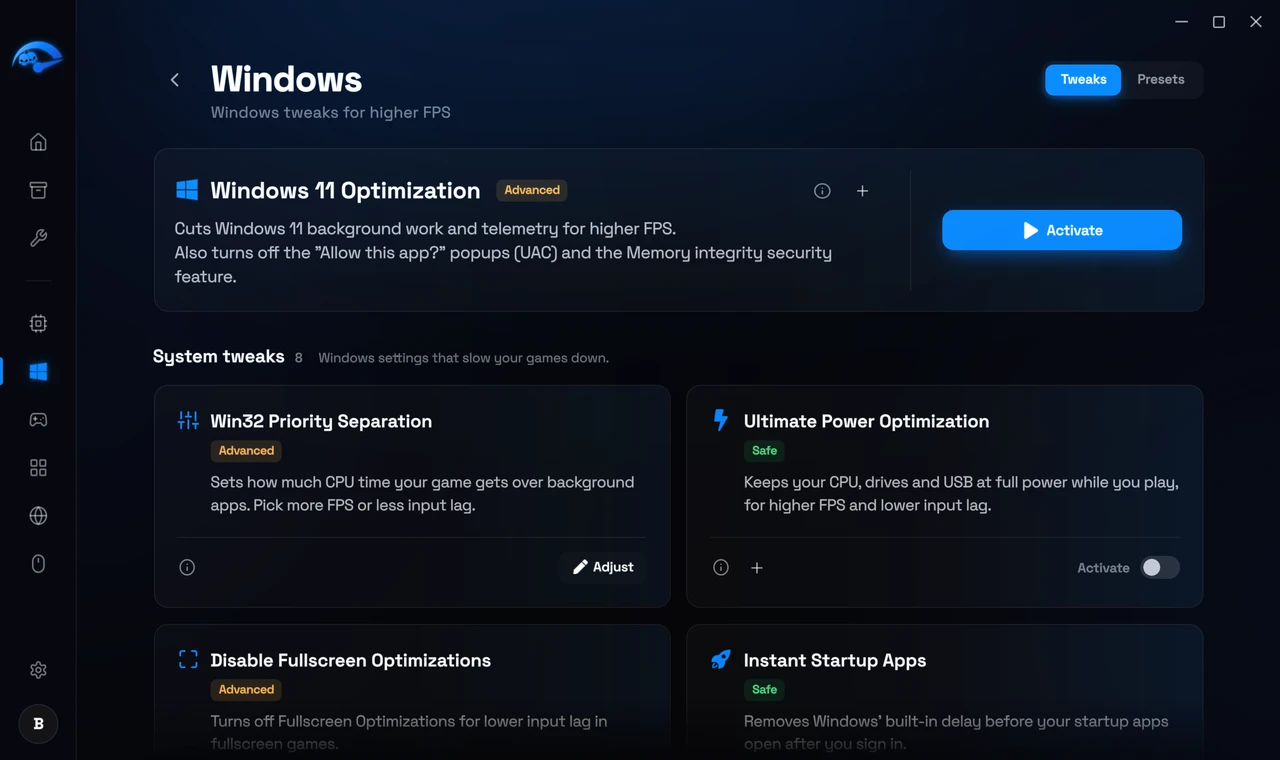
Windows
General Windows 10 and 11 optimizations, startup programs and system tweaks. The startup program list is worth a look on its own, since programs that launch with Windows are one of the most common causes of a slow boot and a sluggish desktop.
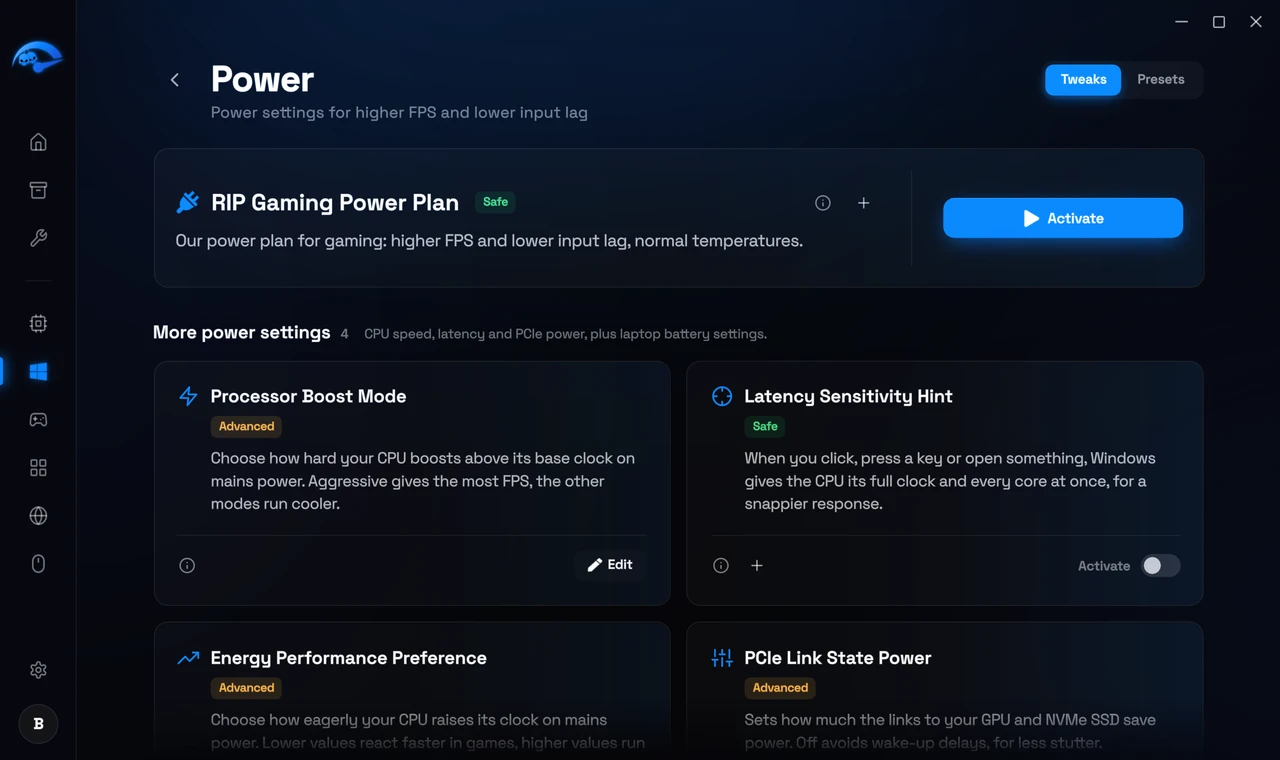
Power
Applies the RIP power plan and tunes idle states. On a laptop this is the single most useful page, because manufacturers ship conservative power profiles that throttle performance to save battery.
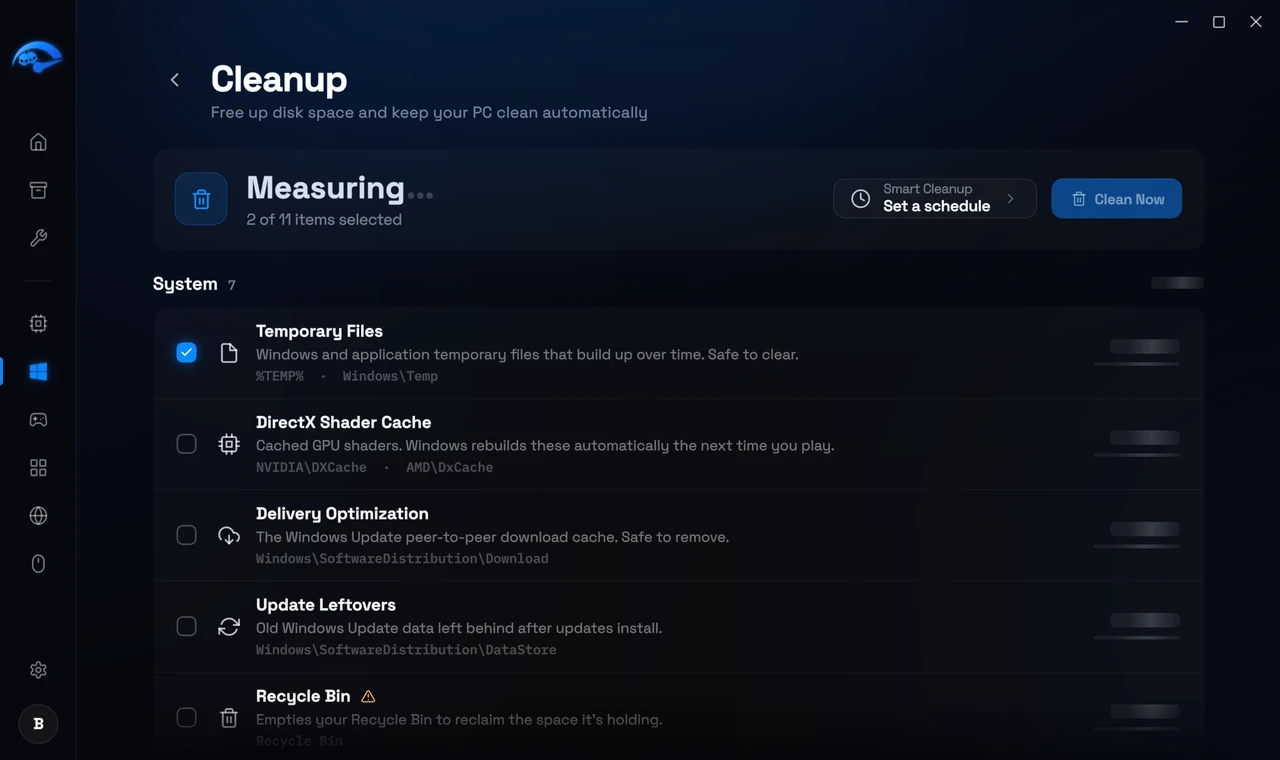
Cleanup (Premium). Frees disk space by clearing junk and temporary files, with separate sections for game files and system files. You can also schedule cleanups to run automatically. Anything destructive, such as emptying the Recycle Bin, asks you to confirm in full before it runs.
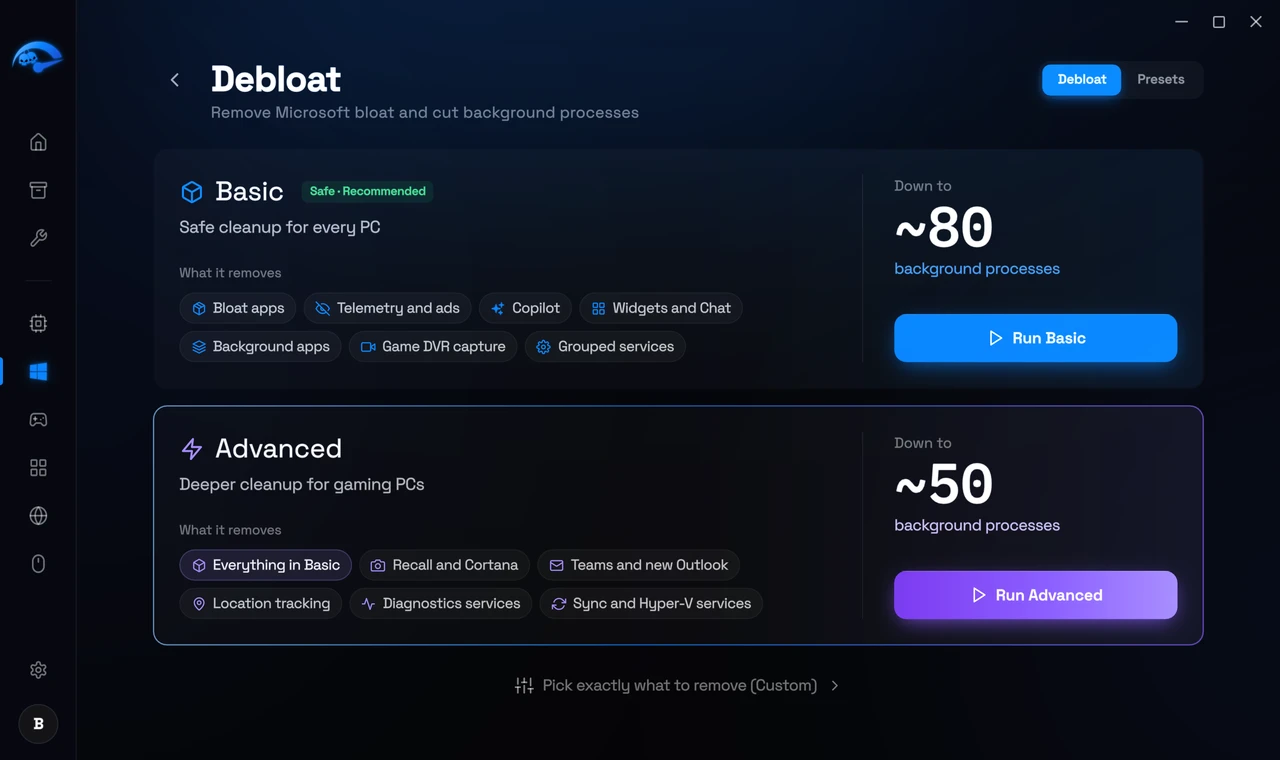
Debloat
Removes Microsoft’s preinstalled apps, telemetry and background tasks. There is a Basic set, an Advanced set, and a Custom option where you pick individually. Start with Basic.
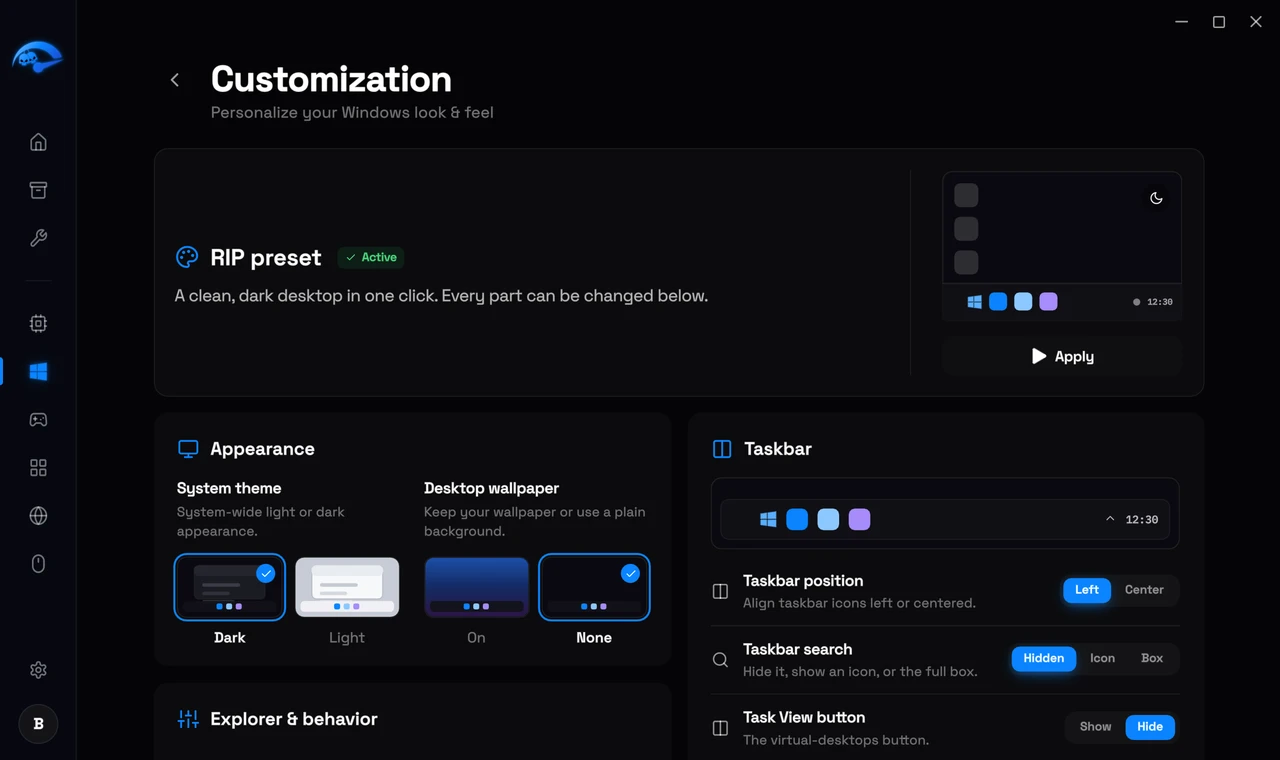
Customization
Theme, taskbar layout, visual effects and lighting. Turning off Windows animations and visual effects is a small but genuine responsiveness win on lower end machines.
Presets
The Debloat page shares the same Presets system as the CPU, GPU and Windows pages, so you can save your selection and reapply it after a Windows reinstall.