
How to Reduce Input Lag and Set a 1000Hz Mouse Polling Rate
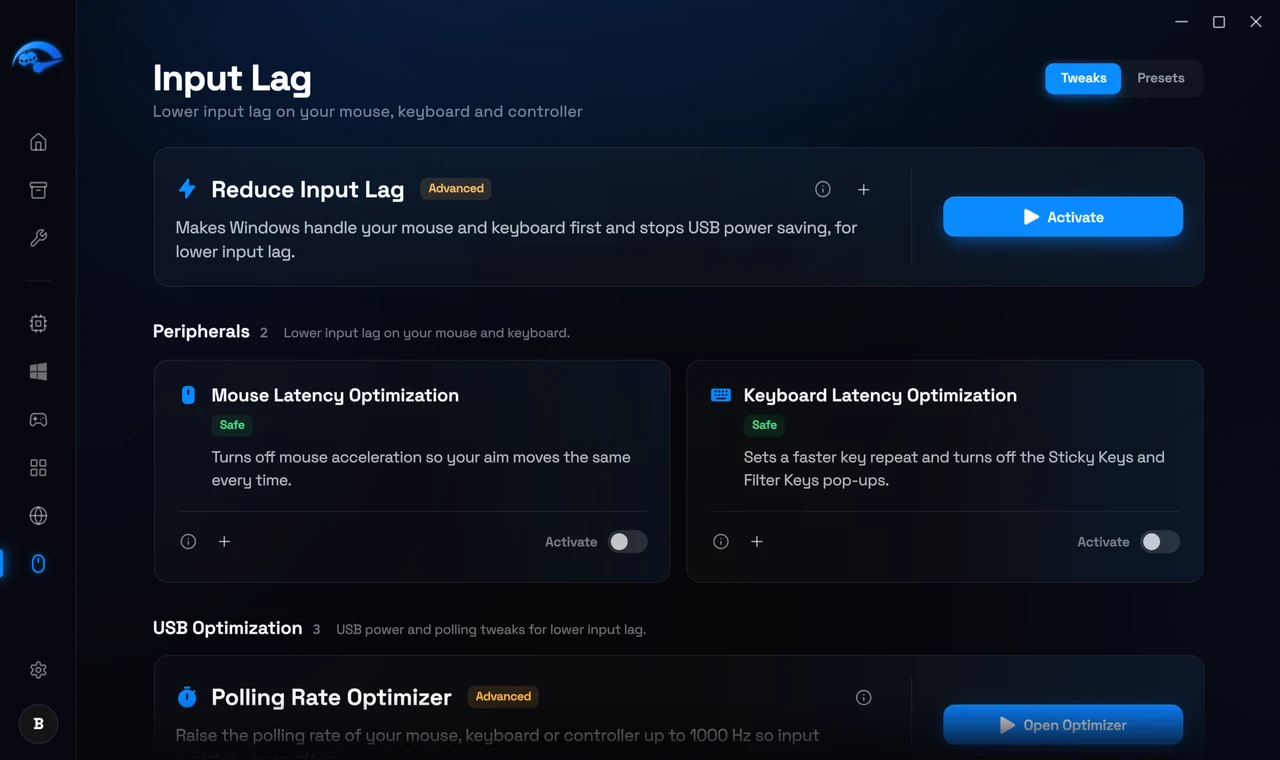
Open Input Lag in the sidebar. The tweaks are split into Peripherals and Drivers.
What input lag is
What the app does about it
- Mouse Latency Optimization. Tunes how Windows handles mouse input.
- Keyboard Latency Optimization. The same for keypresses.
- Reduce Input Lag (Advanced). A full system wide input latency pass across mouse and keyboard.
Mouse polling rate. The Input Lag page includes a tool to raise your mouse’s polling rate to 1000Hz, which means it reports its position to your PC 1000 times per second instead of the default 125. This one requires a restart to take effect.
Things worth checking outside the app
The chain that adds delay
Input lag is not one thing. Every link adds a few milliseconds: how often your mouse reports its position, how quickly Windows accepts that report, whether your CPU is free to handle it right now, how many frames your GPU has queued ahead, whether frames go straight to the monitor or through the Windows compositor, and finally the monitor’s own response time.
A faster graphics card only affects one of those. That is why upgrading often changes the frame counter without changing how the game feels.
What polling rate actually means
Polling rate is how many times per second your mouse tells the PC where it is, measured in Hz. At 125Hz that is once every 8ms. At 1000Hz it is once every 1ms.
Going from 125Hz to 1000Hz is a large and obvious improvement. Going from 1000Hz to 4000Hz or 8000Hz is a much smaller one, and on some systems the extra reports cost enough CPU time to be a net loss. For nearly everyone, 1000Hz is the right target.
Settings worth checking yourself
Enhance pointer precision
USB power saving
Which port you use
Verifying it worked
Test in the same game, in the same kind of situation, rather than in a menu. Changes here affect consistency more than peak frame rate, so pay attention to whether flicks land where you expect rather than to the frame counter.
There is a complete guide in How to fix input delay on PC.