
Background Apps to Efficiency Mode: How It Works
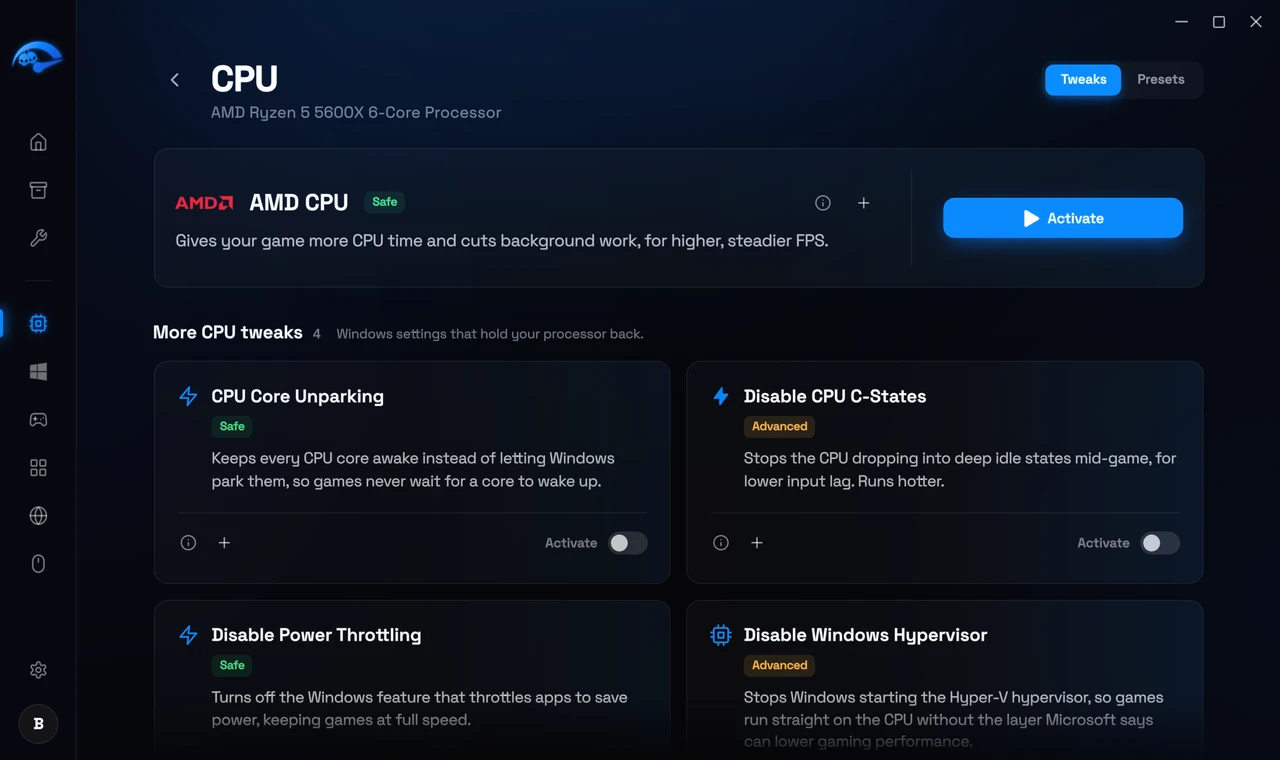
Background Apps to Efficiency Mode is a Premium tweak on the CPU page of RIP Tweaks, in the Advanced section. While any game runs, browsers, game launchers and updaters go into Windows Efficiency Mode, so your game gets more of the processor. It works for every game, also one you start without RIP Tweaks.
What it does while you play
Background apps go into Efficiency Mode
Voice apps only go a little lower
Never touched
How to turn it on
Open the CPU page
Find it under Advanced
Turn it on
When everything goes back
Every app goes back to how it was the moment the game closes, when you turn the tweak off, or when RIP Tweaks exits.
Change the app lists
Open Settings, then Gaming, and press Edit apps on the Game-time quiet mode card. There are two lists: Efficiency mode while you play and Voice apps. Add a program by its file name, like spotify.exe, or remove one. Reset lists puts both lists back to how they came.
Good to know
Premium
See it in Task Manager
Related: CPU Tweaks: What They Change and Who They Suit, How to Optimize Games for More FPS With Presets and RIP Mode.