
3 min to read
OBS Studio and Streamlabs Settings for Your PC
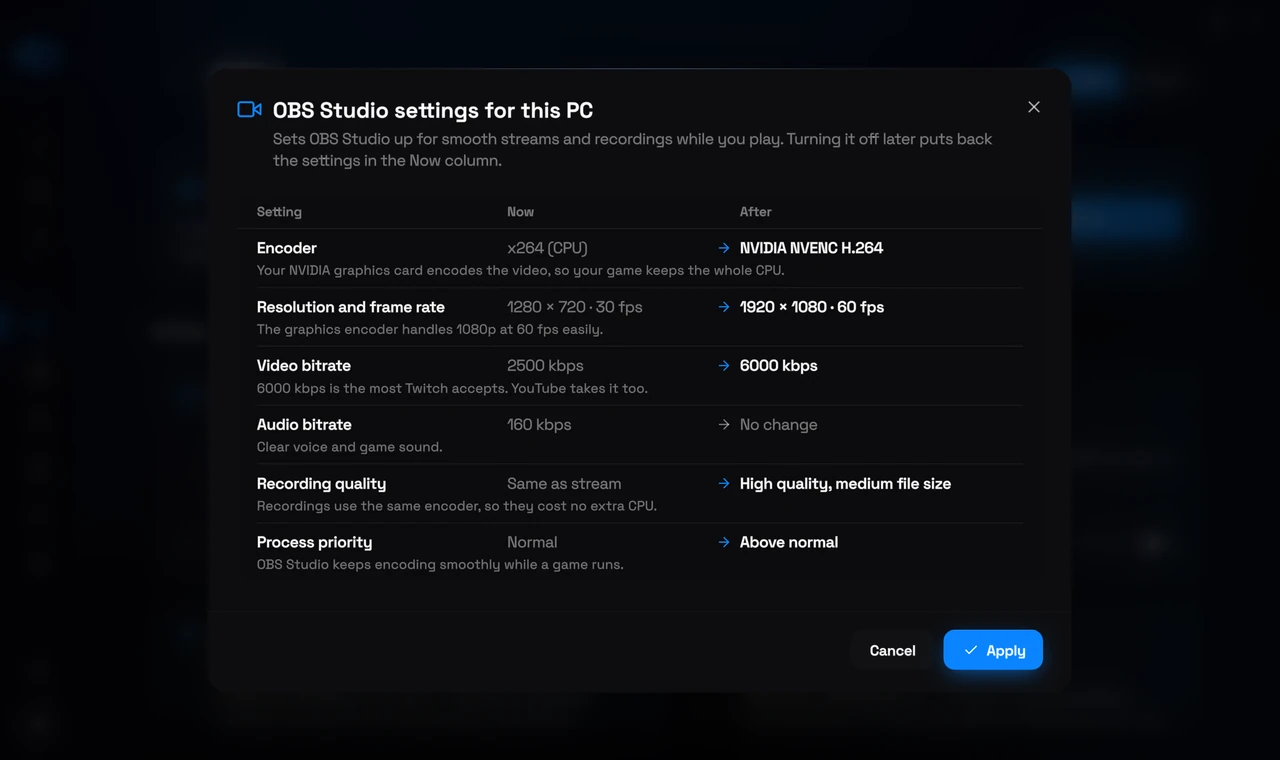
Open GPU in the sidebar and scroll down to Streaming. If OBS Studio or Streamlabs Desktop is set up on your PC, it has a card there. Press See the changes: RIP Tweaks reads the app's own settings and shows every value as it is Now and as it will be After, with the reason for each pick. Nothing changes until you press Apply.
What it sets
Encoder
Your graphics card's own encoder when it has one (NVIDIA NVENC, AMD AMF or Intel Quick Sync), so your game keeps the whole CPU. Without one, x264 on a fast setting that keeps the CPU light.
Resolution and frame rate
1080p at 60 fps. 720p at 60 fps when the CPU encodes on fewer than 8 threads, or when your upload is too slow for a sharp 1080p stream. A canvas smaller than 1080p is never upscaled.
Video bitrate
6000 kbps at 1080p, the most Twitch accepts (YouTube takes it too), and 4500 kbps at 720p. If you ran the Bufferbloat Test, the bitrate stays within 60% of your measured upload, so your game and voice chat keep the rest.
Audio bitrate
160 kbps: clear voice and game sound.
Recording quality
High quality, medium file size, with the same encoder, so recording costs no extra CPU. The file format stays yours.
Process priority
Above normal, so the app keeps encoding smoothly while a game runs.
How to use it
1
Close the streaming app
OBS Studio and Streamlabs save their own settings when they close, so close the app first. The window tells you when it is still open.
2
Look at the changes
Open GPU, scroll to Streaming and press See the changes on your app's card.
3
Apply
Press Apply. Open your app and go live: the new settings are in your active profile.
Turning it off
Press Review or turn off on the card, then Put back my old settings. RIP Tweaks keeps a copy of the app's settings files from before and puts them back exactly as they were. While it is on, the window shows your old settings in the Before column next to the ones you have now.
Good to know
Free in every plan
Both cards are part of the free app. On the free plan each one counts as one of your tweaks.
Only for apps on this PC
A card shows only when OBS Studio or Streamlabs Desktop has been opened on this PC at least once, because the settings are read from the app's own files.
Your scenes stay
Scenes, sources, your stream key and the recording format are never touched: only the output settings of your active profile and the app's process priority.
Related: Fortnite Performance Mode and NVIDIA Reflex in RIP Tweaks, How to Optimize Games for More FPS With Presets and RIP Mode.