FiveM FPS Boost: The Free Tweaks Pack and the Graphics Settings That Matter

Written version of our video, every step checked against it.
Quick answer
- Check your FPS first in one fixed spot. On the PC in the video FiveM moved between around 80 and 100 FPS.
- Get the RIP Tweaks free pack from the free-tweaks channel of our Discord, run it as administrator and create a restore point with option 1.
- In the pack, open Games (10), pick FIVEM (4), go back with 11 and apply the CPU, GPU and RAM tweaks.
- In FiveM, open Settings, Graphics: DirectX 11, Extended Texture Budget as low as it goes, and a texture quality that fits your graphics card.
- Put Water, Particles and Grass Quality on Normal: grass costs the most FPS. On the PC in the video FiveM then ran at over 130 FPS.
This guide is for anyone whose FiveM roleplay server runs with low FPS, stutters or drops while driving, even on a PC that should handle it. It follows our video step by step: the free tweaks pack with its FiveM option, the Windows tweaks for the processor, graphics card and memory, and the FiveM graphics settings that cost the most frames. The video is from 2025 and shows an earlier version of RIP Tweaks, so this page explains the ideas and settings rather than how every screen looks today.
Join your usual server, stand or drive in one place you can find again, and note your FPS for a minute. On the PC in the video it went up and down between around 80 and 100 FPS before any change. That PC is not a weak one, which is the point of the video: often the settings hold FiveM back, not the hardware.
If you have no FPS counter yet, press F8 in FiveM to open the console, type cl_drawfps true and press Enter. Type cl_drawfps false to hide it again.
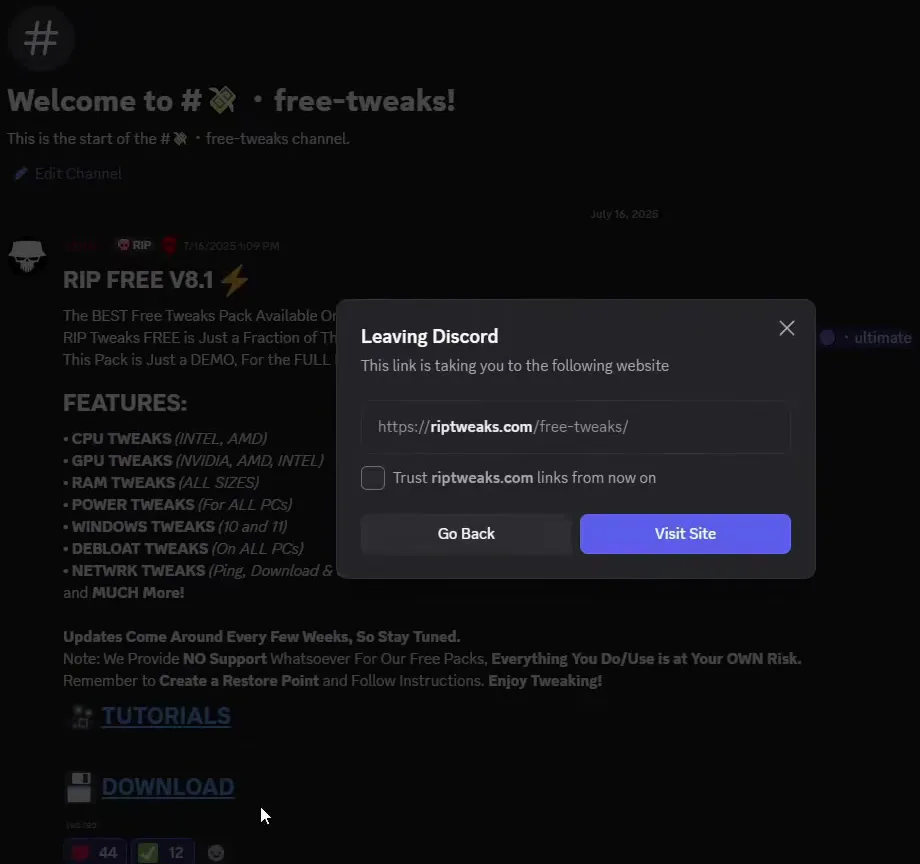
Open your browser and go to discord.gg/riptweaks. When Discord opens, go to the free-tweaks channel and click DOWNLOAD under the post of the free pack. Discord asks if you want to leave for riptweaks.com: click Visit Site, then Download for Windows on the page that opens.
free-tweaks channelDOWNLOADVisit SiteDownload for Windows
Good to know
The video uses version 8 of the free pack. The pack gets updated every few weeks, so a newer version can have a slightly different menu. Download it only from our Discord or riptweaks.com, never from a re-upload.
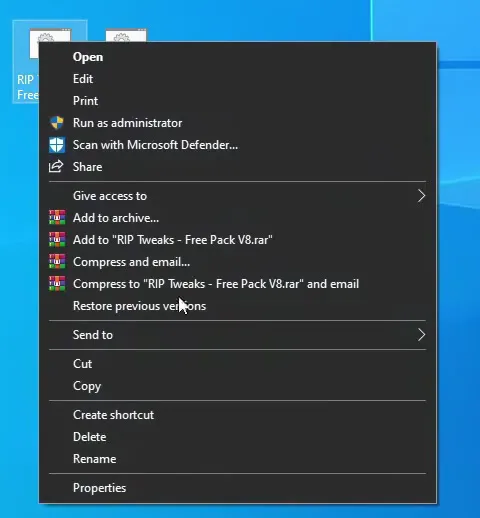
Drag the downloaded archive onto your desktop, right-click it and open it with Windows Explorer. Drag the two files inside out onto the desktop. Then right-click the RIP Tweaks Free Pack V8 file and choose Run as administrator, and confirm with Run.
Right-click the packRun as administrator
The pack opens in a command window. Start with the restore point: type 1, press Enter and wait until it is finished. Then type 10 to open the game section. The games are numbered, and FIVEM is number 4: type it, press Enter and let the tweak run.
1 (restore point)10 Games4 FIVEM
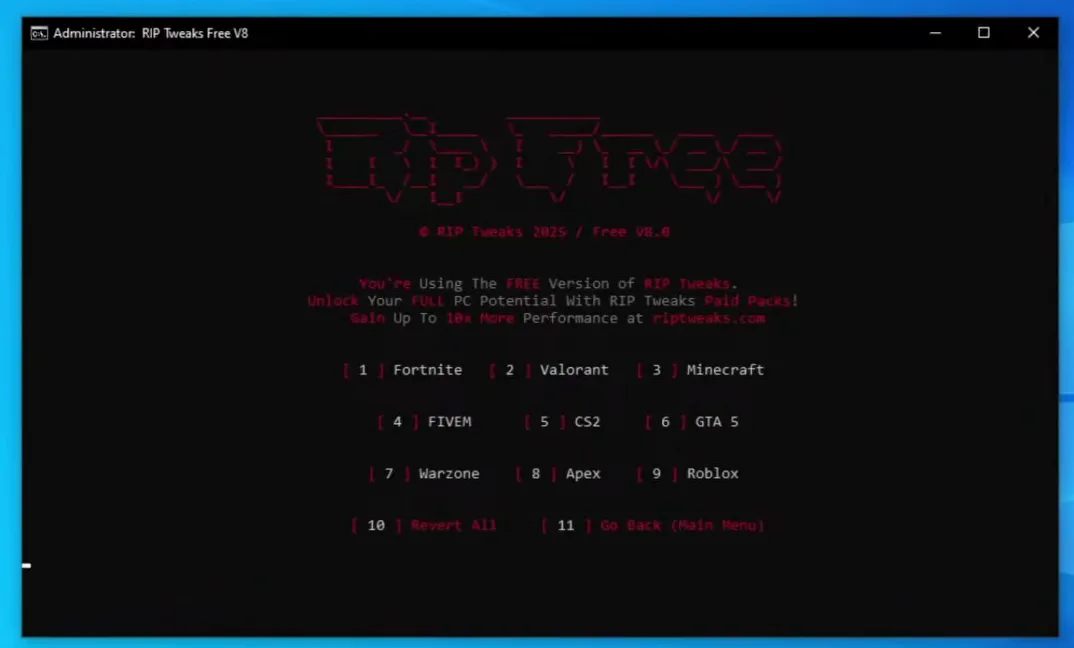
How to undo it
The restore point brings the whole PC back to how it was before. The pack also has its own way back: 10 Revert All in the game section and R Revert in the main menu.
When the FiveM tweak is finished, type 11 to go back to the main menu. The video recommends applying every tweak in it for the best overall performance: CPU Tweaks (1), GPU Tweaks (2) and RAM Tweaks (3), and the rest of the list with them. Run them one after the other and let each finish. When you are done, close the window with the X.
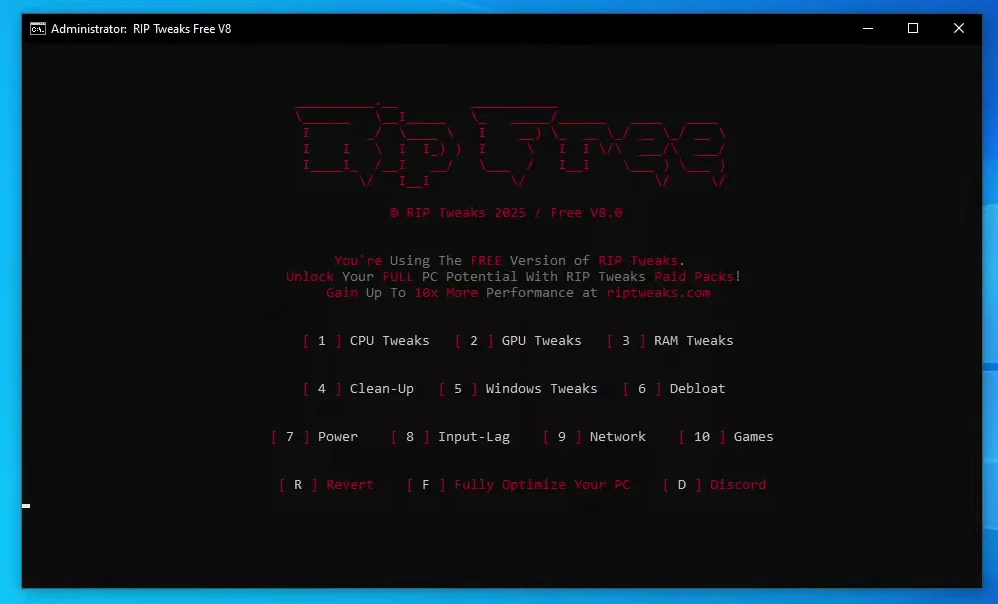
These tweaks work on Windows, not on FiveM's files: they change how the processor, graphics card and memory are scheduled and how much runs in the background. That is why they help FiveM and every other game at the same time. For more on the background side, see our guide to reducing background processes.
Now start FiveM, join a server and press Esc. Open Settings, then Graphics. The first setting that matters is DirectX Version: the video's rule is at least DirectX 11.
EscSettingsGraphicsDirectX Version
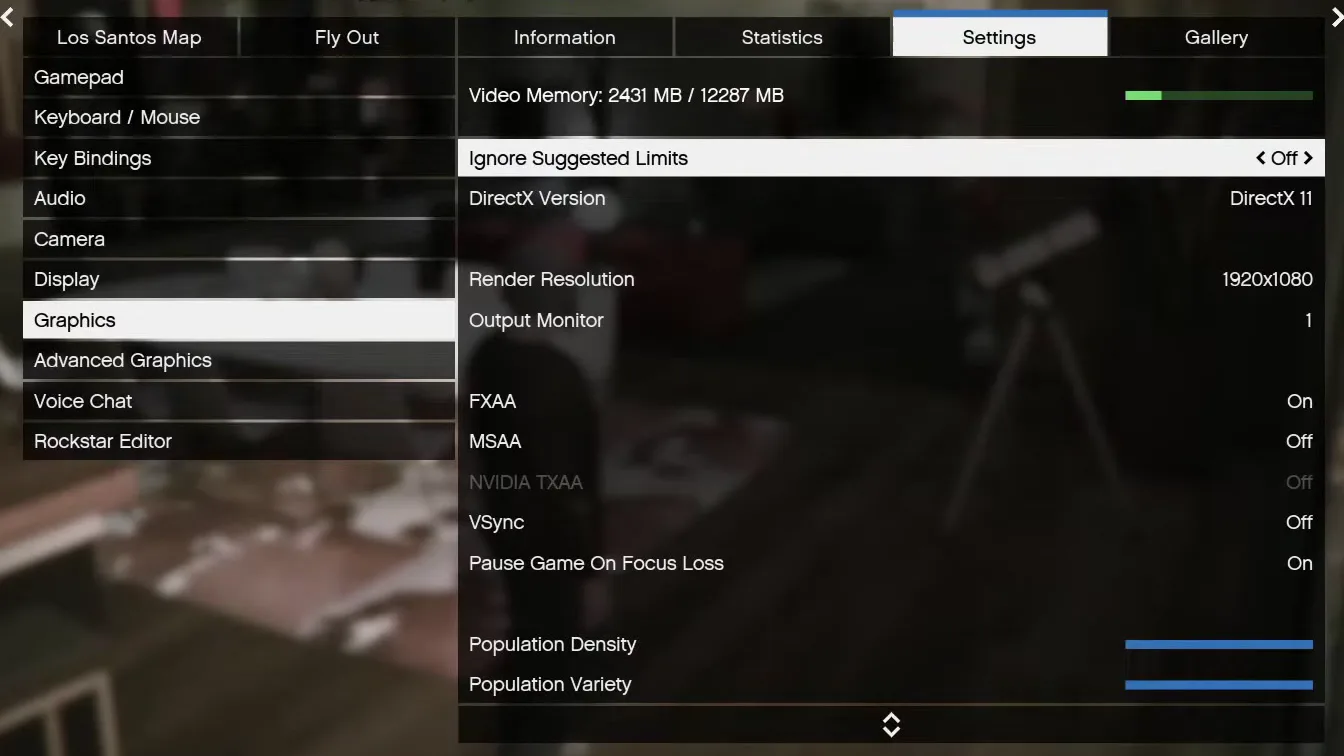
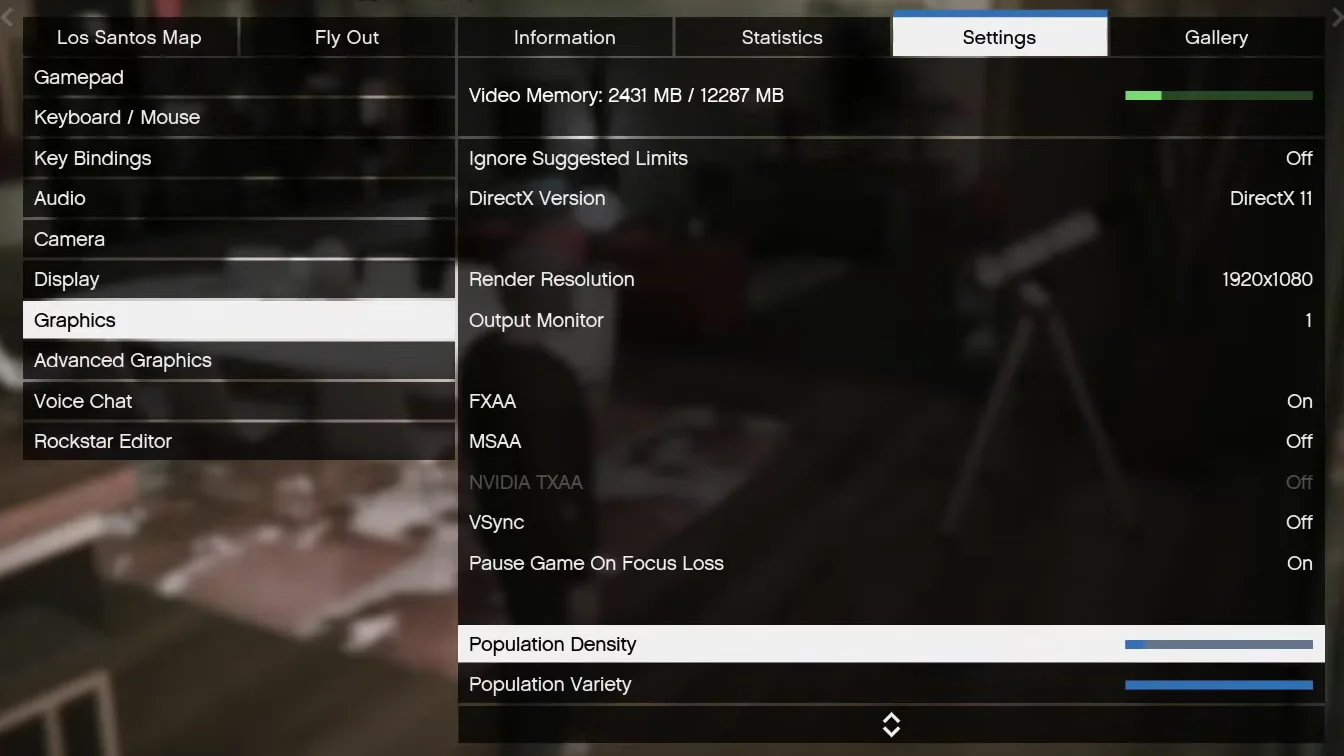
The video skips Population Density and Population Variety. In the video's words, they do not affect anything in the game unless you play story mode, and on a FiveM server you don't need them. Leave them as they are, or slide them down as the video's menu shows: either way, don't expect a big change from them. The same menu also shows MSAA and VSync off. Keep them off: MSAA is heavy on the graphics card, and VSync holds your FPS at the refresh rate of your monitor.
Changes in this menu only count once you apply them: press Space (Apply Changes, shown in the bottom right corner) before you leave.
Scroll down to Extended Texture Budget and lower it as much as you can. Then Texture Quality: this one depends on your PC. The video recommends at least Normal or High, and the lowest settings everywhere if you want the most FPS of all.
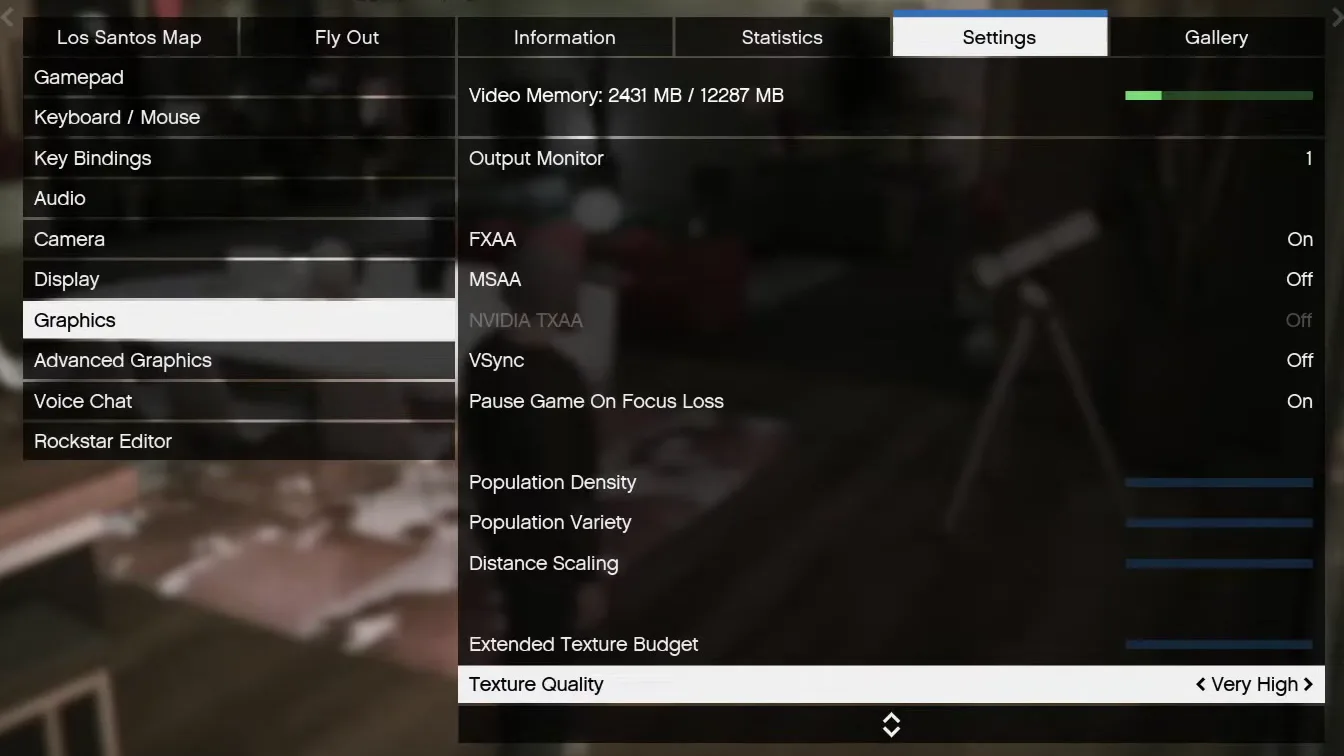
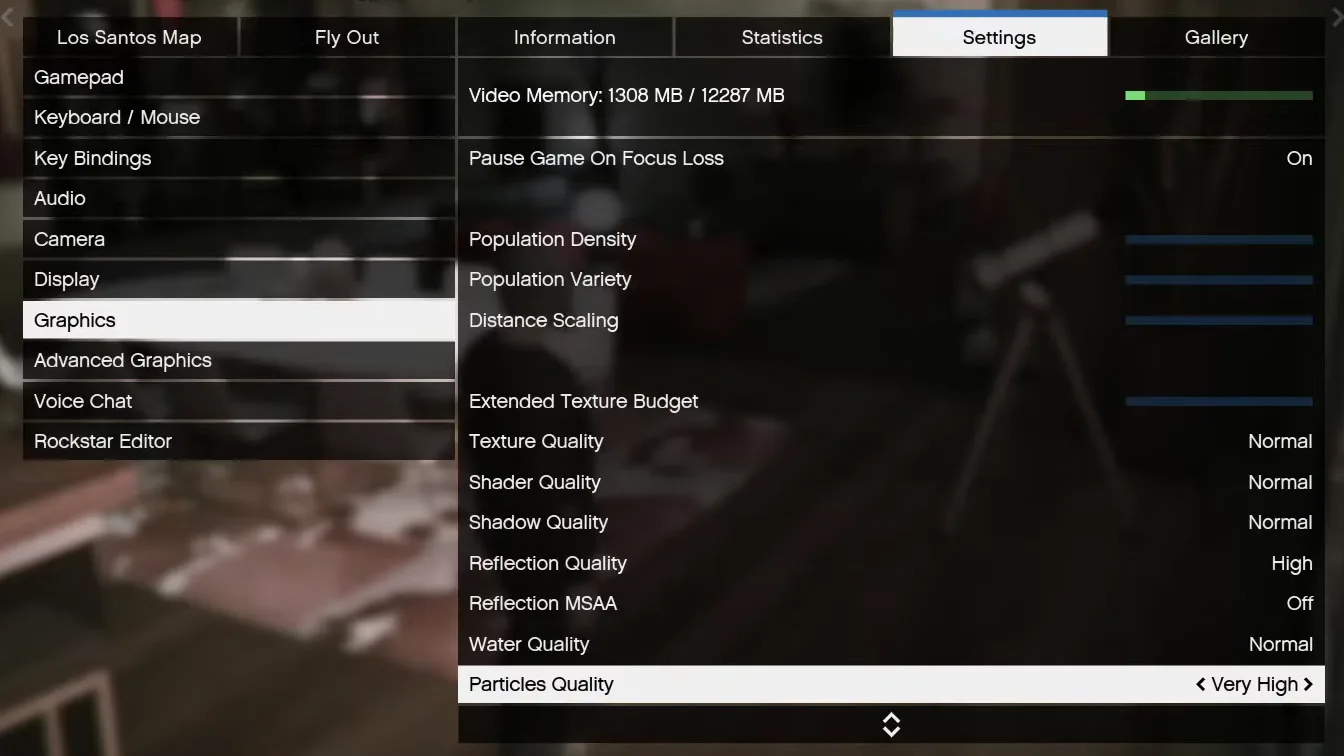
The bar at the top of the menu, Video Memory, is your guide here. It shows how much of your graphics card's memory the current settings use, out of what the card has. The card in the video has 12 GB (12287 MB), so it has room: in the end the video puts textures back on Very High and the bar stays at 2309 MB. On a card with less memory, keep the bar well below the limit.
Tip
If roads, buildings or car textures start to look blurry or load late after you lower the texture budget, raise Extended Texture Budget one step at a time until they load cleanly again.
The rest of the list follows one rule in the video: for the most FPS, turn everything down or off. Then three settings get a fixed value. Water Quality goes on Normal. Particles Quality goes lower, to Normal in the video. And the most important one, Grass Quality, also goes on Normal.
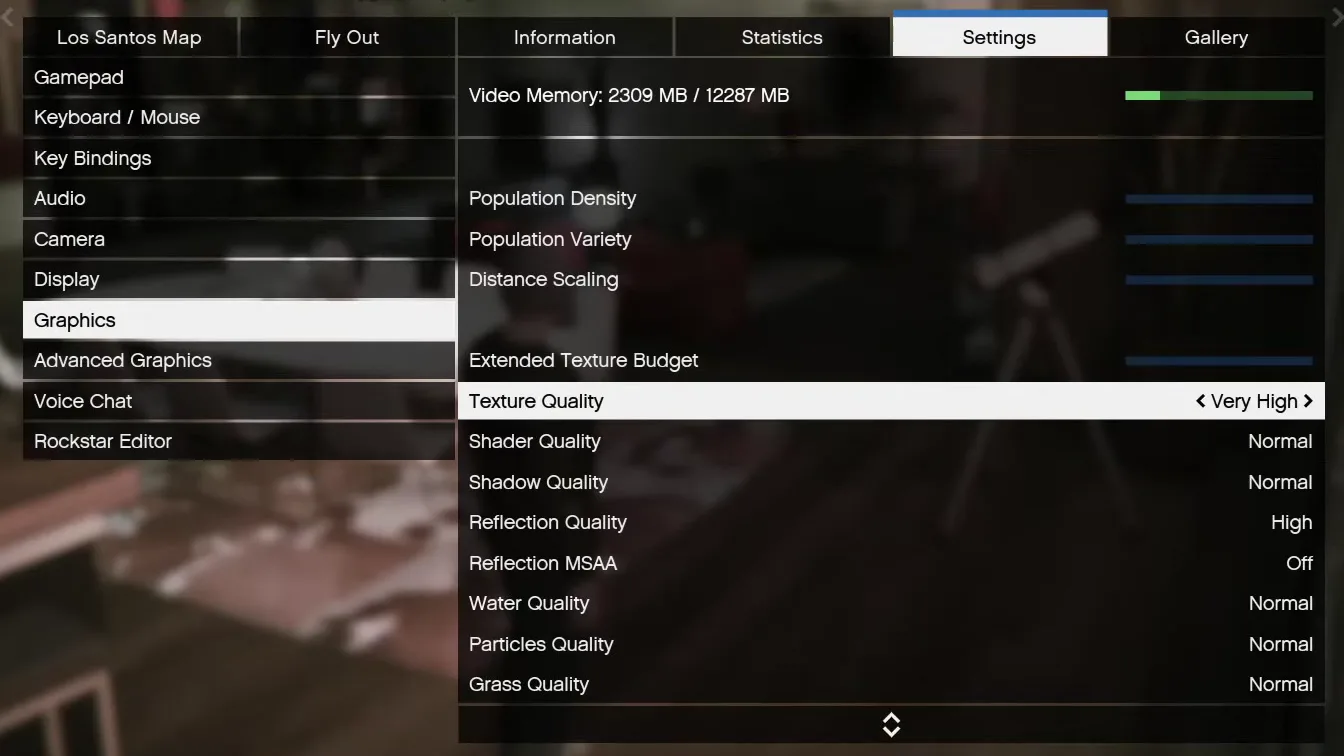
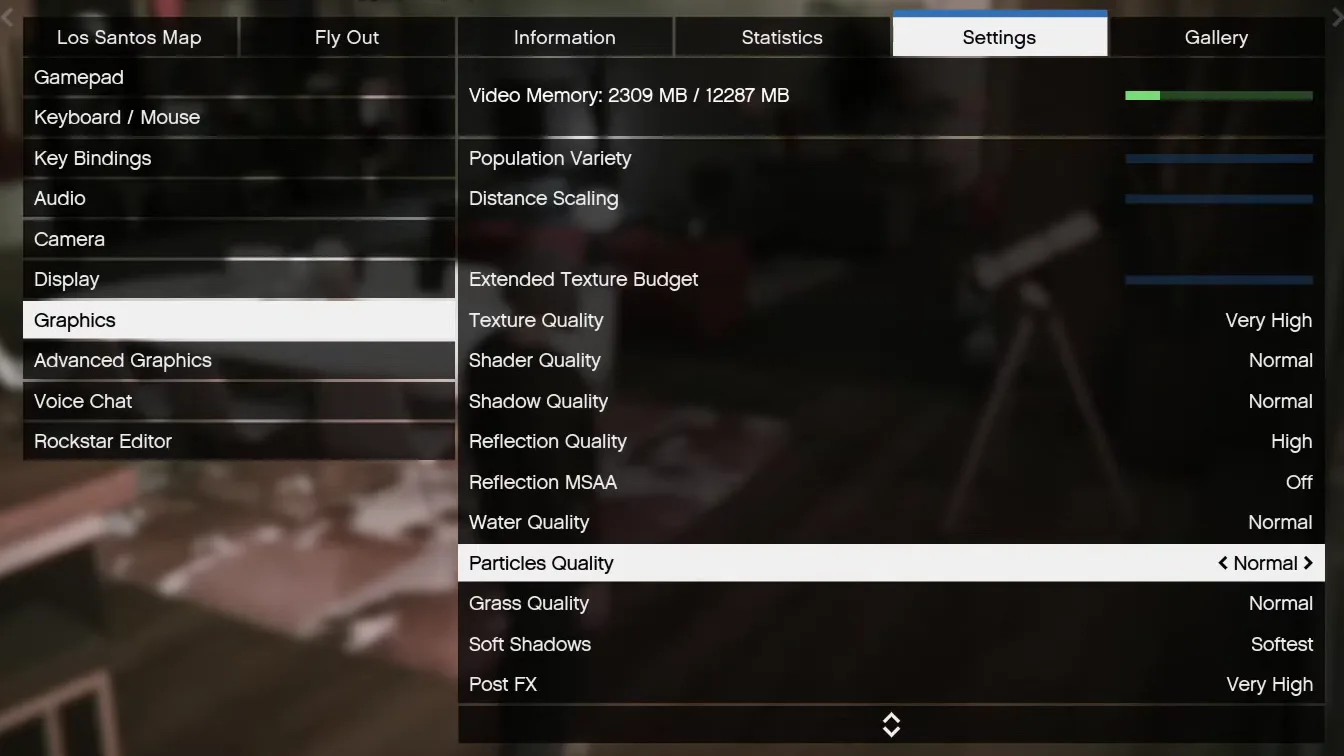
In the video, grass takes the most FPS of all the settings. That is easy to feel in FiveM: fields, gardens and the roadsides outside the city are covered with it, and every blade is drawn again while you drive past. With grass, water and particles on Normal, the video says you can put the rest, even texture quality, on High or Very High if your card has the memory for it, and still have more FPS than with grass on High.
Careful
Don't leave Grass Quality on High or Very High if you want FPS. In the video it is the one setting that costs the most, more than textures.
For the most performance, the video goes one step further and uses the paid version of the RIP Tweaks app as it was in 2025. In its performance section there was a list of games: the video scrolls to FiveM, clicks optimize and apply, and then runs every one of the other tweaks in the app as well.

This step is optional: the free pack and the in-game settings above already do the main work. RIP Tweaks today is a new app with a free plan and a Premium plan, and its screens and names are different from the video. The idea is the same: Windows, hardware and game tweaks from one place, with a backup first. For the full current walkthrough, see how to optimize your PC for gaming with RIP Tweaks.
How to check it worked
Go back to the same server and the same spot you used at the start, with the same time of day if you can, and read the FPS again. On the PC in the video FiveM ran at over 130 FPS after all the steps, against around 80 to 100 before. That is one PC's result, not a promise: typically the gain is biggest on PCs that were never tuned and on settings that had grass and textures too high.
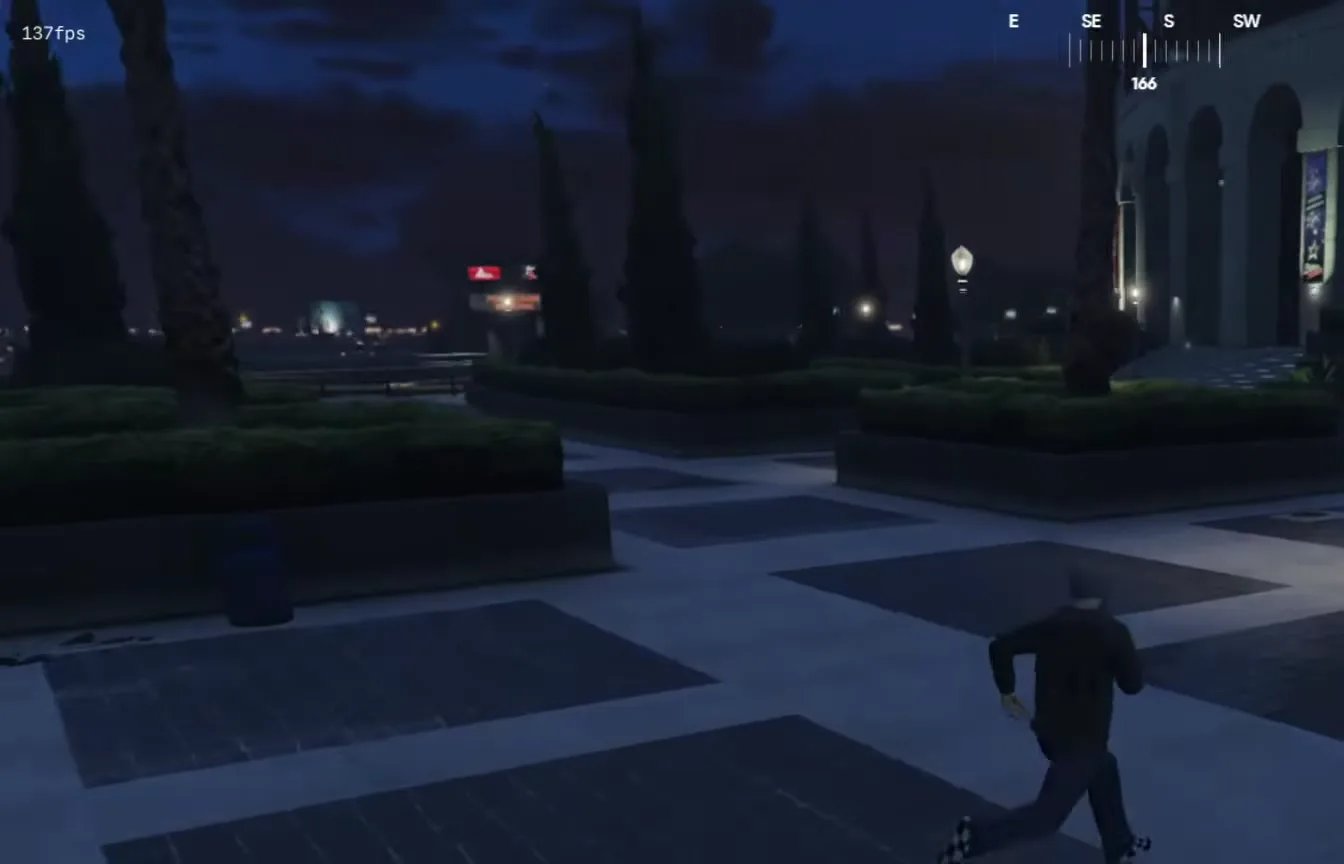
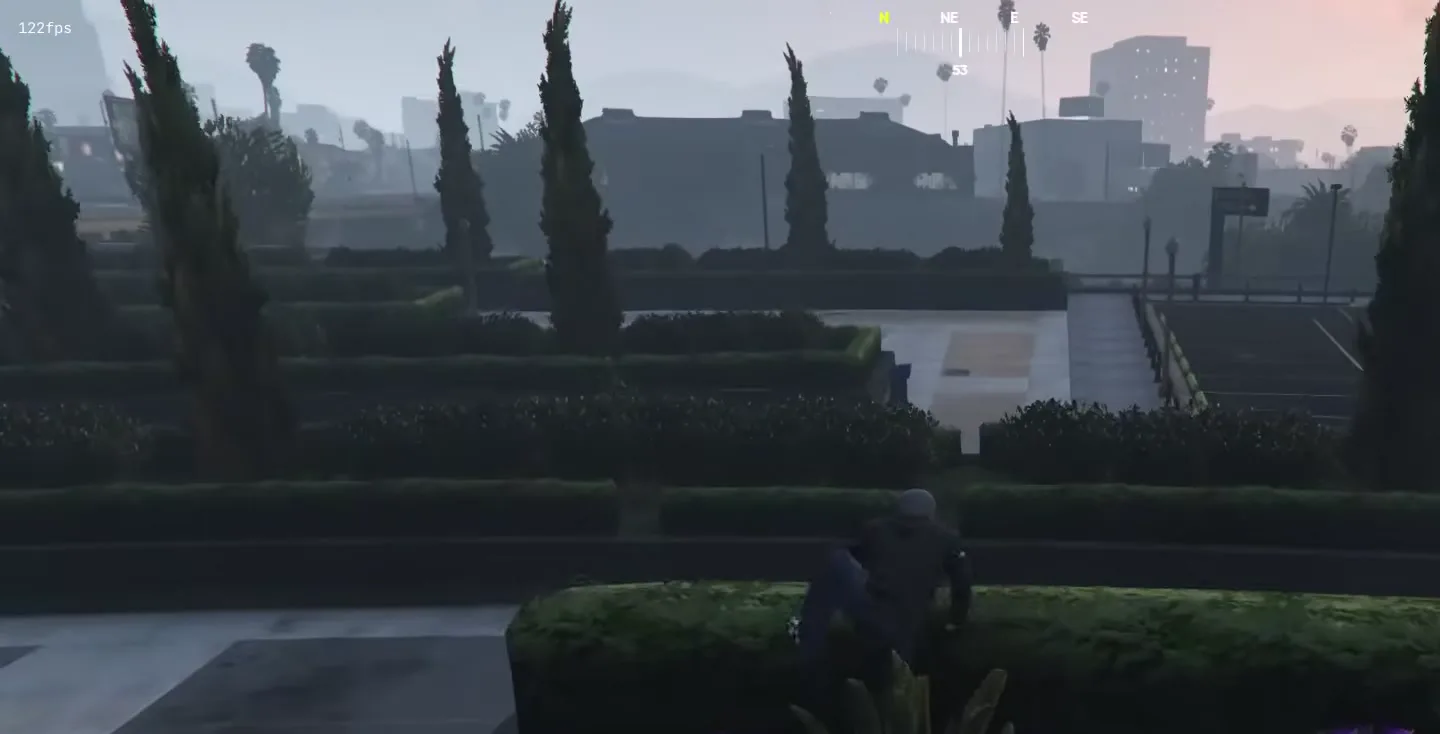
- Watch how steady the number is, not only how high it gets. Fewer sudden drops while driving is the change you feel most.
- Test on the same server each time. A busy server with heavy scripts can be slower than a quiet one on the same PC, and no setting fixes that.
- If something feels worse, change one setting back at a time. For the Windows tweaks, use the pack's Revert option or the restore point.
If your FPS is fine but the game still feels laggy, the problem is more likely your connection: our guide to fixing ping spikes and packet loss covers that. For story mode and GTA Online, see the GTA V FPS and stutter guide.
Key settings at a glance
FAQ
What are the best FiveM settings for FPS?
The ones from the video: DirectX 11, MSAA and VSync off, Extended Texture Budget as low as it goes, Water, Particles and Grass Quality on Normal, and Texture Quality between Normal and Very High depending on your graphics card. For the most FPS on a weak PC, lower everything else too.
How do I boost FPS in FiveM on a low-end PC?
Do all the steps above and then go lower in the Graphics menu: Texture Quality on Normal, shaders, shadows and reflections as low as they go, grass on Normal or lower. Keep the Video Memory bar at the top of the menu well under your card's limit, and close other programs before you join a server.
What should I set Extended Texture Budget to in FiveM?
The video lowers it as much as possible. If textures then look blurry or load late, for example roads or car paint while you drive, raise it one step at a time until they load cleanly.
Does Population Density matter in FiveM?
Not much, according to the video: it skips Population Density and Variety because they only really matter in story mode, not on a FiveM server. You can leave them or slide them down; just don't expect your FPS problem to go away with them.
Why does my FPS drop while driving in FiveM?
Driving loads new parts of the map quickly: textures, buildings and lots of grass along the road. That is why the settings in this guide help most while driving: a low texture budget and grass on Normal reduce that load. If drops only happen on one server, the server's own scripts or player count are a likely cause.
How do I show FPS in FiveM?
Press F8 to open the console, type cl_drawfps true and press Enter. The counter shows in a corner of the screen. Type cl_drawfps false to turn it off again.
Why is FiveM slower on one server than another?
Every server runs its own scripts, cars, maps and player count, and some are heavier than others. Graphics settings and Windows tweaks help on every server, but they can't make a heavy server as light as a quiet one. Compare your before and after on the same server.
Can I undo the free pack tweaks?
Yes. Use the restore point you created with option 1, or the pack's own Revert options: 10 Revert All in the game section and R Revert in the main menu. The FiveM graphics settings can be changed back in the menu at any time.
Will I get the same FPS as in the video?
Not exactly. On the PC in the video FiveM went from around 80-100 FPS before to over 130 FPS after, but every PC, graphics card and server is different. Test your own before and after in the same spot.
Do I need the paid app for this?
No. The free pack and the FiveM settings, the main part of the video, cost nothing. The app step at the end of the video is optional. RIP Tweaks today has a free plan, and Premium adds more tweaks.
 RIP Tweaks
Do it in a few minutes with RIP Tweaks
- Free plan for Windows 10 and 11
- A backup first, and every tweak can be switched off again
- Made for higher FPS, lower input lag and steadier ping
Free · Windows 10 and 11
