
How to Clone Your Voice with an AI Voice Changer: VoiceWave Voice Clone, Voice Lab and 500+ Voices

Written version of our video, every step checked against it.
Quick answer
- Install EaseUS VoiceWave with the Free Download button, then click any of the 500+ voices and talk.
- Put soundboard sounds on keys: the video uses J for the Airhorn and Ctrl+K for Discord Join.
- File Mode and Record Mode change the voice in a file or a fresh recording, which you then export.
- To clone your voice: Voice Creation, Voice Clone, upload 1 to 30 minutes of one clean voice, then Clone Now.
- In Discord, Roblox, VALORANT or Zoom, select VoiceWave Microphone as the input device.
This guide is for gamers, streamers and creators who want more than one preset voice. It follows our video through all of EaseUS VoiceWave: the 500+ voices, the soundboard, changing the voice in a recording, cloning your own voice and building your own effect in the Voice Laboratory. Every step has a screenshot from the video, and the last one connects the app to Discord and your games.
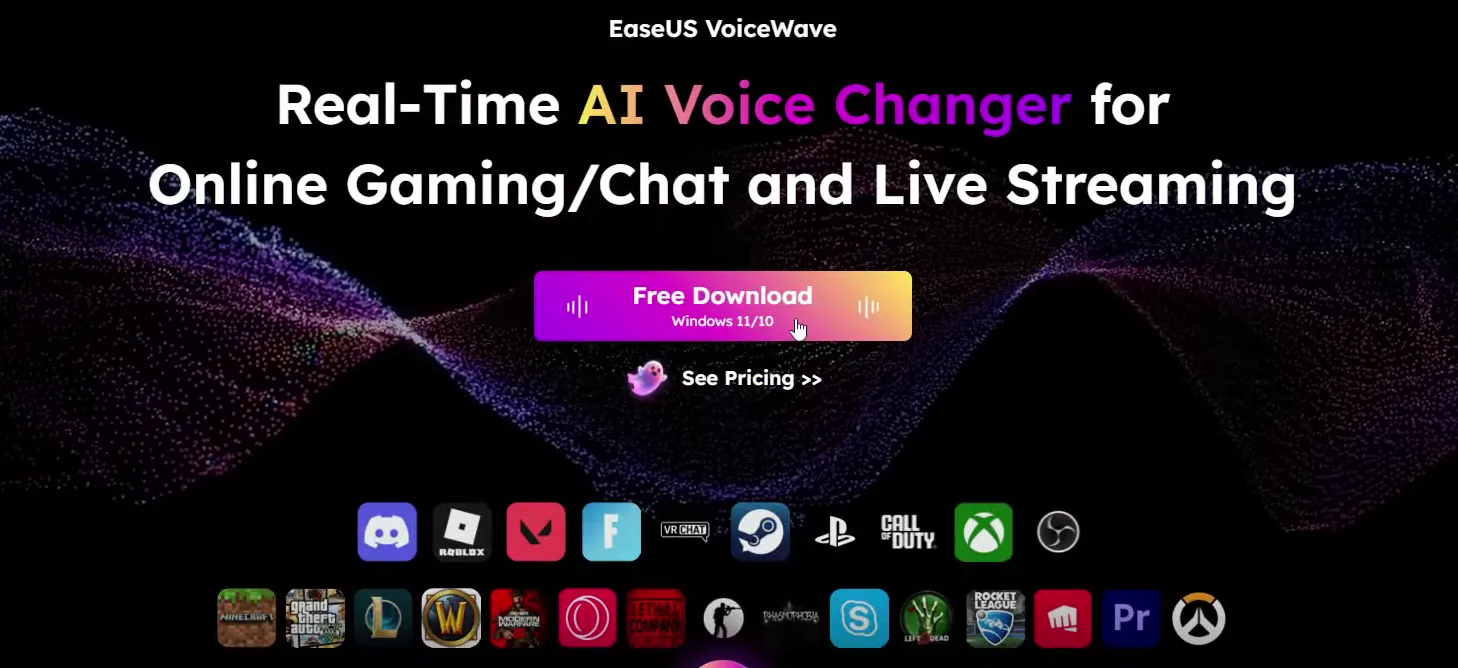
Open the first link in the video description. It leads to the EaseUS VoiceWave page, a real-time AI voice changer for online gaming, chat and live streaming. Click Free Download (the button says Windows 11/10), then double-click the downloaded file and go through the installer steps.
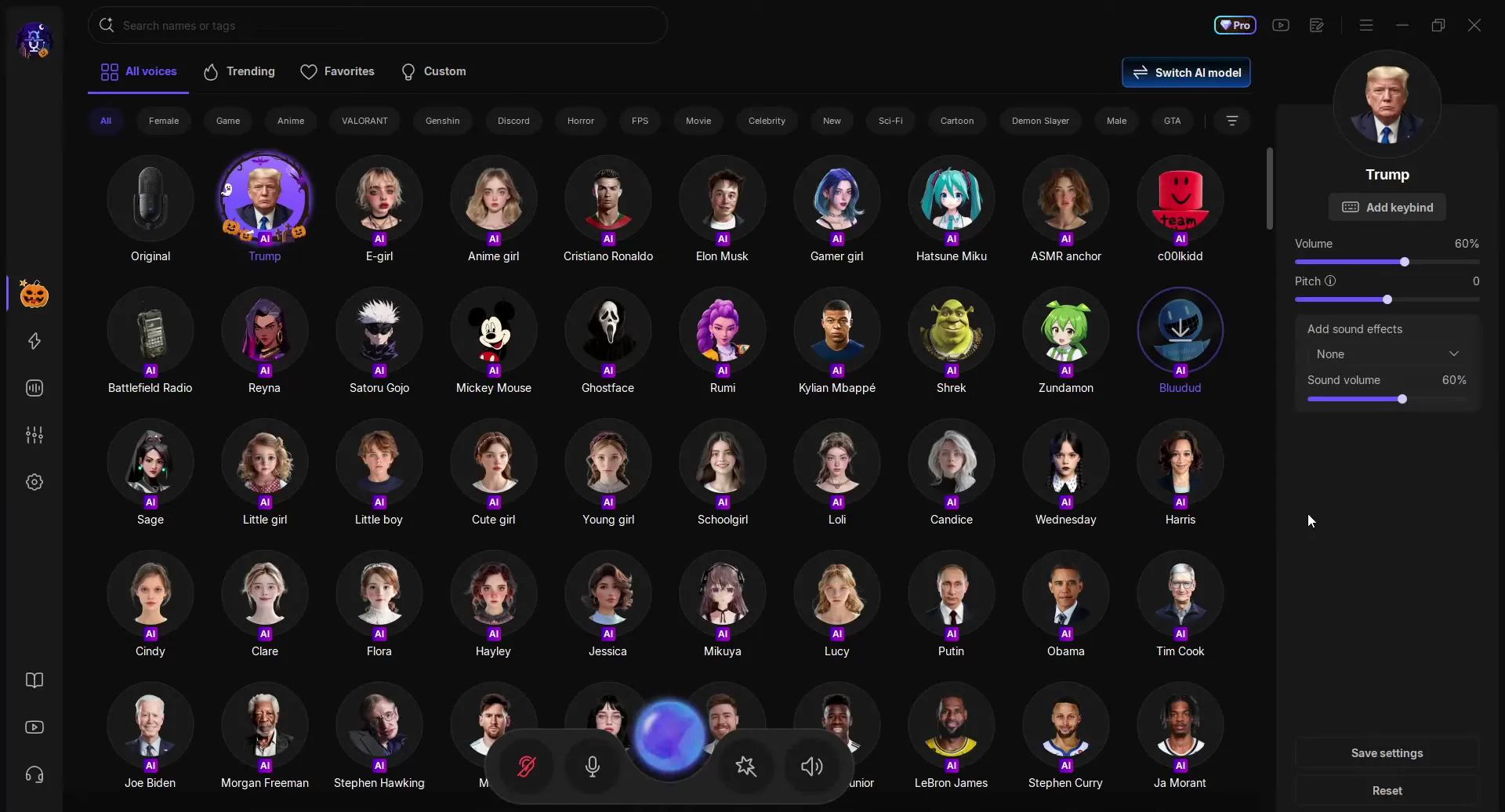
The app opens on All voices. Right away you see how many AI voices it has: real people such as Trump, Cristiano Ronaldo and Kylian Mbappé, then Putin, Obama, Tim Cook, MrBeast and Stephen Curry further down. Voices with an AI badge are AI models of that person or character.
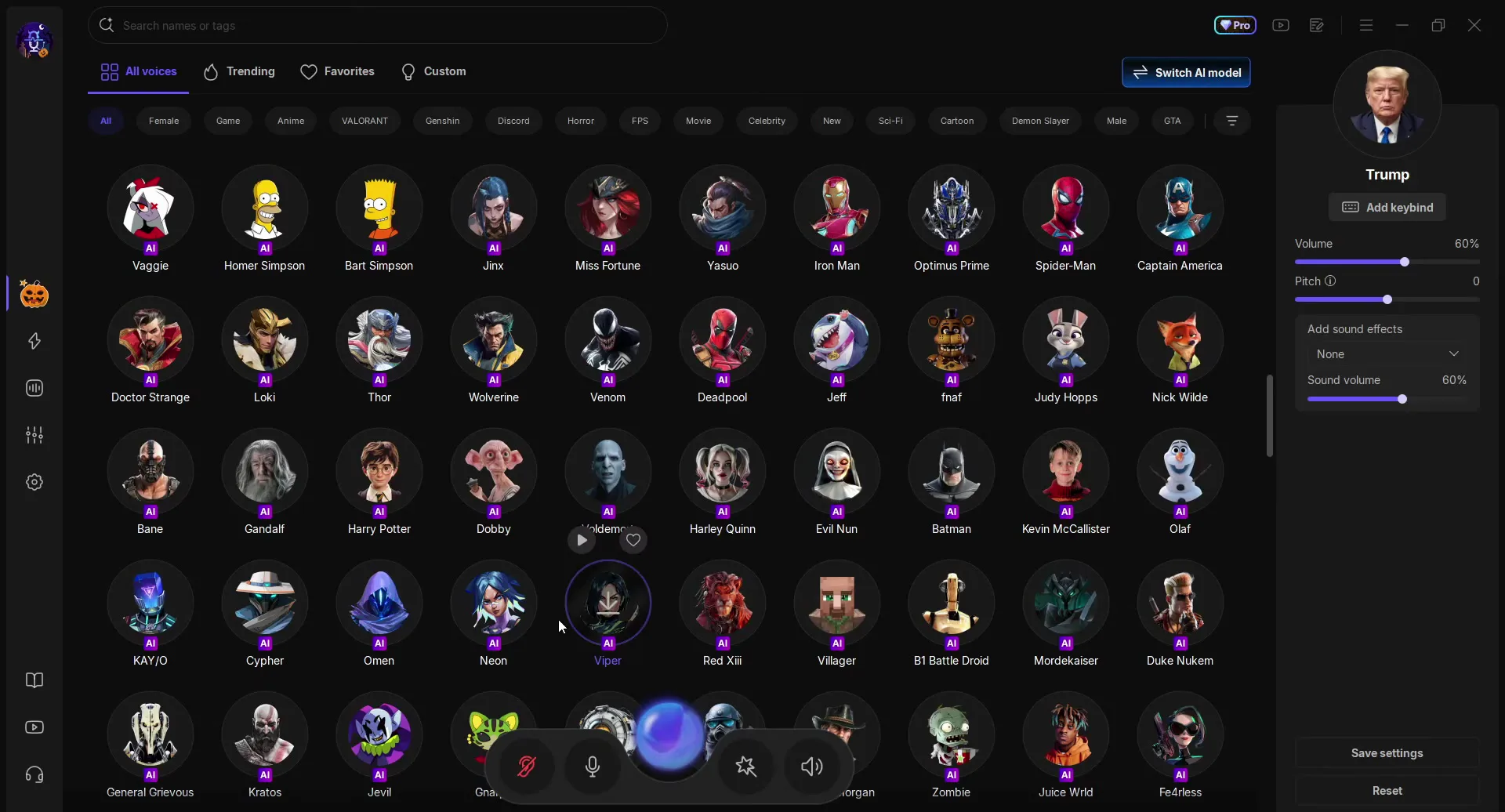
Keep scrolling and you find cartoon and game characters too: SpongeBob, VALORANT agents like Viper, Neon, Omen and Cypher, rappers like Juice WRLD and Travis Scott, singers like Justin Bieber and Michael Jackson, and GTA voices such as Franklin and Trevor. If you know what you want, type it into Search names or tags at the top or click a filter.
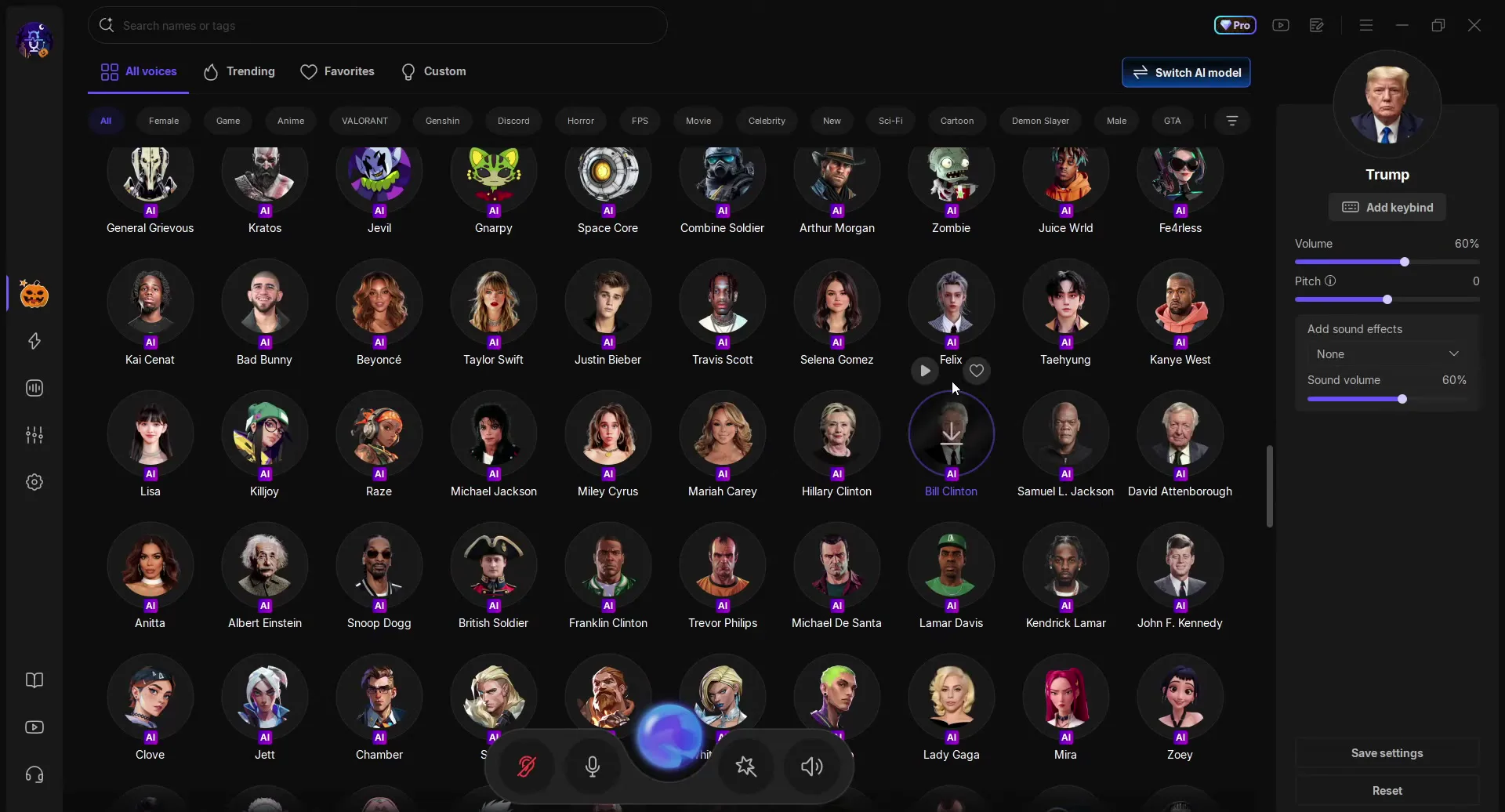
Changing your voice is one click: select a voice and speak into your microphone. The first time you pick a voice, it downloads before you can use it. In the video the voice switches live between Cristiano Ronaldo, Putin, SpongeBob and Omen while the creator keeps talking.
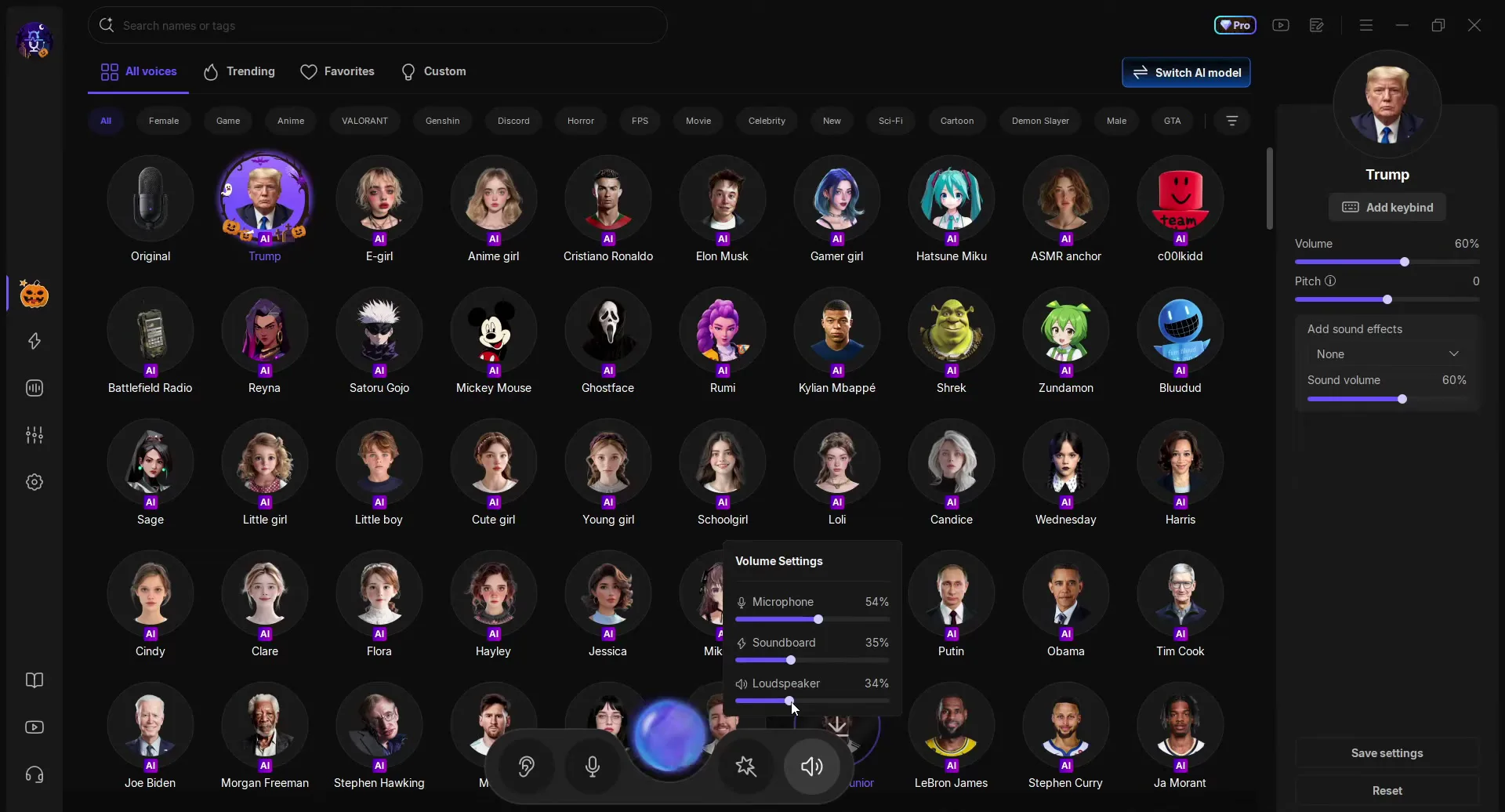
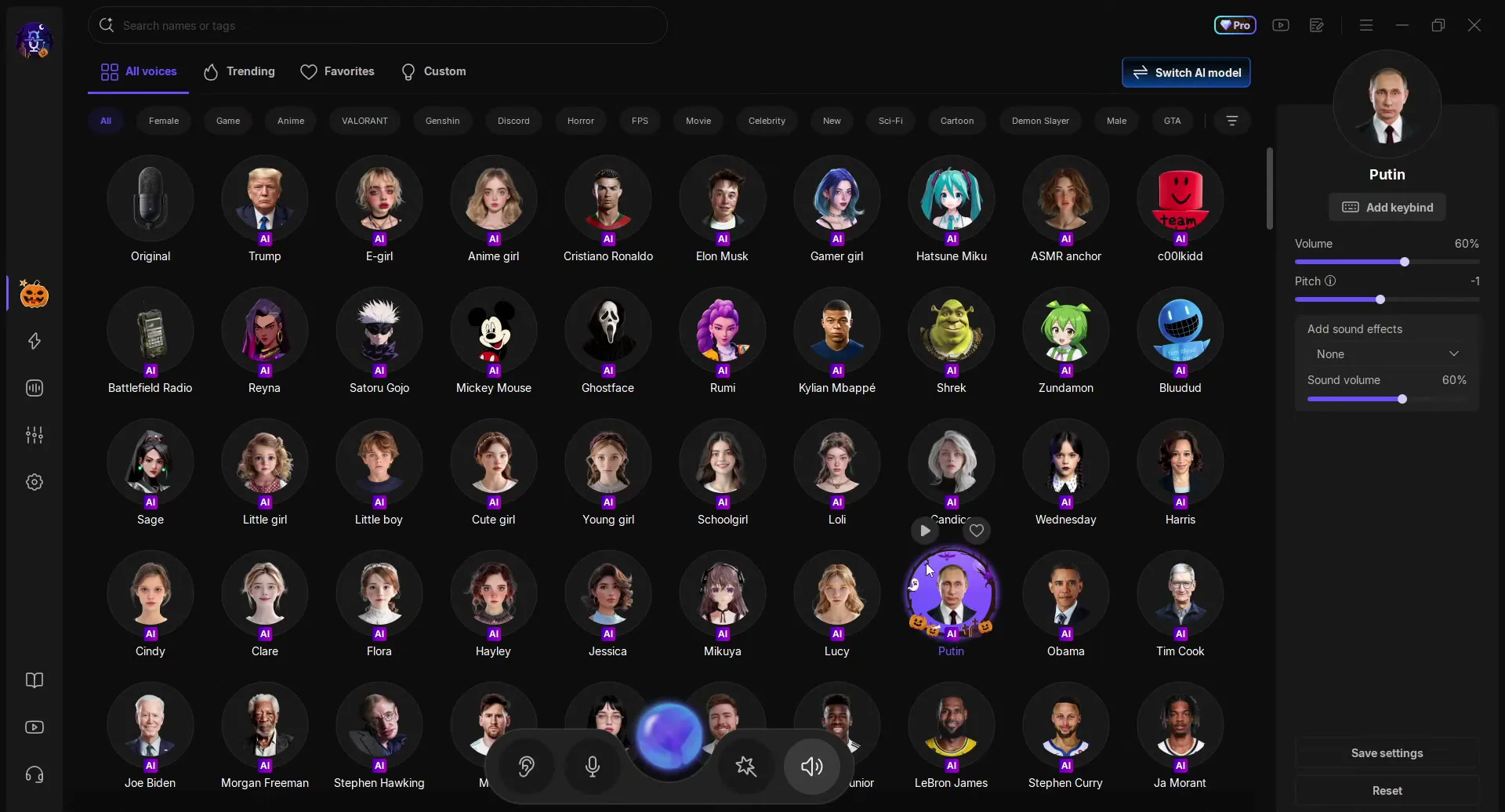
The panel on the right belongs to the selected voice: Add keybind, Volume, Pitch, Add sound effects and Sound volume, with Save settings and Reset at the bottom. You can leave them at their defaults.
Tip
If soundboard sounds drown out your voice, open Volume Settings from the speaker button and lower Soundboard. In the video it sits at 35% while the microphone is at 54%.
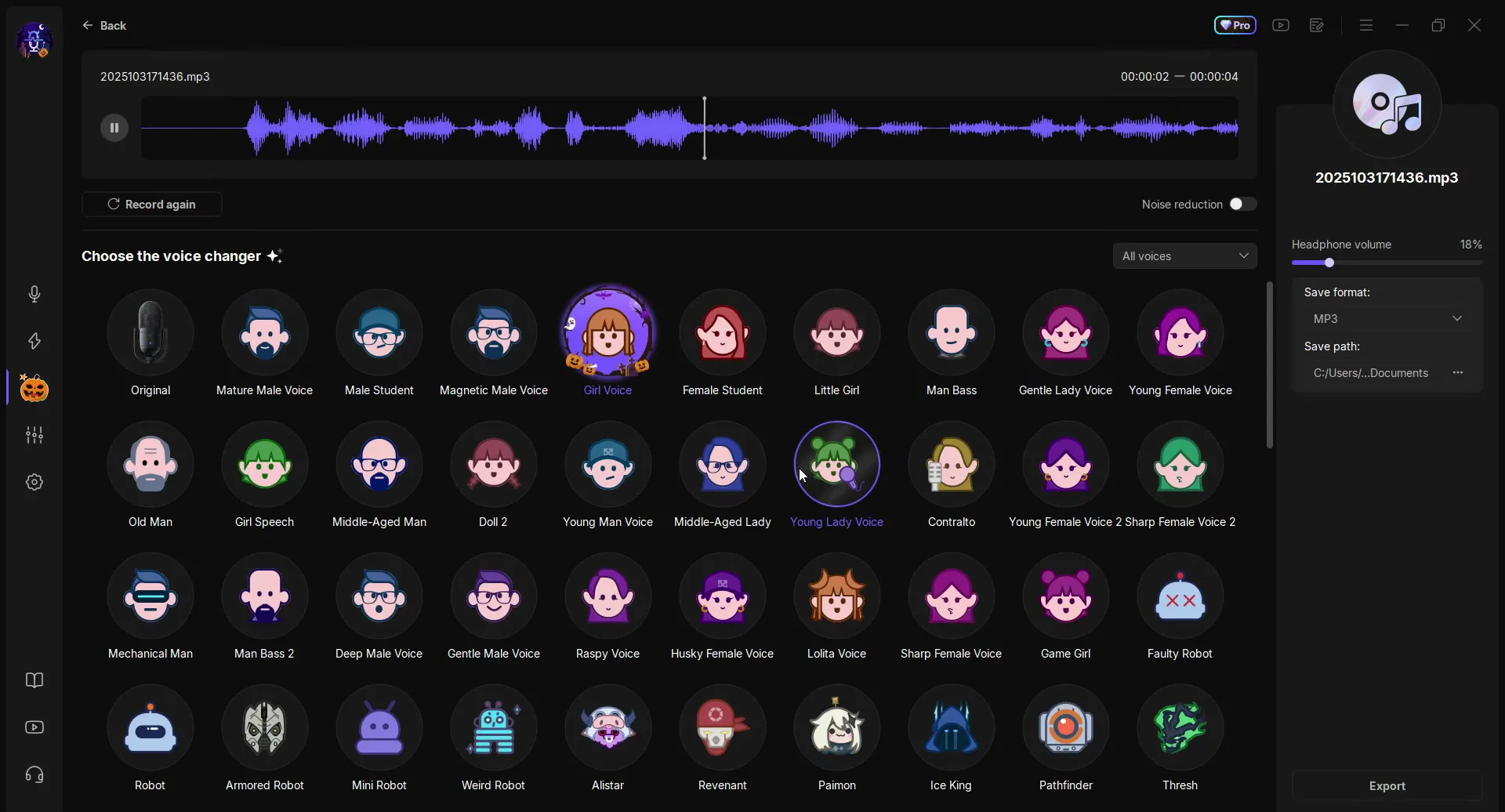
Next to the AI voices the list has many classic voice effects without the AI badge: Mature Male Voice, Girl Voice, Middle-Aged Lady, Old Man, robots, monsters and a SpongeBob effect. The video tries a mature male voice, a female voice, a middle-aged lady, a robot and SpongeBob.
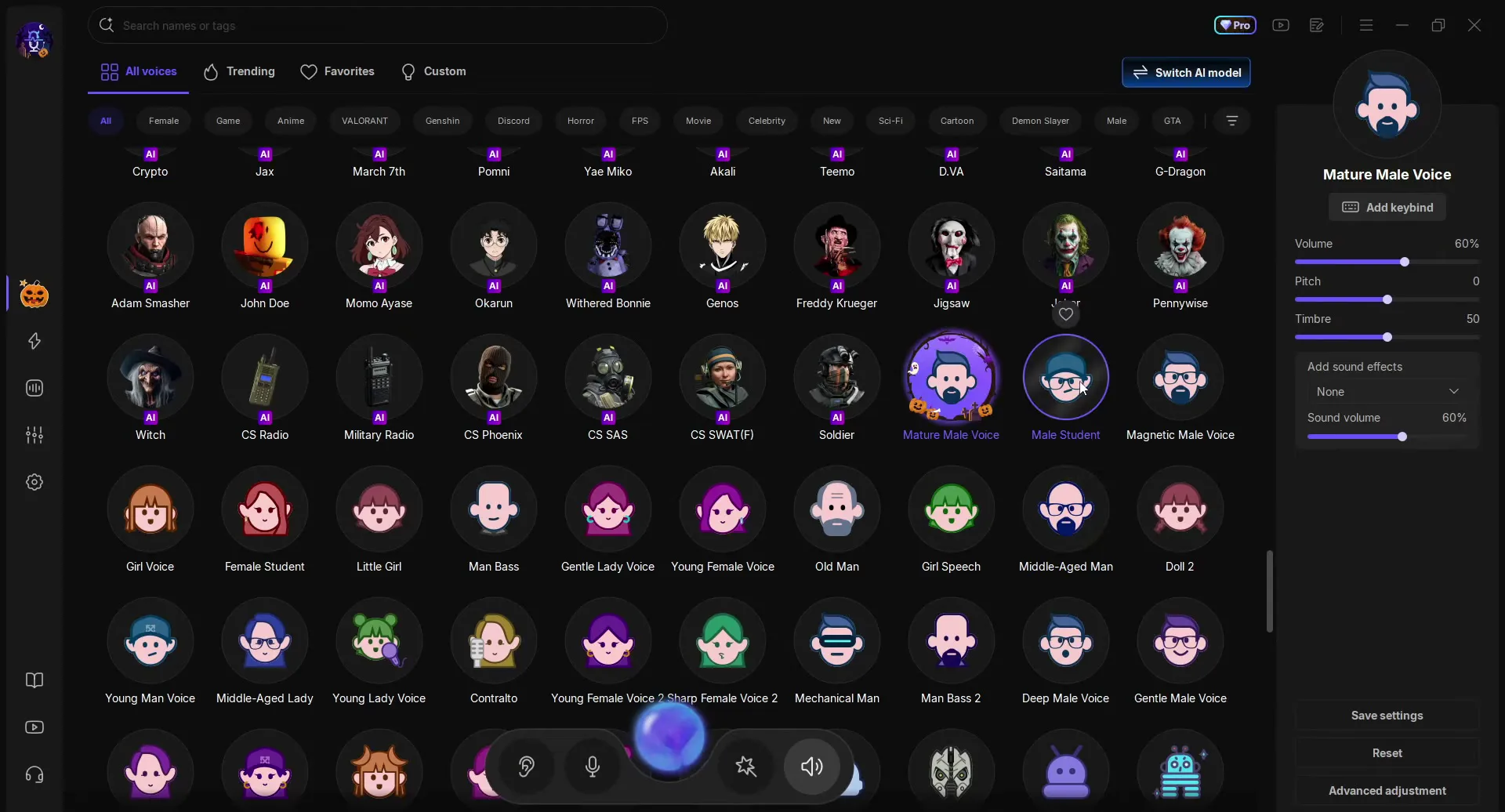
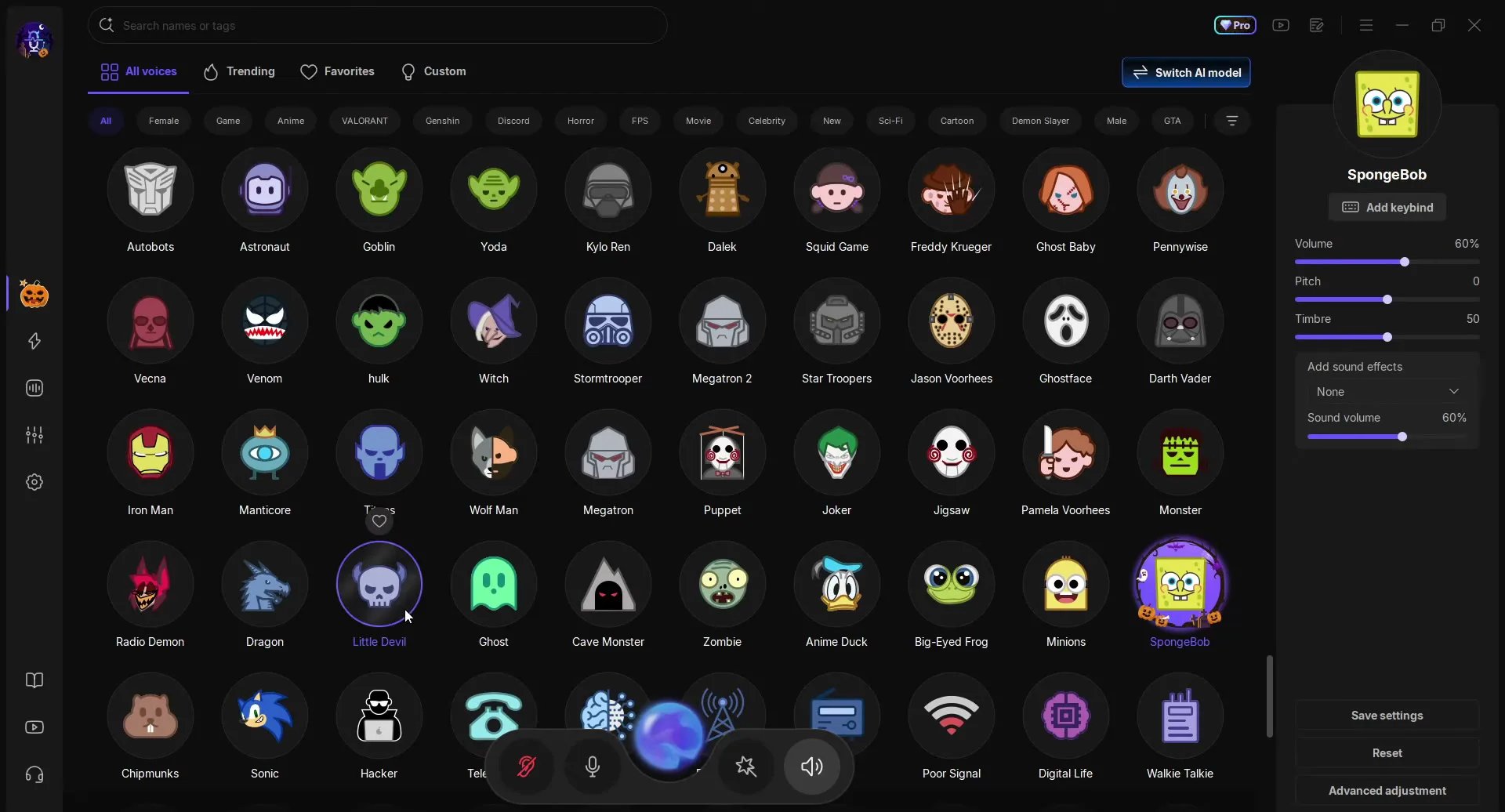
These voices have one extra slider, Timbre, next to Pitch, and an Advanced adjustment button for finer changes. Together with the AI voices that makes over 500 voices, and the video says you can use them for free right now.
Open the Soundboard (the lightning icon in the left sidebar). All sounds has categories such as Funny, Horrors, Game, Movie, Meme and Animals, and every sound has its own panel with a keybind, a trim bar, Volume, Loop, Mute Microphone and Stop other sounds.
SoundboardAll soundsAirhornAdd keybindJ
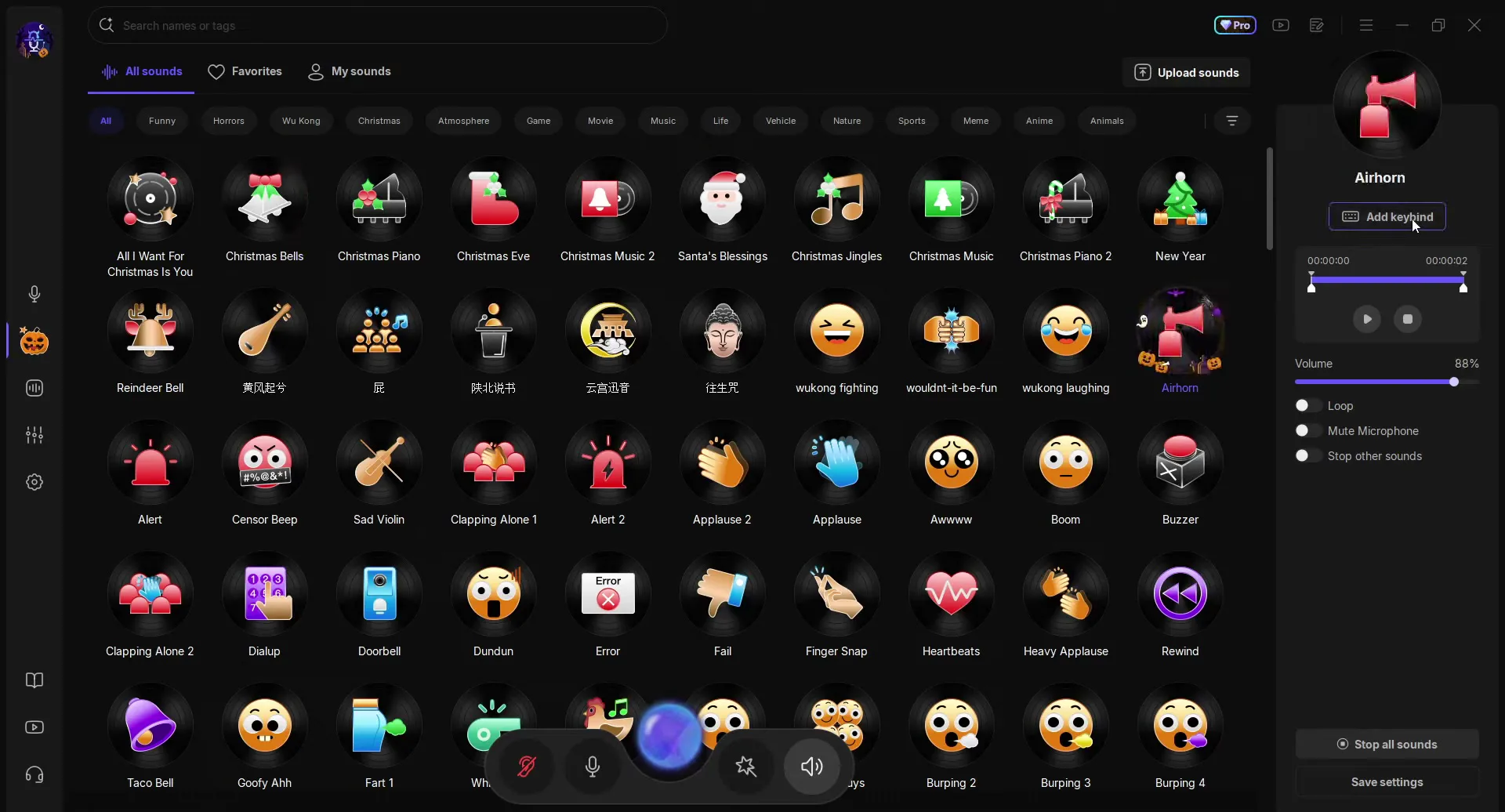
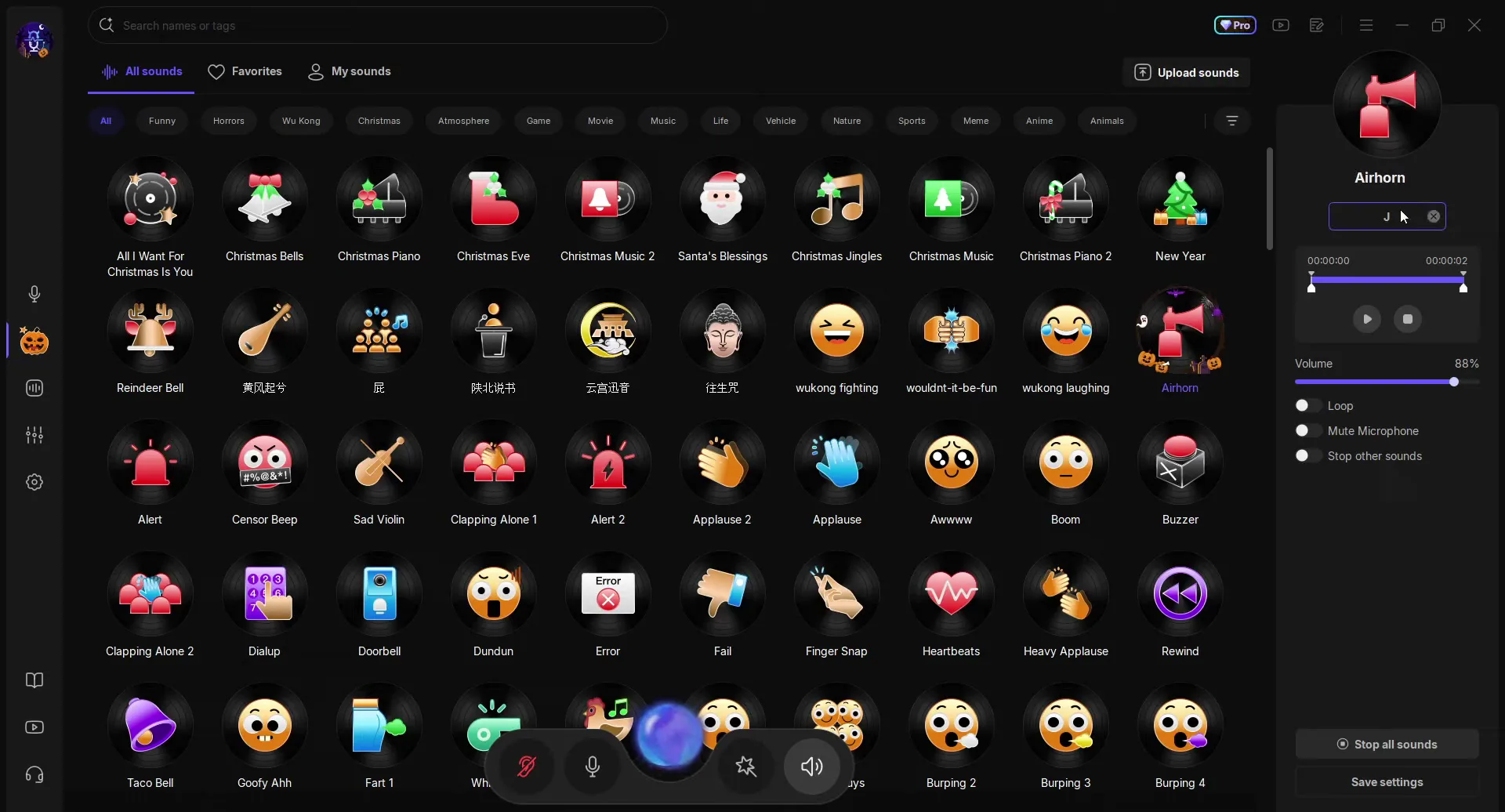
Click Add keybind and press the key you want. The video first thinks of the number 8, then uses J: every press of J now plays the air horn. A combination such as Ctrl+J works as well.
The video's favourite sound is Discord Join. Played in a call, it makes your friends think someone joined the channel. Search for it or scroll to it, click Add keybind and, when the button says Press any key, press Ctrl+K. Do the same with Discord Leave on Ctrl+H.
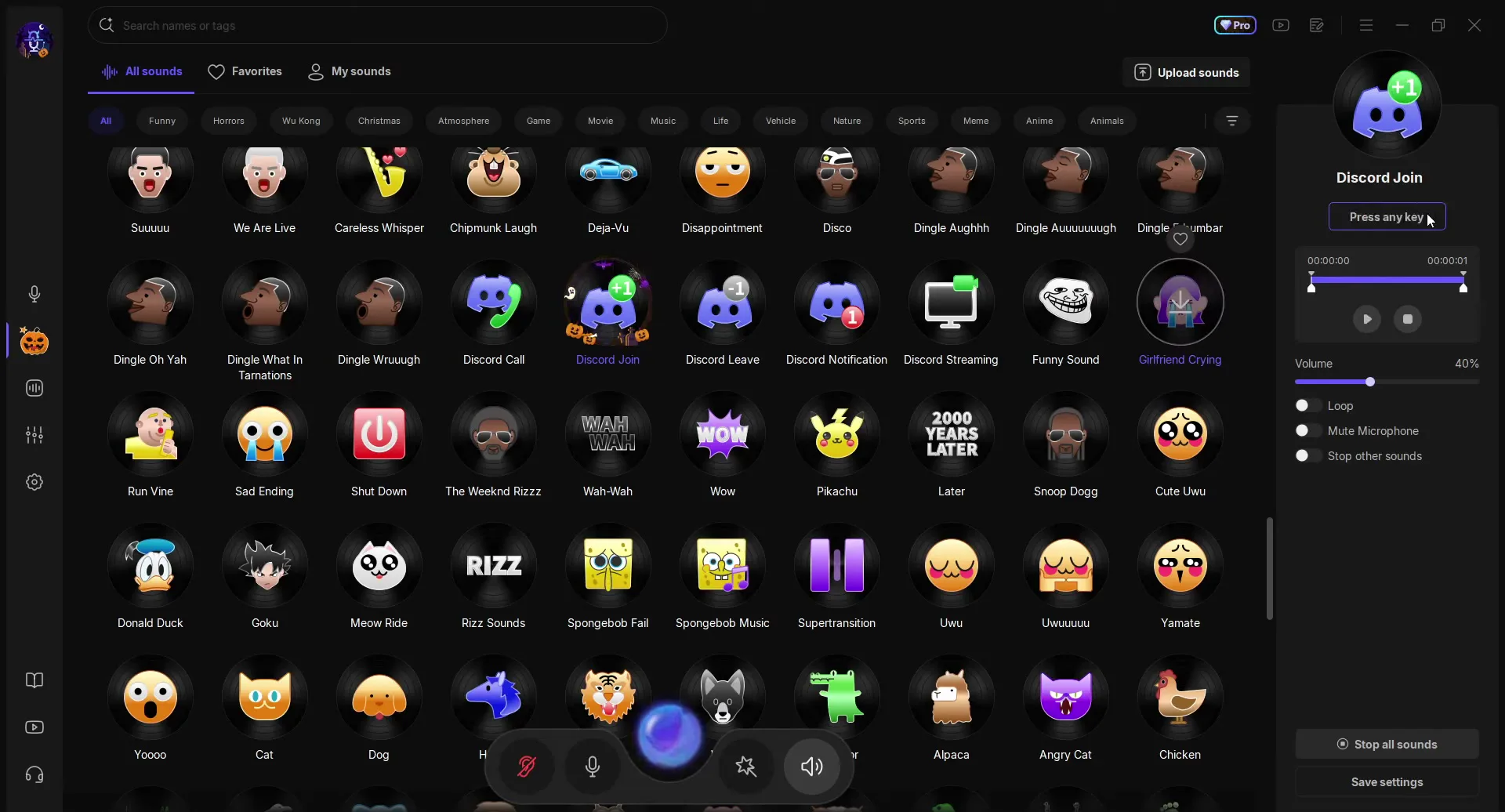
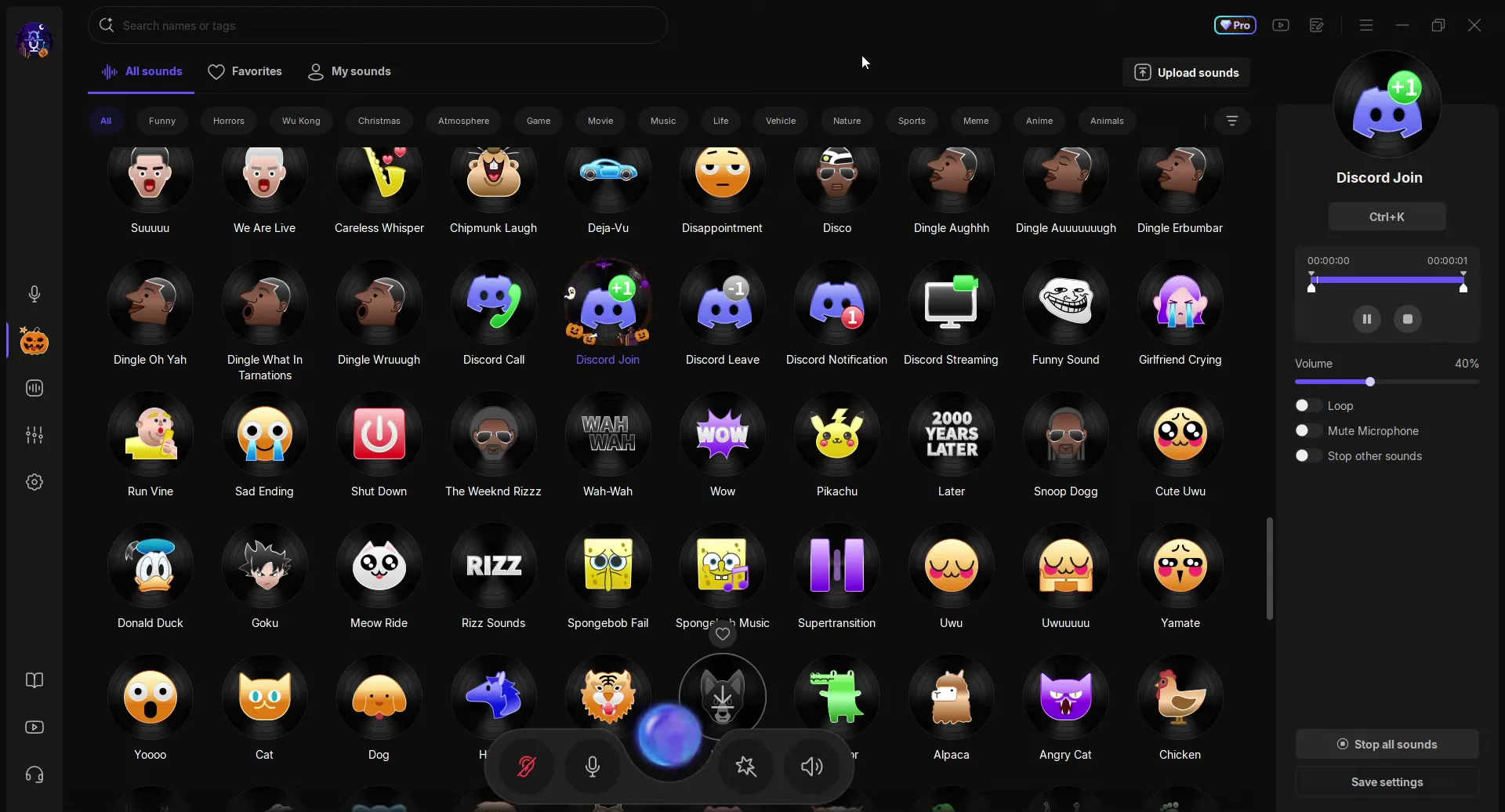
Now you can spam join and leave sounds during a call, and nobody knows where they come from.
Tip
Use keys you never press in your game. A key you also use in a match would fire the sound every time you press it.
VoiceWave does not only change your voice live. Open the waveform icon in the left sidebar and you get two tabs:
- File Mode: "Change audio or video voice". Click Import and pick a file. It takes audio in MP3, WAV, AAC, AC3, AMR and MP2, and video in MP4, M4A, WMV and more.
- Record Mode: "Record your microphone voice and then change the voice". Pick your microphone and click the round button to record.
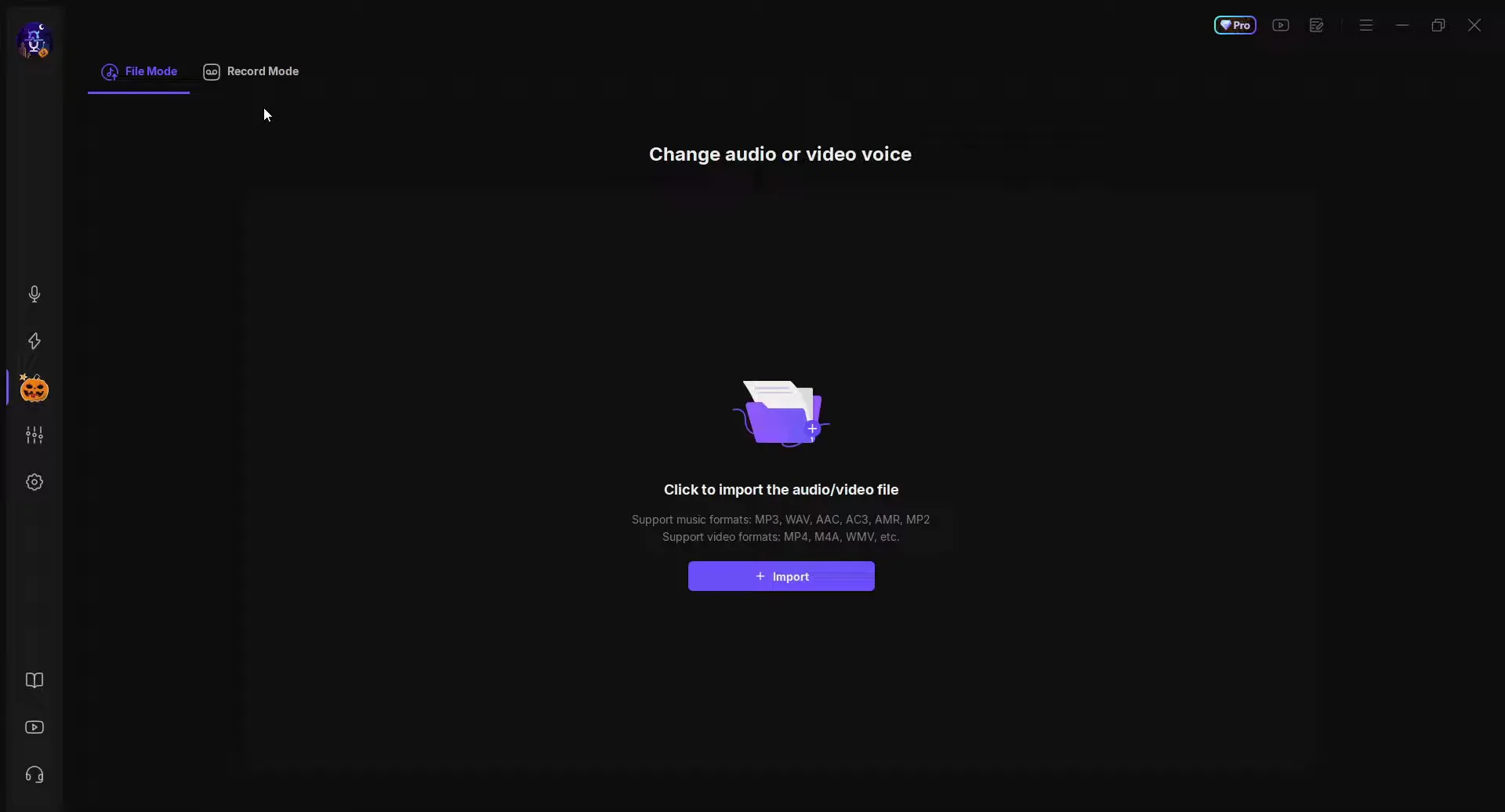
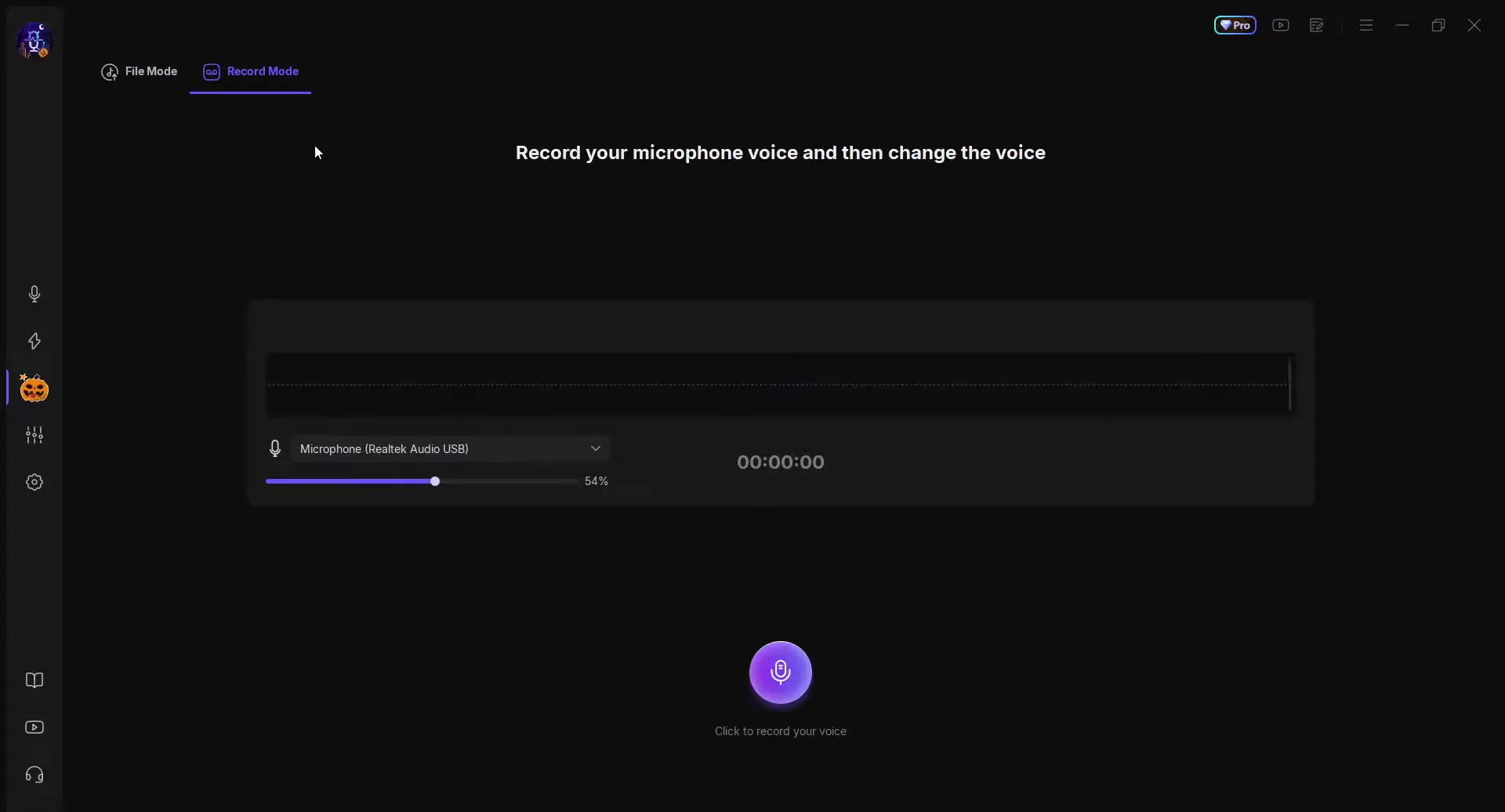
After recording, your clip appears as a waveform with Choose the voice changer under it. Click a voice and play the clip back: the video turns its snippet into a girl voice and then a monster. On the right you set the save format (MP3 in the video) and the folder, then click Export. A Noise reduction switch and Record again sit above the voices.
The video's favourite feature is voice creation, which is voice cloning. You teach the app how your voice sounds, and it becomes a voice changer of its own: whoever talks into the mic then sounds like you. The video's example is an older brother who is better at games and plays for you in your voice.
Voice CreationVoice CloneVoice NameClick to upload voice filesClone Now
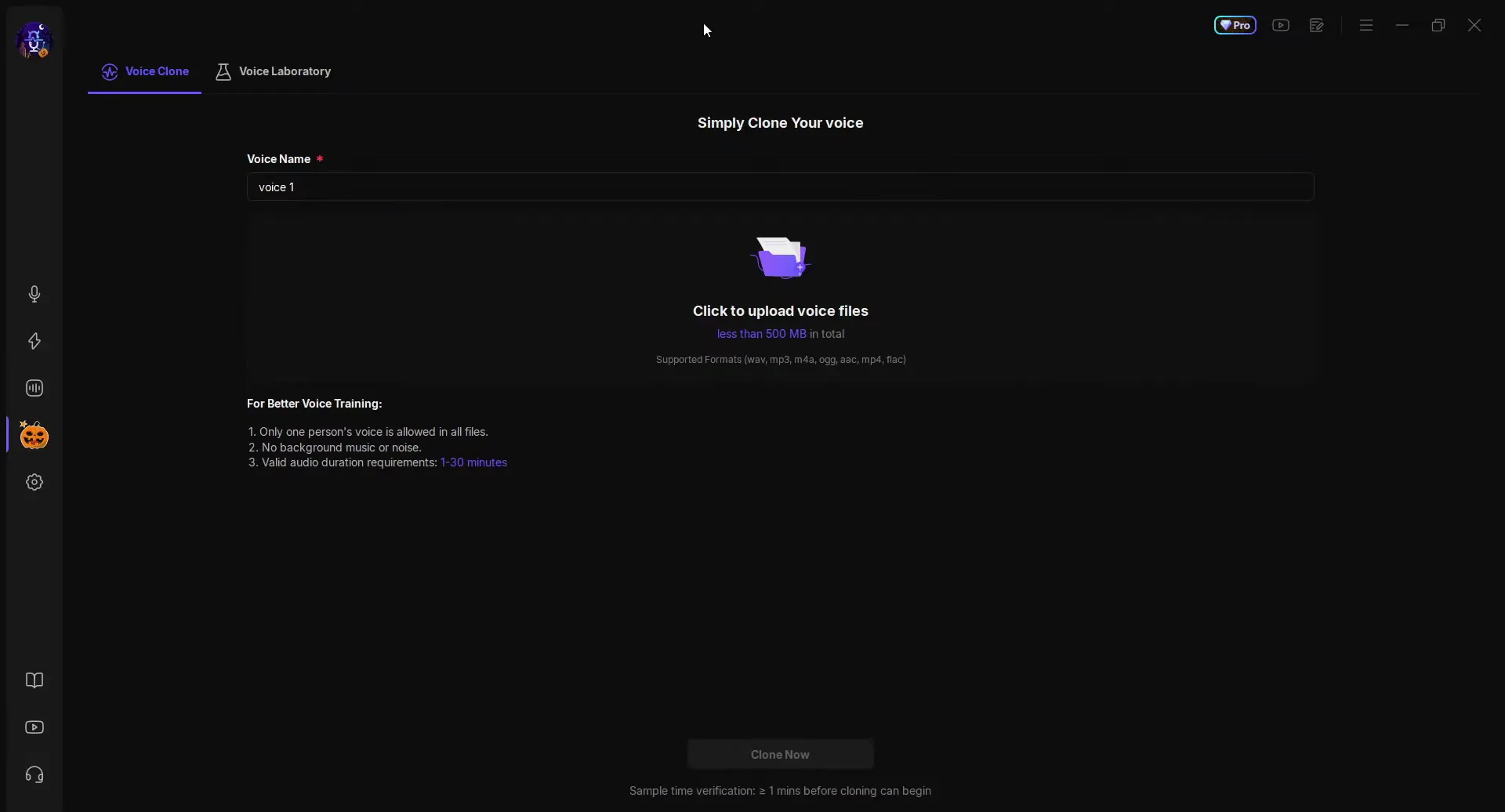
Click Voice Creation (the slider icon in the left sidebar) and stay on the Voice Clone tab. Give the voice a name, then click the upload area and pick a file. The app lists what it needs:
- Files under 500 MB in total, in wav, mp3, m4a, ogg, aac, mp4 or flac.
- Only one person's voice in all files.
- No background music or noise.
- 1 to 30 minutes of audio. Clone Now stays grey until there is at least 1 minute.
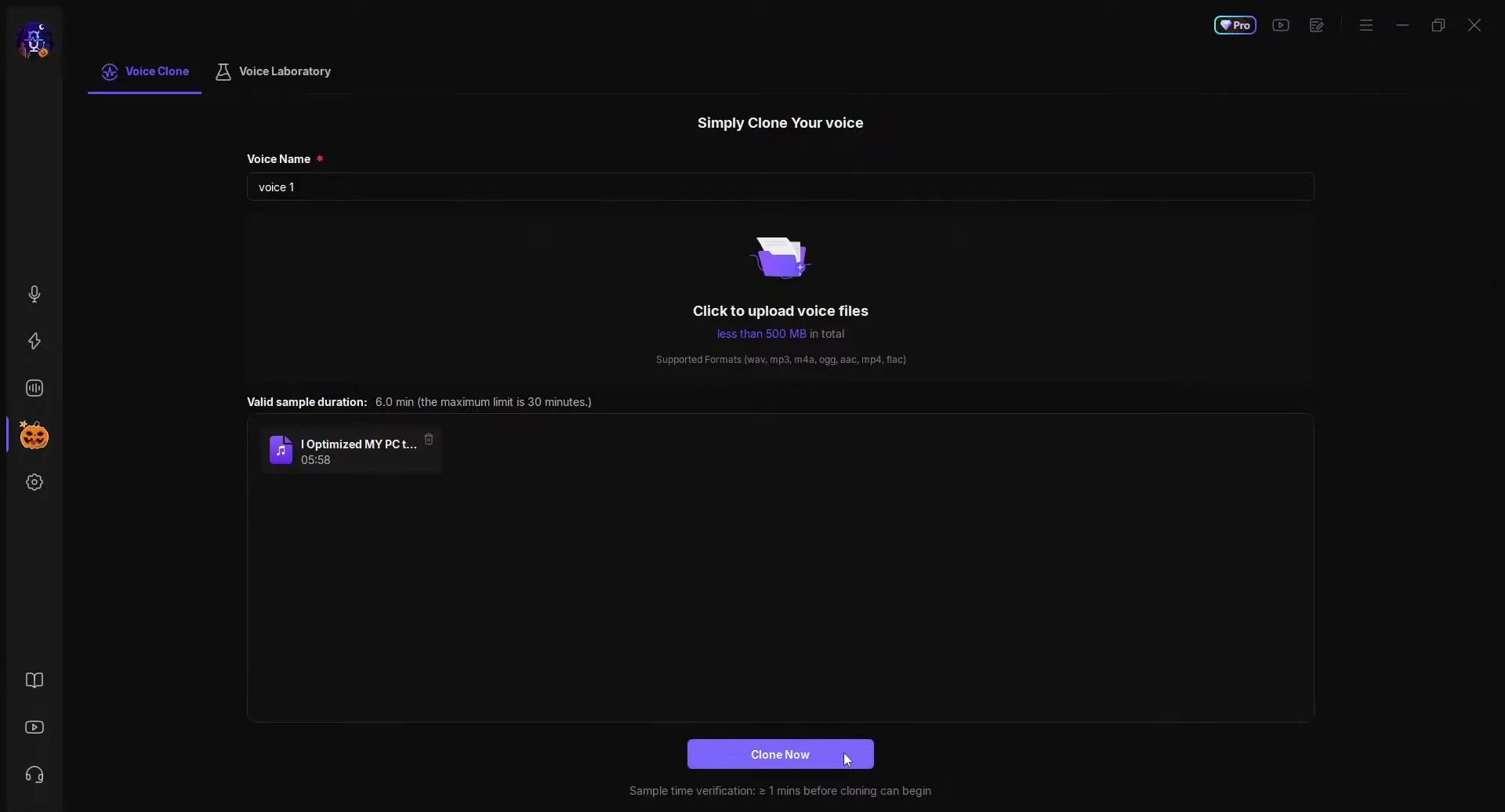
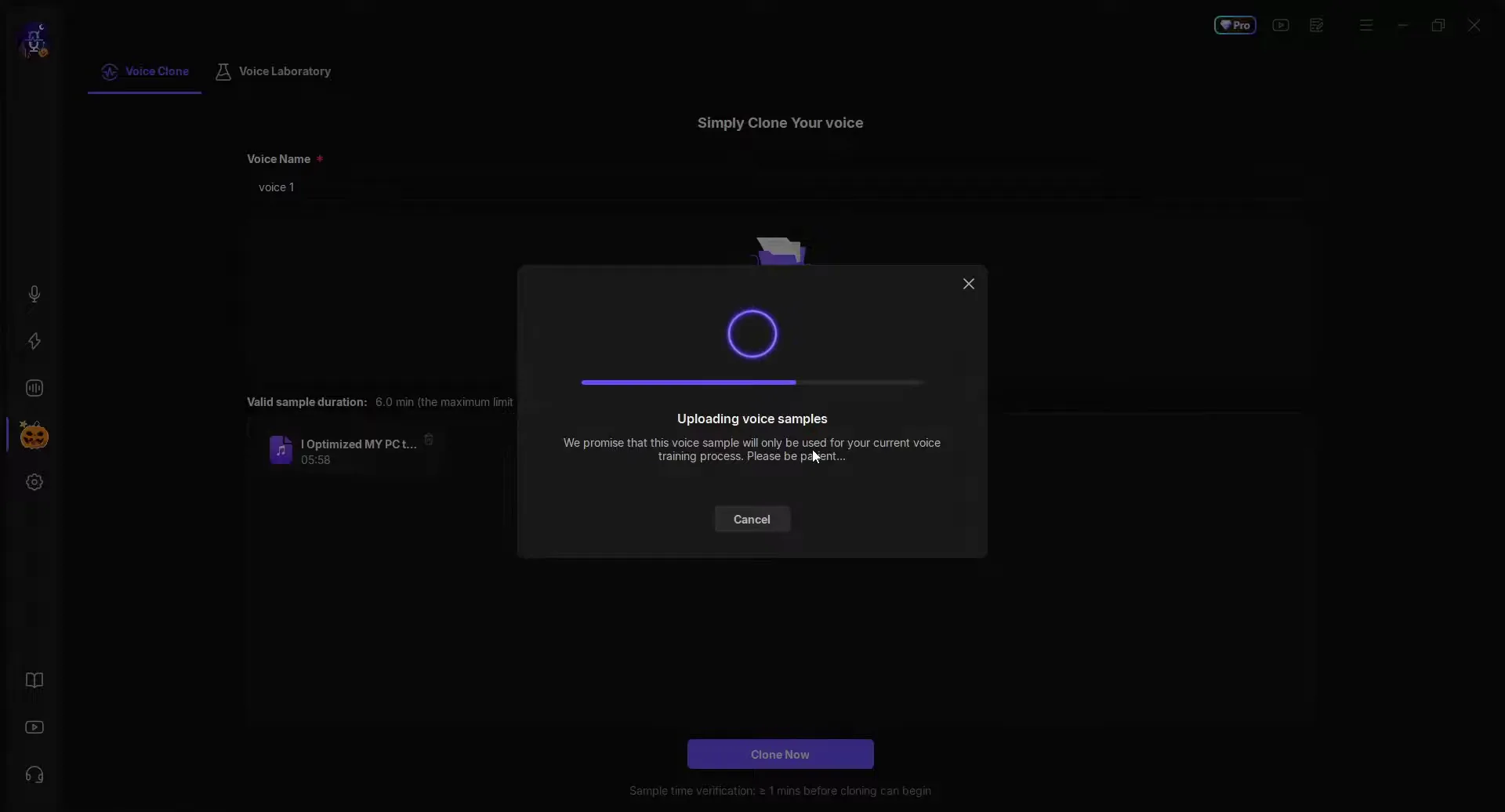
The video uploads one of the creator's own videos from the channel: 5:58 long, which the app counts as a valid 6.0 minute sample. It could be anything up to 30 minutes, and the more you give it, the better. Click Clone Now: the app uploads the voice samples and says the sample will only be used for your current voice training. Training takes a while, so the video moves on to the next feature in the meantime.
Careful
Clone your own voice, or someone's voice only with their clear permission. Never use a cloned voice to pass yourself off as a real person to trick or scam anyone.
The second tab under Voice Creation is the Voice Laboratory: "Simply create your own voice changer here". You hear every change live while you talk. Turn on an effect on the left and its sliders appear in the middle.
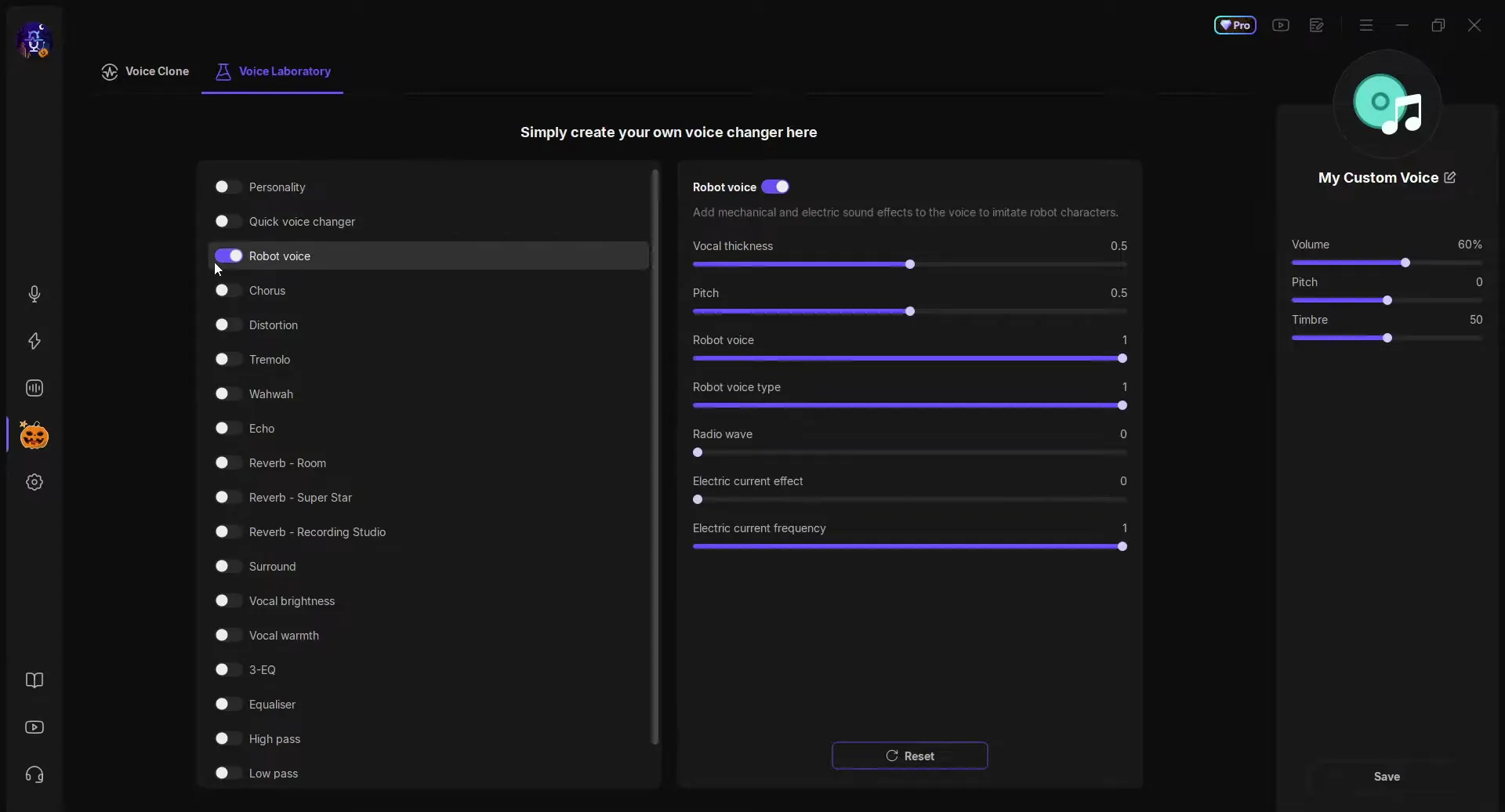
The list has Personality, Quick voice changer, Robot voice, Chorus, Distortion, Tremolo, Wahwah, Echo, three reverbs (Room, Super Star, Recording Studio), Surround, Vocal brightness, Vocal warmth, 3-EQ, Equaliser, High pass and Low pass. The video tries echo, a reverb that sounds like a dark cave, an even bigger reverb and distortion.
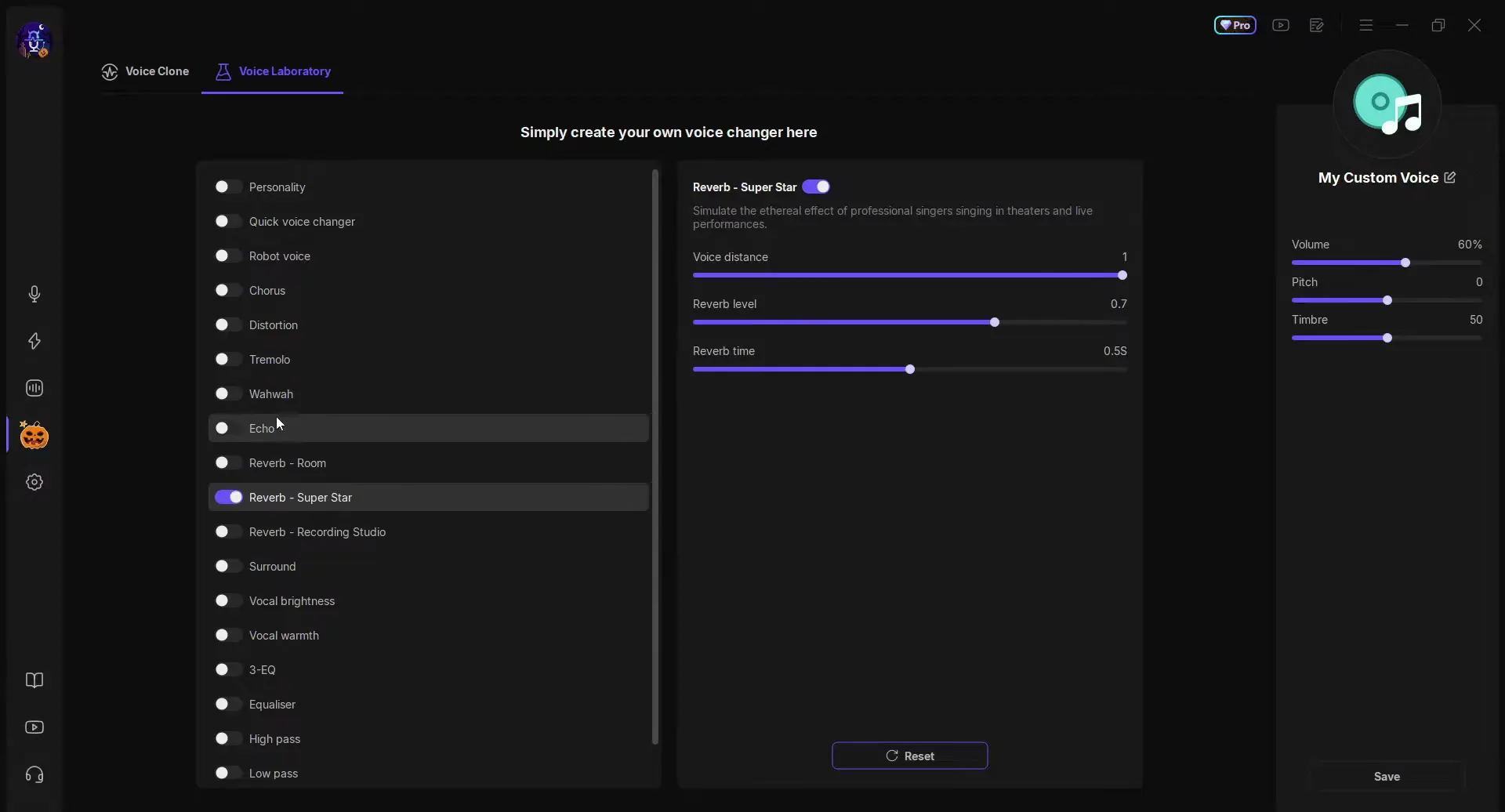
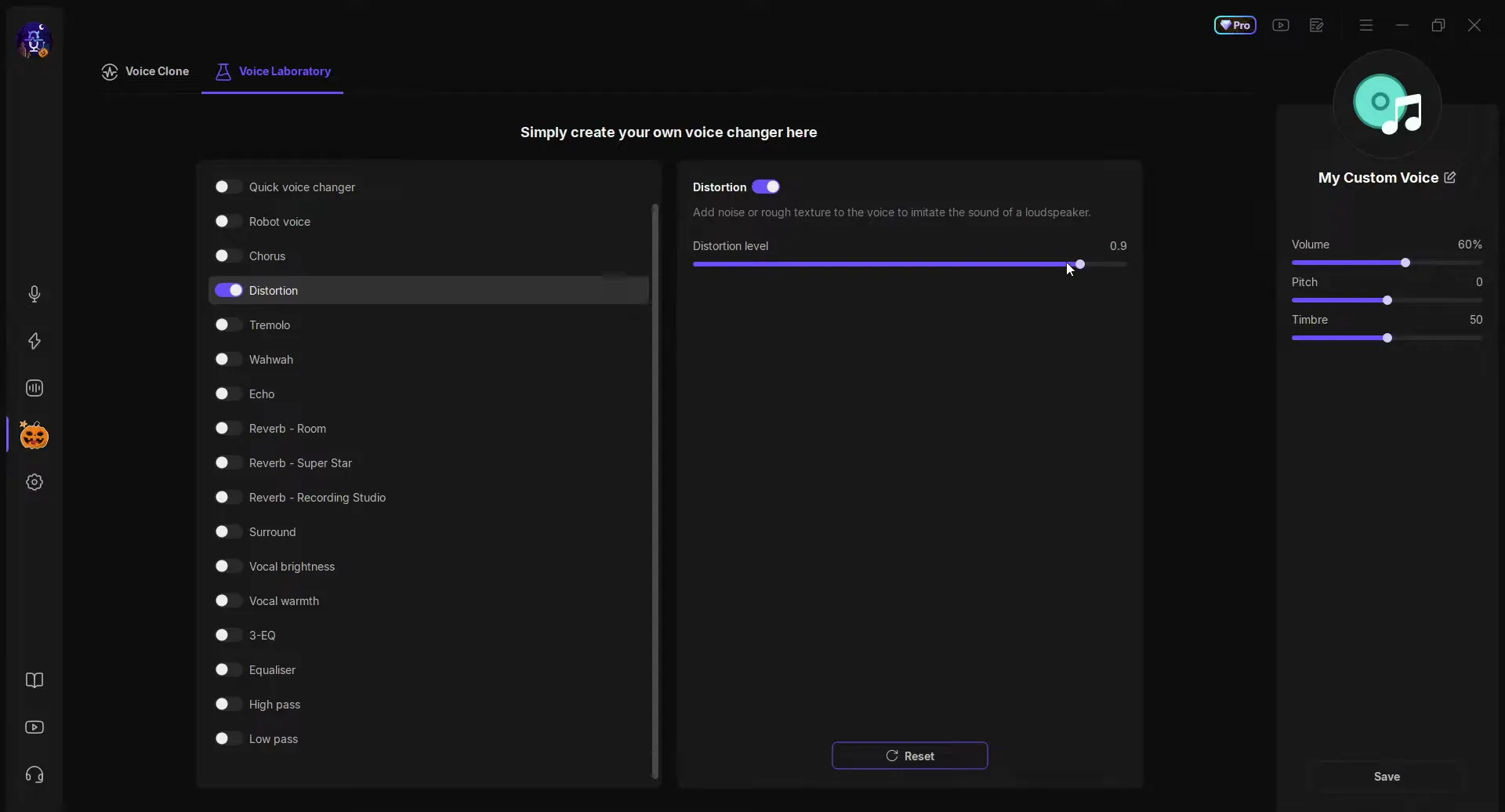
On the right, your effect is called My Custom Voice (click the pencil to rename it), with its own Volume, Pitch and Timbre. Click Save to keep it, or Reset to clear an effect's sliders.
You can put almost anything on a key. Open the settings (gear icon in the left sidebar) and click the Keybind tab. It has Hear Myself On/Off, Microphone On/Off, Voice Changer On/Off and Stop all sounds.
SettingsKeybindVoice Changer On/Off
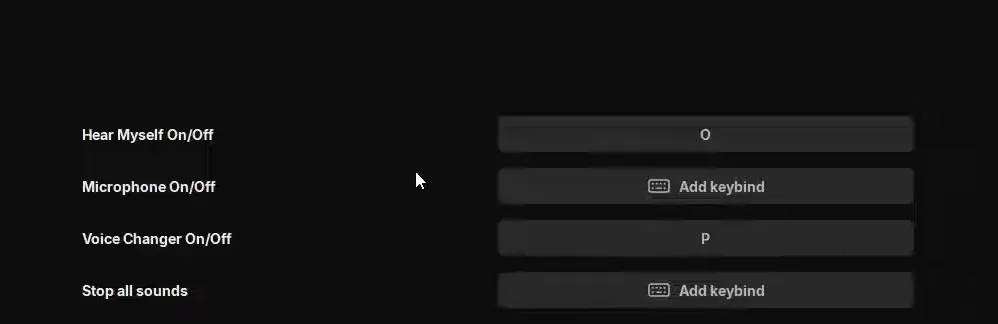
Hear Myself lets you listen to your changed voice, which is the quickest way to test a new voice or effect. A key for Voice Changer On/Off switches back to your real voice in the middle of a game without leaving it.
VoiceWave works with basically every app that uses a microphone. The only thing you have to do is select the VoiceWave Microphone as the input device in that app, and that's it. EaseUS has a setup page with a guide for each app: Discord, Roblox, Skype, VALORANT, VRChat, WhatsApp and Zoom.
Discord settingsVoice & VideoInput DeviceVoiceWave Microphone
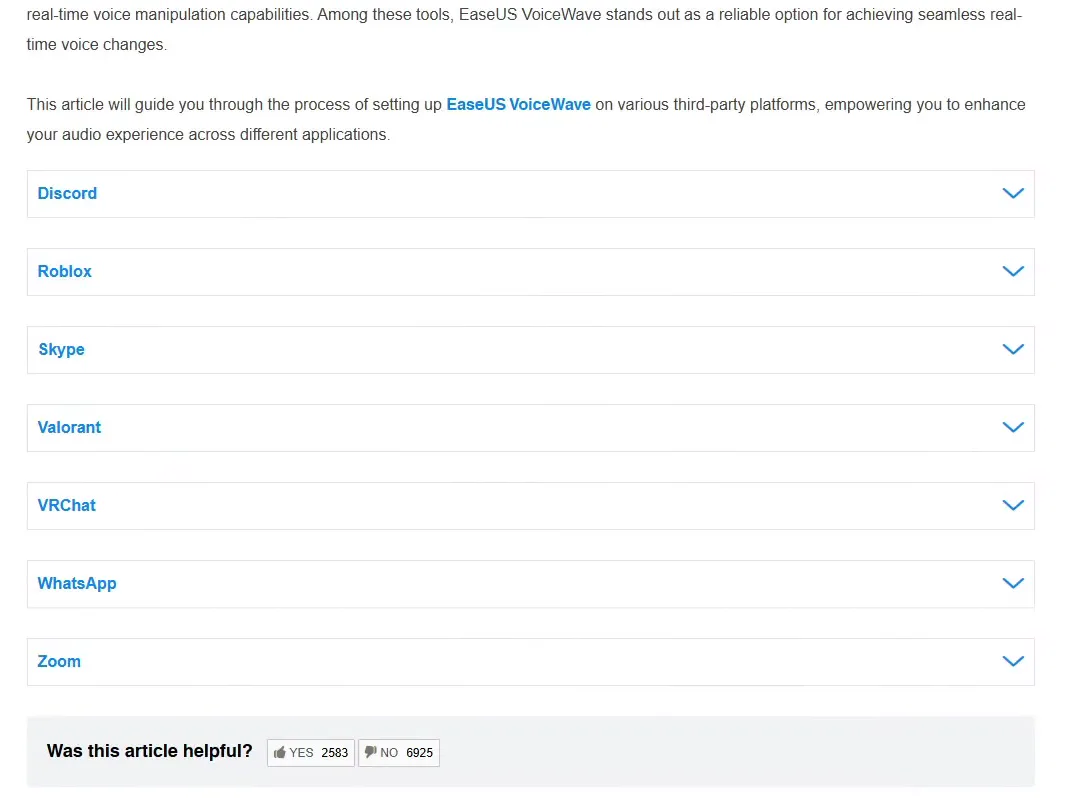
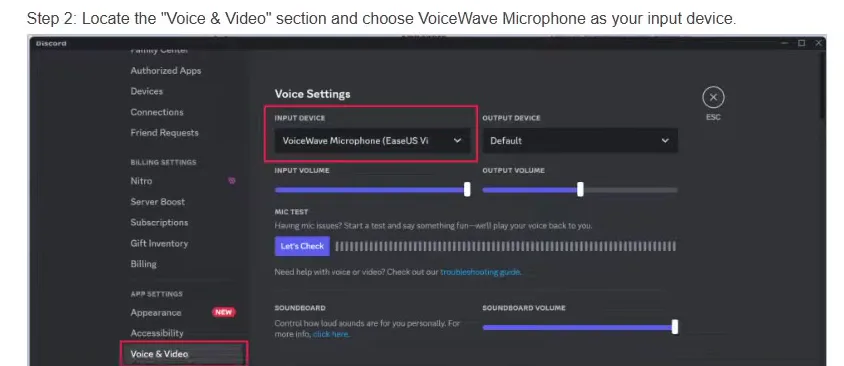
In Discord, open your user settings, go to Voice & Video and set Input Device to VoiceWave Microphone. In VALORANT the guide goes through Settings, Audio, Voice Chat and sets the input device to VoiceWave Microphone (EaseUS Virtual Device). Roblox, Skype and Zoom work the same way.
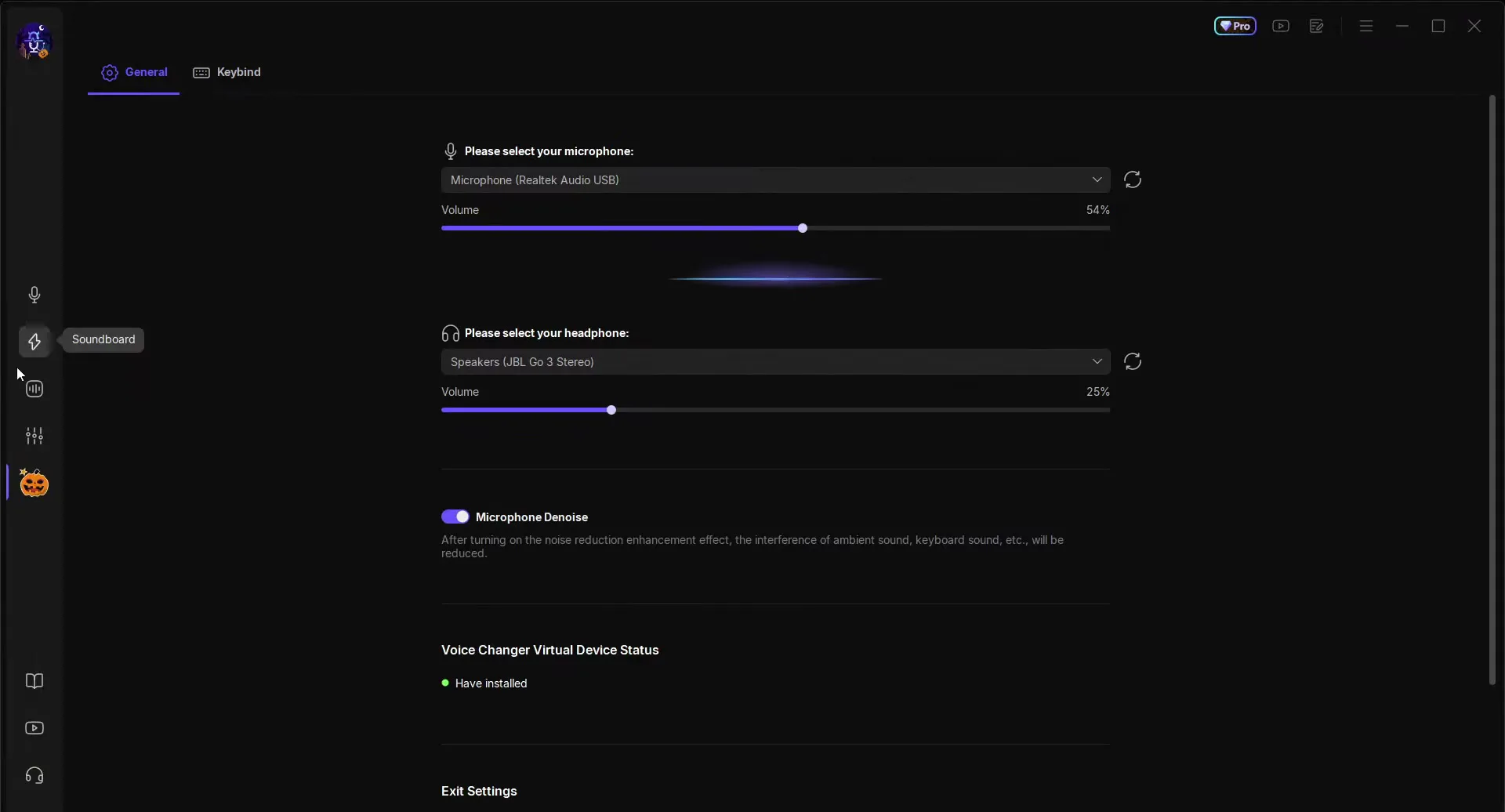
Inside VoiceWave, the General settings tab is where you pick your real microphone and headphones. Microphone Denoise is on in the video: the app says it reduces ambient and keyboard sounds.
Good to know
Your real microphone stays plugged in and selected inside VoiceWave. The app listens to it and sends the changed voice on through VoiceWave Microphone, so keep VoiceWave open while you play. For the Windows-wide setup, see our voice changer hotkey and input device guide.
How to check it worked
Test before you join a match so you don't find out mid-game:
- In VoiceWave settings, Voice Changer Virtual Device Status should say Have installed. If it does not, the virtual microphone is missing and no app will hear the changed voice.
- Turn on Hear Myself with your keybind (O in the video) and talk: you should hear the selected voice.
- In Discord, use the mic test under Voice & Video, or ask a friend in a call what they hear. If they hear your normal voice, the app still uses your real microphone.
- Press a soundboard key (J in the video) during the call. Your friend should hear the sound in the same channel as your voice.
How to undo it
To sound like yourself again, click Original at the start of the voice list or press your Voice Changer On/Off key. To take VoiceWave out completely, select your normal microphone again as the input device in each app.
Key settings at a glance
FAQ
Can VoiceWave clone my own voice?
Yes. Open Voice Creation, stay on Voice Clone, name the voice, upload a recording of yourself and click Clone Now. The app then learns how your voice sounds so it can be used as a voice changer of its own.
How long should the voice sample be?
The app asks for 1 to 30 minutes of audio, and Clone Now only works once there is at least 1 minute. The video uses a 6-minute clip and says the more you give it, the better.
Which files can I upload for a voice clone?
Voice Clone accepts wav, mp3, m4a, ogg, aac, mp4 and flac, under 500 MB in total. A video file works too: the creator uploads one of the channel's own MP4 videos. Use files with only your voice and no music or background noise.
Is it OK to clone someone else's voice?
Only with that person's clear permission. The app allows only one person's voice per clone, and using a cloned voice to impersonate, trick or scam someone can be illegal where you live. Cloning your own voice is the safe use.
What happens to the voice sample I upload?
Clone Now uploads the samples for training. While it uploads, the app states that the voice sample will only be used for your current voice training process.
Can I change the voice in a video I already recorded?
Yes, with File Mode: import an audio file (MP3, WAV, AAC, AC3, AMR, MP2) or a video (MP4, M4A, WMV and more), choose a voice and export. Record Mode does the same with a clip you record in the app.
Does it work in Discord, Roblox, VALORANT and Zoom?
Yes. Select VoiceWave Microphone as the input device in the app or game and keep VoiceWave open. The video names Discord, Roblox, Skype, VALORANT and Zoom, and EaseUS has a setup guide for each. Our Discord and Fortnite voice changer guide shows the Discord setup click by click.
Is EaseUS VoiceWave free?
The download is free, and the video says the 500+ voices can be used for free right now. The app also shows a Pro badge and the video mentions a paid version, so check inside the app which features your plan includes.
Does VoiceWave work on Mac?
The download button in the video says Windows 11/10, and every step here is on Windows. For more voices on Windows, see our e-girl voice guide and the best free voice changer guide.
Try EaseUS VoiceWave
EaseUS VoiceWave is the real-time voice changer used in the video. It works in Discord, games and streaming apps, and you can try it for free before you decide.
This article and the video are a paid partnership with EaseUS.