Free FPS Tweaks Pack on an RTX 3060: Fortnite Test, Menu by Menu

Written version of our video, every step checked against it.
Quick answer
- Create a restore point first: the pack asks for it when you run it as administrator, and you type
restore. - Even a single tweak (Power Tweaks plus the CPU option) moved FPS on the PC in the video; Leon measured about 50 to 100 FPS more.
- Then go through the menus in order: GPU, Ping, Input, Windows, RAM (pick your real amount) and Games (Fortnite).
- Skip Debloat Tweaks if you want to keep all your files and services: it removes them.
- Check the result in Fortnite with the FPS counter; the full free pack added about 150 FPS on the PC in the video.
This guide is for anyone who plays Fortnite on a mid-range card such as an RTX 3060 and wants to know what the free RIP Tweaks pack does before running it. The video is an older one and shows the first free pack (V4.1, a menu you run as administrator), not today's app. The ideas and settings are the same ones we still use, so this page follows the video step by step and explains what each menu is for.
Leon plays Fortnite on an RTX 3060 on the lowest settings and sees roughly 200 FPS, give or take, before touching anything. That number is the baseline: write yours down (or keep the FPS counter on) so you can compare after each step. The video's plan is to test one tweak alone first, then the whole free pack on the same settings.
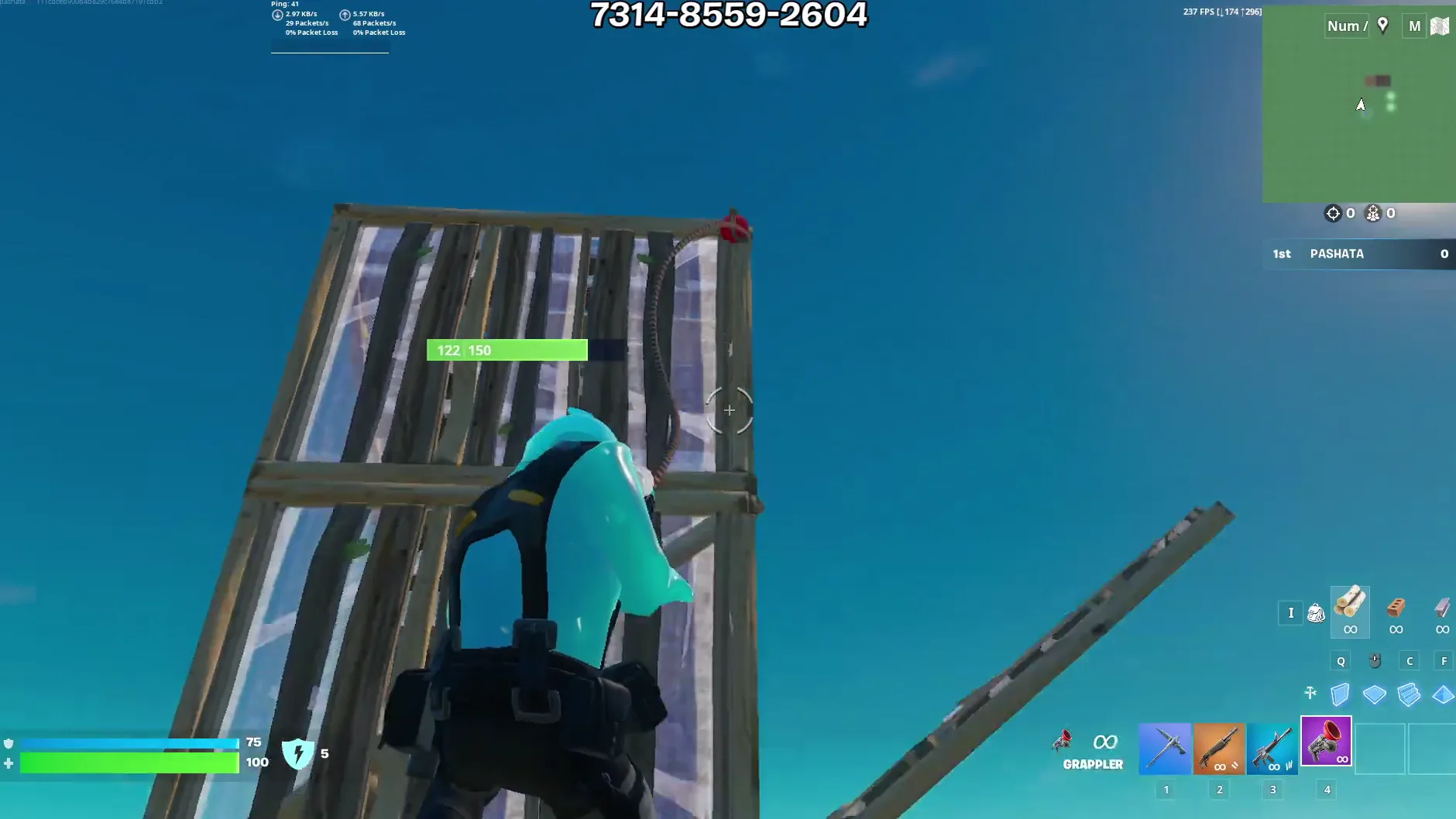
FPS in a creative map moves around all the time, so compare numbers from the same map and settings, not a single glance.
The video opens a browser, goes to the RIP Tweaks Discord (the link is in the video description), joins the server and opens the free tweaks channel. There you download the free tweaks pack and click continue to start the download.
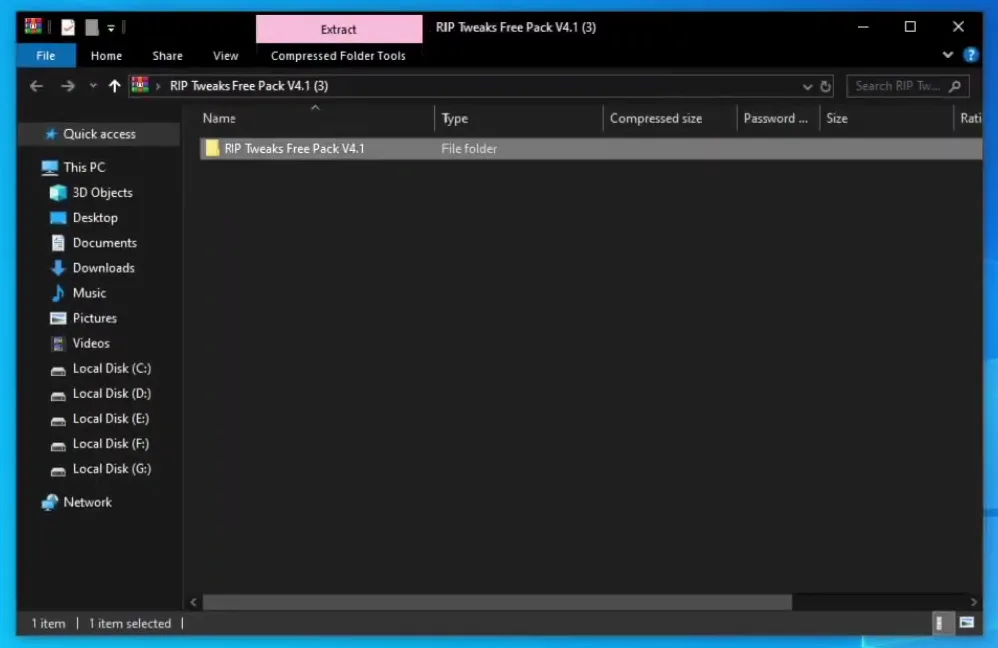
The download is an archive. Drag it onto the desktop, right-click it, choose Open with Windows Explorer and drag the folder out of the archive. Inside is the file called RIP Tweaks - Free Pack V4.1 (RUN AS ADMIN).
Tip
Run the file only from the extracted folder. Right-click it and choose Run as administrator: the tweaks change system settings, so they need that.
As soon as the pack starts, it shows a warning: there is no support on the free packs, everything is at your own risk, and a restore point is recommended. You choose by typing a word: skip continues without a restore point, restore continues with one. The video types restore.
Run as administratorYour Choice: restore
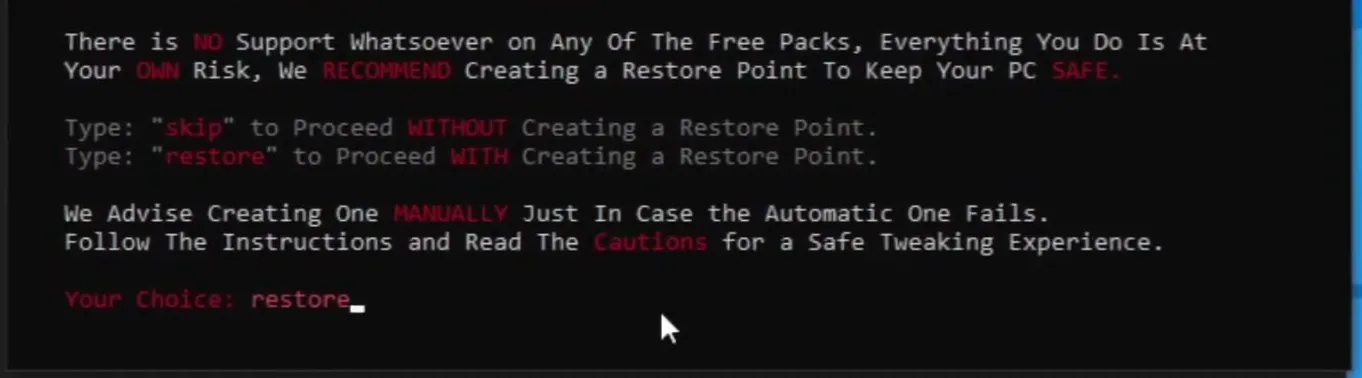
The restore point saves your system so you can go back if something goes wrong or you don't like a change. The pack itself advises creating one manually as well, in case the automatic one fails.
How to undo it
To go back later, open Windows System Restore and pick the restore point you made before running the pack.
The main menu has nine entries: 1 Power Tweaks, 2 GPU Tweaks, 3 Ping Tweaks, 4 Input Tweaks, 5 Windows Tweaks, 6 Debloat Tweaks, 7 RAM Tweaks, 8 Games and 9 Socials. You type the number of the menu you want.
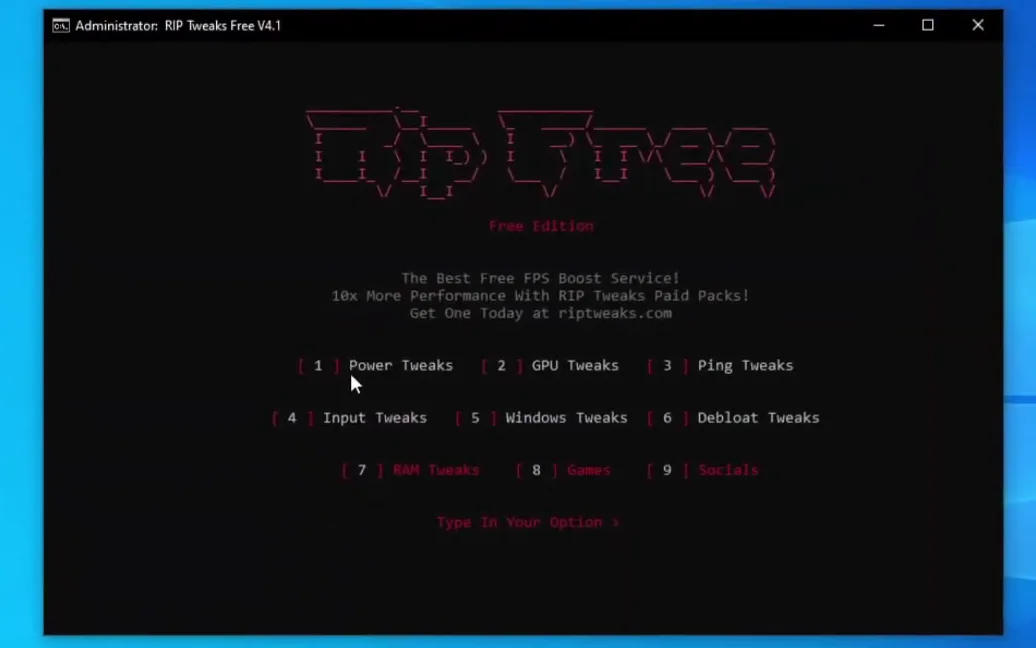
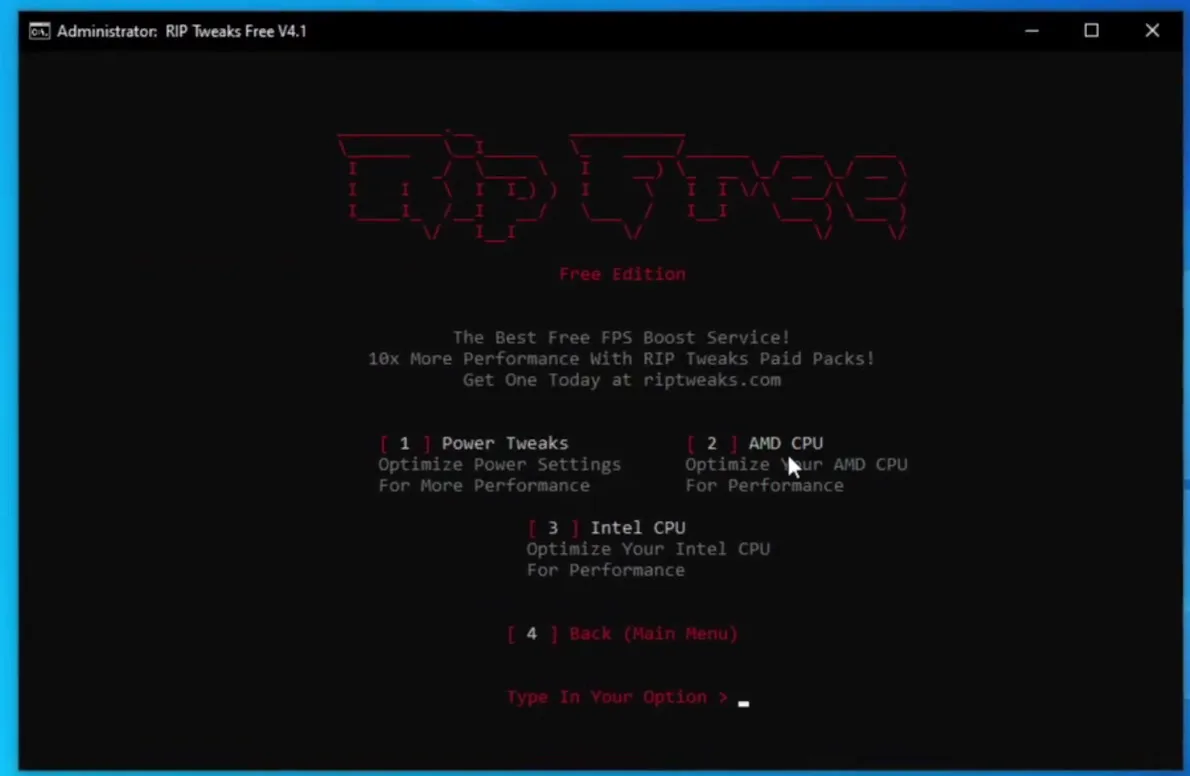
For the one-tweak test, Leon opens Power Tweaks (1), runs the first option and then runs the second option, the CPU one for his processor. Power Tweaks optimizes the power settings for more performance. The CPU options are separate for AMD and Intel, so pick the one that matches your processor.
1 Power Tweaks1 Power Tweaks2 AMD CPU / 3 Intel CPU
With only those two options applied, Leon goes back into Fortnite on the same settings. On the PC in the video, the FPS went up by around 50 to 100. Your own gain depends on your CPU, your power plan before and what runs in the background, so treat it as a typical idea of the size, not a promise.
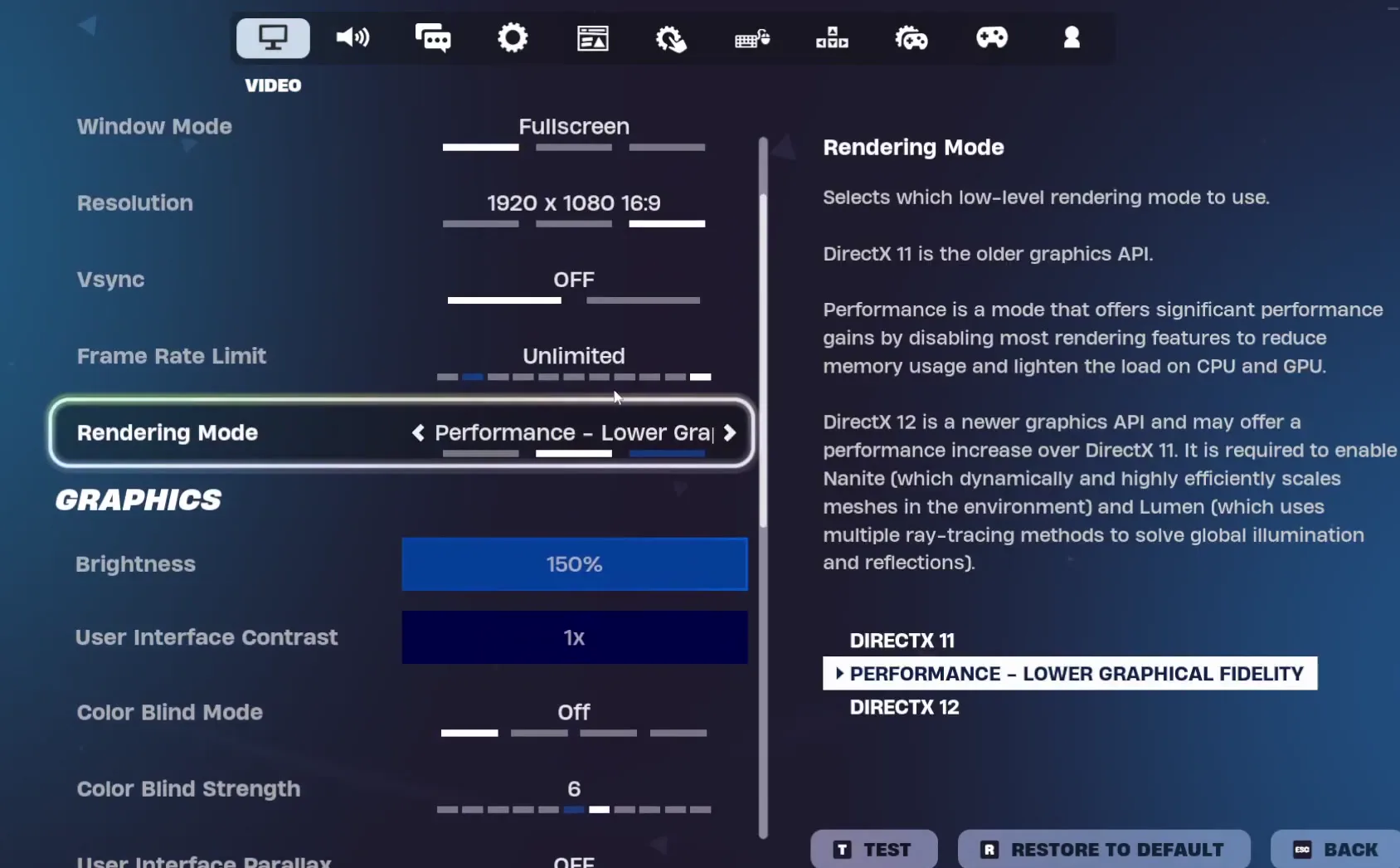
The in-game video settings in the video are the lean ones: Fullscreen, 1920 x 1080, V-Sync off, Frame Rate Limit unlimited and the Performance - Lower Graphical Fidelity rendering mode.
SettingsVideoRendering ModePerformance - Lower Graphical Fidelity
Next the video uses everything else in the pack. GPU Tweaks and Ping Tweaks come first. Then Input Tweaks (4), which handles the keyboard, mouse and related optimizations, and Windows Tweaks (5), which tunes the whole of Windows.
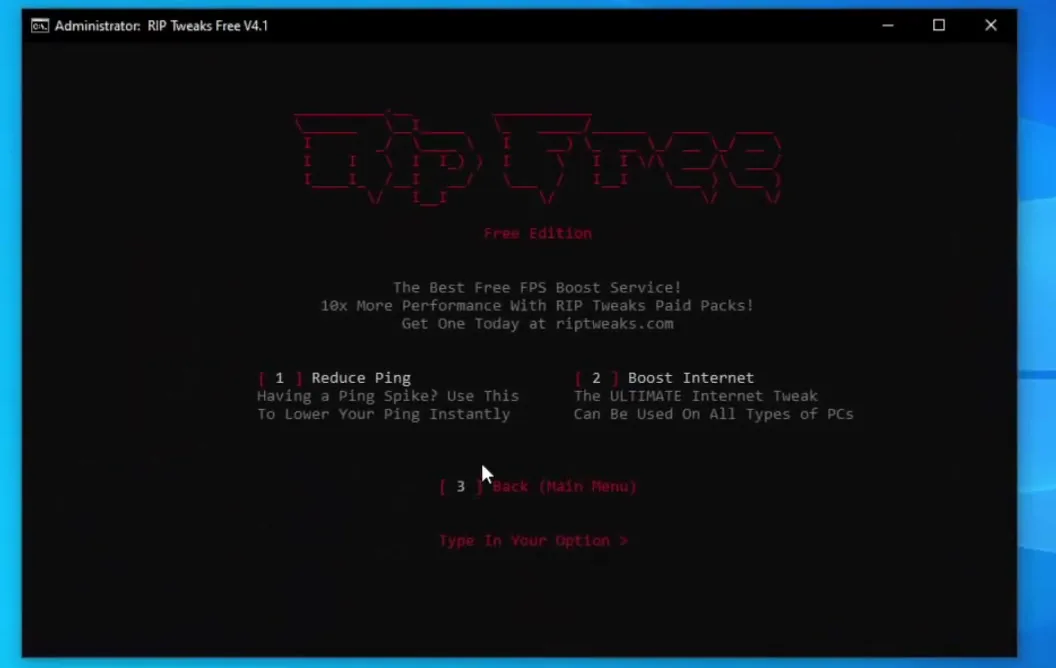
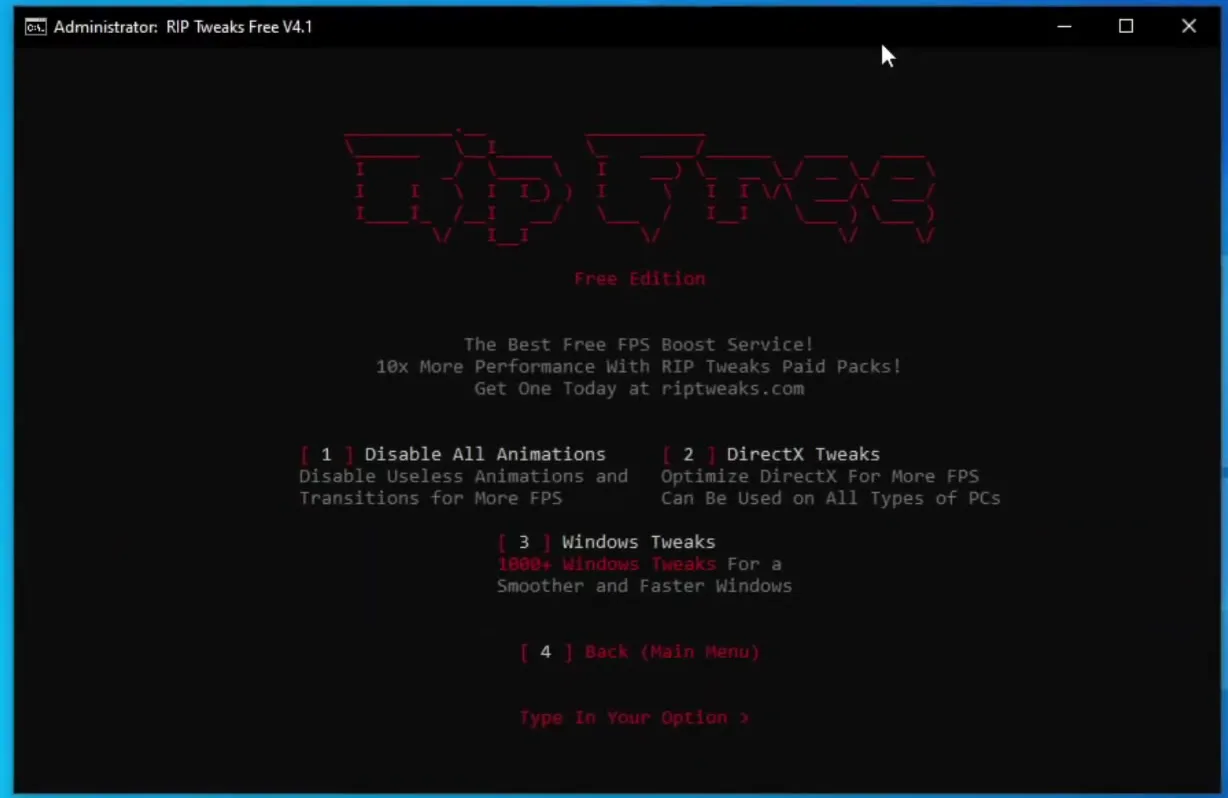
The Ping menu has two options: Reduce Ping for ping spikes and Boost Internet. The Windows menu has Disable All Animations, DirectX Tweaks (usable on any type of PC) and Windows Tweaks. If your problem is ping rather than FPS, our bufferbloat guide covers the network side in more depth.
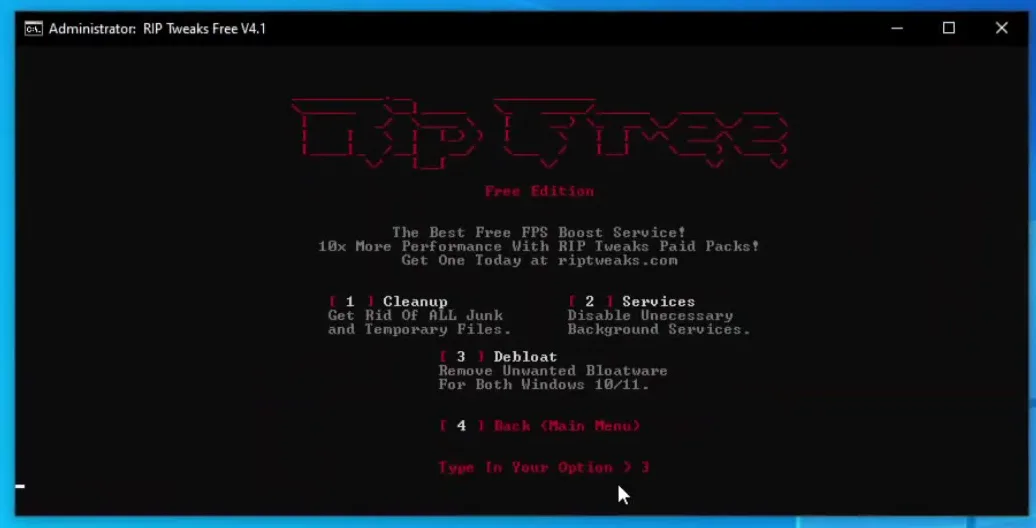
Leon gives one clear warning here: do not use the Debloat Tweaks unless you want files and services removed. The menu has three options: Cleanup (junk and temporary files), Services (disables unnecessary background services) and Debloat (removes unwanted apps on Windows 10 and 11). The last one deletes things, so only run it if you accept that.
Careful
Debloat removes files, services and apps. Make the restore point first and run it only if you are sure. If you are not, leave this menu out: the other menus still work.
If you want fewer background processes without removing apps, read our guide to reducing background processes.
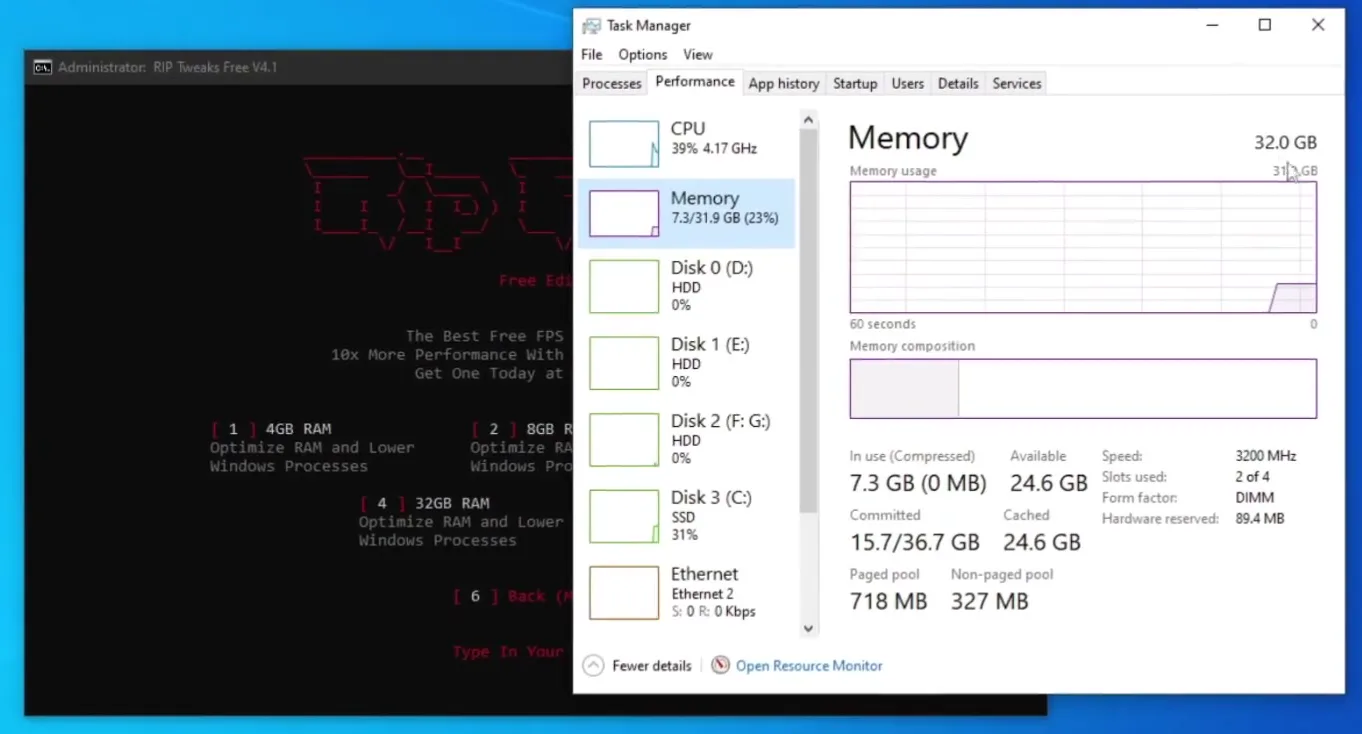
In RAM Tweaks (7) you choose the amount of memory you really have: 4 GB, 8 GB, 16 GB or 32 GB. To check, open Task Manager, go to the Performance tab and read the Memory section. In the video it shows 32 GB, so he picks the 32 GB option.
Task ManagerPerformanceMemory
Don't do this
Don't pick a larger RAM size than you have. Match the number in Task Manager exactly.
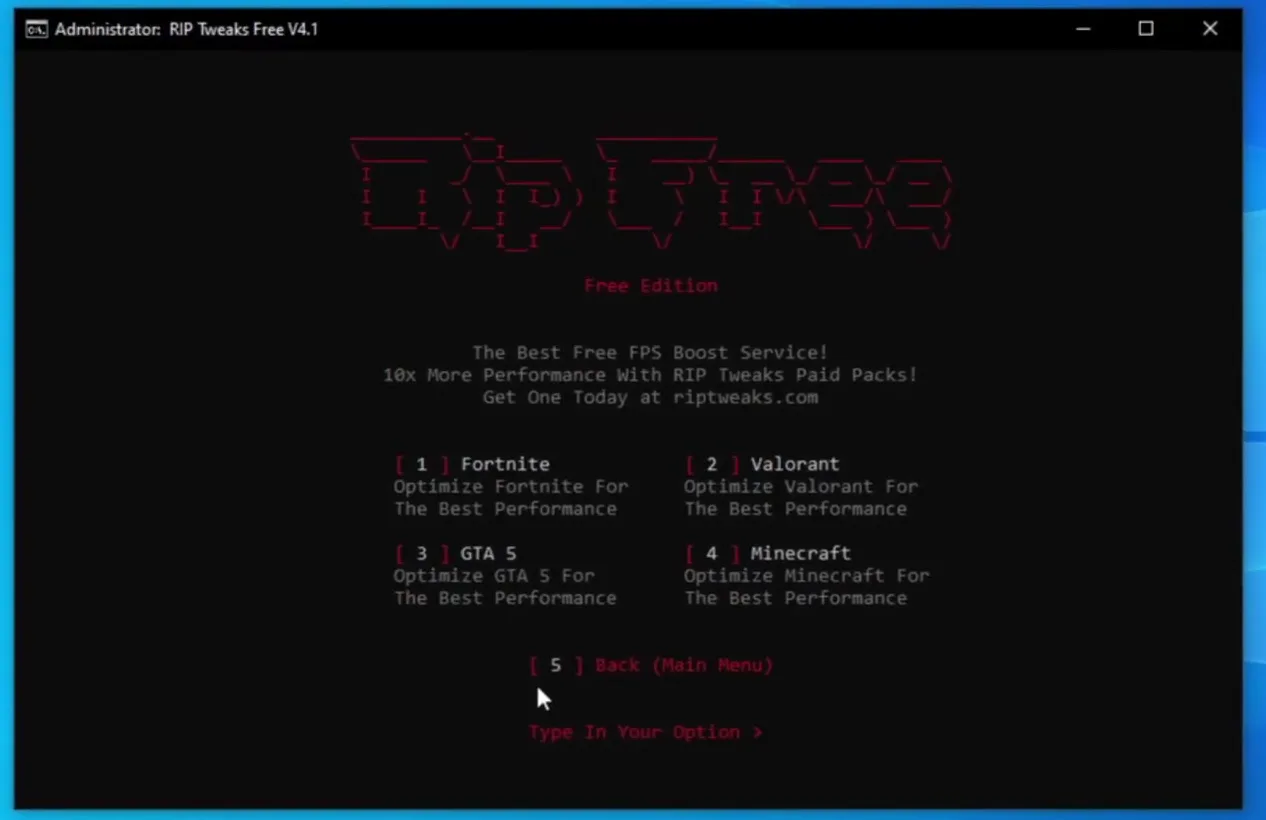
The Games menu (8) lists Fortnite, Valorant, GTA 5 and Minecraft. Leon opens Fortnite, then checks the FPS in the game. With the whole free pack applied, the counter went up by about 150 FPS on the PC in the video, compared to the start.
8 Games1 Fortnite
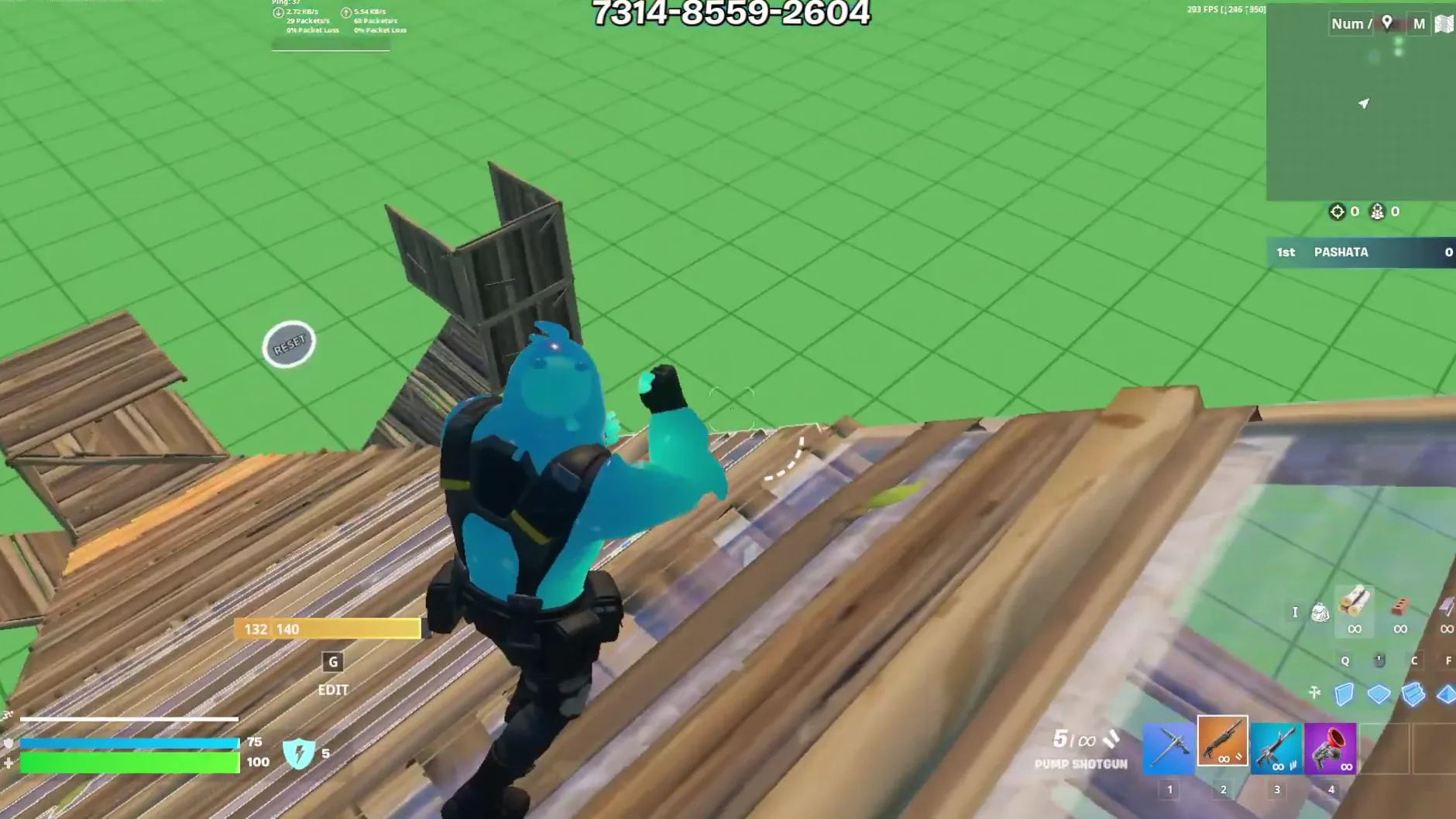
The video then points to the paid packs, which add tweaks for CPU, GPU, RAM, BIOS, keyboard, mouse and monitor across many games. This page only covers the free pack shown in the video.
How to check it worked
- Open Fortnite on the same map and settings as your baseline and compare the FPS counter after each step, not only at the end.
- Look at the ping and packet loss readout in the top left of the game before and after the Ping Tweaks.
- Restart the PC once after the whole pack so every change is active, then test again.
Good to know
This video shows an earlier version of RIP Tweaks. The current app looks different, but the areas are the same ones: power, GPU, network, input, Windows, RAM and games. Our current Fortnite FPS guide follows the newer app.
Key settings at a glance
FAQ
Is the free RIP Tweaks pack safe to run?
The pack itself warns that there is no support on the free packs and that you use it at your own risk, and it recommends a restore point. Type restore at the first prompt, as in the video, and skip the Debloat Tweaks unless you want files and services removed.
How much FPS does the free pack give on an RTX 3060?
It depends on your PC. On the PC in the video, one tweak (Power Tweaks plus the CPU option) added about 50 to 100 FPS and the full free pack about 150 FPS from a start near 200. Typically you will see a smaller or bigger change depending on your CPU, background programs and game settings.
Which Fortnite settings does the video test with?
Fullscreen, 1920 x 1080, V-Sync off, Frame Rate Limit unlimited and the Performance - Lower Graphical Fidelity rendering mode, with the lowest graphics settings.
Which RAM option should I choose?
The one that matches the memory you really have. Open Task Manager, click the Performance tab, then Memory, and read the total at the top right (32 GB in the video).
Should I use the Debloat Tweaks?
Only if you accept that files, services and apps are removed. The video says to leave it out if you don't want that. The Cleanup option only clears junk and temporary files, and Services disables unnecessary background services.
Is this the same as the current RIP Tweaks app?
No. The video shows V4.1, an earlier free pack run as a menu in an administrator window. The current app looks different. For the current steps, see our Fortnite FPS, input delay and ping guide.
Do the tweaks work for games other than Fortnite?
The Power, GPU, Ping, Input, Windows and RAM menus apply to the whole PC. The Games menu in the video also lists Valorant, GTA 5 and Minecraft next to Fortnite.
 RIP Tweaks
Do it in a few minutes with RIP Tweaks
- Free plan for Windows 10 and 11
- A backup first, and every tweak can be switched off again
- Made for higher FPS, lower input lag and steadier ping
Free · Windows 10 and 11
