
How to Install RIP Tweaks on Windows 10 and 11
Installation takes about a minute.
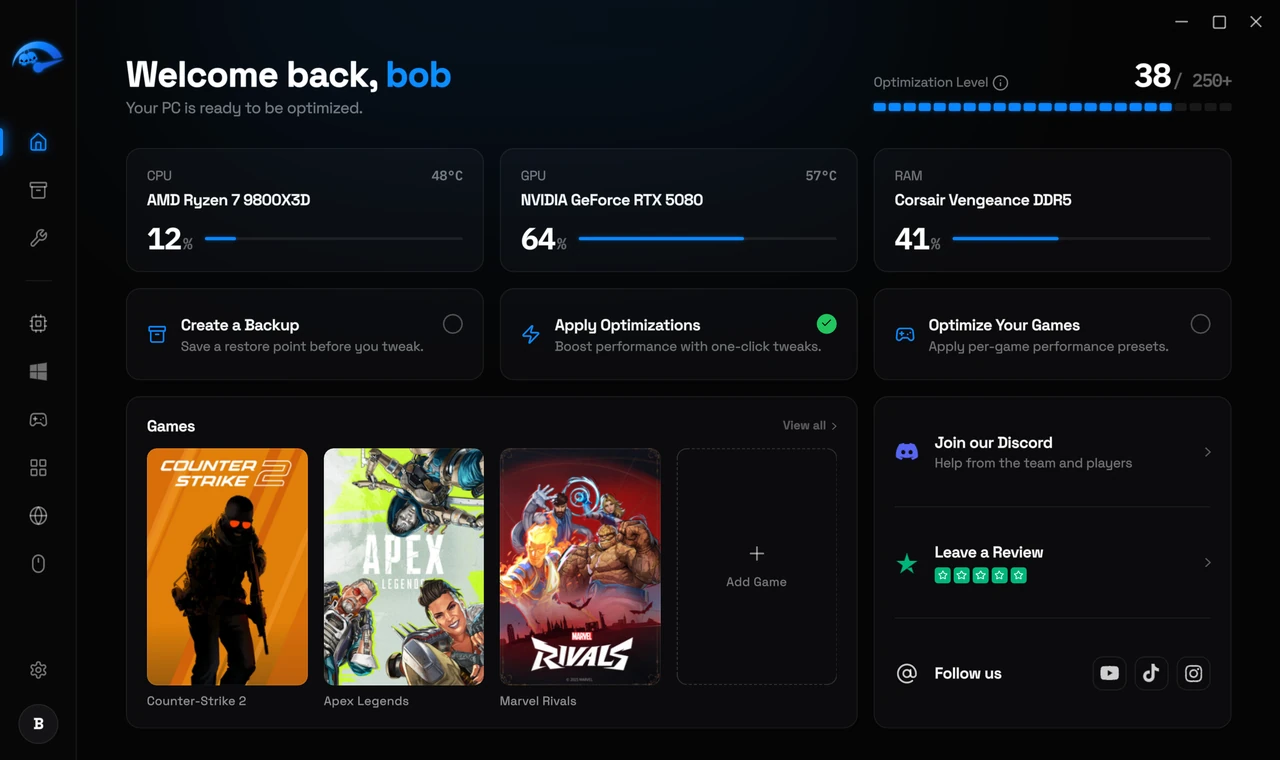
Go to the download page at https://riptweaks.com/download/ and click Download
If you are not signed in, you will be asked to log in or create an account first. An account is free and takes a few seconds. You can sign in with Google or create one with your name, email and a password
The installer downloads automatically to your browser’s downloads folder
Double click the installer and click Next through the setup screens, then Finish
Open RIP Tweaks from your desktop or Start menu and sign in
There is nothing to configure during setup. The installer handles everything.
Signing in
If Windows or your antivirus warns you. This is normal for any app that changes system settings. See “Antivirus and Security Warnings” for what to do.
If the download does not start
Before you install
What you need
Administrator rights
What happens during installation
The installer copies the app, registers it with Windows so it appears in your installed programs list, and creates the shortcut. It does not change any system settings on its own. Nothing is optimized until you open the app and choose to apply something.
Common problems while installing
Windows SmartScreen warns you
Your antivirus quarantines the installer
The installer will not start
You are asked to sign in
Verifying the file came from us
Right click the installer, choose Properties, and open the Digital Signatures tab. A valid signature there confirms the file came from us and has not been changed since we built it. That is worth doing with any software you did not write yourself.
After it is installed
Open the app and create a restore point before you change anything. It takes a couple of clicks and means your whole system can be put back exactly as it was. See Restore points and undoing changes, then Your first optimization.